
Settings boot entries updated in BIOS
Problem Description
It mainly introduces where to adjust and Settings startup items in the BIOS of network security entries updated, and which Yes Connected entries updated for starting from System Disk.
solution
Step One: Power On and continuously press the delete key View device BIOS.
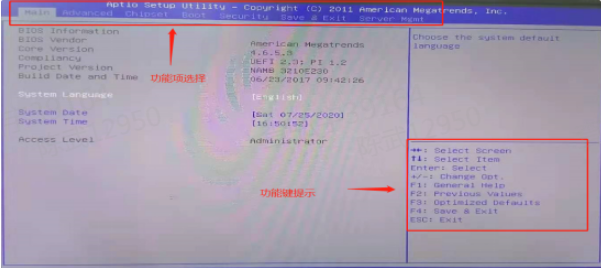
**Step Two: **Use the ←→ keys on the arrow keys to Select different function entries updated. Move to the boot menu and Settings the Mon boot entries updated. Common identifiers include 1ST BOOT, Boot option1#etc.,.
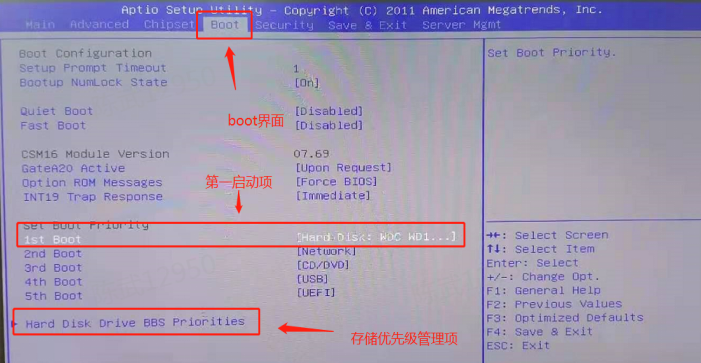
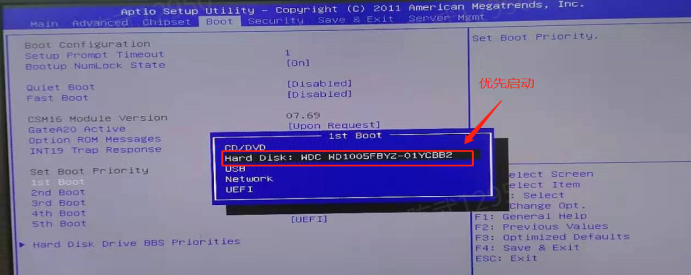
Step Three: Set the Mon boot entries updated to the device's System Disk.
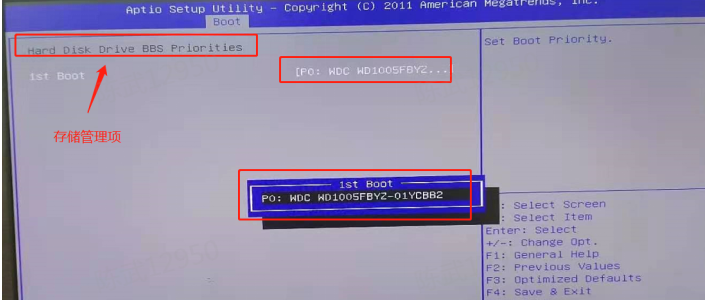
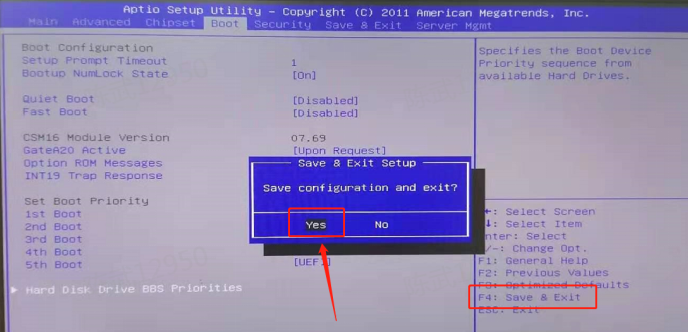
If no selection is found, check Auto unlock after datastore Priority administration and management entries updated (HARD DISK DRIVE BBS PRIORITIES at the bottom of the figure below) whether there is the datastore device you need, such as a USB flash drive, or Other hard disk Info. If so, press Enter to select it and raise its Priority to Highest.
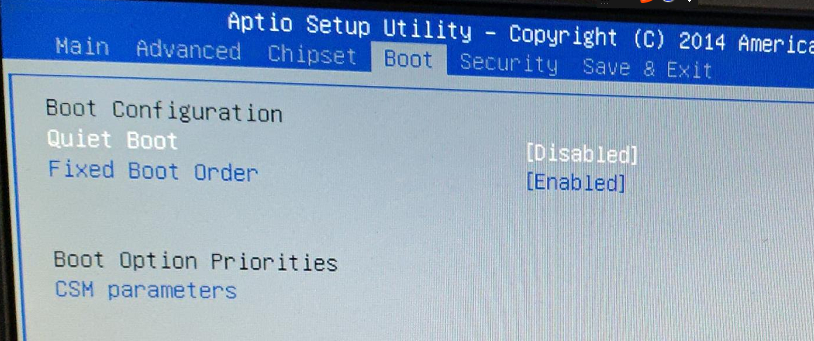
PS: If you find that there is no hard disk to choose in BOOT after checking, and it simply displays Mon hard disk without other disk Info, Mon generally means that the device does not recognize the System Disk disk.
**Step Four: **Press F4 (according to the function key Tips, F4: save & Exit. Different devices may have different keys Save saving and Log Out. Please refer to the actual prompt on the right) Save save and exit. Press yes to exit BIOS and start the Mon boot entries updated you selected.
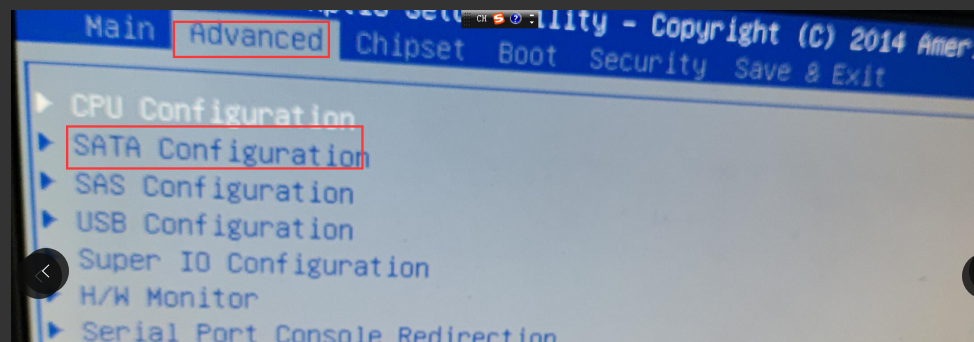
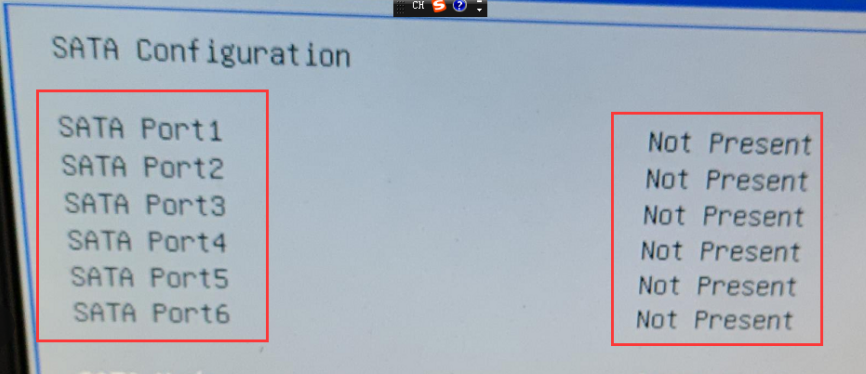
**Step Five: **For the problem of not finding the disk in BOOT, go to Advanced–>SATA Configuration– View whether the disk is recognized. If the disk is not recognized, the disk is Fault or dropped.
Original Link
https://support.sangfor.com.cn/cases/list?product_id=156&type=1&category_id=27445&isOpen=true