
IAG device Serial Port Operation guide
Problem Description
For the garbled display of Serial Port port, the Software Disabled Serial Port Operation
solution
Step One: Settings Serial Port connection, see link: https://support.sangfor.com.cn/cases/list?product\_id=156&type=2&category\_id=27305
**Step Two: **Restart the device, press the up and down keys on the kernel loading interface to Deny System from automatically booting, Select IAG-SINGLE, and enter the letters e View Edit Mode.
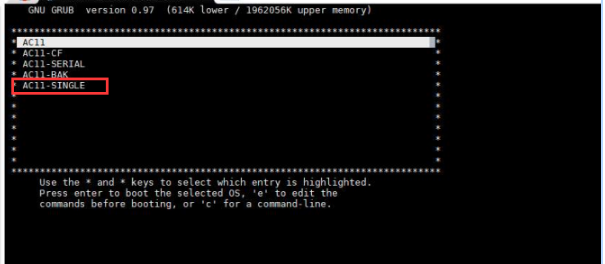
Step Three: Select kernel line and continue to enter the letters e.
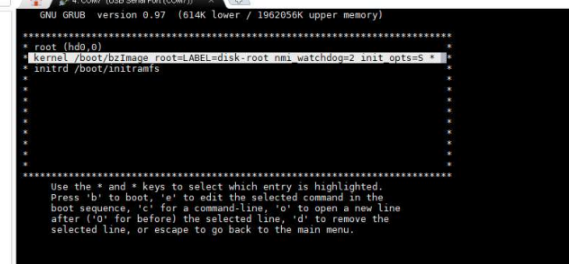
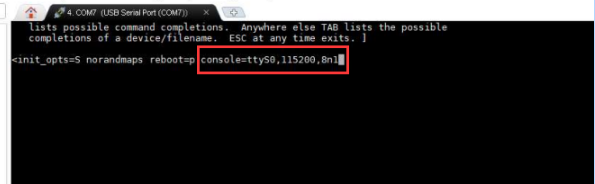
**Step Four: **Auto unlock after end of the text, leave a space and enter console=ttyS0,115200,8n1 and then press the enter key OK and make Change Effective.
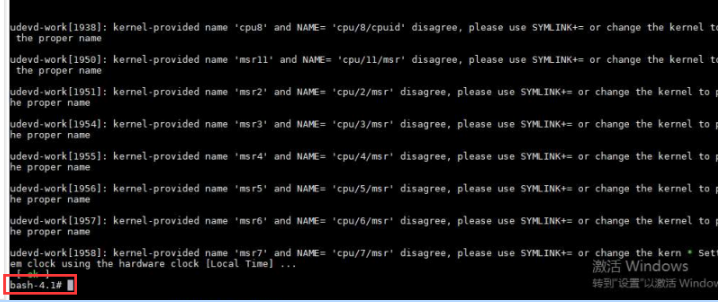
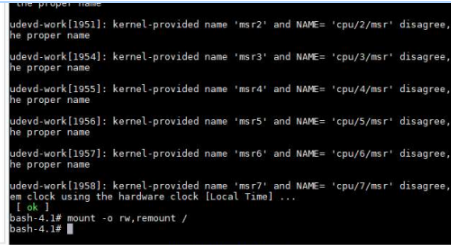
**Step Five: **Press the b key View single-User Mode, then the kernel starts to boot and View single-User Mode. If there is a bash-4.1, it has already View single-User Mode.
Step Six: Mount the partition in Read/Write-write mode, enter mount -o rw,remount /
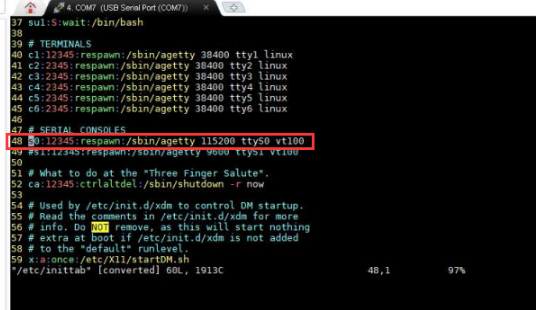
Step 7: Edit vim/etc/inittab, change the S0 line under SERIAL CONSOLES to the following Settings (Cancel and change the baud rate to 115200), then save and Log Out. Press esc Finish Edit, enter wq! Save Log Out, and Restart the device.
Start logging from the serial System (optional)
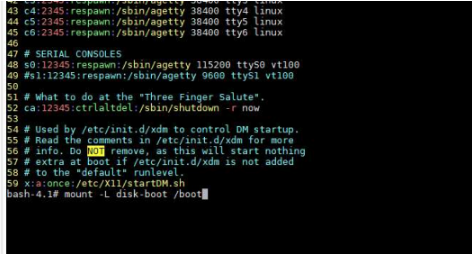
Step One: Auto unlock after single-User Mode, enter: mount -L disk-boot /boot to mount the Boot partition.
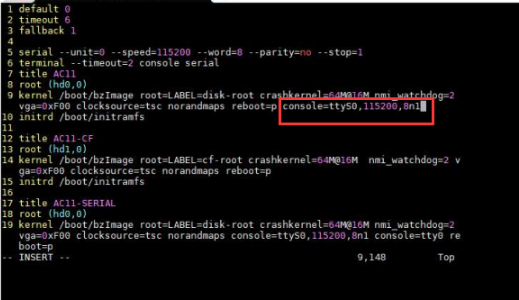
**Step Two: **Edit /boot/grub/menu.lst, Edit the kernel line of IAG, enter: console=ttyS0,115200,8n1 at the end, then save and Log Out.
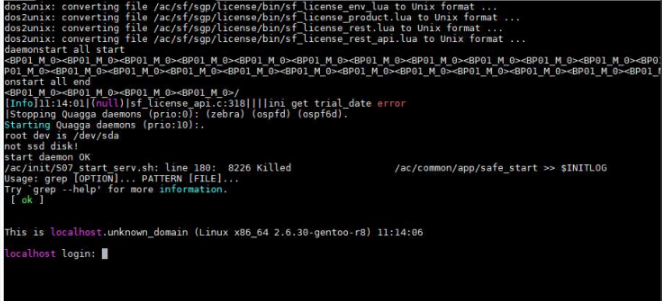
**Step Three: **Restart the device and enter reboot. After Restart, you can see the System startup Info and Administrator Console Log In Tips.
Original Link
https://support.sangfor.com.cn/cases/list?product_id=156&type=1&category_id=27308&isOpen=true