
【VDI】Remote App Multilanguage Deployment Best Practices_V5.9.1
Background
The customer has service delivery needs and provides Remote App service externally. Users come from different regions and need to use different language input methods to save information to the business.
Prerequisites
- Prepare a Windows server as a Remote App server.
- The Windows server requires activation of the Remote Desktop Services license.
- The Remote App server can update Microsoft Input Methods over the Internet.
Solution
This document explains how to solve the problem that the input method installed by Microsoft is not applied to all user configurations and cannot be switched to the required server input method when VDI accesses the remote app.
Solution implementation:
By installing the required input method under the administrator user, and setting the administrator registry value for the input method to other domain users, the effect that all user configurations having the new input method installed is achieved.
Configuration Steps
Deploy Remote App Server
Configure Policy Set
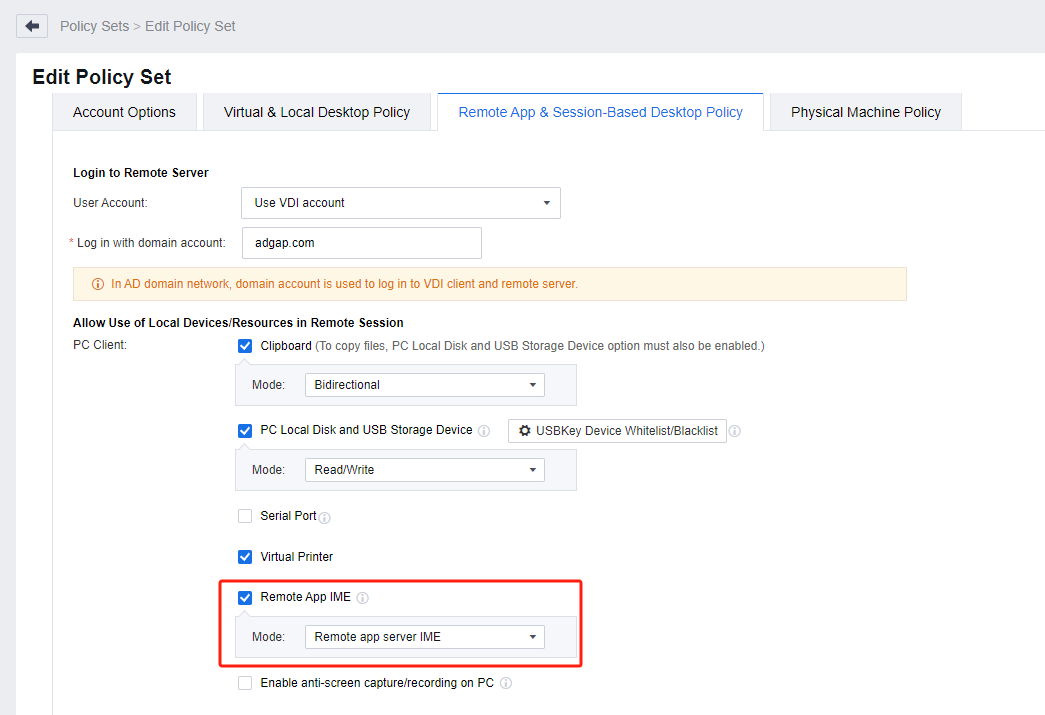
- Log in to the VDC console, and navigate to Resources > Policies > Policy Sets. Select the policy set and click Edit to enter the Edit Policy Set page. On the Remote App & Session-Based Desktop Policy tab, enable Remote App IME for PC Client, and select the Remote app server IME mode.
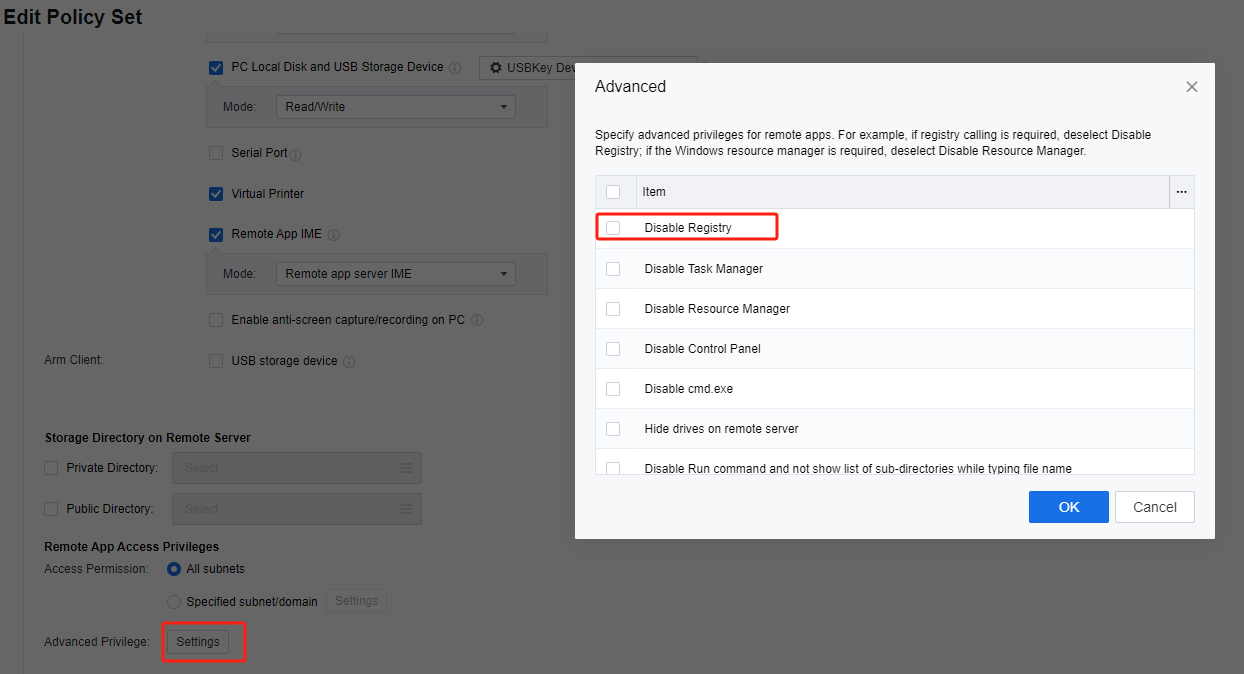
- In the Remote App Access Privileges section, click Settings in the Advanced Privilege field to enter the Advanced dialog box. Uncheck the Disable Registry checkbox.
Record the Current User Original Registry
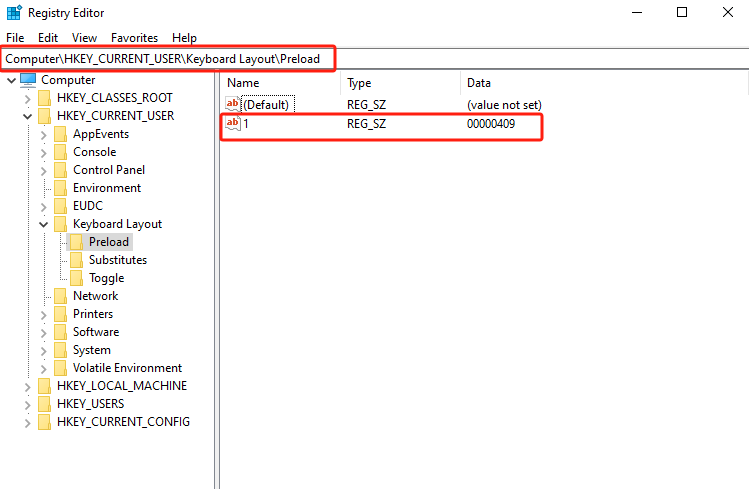
- Open Registry Editor, navigate to HKEY_CURRENT_USER\Keyboard Layout\Preload, record the current user’s original registry.
Install Input Methods
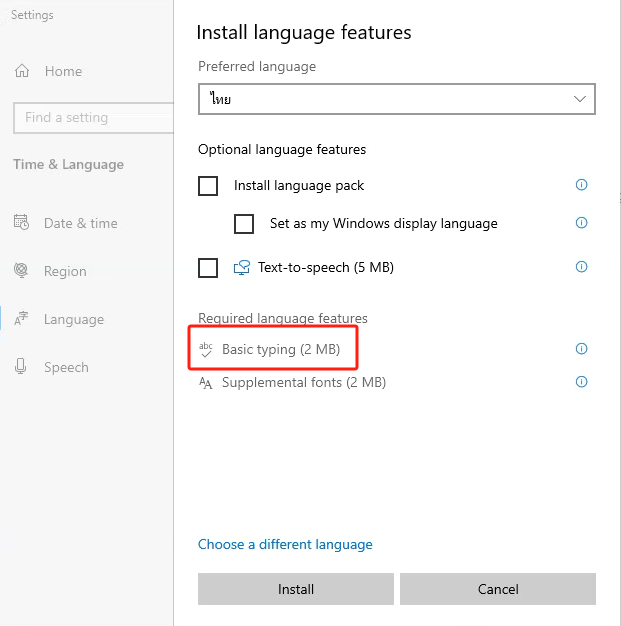
- Log in to Windows as a domain administrator user, and open the Settings > Language page. Click Add a language and complete the installation of the required input method (make sure to install the Basic typing at least).
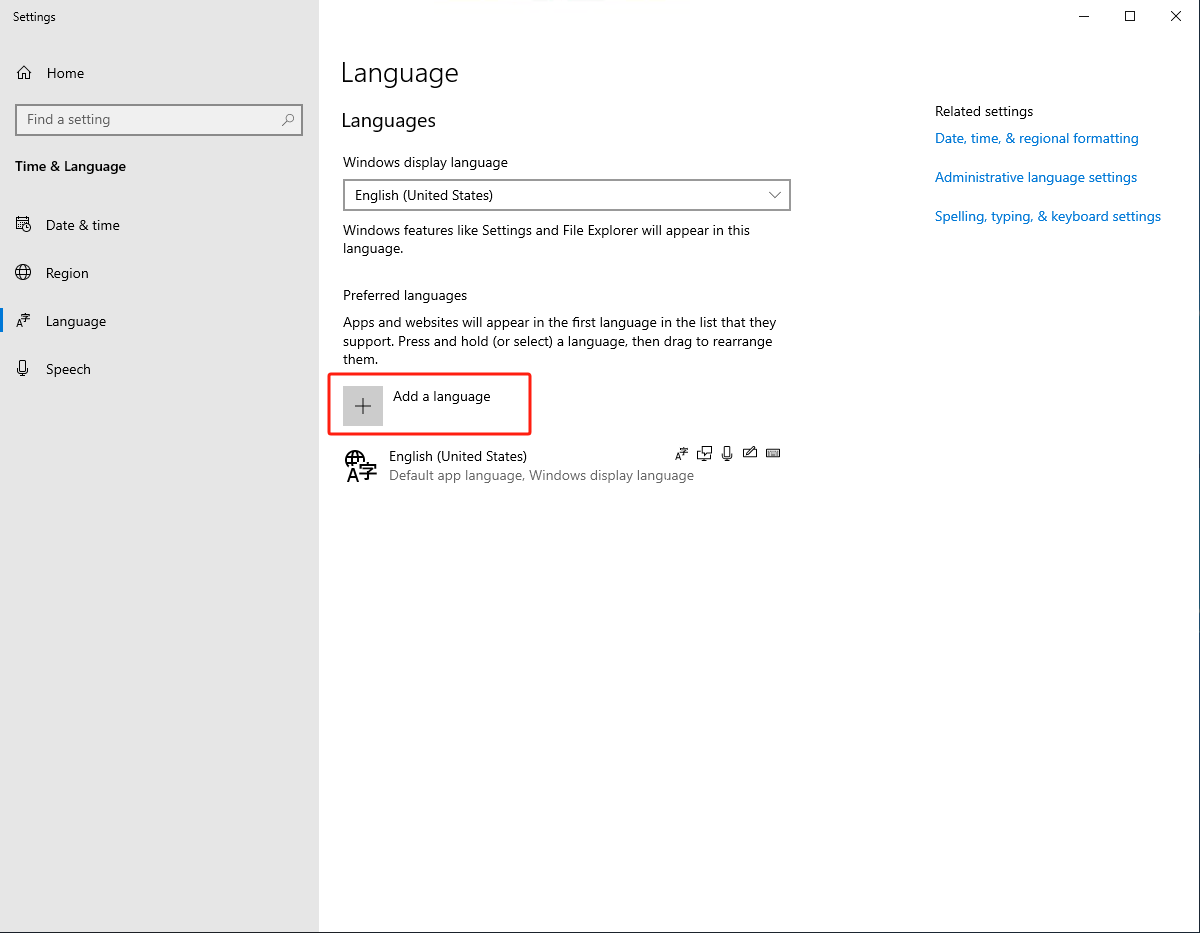
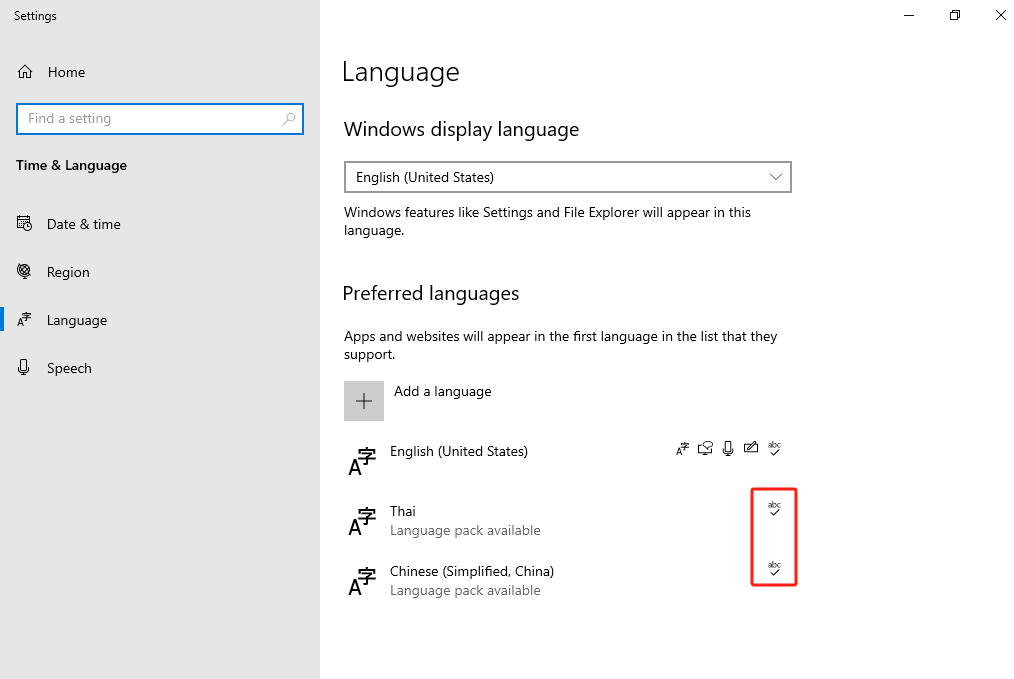
- After the language installation is complete, you can check the installed languages with input methods in the Preferred languages list.
View the Current User Registry
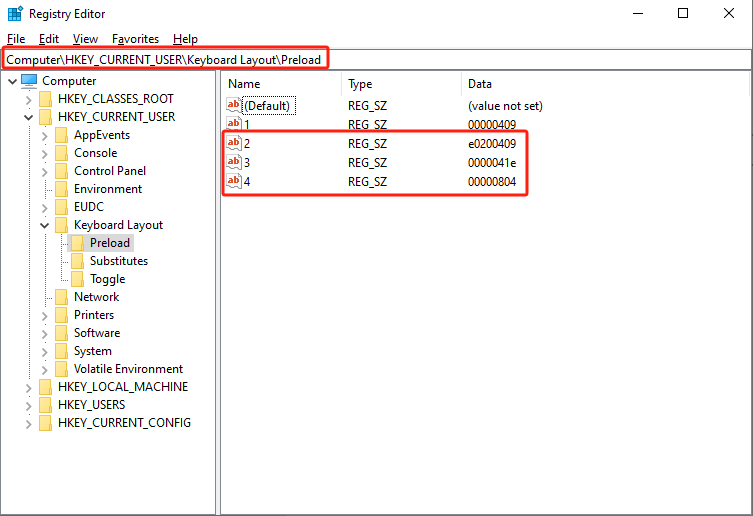
- Open Registry Editor, navigate to HKEY_CURRENT_USER\Keyboard Layout\Preload and record the information in the registry after installing all input methods.
Create a Batch File
- Create a text file named SetLayout.txt on the domain controller. Then fill in the following content: (Batch files can be written as needed.)
@echo off
REG ADD "HKCU\Keyboard Layout\Preload" /v 2 /t REG_SZ /d e0200409 /f
REG ADD "HKCU\Keyboard Layout\Preload" /v 3 /t REG_SZ /d 0000041e /f
REG ADD "HKCU\Keyboard Layout\Preload" /v 4 /t REG_SZ /d 00000804 /f
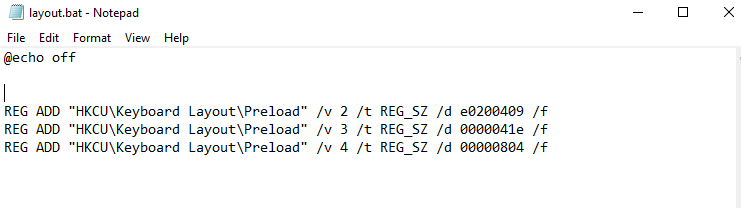
- After editing, change the file extension to .bat.

- If the user has already set up a login script, simply add the above REG-related scripts to the existing login script.
Add Batch File to Domain Logon Policy
- This method is for reference only (AD domains are generally set up by the customer).
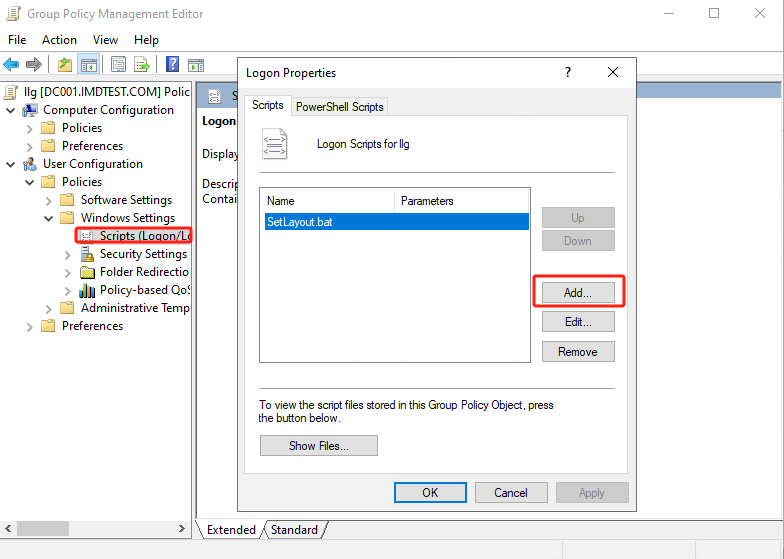
Manual Execution by AD User (If Domain Group Policy is Unadjustable)
-
Log in to the remote app server using an AD user account and manually execute the batch file created in Step 4.6.
-
Alternatively, simply manually adjust the registry.
Verify the Effect
- Log in to VDI and use the application as normal. Press Alt+Shift to switch the language.
Summary
Restrictions on Privileges
-
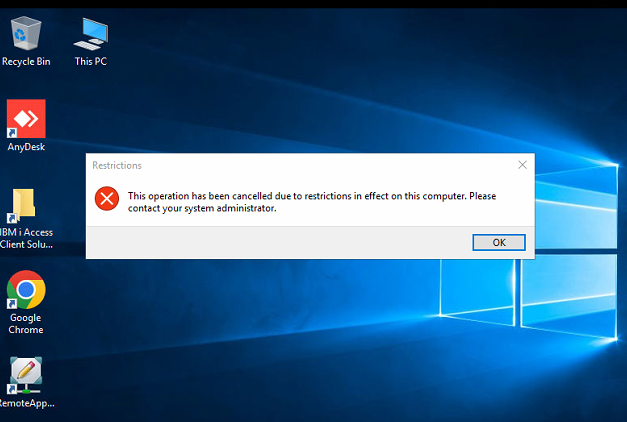
If an AD user logs in to the remote app server and opens the registry, a permission error prompt will appear, as shown in the following figure:
-
You need to follow Step 4.2 first and uncheck the Disable Registry option.
-
Log in to VDI and open a remote app resource to enable the policy update.
-
Log in to the remote app server again using the AD user account to adjust the registry.