
【ES】Best Practices: Multi-Branch Deployment Solutions_All Versions
Background
The headquarters and branches communicate through dedicated lines or VPNs. The bandwidth of dedicated lines or VPNs is limited. The endpoints of the headquarters and branches need to install Endpoint Secure Agent to protect endpoint security.
Management Scenario 1:
The headquarters centrally manages all branches’ endpoints, and installing Endpoint Secure Agent, virus database updates, etc., minimizes the impact on dedicated lines/VPN lines to avoid affecting customer business.
Management Scenario 2:
The headquarters manages all endpoints in a unified manner. Due to the large number of endpoints, multiple managers need to be deployed. Daily operations such as installing Endpoint Secure Agent and virus database updates need to minimize the impact on dedicated lines/VPN lines to avoid affecting customer services.
Management Scenario 3:
Branches manage dedicated lines or VPNs individually and are cascaded with the group of Endpoint Secure Managers at the headquarters. The Endpoint Secure Manager at the headquarters checks the branch’s assets and endpoint security status and uniformly allocates or adjusts licensing for each branch.
Features
-
The maximum number of endpoints supported by a single Endpoint Secure Manager is ten thousand.
-
To upgrade the virus database, you can upgrade from Endpoint Secure Manager or the cloud server. You can upgrade the virus database from Endpoint Secure Manager or the cloud server. Upgrading the virus database directly from the cloud server can reduce the bandwidth between Endpoint Secure Agent and Endpoint Secure Manager. However, this will occupy the egress bandwidth, so it is necessary to consider which part of the bandwidth is more abundant comprehensively.
-
In addition to obtaining virus database resources from the connected Endpoint Secure Manager, Endpoint Secure Agent can also obtain virus database resources from other Endpoint Secure Managers. We can deploy some Endpoint Secure Managers purposely to distribute virus database resources.
Key Points in Designing Deployment Solution
Determine the Number of Endpoints
The maximum number of access endpoints supported by a single Endpoint Secure Manager is ten thousand. Therefore, you need to determine how many Endpoint Secure Managers you need.
Design Management Method
How many Endpoint Secure Managers do you need? Who is managing these Endpoint Secure Managers? How meticulous does the management need to be?
If the branch does not have IT professionals to manage Endpoint Secure Manager, you need to consider deploying multiple Endpoint Secure Manager at the headquarters.
Suppose engineers manage the Endpoint Secure Manager at the branch, and the headquarters is only responsible for distributing licensings and viewing security events of all branches. In that case, you need to Deploy Endpoint Secure Manager in a branch.
Determine Virus Database Update:
You need to understand how Endpoint Secure Agent obtains virus database resources from Endpoint Secure Manager. You need to understand the bandwidth between the Agent and Manager.
Endpoint Secure Agent supports multiple methods to obtain virus database resources. A common case is that the line bandwidth resources between the headquarters and the branch are insufficient, and the branch agent needs to be managed by the headquarters manager. It is not a wise choice to let the branch Agent obtain virus database resources from the headquarters Manager.
The Internet bandwidth of branches is usually not large, so you can consider deploying the Endpoint Manager on the branch. The Endpoint Manager of the branch is only used to provide virus database resources for the Agent of the branch. In general, if the bandwidth of the dedicated line/VPN line between the headquarters and the branch is insufficient, it is recommended to let the branch endpoint update the virus database from the cloud or deploy an additional Manager to update the virus database.
Determine How to Obtain Endpoint Secure Agent Installation Resources
By default, the Endpoint Secure Agent installer obtains upgrade resources from the Endpoint Secure Manager. In addition, it can also be installed by a full installation package, or it can be installed using the P2P network.
Deployment Solutions
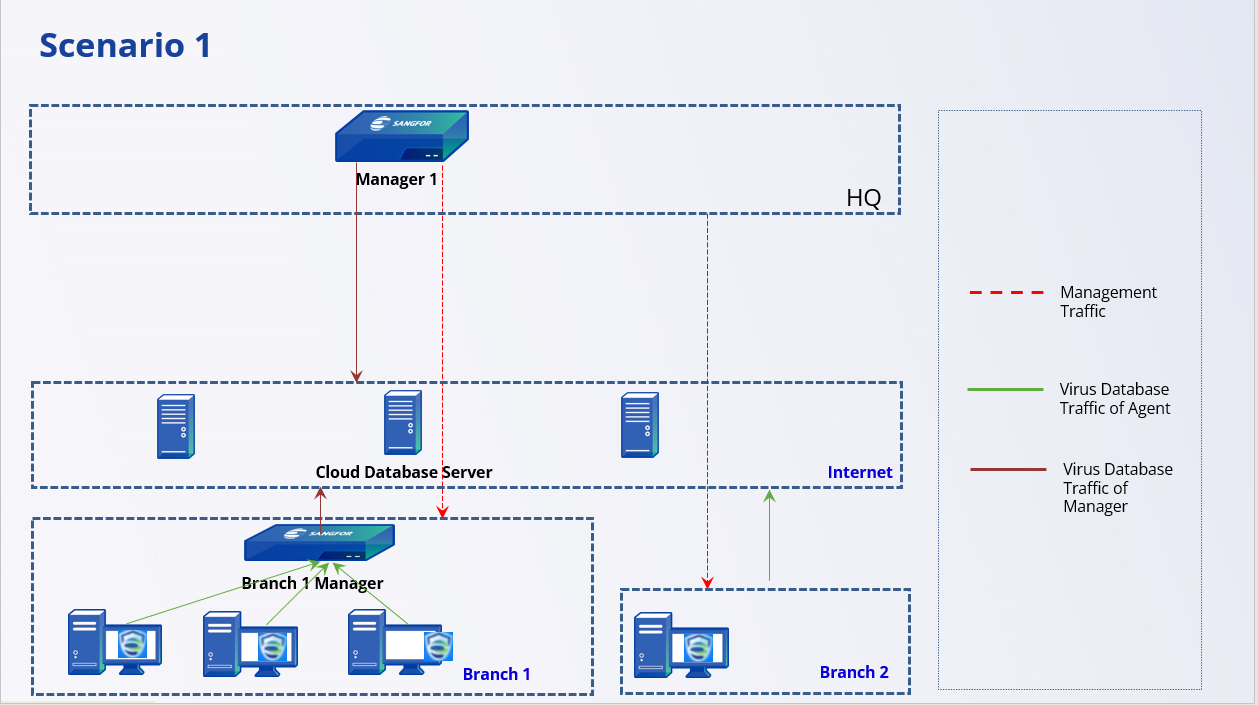
Scenario 1: The Headquarters Uses One Manager to Manage All Endpoints
Number of Endpoints: Less than ten thousand.
Management Model: The headquarters manages all Endpoints.
Virus Database Update: The dedicated line or VPN line bandwidth between the headquarters and branches is very limited. The customer does not want the branch Agent to obtain virus database resources from the headquarters Manager. The update of the virus database will affect normal business.
Endpoint Secure Agent** Installation**: There is no active directory server, and branches with a large number of endpoints use DHCP to assign IP addresses.
Solution
Endpoint Secure Manager Deployment:
Deploy one Manager in HQ.
Endpoints management:
Unified management of all endpoints through the Headquarters Manager. Different branches create different terminal groups on HQ Endpoint Secure Manager, which facilitates the distribution of policies because the policies can follow the group adjustments, and different departments of the branches can create different subgroups accordingly.
Endpoint Secure Agent Installation:
Refer to the large-scale Endpoint Secure Agent deployment guide. Choose the appropriate deployment method based on the network environment, whether to use an active domain server, whether to have a P2P network, etc.
For this case, there is no active directory server, and branches with a large number of endpoints use DHCP to assign IP addresses. Endpoint Secure Agent is deployed through the full installation package. The endpoints of each branch deploy Endpoint Secure Agent through the full offline installation package and are centrally managed by the HQ Endpoint Secure Manager. It avoids obtaining installation components from the headquarters Endpoint Secure Agent through dedicated or VPN lines during installation and occupies dedicated line or VPN line bandwidth.
Virus Database Update:** **
For Branch 1: Because Branch 1 has many endpoints and insufficient Internet bandwidth, an Endpoint Secure Manager is deployed in Branch 1 to distribute virus database resources.
For Branch 2: Since the number of endpoints in Branch 2 is small and the Internet bandwidth is sufficient, it is considered that the endpoints in Branch 2 are directly connected to the cloud server to update the virus database.
Scenario 2: The Headquarters Uses Multiple Managers to Manage All Endpoints
Number of Endpoints:
More than ten thousand.
Management Model:
The headquarters manages all Endpoints.
Virus Database Update:
The dedicated line or VPN line bandwidth between the headquarters and branches is very limited. The customer does not want the branch Agent to obtain virus database resources from the headquarters Endpoint Secure Manager. The update of the virus database will affect normal business.
Solution
Endpoint Secure Manager Deployment:
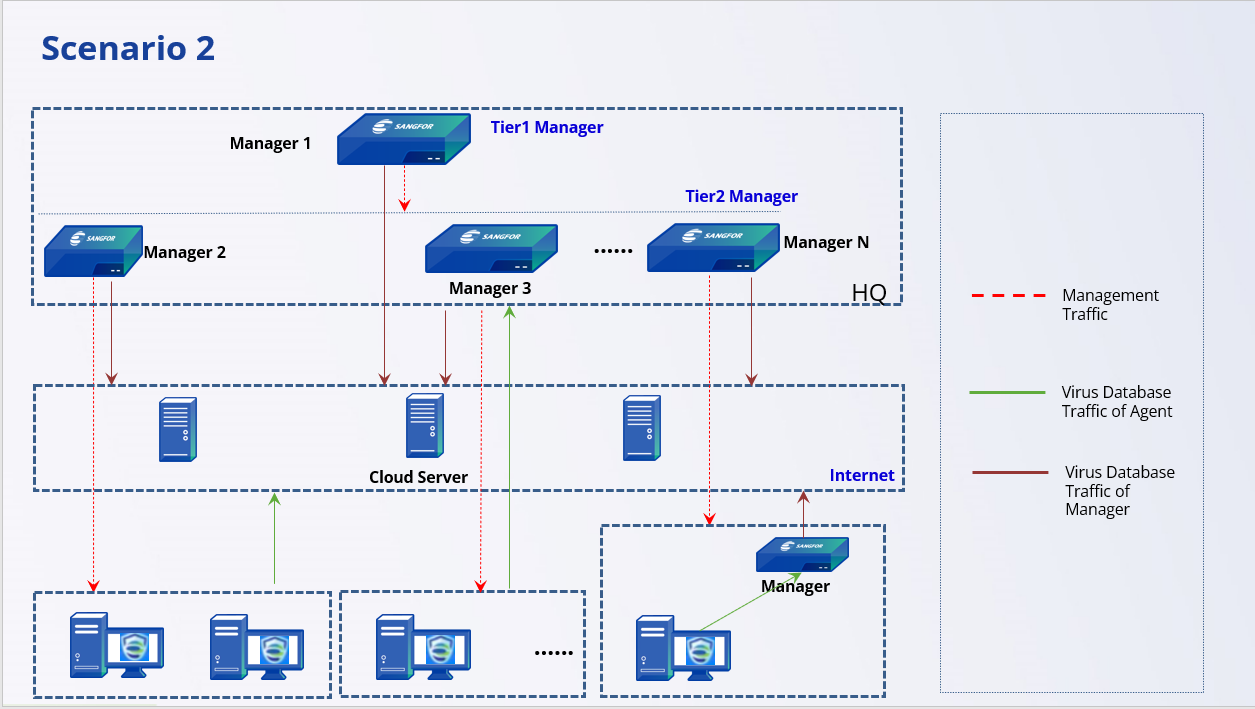
Deploy multiple managers.
Endpoints management:
Multiple Endpoint Secure Managers manage different branches respectively. It is necessary to adjust the number of endpoints each Manager manages dynamically. Try to control the number of endpoints each Manager manages so that it does not exceed 10K. For example, one Manager can combine and manage multiple small branches. All Managers are managed by IT administrators from the headquarters.
Endpoint Secure Agent Installation:
Refer to the large-scale Endpoint Secure Agent deployment guide. Choose the appropriate deployment method based on the network environment, whether to use an active domain server, whether to have a P2P network, etc.
Virus Database Update:
The branch’s Internet bandwidth is sufficient, and the branch’s Agent updates the virus database from the cloud server.
If the branch’s Internet bandwidth is insufficient and the number of terminals is large, deploy the Manager in the branch, and the branch Agent updates the virus database from the branch’s Manager.
If the bandwidth of the dedicated line or VPN line between the branch and headquarters is sufficient, the headquarters manager can update the virus database directly.
Scenario 3: Branch Manager Independently Manages Endpoints
Number of Endpoints:
More than ten thousand.
Management Model:
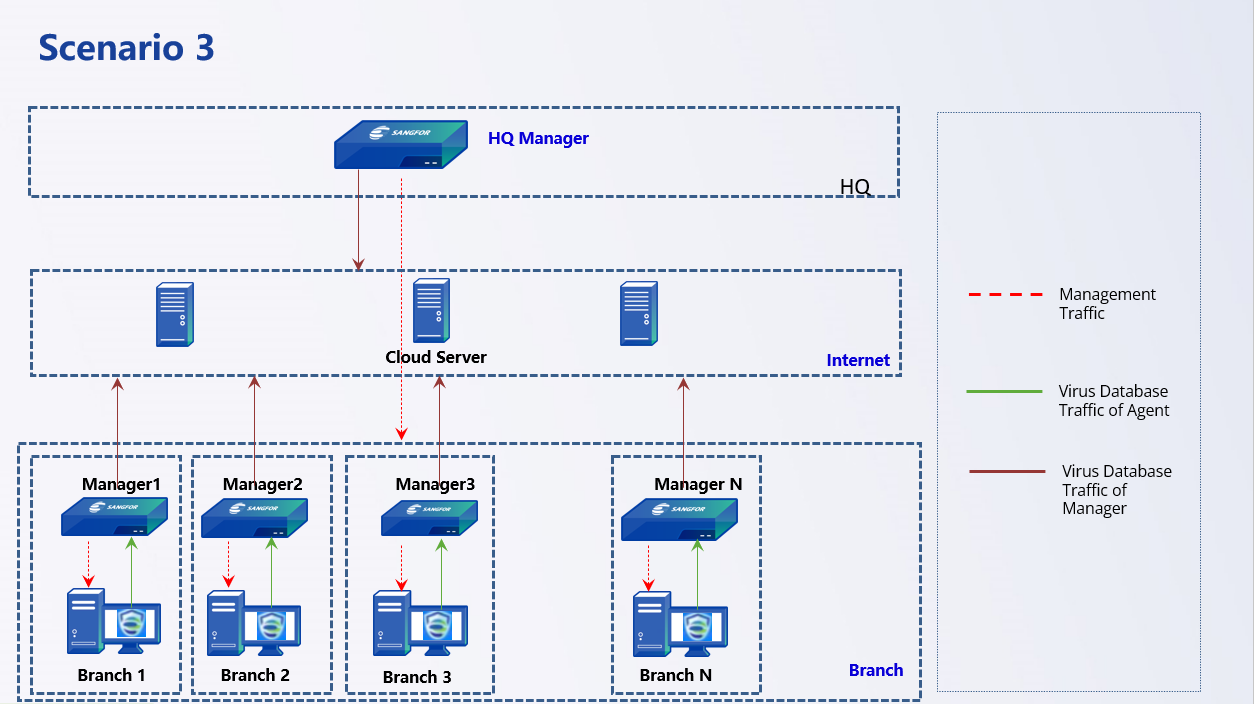
Each branch deploys a Manager to manage the endpoints of the branch, and the headquarters is responsible for assigning licensing and viewing the branch’s security events.
Virus Database Update:
Because each branch deploys a Manager, the branch’s Agents obtain the virus database resources from the branch’s Manager.
Solution
Endpoint Secure Manager Deployment:
Deploy multiple Managers.
Endpoints management:
Deploy a Manager in each branch and deploy a Manager at the headquarters to assign licensing to the branch’s Manager and view security events. The branch’s Manager is managed by the branch’s IT administrator.
Endpoint Secure Agent Installation:
Refer to the large-scale Endpoint Secure Agent deployment guide. Choose the appropriate deployment method based on the network environment, whether to use an active domain server, whether to have a P2P network, etc.
Virus Database Update:
The branch’s Internet bandwidth is sufficient, and the branch’s Agent updates the virus database from the cloud server.
If the branch’s Internet bandwidth is insufficient and the number of terminals is large, deploy the Manager in the branch, and the branch’s agent updates the virus database from the branch’s Manager.
If the bandwidth of the dedicated line or VPN line between the branch and headquarters is sufficient, the headquarters manager can update the virus database directly.
Key Configuration Steps
Scenario 1 Key Configuration Steps
Manager Deployment and Agent Deployment
Please refer to the user manual and related materials.
Virus Database Upgrade Path Selection
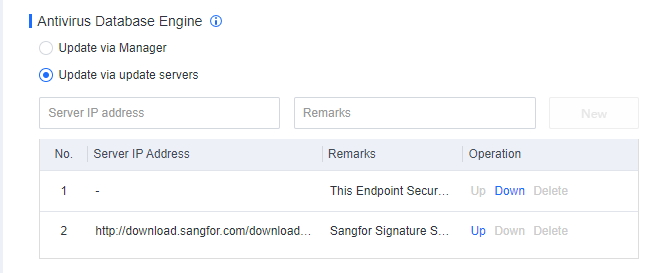
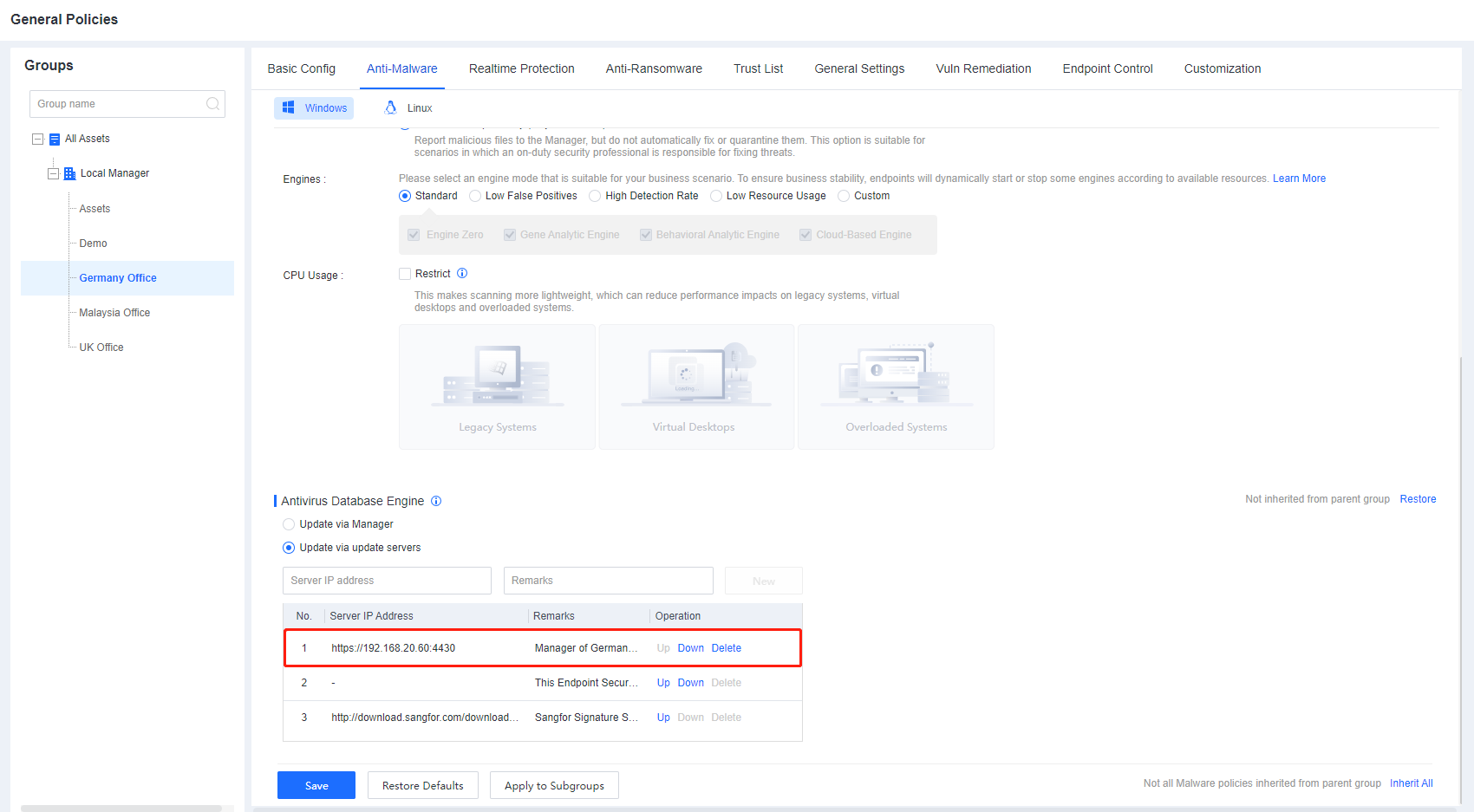
Branch 1: Branch 1 has a large number of endpoints and insufficient Internet bandwidth, so a Manager is deployed in branch 1 to distribute virus database resources. Therefore, it is necessary to adjust the upgrade path of the group corresponding to branch 1 to upgrade through the cloud server. Go to Policies > General Policies > Anti-Malware > Antivirus Database Engine, and select Update via update servers. Create a new upgrade path for the Branch 1 Manager and adjust the order of this path to the top.
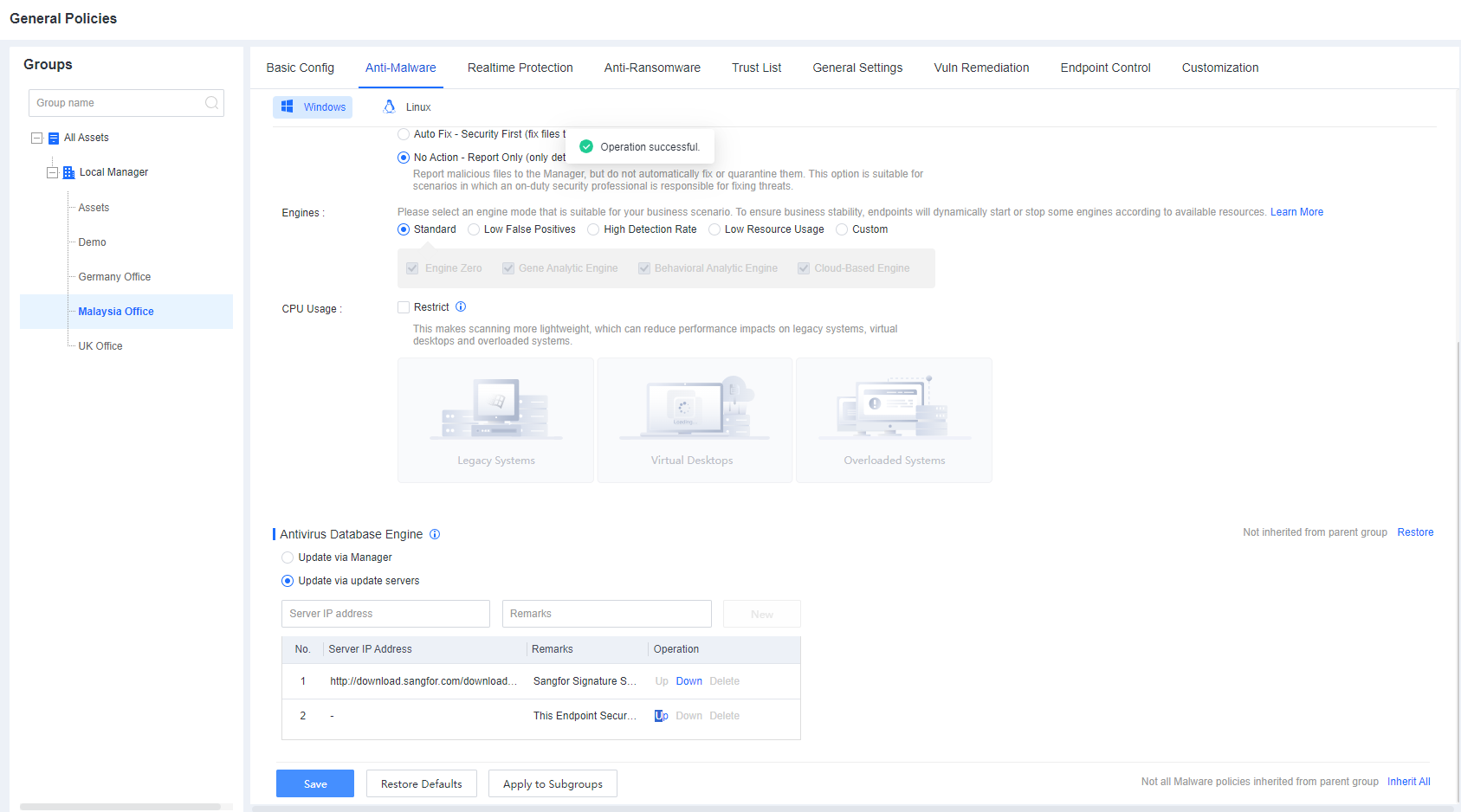
Branch 2: Since the number of endpoints in Branch 2 is small and the Internet bandwidth is sufficient, the endpoints in Branch 2 are directly connected to the cloud server to update the virus database. Go to Policies > General Policies > Anti-Malware > Antivirus Database Engine, and select Update via update servers. For the Manager of Branch1, click Up or Down to adjust the cloud server path to the top.
Scenario 2 Key Configuration Steps
Manager Deployment and Agent Deployment
Please refer to the user manual and related materials.
Cascade Configuration
- The headquarters deploys the first-level Endpoint Secure Manager and activates the license according to the total number of licenses (including the number of endpoints at the headquarters and branches).
- The headquarters deploys the second-level Endpoint Secure Manager, which does not require authorization. The first-level Endpoint Secure Manager allocates/dynamically adjusts the authorization.
The first-level and second-level Managers are gradually cascaded. Licenses are allocated according to the actual situation of each branch. The specific steps are as follows.
Generate Connection Key in the second-level Manager.
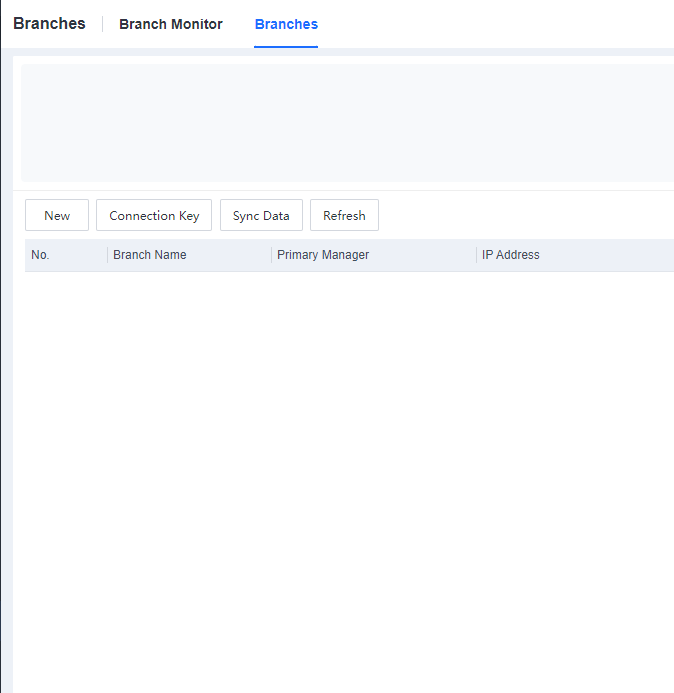
Log in to the second-level Manager, go to the System > Branches > Branches, and click Connection Key, as shown below.
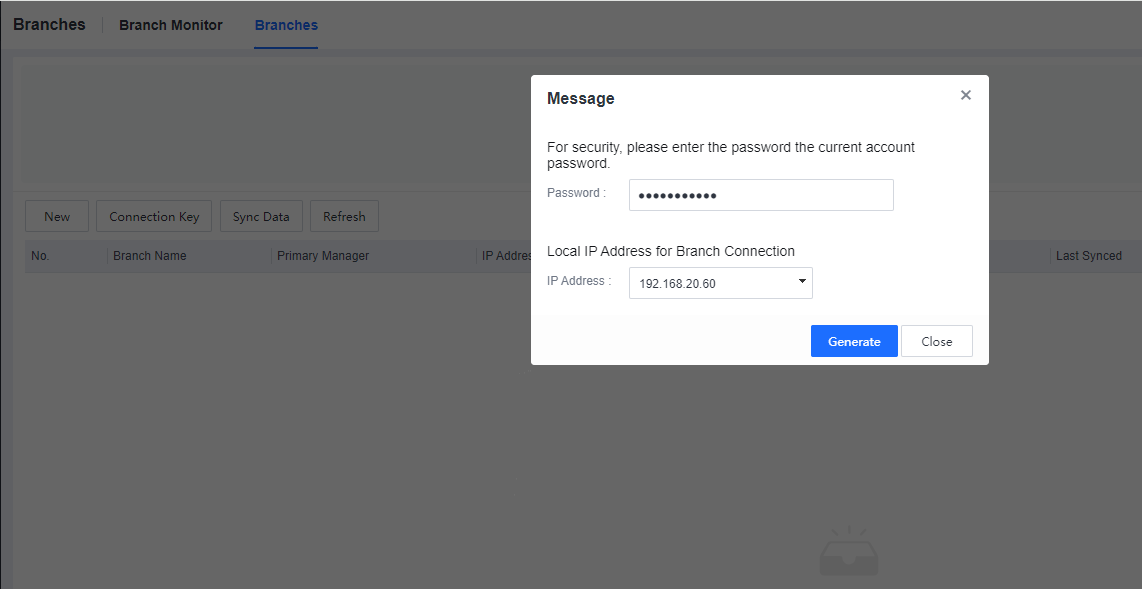
Enter the current console account login password and click Generate to generate the Connection Key, as shown below.
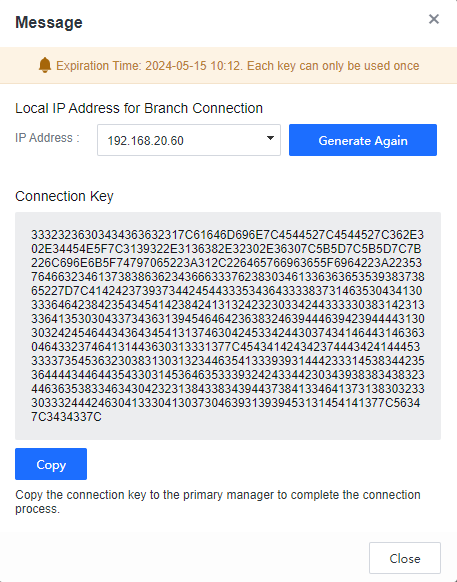
Click Copy to copy the Connection Key to the first-level Manager to complete the cascade connection.
- Enable SSH service on the second-level Manager.
Log in to the second-level Manager console, go to the System > System > Network > Advanced, and enable SSH service, as shown below.
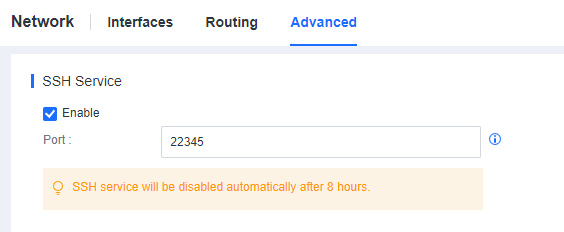
- Complete the cascade connection on the first-level Manager.
Log in to the first-level Manager, Go to the System > Branches > Branches, and click New, as shown below.
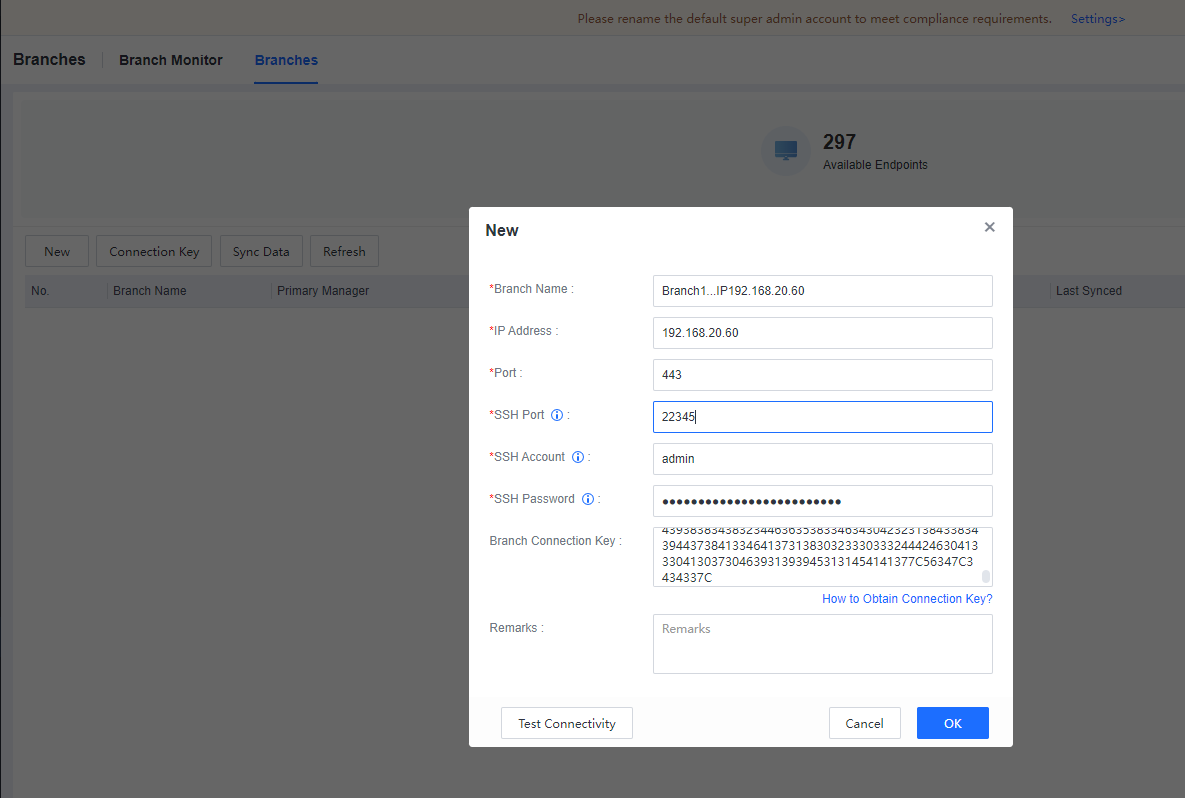
Fill in the second-level Manager’s name, second-level Manager IP, second-level console port, second-level Manager SSH port, second-level Manager SSH account and password (admin account and password), and second-level manager connection key. Click OK**,** as shown below.
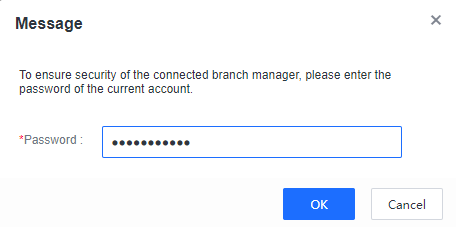
Enter the current Manager login password and click OK. The cascade is successful, as shown below.
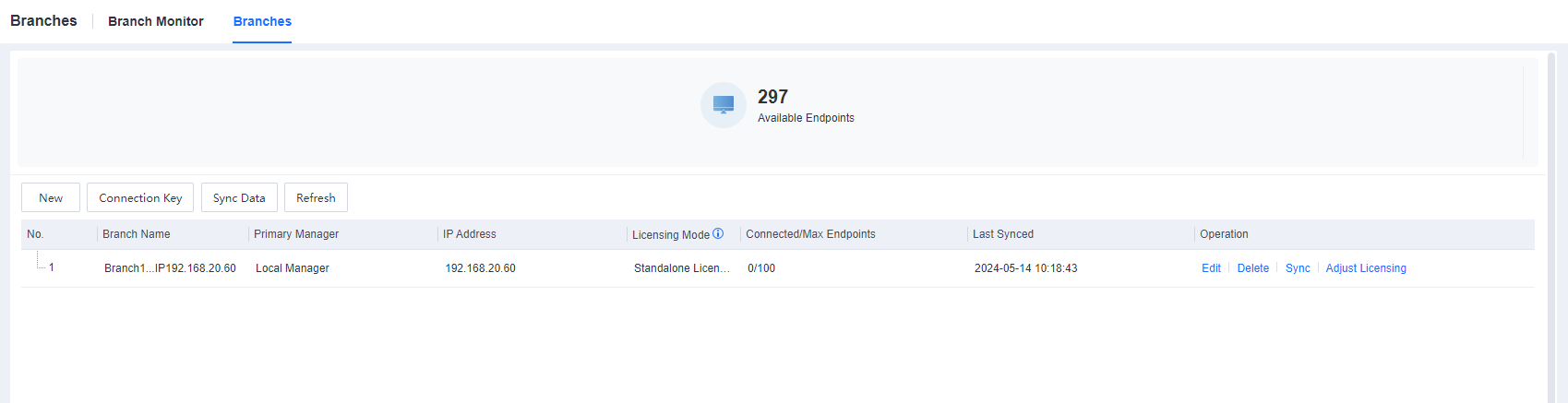
- Cascade licensing.
The first-level Manager activates the total licensing resources, and the second-level Manager does not need to activate licensing. The first-level and second–level Managers form a cascade deployment, and the licensing resources can be dynamically adjusted to the second-level Manager through the first-level Manager.
Go to the System > Branches > Branches and dynamically adjust the licensing, as shown below.
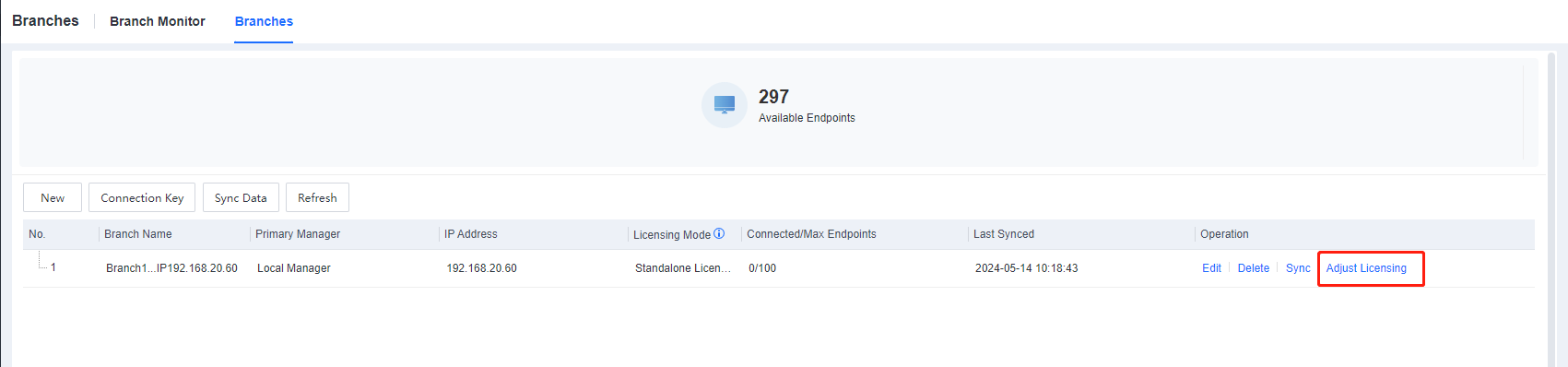
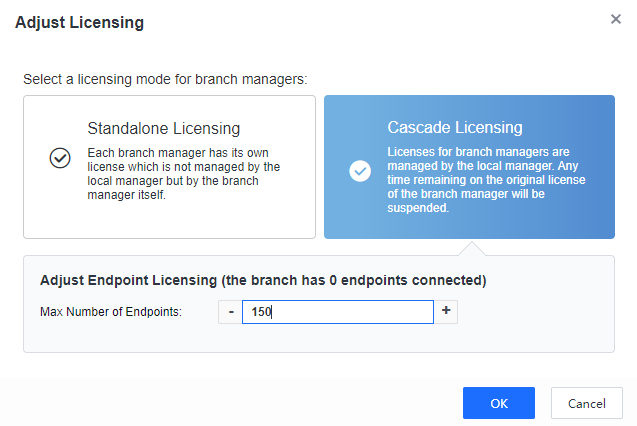
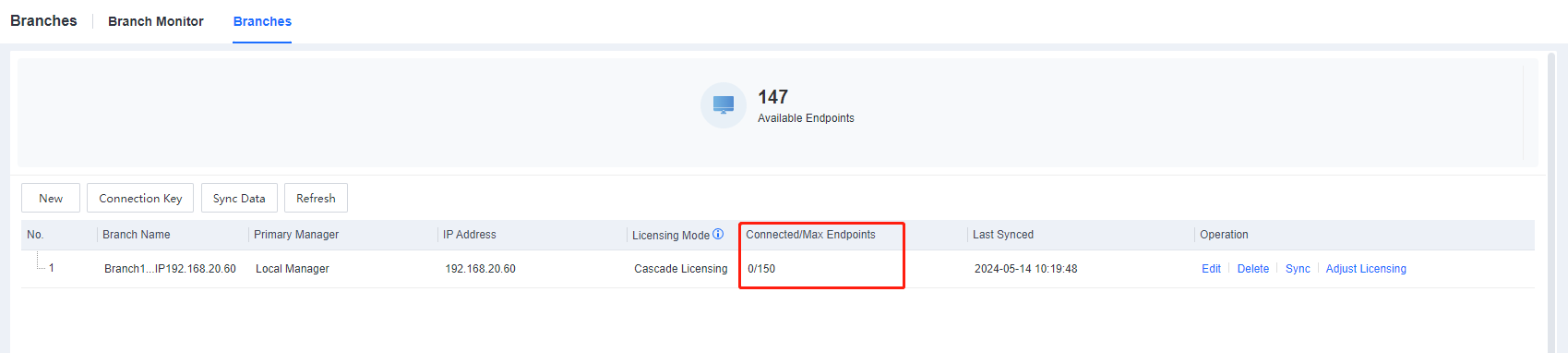
- After adjusting the cascade licensing, the result is shown below.
Virus Database Upgrade Path Selection
Branch 1: Branch 1 has a large number of endpoints and insufficient Internet bandwidth, so a Manager is deployed in branch 1 to distribute virus database resources. Therefore, it is necessary to adjust the upgrade path of the group corresponding to Branch 1 to upgrade through the cloud server. Go to Policies > General Policies > Anti-Malware > Antivirus Database Engine, and select Update via update servers. Create a new upgrade path for the Branch 1 Manager and adjust the order of this path to the top..
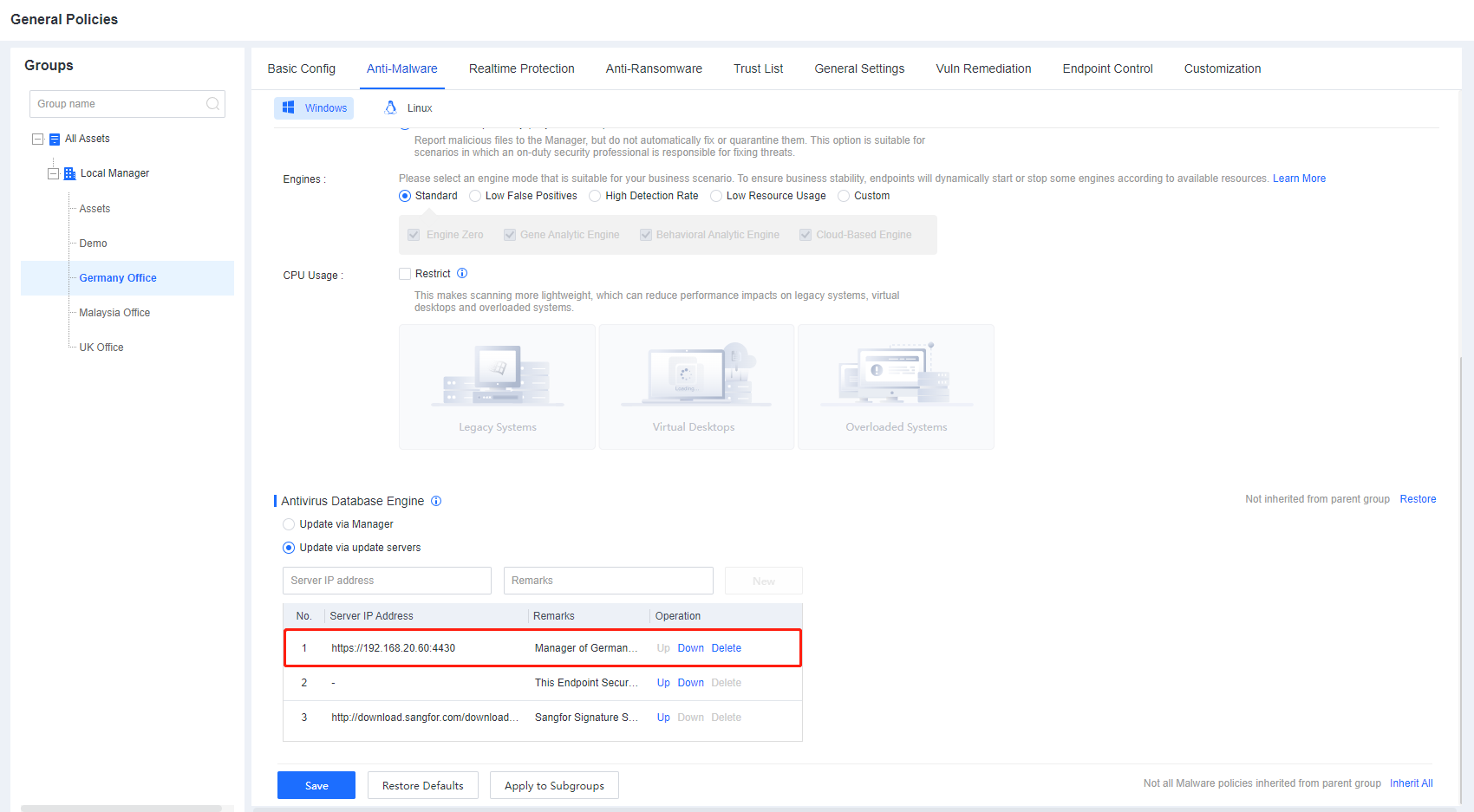
Branch 2: Since the number of endpoints in Branch 2 is small and the Internet bandwidth is sufficient, the endpoints in Branch 2 are directly connected to the cloud server to update the virus database. Go to Policies > General Policies > Anti-Malware > Antivirus Database Engine, and select Update via update servers. For the Manager of Branch1, Use Up and Down to adjust the cloud server path to the top.
Scenario 3 Key Configuration Steps
Manager Deployment and Agent Deployment
Please refer to the user manual and related materials. In this scenario, since the branch also deploys the Manager, you can consider using the P2P network to distribute Agents.
Cascade Configuration
- The headquarters deploys the HQ Endpoint Secure Manager and activates the license according to the total number of licenses(including the number of endpoints at the headquarters and branches).
- The headquarters deploys the Branch Endpoint Secure Manager, which does not require licensing. The HQ Endpoint Secure Manager allocates or dynamically adjusts the licensing.
The HQ Manager and the Branch Manager are gradually cascaded, and licenses are allocated according to the actual situation of each branch. The specific steps are as follows.
Generate Connection Key in the second-level Manager.
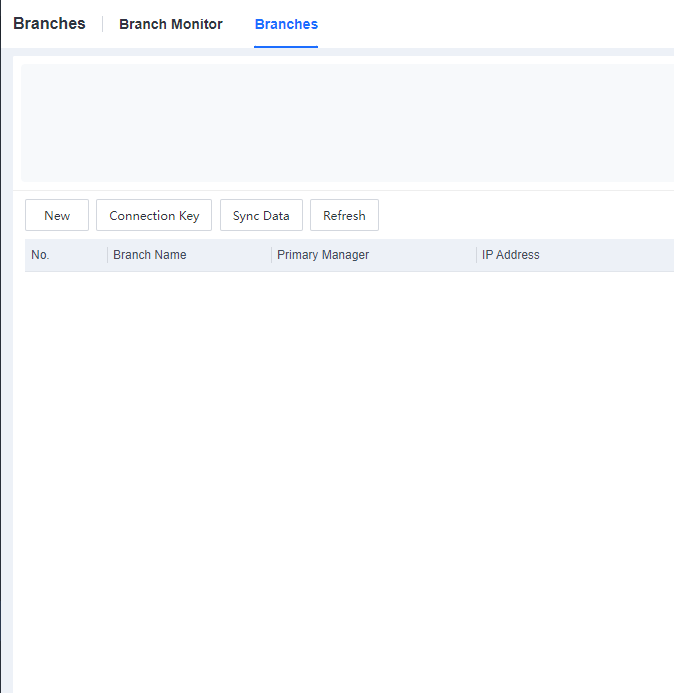
Log in to the branch, Go to the System > Branches > Branches, and click Connection Key, as shown below.
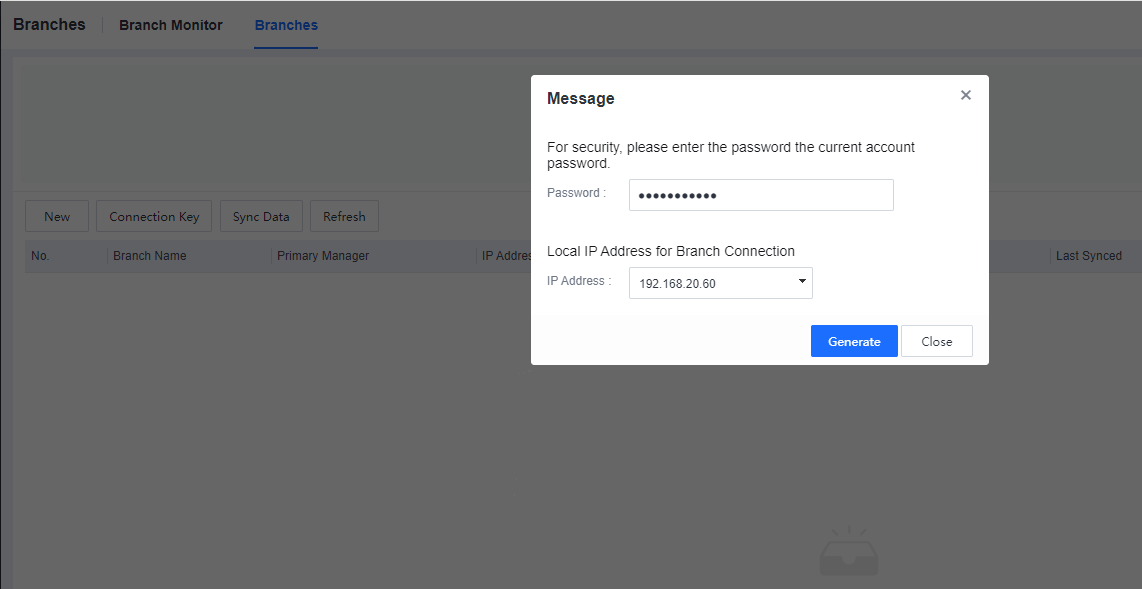
Enter the current console account login password and click Generate to generate the Connection Key, as shown below.
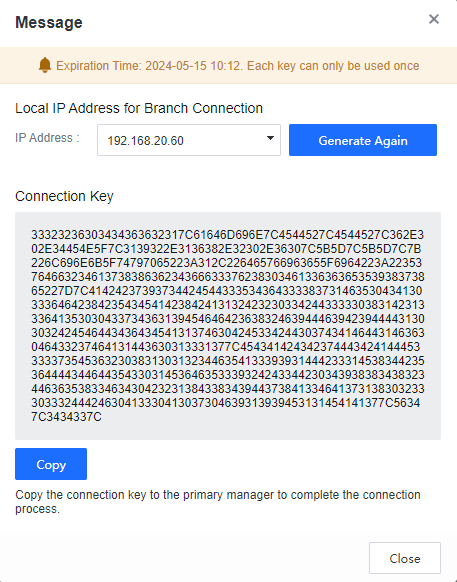
Click Copy to copy the Connection Key to the HQ Manager to complete the cascade connection.
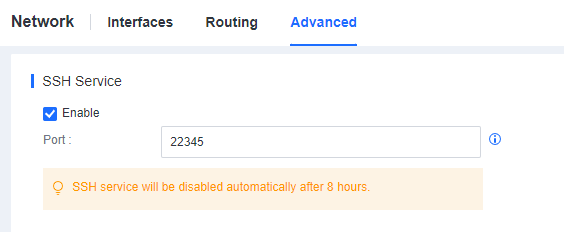
Enable SSH service on the Branch Manager.
Log in to the Branch console, go to the System > System > Network > Advanced, and enable SSH service, as shown below.
Complete the cascade connection at the HQ Manager.
Log in to the HQ Manager, Go to the System > Branches > Branches, and click New, as shown below.
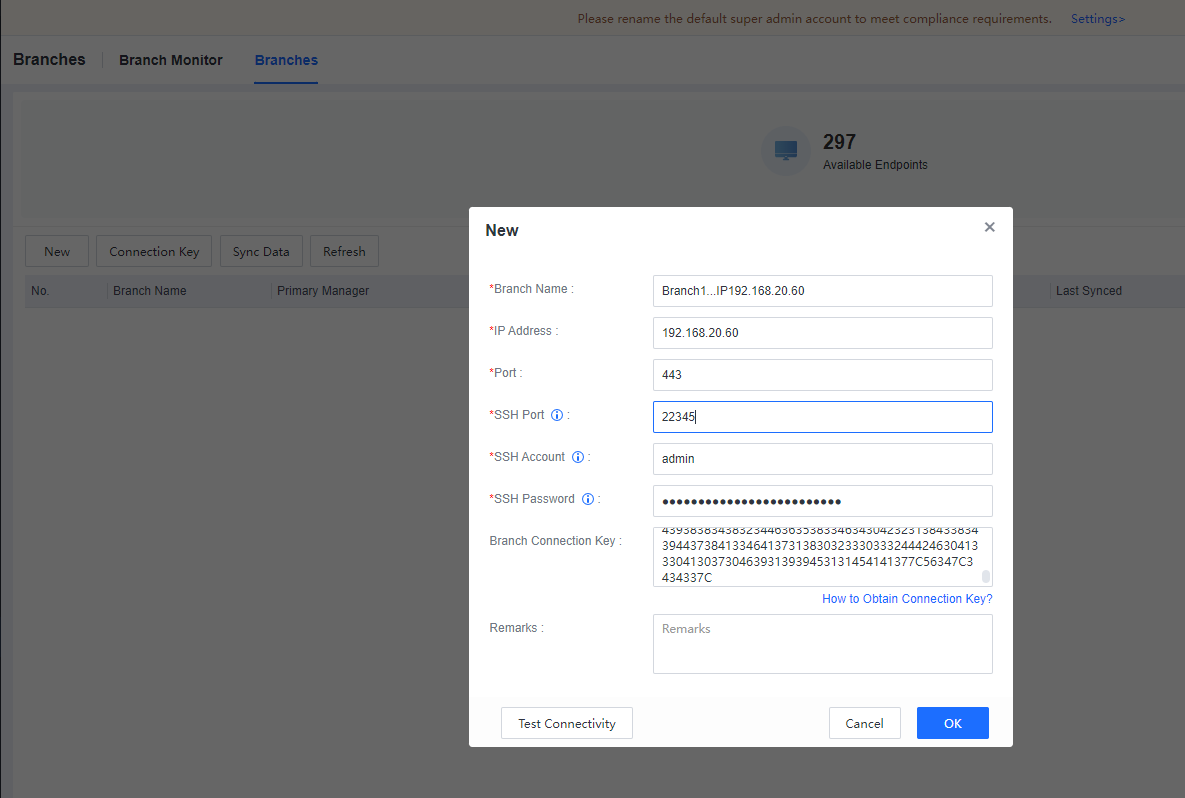
Fill in the Branch Manager name, Branch Manager IP, Branch console port, Branch Manager SSH port, Branch Manager SSH account and password (admin account and password), and Branch Manager Connection Key. Click OK as shown below.
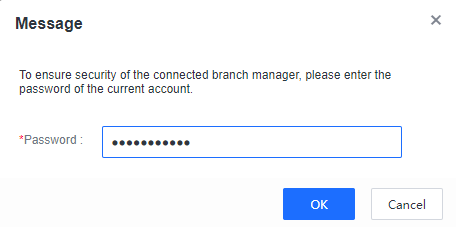
Enter the current Manager login password and click OK. The cascade is successful, as shown below.
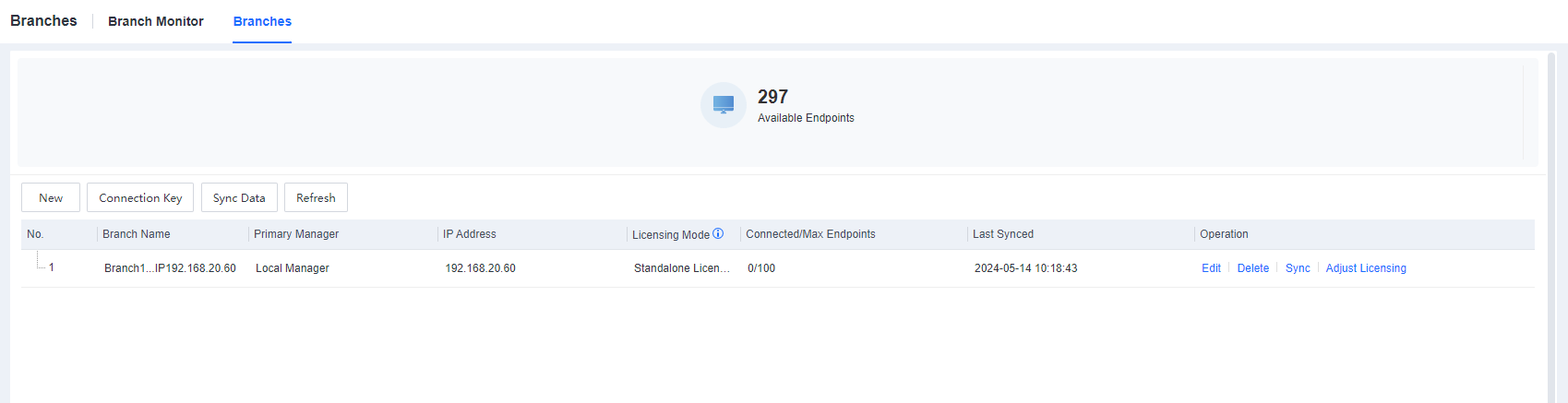
Cascade licensing.
The HQ Manager activates the total licensing resources; the Branch Manager does not need to activate licensing. The HQ Manager and the Branch Manager form a cascade deployment, and the licensing resources can be dynamically adjusted to the second-level Manager through the HQ Manager.
Go to the System > Branches > Branches and dynamically adjust the licensing, as shown below.
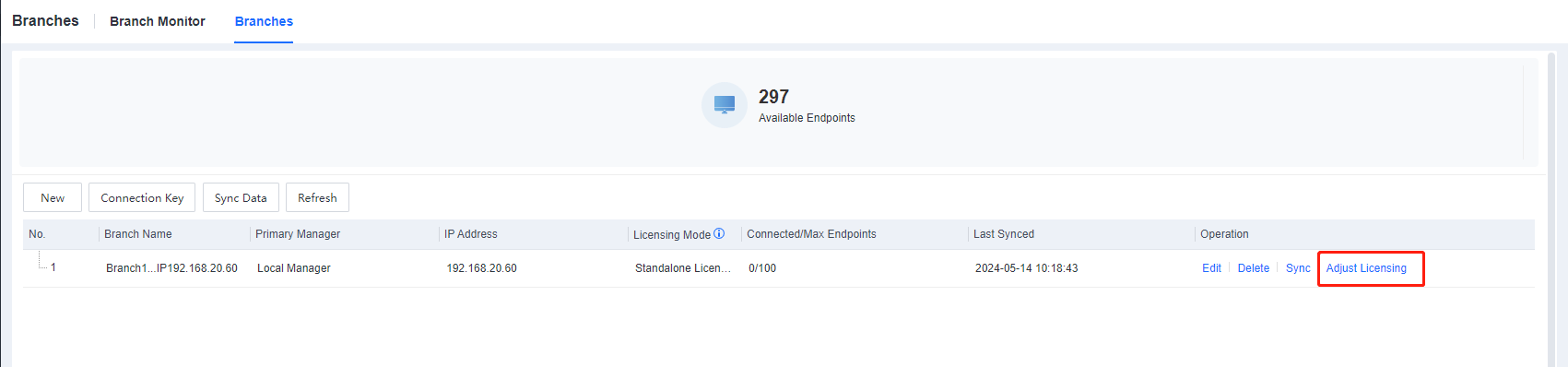
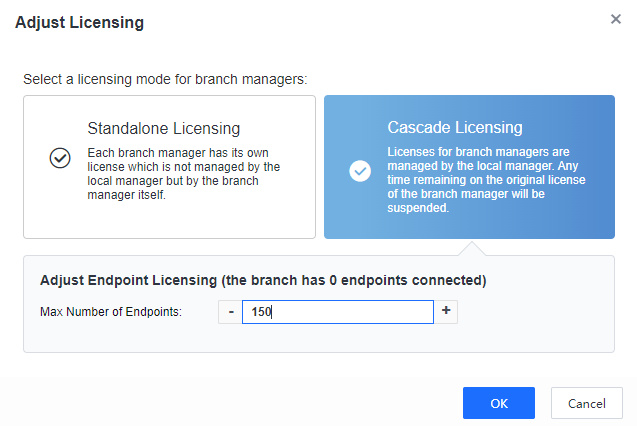
After adjusting the cascade licensing, the result is shown below.
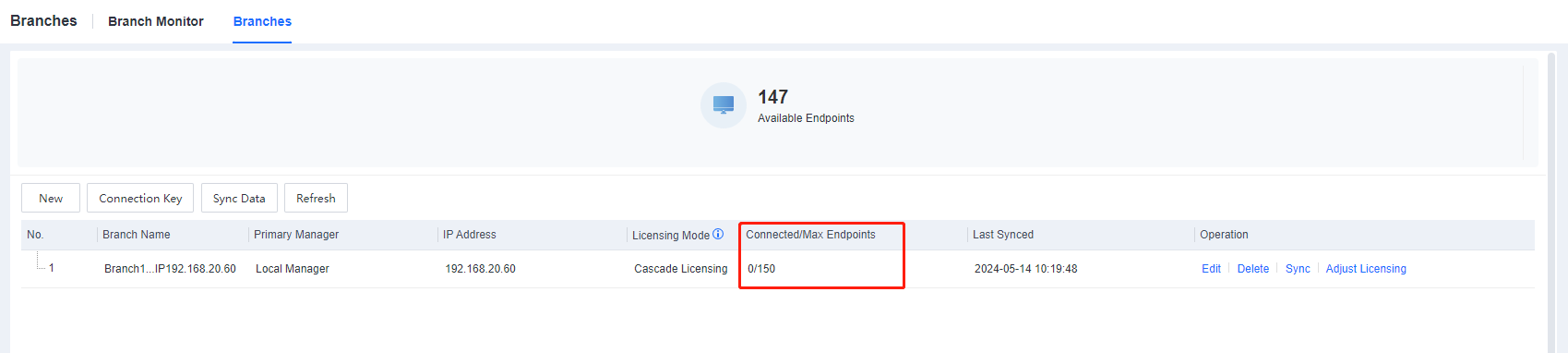
Virus Database Upgrade Path Selection
Since different branches manage the endpoints of the branch respectively, each branch has a Manager. Therefore, please prioritize each branch’s endpoints to update the virus database from the branch manager. Go to each Manager’s Policies > General Policies > Anti-Malware > Antivirus Database Engine, and select Update via **Manager**.
