
【HCI】Window Server 2012 unable to detect NIC
Issue Description
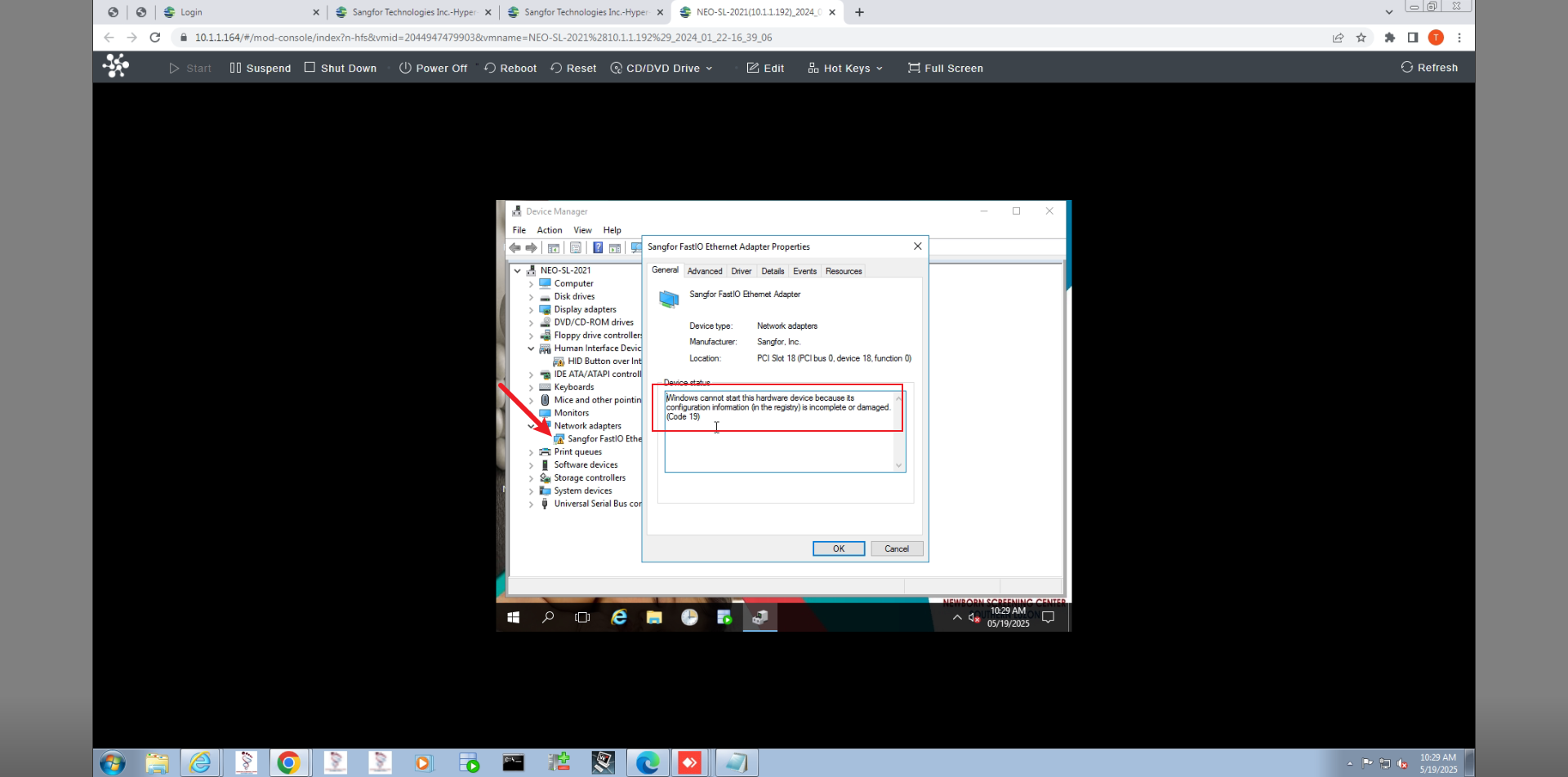
In Window Server VM unable to detect NIC. Even if delete and create a new network card, the same.
Error/Warning Information
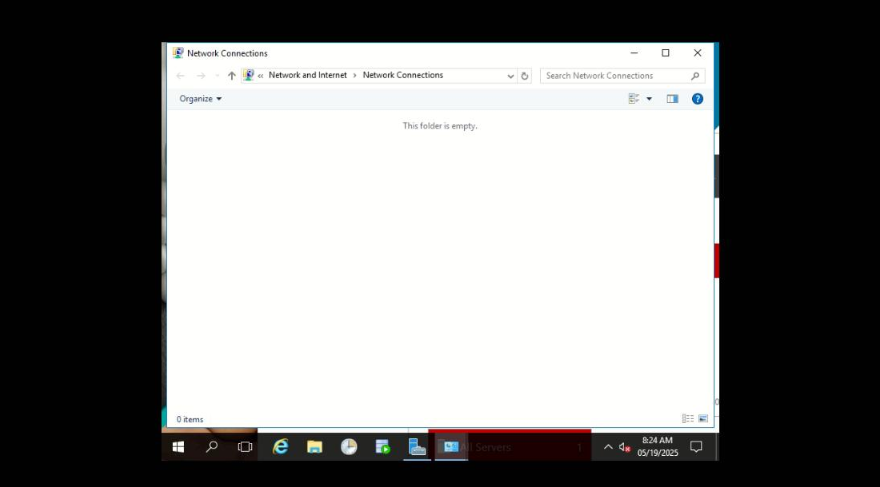
In the Window server NIC displayed the error: "Configuration information in the registry is incomplete or damaged (Code 19)." and unable to view network adapter on network connection page.
Handling Process
1.Windows + R, type devmgmt.msc, and press Enter or click OK.
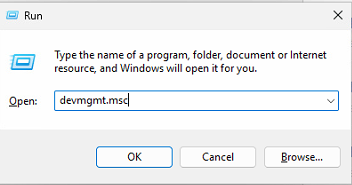
Noted: As you can check the network adapter in normal status or not. If abnormal can follow solution below to troubleshooting.
2.Solution 1: Reinstall the Network Adapter Driver
1.Open Device Manager.
2.Right-click on the affected adapter (Sangfor FastIO Ethernet Adapter) and select Uninstall device.
3.If prompted, check “Delete the driver software for this device.”
4.Click OK and restart the system.
Reminder: If the solution 1 not working can be continue with solution 2.
3.Solution 2: Remove Corrupted Registry Entries (Carefully)
Warning: Editing the registry can cause system issues if done incorrectly. Backup your registry first or take a snapshot before perform any activity.
1.Press Win + R, type regedit, and press Enter.
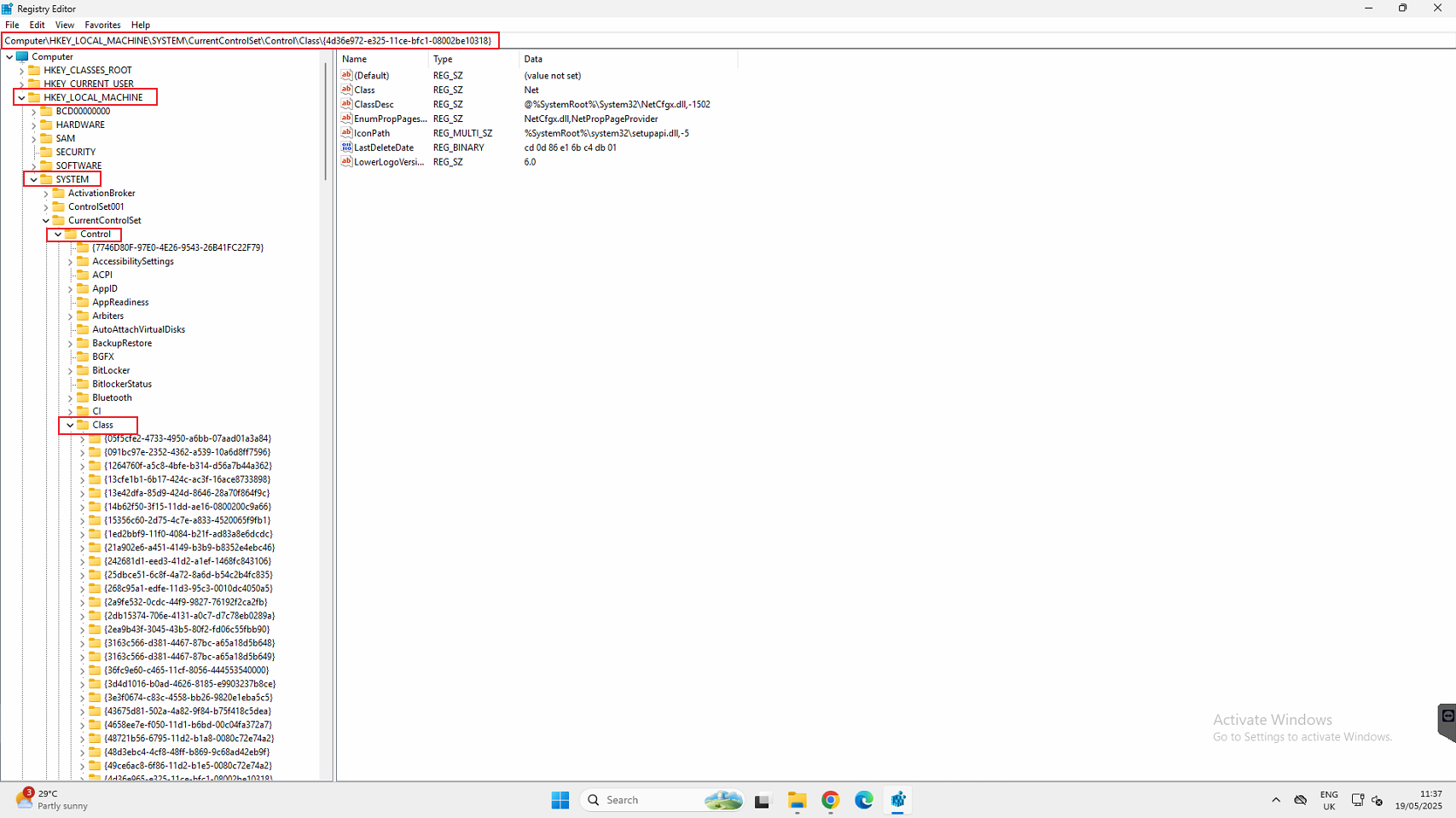
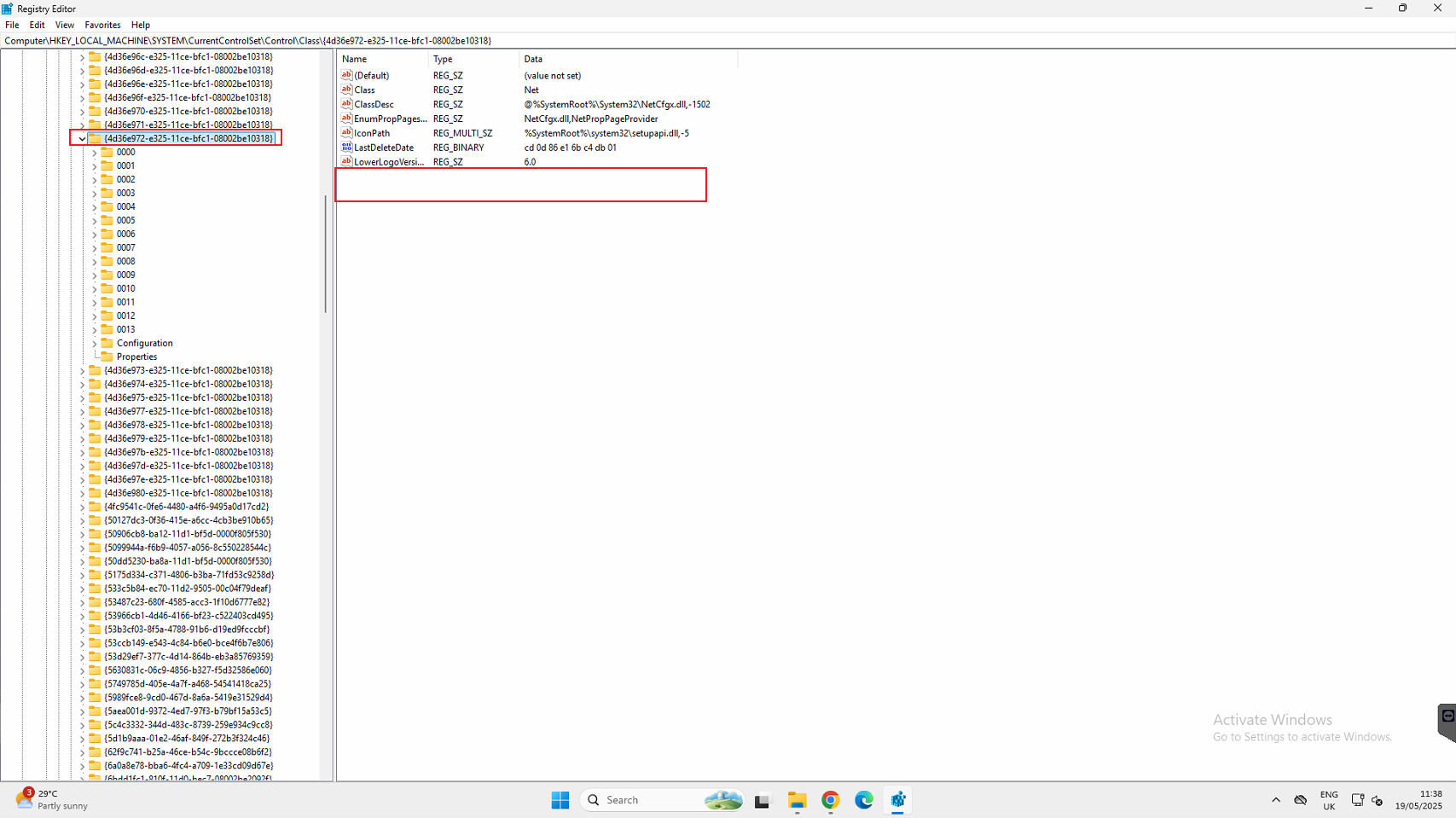
2.Navigate to: HKEY_LOCAL_MACHINE\SYSTEM\CurrentControlSet\Control\Class\
3.Inside this key, locate the subkey that starts with: {4D36E972-E325-11CE-BFC1-08002BE10318}.
(This is the key for network adapters)
4.In the right panel, delete the UpperFilters and LowerFilters values (if they exist).
5.Close the Registry Editor and restart your computer/VM.
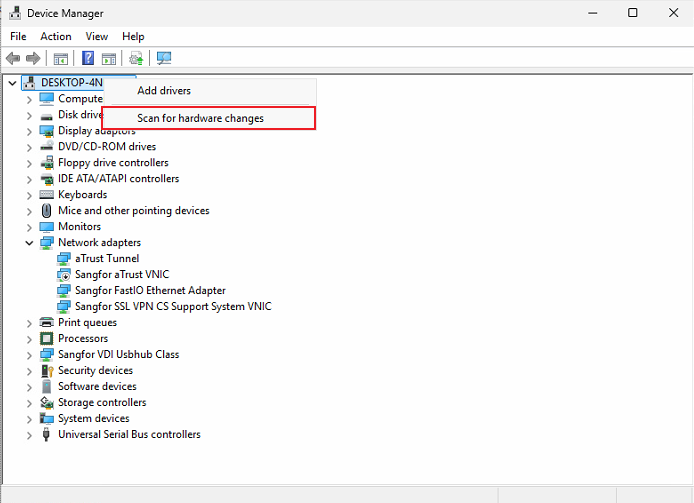
6.Enter Device Manager, uninstall network adapters and rescan the hardware change.
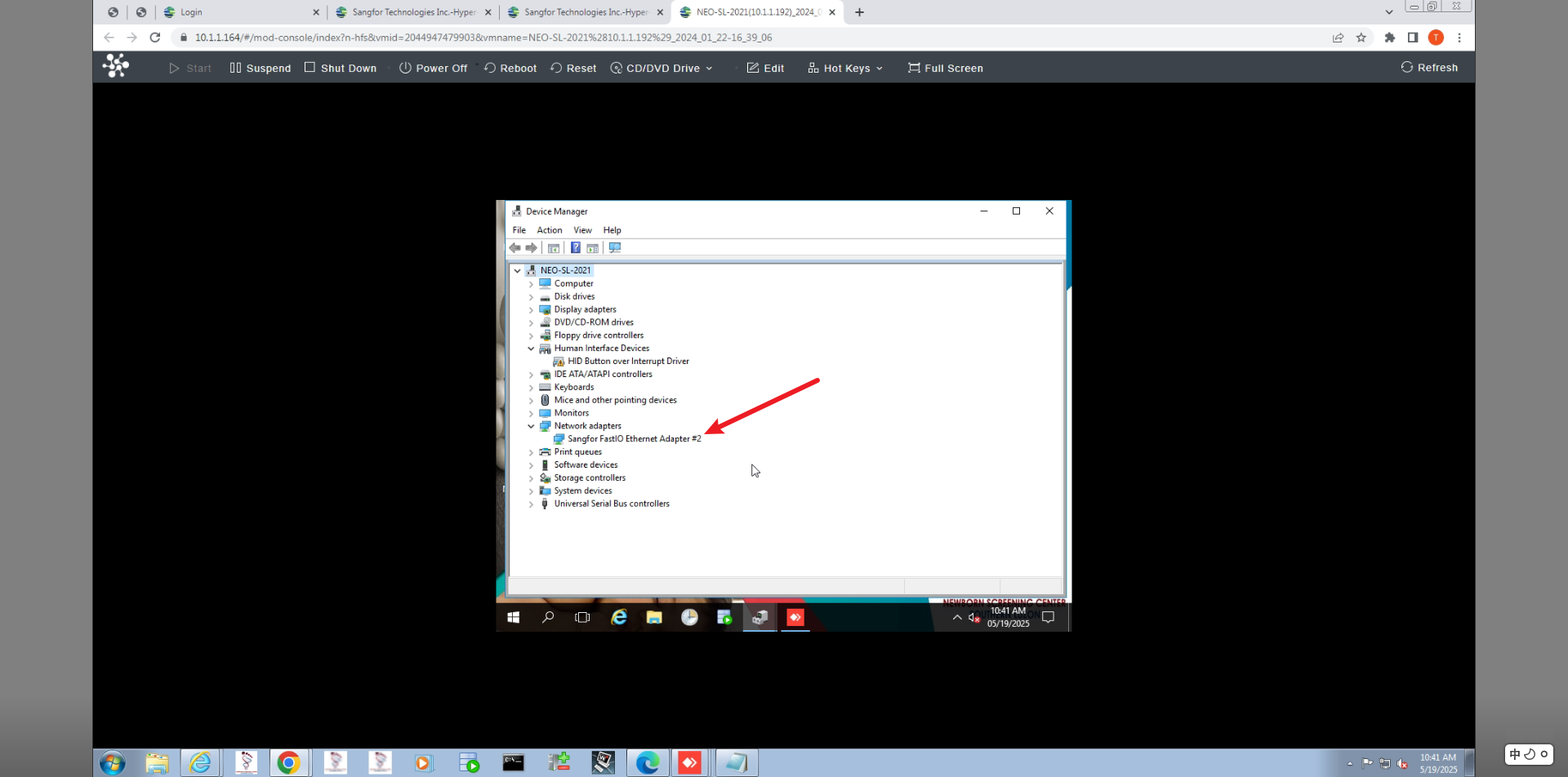
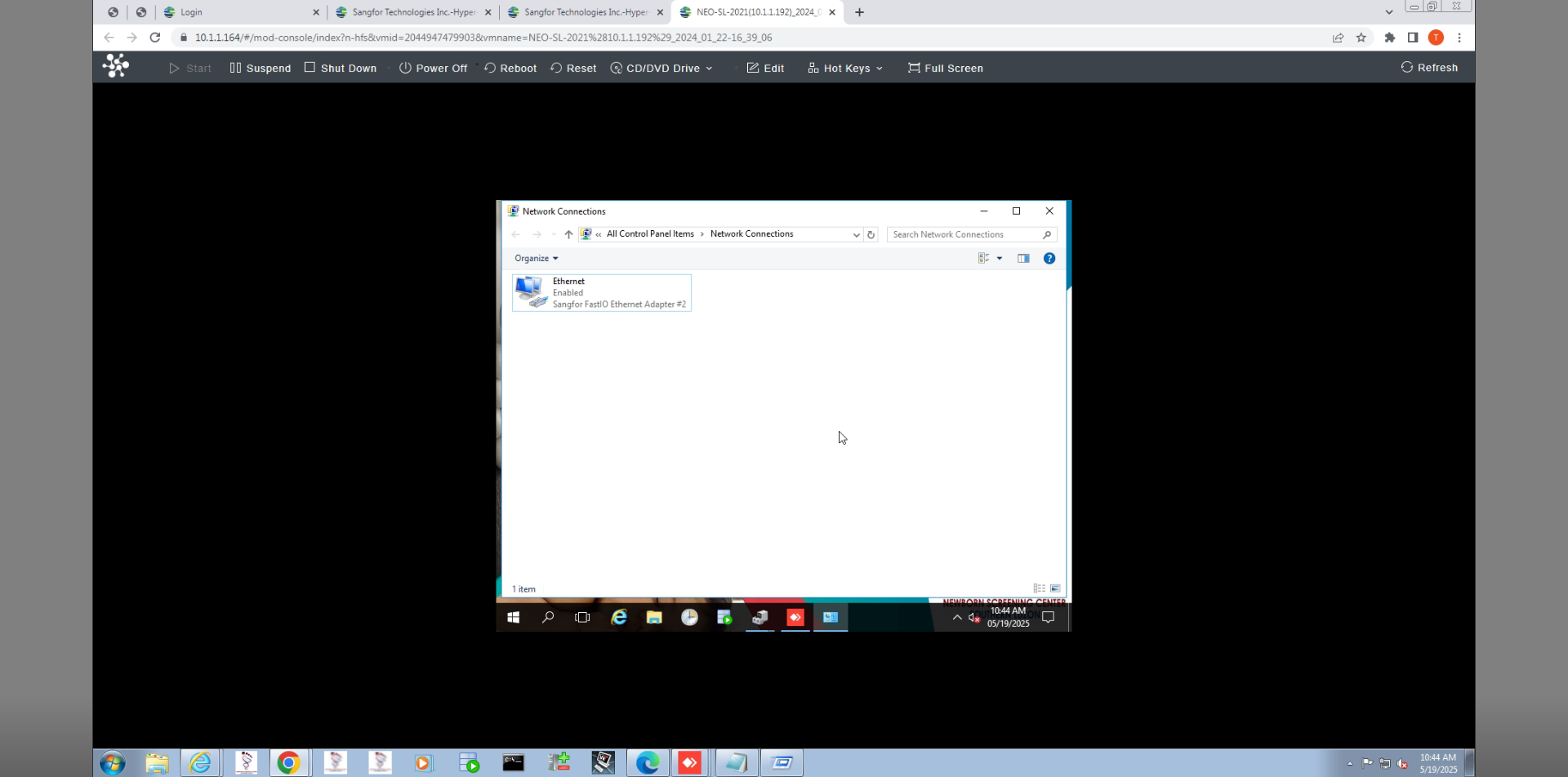
7.Lastly, the network adapters able to view and working fine.
Root Cause
The root cause of the NIC not being detected in the VM is due to corrupted or invalid registry entries related to the network adapter, specifically the UpperFilters and LowerFilters values under the affected device class in the Windows Registry.