
[SCP] Configure SSO
Problem Description
Configuring SSO Login
Effective troubleshooting steps
Notes:
- The customer's existing CAS authentication system is operating normally, and the communication between the CAS server and the sCloud_SCP platform is normal.
- Currently supported CAS versions are CAS_V2 and CAS_V3.
3. Platform administrators do not support single sign-on using CAS. Only Tenant and Tenant subaccounts are supported to log in through CAS.
After the user single sign-on, if it conflicts with the existing cloud platform user (the login user name is the same), the new user information will be imported, and the existing information will be overwritten. Otherwise, the user will be automatically registered and displayed in the other user's list.
5.CAS users cannot Reset their passwords.
Root cause
Configuration process:
- Open [Management]-[SSO Settings] and check the "Enable" button.
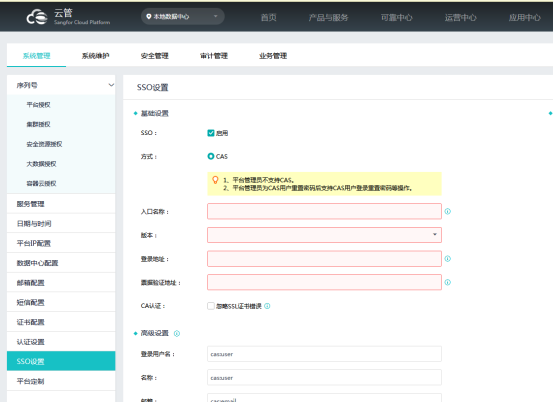
- Fill in the login address of CAS login in "Entry Name".
- Fill in the CAS version information in “Version”.
-
Fill in the CAS login address in "Login Address".
- Login address: https://authentication platform address/cas/login?service=https://sCloud_SCP platform address/sso/cas/callback.
For example, if the customer's CAS server address is 192.200.200.100, the sCloud_SCP platform address is 192.200.244.124, and the intermediate network is reachable, then the login address here is filled in as: https://192.200.200.100/cas/logi … 24/sso/cas/callback - Ticket verification address: https://Authentication platform address/cas/p3/serviceValidate?ticket={ticket}&service=https:// sCloud_SCP platform address/sso/cas/callback For example: https://192.200.200.100/cas/p3/serviceValidate?ticket={ticket}&service=https://192.200.244.12/sso/cas/callback
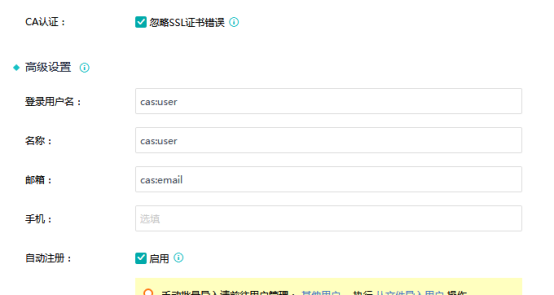
- Keep the advanced configuration as default. Also note that it is recommended to check "CA Authentication: Ignore SSL Certificate Errors" and the "Auto Registration" option in the advanced settings must be checked. After the configuration is complete, save the configuration.
- Open the self-service portal through https:// sCloud_SCP's IP and log in. When logging in, you must use the account on CAS.
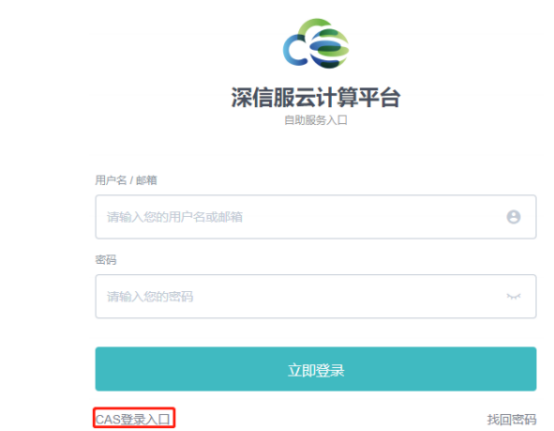
- After logging in, you will be prompted "The account does not have access rights, please contact the administrator."
- Log in to the SCP platform, click [aOC (Operations Center)] – [Other Users]. The account you just logged in using the "CAS Login Portal" will be automatically registered. Click Add Role as a Tenant this account.
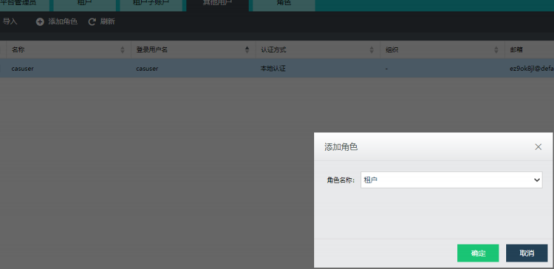
- At this time, log in through the "CAS Login Portal" of the self-service portal, enter the user name and password, and you can log in to the Tenant interface.
solution
Interface Configuration
Original Link
https://support.sangfor.com.cn/cases/list?product_id=36&type=1&category_id=19508&isOpen=true
- Login address: https://authentication platform address/cas/login?service=https://sCloud_SCP platform address/sso/cas/callback.