
[Cyber Command] After Server joins the business group, the business group is still not displayed on the large screen
Problem Description
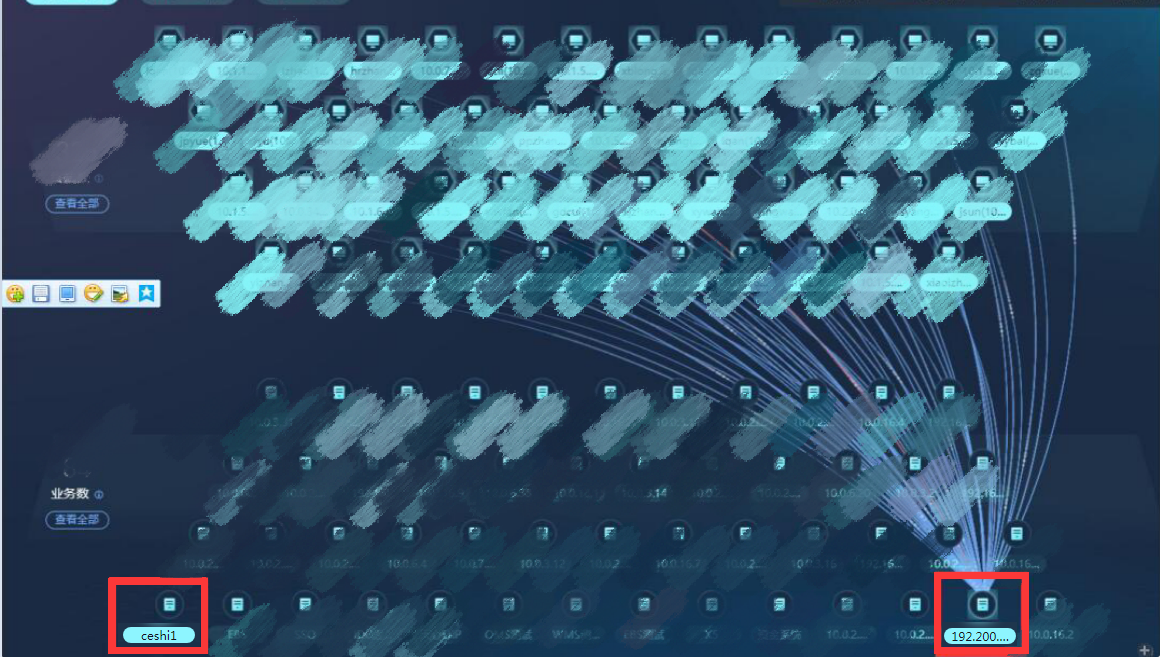
In Cyber Command Asset awareness, after adding a Server IP that is not added to a business group to a business group, the business group is still not displayed on the large screen. (Host similar)
Warning Very-Low Risk
349945cbc61e4607d5.png (1.02 MB)

39695cbc6977f2fac.png (15.5 KB)
Process——
-
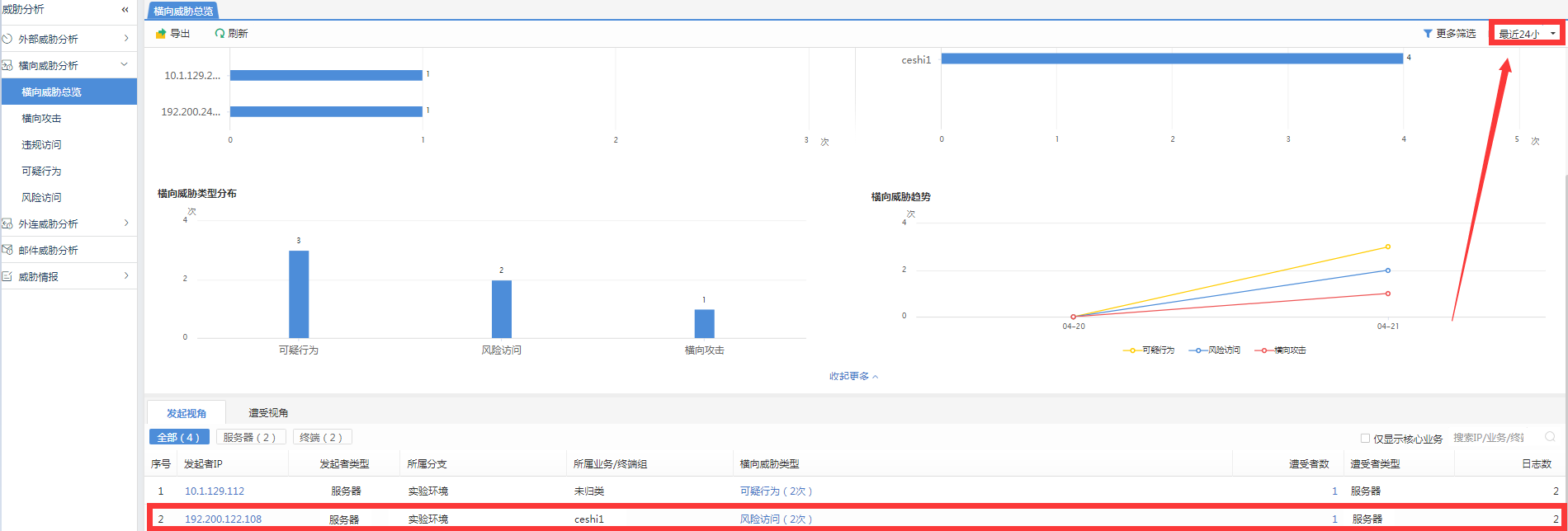
Confirm whether the IP address is the business group that was added 24 hours ago. If so, taking the above Lateral Threat large-screen display as an example, first look at Analysis Center–>Threat Analysis–>Lateral Threat Analysis–>Lateral Threat Overview, and change "Last 7 Days" to "Last 24 hours" to see if there are any logs. as shown in the figure below. If you did not join the business group 24 hours ago, you need to wait 24 hours.
233085cbc6a8c2b676.png (99.9 KB) -
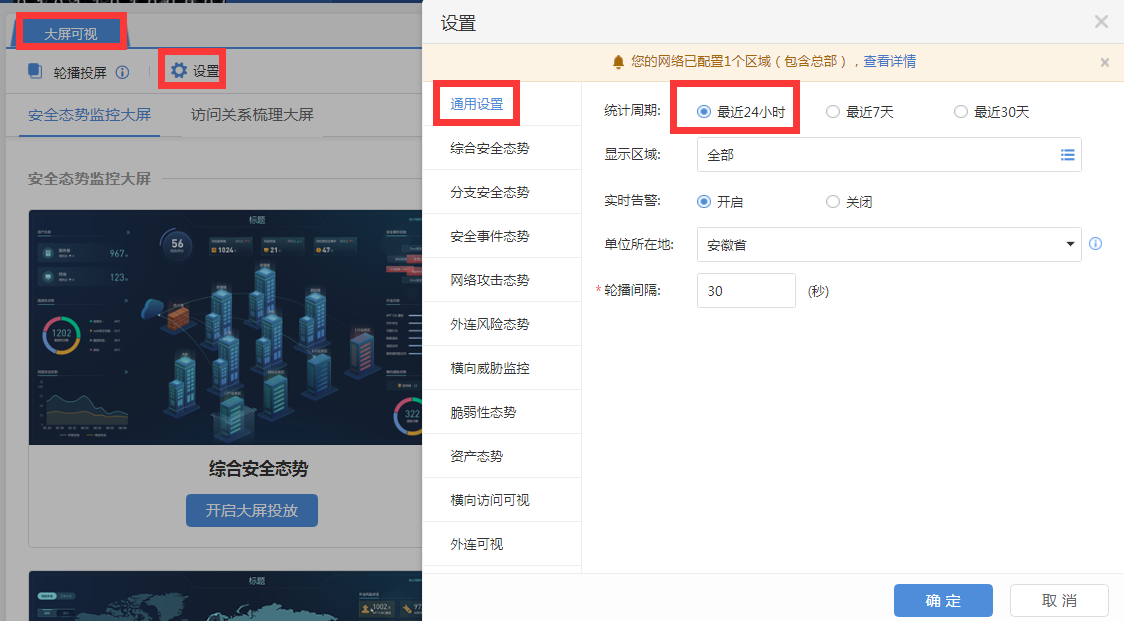
If you view the Lateral Threat overview and select "Last 7 days" as "Last 24 hours", logs will be displayed. Then in Monitoring Center–>Large Screen Visualization–>Settings–>General Settings, set the statistical period to 24 hours. as shown in the figure below. If there is no log Fair Last 24 hours" section of the Lateral Threat overview, you need to wait for new logs to be generated.
727415cc05f3cc4681.png (177.35 KB)
Root cause
After adding the Server IP to the business group, it belongs to two different assets before and after adding, so it will be displayed separately.
solution
After modifying Asset properties, it is recommended to wait for 24 hours or 7 days to allow the large-screen display time period to exceed so that the large-screen display will not display the assets before the modification.
Suggestions and Conclusion
- Use Google Chrome to open the large-screen test.
- Confirm whether the business group was modified 24 hours ago. If it was not modified 24 hours ago, it is recommended to wait 24 hours or 7 days before observing.
Original Link
https://support.sangfor.com.cn/cases/list?product_id=24&type=1&category_id=9767&isOpen=true