【ES】Best Practices: Endpoint Secure Security Hardening Guide_v6.0.2
Security Hardening
Firmware Upgrade
It is recommended that you upgrade to the latest Endpoint Secure firmware. The latest firmware usually fixes security issues and provides more comprehensive management and control functions.
You can get the latest firmware version on Sangfor Community.
https://community.sangfor.com/plugin.php?id=service:download
Network Connectivity Check
Ensure that the environment where the Endpoint Secure Manager is located can access the Internet.
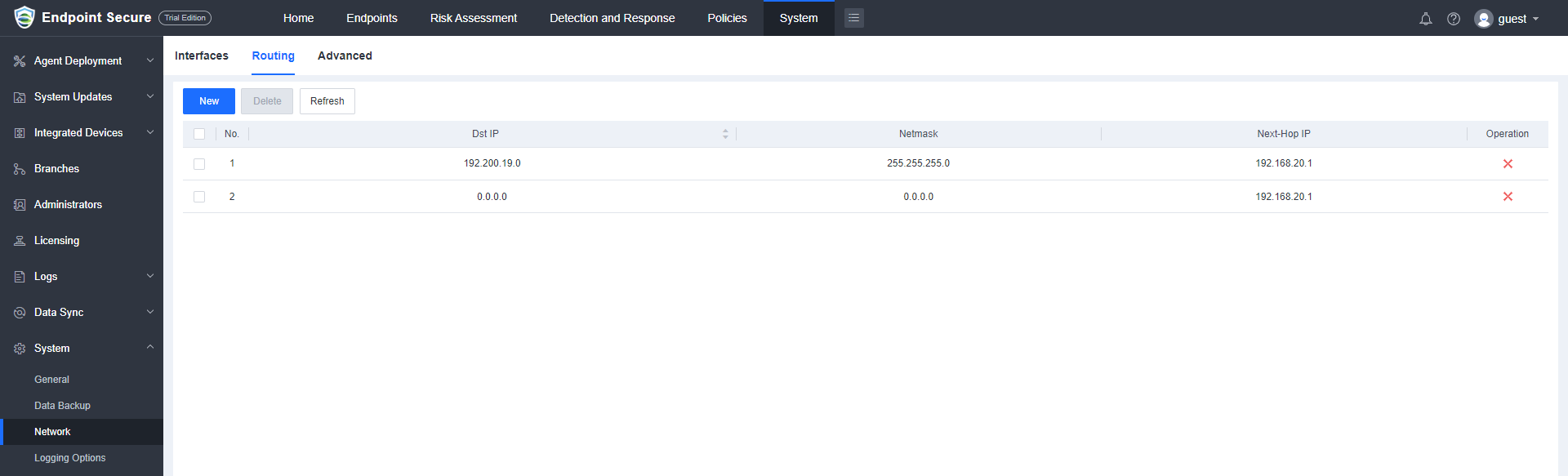
Go to System > System > Network path to check whether the routing, gateway, and DNS configuration are correct, as shown below.
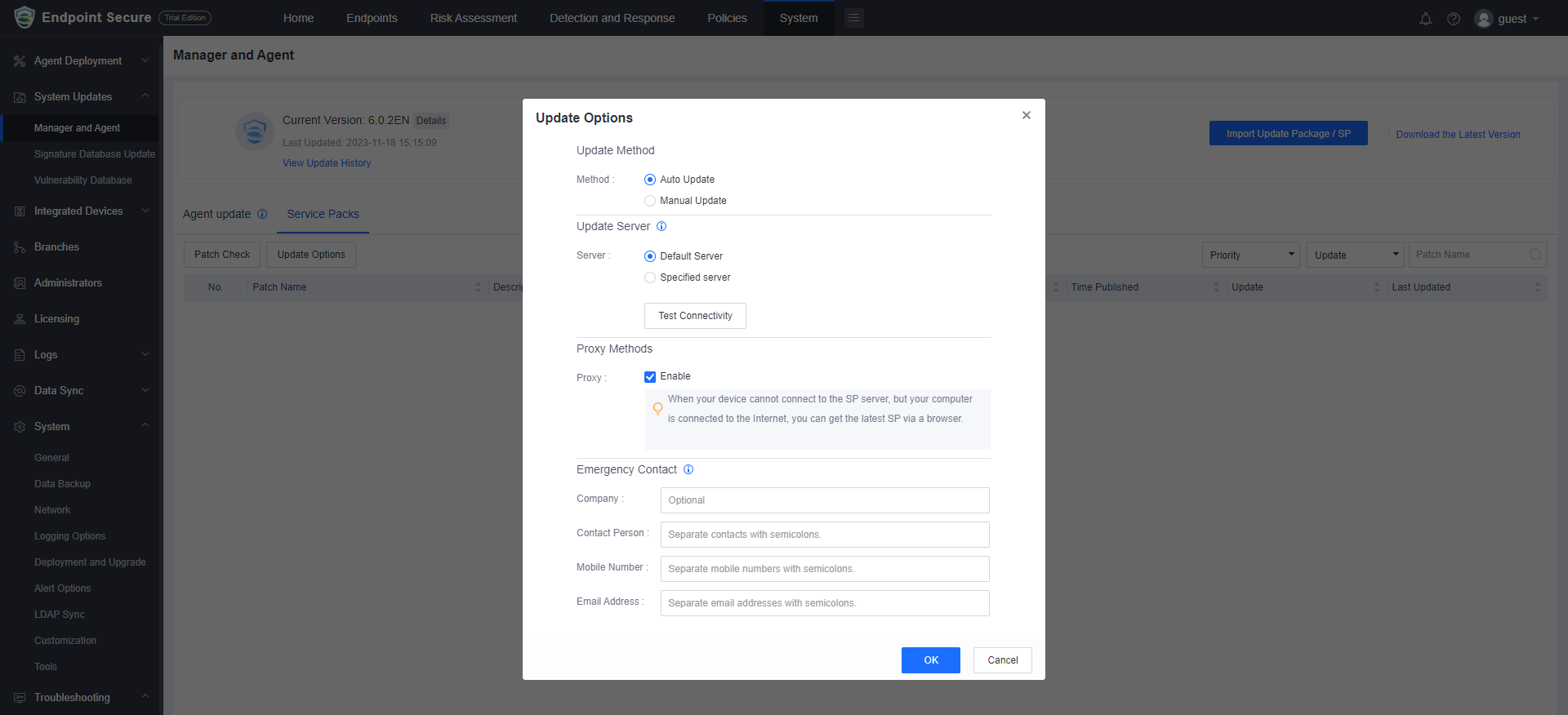
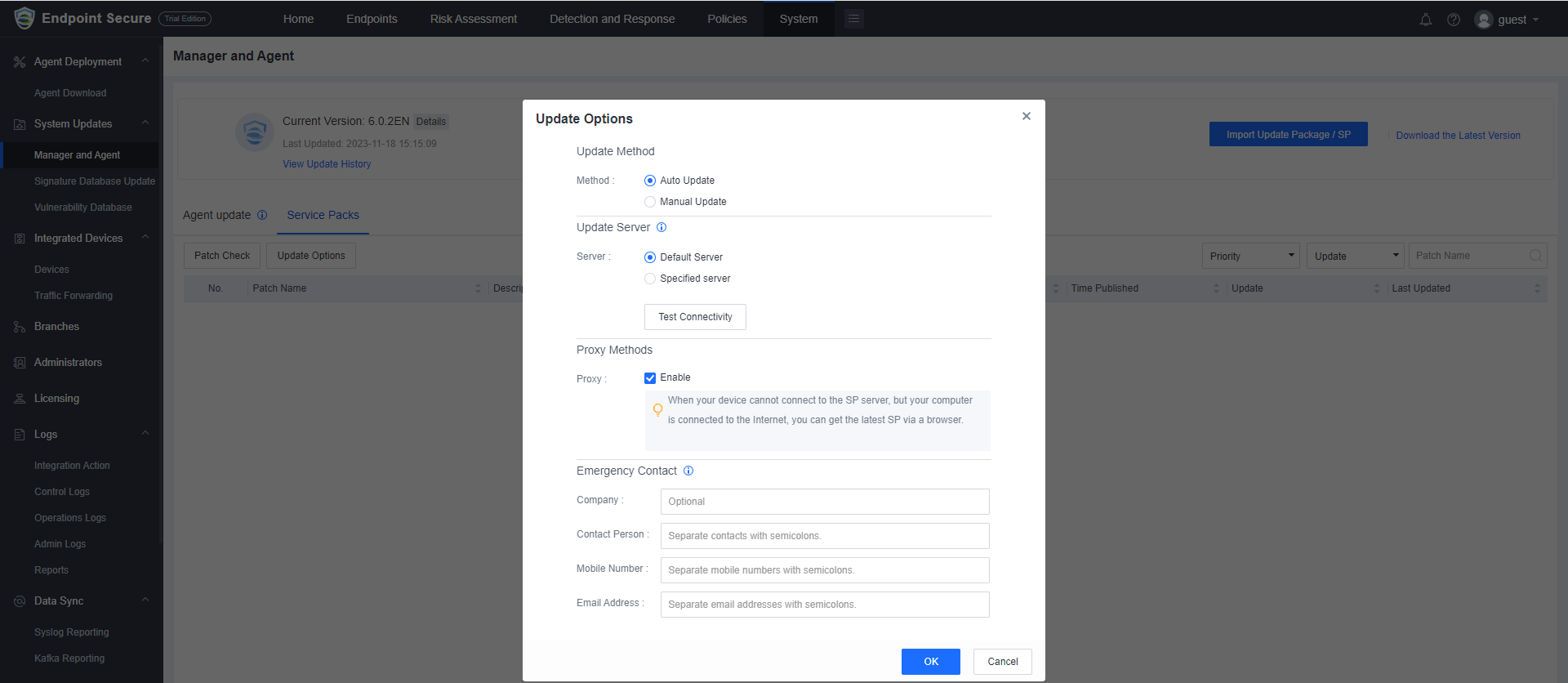
If the security policy requires you to use a proxy to access the Internet, it is recommended that you configure a proxy policy. Configure it at System > System Updates > Manager and Agent** > Service Packs**.
Exposure Inspection
Check the edge device policy to see whether the Endpoint Secure Manager is published to the Internet. It is prohibited to publish the Endpoint Secure Manager to the Internet to reduce the Manager’s exposure. Generally, direct access to the Endpoint Secure Manager from the Internet should be prohibited. Suppose daily operation and maintenance require access to Endpoint Secure Manager from the Internet. In that case, you should use a secure communication method such as zero trust to connect to the Jump Server on the intranet and then access Endpoint Secure Manager on the Jump Server.
Automatic Patch Updates
Go to System > System Updates > Manager and Agent > Service Packs. Click Patch Check to ensure that the patch can be updated.
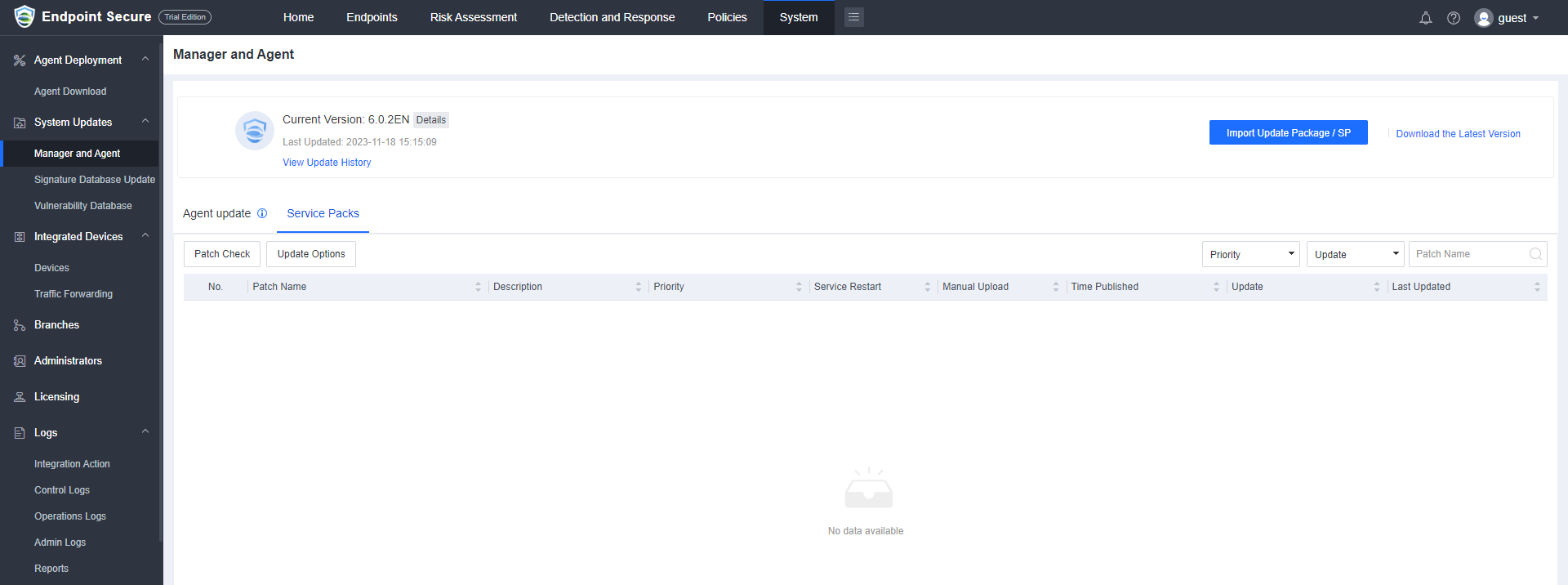
Suppose your network security policy prohibits Endpoint Secure Manager from directly accessing the Internet. In that case, you can use a proxy to allow Endpoint Secure Manager to connect to the upgrade server to obtain patch information.
For some urgent security issues, our engineers will contact you and help you fix the product security issues.
Administrator Account Checking
Delete Invalid Account
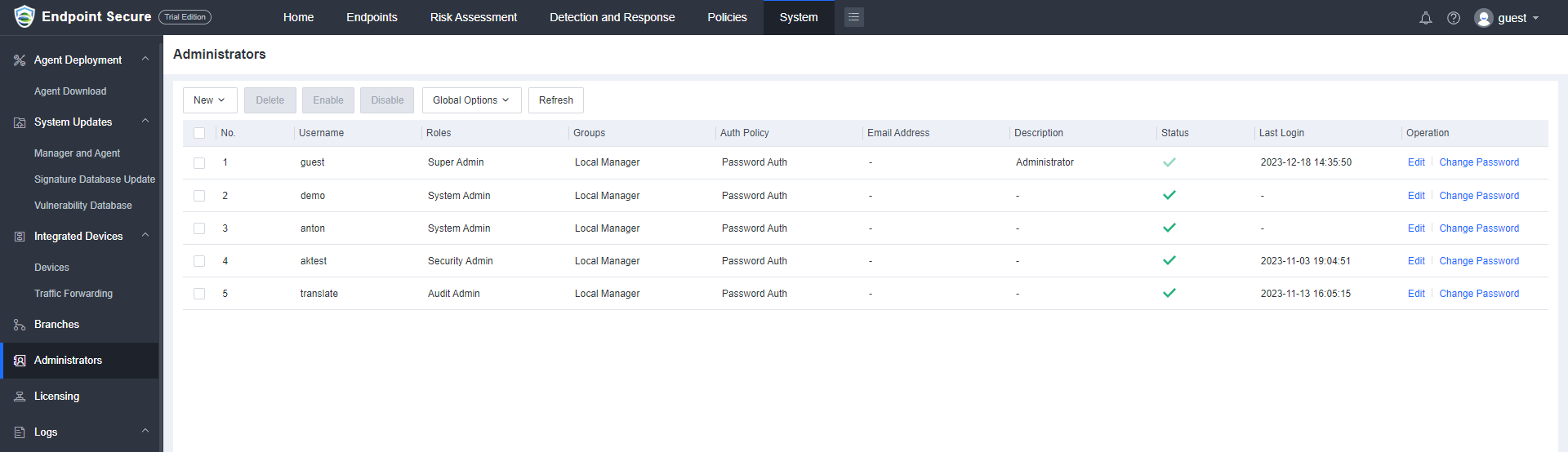
Go to the System > Administrators path and check for redundant accounts. You need to delete the testing accounts, resigned personnel accounts, and redundant accounts.
Username and Password Check
Increase password complexity: Go to the System > Administrators and click Change Password of the corresponding admin account. Configure a complex password according to the following requirements.

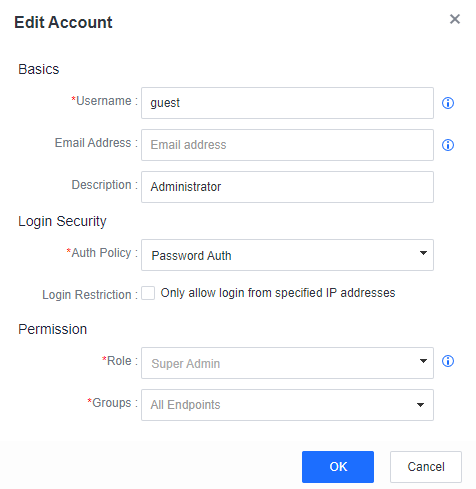
Modify the name of the default account**:** Go to the System > Administrators and click E**dit** of the corresponding admin account. The default super administrator account name is admin, and you can change it to another name.
Restrict IP Login
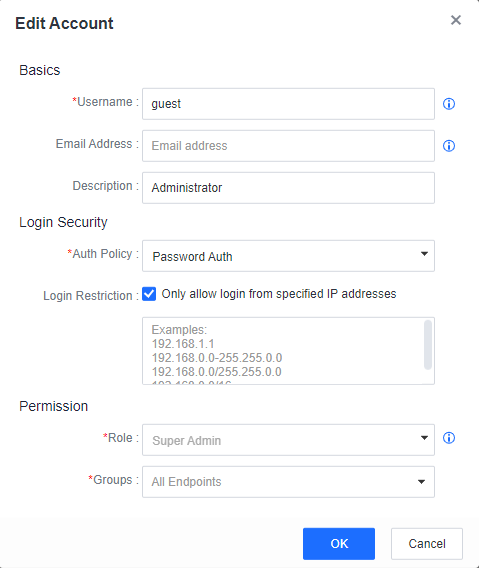
Go to the System > Administrators and click Edit of the corresponding admin account. You can configure the range of IP login restrictions. It is recommended to only allow access to Endpoint Secure Manager from specified IP addresses.
Check Login Security Policy
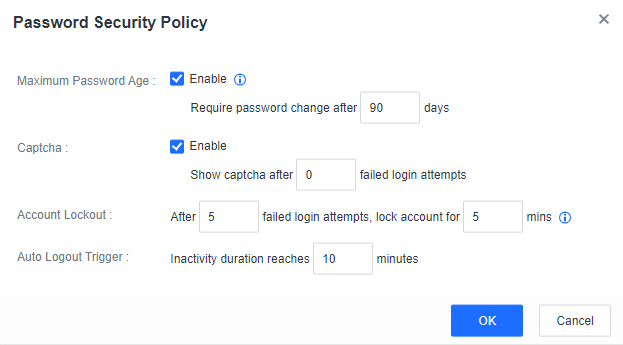
Go to the System > Administrators > Global Options and select Password Security Policy. Enabling the Maximum Password Age is recommended, and it is mandatory to change the password after reaching the preset period. Besides, enable Captcha to prevent brute force attacks on the Endpoint Secure Manager console. It is also necessary to enable Auto Logout Trigger and Account Lockout.
Use Multi-Factor Authentication
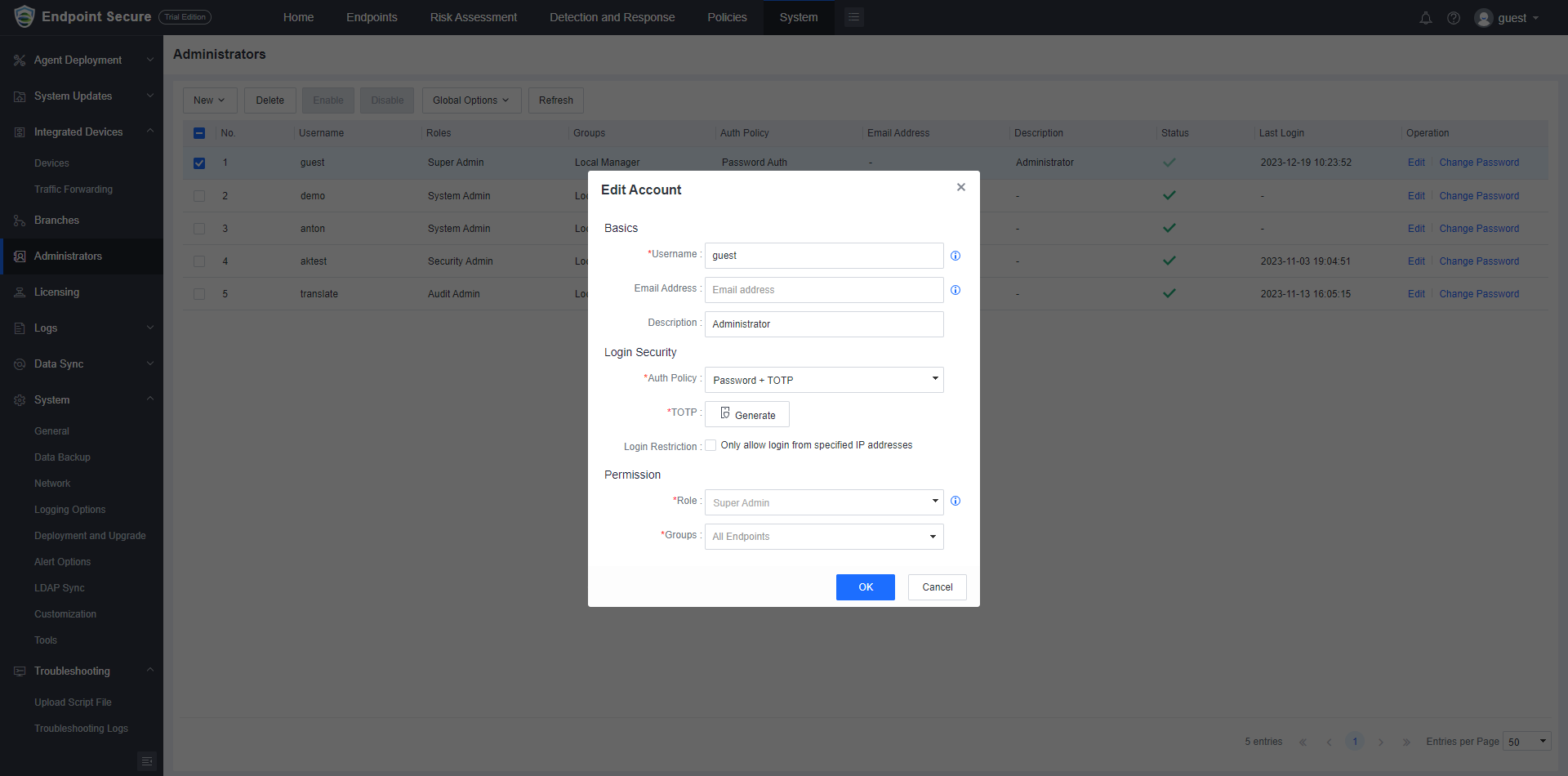
Go to the System > Administrators and click Edit of the corresponding admin account, select Password + TOTP as the Auth Policy, then click Generate and use the authenticator app to scan the QR code so that when you log in to the Endpoint Secure Manager web console, you need to enter your password and TOTP before you can log in.
Check Virus Database Version
Generally, we believe that at the network management level, it is necessary to allow Endpoint Secure Manager to access the Internet. However, strict security policies may restrict Endpoint Secure Manager from accessing the Internet. You can visit the Sangfor Community to obtain the offline virus database.
https://community.sangfor.com/plugin.php?id=service:download&action=view&fid=89#/19/all
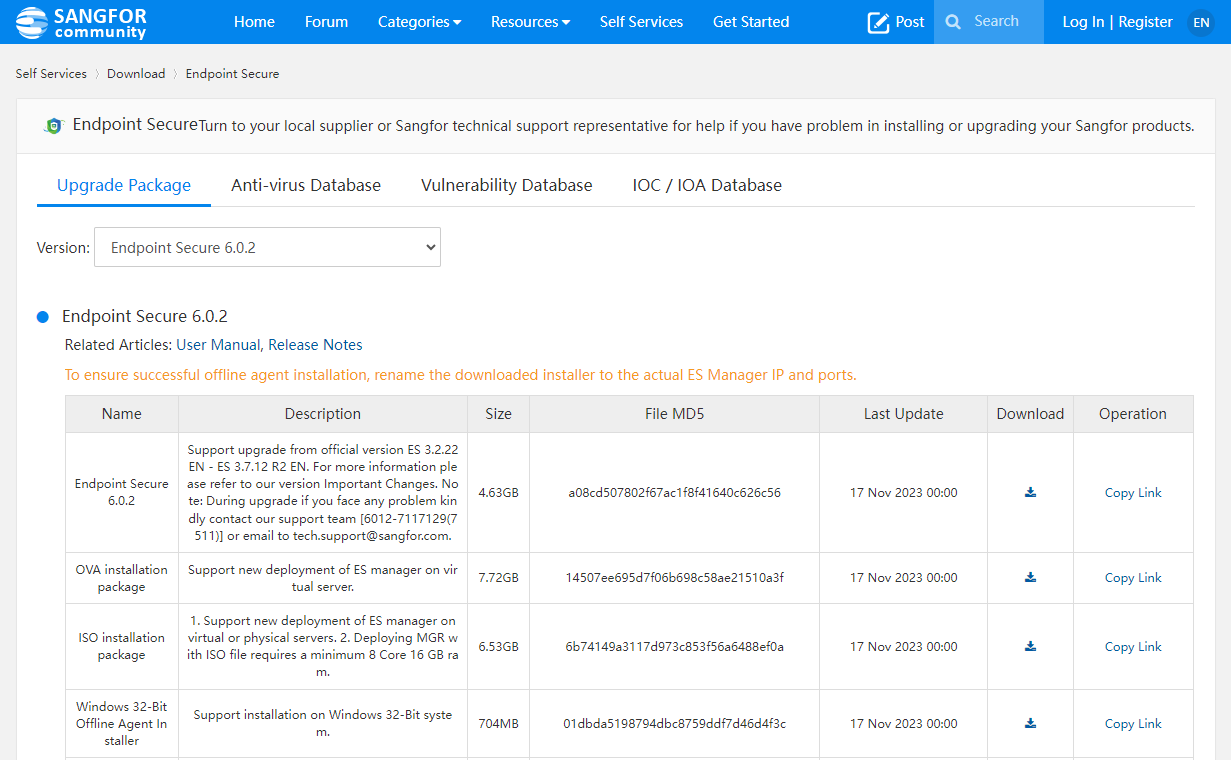
Go to System > System Updates > Signature Database Update to check whether the current database is the latest version. Please ensure that the database has been updated to the latest version.

Disable SSH Access
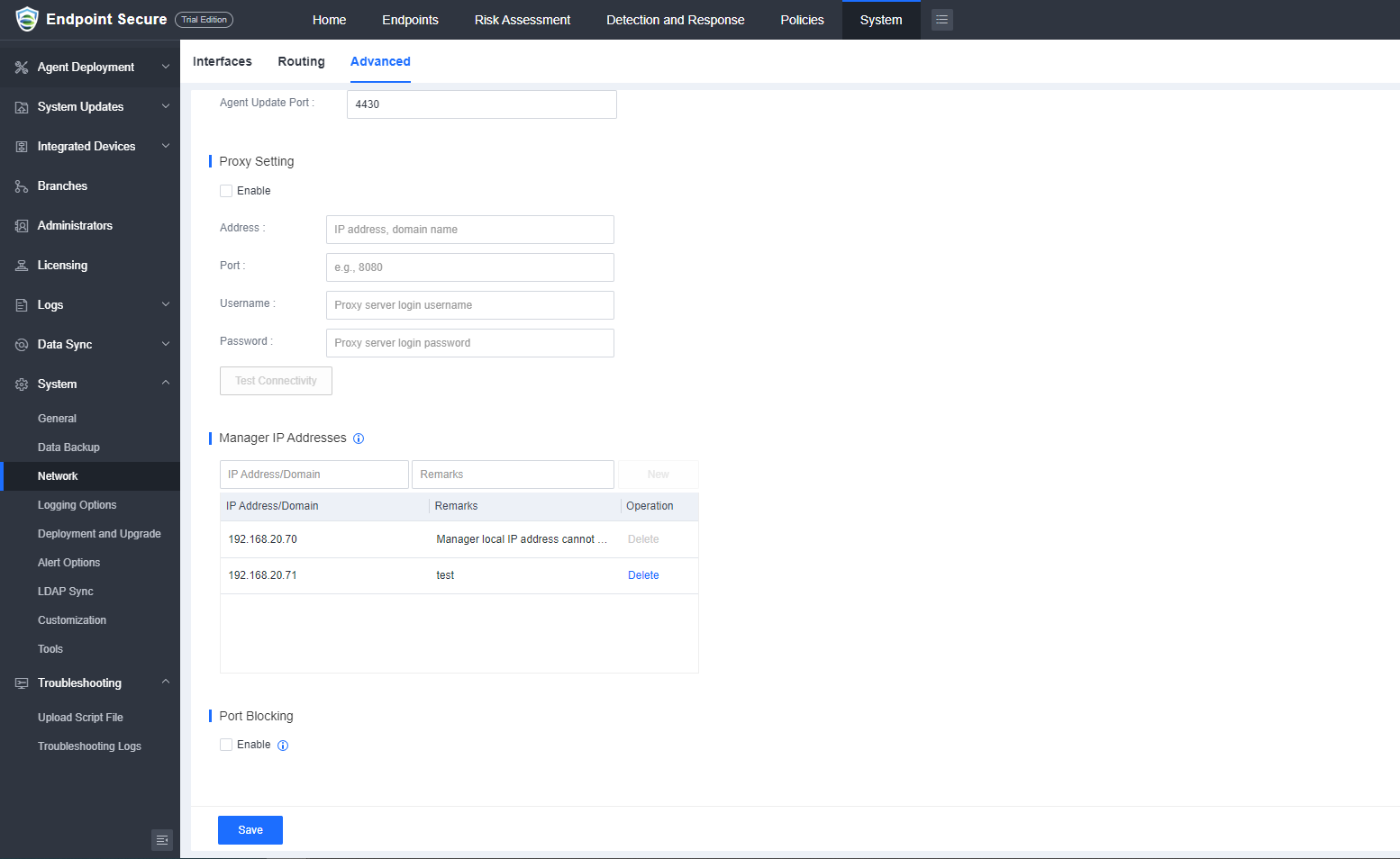
Go to System > System > Network > Advanced and disable the SSH Service.
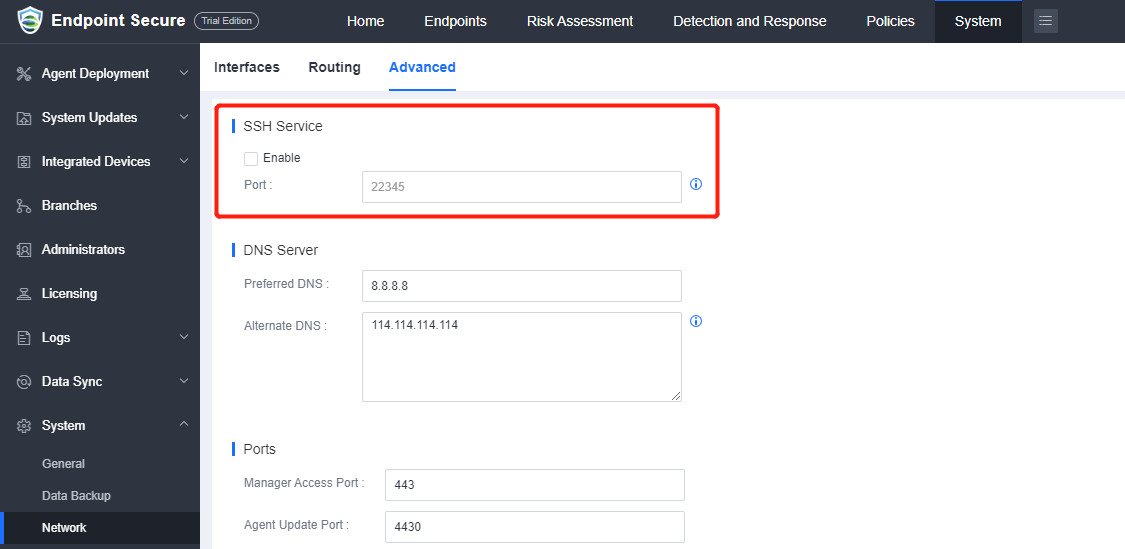
Then, enable the Port Blocking. Ports other than those used by the Manager and Agent will be blocked to reduce the exposure.
Use SSL/TLS Protocol & SSL Cert
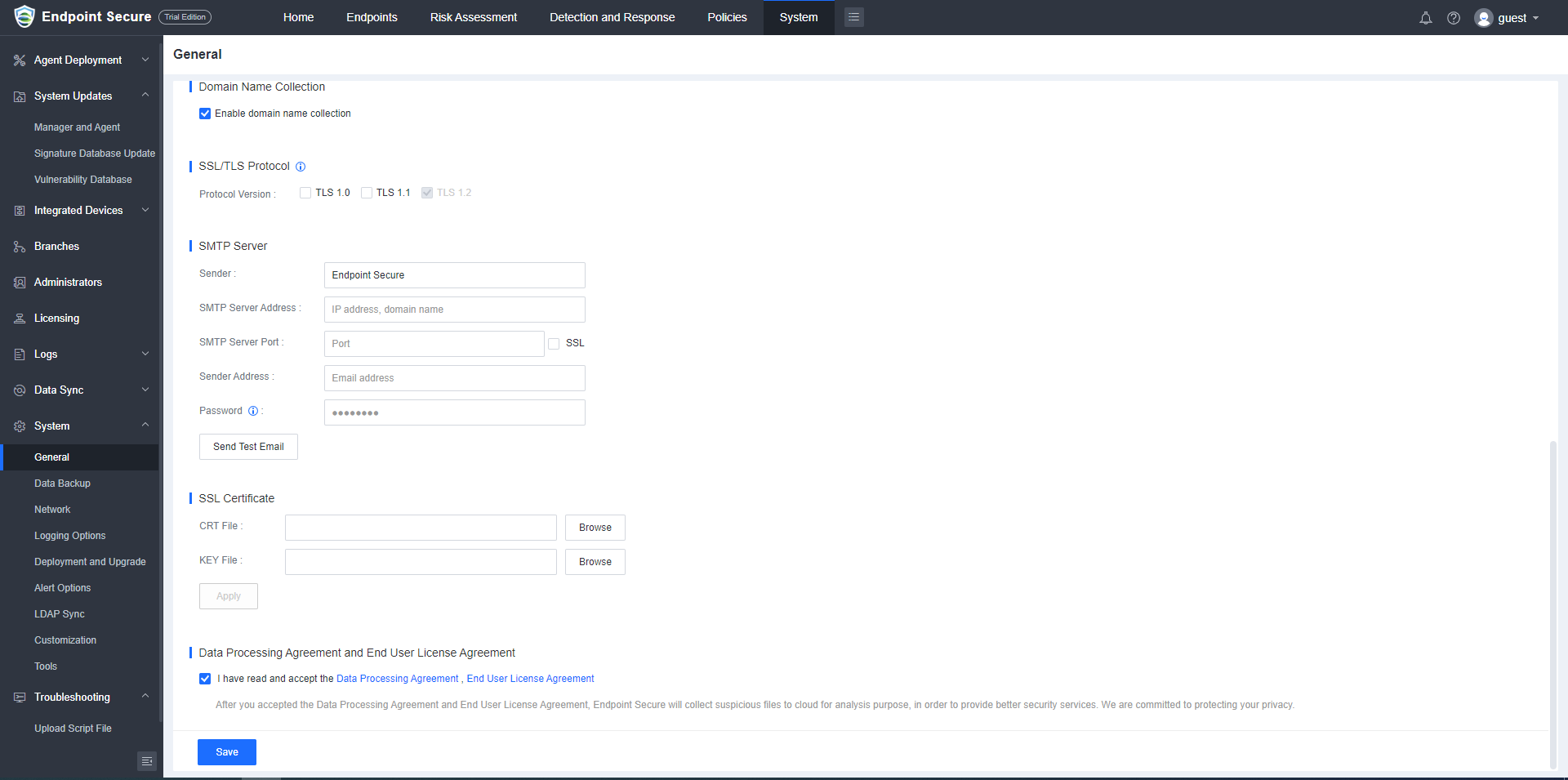
Go to System > System > General to enable higher versions of TLS protocols, such as TLS1.2.
It is also recommended that you import an SSL certificate to enhance the security of the Endpoint Secure Manager Web Console.
Enable Alert Function
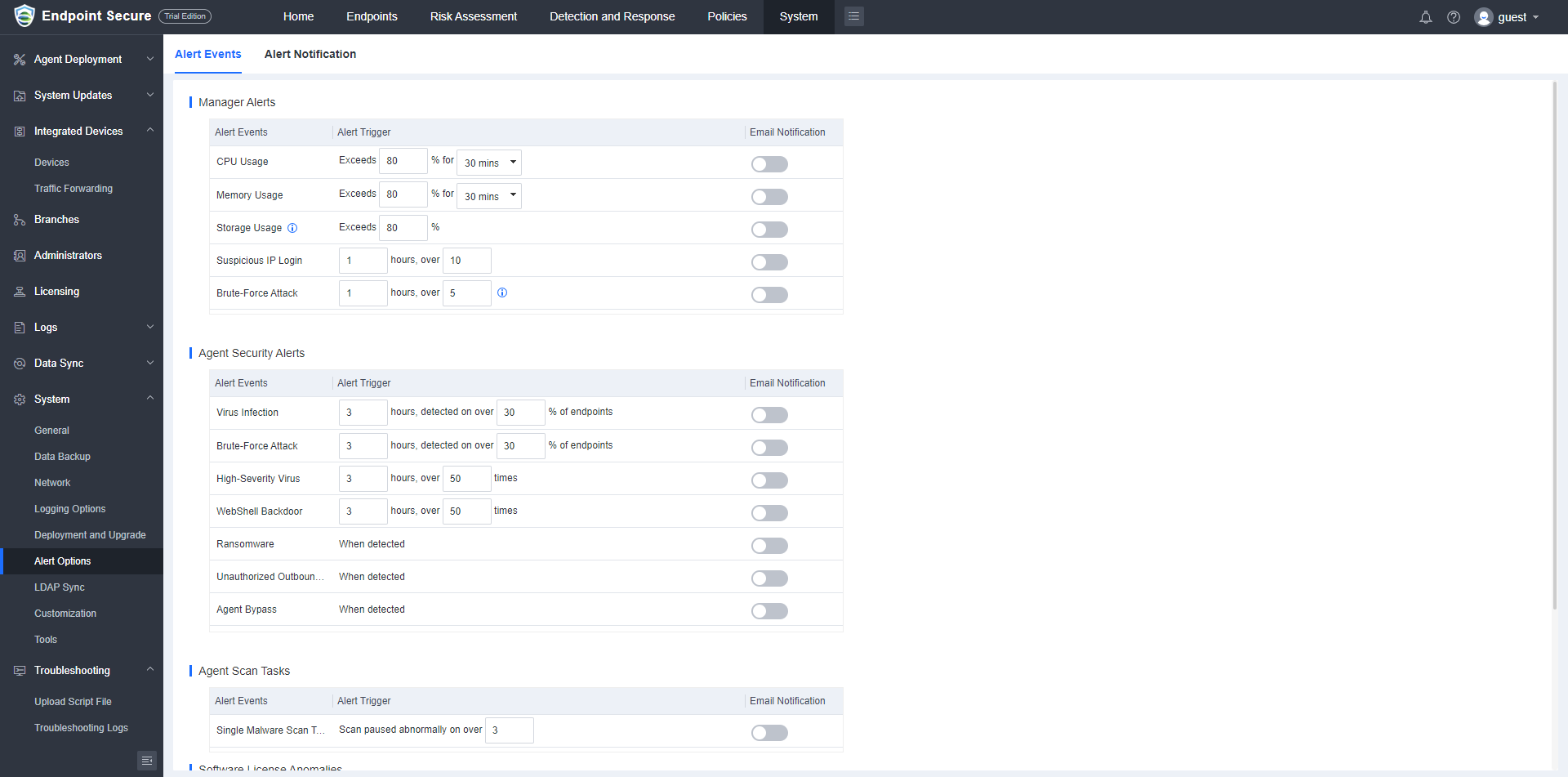
Enable the system’s Alert function. For example, enable Email Notification on Memory and CPU usage, Insufficient Licenses, etc., so that Endpoint Secure Manager can notify the administrator on time.