
【ES】Best Practices: Hot Patching_V3.7.12
Introduction
Virtual patching(Hot Patching) is increasingly being hyped as a robust alternative to vendor patching, enabling organizations to fix application vulnerabilities and limit their exposure to exploits quickly. Also known as external patching or vulnerability shielding, virtual patching helps users defeat exploitation attempts by protecting against both known and unknown vulnerabilities, including zero-day exploits, at all times.
It provides an effective compensating control when vendor patches are not available, reduces the need for emergency patches or workarounds, requires fewer policy enforcement points, and gives organizations the flexibility to implement vendor patches on the schedule of their choice or mitigates the need to implement vendor patches at all.
Requirements
OS Version Requirements
For CVE-2021-33739 vulnerability scripts targeting user mode, the applicable OS range is Windows 10 1909, Windows 10 2004, Windows 10 21H1, Windows 10 20H2.
For CVE-2021-31956 vulnerability scripts targeting kernel mode, the OS applicable scope is:
Windows 10
Windows 10 Version 1607
Windows 10 Version 1809
Windows 10 Version 1909
Windows 10 Version 2004
Windows 10 Version 20h2
Windows 10 Version 21h1
Windows 7 SP1
Windows 8.1
Windows Rt 8.1
Windows Server 2008 R2 SP1
Windows Server 2008 SP2
Windows Server 2012
Windows Server 2012 R2
Windows Server 2016
Windows Server 2016 2004
Windows Server 2016 20
Testing Requirements
Please choose the OS version corresponding to the script and ensure the versions are consistent. Select the earliest version instead of the version that has been updated multiple times.
The patch might have been installed if the customer used their OS for testing. Please refer to the patch that can be detected on the Endpoint Secure Manager.
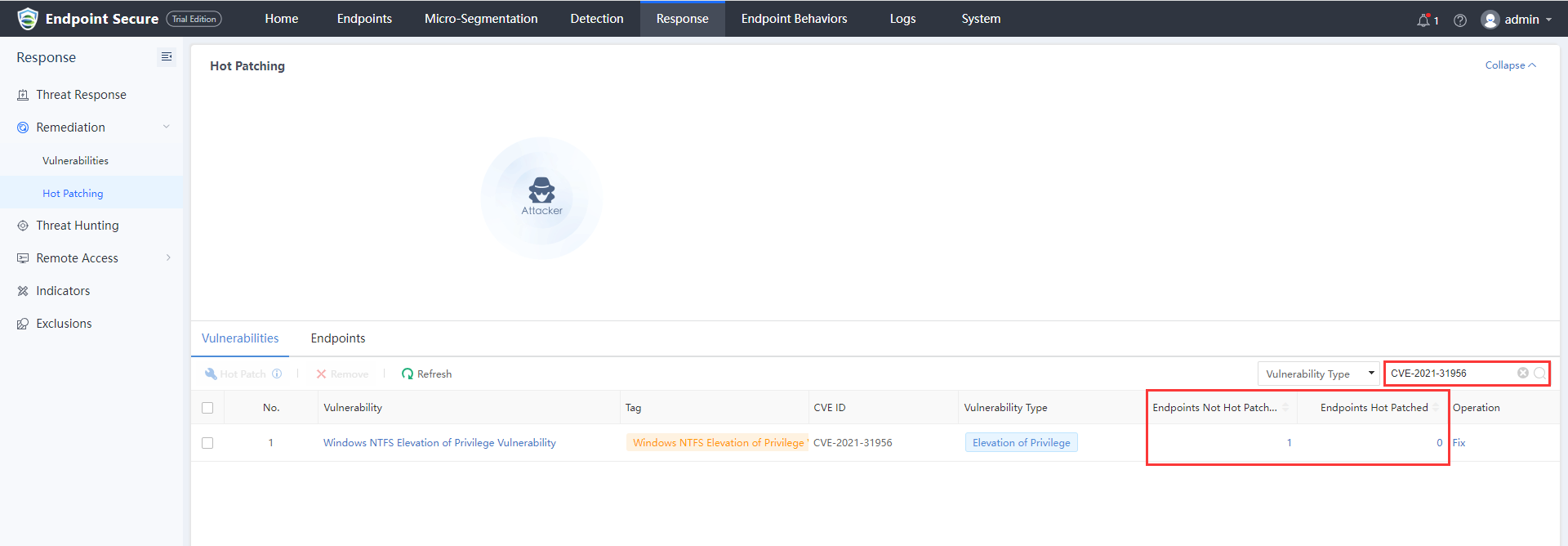
Best Practices
Steps
User Mode Patch Testing
-
CVE-2021-33739 vulnerability is subject to a local escalation of privilege attack. The attacker would most likely arrange to run an executable or script on the local computer. An attacker could access the computer through various methods, such as via a phishing attack where a user clicks an executable file attached to an email.
-
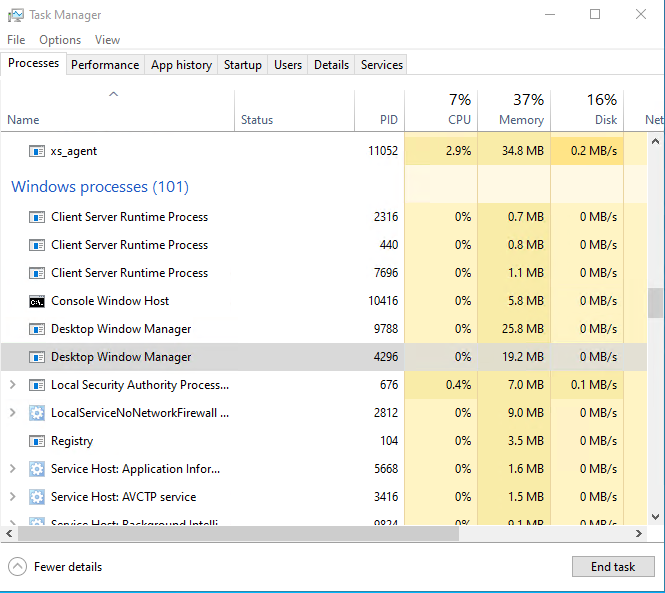
Open the task manager, and you can see that the Desktop Windows Manager process is running normally.
-
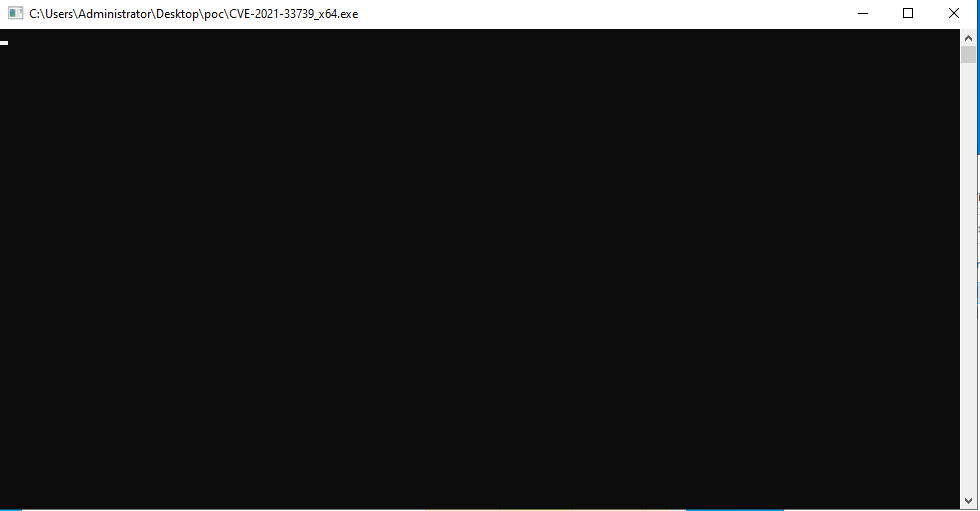
Execute the attack script.
-
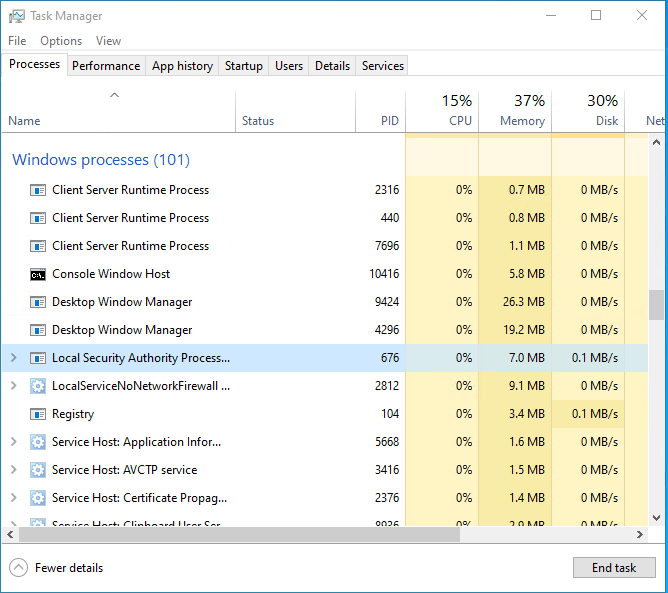
You can see that the Desktop Windows Manager process is stopped and restarted, and you can see that the PID has changed.
-
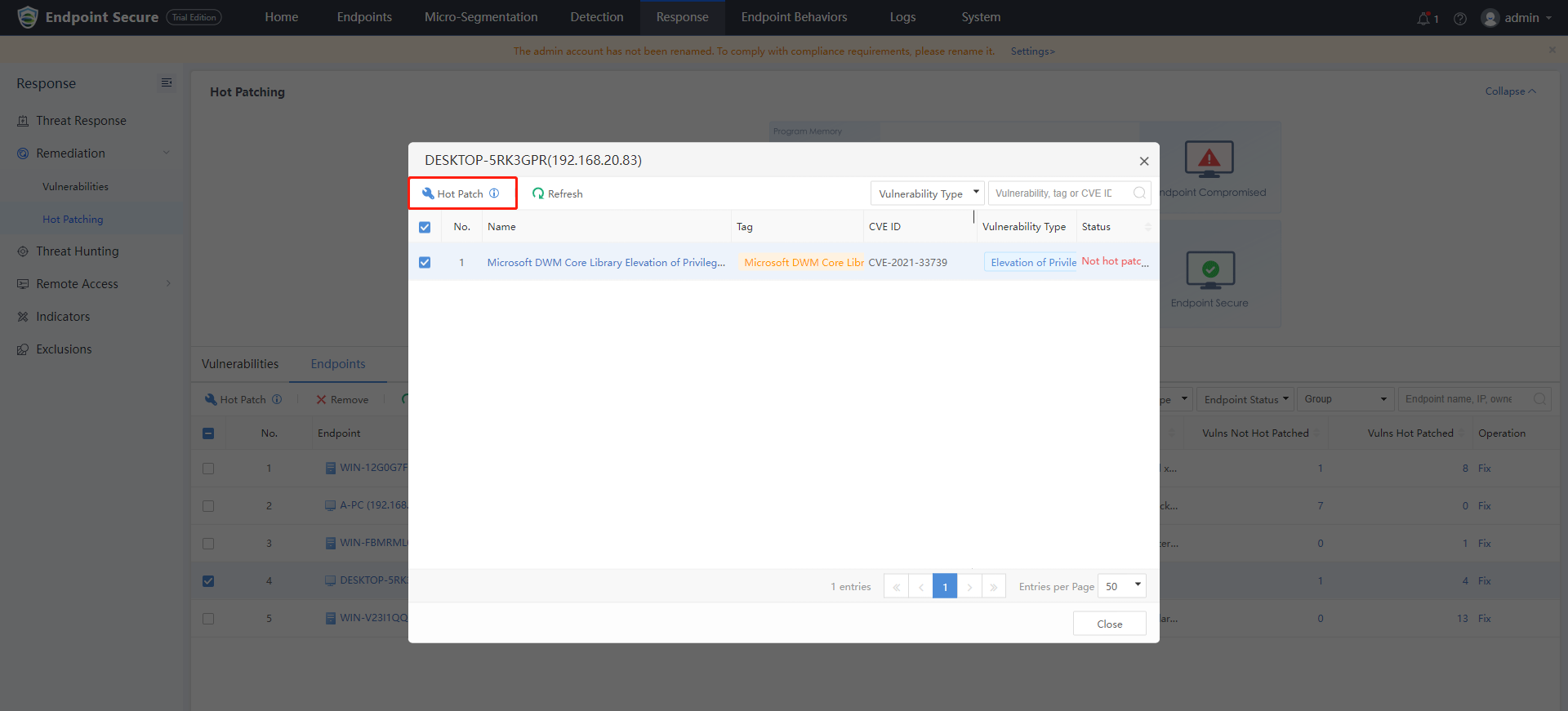
Log in to Endpoint Secure Manager, navigate Response > Remediation > Hot Patching, and click the Endpoints tab. Select the testing endpoint with the vulnerability and click Hot Patch.
-
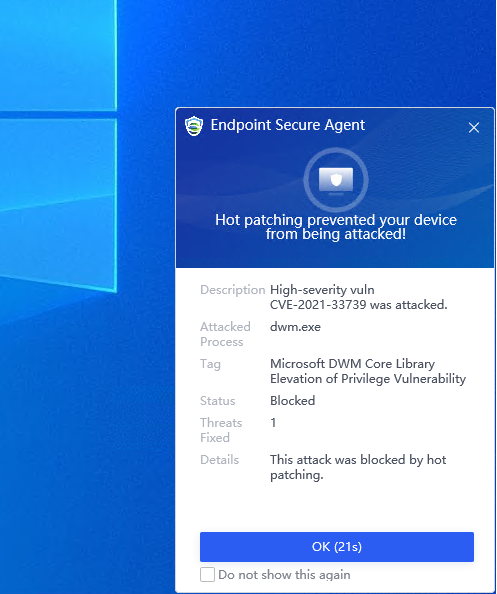
Rerun the attack script. You can see that the Endpoint Secure has defended against the attack, and an alert pops up.
-
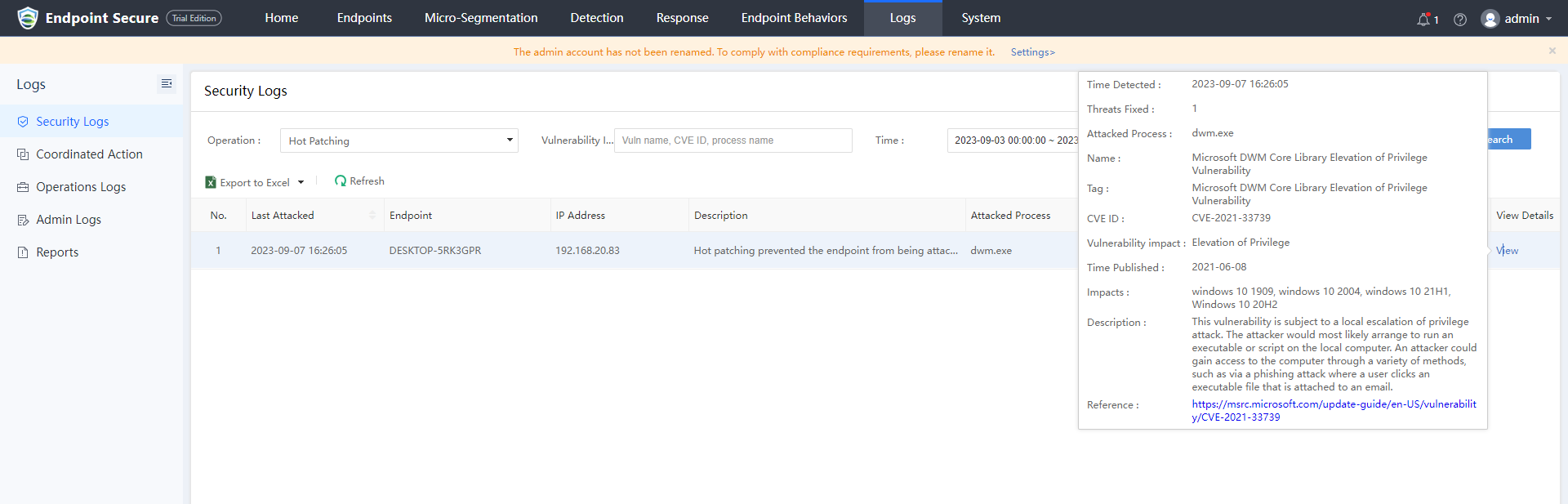
Navigate to Logs > Security Logs, you can see the related log.
Kernel Mode Patch Testing
-
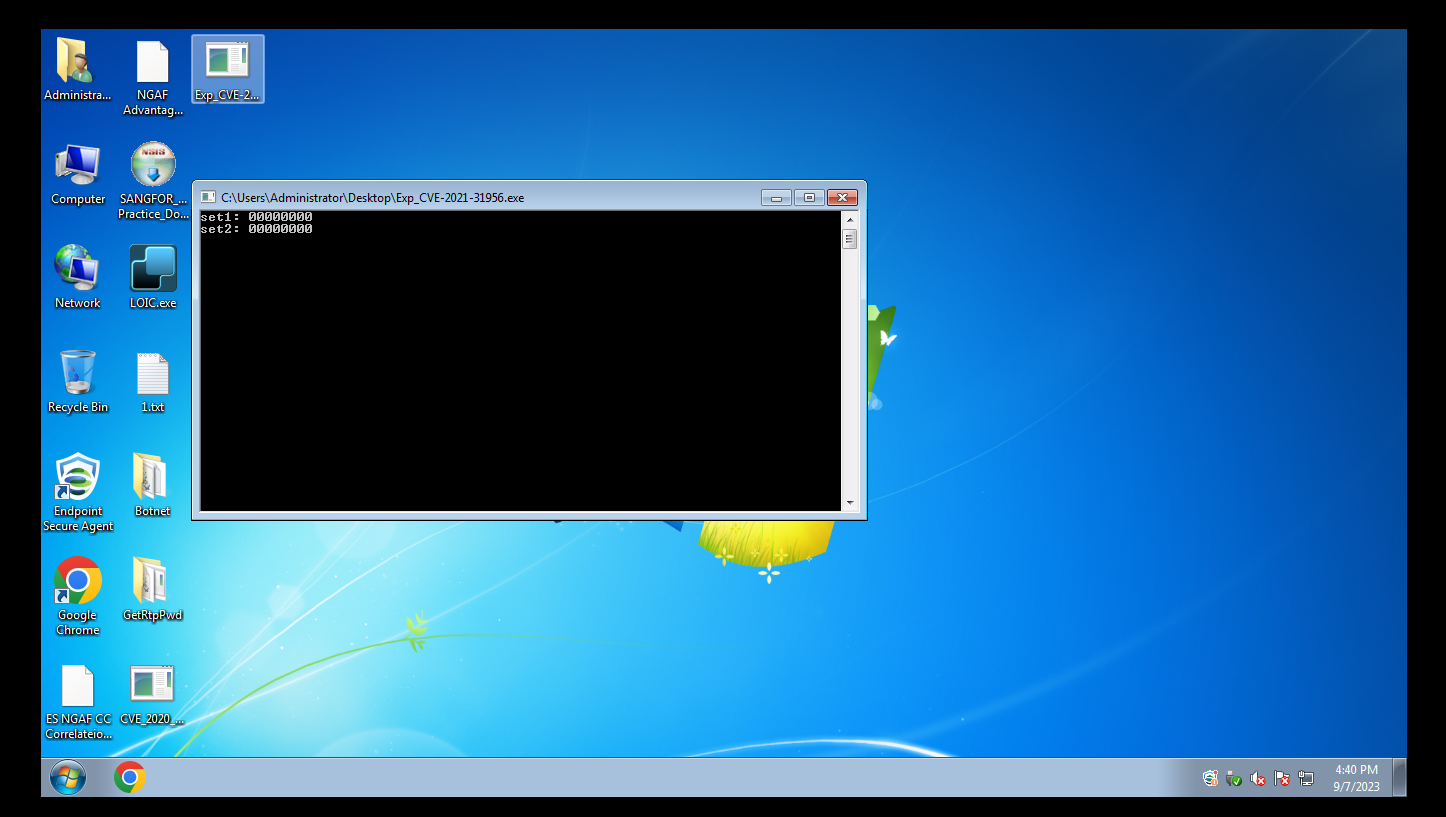
After running the attack script, you can see that the operating system has crashed.
-
Log in to Endpoint Secure Manager, navigate Response > Remediation > Hot Patching, and click the Endpoints tab. Select the testing endpoint with the vulnerability and click Hot Patch.
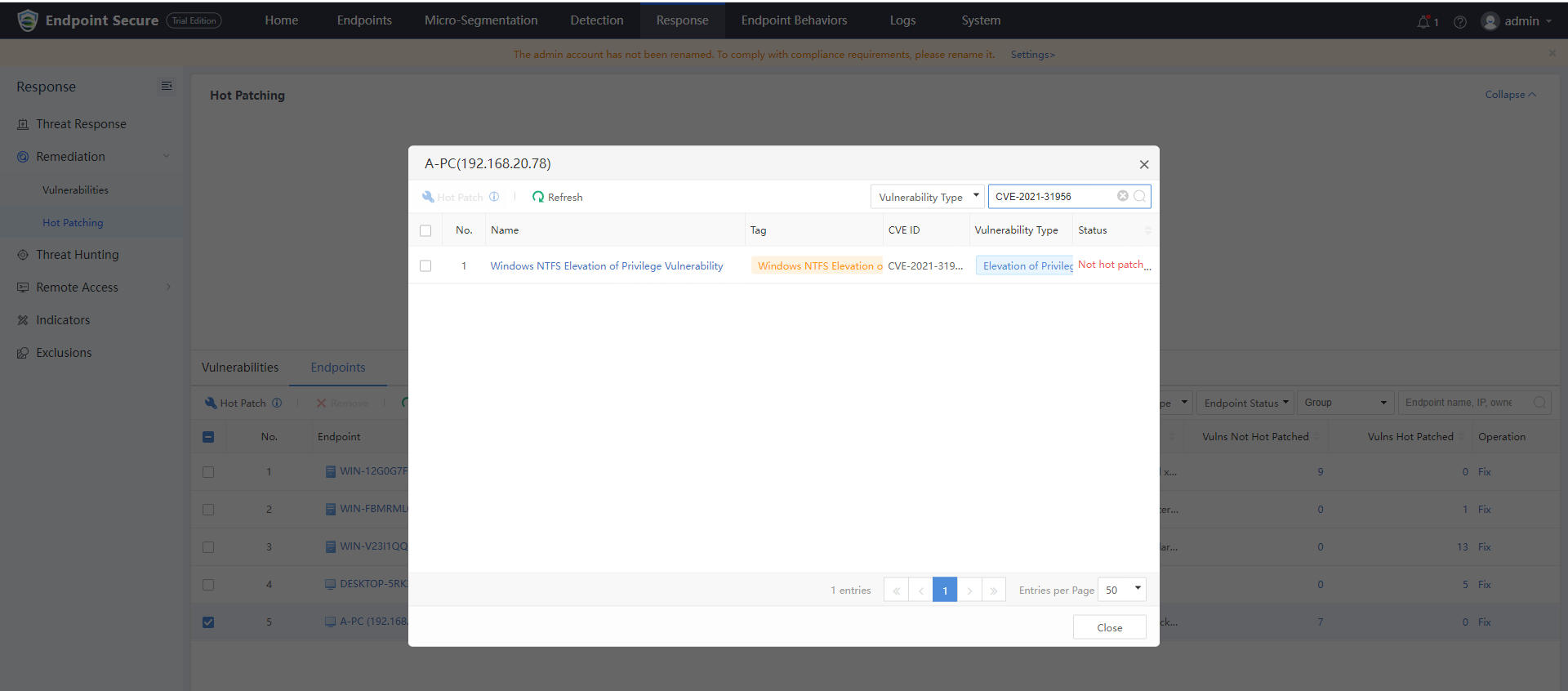
-
Rerun the attack script, and you can see that the system will not crash.

Precautions
-
Test Tools may not necessarily cause an OS blue screen but may cause a system crash.
-
Using a physical machine for testing is recommended. The virtual machine in the HCI environment may not have a blue screen or system crash.