
【ES】Best Practices: Remote Support_V3.7.12
Scenario
- Setting up the Environment
The administrator needs to perform maintenance and troubleshooting tasks on a specific controlled endpoint. The controlled endpoint is located at a different physical site and is connected to the corporate network. The administrator can access the Endpoint Secure Manager(MGR), the central control hub for all endpoints.
- Establishing the VNC Connection
The administrator logs into the Endpoint Secure Manager from his workstation. Then, the administrator navigates to the endpoint management section and accesses the target endpoint remotely. Use the integrated VNC tool to initiate a VNC connection to establish a remote desktop session between the management platform and the controlled endpoint.
- Remote Desktop Access
Once the VNC connection is successfully established, the administrator gains remote access to the controlled endpoint’s desktop. The Endpoint Secure Manager displays the desktop environment of the controlled endpoint on the workstation screen. The administrator can view the endpoint’s desktop and interact with it using his mouse and keyboard as if he is physically present at the endpoint’s location.
- Maintenance and Troubleshooting
The administrator can perform various maintenance and troubleshooting tasks on the controlled endpoint with remote desktop access. He can install software updates, configure settings, diagnose issues, and resolve technical problems. The administrator can leverage the full functionality of Endpoint Secure to execute necessary actions and monitor the results in real-time.
- Collaboration and Support
Remote desktop access via VNC also facilitates collaboration and technical support. The administrator can collaborate with other team members or assist end-users by accessing their PCs remotely. This capability enables efficient problem resolution, reduces response times, and enhances customer satisfaction.
This document demonstrates how the integrated VNC tool in the Endpoint Secure Manager enables administrators to remotely access and control the desktop of controlled endpoints. By offering this capability, remote access empowers administrators to efficiently perform maintenance tasks, troubleshoot issues, collaborate, and provide support.
Prerequisites
-
Endpoint Secure version 3.5.36 and above.
-
The operating system is in the supported list(refer to the first point of Precautions).
Principle
A VNC (Virtual Network Computing) viewer is a software application that allows users to remotely access and control a computer’s desktop. The VNC viewer operates based on a client-server model and relies on the Remote Frame Buffer (RFB) protocol.
The client-server model consists of the VNC viewer (client) and the VNC server. The VNC server runs on the remote computer whose desktop is to be accessed, while the VNC viewer runs on the local computer from which the user wants to establish the remote connection.
Best Practices
Core Steps
-
Install the VNC tool on the control PC.
-
Make sure the ES agent of the remote PC is online.
Configuration Steps
Remote Without User Consent
The administrator can directly remote the endpoint without user consent, which is suitable for the scenario where the endpoint is unattended.
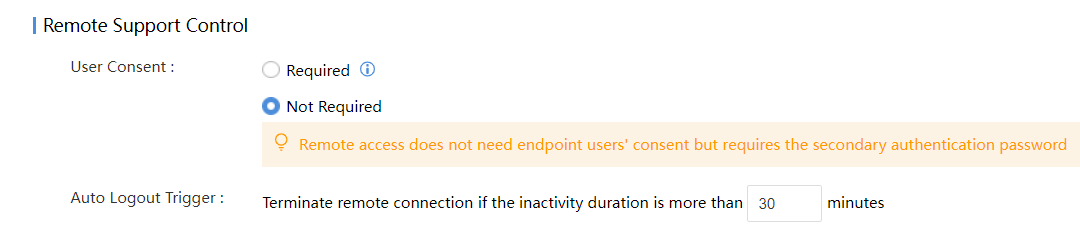
Navigate to Endpoints > Security Protection > Endpoint Control, and set the endpoint control policy of the group where the endpoint that needs to be remotely controlled is located, as shown in the figure below. Under Remote Support Control > User Consent, select Not Required.
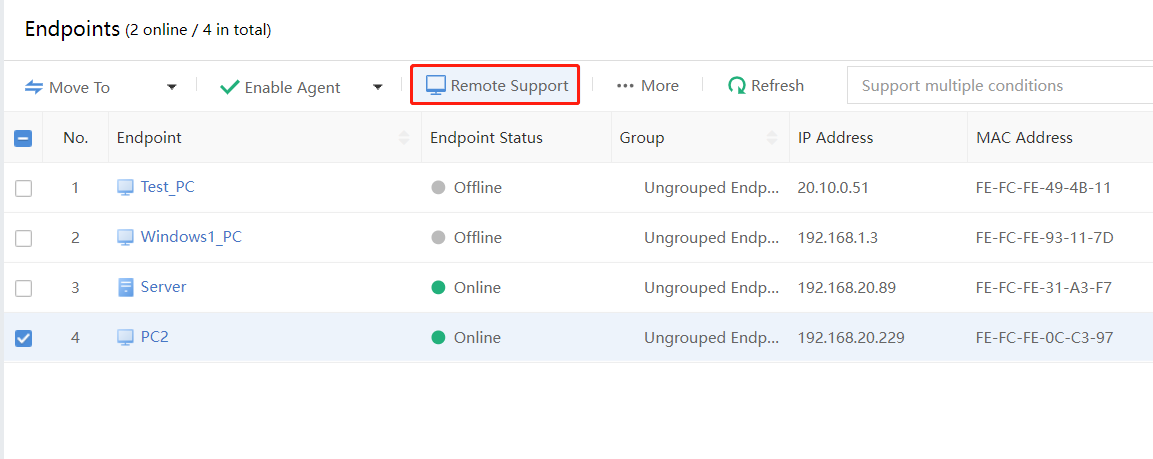
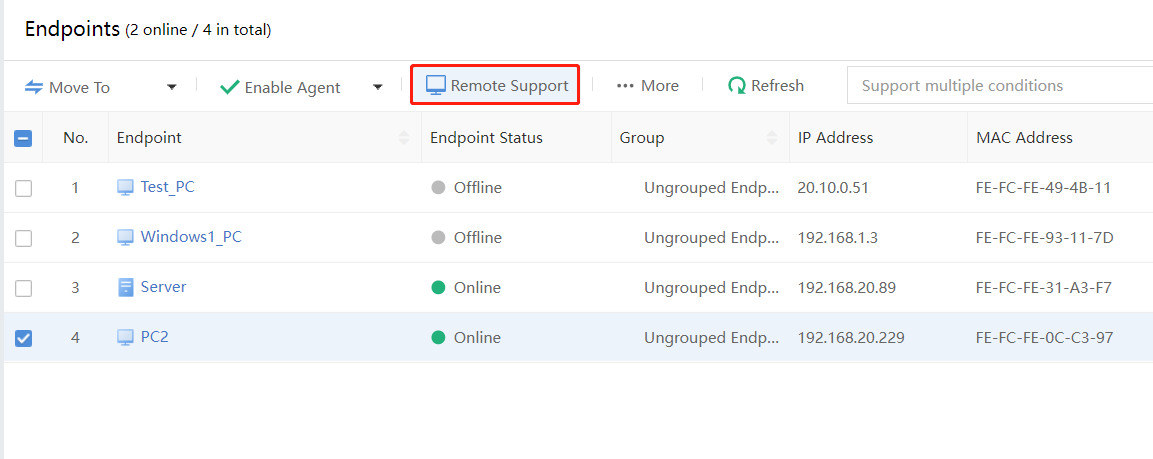
Navigate to Endpoints > Groups, select the endpoint that needs to be remote, and click Remote Support, as shown in the figure below.
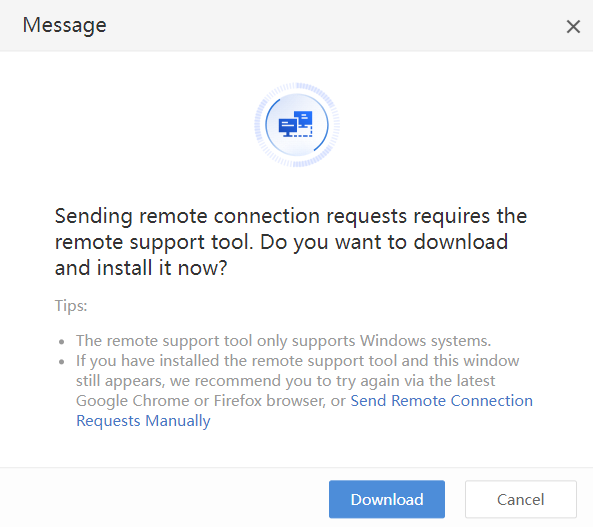
When using remote support for the first time, you need to download the VNC tool, click Download to download and install the VNC tool, as shown in the figure below.

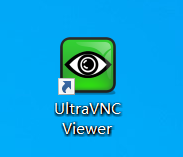
After installing the VNC tool, click the Remote Support again, as shown in the figure below.
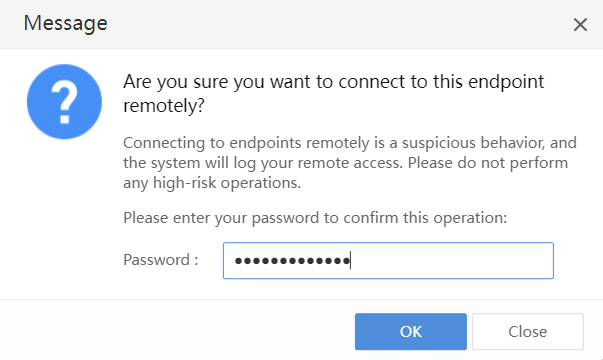
You need to enter the current administrator account password to confirm your identity. After entering the administrator password, click OK to establish a remote connection, as shown in the figure below.
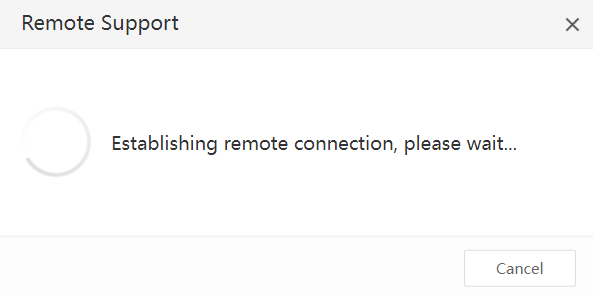
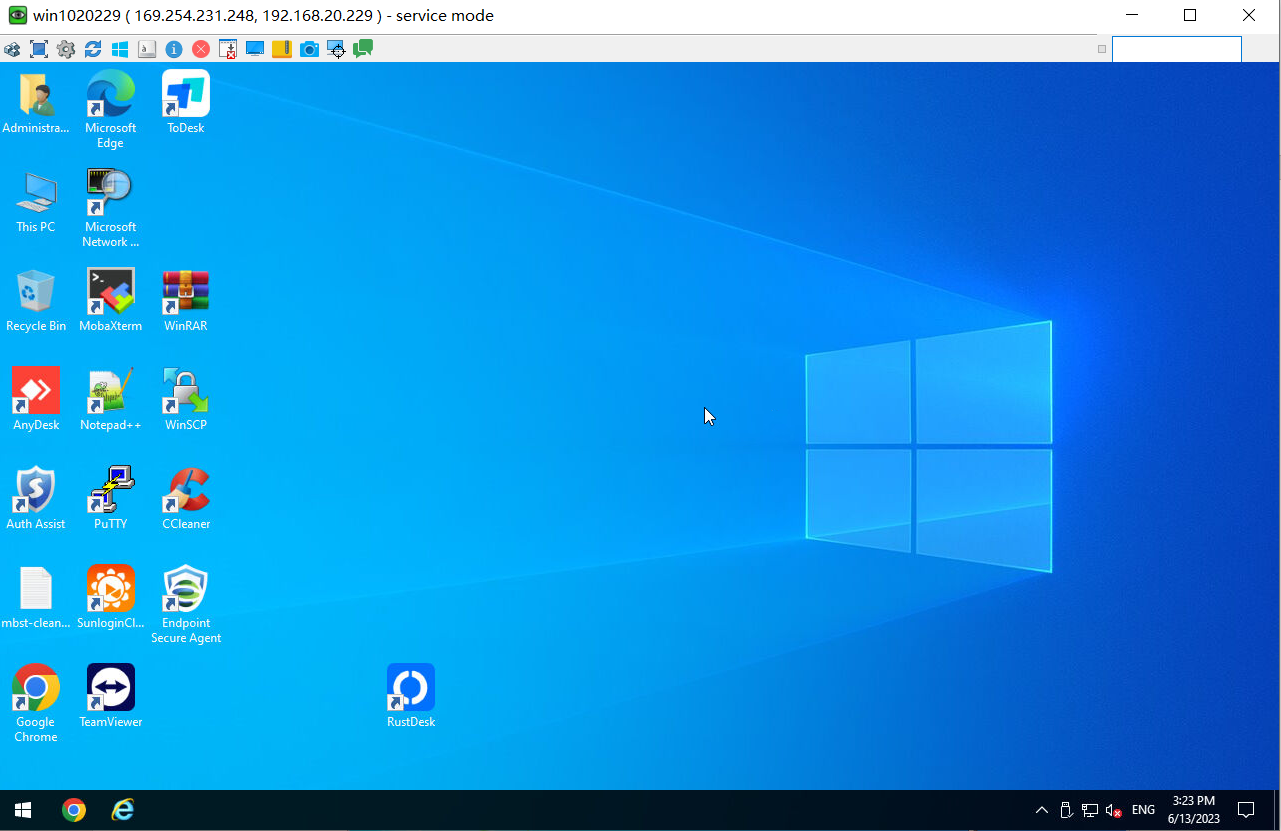
Remote With User Consent
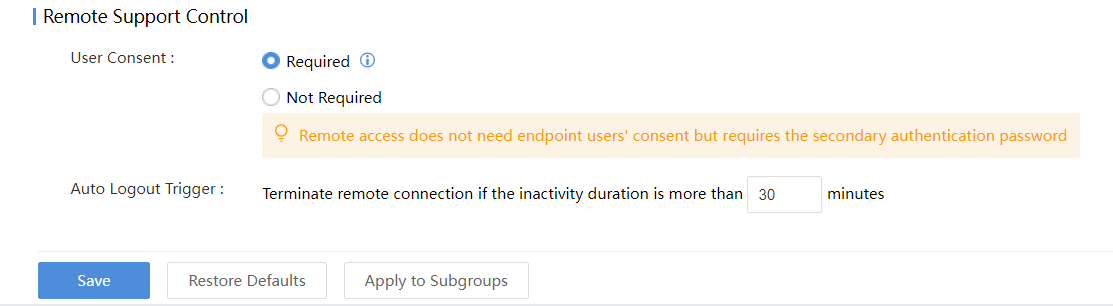
Navigate to Endpoints > Security Protection > Endpoint Control, and set the endpoint control policy of the group where the endpoint that needs to be remotely controlled is located, as shown in the figure below. Under Remote Support Control > User Consent, select Required.
Navigate to Endpoints > Groups, select the endpoint that needs to be remote, and click Remote Support, as shown in the figure below.
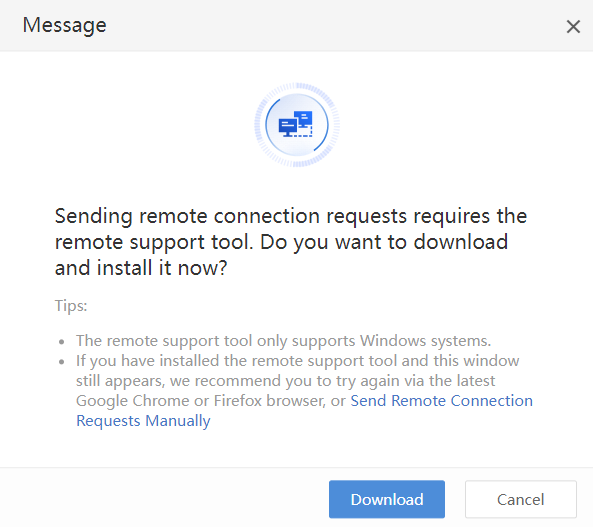
When using remote support for the first time, you need to download the VNC tool, click Download to download and install the VNC tool, as shown in the figure below.

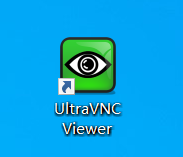
After installing the VNC tool, click Remote Support again, as shown in the figure below.
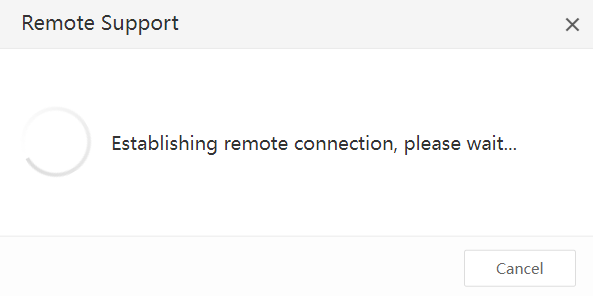
On the endpoint PC, the taskbar tray prompts whether to allow this PC to be accessed remotely.
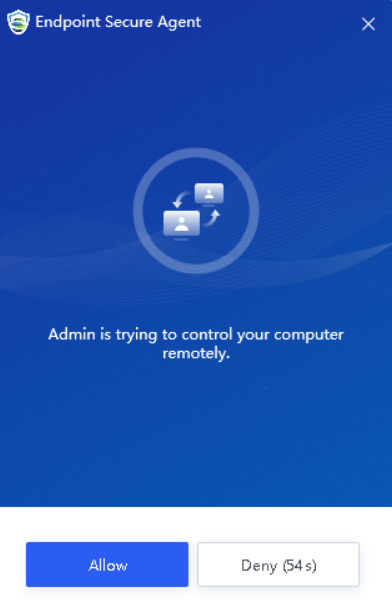
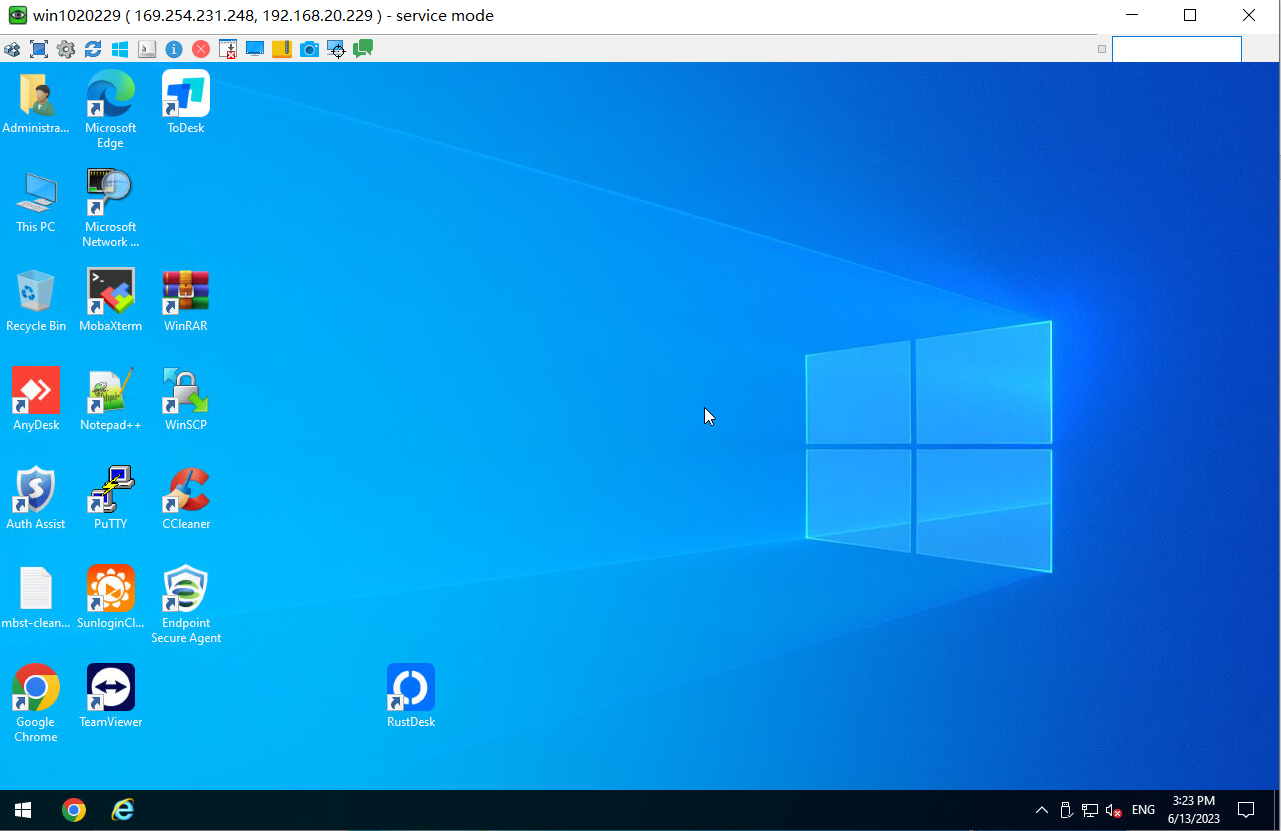
After the endpoint user clicks Allow, the administrator can remotely control the endpoint.
Result
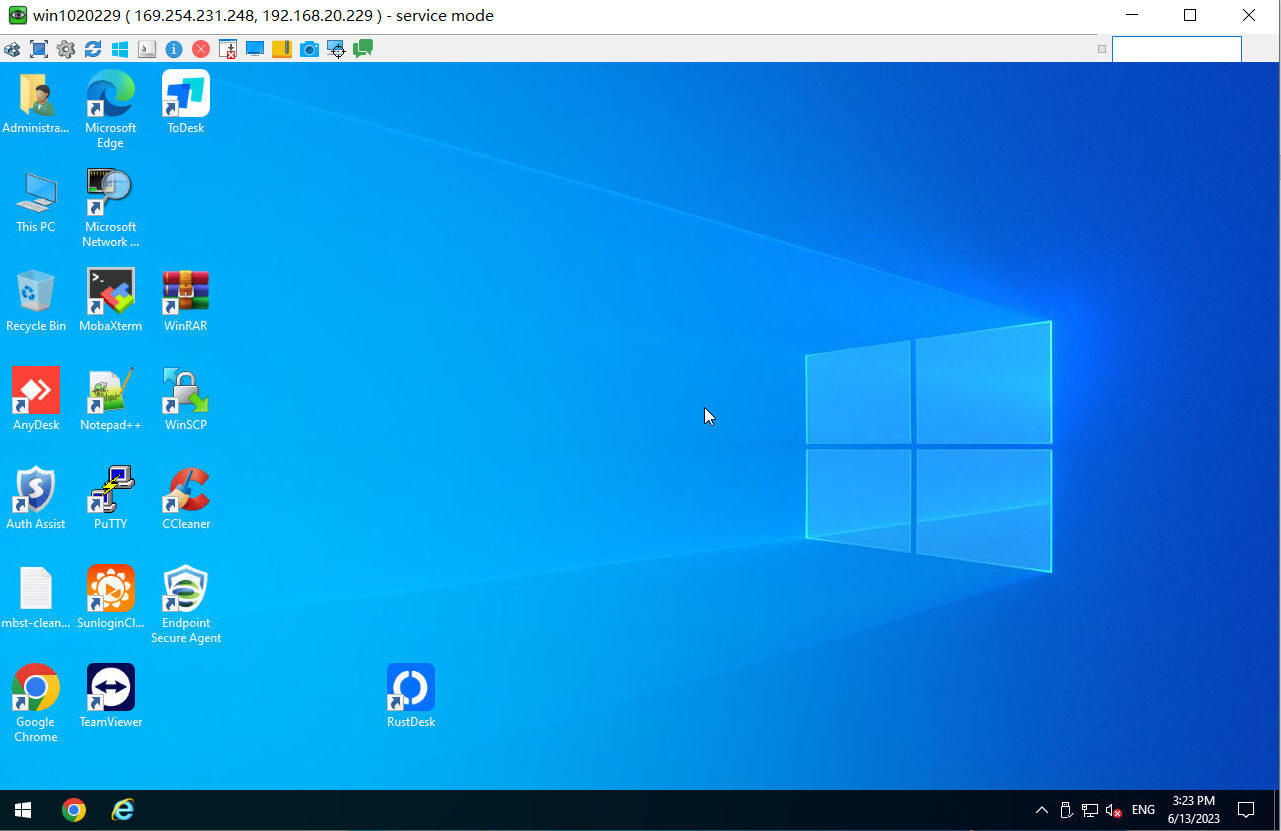
After the remote support connection is successfully established, you can see the desktop of the remote endpoint, and control the remote PC.
Precautions
-
ES remote support only supports Win XPSP3, Win7 x86, Win7 x64, Win8 x86, Win8 x64, Win8.1 x86, Win8.1 x64, Win10 x86, Win10 x64, Win 11. It does not support Window server, Linux systems, and MAC systems.
-
Only Admin and Security Admin have remote control permission, and the entire communication process is encrypted.
-
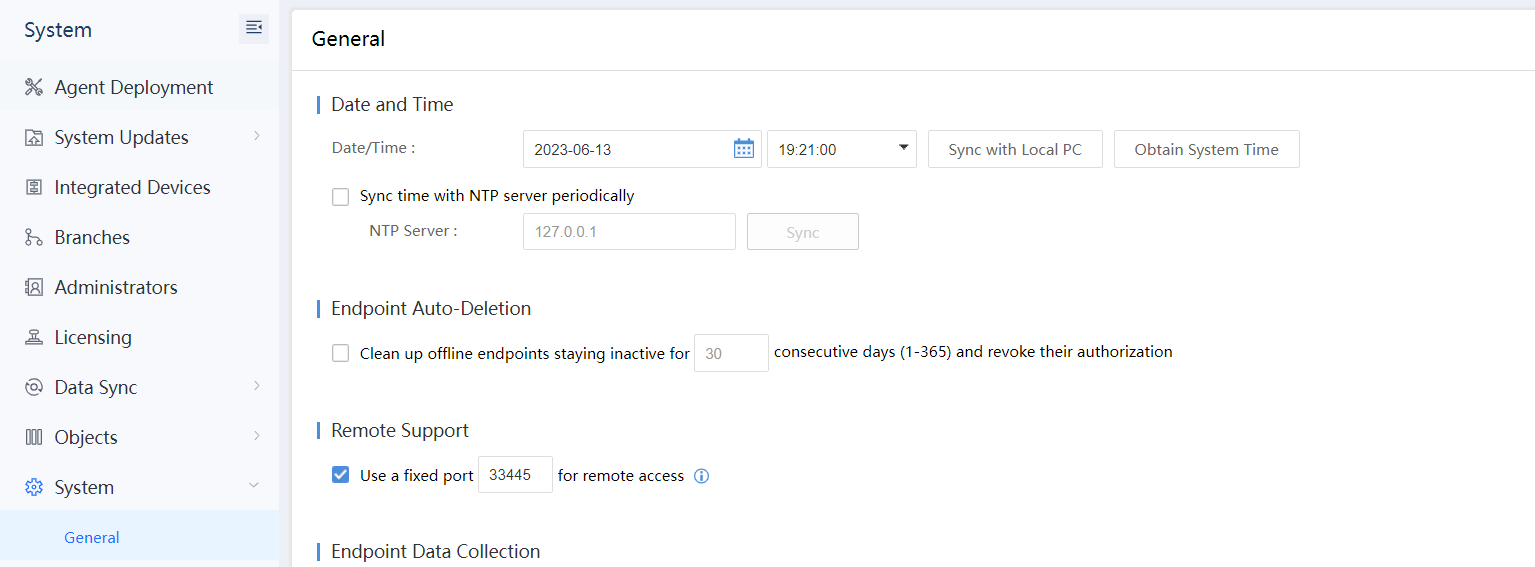
By default, remote support uses a random port to control the computer remotely. You can set a fixed port in advance through System > System > General > Remote Support.
-
When using remote support for the first time, the current PC needs to download the VNC client remote tool, and the endpoint secure agent comes with a VNC client, which does not need to be installed.
-
You need to reinitiate if there is no remote access for more than 10 minutes after each remote request.
-
After the remote connection is successful, if the disconnection lasts for more than 30s, you need to reinitiate it.
-
You can manually disconnect the remote endpoint secure agent.
-
The port and password for each connection are random. If the network is connected and the remote connection fails, check whether the firewall is blocking all incoming connections.
-
The Endpoint Secure Manager does not support remote support for offline endpoints.