
【ES】Deploy Endpoint Secure Agent via Sangfor IAG_All Versions
Background
Needs Analysis
As the network security environment becomes increasingly complex, unknown threats emerge one after another, and traditional security defense systems cannot handle the severe endpoint security situation. The demand of enterprises for new defense solutions is becoming top urgent.
Sangfor launched the Internet Access Gateway (IAG) + Endpoint Secure solution to detect whether endpoints in the LAN have installed antivirus software through IAG and redirect users of those endpoints with no antivirus software installed to the agent installer download page. Throughout the endpoint security life cycle, with the help of Endpoint Secure Agent featuring virus prevention, defense, detection, and response, users can create detailed isolation policies, scan viruses accurately, detect viruses continuously, and fix viruses rapidly.
Endpoint Secure helps users fix endpoint security problems quickly in responding to advanced threats. It builds a lightweight, intelligent, and fast-responsive next-generation endpoint security system through cloud-network-endpoint integration, threat intelligence sharing, and multi-layer response mechanisms.
Scenario
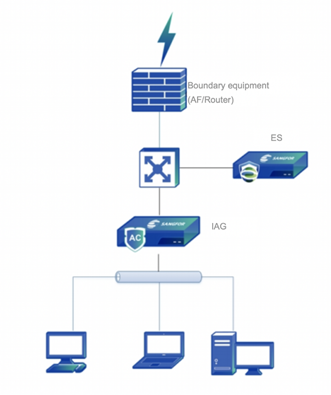
When Sangfor IAG and Endpoint Secure Manager are deployed in the LAN simultaneously, the IAG device is able to detect if Endpoint Secure Agent is installed on an endpoint. If not, it redirects the user to the agent installer download page.
Network Topology
Solutions
Solution A: Redirection Through Traffic Detection Rules (Recommended)
Scenario
This solution applies to IAG13.0.X versions. The traffic between the endpoint and the Endpoint Secure Agent needs to pass through IAG. The IAG device determines whether an endpoint has the agent installed according to the traffic interaction between the endpoint and the Endpoint Secure Agent.
Procedures
- Login to IAG management platform. Go to Access Mgt > Endpoint Check > Check Rules > Traffic Based and click Add to add a rule.
- Enter the name and category for the new rule. Then under Software, select Sangfor Endpoint Secure. Specify the Endpoint Secure MGR IP address and the trigger time.

Note: The default heartbeat of an agent is 1 minute, and it is recommended to specify the time to be greater than 5 minutes.
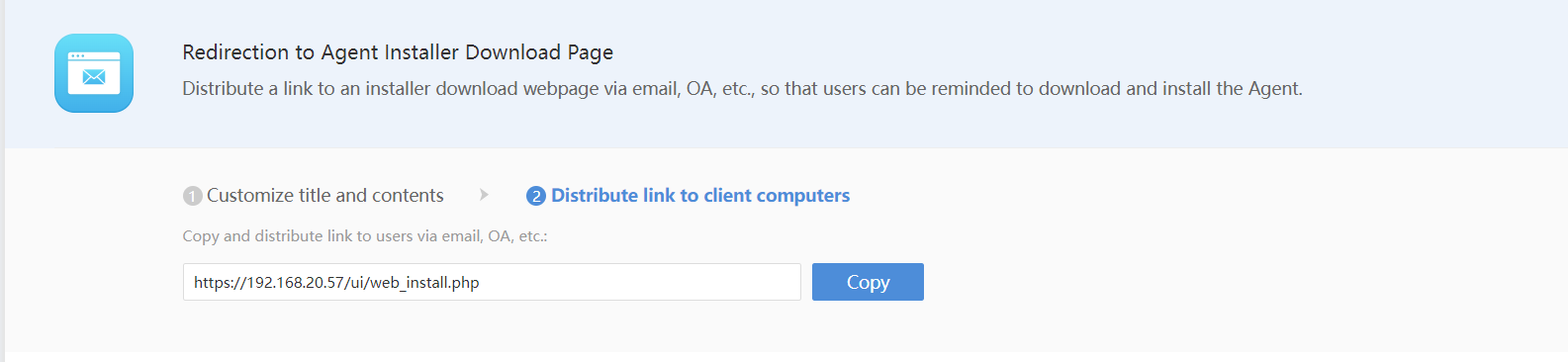
- In the Traffic Based rule, select Regularly redirect to specified site in Action. You need to enter the URL of the agent installer download page in Redirect URL. The URL can be obtained in Endpoint Secure Manager. Path: System > Agent Deployment > Redirection to Agent Installer Download Page.

- Create a new endpoint detection policy, use the rule created in Step 2, and select objects in the Object tab.


Result
When users open browsers on endpoints, they will view the agent installer download page redirected by IAG.

They can read messages on the page, download and install the agent according to the endpoints’ operating system.
Solution B: Redirection Through Ingress Client Detection Rules
Scenario
This solution applies to IAG13.0.X versions, and an ingress client (or plug-in) has been installed on the endpoints in the LAN. The traffic between Endpoint Secure Agent and an endpoint does not need to pass through an IAG device, as long as the endpoint is reachable to the agent and the IAG device. With this solution, Endpoint Secure Agent can be installed silently by entering a parameter.
Procedures
- Login to Sangfor IAG management platform. Go to Access Mgt > Endpoint Check > Check Rules > Ingress Client Detection. Click Add, and select Anti-Virus Software Based Rule.

- Enter the Name, Category, and Description for the new rule and select the Sangfor Endpoint Secure Agent checkbox.

Select Fix in Action. You need to enter the URL of the agent installer download page in the Redirect URL. The URL can be obtained in Endpoint Secure Manager. Path: System > Agent Deployment > Redirection to Agent Installer Download Page.
- Create a new endpoint detection policy, use the rule created in Step 2, and select objects in the Object tab.


Result
When users open browsers on endpoints, they will view the agent installer download page redirected by IAG.

Users can read messages on the page, download and install the agent according to the endpoints’ operating system.
Solution C: Redirection Through Reminder on Sangfor Endpoint Secure Installation
Scenario
This solution applies to IAM12.0.17 or later versions (IAG13.0.X versions are recommended), and the IAM or IAG device can communicate with Endpoint Secure Agent.
Procedures
- Perform the following operations on Endpoint Secure Manager.
Log in to Endpoint Secure Manager and enable Device Integration in System > System > General.

Note: If Device Integration is disabled on Endpoint Secure Manager, the message "Password self-negotiation failed. Please try again later." will appear when an IP address is entered in Endpoint Secure Server Address.
- Perform the following operations on IAG.
Log in to the IAG management platform, go to Endpoint Mgt > Security > Security Capabilities > Security Capabilities to select Endpoint Secure, and enter information in Logging In and Correlation to Endpoint Secure.

Enter the IP address of the Endpoint Secure Manager and click Connect Now. After the Endpoint Secure Manager is successfully connected, you can view Service Details, Connected Endpoints, Correlated Actions, etc.

- Configure the Endpoint Secure Agent Reminder Settings.
Click Reminder Options in the upper right corner to go to the Reminder on the Sangfor Endpoint Secure Installation page. This function is disabled by default. You can select the checkbox to enable it as needed.

Applicable Object: Configure the internal IP address or IP range to push the agent installer download page to the endpoints in the LAN.
Force redirection: Select this and enter the redirect URL obtained in System > Agent Deployment > Redirection to Agent Installer Download Page on Endpoint Secure Manager. The Force redirection function will push the agent installer download page to endpoints and cause the network to be disconnected. Please enable this during off-peak hours.
Interval(s): Define how often the agent installer download page will be pushed to the endpoints without the agent installed. The default interval is 300 seconds.
Result
When endpoints in Applicable Object do not have Endpoint Secure Agent installed, endpoint users will be redirected to the agent installer download page when they open browsers. They can download the agent installer for Windows or Linux systems on the page.

Users can read messages on the page, download and install the agent according to the endpoints’ operating system.
Notes
Solution A is recommended, and we recommend you to upgrade Sangfor IAM (versions earlier than 13.0.1) to Sangfor IAG (13.0.1 and later versions). Note that if you upgraded the IAG device to IAG13.0.X but did not purchase the license key for the Endpoint Security module, the original ingress policy-related function will fail. If you still want to use Sangfor IAM to push the agent installer download page, please adopt Solution C. However, enabling the Reminder settings will cause network disconnection. Please enter the IP range and enable the reminder function with caution.
Installation suggestion: To avoid a large number of endpoints downloading Endpoint Secure Agent simultaneously and causing network congestion, you need to limit the maximum number of endpoints in a single bulk deployment to ensure installation stability.
- If the bandwidth is 100 Mbps (also 12.5 MB/s), the maximum bandwidth of each endpoint is 2 MB/s. It is recommended to deploy 5 endpoints in a single bulk deployment, and 0.5 MB/s is reserved.
- If the bandwidth is 1,000 Mbps (also 125 MB/s), the maximum bandwidth of each endpoint is 2 MB/s. It is recommended to deploy 60 endpoints in a single bulk deployment, and 5 MB/s is reserved.