
Agent installation failed on Windows Server 2008 SP 2
Issue Description
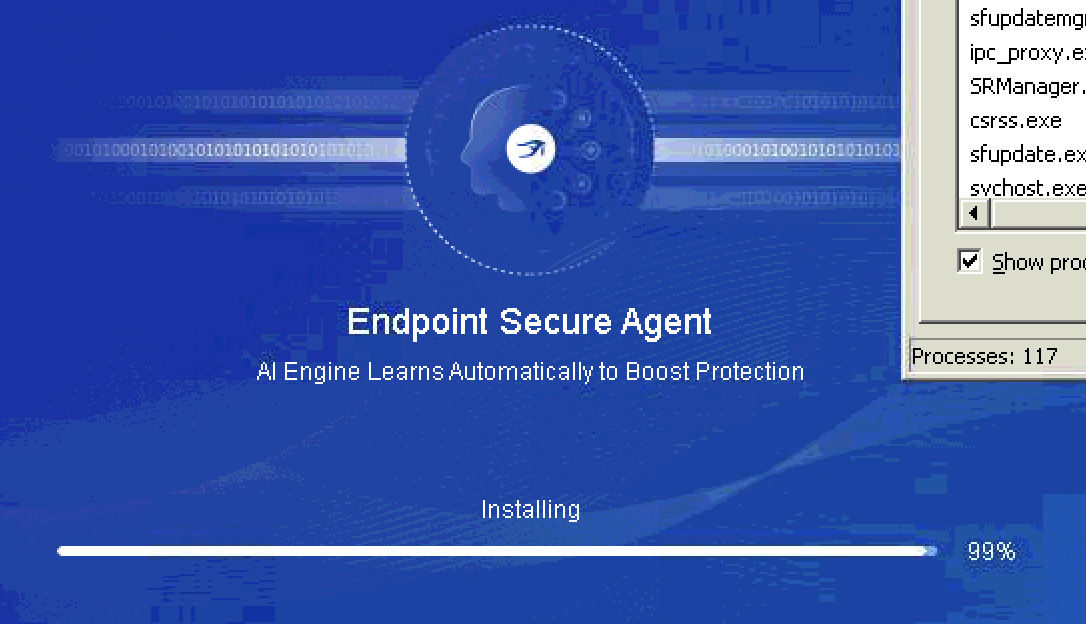
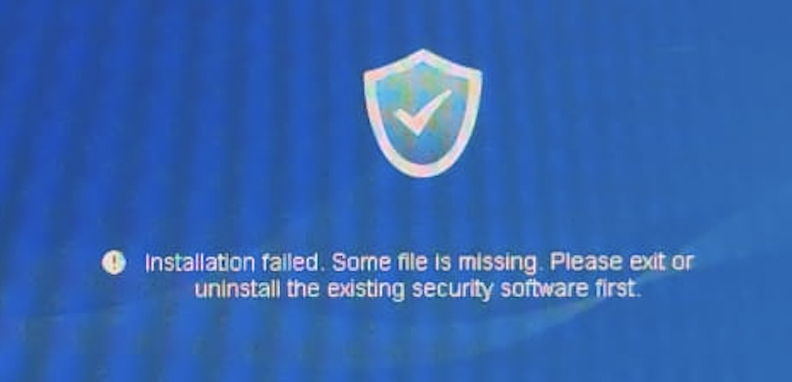
User tries to install agent on Windows Server 2008 SP2, the installation stuck on 99% for a long period of time and eventually fails with the following error "Installation failed. Some file is missing. Please exit or uninstall the existing security software first."
Error/Warning Information
Handling Process
-
Verified there is no other security programs installed on the Windows.
-
Check from Control Panel for possible software conflicts. (Usually conflicts with 3rd party PDF reader)
-
Check on the installation logs below:
C:\Program Files\SF\EDR\agent\var\log\sfupdate2
%programdata%\SF\EDR\log\sfupdate\sfupdate_main
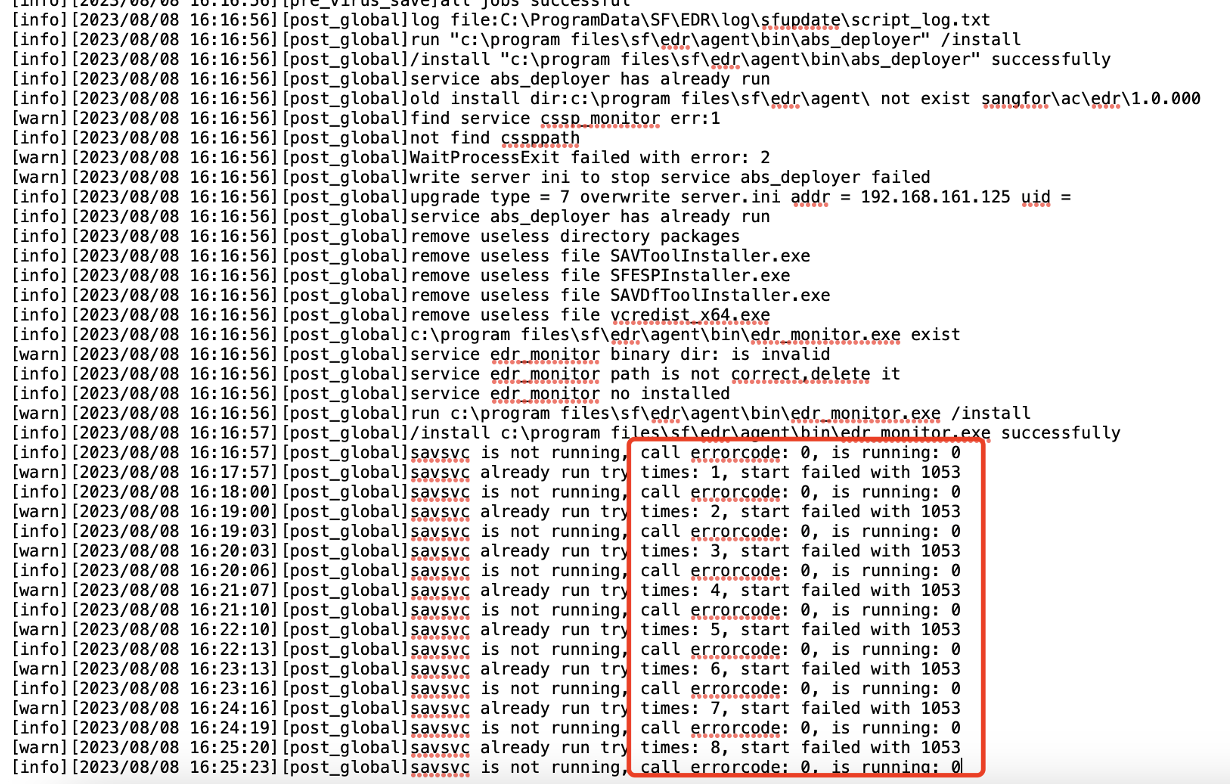
C:\Program Files\SF\EDR\agent\var\log\sfupdate\script_log.txt -
As per checking on the logs, we can see that the agent savsvc service had been failing to start with error code:1053
Root Cause
Known bug on Windows Server 2008 SP2, driver conflicts.
Solution
-
Download the attached driver (sfe_perfprov.dll).
Note:
Select the driver based on the correct architecture. (x86 / x64) -
Launch the agent installer.
-
After the installation progress changes from ‘Downloading’ to ‘Installing’ , replace the driver on the following path:
C:\Program Files\SF\EDr\agent\bin -
Installation completed successfully.
Suggestions
64-bit driver:
x64_sfe_perfprov.zip
MD5: 8e374cf5aedb74cdacde7e4342cdbd4c
32-bit driver:
x86_sfe_perfprov.zip
MD5: f92cf2e9434918f47ae6a1ba96b12c6c
Note:
-This issue had been resolved in the Endpoint Secure 3.7.12.