
【ES】Agent Installation Troubleshooting Guide_All Versions
Windows Agent
Possible Root Cause
- Insufficient Licenses.
- The agent installation package is corrupted.
- Connectivity issue between Agent and Endpoint Secure Manager.
- Incompatible operating systems.
Troubleshooting Steps
-
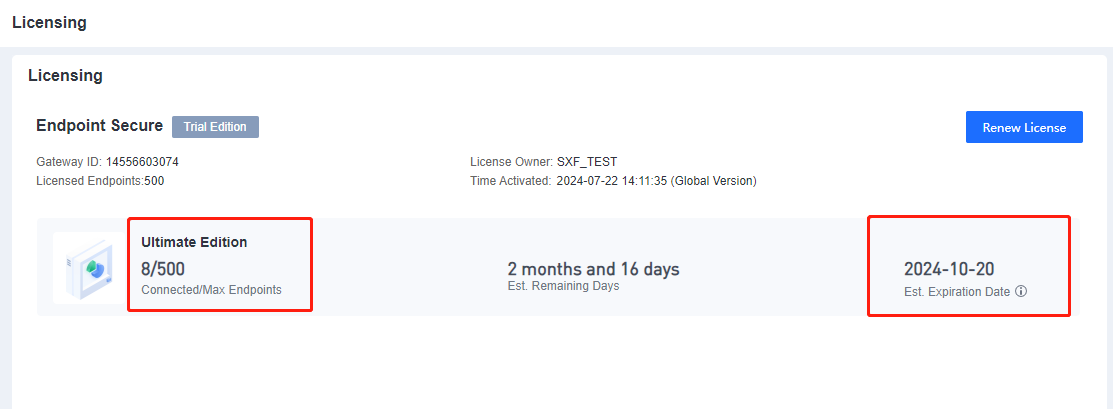
Check the available license on Sangfor Endpoint Secure Manager.
-
Check the connectivity between the endpoint and the manager.
Perform basic network troubleshooting such as telnet agent update ports and domain name resolution (if applicable).Note:
Please go to the System > Network > Advanced path of Manager to view the port. The agent installer uses port 4430 to obtain the program resources required for installation, but the default port may be modified.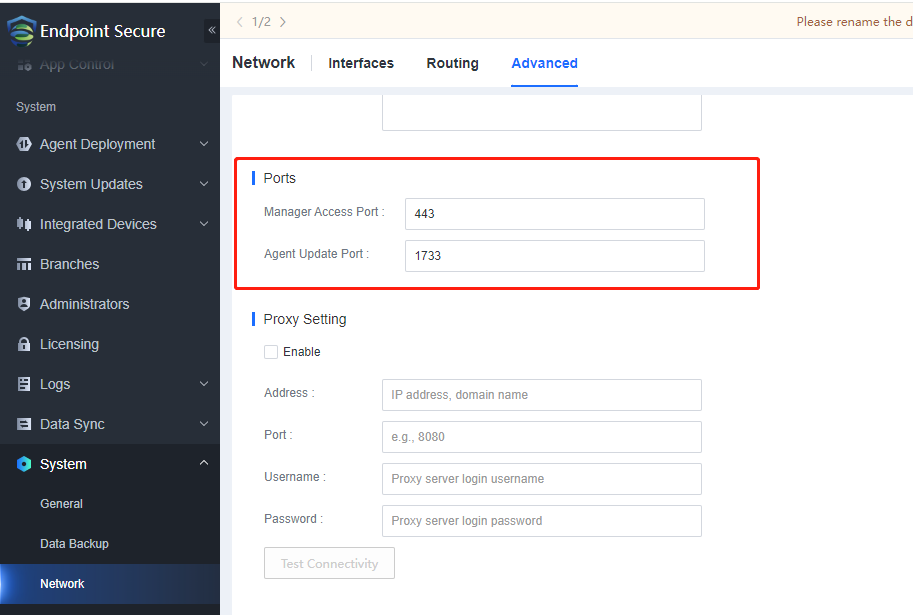
-
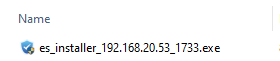
Check whether the installer name of the installation package is correct, especially the IP address and port of the Endpoint Secure Manager. Not all the Endpoint Secure Manager ports are 4430. Customers may modify the default address themselves.
-
Check operating system compatibility.
Note:
Each version’s compatibility list may differ. Kindly refer to the particular version release notes. -
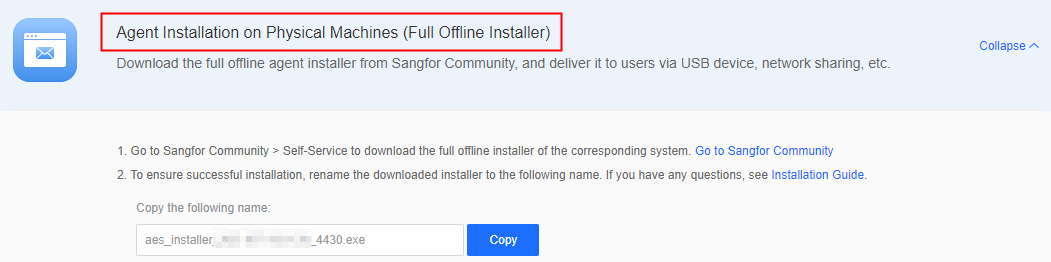
Re-download the agent installer or use the full offline installer method.
If this is SaaS-Endpoint Secure, confirm whether the newly downloaded online installer is damaged. If yes, retrieve the CorpID of Platform-X and feedback to Sangfor Technical Support.
-
Check the error and fail message in the agent installation log. Most of the issues can be identified from this log, so take your time to go through it and look for error messages. Checking the logs is the most effective way to troubleshoot.
Windows agent installation log path before version 3.2.15:
C:\Program Files\Sangfor\edr\agent\var\log\Windows agent installation log path for versions 3.2.15 and later:
The installation log directory for XP SP3 and Server 2003 agent is:
C:\Documents and Settings\AllUsers\Application Data\Sangfor\EDR\log\sfupdateThe agent installation log directory for other systems is:
C:\ProgramData\SF\EDR\log\sfupdate or %programdata%\SF\EDR\log\sfupdate
Common Cases
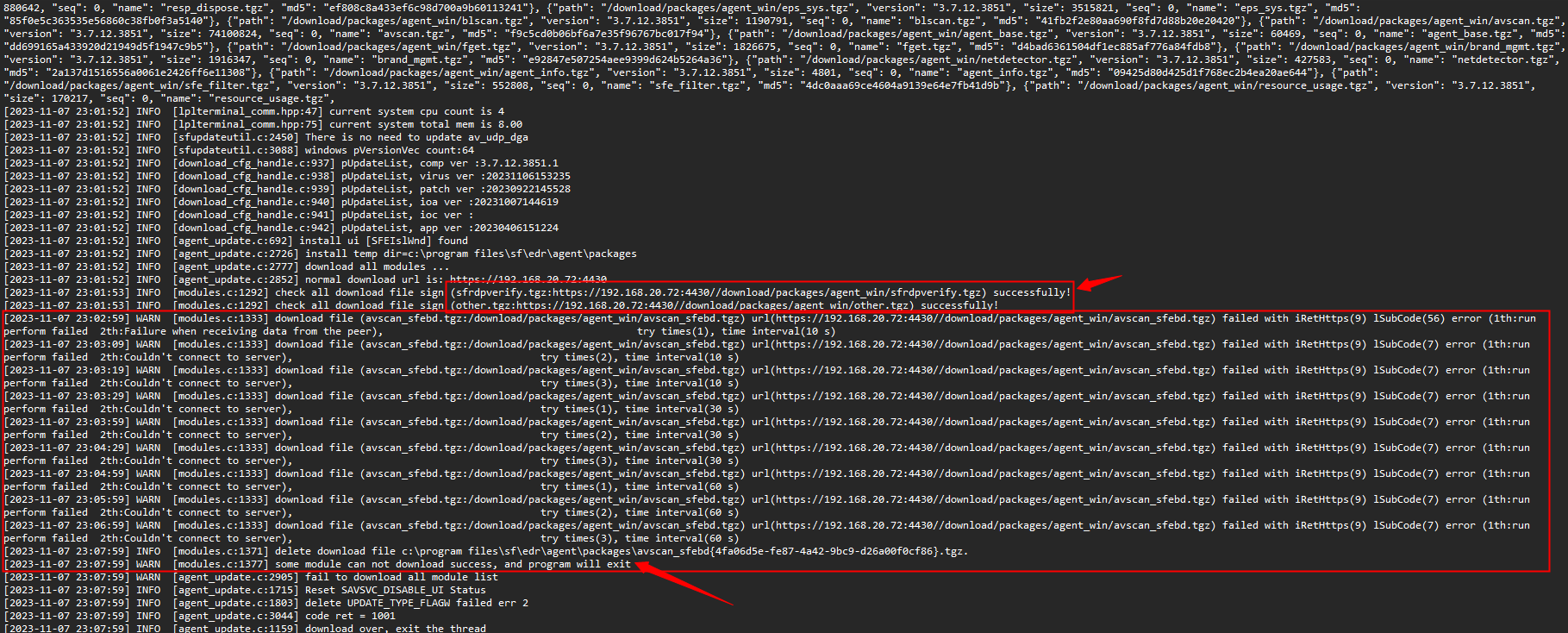
Unstable Network
Some components are downloaded and some fail to download.
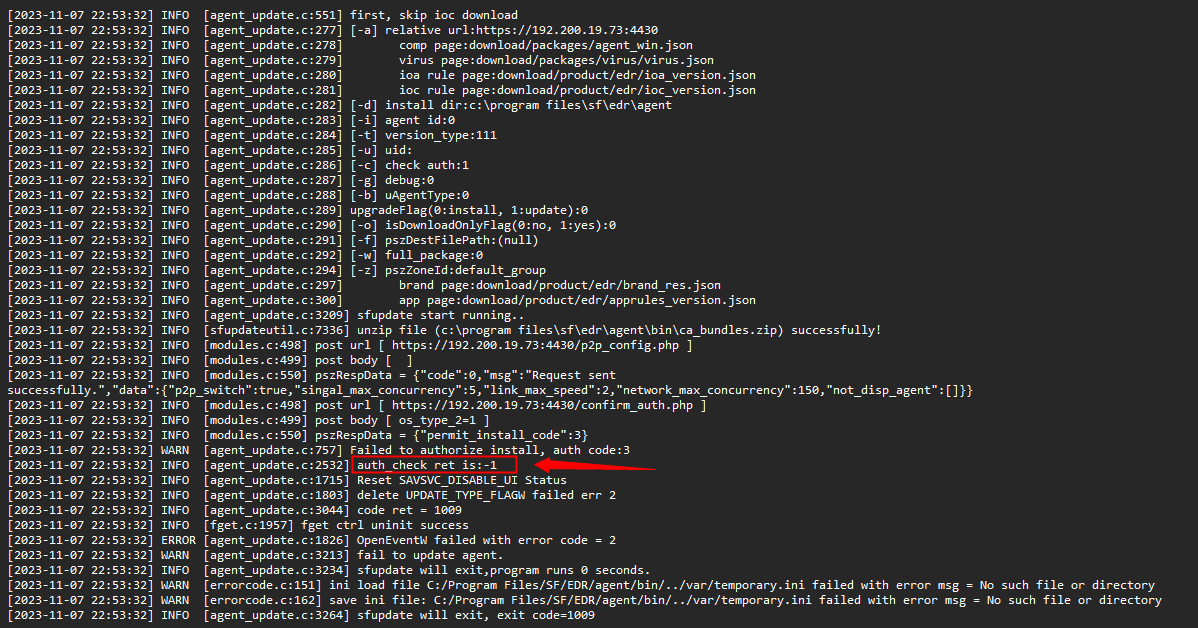
Insufficient License
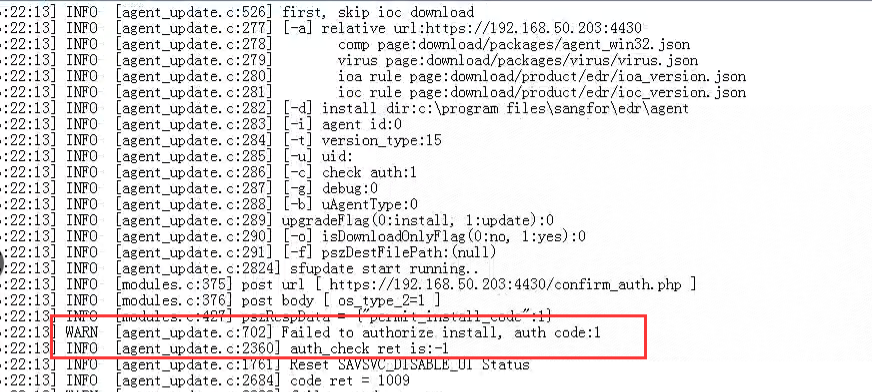
auth check "-1" means an insufficient license. Therefore, it does not allow you to proceed with installation.
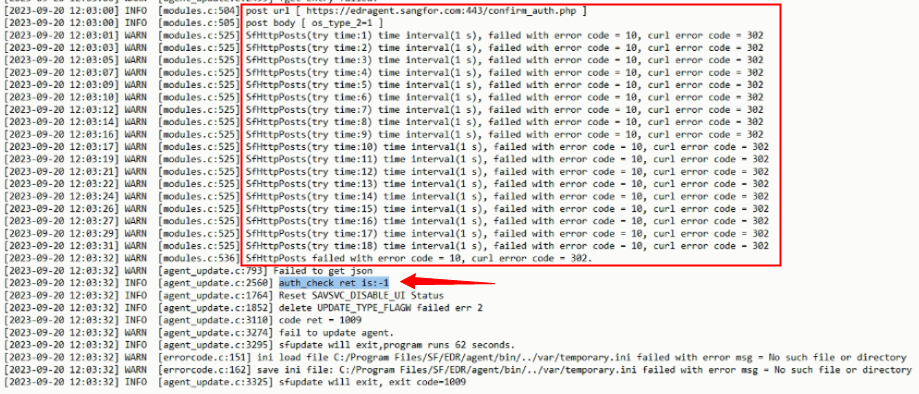
Domain Name Resolution Failure
The edragent.sangfor.com is resolved as the wrong IP, causing the agent to fail to communicate with the Manager to check licensing.
Components Are Downloaded But Failed to Install
This is a server issue (download server) because cache data exists on CDN.
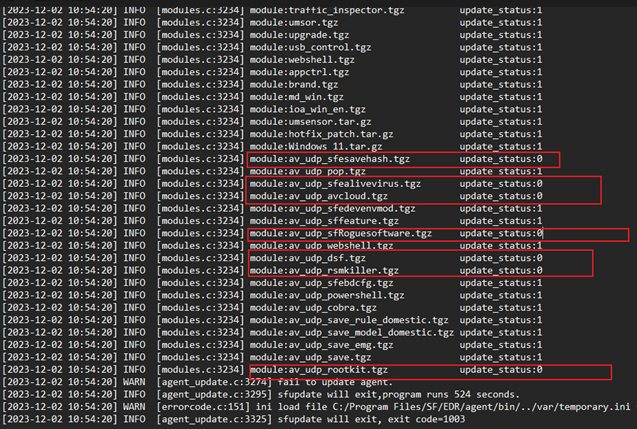

The component’s MD5 value must match the value on virus.json, or the component will not be installed, causing the installation to fail.
Prompt File Missing
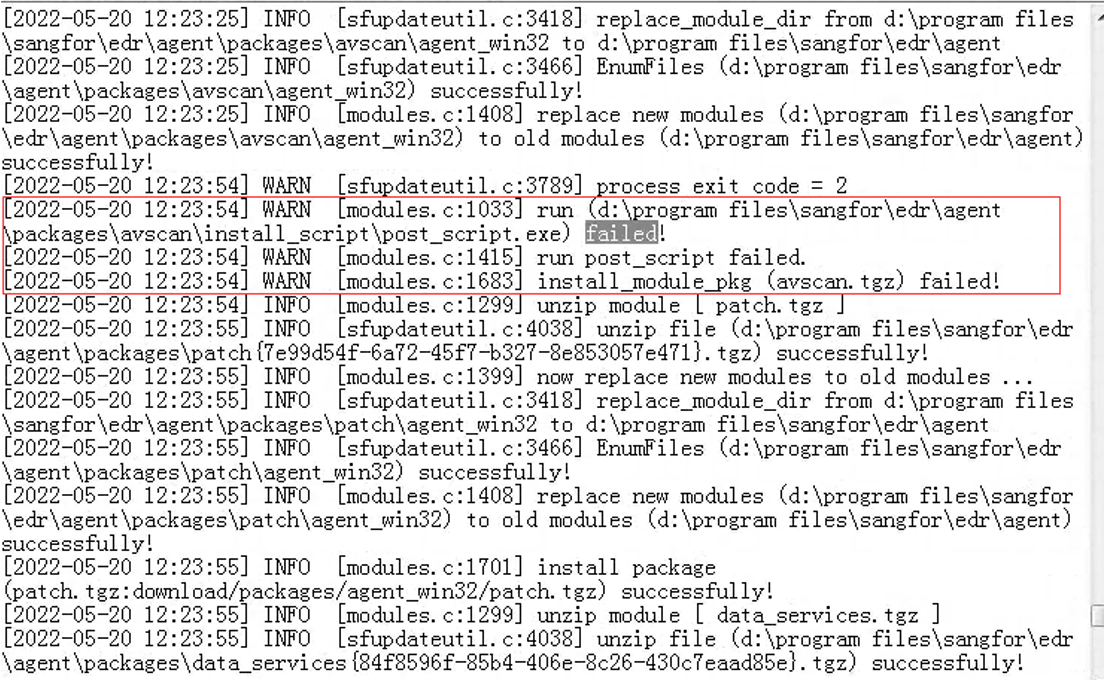
A common situation is installing without compatibility mode, or Endpoint has previously installed EDR software from other vendors, like the following error.
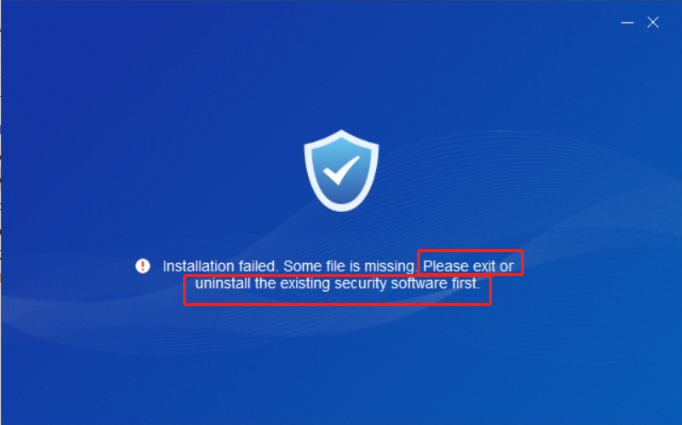
Solutions:
-
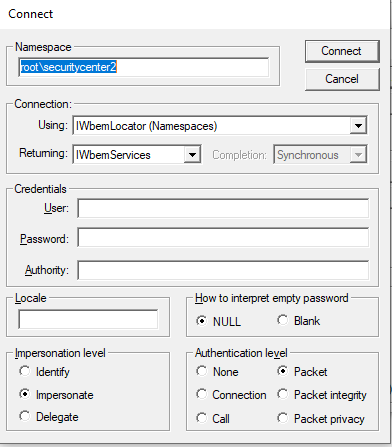
Launch wbemtest as administrator. (Start > Run > wbemtest)
-
Type in root\securitycenter2 and click Connect.
-
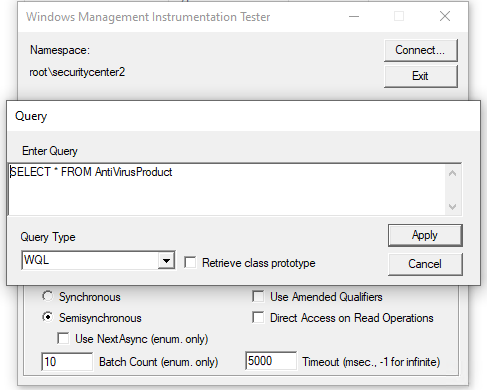
Select Query.
-
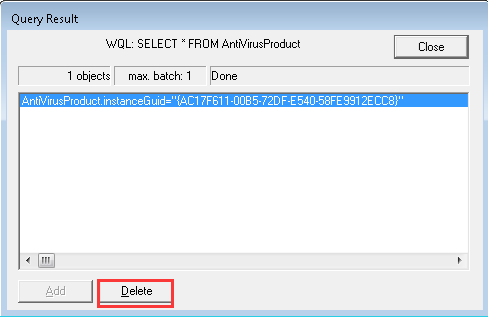
Input SELECT * FROM AntiVirusProduct and press Apply.
-
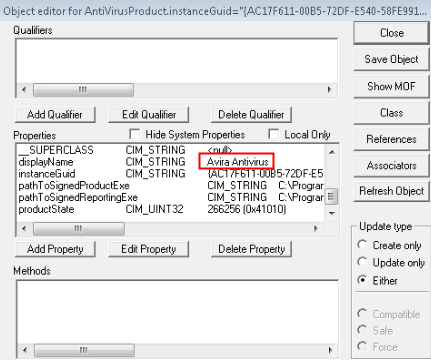
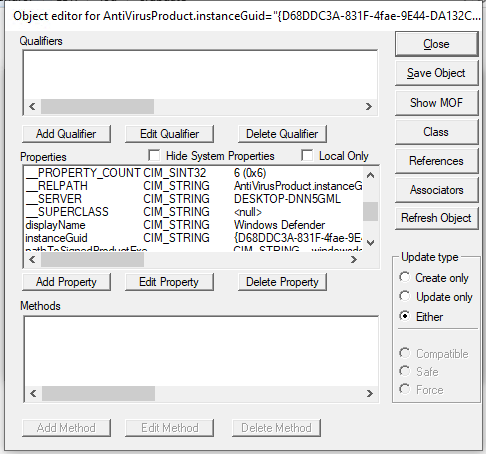
Double-click each record one by one and check the antivirus information. If you find a previous antivirus record, delete it. However, do not delete the record if the displayName is Windows Defender.
-
Common Errors in Log Files
Check whether there is encryption software and PDF reading software in the installed software. Try to close this software and reinstall Endpoint Secure Agent.
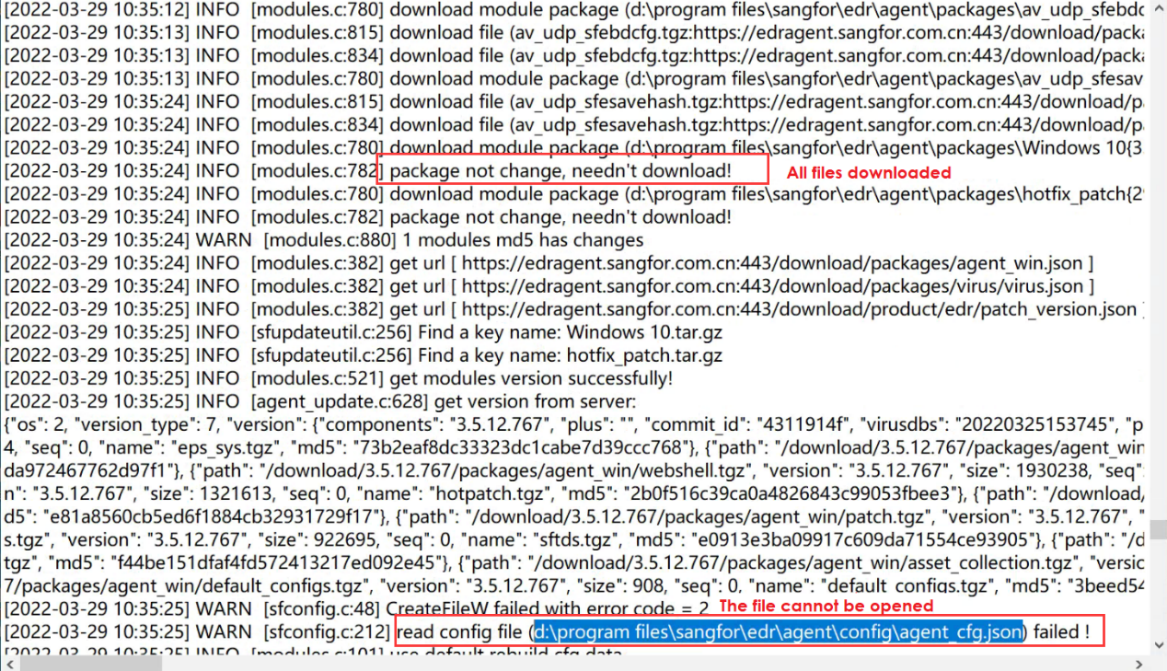
All files are downloaded successfully, but it prompts that some files cannot be read or cannot be accessed. First, check whether the file exists in the corresponding path. If the file does not exist or is not in plain text, consider whether it is blocked by Windows Defender or tampered with by other software. You can trust the file in Windows Defender, turn off the encryption software, and then use Agent Installer to install the agent again.
Failed to authorize. Please check whether the authorization is sufficient and whether the system can communicate with the Manager.
Linux Agent
Possible Root Cause
- Insufficient License.
- The agent installation package had corrupted.
- Agent to Manager connectivity issues.
- Incompatible operating systems.
- The target endpoint does not have the necessary tools installed.
Troubleshooting Steps
-
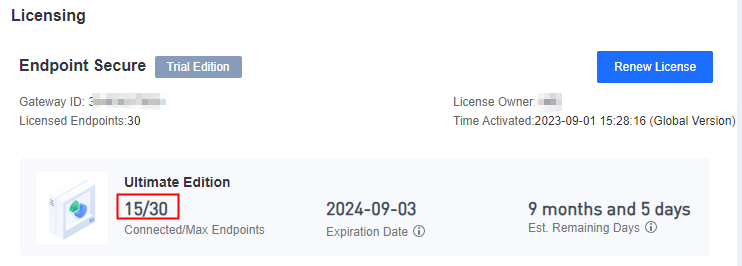
Check the available license on Sangfor Endpoint Secure Manager.
-
Check whether the Linux build version is compatible.
Note:
Each version’s compatibility list may differ, so kindly refer to the version release notes. -
Check endpoint-manager connectivity.
Perform basic network troubleshooting such as ping latency, telnet Agent Update Port, and domain name resolution (if applicable).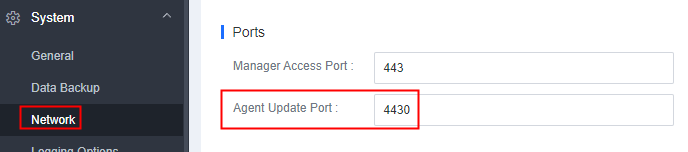
-
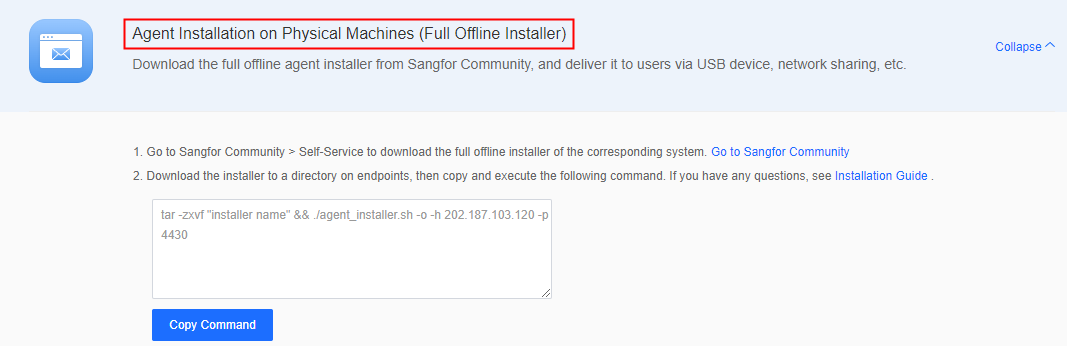
Re-download the agent installer or use the full offline installer method.
-
Endpoint does not have the necessary tools.
Ensure the following tools are installed on the Linux endpoint:- check_tool
- grep
- iptables
- ip6tables
- iptables-restore
- iptables-save
- ip6tables-save
- sed
- awk
- df
- openssl
- wget
- crontab
- tar
- netstat
-
View the agent installation log for error and fail message. Most of the issues can be identified from this log, so take your time to go through it and look for error messages. Checking the logs is the most effective way to troubleshoot.
Path to the log:
/var/log/sfupdate/or/var/log/sfupdate/sfupdate_main/
Common Cases
-
Linux agent installation prompts "edr agent has been installed, do not install again".
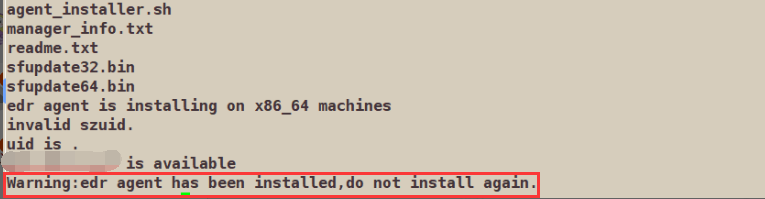
Reason/Solution: The installer script determines the agents have been installed if /etc/cron.d/edr_agent file exists. Rename this file and try again.
-
Agent failed to install, /var/log/sfupdate log shows "another sfupdate process is running".
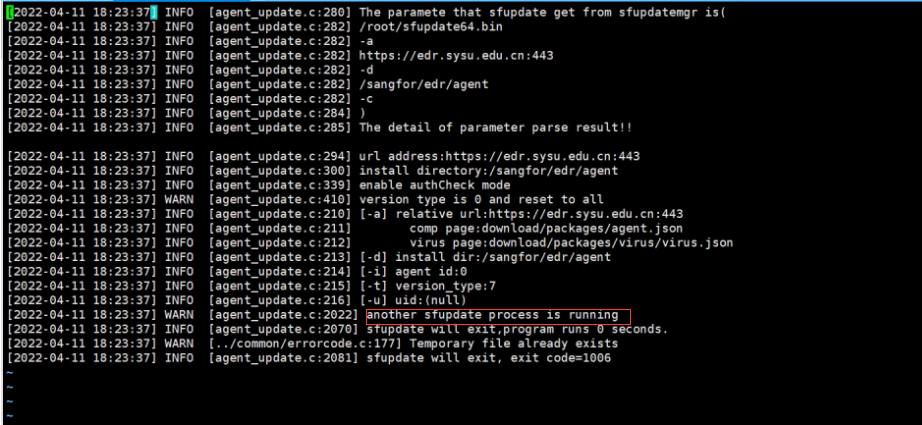
Use
ps -ef |grep sfupdateto check if the process exists and kill it accordingly. -
Agent installs failed, prompting "download edr module fail".
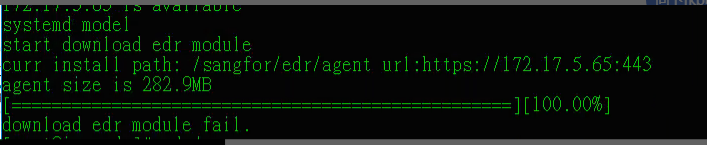
Reason/Solution:
a) Check if /var/log/sfupdate log exists with script execution failures.
b) View the agent installation logs.
cat /sf/edr/agent/var/log/sfupdate/script.txt |grep fail

c) The scheduled task cannot be created. Manually creating the file (touch /etc/cron.d/edr_agent) failed.
d) Check the folder file attributes (lsattr /etc/cron.d -d). It was found that the folder has the i attribute and the scheduled task cannot be created.
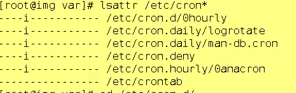
e) Modify file attributes (chattr -i /etc/cron.d). Remember to restore the configuration.
– is to remove file attributes + is to add file attributes, which is more common in endpoints with viruses.
f) Re-install the agent.
g) Execute /sf/edr/agent/bin/eps_services_check.sh.
h) Check whether the agent is online.
-
Agent installation failed, prompting "get install authorization error".
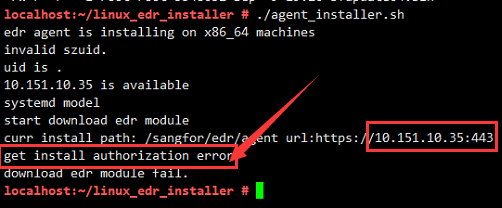
Reason/Solution:
Login to Endpoint Secure Manager and check the remaining license. Delete unwanted endpoints to release the license and try to reinstall. -
Agent installation failed because "The ipset has not been installed."

Reason/Solution:
ipset is a tool used by iptables. The installation does not have a direct impact from the missing tools; press ‘Y’ to proceed.
Error Codes
| Err Codes | Description | Mechanism |
|---|---|---|
| ERR_NET_CONNECT=1002 | Checks connectivity | ping_test=ping $avai_ip -c 3 -W 1 |
| ERR_MEMORY_SHORTAGE=1004 | Available memory less than 500M | (MemFree+Buffers+Caches)< (500*1024) |
| ERR_ALREADY_INSTALL=1010 | Agent exists. | /etc/cron.d/edr_agent file exists |
| ERR_ROOT_PRIVILIGE=1011 | Not a root user. The value of id -u is not equal to 0. | id -u |
| ERR_INVALID_PARAM=1012 | The install parameter is wrong. Default -c is for silent install. | Triggers when the parameter is not: -h -p -d -f -c -e -o -s -u –help |
| ERR_COMMAND_MISS=1013 | Exception error when required tools do not exist. | Normal exception. |
| ERR_INSTALL_POSITION=1014 | The host is Endpoint Secure Manager and is not allowed to install Agent. | /etc/cron.d/eps_mgr |
| ERR_INSTALL_PATH=1015 | Cannot perform mkdir to create the directory. | Unable to create /sf/edr/agent directory. |
| ERR_CRON_SERVICE=1016 | The user does not agree to allow Cron to start on boot. | Start cron at boot-up? [Y/N] |
| ERR_G2H_PORT_OCCUPIED=1017 | Port has been utilized by other processes. ProxyPort = 18524 ProxyIP = 127.0.0.1 |
netstat -tunlp|grep 18524:127.0.0.1 |
| ERR_UNSUPPORT_SYSTEM=1018 | Unable to obtain OS name, version, and architecture (32/64). | Check the install script; the method differs for each Linux. |
Mac Agent
Possible Root Cause
- Agent to Manager connectivity issues.
- Incompatible macOS system.
- Check whether previous installations leave any residual files.
Troubleshooting Steps
-
Check operating systems.
-
Please check the version compatibility list.
Check whether the following files, agent, config, var, exist on /Library/sf/edr/.
Reason/Solution: Delete the file if it exists. -
Go to /Library/LaunchDaemons/ and check if com.sangfor.edr_agent.plist exists.
Reason/Solution: Delete com.sangfor.edr_agent.plist as root user.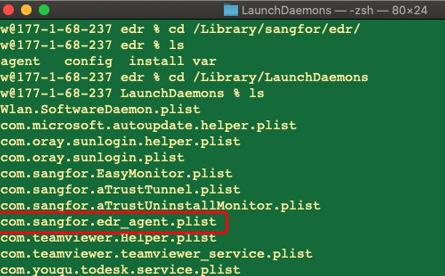
Information Collection Standard
If you still cannot solve the problem after the above troubleshooting, please follow the steps below to collect logs and seek help from tech.support@sangfor.com
-
Customer Name, If uses SaaS Endpoint Secure, please provide the customer’s Corp ID.
Results:
-
Issues description:
Please provide a description and definition of the issue, including as much technical detail as possible. You’d better take a screenshot of the error, and share it to sangfor engineers through email or IM. ****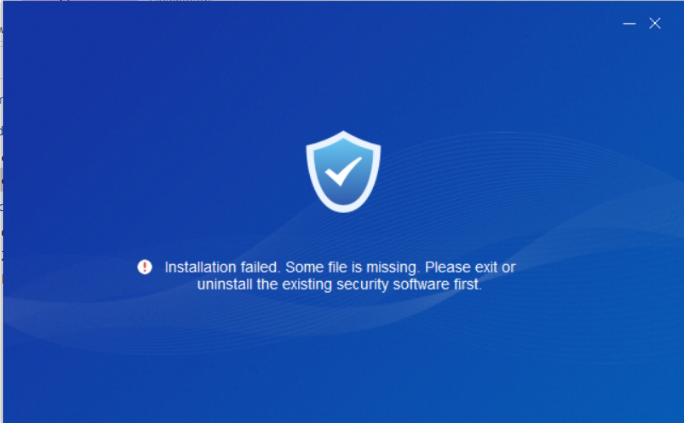
Results:
-
Feedback Version Details:
Got to System > System Updates > Manager and Agent path, Place the cursor on Details, and the pop-up window will display the version information, click Copy and paste it to Sangfor engineers. ****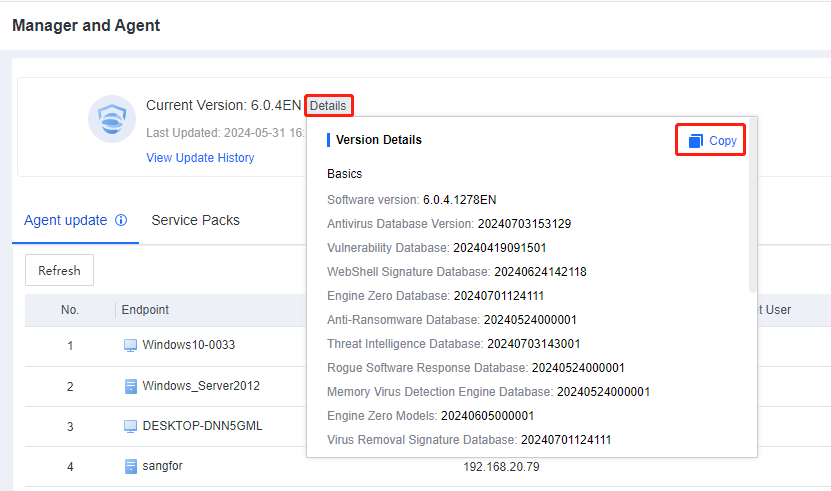
Results:
-
Collecting logs
Please package and compress the following logs, you can attach them to emails as attachments, or upload them to Onedrive and share them with Sangfor engineers.
Windows Endpoint Logs Path:
Windows XP and 2003 system installation log path:
C:\Documents and Settings\AllUsers\Application Data\SF\EDR\log\sfupdate
Other Windows system installation log path:
C:\ProgramData\SF\EDR\log\sfupdate or %programdata%\SF\EDR\log\sfupdateResults:
-
The file name of your installer.
Results:
-
If you have completed the technical troubleshooting, please provide us with your troubleshooting steps and results, which will help resolve the issue faster.
Results:
-
It is recommended that you prepare for remote checking in advance. If we cannot find the root cause from the log, we will request a remote checking.