
【ES】Release Notes_V3.7.2
New Features
- LDAP domain account login is supported.
Users can synchronize LDAP domain accounts in the Administrator module, assign permissions to corresponding groups, and log in through domain accounts as security admin, system admin, and audit admin for corresponding groups.
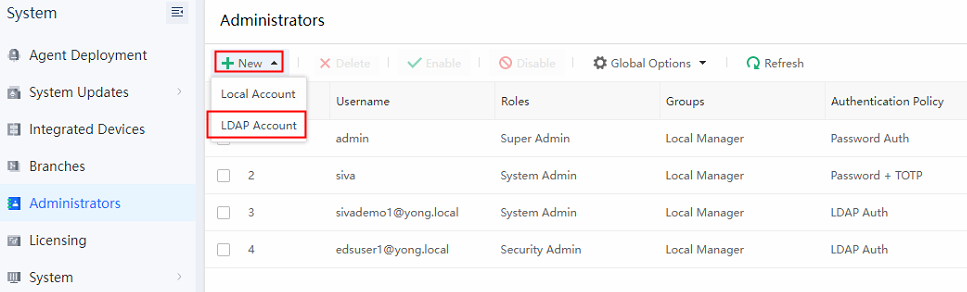
a) Add domain account. Navigate to System > Administrators, and click New > LDAP Account.
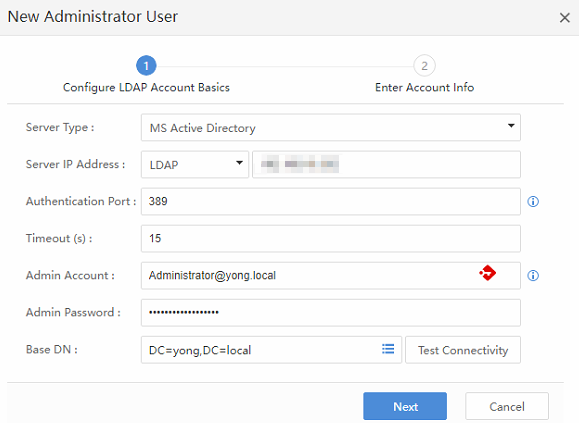
b) Fill in the LDAP and account information.
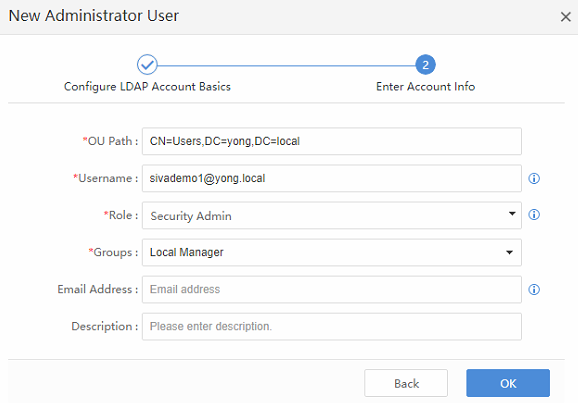
c) Lastly, you can see the domain account has been added successfully.

Note:
After importing the LDAP user, you cannot edit it’s password, OU path, and username.
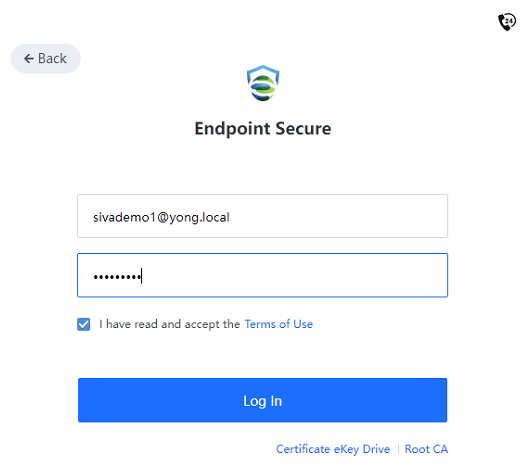
d) Go to the login page of Endpoint Secure Manager, and click the LDAP under Other Login Methods.
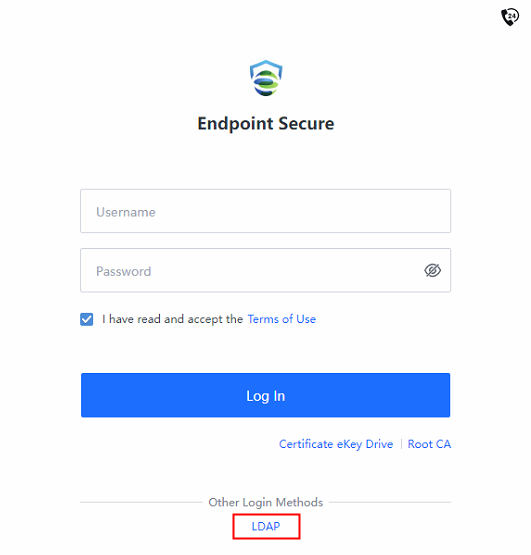
e) Enter the LDAP account username and password to log in.

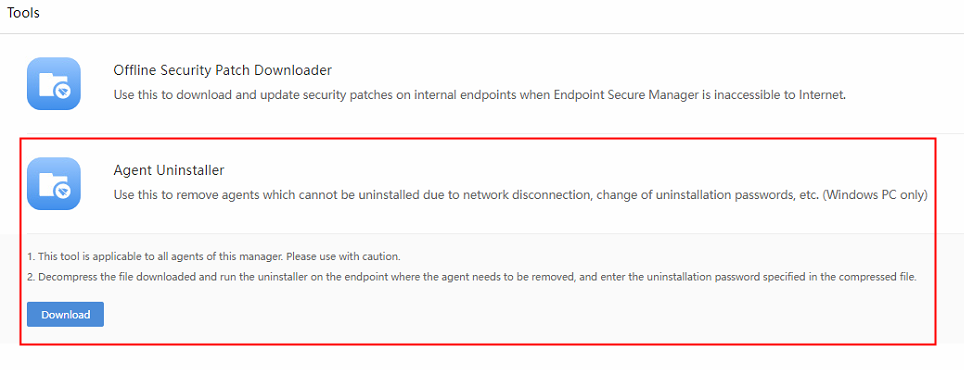
- Agent Uninstaller: Provides solutions for agent uninstallation in terminal offline scenarios.
a) Go to System > System > Tools > Agent Uninstaller, and click View Details > Download.
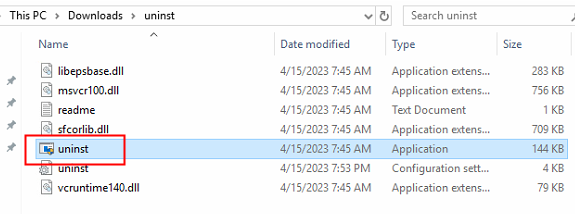
b) Place the downloaded tools on the Windows terminal. Then, extract the file and run uninst.exe.
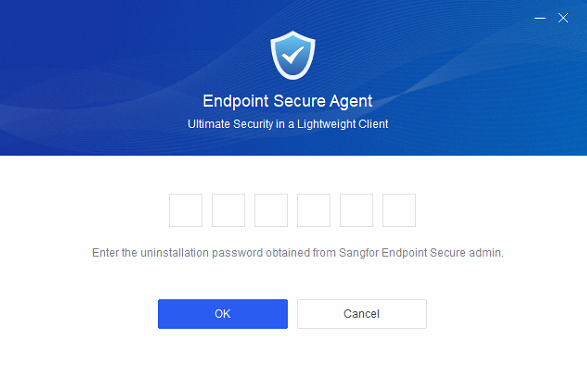
c) A new window will prompt you to insert an uninstallation password. The uninstallation password can be found on the readme.txt in the extracted folder.

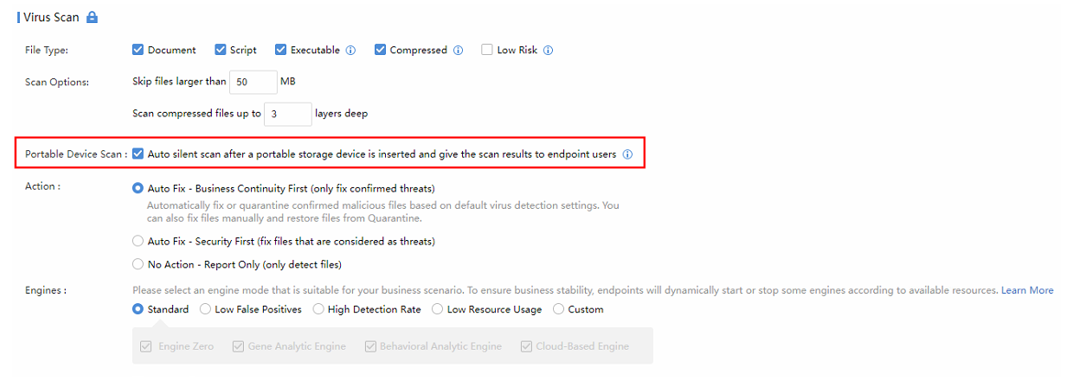
- The Portable Device Scan feature is added and automatically silently scans new USB devices connecting the endpoint.
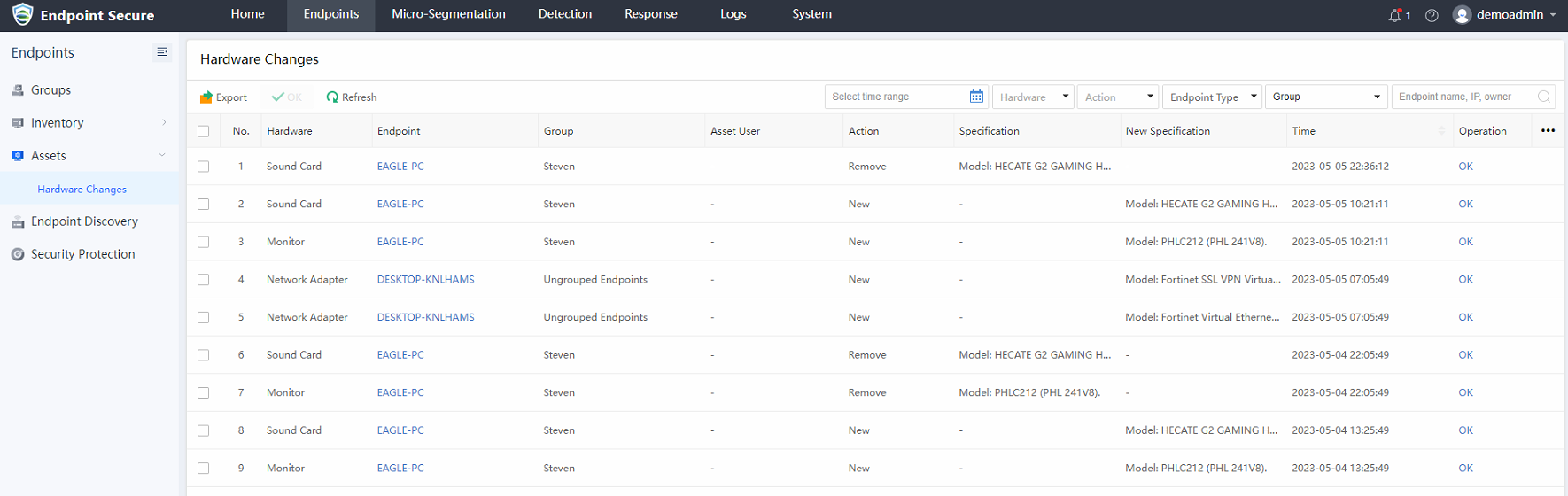
- Hardware Changes feature is added to audit abnormal hardware asset changes and has better control over the risks of hardware changes. Navigate to Endpoints > Assets > Hardware Changes to view the details.
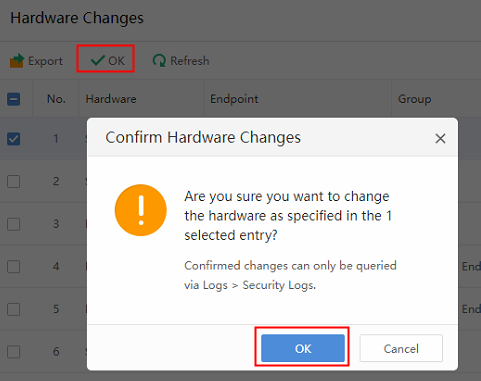
The administrator can confirm the changes and the record of the confirmed hardware changes will be removed from the Hardware Changes page.
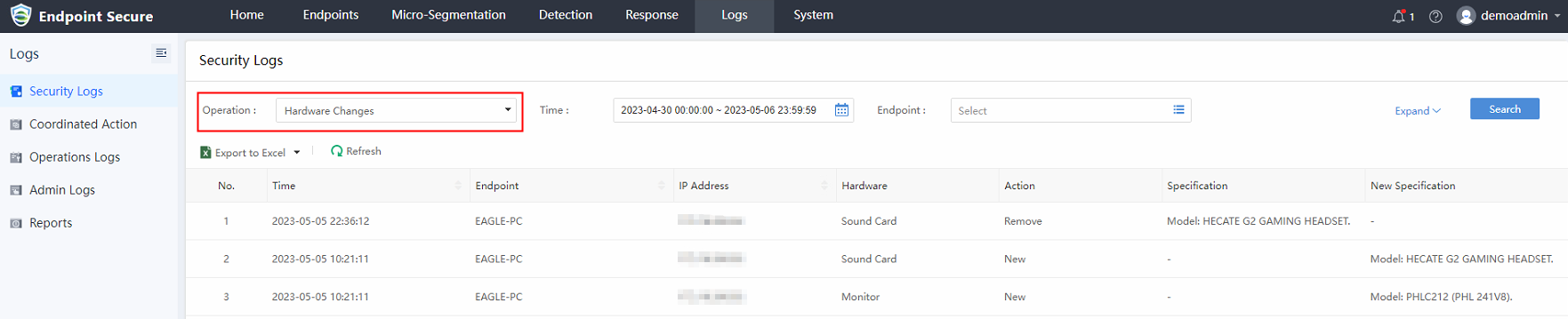
The administrator may also view the hardware changes logs under Logs > Security Logs and filter Hardware Changes in Operation.
-
Other Optimizations:
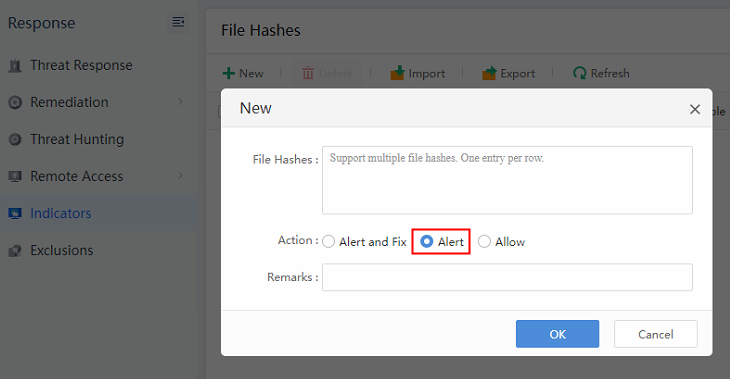
- File Hashes now also supports Alert only.
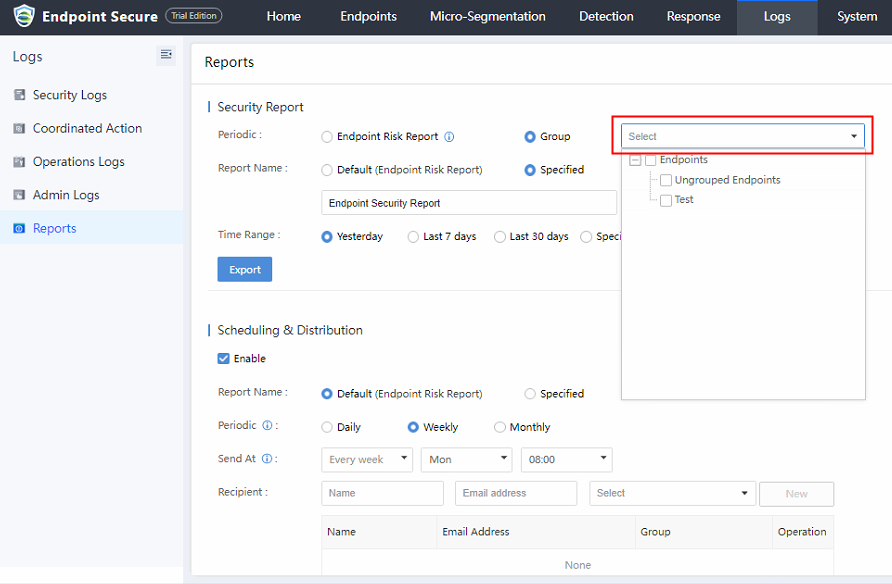
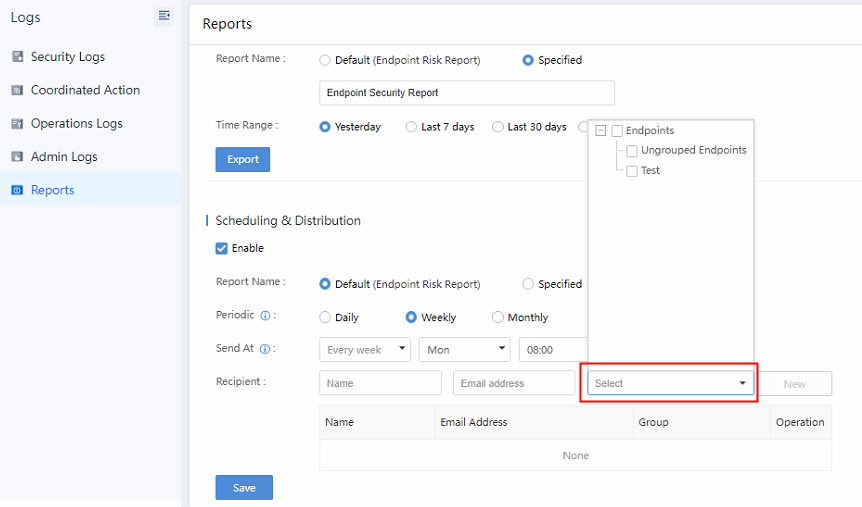
- Security Report for Group supports batch subscriptions.
It is more convenient for users to export the group they specify, and the exported content is consistent with their chosen group. It can also be distributed to different emails, as shown in the figure below.
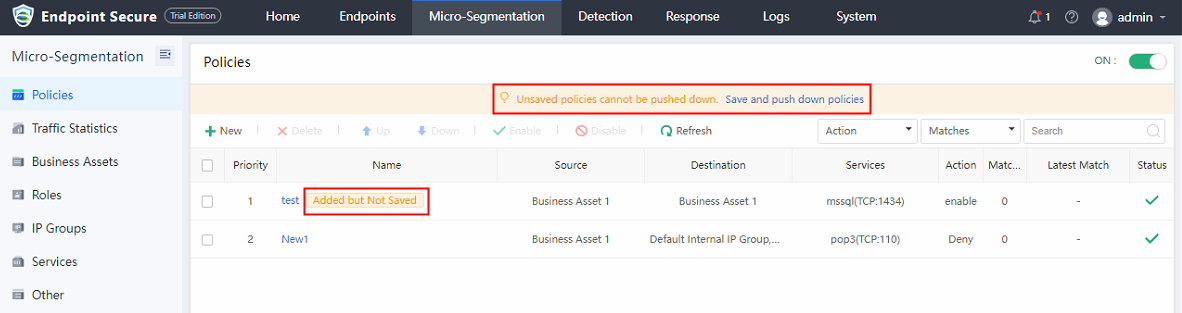
- Policy distribution and batch priority adjustment.
The micro-segmentation policies can be configured in batches and then saved and pushed down concurrently, saving users time to wait for the policy delivery.
Others
None.
Integration with Third-Party Products
None.
Update Impacts
The service will restart after the update. However, restarting the device is not required.
Impacts on Services
During the update process, events detected on the ES agent cannot be reported to Endpoint Secure Manager.
Impacts on O&M
Endpoint Secure Manager cannot be logged in for 10 minutes.
Impacts on Customer Network
The update of Endpoint Secure Manager may take 10 minutes. The update time of Endpoint Secure agents depends on the number of agents.
Note:
The maximum bandwidth of downloading agents is 2 MB/s, and the maximum number of agents in a download task is 5. Therefore, it will take 5 minutes to download five agents under stable network conditions.
Other Impacts
None.
Customer Update Preparations
Update Preparations
The Endpoint Secure Manager needs to be updated.
Notes
If there are many endpoints, it is recommended to set some endpoints to upgrade first before upgrading the Endpoint Secure Manager. If no issue is found after some endpoints upgrades, you may upgrade all endpoints, as shown below:
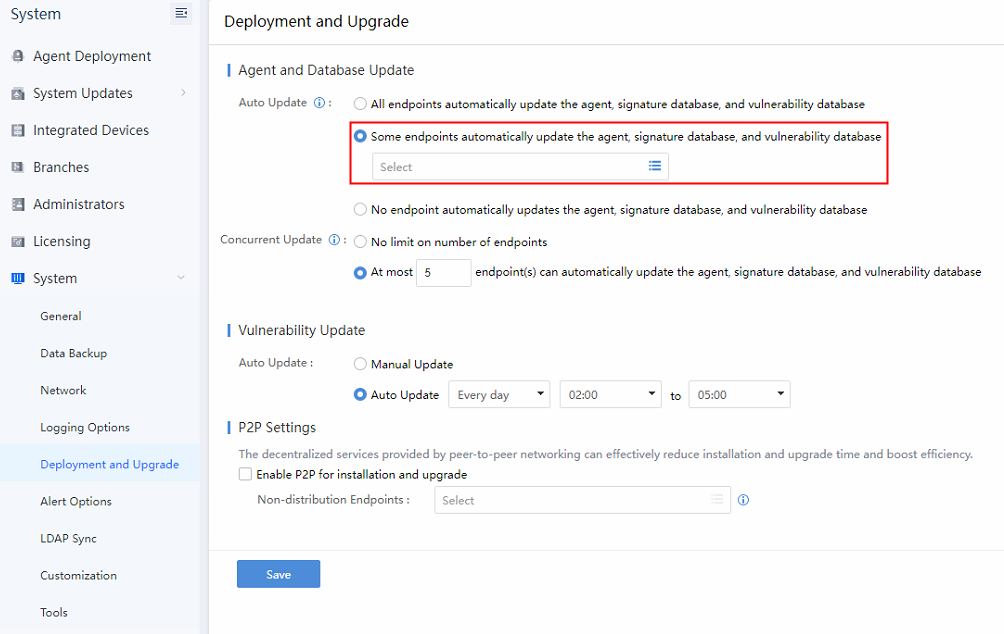
Navigate to System > System > Deployment and Upgrade.
For Auto Update, select Some endpoints automatically update the agent, signature database, and vulnerability database.
For Concurrent Update, select at most x endpoint(s) can automatically update the agent, signature database, and vulnerability database.
Note:
The recommended number of concurrent updates of the endpoint is 5. However, you may adjust the number according to the actual need and situation.
Implementation Procedure
Offline Update:
Step 1. Navigate to System > System Updates > Manager and Agent and click Import Update Package / SP to import an update package.

Step 2. Perform the update. The update will complete in 10 minutes.
Post-Update Service Check
-
Able to log in to Endpoint Secure Manager.
-
Virus scan tasks sent can be completed.
Rollback Instructions
Rollback: Not supported.
(Contact a Sangfor technical support representative if the update fails) Rollback is not supported. You can contact a Sangfor technical support representative to recover the Manager from the backup.
Update Guide
Preparations for Update
Update Tools
ES3.7.2EN update package: EDR3.7.2EN_x86_64(20230325).pkg
Environment Information
The update requires the Manager’s IP address, username, and password.
Customer Resource Coordination
The update takes about 10 minutes. If the update fails, a server backend account and password are needed.
Pre-Update Check
Check whether the current version can be updated. Make sure there is no custom package or patch has been installed, else the upgrade will fail.
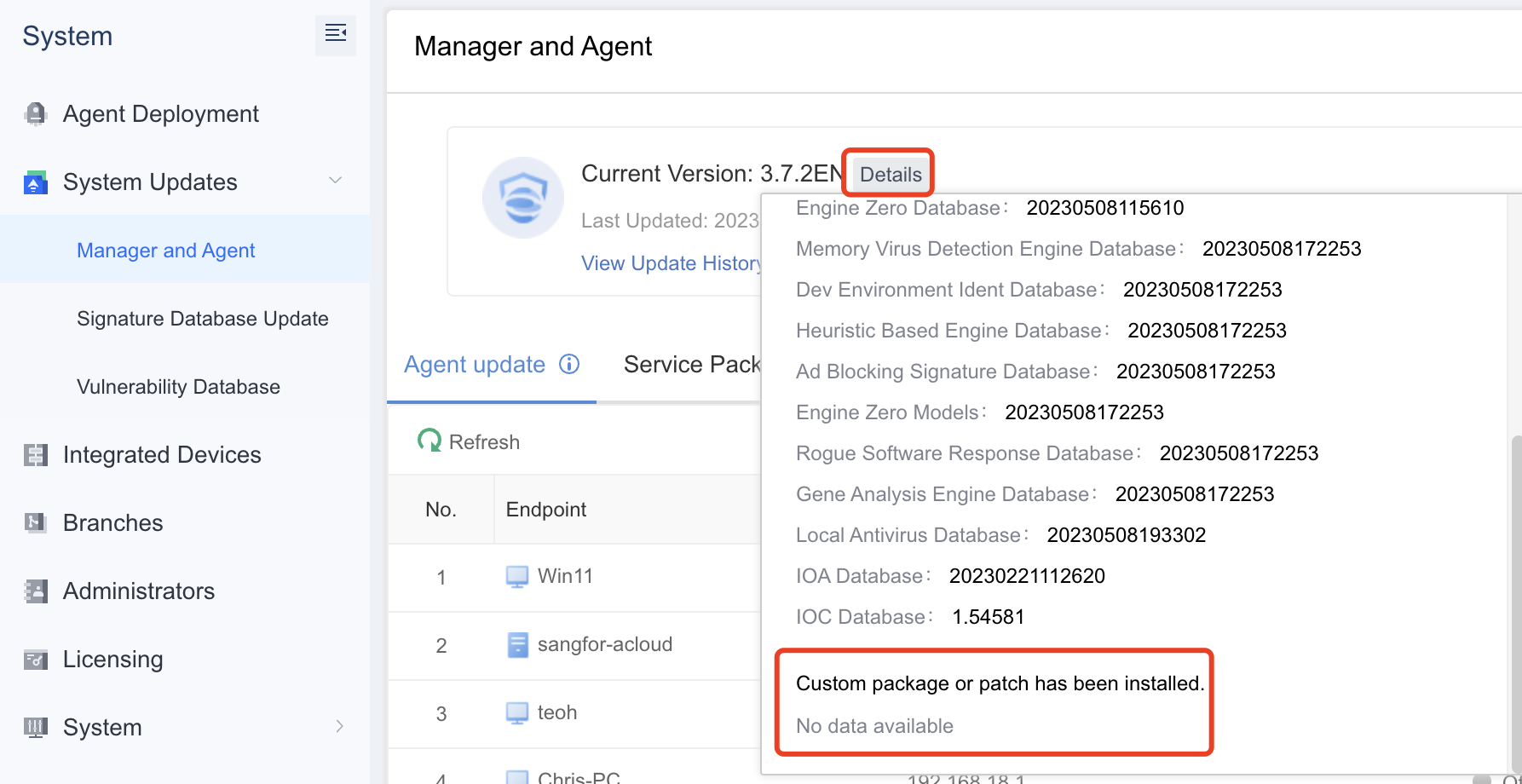
Note:
If there is custom patch installed on the ES manager, please contact Sangfor Support for assistance.
Notes
-
Update Limitations
The free disk space must be more than three times the size of the update package.
-
Immediate Update of Configurations, Logs, and Data
Yes.
-
Update Recommendations
-
During the update, do not restart the device manually and keep the device powered on.
-
If any error message pops up during the update, please do not perform any operations and call us at +6012-7117129 (7511) immediately. Do not manually restart the device.
-
Impacts of Central Management (CM) on Cluster
None.
-
Pass-Through Supported
Not supported.
-
High Availability Supported
Not supported.
Update Procedure
Update Path
An update may take 15 minutes. Please perform the update during non-peak hours.
An update of custom versions is not supported.
| Current Version | Update Path | Notes |
|---|---|---|
| 3.2.22 EN to 3.7.0 EN | Any version of 3.2.22EN to 3.7.10 EN > EDR3.7.2EN_x86_64(20230325).pkg | Supports direct upgrade from EDR3.2.22 to EDR3.7.2 |
Update Procedure
- Navigate to System > Licensing and verify whether the license is still valid. If the license has expired, the update will fail.
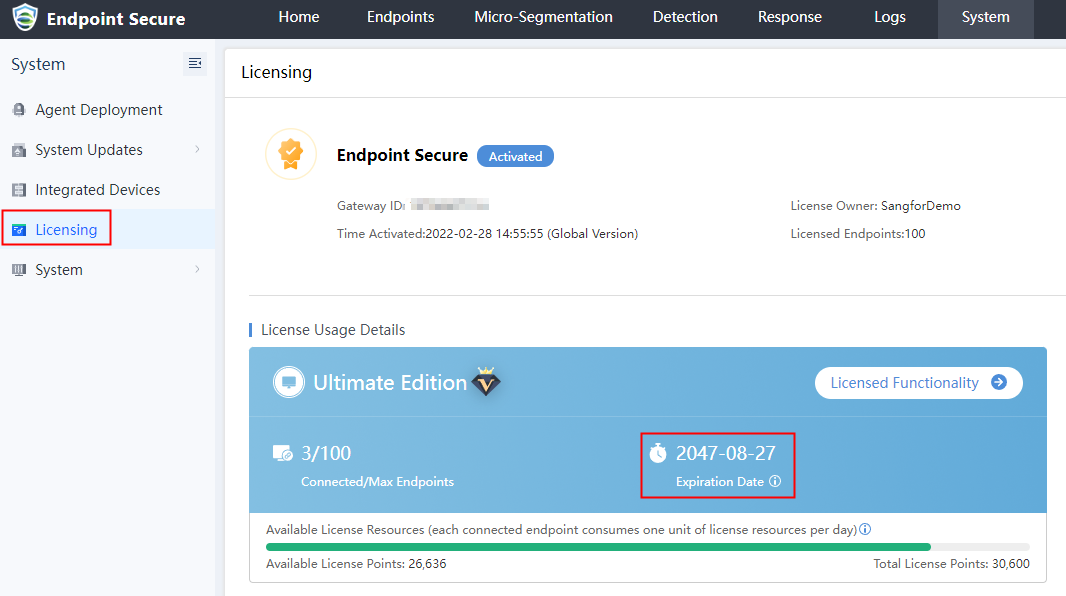
- Navigate to System > System Updates > Manager and Agent and click Details to view the version information. Ensure that there is no custom package or patch installed.
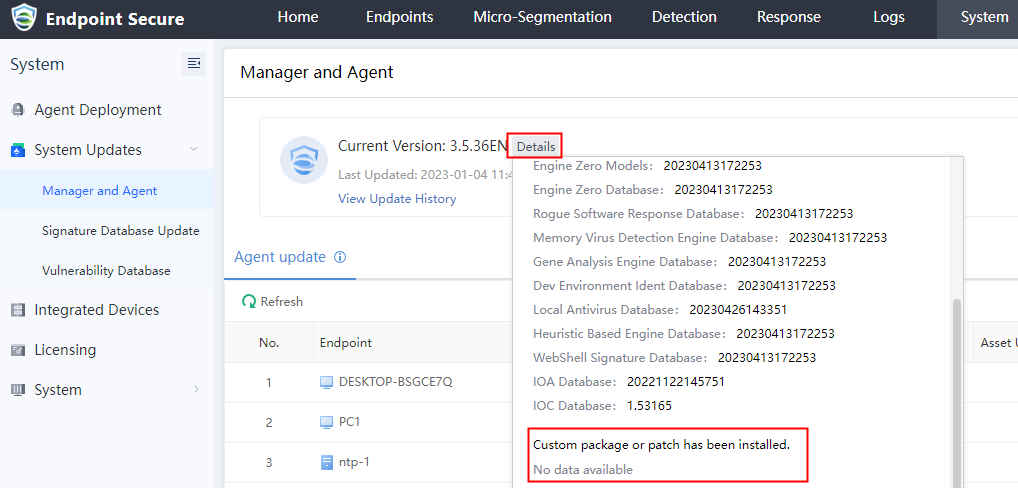
Note:
Please contact Sangfor Support if a custom package or patch has been installed.
- Navigate to System > System Updates > Manager and Agent and click Import Update Package / SP to import an update package.

- Perform the update. The update will be complete in 10 minutes.
Post-Update Check
Platform
Log in to the Manager and check whether the current version is 3.7.2 EN by navigating to System > System Updates > Manager and Agent.
Service Status
Check whether the virus task sent can be completed.
Update Fails Troubleshooting
Contact a Sangfor technical support representative to troubleshoot.
Rollback Instructions
Rollback: Not supported.
(Contact a Sangfor technical support representative if the update fails). You can contact a Sangfor technical support representative to recover the Manager from the backup.