
Bypass light is always on
Problem Description
Bypass light is always on
solution
**Phenomenon Mon: **Only the Bypass indicator is always on, and Other indicators are off (this Status Yes Shut Down)
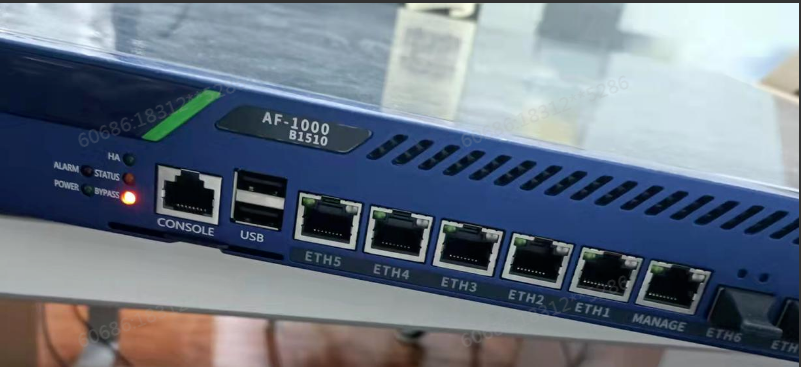
**Step One: **Short press the power Shut Down at the rear (the switch will bounce back, which Connected) to see if Power On (the power light is always on). If it still cannot Power On on, unplug the power cord, etc., min 5 minutes, and then short press the power Shut Down to Power On Power On. If it still cannot turn on, return the entire machine for repair.
**Phenomenon Tue: **The alrm light and bypass light are always on (not in Status or Read-only Status)
**Step One: **View there is a VGA port on the back of the device. If there is a VGA port, connect a monitor View the device Status. If there is no VGA port, connect a Serial Port cable View. If there is output when connecting a keyboard at the System level, find Software. Other interfaces, proceed to step Tue.
**Step 2: **Black screen, no picture displayed, turn off the power for 5 minutes and then turn Restore to see if it can be restored. If Restore restored, send the whole machine for repair; Auto unlock after BIOS interface, for a 2U device, turn off the power, push the rear hard disk box inward, restart the 1U device, and if it still cannot Restore after Restart, send the whole machine for repair; Auto unlock after System startup interface, Restart the device. If it still cannot Restore, send it back to the factory to flash System.
**Phenomenon Wed: **The bypass light and power light are always on, and Other indicator lights are off (System level)
Step One: Check whether Interface is lit. Connected, the Bypass Interface light will be off, the opposite port light will be on, and the device will be Skip. If the bypass port is not lit, go to step Tue. If the bypass port is lit, go to step Wed.
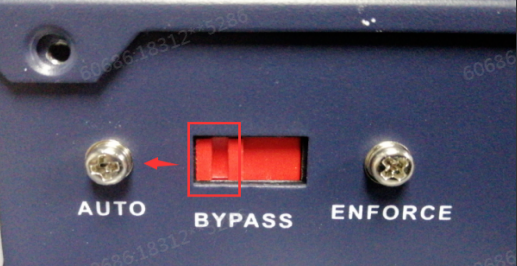
**Step Two: **Check whether the hardware Bypass switch on the rear is Auto unlock after auto position. If Auto unlock after Enforce position, the hardware has forced the Bypass. Manually switch it to the auto position, restart the device, and then check whether the bypass light is still on after Restart the System. If the hardware bypass switch is in the auto position, proceed to step Wed.
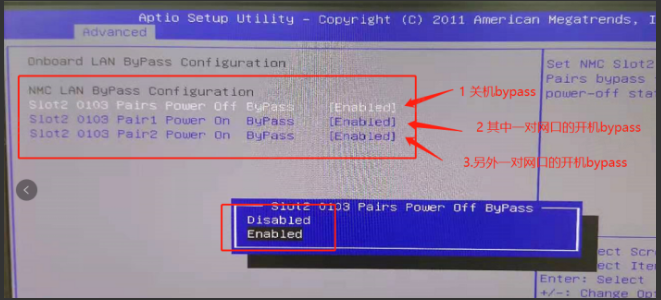
Step Three: View Bypass Status at Software level. If Software has forced Bypass, use the command to close Bypass. If Bypass is not forced at the Software level, Close the computer and power it off for 5 minutes, then power Shut Down on again. Connect the monitor/serial port Obtain device display, boot the computer and enter BIOS. Adjust the bypass settings under BIOS (Details, see the previous BIOS Settings BYPASS Operation content: https://support.sangfor.com.cn/cases/list?product_id=156&type=2&category_id=22774, and Close all Shut Down BYPASS options. Set All bypass options to disabled and Save the file and exit. If BYPASS is Log Out, proceed to step Thu.
Step Four: Enter System background and use the command again to observe whether the BYPASS controlled by the code Connected Close normally. After Close, Restart Test Connectivity to observe whether Effective. Fault persists, the whole machine will be returned for repair. It is suspected that the BYPASS control function of the device failed, causing the device Error View the BYPASS Status.
Original Link
https://support.sangfor.com.cn/cases/list?product_id=156&type=1&category_id=27438&isOpen=true