
[Hardware troubleshooting] How to handle IPMI cpu_caterr report for Services with SN starting with 9F or F6F
Problem Description
Alerting:
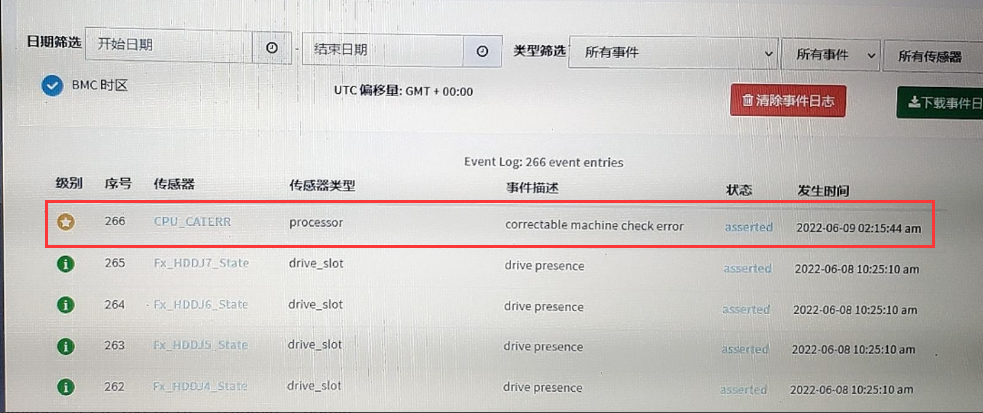
Attached is the CPLD upgrade tool
solution
Step One: View whether the device Restart and restarts. If so, ask hardware technical support colleagues to troubleshoot. If not, proceed to step Tue.
**Step Two:**Put the compressed package in the root directory of the PC's C drive and decompress it. Connect the PC directly to the IPMI Management Interface.
**Step 3: **Press Windows+R on the PC and enter cmd. Enter cd c:/ipmitool to enter the IP address directory View this Version CPLD. Command: IP address -H 192.168.10.10 -U admin -P admin raw 0x2e 0x88 3 (-H is followed by IP address IP address, -U is followed by IP address account, and -P is followed by IP address Password). The Mon Value is the CPLD Version. The version in the figure below is 03.

Step 4: Enter cd win64, View upgrade tool directory, and execute the upgrade command: Yafuflash.exe -nw -IP address 192.168.10.10 -u admin -p admin -d 4 CPLD_Neptune_MB_PVT_V0606_20210121.jed (-IP address connects to IP address IP address, -u connects to IP address account, -p connects to IP address Password, and the firmware Name can be completed with the tab key).
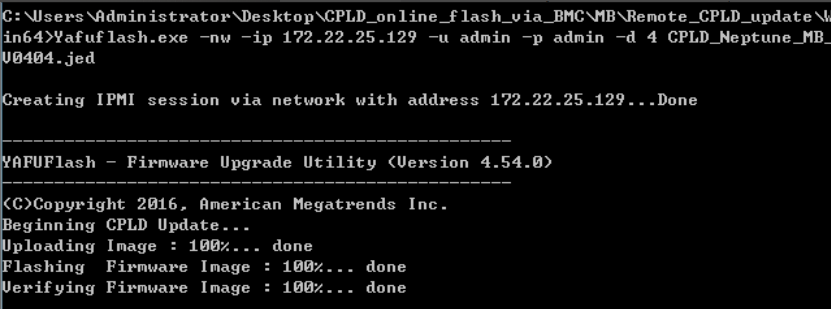
**Step Five: **, Finish, check whether the CPLD Version has been upgraded to version 06, cd .. return to the IP address directory, IP address -H 192.168.10.10 -U admin -P admin raw 0x2e 0x88 3 (-H followed by IP address IP address, -U followed by IP address account, -P followed by IP address Password), the Mon Value is the CPLD Version.
Step Six: Turn Shut Down power for 2 min and Restart the device Effective.
problem Cause:
Version is too low, it may cause IPMI false positive. You can solve this problem by upgrading the CPLD Version to Version 06.
9F, F6F server upgrade CPLD to 06 Version Operation ( 10.35M )
Original Link
https://support.sangfor.com.cn/cases/list?product_id=156&type=1&category_id=22710&isOpen=true