
[Hardware troubleshooting] Servers with SN starting with FBC cannot enter the System troubleshooting
Problem Description
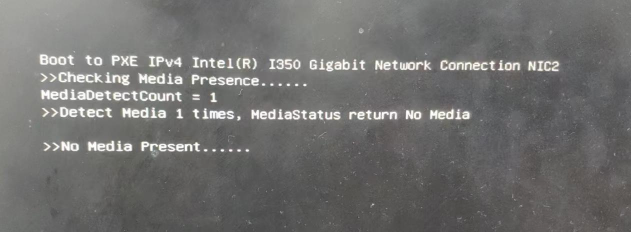
Phenomenon: Unable to enter System.
Possible Cause: System Error, system Not installed RAID1 System disk, RAID card administration and management interface does not set the System disk as the Mon startup entries updated, BIOS interface boot does not set the hard disk Settings the Mon startup entries updated, Other hardware Fault.
solution
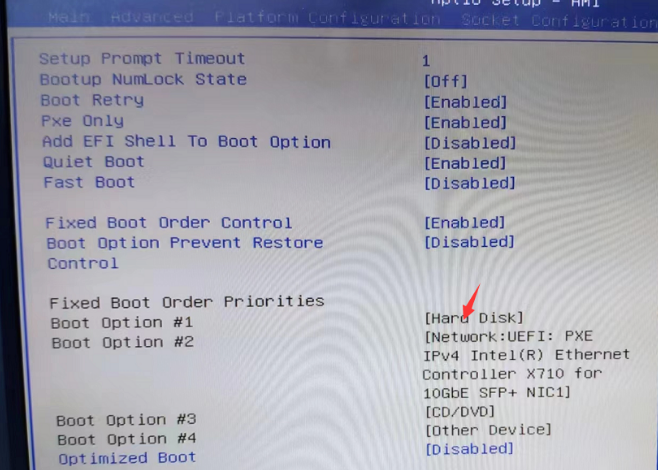
**Step One: **Restart the device and press the delete key Auto unlock after the menu interface View BIOS (there is a key Tips), enter the BIOS Password: S#AN$6fo81r, enter Boot, and View whether the first boot entries updated is the hard disk (the UEFI Mode boot entries updated cannot display the RAID card and System disk). If not, change it to the hard disk. If you still cannot enter System and the Mon boot entries updated Yes hard disk, proceed to step Tue.
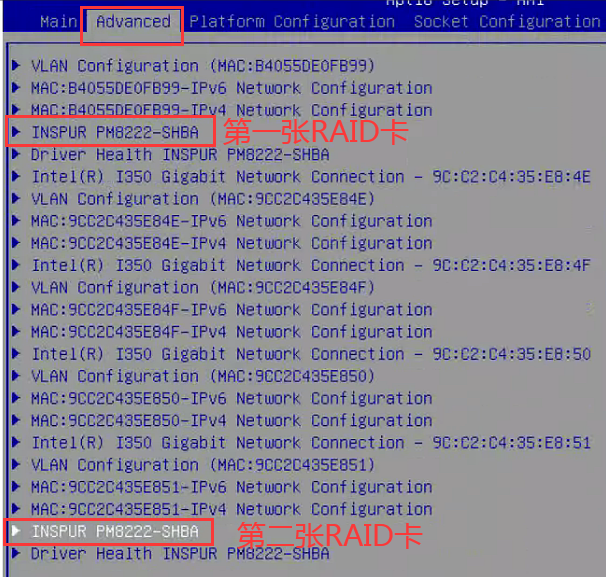
Step Two: Enter Advanced, find the Tue RAID card (System disk is on the Tue RAID card), and press Enter to enter.
**Step Three: **Select Disk Utilities and View whether System Disk disk is recognized. If not, check System Disk disk. If it is recognized, proceed to step Thu.
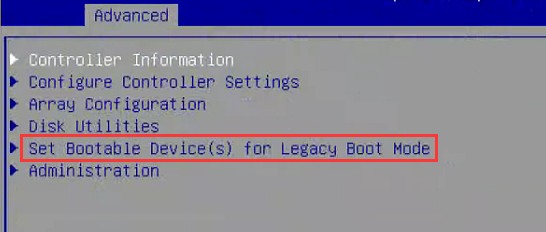
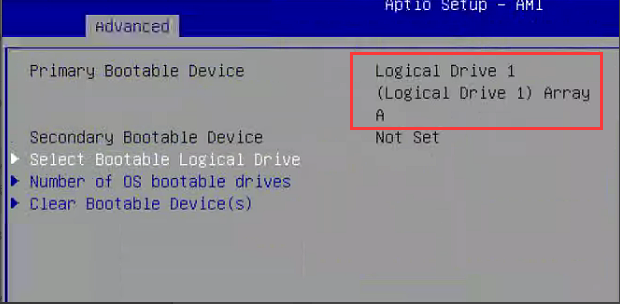
**Step Four: **Select Set Bootable Device to View whether the System Disk Settings set as Primary Bootable. If not, select Select Bootable to set System Disk as Primary Bootable. If it cannot be set, proceed to step Fri.
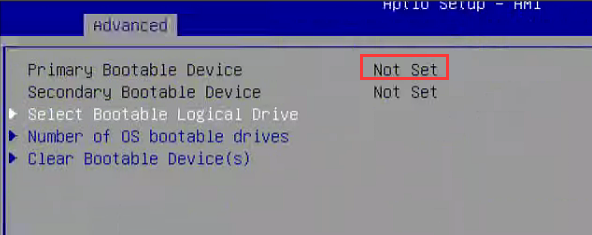
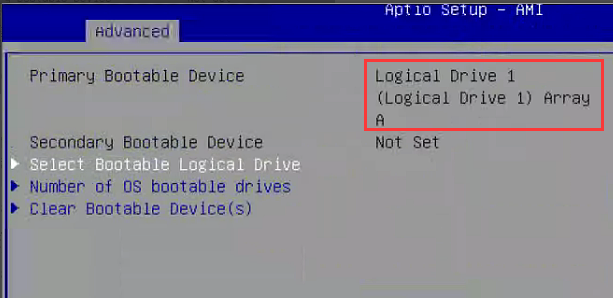
**Step Five: **Return to the main interface and Select Array Configuration–>Manage Arrays–>List Logical Drives–>Logical Drives Details to View whether the RAID group Status is OK. If it is Failed, you need to Delete RAID1 and perform step Sat. If it is OK, but you still cannot enter System, reinstall System.
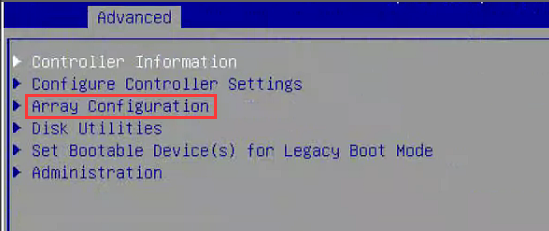
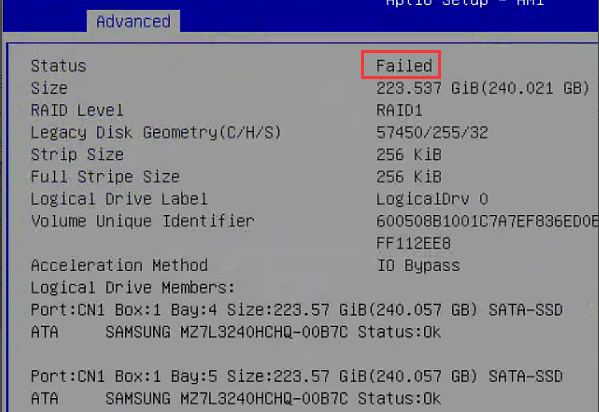
**Step Six: **Return to the main interface, Select Configure Controller Settings–>Clear Configuration–>Delete All Array, delete RAID and Delete RAID1, and proceed to step 7.
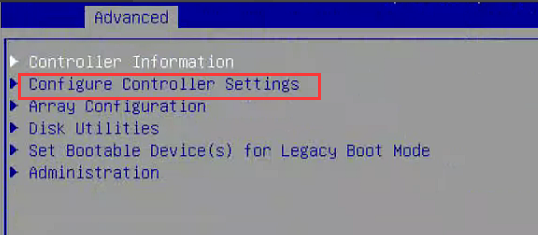
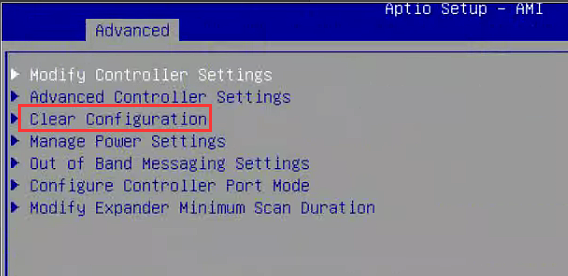
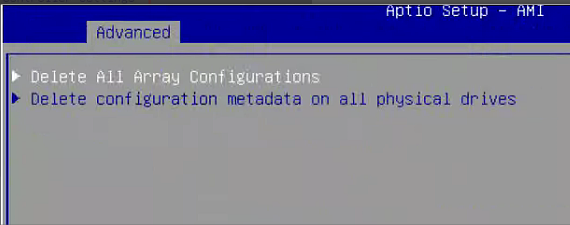
**Step 7: ** Return to the main interface, Select Array Configuration–>Create Array, change the System Disk to Enable, and then Select Proceed to next Form.
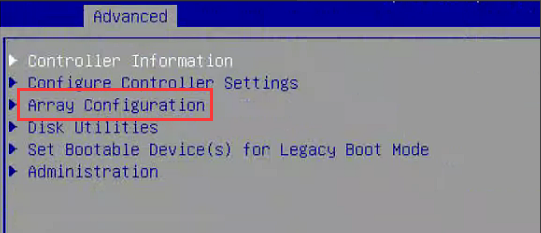
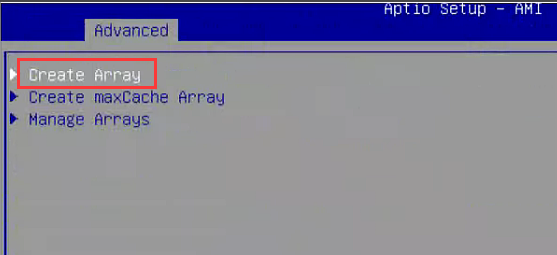
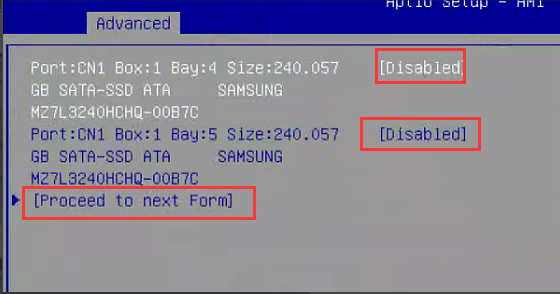
**Step 8: **Select RAID1 for RAID Level, and then Select Proceed to next Form–>Submit Changes.
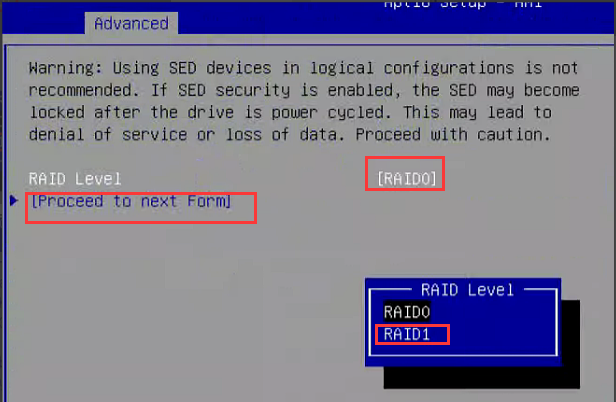
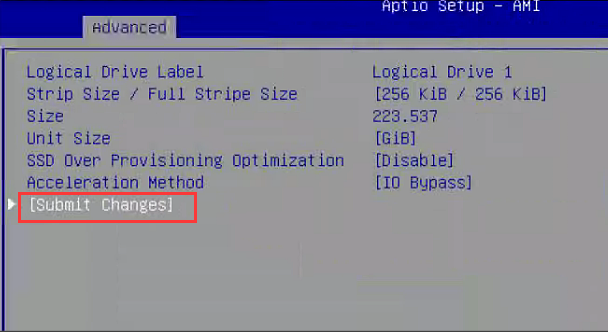
**Step 9: **Set System Disk as boot, return to the main interface, select Set Bootable Device–>Select Bootable Logical Drive, select Select System Disk, and reinstall System after Finish.
Original Link
https://support.sangfor.com.cn/cases/list?product_id=156&type=1&category_id=23020&isOpen=true