
[Hardware Troubleshooting] SN is the F6H server 9460RAID RAID card group RAID5 Operation guide
Problem Description
SN is the F6H server 9460RAID RAID card group RAID5 Operation guide
solution
**Step One: **Restart the device, press the delete key Auto unlock after menu interface to enter the BIOS, enter the BIOS Password: S#AN$6fo81r, Select Device Manager, if the boot Mode is Legacy Mode, you need to go to BIOS Configuration–>Boot–>Boot Type to change to UEFI, then press F10 Save and Restart into the BIOS interface.
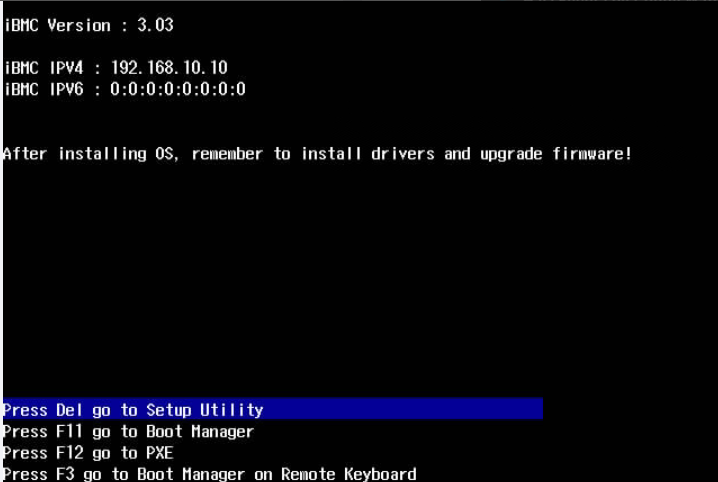
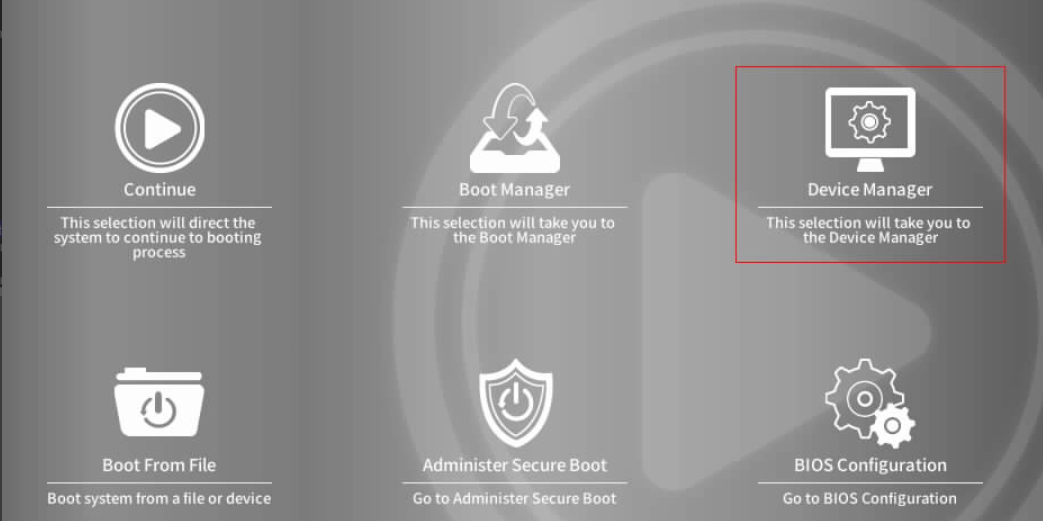
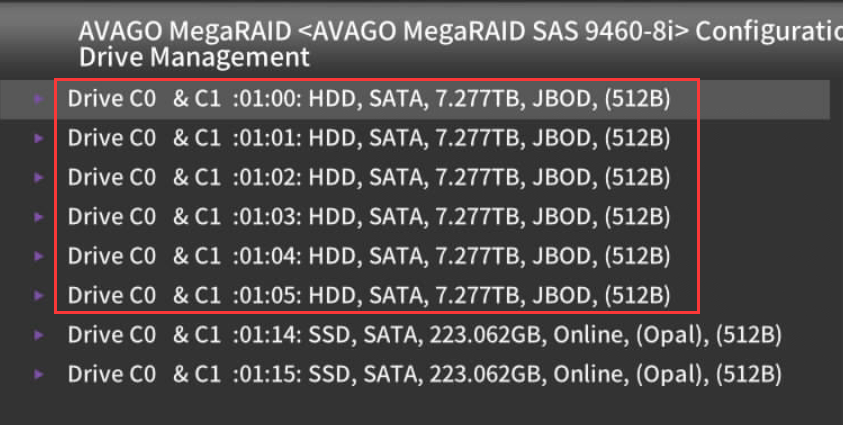
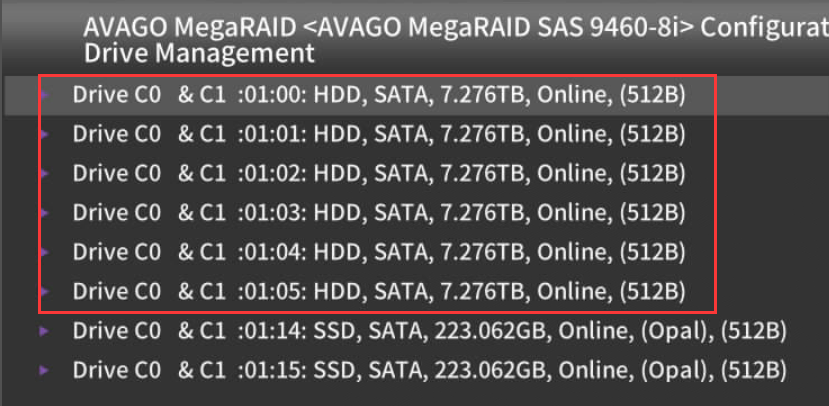
**Step Two: **Select 9460RAID RAID card–>Main Menu–>Drive Management, and View whether all hard disks are recognized.
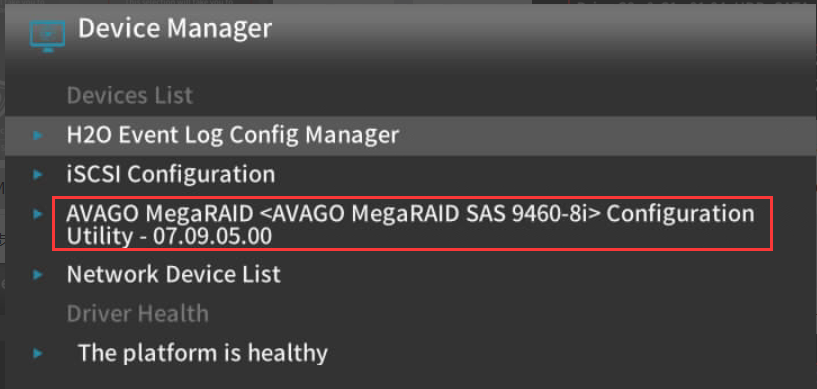
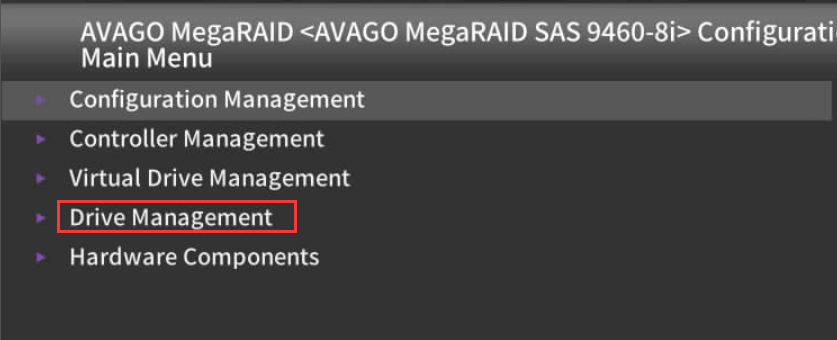
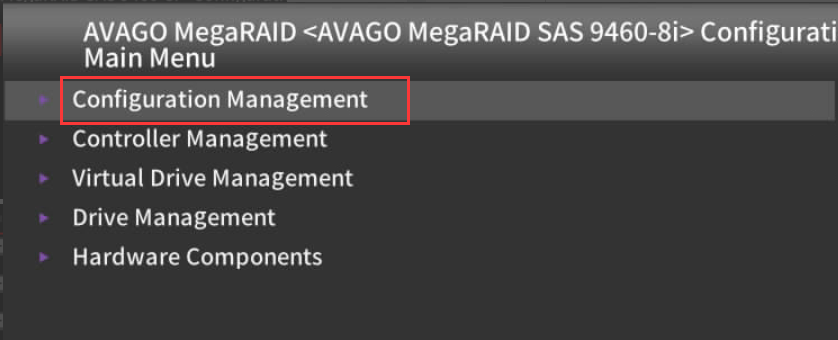
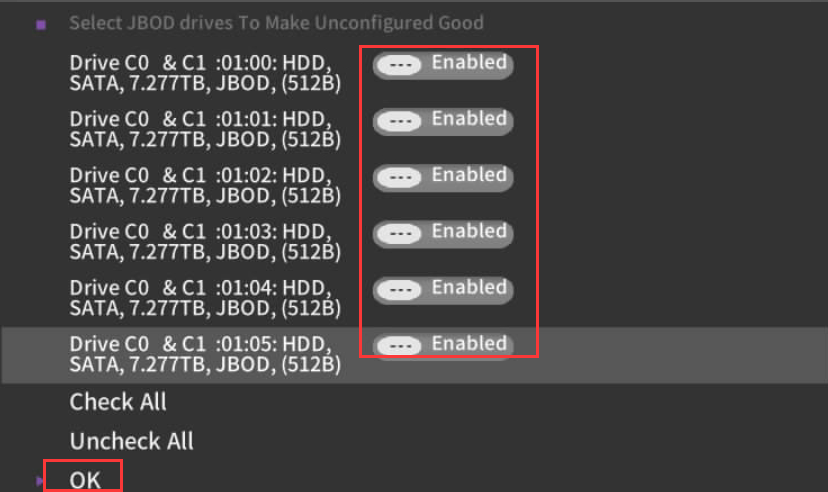
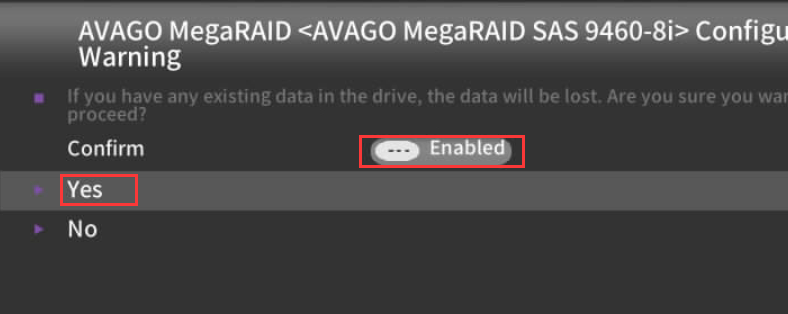
**Step Three: **Return to the main interface, Select Configuration Management–>Create Virtual Drive, set the disk Settings Enabled, then Select OK, Confirm and Select Enabled–>Yes. If the disk Status is already Yes UG Mode, Skip this step.
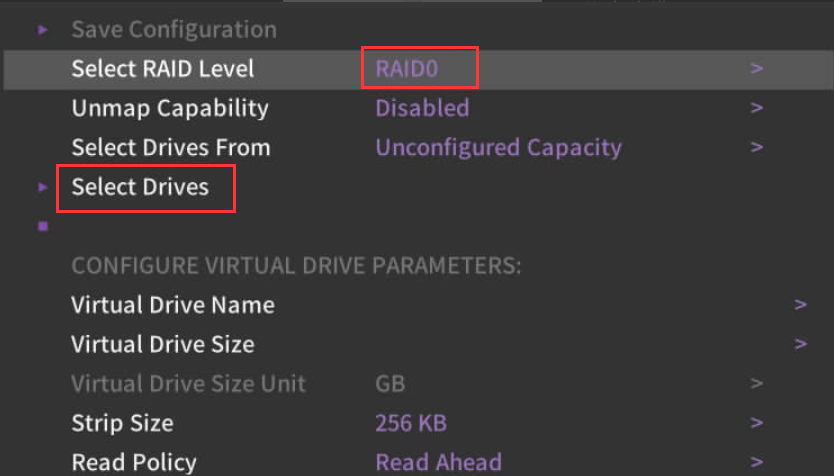
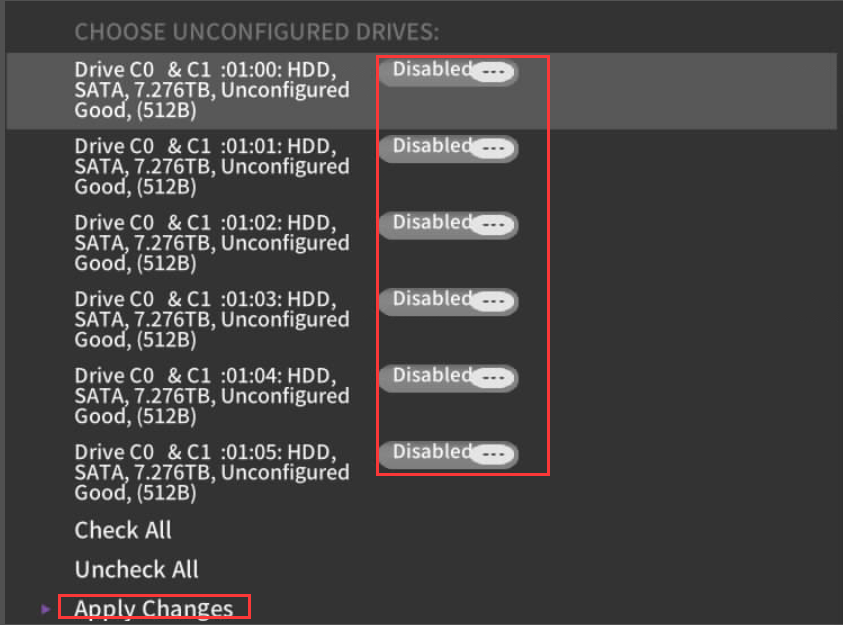
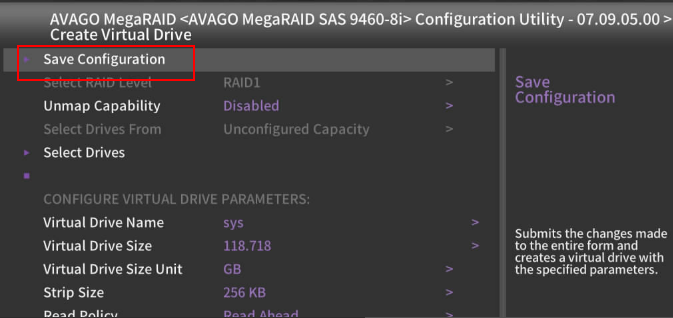
**Step Four: **Select RAID Level Auto unlock after Create RAID interface and select RAID5. Then, Select Drives and change the disks that need to Create RAID5 to Enabled and Apply Changes. Then, Auto unlock after Save Configuration, Confirm and select Enabled–>Yes
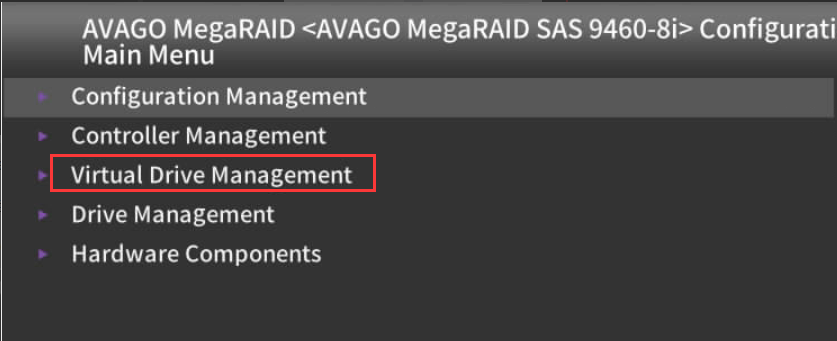
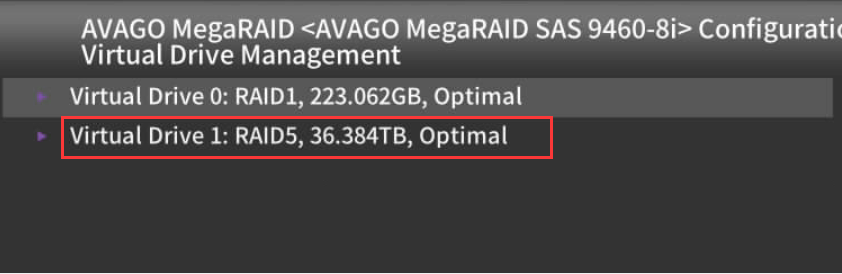
**Step Five: **Return to the main interface and Select Virtual Drive Management to View whether RAID5 has been Create. The total Capacity of RAID5 is N-1. Adding Mon disk will not Impacts data integrity. Go to Drive Management View whether the disk Status is Online.
**Step Six: **If System needs to boot in Legacy Mode, enter BIOS and change the boot Mode to Legacy Mode, change BIOS Configuration–>Boot–>Boot Type to Legacy, Save the device by pressing F10.
Original Link
https://support.sangfor.com.cn/cases/list?product_id=156&type=1&category_id=23031&isOpen=true