
[Hardware troubleshooting] When connected to the Serial Port cable (console cable), the arm light is always on and System cannot be entered for troubleshooting
Problem Description
Use the Serial Port tool View the device interface screenshot
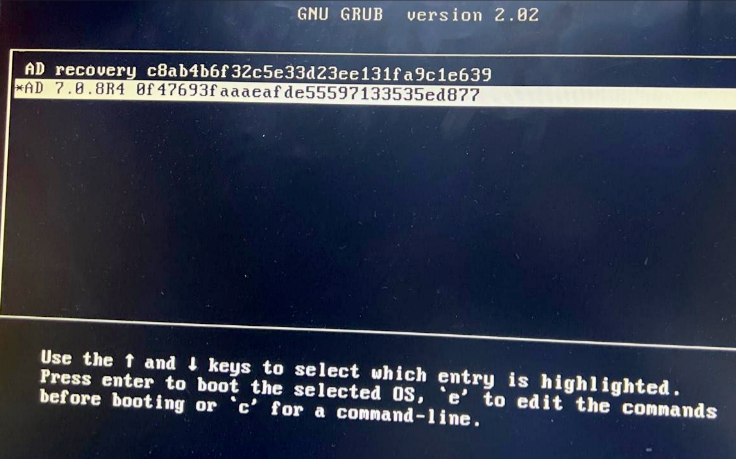
solution
Step One: View whether the device has a VGA port.
●Yes, go to 2.
●No, turn off the power for 5 min and then turn it on again. etc., 5 min. If the arm light is still on, Administrator Console cannot ping the device being repaired.
Step Two: Connect the monitor View whether it is in the kernel loading interface.
●Yes, proceed to 3.
●No, if Yes Auto unlock after System startup interface, restart the device to see No you can enter System. If not, Restart-flash System Test Connectivity. If the screen is black when connected to the monitor, OK the monitor and VGA cable are OK. If the arm light is still on after powering off min 5 minutes and then powering on again, and Administrator Console cannot be pinged, return the device for repair.
**Step Three: **Connect the keyboard and press the enter key to see if you can enter System Connected, or connect the Serial Port tool and press the enter key to see if Connected can enter the system normally. If Connected enter System, Restart the device to see if it still stops at the kernel loading interface. Yes, unplug the Serial Port cable and Restart the device to see if Connected can enter System normally.
Cause:
The reason why the device stays on the kernel loading interface is that it receives keyboard instructions and connects to the Serial Port line, causing signal interference. The device receives keyboard up and down key signals and stays on the Select page. The keyboard signal can Yes input directly from the keyboard or Yes Serial Port. The solution Yes unplug the Serial Port cable and Restart the device or connect the keyboard and press the enter key to enter System.
Original Link
https://support.sangfor.com.cn/cases/list?product_id=156&type=1&category_id=22697&isOpen=true