
“` 【HCI】sCloud620 installation displays garbled characters “`
Problem Description
After installing UOS, there is garbled code during the installation of sCloud 6.2.0.
Alarm Information

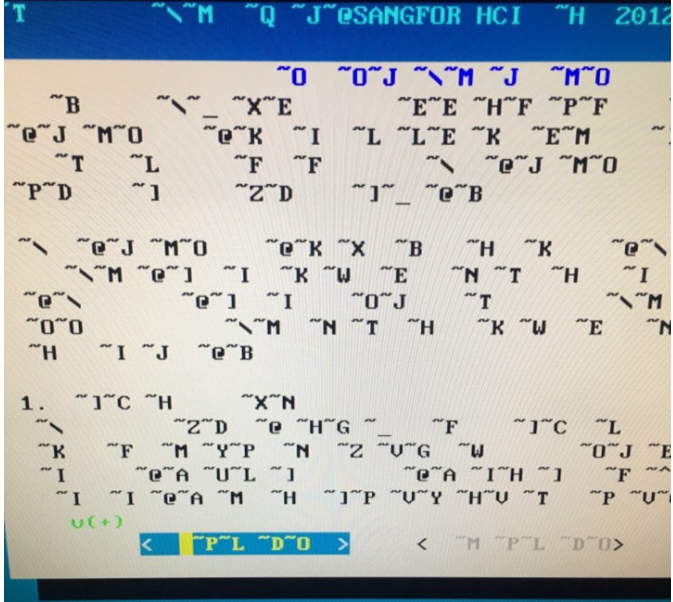
Garbled characters issue01.png (708.2 KB)
Root Cause
Pre-generate the language set to avoid unsupported languages during installation.
Solution
If garbled characters appear, follow these steps.
- Unzip the installation package to the /acloud directory.
Run the commandsh sCloud6.2.0\_ARM-aarch64.run --target /acloud - Execute the following command: "cat /acloud/scripts/prepare.d/Uos-20.prepare"
You can see there is an init_language function.
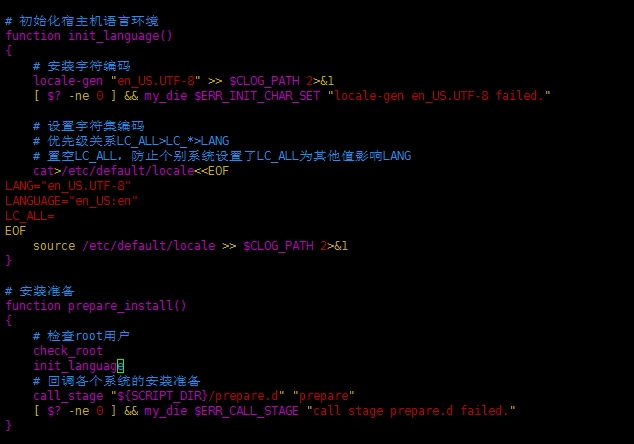
Move the definition of this function to /acloud/script/anke_install_main.sh,
Move the call of this function to the prepare_install function of /acloud/script/anke_install_main.sh
As shown in the figure below.
Garbled characters issue02.png (20.07 KB)
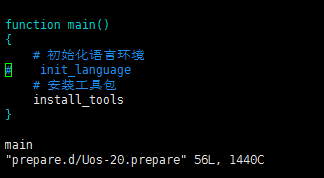
And comment out the call to the init_language function in /acloud/scripts/prepare.d/Uos-20.prepare.
Garbled characters issue03.png (3.78 KB)
Original Link
https://support.sangfor.com.cn/cases/list?product_id=33&type=1&category_id=16216&isOpen=true