
[aCloud] Server2008 virtual machine enters the repair interface after Power On on.
Problem Description
After the customer updated the patches for the server2008 virtual machine, the virtual machine restarted and directly entered the repair interface. However, the BIOS stay time was set to press F8 to enter the safe mode selection interface, but it skipped and entered the repair mode directly.
Alarm Information
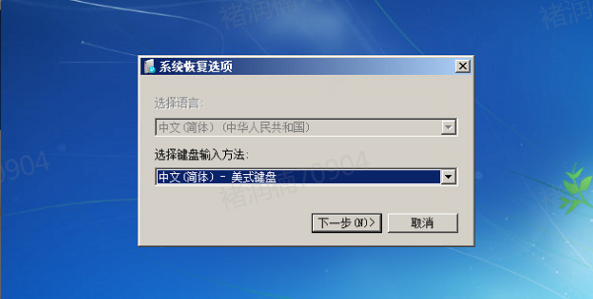
989995e7c4afaea6c7.png (200.96 KB)
Process –
- The issue Medium caused by the system updating patches, but the system's boot is not updated. You need to power off the faulty virtual machine and take a snapshot (before performing the following steps, be sure to take a snapshot of the virtual machine first).
- Use the built-in optimization PE repair tool provided by Sangfor to load the CD/DVD through virtual machine editing, and click the "Browse" button to select the PE image provided by the platform. (If the PE image is not provided on the platform, you can download it through the link and upload it locally: https://pan.baidu.com/s/1FUkKBZZvFtRzlDDcoLYYZg Extraction code: e16d)
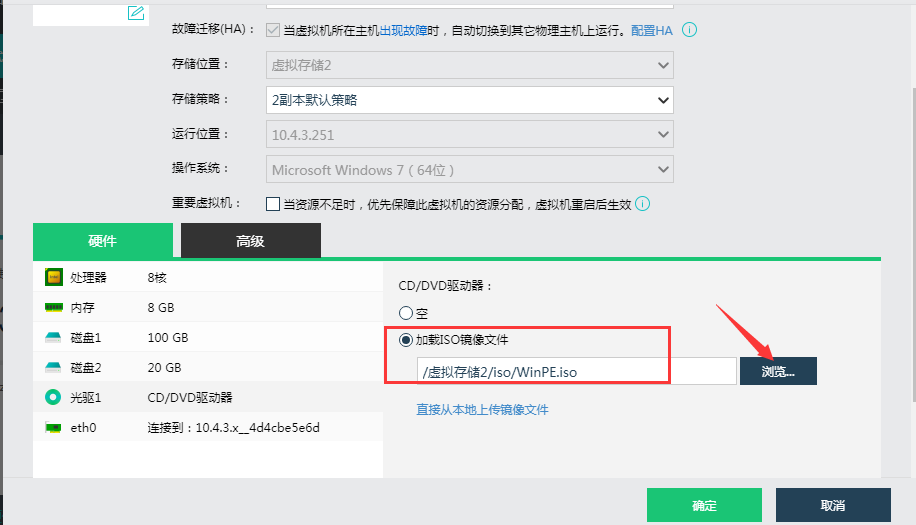
214375e7c4be174dc2.png (48.2 KB)
Then, place the Boot Order location that has loaded the PE at the first position in the boot order. - Power On on and enter the PE system, find the SYSTEM System Disk in the G:\Windows\System32\config directory of the system disk (the system System Disk drive letter in the case is G, you need to check in the virtual machine, Medium system System Disk is generally the one with the Program Files (x86) folder at the root directory), and you can see that the size of the SYSTEM file is 8704KB.
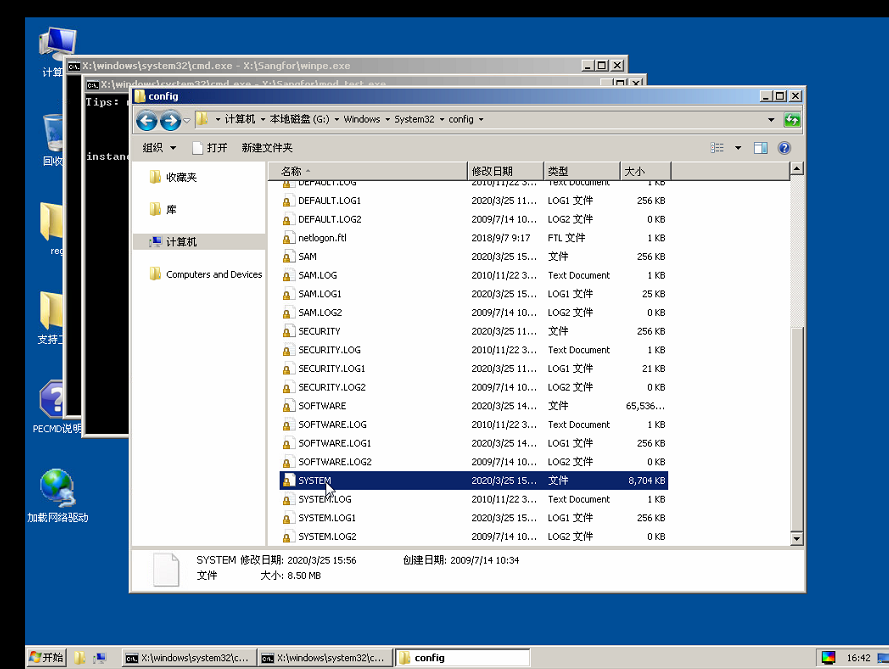
385965e7c4d71631b0.png (210.08 KB) - Go back to the directory G:\Windows\System32\config\Regbak\, and find the SYSTEM file. Check the size of the SYSTEM file, which is 8640KB. There is a difference in the size of the SYSTEM file between the two folders, so it is necessary to copy the SYSTEM file from the \Regbak\ directory to the parent directory config to replace the SYSTEM file in the \config\ directory. (Before copying, you can first rename the SYSTEM file under the config directory to bak, without deleting it.)
- Then shut down the virtual machine and modify the Boot Order to place the disk in the first position.
- After Power On on, it was found that the virtual machine entered the system welcome interface normally.
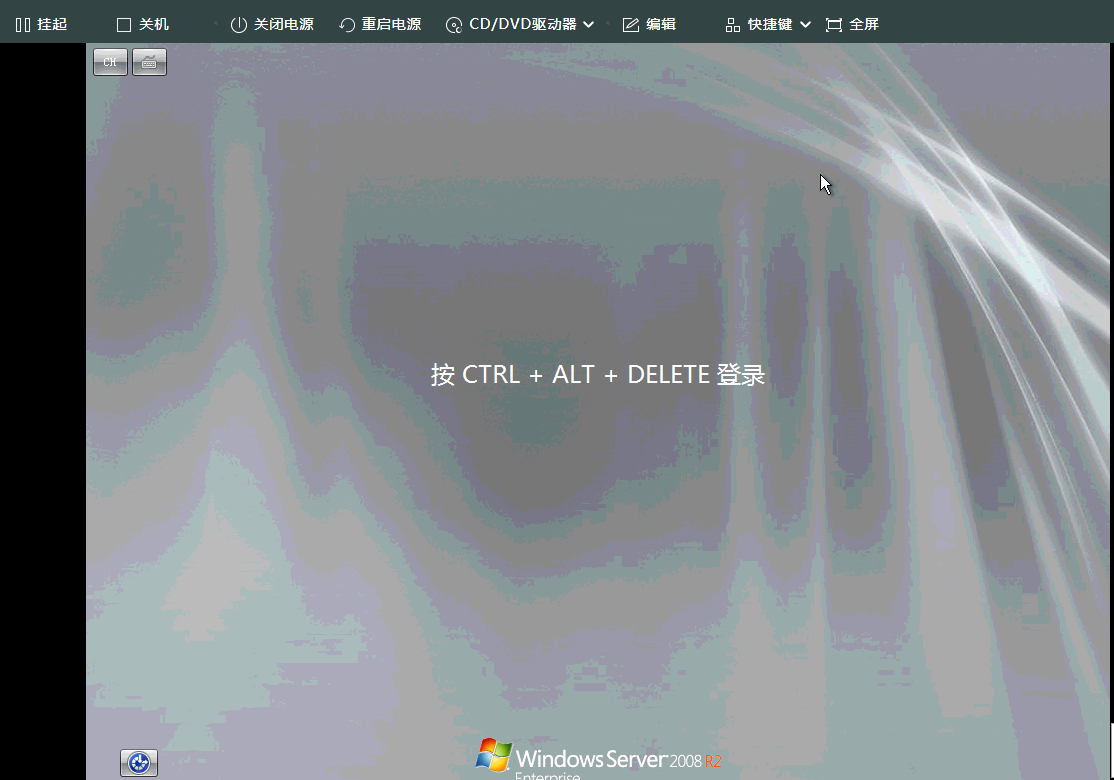
307555e7c4f8949b5d.png (207.13 KB)
Root Cause
Due to a system update patch, some startup components of Windows are experiencing issues.
Solution
Replace the abnormal configuration file with the normal configuration file backed up by the system.
Suggestions and Summary
If the virtual machine restarts after updating the patch, it will directly enter the repair interface after power on. You can first try the above recovery method, but remember to take a snapshot of the virtual machine before performing any operations.
Original Link
https://support.sangfor.com.cn/cases/list?product_id=33&type=1&category_id=15931&isOpen=true