
[aCloud] Stretched Cluster adding witness node host to extended cluster: Node hard disk configuration does not meet requirements
Problem Description
When creating a virtual machine on VMware, I used the ovf template to deploy the witness node. When importing the template, a compatibility issue was prompted. I used the iso installation method to deploy the witness node. When deploying, I directly created a new virtual machine on VMware and configured two new disks with a capacity greater than 100G. Then I used the witness node template downloaded from the Sangfor community to install it. After the creation was completed, an error was reported when creating a volume on HCI.
Alarm Information
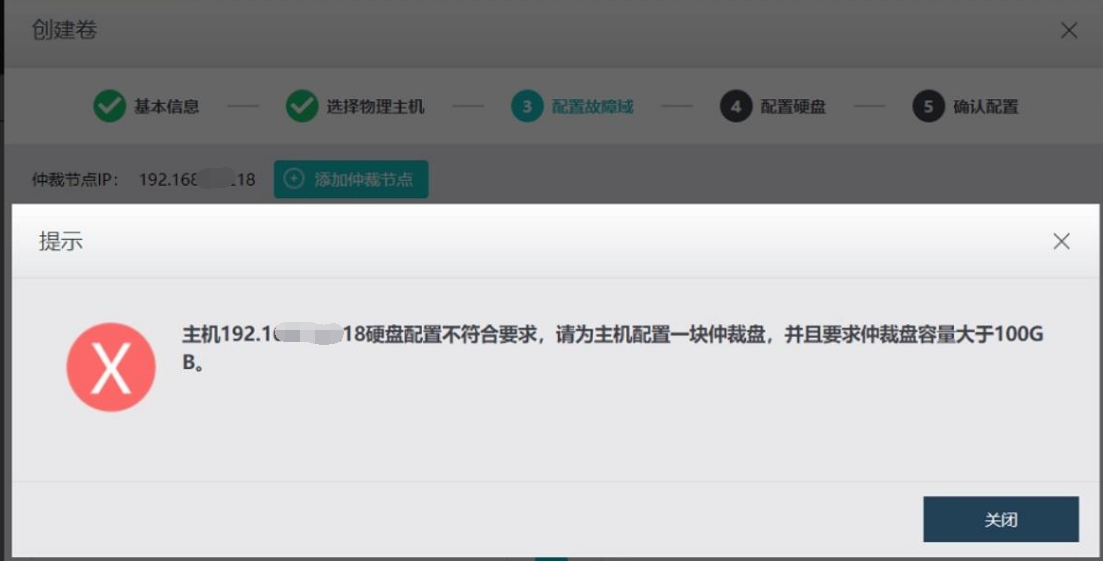
[size=13.3333px]Node x.x.x.x hard disk configuration does not meet the requirements. Please configure an Quorum Disk for Node, and the Quorum Disk capacity must be greater than 100G
479015ec4cd1730f48.png (191.98 KB)
Process –
- Create a virtual machine on VMware (the virtual machine configuration requires 8 cores, 32G, and two 500G independent disks) as the arbitration machine.
- Then install the arbitration machine through iso.
- Then create a volume on acloud, create an Stretched Datastore, and when selecting the Witness Node, it prompts: '[size=13.3333px] The hard disk configuration of Node x.x.x.x does not meet the requirements. Please configure a Quorum Disk for Node, and the Quorum Disk capacity must be greater than 100G'.
- Change the advanced configuration of the virtual machine on VMware and add the configuration parameter disk.enableuuid=true.
- Then test and re-add the Stretched Cluster and successfully create the Stretched Datastore.
Root Cause
After the disk is configured on VMware, the acloud platform cannot directly recognize the disk. You need to change the virtual machine parameters on VMware so that acloud can recognize the disk.
Solution
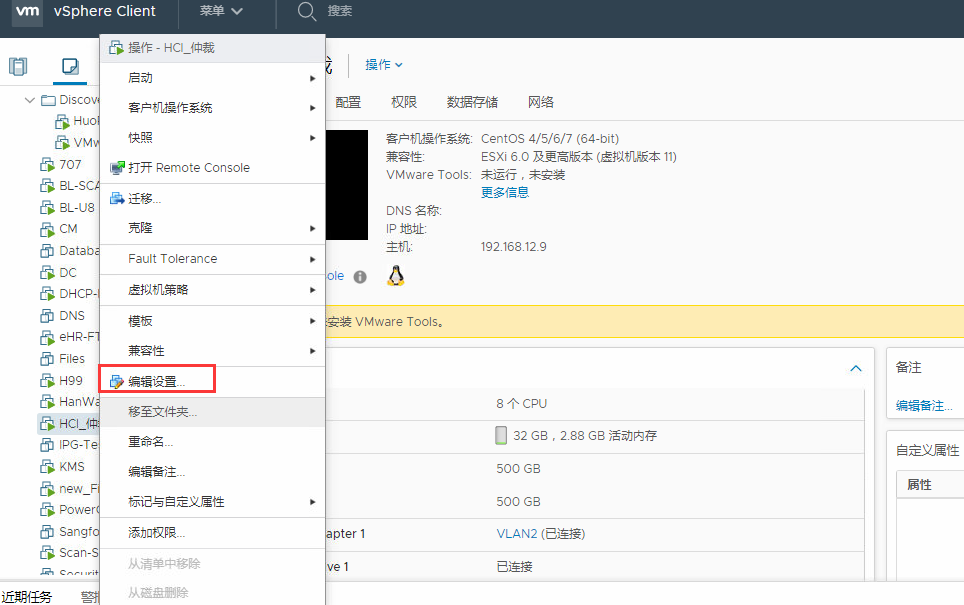
- Log in to the VMware console management interface, find the corresponding HCI arbitration virtual machine, right-click and select [Edit Settings]
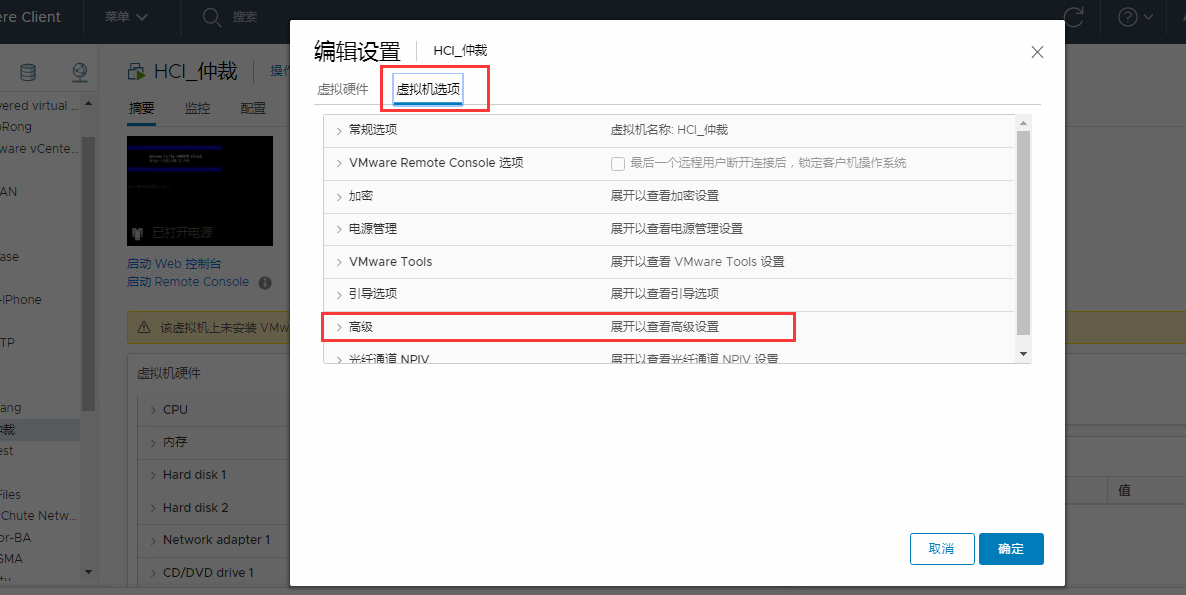
339325ec50702182fa.png (119.15 KB) - Select [Advanced] in [Virtual Machine Options] and pull down to find [Edit Settings]
22975ec50762bb299.png (101.66 KB)
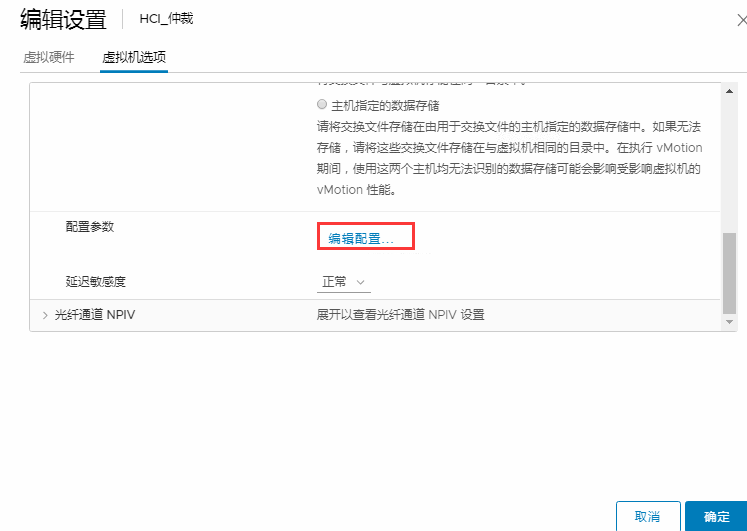
142685ec507701d444.png (37.4 KB) - Add a key-value pair [disk. enableuuid][true] in the editing interface and save it. (If there is already a disk.enableuuid value, just change the corresponding value to true)
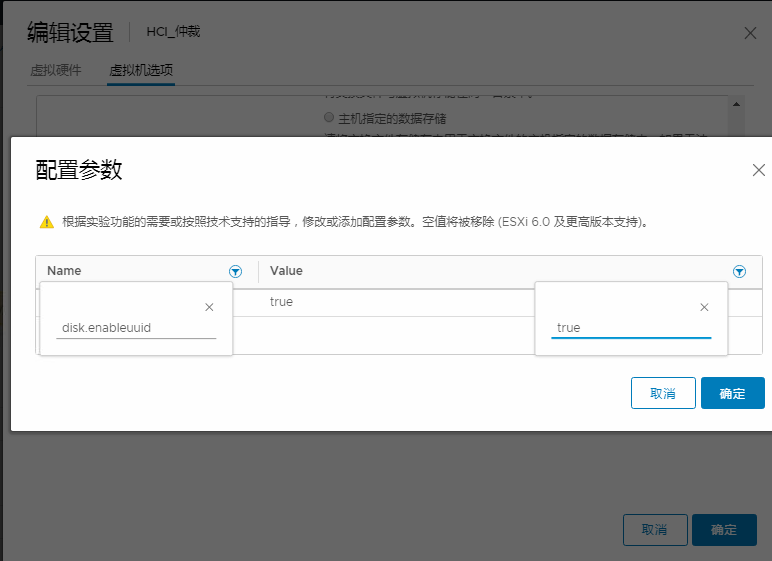
552625ec50787318eb.png (33.32 KB)
Suggestions and Summary
If an exception occurs when deploying the witness node using the ovf template, you can try iso installation as an alternative. When using iso installation, you can refer to the above case. The VMware version in the case is: VMware ESXi, 6.0.0, 3620759
Original Link
https://support.sangfor.com.cn/cases/list?product_id=33&type=1&category_id=15961&isOpen=true