【HCI-ASEC】How to enter the backend of aSEC
Problem Description
This case study describes how to log in to the aSEC backend.
Solution
Prerequisites
aSEC deployment has been completed.
Steps
There are two ways to log in to the aSEC backend.
Method 1: SSH remote login to aSEC backend
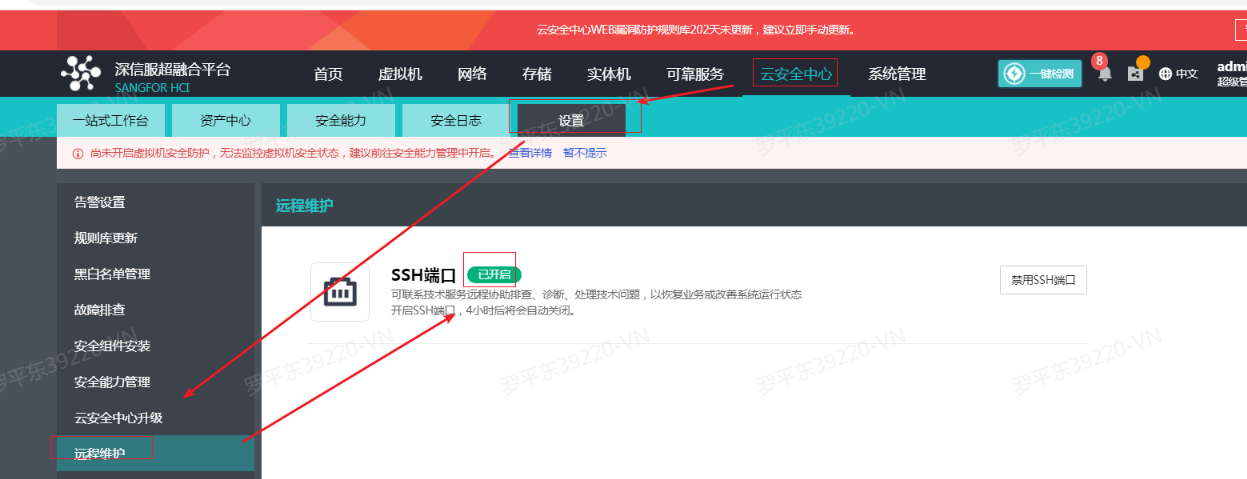
Enable SSH Port.
If aSEC and SCP are linked, you need to log in to the SCP platform first, select [Products and Services] – [Security Services] – [Cloud Security Center] – [Settings] – [Remote Maintenance], and then click [Enable SSH Port].
2. Create a new SSH connection to log in to the aSEC backend.
-
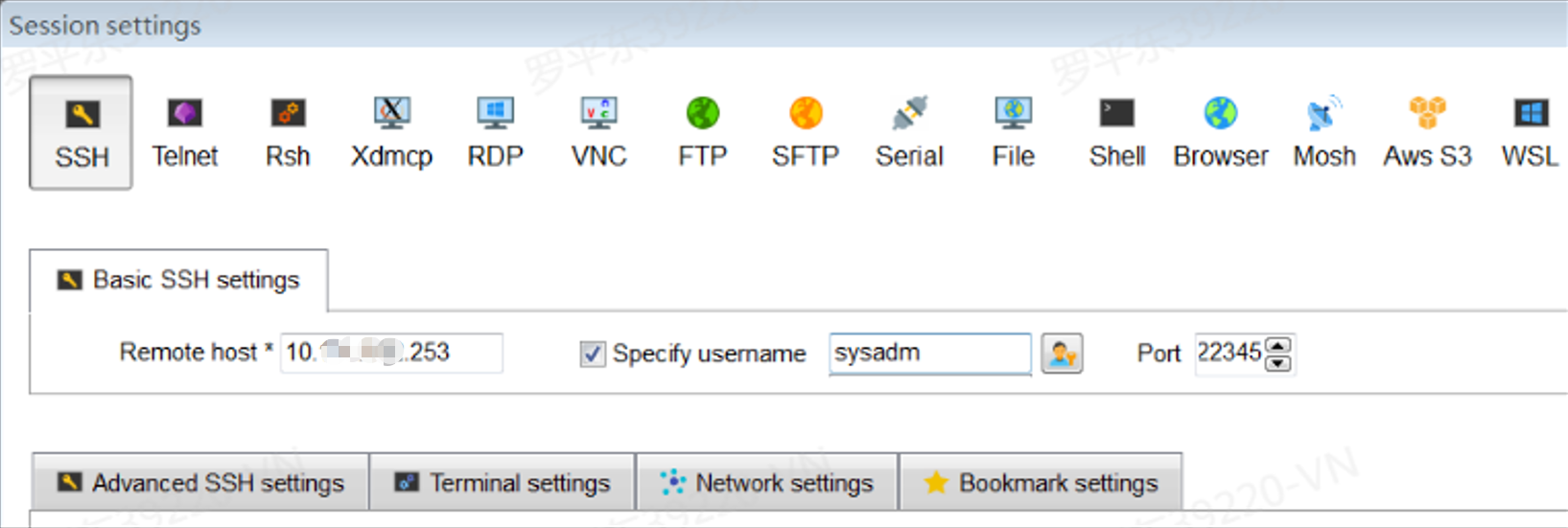
- remote host: Enter the IP address of the aSEC virtual machine, which can be viewed on the aSEC virtual machine details page.
- Username: sysadm * aSEC password: aSEC versions prior to 1.3.0 are fixed to Sfcsec@123Security; aSEC 1.3.0 and later versions are console password + Security
Reset reset it. - Port number: 22345
Method 2: Log in to aSEC backend through HCI platform
- Log in to the HCI platform and open the aSEC virtual machine console.
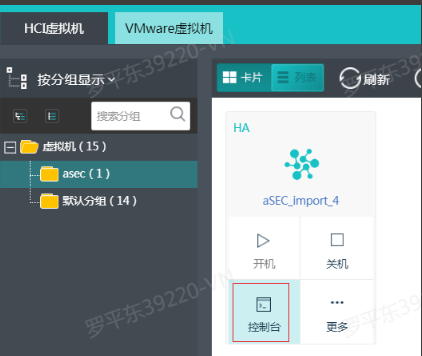
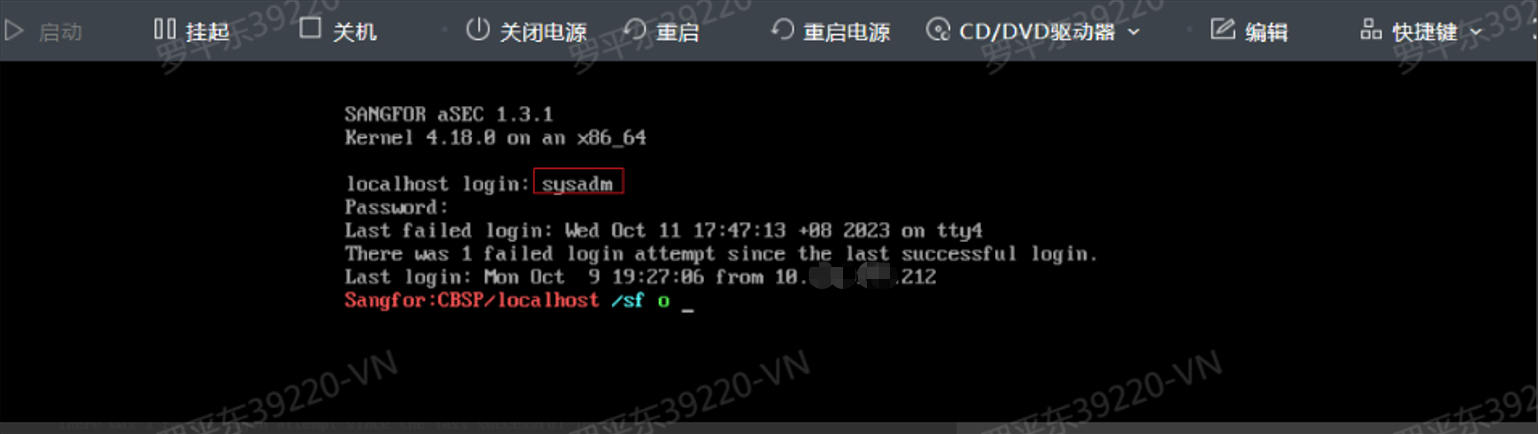
- Use the interface Hot Key command to send Alt+F4 to switch to the aSEC backend user login interface (Alt+F7 can switch back to the console interface).
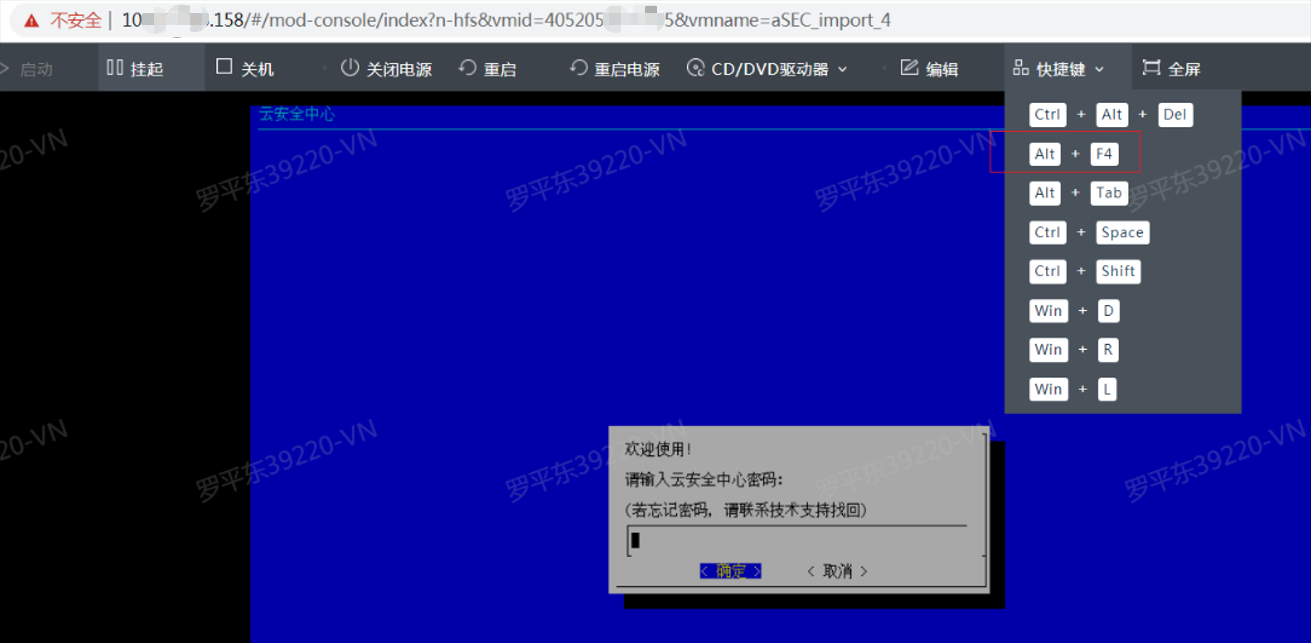
- Use the sysadm account to log in to the aSEC backend; for versions prior to aSEC 1.3.0, the account is fixed as Sfcsec@123Security; for versions aSEC1.3.0 and later, the account is console password + Security
Reset reset it.
- If you want to obtain more permissions, you can use the root account to log in. Please contact aSEC technical support or front-line colleagues to obtain the root account password. The root account does not support remote ssh login.