
[HCI] After restoring the root password in centos, the correct password is used to log in but the prompt is “login incorrect”
Problem Description
CentOS password recovery after using the correct password login prompt login incorrect

Solution
- Restart the system: First, restart your server.
- Enter GRUB editing mode: During the boot process, you will see the GRUB boot loader interface. Use the up and down arrow keys on your keyboard to select the default kernel boot entry (usually the first option), then press the e key on your keyboard to enter edit mode.
- Modify the boot parameters: Find the line that starts with linux16 or linuxefi (depending on your CentOS version and configuration), or ends with quiet. Adding the rd.break parameter to the end of the line will cause the system to pause during the initialization phase, Allow us to proceed further.
- Save and continue booting: After the modification is completed, press Ctrl + X to continue the booting process. The system will enter Critical mode.
- Remount the root file system: After the system is suspended, you will enter a simplified shell environment. First, you need to remount the root file system in read-write mode and execute the following command:
mount -o remount,rw /sysroot - Switch to the real root directory environment of the system:
chroot /sysroot - Check the contents of the system log /var/log/secure, and you will find the following:
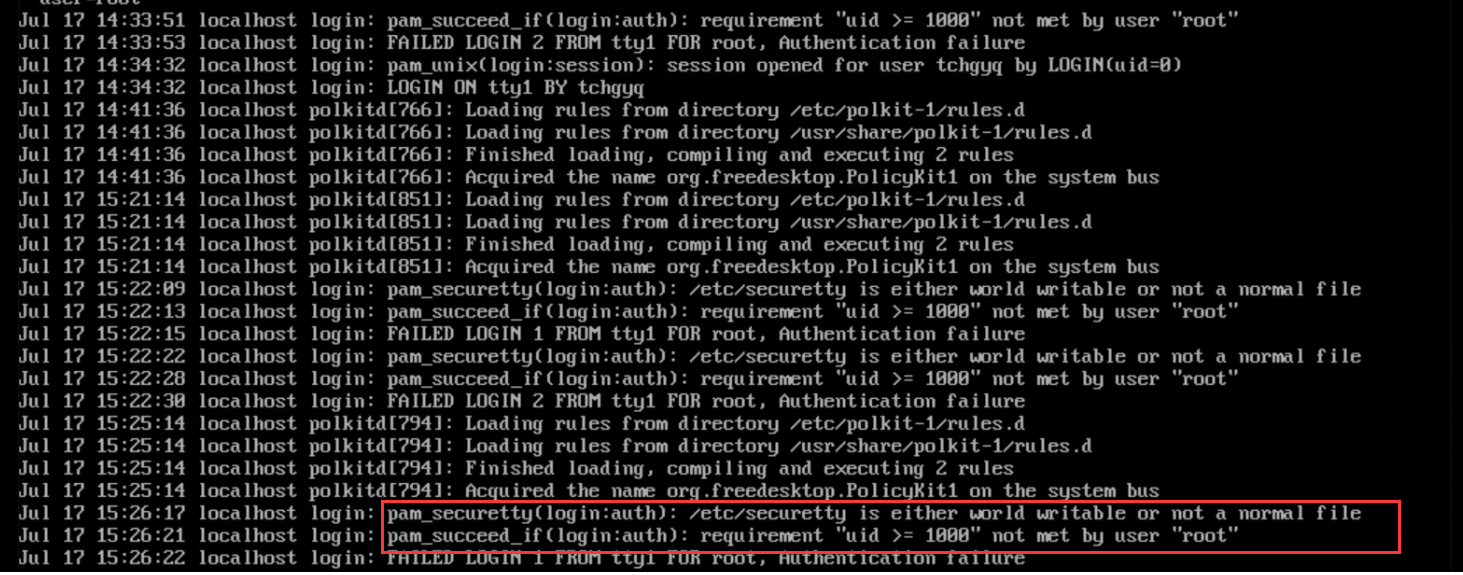
/etc/securetty is either world writable or not a normal file, indicating that the attributes of the file /etc/securetty have been modified incorrectly, resulting in the inability to log in normally by root. Therefore, the attributes of the file need to be modified to ensure that only the root user has all permissions to the file, while other users have only read permissions. Execute the following command to modify:
chmod 744 /etc/securetty

requirement "uid >= 1000" not met by user "root" , check the PAM configuration files, /etc/pam.d/login, /etc/pam.d/sshd, /etc/pam.d/system-auth to see if there is auth required pam_succeed_if.so uid >= 1000; Modify or comment the policy;
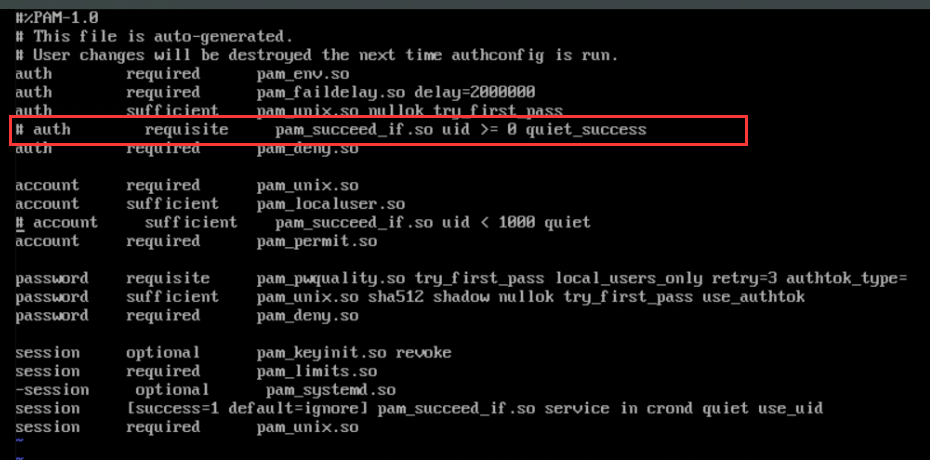
- After the operation is completed, exit and reboot the server. You can log in as the root user normally.

Operation Impact Scope
During the operation, the virtual machine needs to be restarted. You need to confirm the business status of the virtual machine and restart the virtual machine with the customer's Allow
Is this a temporary solution?
no
Suggestions and Conclusion
- This problem is Medium caused by the customer changing the file permissions by himself.
- After switching to the real root directory environment of the system in step 6, you can use the passwd root command to Reset root password