
【HCI】Release Notes_V6.9.0
HCI
Overview
Features
- Network health monitoring: Support monitoring NIC health at the data link layer to promptly detect network latency and packet loss, quickly identify faults, and give alerts.
- RAID card status check: Support monitoring the health of RAID cards in virtual storage. If it is detected that a RAID card has stopped running, the business system can promptly recover, and network isolation will be imposed on the corresponding node.
- Cyber attack protection: Support to deploy aSecurity (aSEC) to configure cyber attack protection policies for VMs in the virtual network topology, protecting cloud-based business systems across seven layers of the communication process.
- Virtual patch protection: Support deploying aSecurity (aSEC) for VM protection based on cyber attack protection policies to prevent vulnerability exploitation attacks without business interruption or VM restarts.
- Live migration across clusters: Support live migration from HCI6.0.0R5_EN, HCI6.2.0_EN, and HCI6.3.0R1/R2_EN to HCI6.9.0, avoiding business downtime and interruption caused by the cross-QEMU upgrade from an earlier version.
- 2-node cluster with 1 witness node: For 2-node clusters, a physical endpoint device (box-type device) or virtual machine can be deployed to work as the witness node, effectively avoiding cluster split-brain failures and improving reliability.
- SNMP trap: Support pushing configuration information, status information, and alerts of clustered nodes through SNMP traps. When an alert is triggered, it will be sent to a third-party monitoring platform through the SNMP trap API.
- Compatible with China’s domestic GPUs: With the support of X86 architecture, you can use three China domestically produced GPUs (Ascend Altas 300V Pro, Cambrian MLU270-S4, and Moore Threads MTT S2000) only in passthrough mode.
- Compatible with NVIDIA GPUs: Support using Tesla P4 and A100-HGX-80G in passthrough or vGPU mode and using Quadro P4000, RTX 4000, RTX 5000, RTX 6000, T1000, T1000-8G only in passthrough mode.
- Encryption security compliance: After encryption cards and HSMs are configured, support enabling SM encryption mode to protect critical data in information system applications by using compliant encryption algorithms, technologies, and products according to encryption security compliance requirements in China.
- Encryption cards: Support using four domestic encryption cards (SYD1308-G and SJK1727 V2.0-A/B/C) in passthrough mode.
- HSMs: Support using HSMs produced by Sansec and JIT to encrypt data of the HCI platform through the SM4 algorithm. HSMs can also be used to provide business services.
- Compatible with external storage: Support adding non-ATS block storage devices as external block storage resources. Configure storage multipathing policies to provide link redundancy capabilities to enhance storage reliability.
Others
- If HCI has been managed by SCP (earlier than SCP6.7.30) before upgrading to HCI6.9.0, please upgrade SCP to SCP6.7.30 and above (including SCP6.9.0) before upgrading HCI.
- After upgrading SCP6.7.0 to SCP6.7.30 and above (including SCP6.9.0), please contact Sangfor Support for further inspection.
- Since SCP6.8.0 has been containerized, to upgrade an earlier version to SCP6.8.0 or SCP6.9.0, please add a disk (400 GB) to the platform for container image storage so that databases will not be affected by disk IO from container images.
Warning:
The offline licensing(virtual key) method is supported only when SCP6.8.0 is deployed on HCI6.8.0 or later.
When using a virtual key to upgrade to SCP6.8.0, the original license key file will become invalid, and required to renew the license key with the new device info. This licensing method is supported only when SCP6.8.0 is deployed on HCI6.8.0 or later. Therefore, resource pools of earlier versions may cause SCP licensing to fail.
It is required to use the licensing method with a USB key if aSecurity needs to be licensed.
Upgrade Methods
Active Upgrade(Quick Upgrade)
A quick upgrade is applicable to upgrade scenarios with the same host OS kernel version and is commonly used for upgrading a minor version to another of the same series (for example, 6.7.0_R2 > 6.7.0_R3) or upgrading one version to another released within a short period of time (for example, 6.7.0 > 6.8.0). Specifically, all physical nodes are directly upgraded without changing the run location and running status of VMs in the cluster. With the process active restart technology, a quick upgrade will only cause a business system jitter which will last for 3 seconds or shorter and will not interrupt the business system. A quick upgrade of the cluster takes a shorter time to complete.
A quick upgrade is mainly applicable to the following versions (and is commonly used for upgrading some of them):
| Current Version | Target Version |
|---|---|
| HCI6.7.0_R1/R2 | HCI6.8.0 |
| HCI6.7.0_R1/R2/R3 | HCI6.9.0 |
| HCI6.8.0/R1 | HCI6.9.0 |
Rolling Active Upgrade
In the event of host OS changes or kernel or driver version upgrades, all clustered nodes must be restarted, which will cause business service interruption. With live migration technology, rolling active upgrades can significantly minimize the impacts on the services.
The rolling upgrade’s functionality is migrating the VMs running on a node that needs to be upgraded to other nodes or clusters through live migration before restarting the node or cluster so that business services will not be interrupted. A rolling upgrade will not affect the business services, except that the live migration of VMs during the upgrade can cause business service fluctuations for about 1 second, and the overall upgrade process can be arranged.
The rolling upgrade will migrate production VMs running on nodes that need to be upgraded to other nodes in the same cluster and then migrate them back after the upgrade is complete and the upgraded nodes are restarted. The cluster to be upgraded must have sufficient resources. Rolling upgrade is mainly applicable to the following versions (and is commonly used for upgrading some of them):
| Current Version | Target Version |
|---|---|
| HCI6.8.0 (Hygon) | sCloud 6.8.1 (Hygon) |
Offline Upgrade
Offline upgrade requires all clustered nodes to be restarted. All clustered nodes must be restarted in the event of host OS changes or kernel or driver version upgrades. The cluster restart requires all business VMs to be shut down, making the business system unavailable. The offline upgrade is mainly applicable to the following versions (and is commonly used for upgrading some of them):
| Current Version | Target Version |
|---|---|
| HCI6.0.0_R5_EN | HCI6.8.0 |
| HCI6.3.0_R1/R2/R3_EN | HCI6.8.0 |
| HCI6.0.0_R3/R4_EN | HCI6.9.0 |
Upgrade Path
Resource Pool Upgrade
Recommended Upgrade Path for HCI:
5.8.3 → Offline Upgrade → 6.0.0_R5 → Offline Upgrade → 6.9.0
5.8.6-6.0.0_R4 → Active Upgrade → 6.0.0_R5 → Offline Upgrade → 6.9.0
6.0.0 R5-6.3.0_R3 → Offline Upgrade → 6.9.0
6.7.0-6.8.0_R1→ Quick Upgrade/Rolling Upgrade → 6.9.0
The Versions Can Be Upgraded to HCI6.9.0:
| aCloud 6.0.0 Series | 6.0.0_R5_EN | – | – | – | Offline Upgrade |
|---|---|---|---|---|---|
| HCI6.0.1 Series | 6.0.1_EN | 6.0.1_R1_EN | – | – | Offline Upgrade |
| HCI6.1.0 Series | 6.1.0_EN | – | – | Offline Upgrade | |
| HCI6.2.0 Series | 6.2.0_EN | 6.2.70_EN | – | – | Offline Upgrade |
| HCI6.3.0 Series | 6.3.0_EN | 6.3.0_R1_EN | 6.3.0_R2_EN | 6.3.0_R3_EN | Offline Upgrade |
| HCI6.7.0 Series | 6.7.0_EN | 6.7.0_R2_EN | 6.7.0_R3_EN | – | Active Upgrade |
| HCI6.8.0 Series | 6.8.0 | 6.8.0_R1 | – | – | Active Upgrade |
NFV Components Upgrade
Please upgrade the NFV components first if their version is lower than the version listed in the following table before upgrading the HCI.
| Device | Version | HCI6.9.0 | Classic Network | VPC | Notes |
|---|---|---|---|---|---|
| vAD | vAD6.6 | √ | √ | – | |
| vAD | vAD7.0.9_R1 | √ | √ | √ | |
| vNGAF | vNGAF7.1_R3 | √ | √ | – | |
| vNGAF | vNGAF8.0.8 | √ | √ | – | Upgraded from vNGAF7.1_R3 is supported. |
| vNGAF | vNGAF8.0.17 | √ | √ | √ | Support from vNGAF8.0.8 is supported. To use a customized version of vNGAF8.0.17, please install the upgrade package first and then the custom package. |
| vNGAF | vNGAF8.0.26 (20200929) |
√ | √ | √ | Version patched supports both being installed using SSL service packs and being deployed. |
| vIAG | vIAG11.9 | √ | √ | – | Must re-deploy. |
| vIAG | vIAG12.0.14 | √ | √ | – | Upgrade from vIAG11.9 is supported. |
| vIAG | vIAG13.0.73 | √ | √ | – | Recommend deploying this version of vIAG. Upgrade from the previous version is not supported due to insufficient partition size. |
| vSSL | vSSL7.6.0 | √ | √ | – | |
| vSSL | vSSL7.6.8_R2 (20200928) |
√ | √ | √ | Support to deploy or upgrade by using the product upgrade package. |
Upgrade Impacts
The impacts of upgrading HCI will vary depending on the upgrade method. For details, see the table below:
| Method | Impacts on Services | Impacts on Customer O&M | Impacts on Customer Network |
|---|---|---|---|
| Quick Upgrade | A business system jitter will last for 3 seconds or shorter. | O&M personnel should not log in to the platform for operation and maintenance during the upgrade. | None |
| Rolling Upgrade | The business system performance will degrade (about 10 seconds) during migration, and I/O operations will be suspended for about 1 second. | O&M personnel should not log in to the platform for operation and maintenance during the upgrade. The upgrade will take about 40 minutes per node. |
None |
| Offline Upgrade | All VMs and NFV devices must be shut down before an offline upgrade. After the upgrade, they cannot be powered on before all 6.9.0 features take effect. The downtime will be around 1 hour. | O&M personnel should not log in to the platform for operation and maintenance during the upgrade. | None |
The production VM can work after the platform is upgraded to 6.9.0 through a quick upgrade. However, the new version driver is not activated yet. You have to enter each cluster node in Maintenance Mode and restart them one by one during off-peak hours. The relevant features are described in the table below:
| Upgrade Path | The impacts of not restarting the host | Remarks |
|---|---|---|
| 6.7.0 > 6.8.0 | None | None |
| 6.8.0 > 6.9.0 | Speed optimizations for VM cold migration do not take effect. | Changes to the kernel are not upgraded. |
| 6.8.0 > 6.9.0 | Non-ATS storage cannot be mounted. | Changes to the driver module are not applied. |
Upgrade Instruction for Customers
- Before an upgrade, to ensure the business continuity of critical VMs, shutting down other virtual machines is recommended. Please check and record VMs that can be shut down in the table below:
| System | Application Service | Run Location | Remarks |
|---|---|---|---|
| XX front end | Tomcat | XX.XX.XX.XX | XXXX |
- Before an upgrade, please confirm whether NFV devices need to be upgraded. Evaluate and arrange the time and personnel for the upgrade.
| NFV Component | NFV Device Name | Run Location | Current Version | Target Version | Shutdown Allowed |
|---|---|---|---|---|---|
| NGAF | Egress firewall | XX.XX.XX.XX | XX.X.X | XX.X.X | Yes |
- An offline upgrade may take 4 to 6 hours. Please make appropriate time arrangements in advance and notify the business department to stop accessing the platform during the upgrade.
- During the upgrade, O&M personnel of customers should not log in to the platform for operation and maintenance.
Implementation Procedure
Quick Upgrade
| Type | Item | Estimated Time | Check with √ When Complete |
|---|---|---|---|
| Preparing for Upgrade | Check upgrade path | ||
| Preparing for Upgrade | Obtain the latest aDeploy version | ||
| Preparing for Upgrade | Prepare HCI update package | ||
| Preparing for Upgrade | Check version information | ||
| Preparing for Upgrade | Prepare license key | ||
| Preparing for Upgrade | Read upgrade notes(in the release notes) | ||
| aSecurity Upgrade | Upgrade aSecurity before upgrading MGR | About 30 minutes | |
| aNI Upgrade | Upgrade Network Insight (aNI) on HCI | About 30 minutes | |
| HCI Upgrade Process |
Make sure there are no ongoing tasks | 5 minutes | |
| HCI Upgrade Process |
General page check | 10 minutes | |
| HCI Upgrade Process |
Health check | 10 minutes | |
| HCI Upgrade Process |
Enable maintenance mode | 1 minute | |
| HCI Upgrade Process |
Environment check before upgrading HCI | 5 minutes | |
| HCI Upgrade Process |
Upload HCI update package/Verify software edition | 3 minutes | |
| HCI Upgrade Process |
Distribute update package | Package size * Number of nodes/Transfer rate | |
| HCI Upgrade Process |
Pre-upgrade check | 15 minutes. The time varies according to virtual storage capacity. The larger the storage capacity is, the longer the upgrade process takes. | |
| HCI Upgrade Process |
Control plane active upgrade | 11 minutes | |
| HCI Upgrade Process |
VM active upgrade | 5 seconds for every 5 VMs with vmTools installed. 2 minutes for each VM without vmTools installed. |
|
| HCI Upgrade Process |
Virtual storage active upgrade | Number of clustered nodes*10 minutes | Related to the scale and load of VMs |
| HCI Upgrade Process |
Active upgrade for virtual network | 5 minutes | Related to the scale and load of VMs |
| HCI Upgrade Process |
Apply new virtual storage version | Number of clustered nodes*10 minutes | Related to the scale and load of VMs |
| HCI Upgrade Process |
Check business | 30 minutes | |
| HCI Upgrade Process |
License after upgrade | 5 minutes |
Rolling Upgrade
| Type | Item | Estimated Time | Check with √ When Complete |
|---|---|---|---|
| Preparing for Upgrade | Check upgrade path | ||
| Preparing for Upgrade | Obtain the latest aDeploy version | ||
| Preparing for Upgrade | Prepare HCI update package | ||
| Preparing for Upgrade | Check version information | ||
| Preparing for Upgrade | Prepare license key | ||
| Preparing for Upgrade | Read upgrade notes(in the release notes) | ||
| aSecurity Upgrade | Upgrade aSecurity before upgrading MGR | About 30 minutes | |
| aNI Upgrade | Upgrade Network Insight (aNI) on HCI | About 30 minutes | |
| HCI Upgrade Process |
Make sure there are no ongoing tasks | 5 minutes | |
| HCI Upgrade Process |
General page check | 10 minutes | |
| HCI Upgrade Process |
Health check | 10 minutes | |
| HCI Upgrade Process |
Environment check before upgrading HCI | 5 minutes | |
| HCI Upgrade Process |
Upload HCI update package/Verify software edition | 3 minutes | |
| HCI Upgrade Process |
Distribute update package | Packet size/Transfer rate-Packet size*2/Transfer rate | |
| HCI Upgrade Process |
Pre-upgrade check | 15 minutes | The larger the virtual storage capacity is, the longer the upgrade process takes. |
| HCI Upgrade Process |
Enable Maintenance Mode for the cluster | 1 minute | |
| HCI Upgrade Process |
Control plane active upgrade | 25 minutes | |
| HCI Upgrade Process |
Disable Maintenance Mode for the cluster | 1 minute | |
| HCI Upgrade Process |
Live migration of VMs across nodes in the same cluster | 3 minutes for each VM | The migration time of each VM varies according to the data volume and I/O status when the VM is running. |
| HCI Upgrade Process |
Enable Maintenance Mode for nodes | 1 minute | Related to the cluster size and workload. |
| HCI Upgrade Process |
Virtual storage active upgrade | 10 minutes | Related to the cluster size and workload. |
| HCI Upgrade Process |
Active upgrade for virtual network | 5 minutes | Related to the cluster size and workload. |
| HCI Upgrade Process |
Restart server manually | 10 minutes | Related to the cluster size and workload. |
| HCI Upgrade Process |
Disable Maintenance Mode for nodes | 1 minute | Related to the cluster size and workload. |
| HCI Upgrade Process |
Repeat the preceding steps (starting from the live migration of VMs) | About 40 minutes for each node | |
| HCI Upgrade Process |
Check business | 30 minutes | |
| HCI Upgrade Process |
License after upgrade | 5 minutes |
Offline Upgrade
| Type | Item | Estimated Time | Check with √ When Complete |
|---|---|---|---|
| Preparing for Upgrade | Check upgrade path | ||
| Preparing for Upgrade | Obtain the latest aDeploy version | ||
| Preparing for Upgrade | Prepare HCI update package | ||
| Preparing for Upgrade | Check version information | ||
| Preparing for Upgrade | Prepare license key | ||
| Preparing for Upgrade | Read upgrade notes(in the release notes) | ||
| aSecurity Upgrade | Upgrade aSecurity before upgrading MGR | About 30 minutes | |
| aNI Upgrade | Upgrade Network Insight (aNI) on HCI | About 30 minutes | |
| HCI Upgrade Process | Make sure there are no ongoing tasks | 2 minutes | |
| HCI Upgrade Process | General page check | 10 minutes | |
| HCI Upgrade Process | Health check | 5 minutes | |
| HCI Upgrade Process | Shut down all VMs | 20-30 minutes | |
| HCI Upgrade Process | Shut down all NFV devices | 10 minutes | |
| HCI Upgrade Process | Enable maintenance mode | 1 minute | |
| HCI Upgrade Process | Check environment for upgrade | 1 minute | |
| HCI Upgrade Process | Upload HCI update package | 1 minute | |
| HCI Upgrade Process | Verify the update package via the QR code | 1 minute | |
| HCI Upgrade Process | Distribute update package | Package size * Number of nodes/Transfer rate | |
| HCI Upgrade Process | Check environment | 15 minutes | |
| HCI Upgrade Process | Perform offline upgrade | 30 minutes | |
| HCI Upgrade Process | Power on VM | 10 minutes | |
| HCI Upgrade Process | Check business | 5 minutes |
Note:
The larger the cluster is, the longer it takes to convert the configuration file and the longer the upgrade time.
Post Upgrade Check
HCI Platform
PIC: Sangfor engineer
-
Perform a health check on the HCI platform (Virtual Storage Data Check must be selected) and ensure all services work.
-
Use aDeploy to perform a health check on the HCI platform and fix all issues according to the solutions.
-
Install all SPs for the corresponding version according to check results of aDeploy.
Application System
PIC: Sangfor engineer and customer’s O&M personnel
- Check whether all VMs installed with a guest OS are working and whether there are alerts, suspended, or failed VMs.
- Check whether the guest OS or console of VMs can be accessed and whether the file system works well.
- Check whether all application services are available and running without an unexpected shutdown, restart, etc.
- Analyze the causes of all the anomalies detected above and handle them promptly.
Business System
PIC: Sangfor engineer and customer’s business personnel
- Verify whether services provided by the business system can be accessed by performing some common operations to see whether anomalies occur.
- Verify business system data by performing data addition, deletion, modification, and query to see whether anomalies occur.
- Verify the privileges of the business system by performing unauthorized operations to see whether anomalies occur.
- Analyze the causes of all the anomalies detected above and handle them promptly.
Rollback
The HCI platform is the infrastructure of business systems, and its upgrade process is relatively complicated. Arrange technical support engineer to ensure a smooth upgrade. During the upgrade, a team must be assigned to troubleshoot issues at different upgrade stages and confirm whether rollback is required. The specific rollback scenarios and upgrade stages are shown in the table below (rollback must be performed under the guidance of the R&D personnel):
| Item | Impacts on Services | Rollback Mechanism |
|---|---|---|
| aSecurity upgrade | None | Cancel the upgrade for rollback |
| aNI upgrade | None | Cancel the upgrade for rollback |
| Environment check before upgrading HCI | None | N/A |
| Upload/Distribute update package | None | Cancel the upgrade for rollback |
| Pre-upgrade check | None | Cancel the upgrade for rollback |
| Enable Maintenance Mode for the cluster | None | Disable Maintenance Mode for the cluster |
| Control plane active upgrade | None | Cancel the upgrade for rollback |
| VM active upgrade | IO fluctuation for 1 second | Cancel the upgrade for rollback |
| Virtual storage active upgrade | IO fluctuation for 1-3 seconds | Cancel the upgrade for rollback |
| Active upgrade for virtual network | IO fluctuation for 1 second | Cancel the upgrade for rollback |
| Apply storage features of the new version | None | Perform rollback according to the actual situation |
| Check business | Depending on the check method | N/A |
| License after upgrade | None | Revoke license |
Note:
If the current version is earlier than 5.8.6/6.7.0 and needs to be upgraded to a version later than 5.8.6/6.7.0, contact a Sangfor technical support representative in advance to ensure a smooth upgrade.
If the HCI upgrade fails, do not close the upgrade page and contact a Sangfor technical support representative for rollback.
Upgrade Guide
Upgrade Instructions
Upgrade Steps
Please follow the following steps to upgrade:
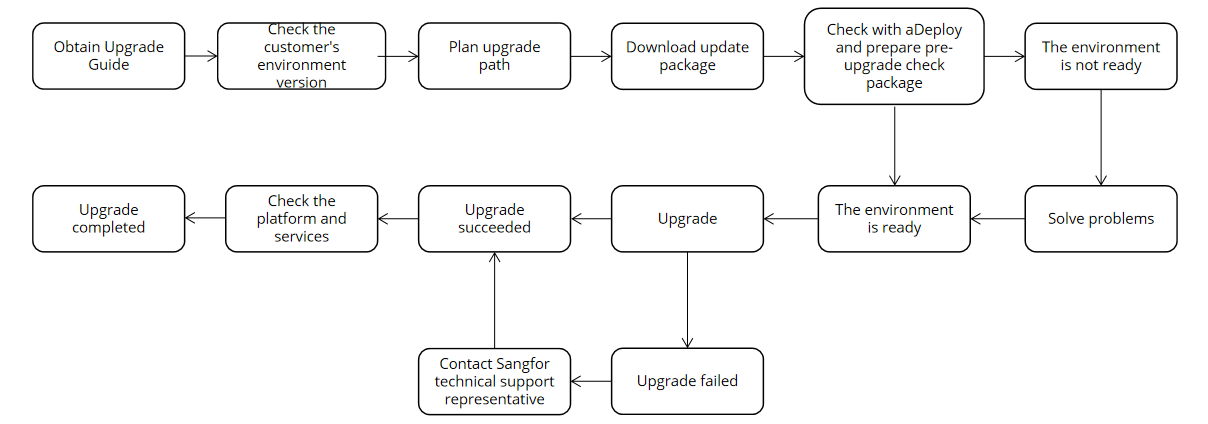
Upgrade Sequence

Upgrade Notes
General scenarios:
- Before upgrading, please use the latest version of aDeploy (download address: https://download.sangfor.com/Download/Tools/aDeploy/aDeploy-server-en-install.zip to perform a pre-upgrade check and install a pre-upgrade check package.
- If the current version is earlier than 5.8.6/6.7.0 and needs to be upgraded to a version later than 5.8.6/6.7.0, to ensure a smooth upgrade, contact a Sangfor technical support representative in advance.
- A rolling active upgrade to HCI6.9.0 does not automatically restart the physical server. After the upgrade is complete, it is recommended to manually restart the physical server to make the upgrade take effect during off-peak hours.
- Before upgrading, please ensure the license key is valid. Otherwise, the platform cannot be upgraded.
SP Installation:
- If the current version contains custom packages (packages name: Custom-XXX), please contact a Sangfor technical support representative for upgrade evaluation.
- If the current version contains SPs (packages name: sp-XXX), it can be upgraded directly.
Graphics Cards:
- If the current version is earlier than 6.7.0, a GRID driver (supported versions 10.2 and 13.2) for HCI6.9.0 must be reimported again after the upgrade. After the HCI platform is upgraded and restarted, import a GRID driver for nodes as needed and then restart the nodes. Driver updates are also required for business VMs and will take effect after they are restarted.
- If graphics cards are used in versions earlier than 6.2.0, aGPU license key is required after the upgrade. Otherwise, GPU-related features cannot be used.
iSCSI Virtual Disks
- HCI cannot be upgraded when it provides services as an iSCSI server. Before upgrading, please go to iSCSI clients to disconnect all related connections.
Offline Upgrade
During the pre-upgrade check for an offline upgrade, if a message is prompted saying, "A VM is running on the node. Please shut down the VM and try again.", you can ignore this problem temporarily. Before an official upgrade, all virtual devices must shut down and run a pre-upgrade check again.
Upgrade Preparations
Packages, Documents, and Tools
Packages:
| Name | Description | Obtain Through |
|---|---|---|
| HCI6.9.0 update package | Used for upgrading from an earlier version to HCI6.9.0. | Sangfor Community https://community.sangfor.com/plugin.php?id=service:download&action=view&fid=47#/12/all |
| HCI6.9.0 Witness node update package (stretched cluster) | Used for upgrading from an earlier version to HCIWitness HCI6.9.0. | Sangfor Community https://community.sangfor.com/plugin.php?id=service:download&action=view&fid=47#/12/all |
Documents:
| Name | Description | Obtain Through |
|---|---|---|
| HCI6.9.0 User Manual | Describes basic O&M and configuration in HCI. | Sangfor Knowledge Base https://knowledgebase.sangfor.com/indexPage?module=645 |
| aDeploy User Guide | Provides instructions for using aDeploy. | Sangfor Knowledge Base https://knowledgebase.sangfor.com/indexPage?module=645 |
Tools:
| Name | Description | Obtain Through |
|---|---|---|
| Chrome/Edge | The browser to access HCI and SCP web console. | Obtain from the internet. |
| PuTTY/MobaXterm | An SSH client for troubleshooting if needed. | Obtain from the internet. |
| MD5 | Used for verifying the integrity of the upgrade package. | Check it when downloading the package file. |
| aDeploy | Used for pre-upgrade checks and other checks with aDeploy. | Sangfor Community https://community.sangfor.com/plugin.php?id=service:download&action=tool |
| License Key | 1. For a version earlier than HCI5.8.2, please apply for a new HCI license key. 2. If the NFV devices need to be upgraded according to Chapter 1.3.3 NFV Components. Please apply for a new NFV license key. 3. Before upgrading, please confirm that the customer’s license is not expired. Otherwise, the environment needs to be renewed. 4. Before upgrading, please check that the original NFV license key has not expired. Otherwise, the license needs to be renewed. |
Contact corresponding personnel to obtain or confirm. |
Environment Information
Fill in the corresponding IP information in the table below.
| Type | Classification | IP Address | Netmask | Remarks(ETH) |
|---|---|---|---|---|
| HCI | The IP address for the management network | |||
| HCI | The IP address for the overlay network | |||
| HCI | The IP address for the storage area network | |||
| HCI | Elastic IP pool | |||
| Physical server | BMC NIC | |||
| Ethernet switch | The IP address for the management interface |
Customer Resources Coordination
During the upgrade, O&M personnel should not log in to the platform for operation and maintenance.
An offline upgrade may take 4 to 6 hours. Please make an appropriate time arrangement in advance and prepare for service interruption during the upgrade to reduce impact.
Before the active upgrade, please confirm whether NFV component versions need to be upgraded and evaluate the required upgrade time.
Please coordinate resources in advance according to the following requirements to ensure a smooth upgrade:
-
Determine when to upgrade and fully prepare for service interruption during the upgrade to reduce impact.
-
Obtain contact information of the responsible persons.
-
Ensure a computer (with Internet access and a stable connection to the device) is ready. Ensure the computer can install and run the upgrade client software.
| Type | Name | Contact | Responsible For |
|---|---|---|---|
| Sangfor Technologies Inc. | Upgrading HCI and SCP | ||
| Customers | Coordinating resources and upgrade time. (Upgrade time: ) | ||
| Customers | Ensure O&M personnel will not log in to the platform for operation and maintenance. | ||
| Customers | Arrange persons responsible for application systems to handle service opening and verification issues. |
Pre-upgrade Check
Health Check
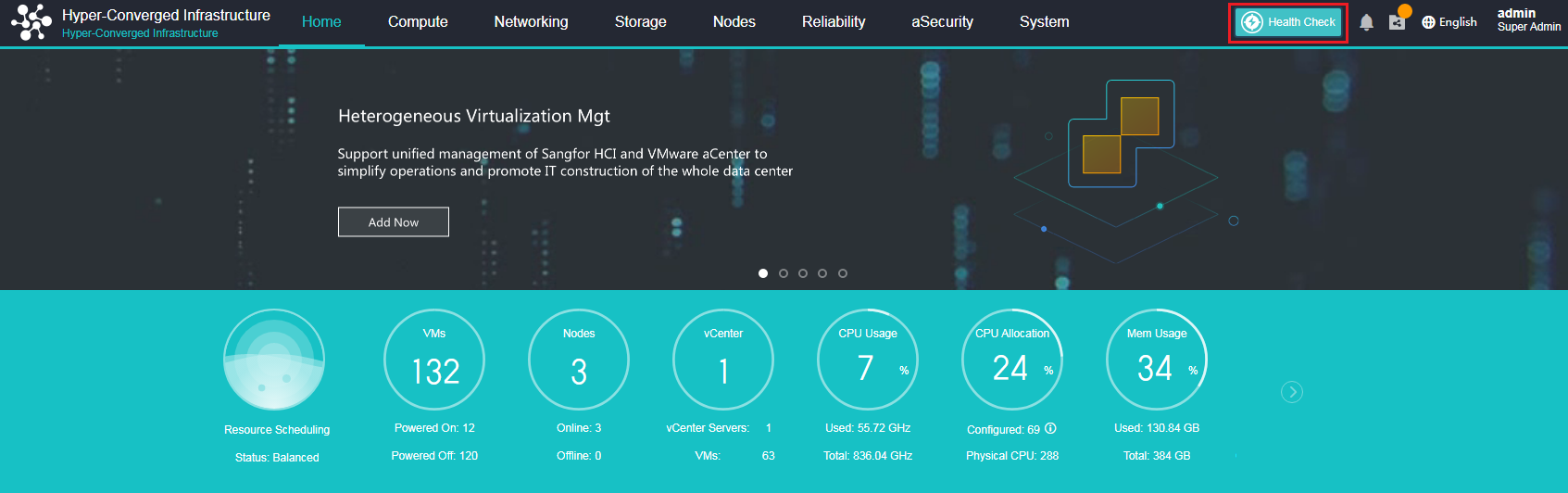
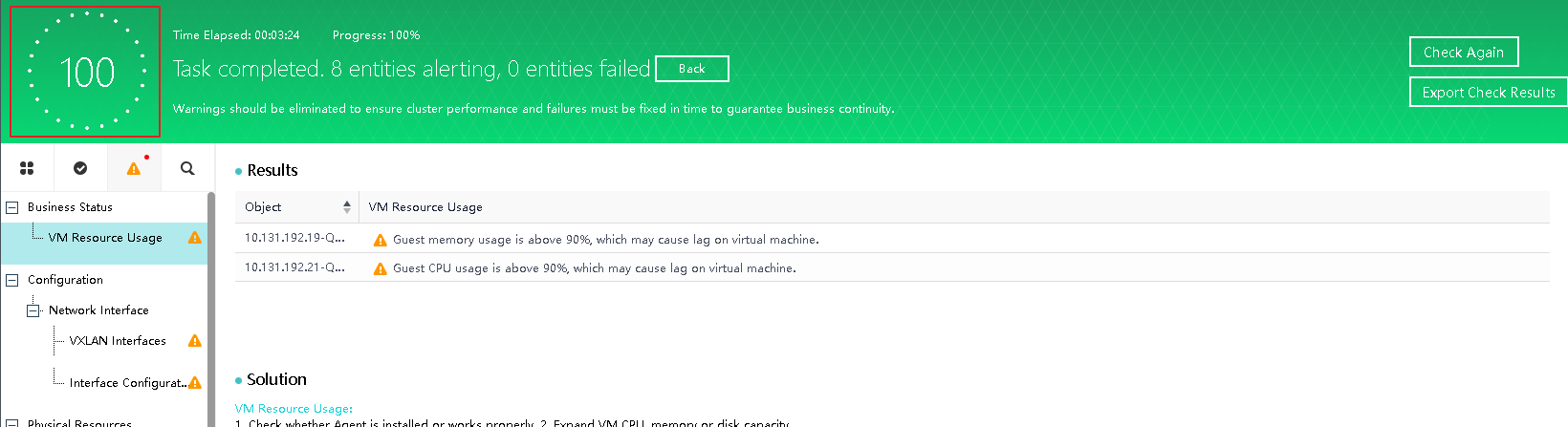
Click Health Check on the home page to go to the health check page. In addition to the default entities, select Virtual Storage Data and click Start. After the check is complete, if the score is lower than 100 points, handle the identified problems according to the check results and solutions, and then perform Health Check again. Before upgrading, please confirm that the health check score is 100 points.
Check with aDeploy
Apart from health check features, aDeploy supports checking common problems of customers. It optimizes the platform-based check mechanism and can check the environment before upgrading. If faults or alerts are reported, please handle the faults and alerts for the cluster before upgrading.
Refer to Chapter 1.2.3.1 Packages, Documents, and Tools,for the download link.
HCI Pre-Upgrade Check
One week before upgrading HCI for a customer, please visit the customer or establish a remote connection to check whether the customer’s environment meets the upgrade requirements using the pre-upgrade check package. This will help facilitate the subsequent upgrade process and does not require downtime. Make sure a pre-upgrade check is done before an official upgrade. If the pre-upgrade check for an official upgrade fails, it is recommended to reschedule for the upgrade.
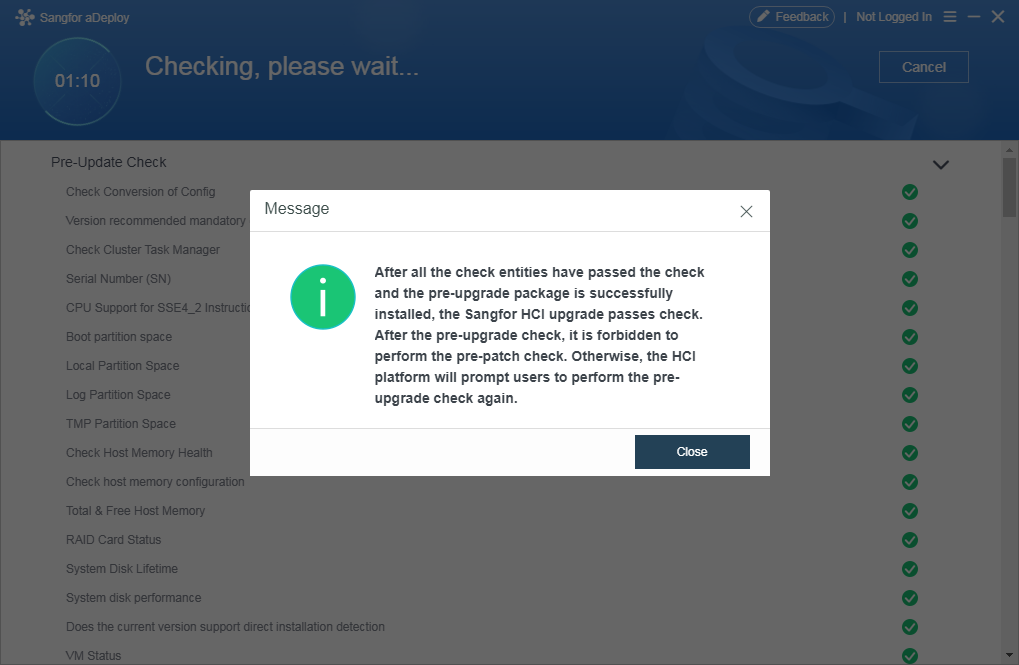
Step 1. Use aDeploy to perform a pre-upgrade check and wait for the check to complete. Click Details next to the failed entities and handle them according to the solutions. Perform the pre-upgrade check again until all the entities pass the check.
Notice:
SP pre-installation check is prohibited after the pre-upgrade check. Else, HCI will request you to run the pre-upgrade check again.
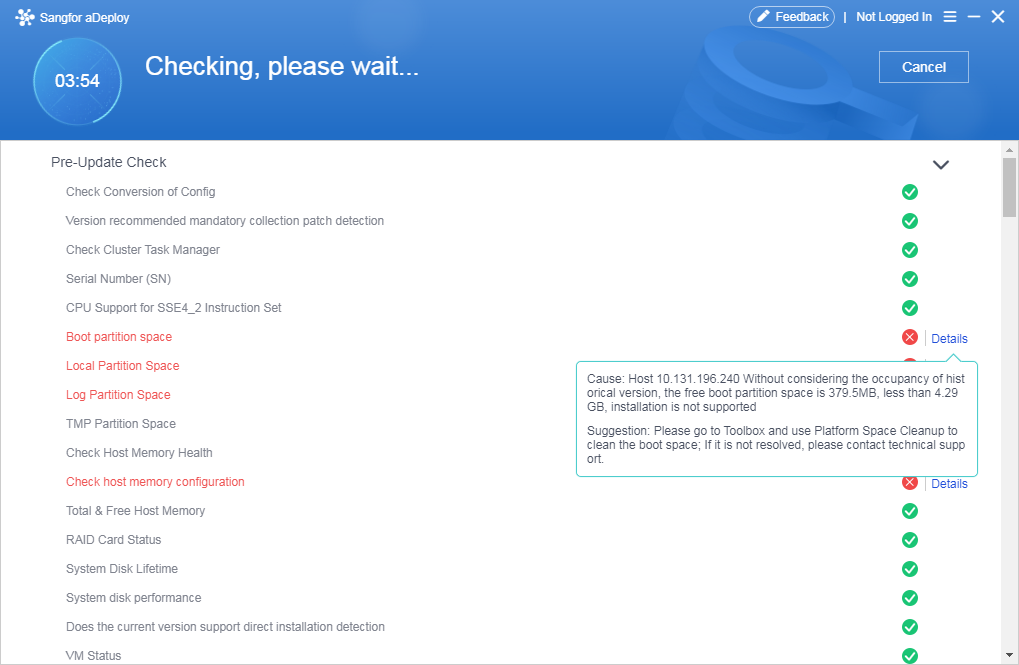
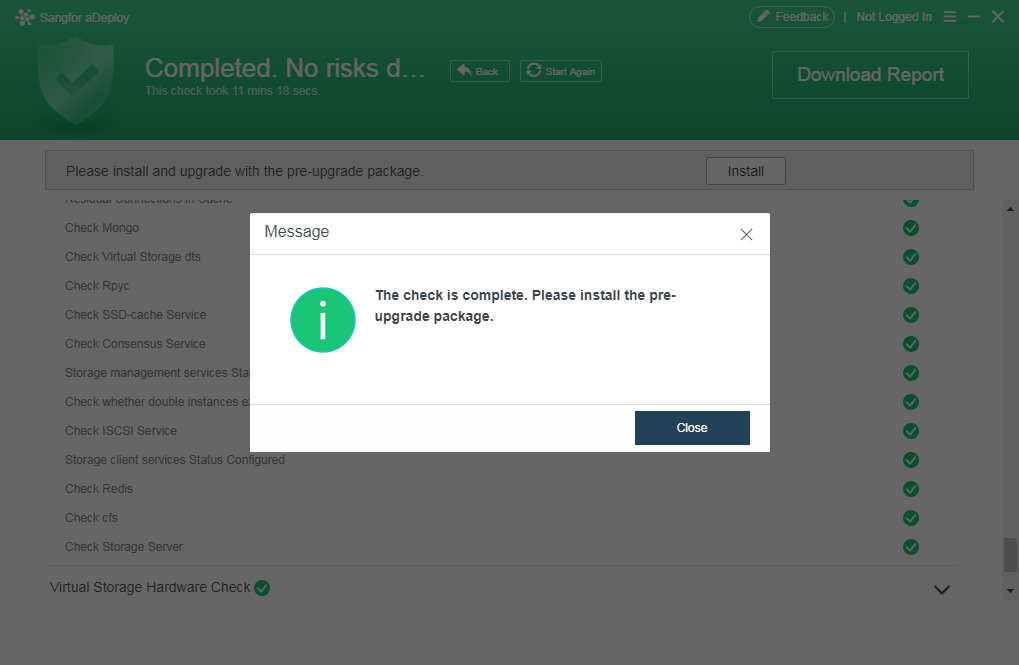
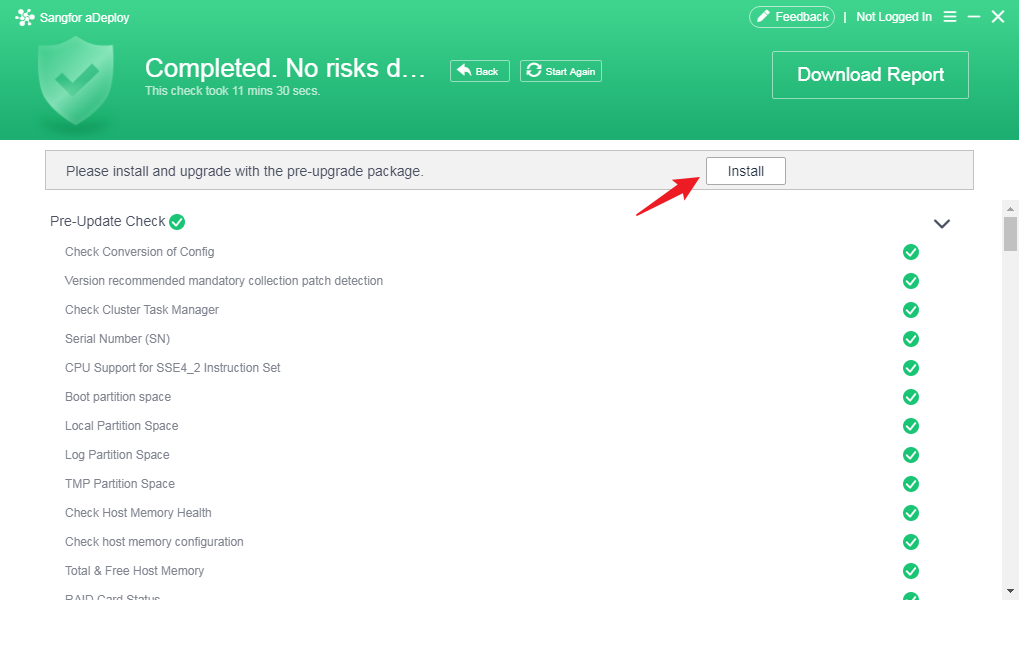
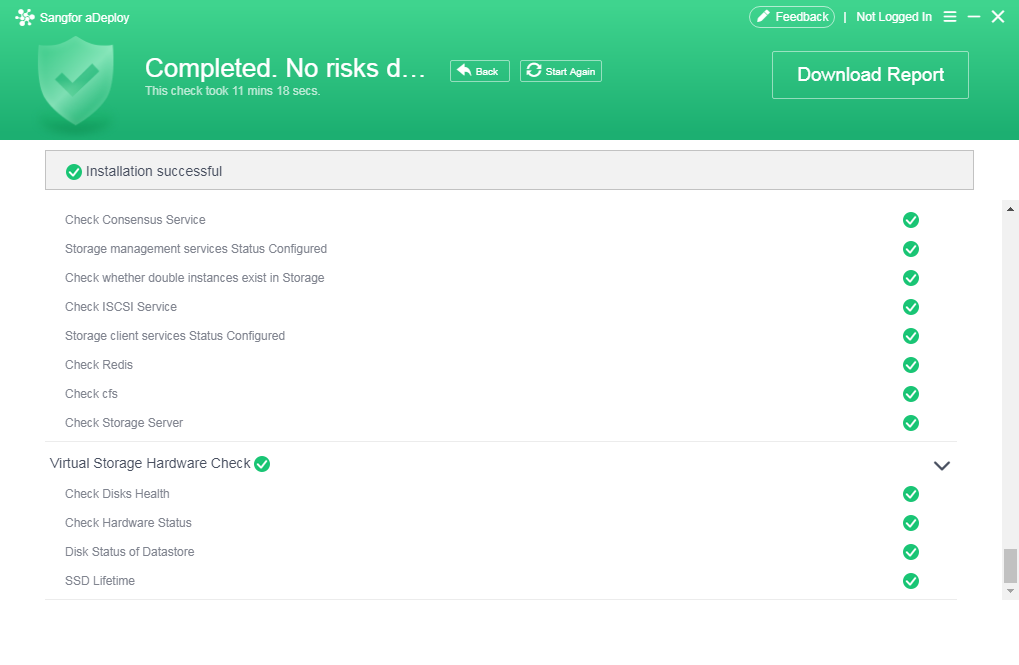
Step 2. After all the entities pass the check, click Install and wait for the installation to complete.
Troubleshooting instructions
a. For an offline upgrade, a message will be displayed after the pre-upgrade check is completed, indicating that a VM is running on the node. You may ignore this message temporarily. Before an official upgrade, all virtual devices must shut down, and run a pre-upgrade check again.
b. If the pre-upgrade check fails and a message indicates the pre-upgrade check failure, please contact a Sangfor technical support representative.
c. If a clustered node fails the pre-upgrade check and the pre-upgrade check does not proceed for more than 10 minutes, please contact a Sangfor technical support representative.
d. In versions earlier than HCI6.9.0, VM names can only contain digits, spaces, letters, Chinese characters, and special characters (()【】_-.+()@). Invalid VM names will cause the pre-upgrade check to fail.
Upgrade Procedure
aSecurity Upgrade
- Upgrade aSecurity
Step 1. Go to aSecurity > Settings > aSecurity Upgrade and click Upgrade.
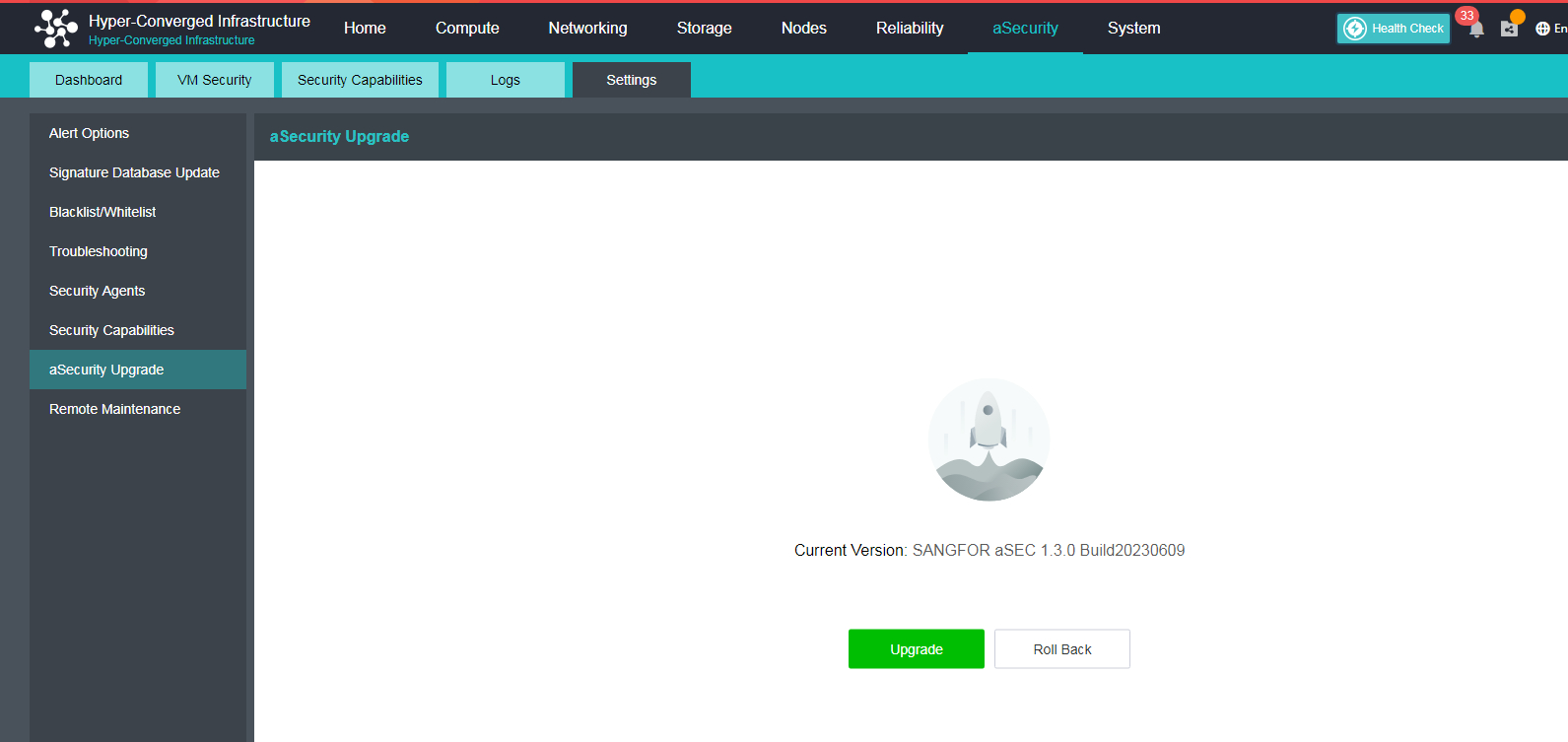
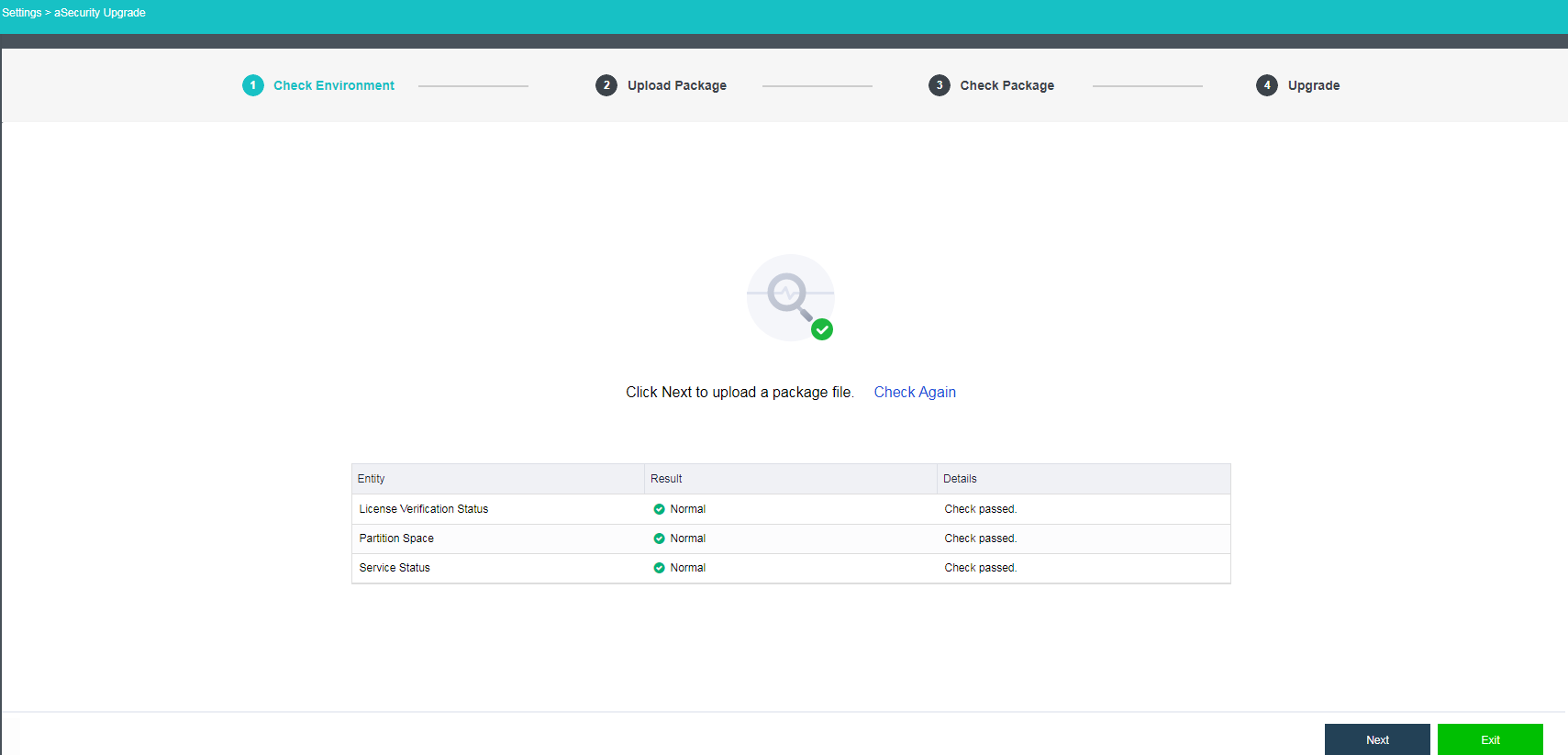
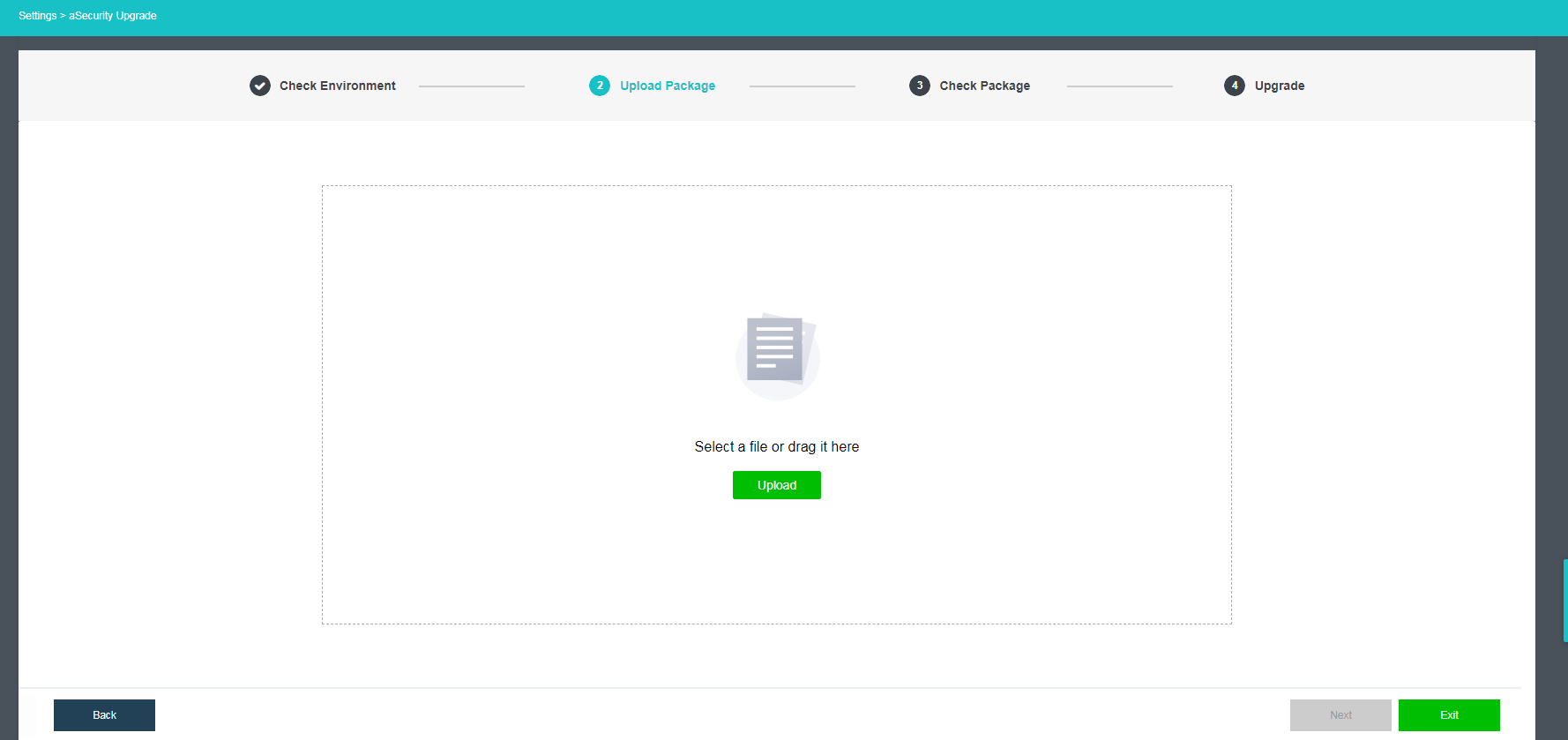
Step 2. Click Next to import the update package. Click Next after a successful import. If the update package passes the verification, click Upgrade and wait for the upgrade to complete. aSecurity will automatically restart after the upgrade is complete. The upgrade process will take about 30 minutes.
Step 3. After the upgrade, platform authentication, and licenses must be obtained again to use aSecurity capabilities.
- Upgrade Security Protection Manager(Endpoint Secure)
To upgrade Security Protection Manager(Endpoint Secure), kindly contact Sangfor Technical Engineer for assistance.
aNI Upgrade
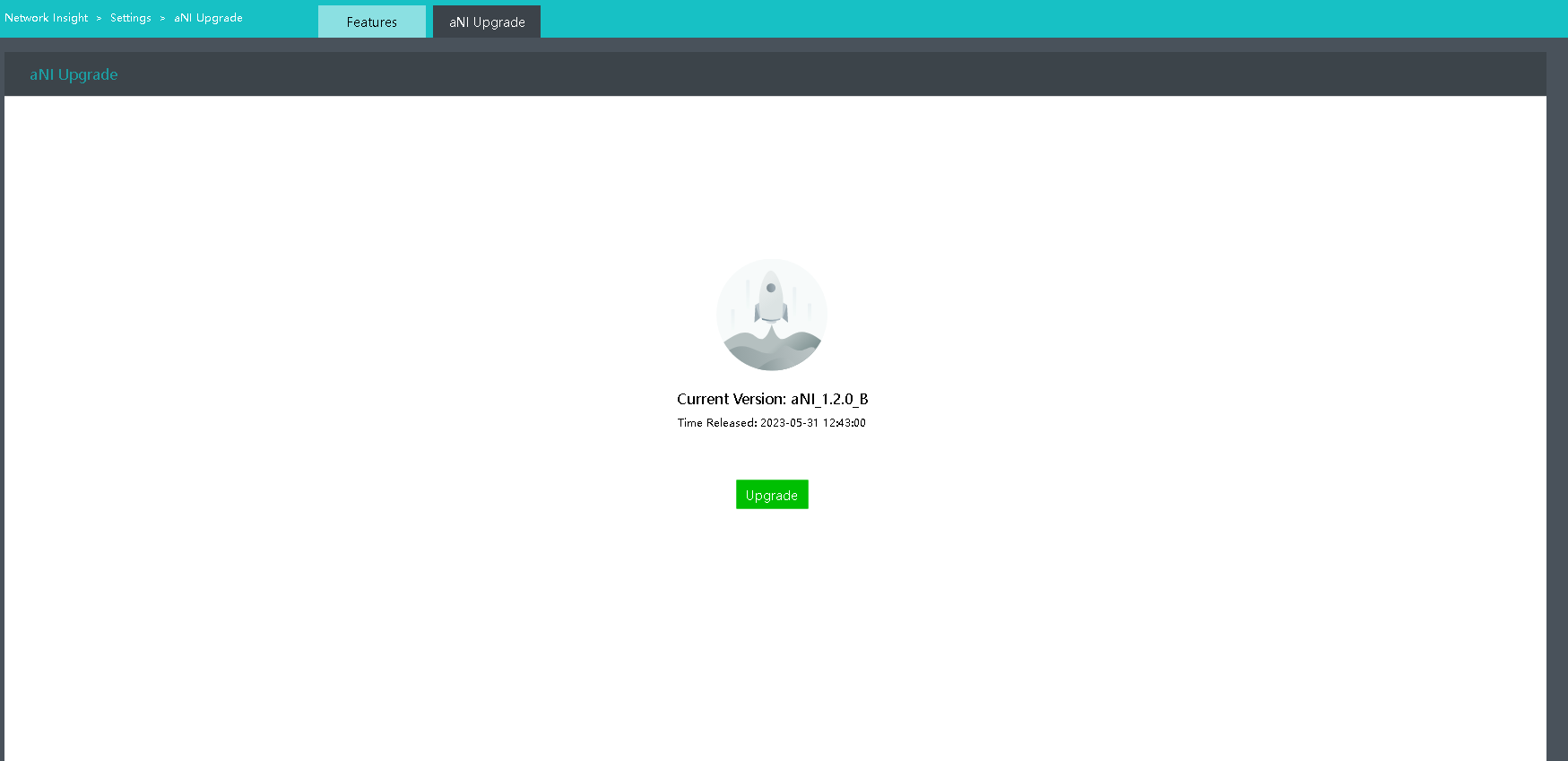
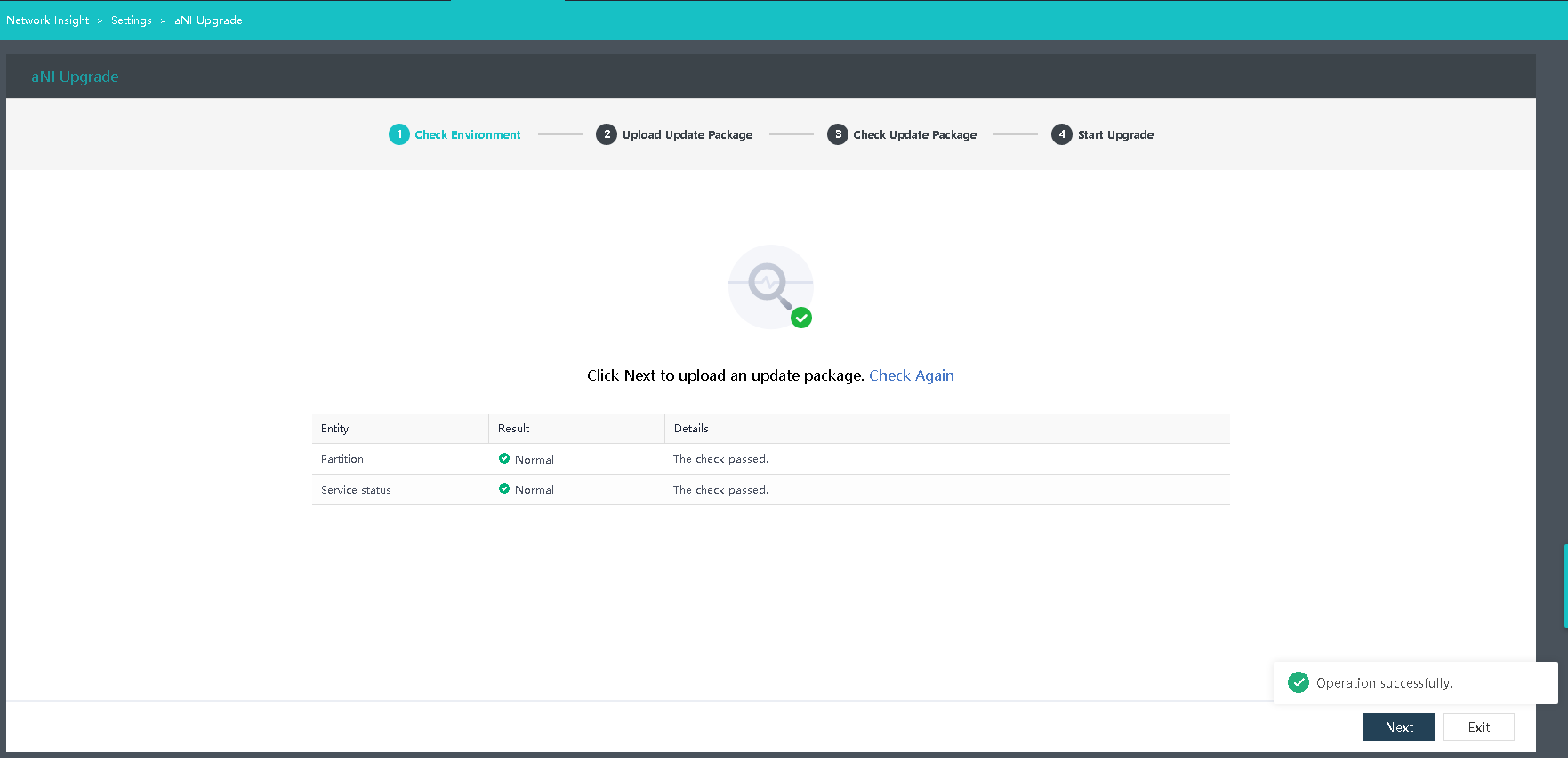
- Go to Networking > Network Insight > Settings > aNI Upgrade and click Upgrade.
-
Wait for the environment check to complete.
-
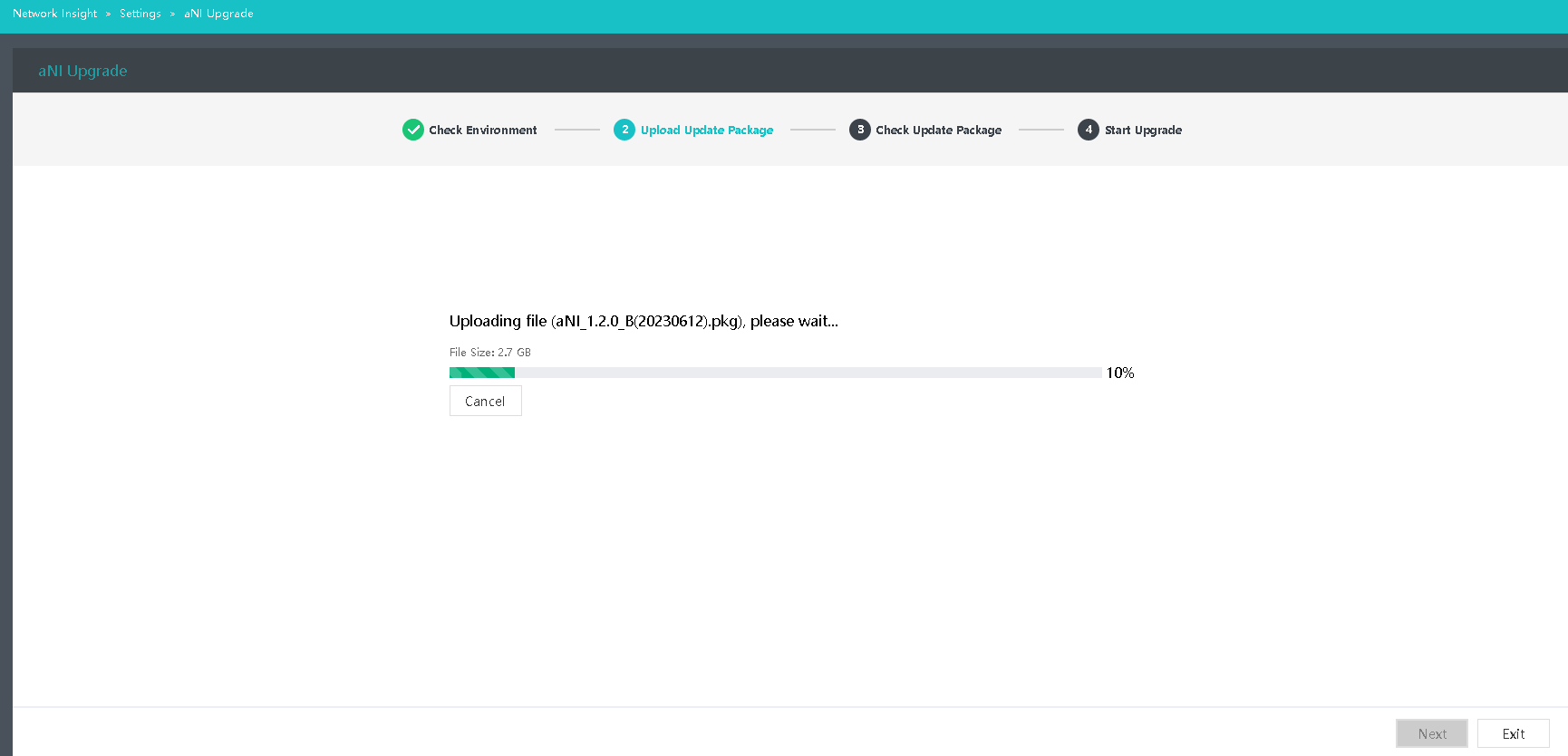
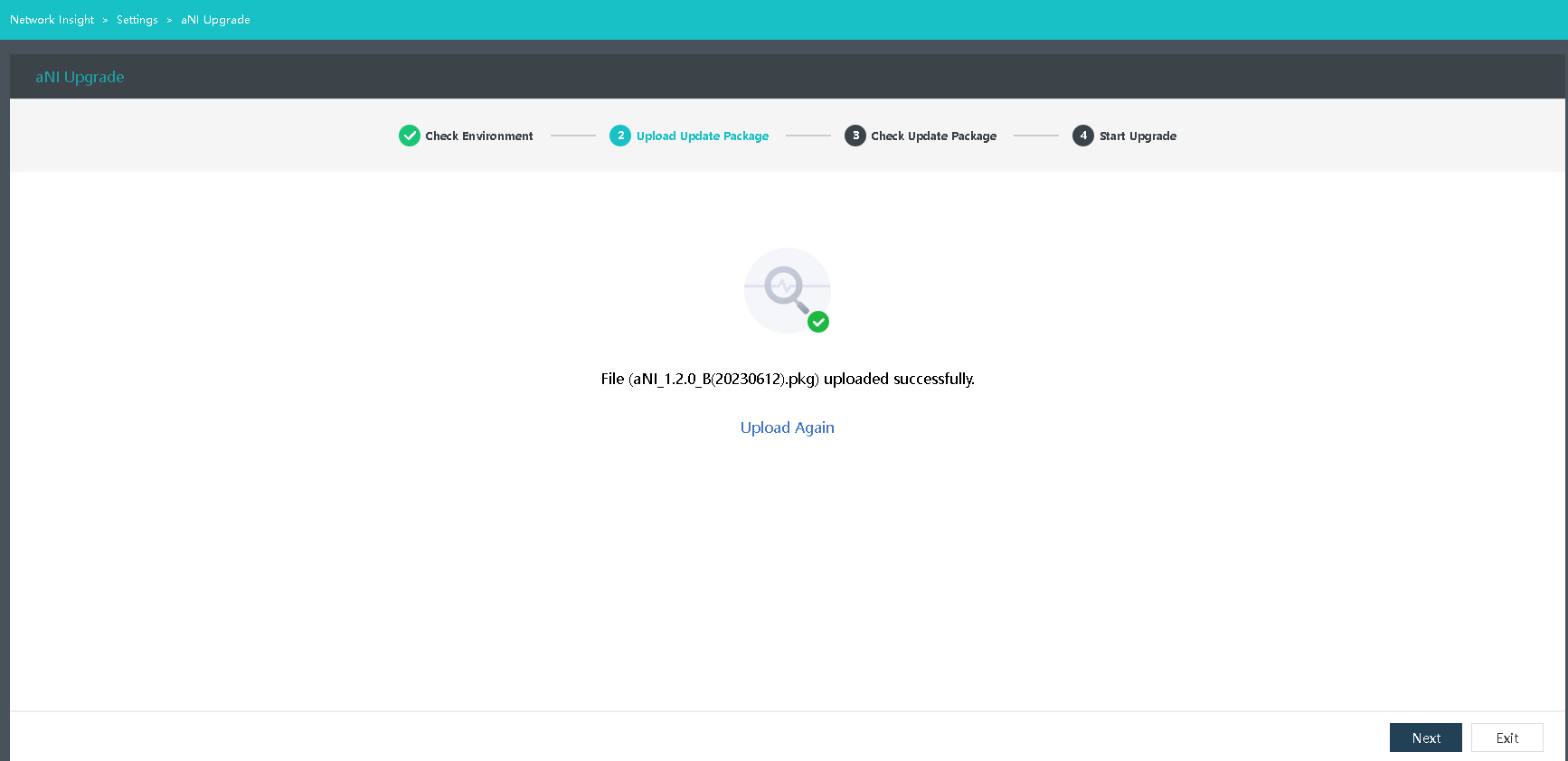
Upload the update package.
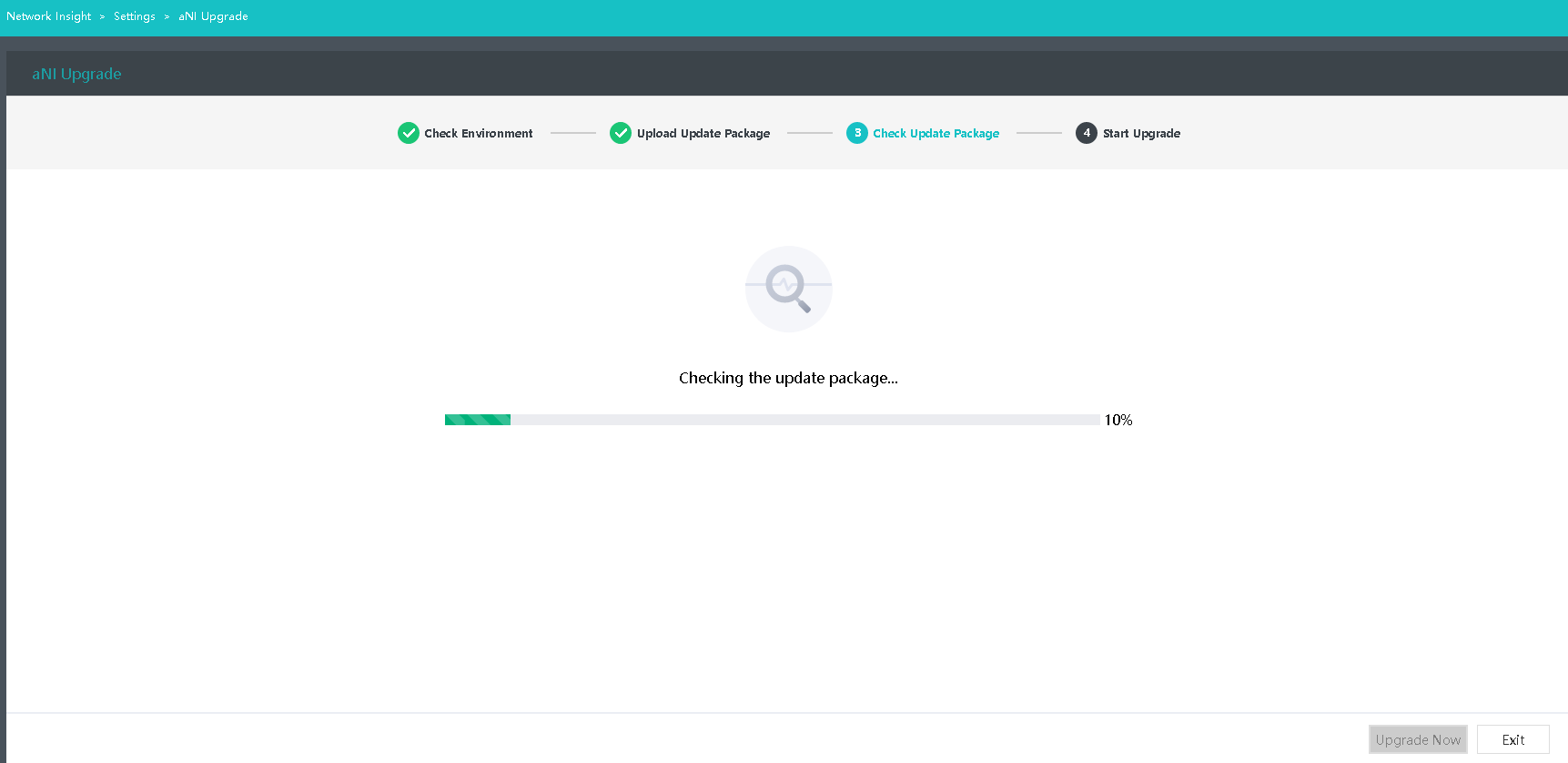
- Wait for the update package check to complete.
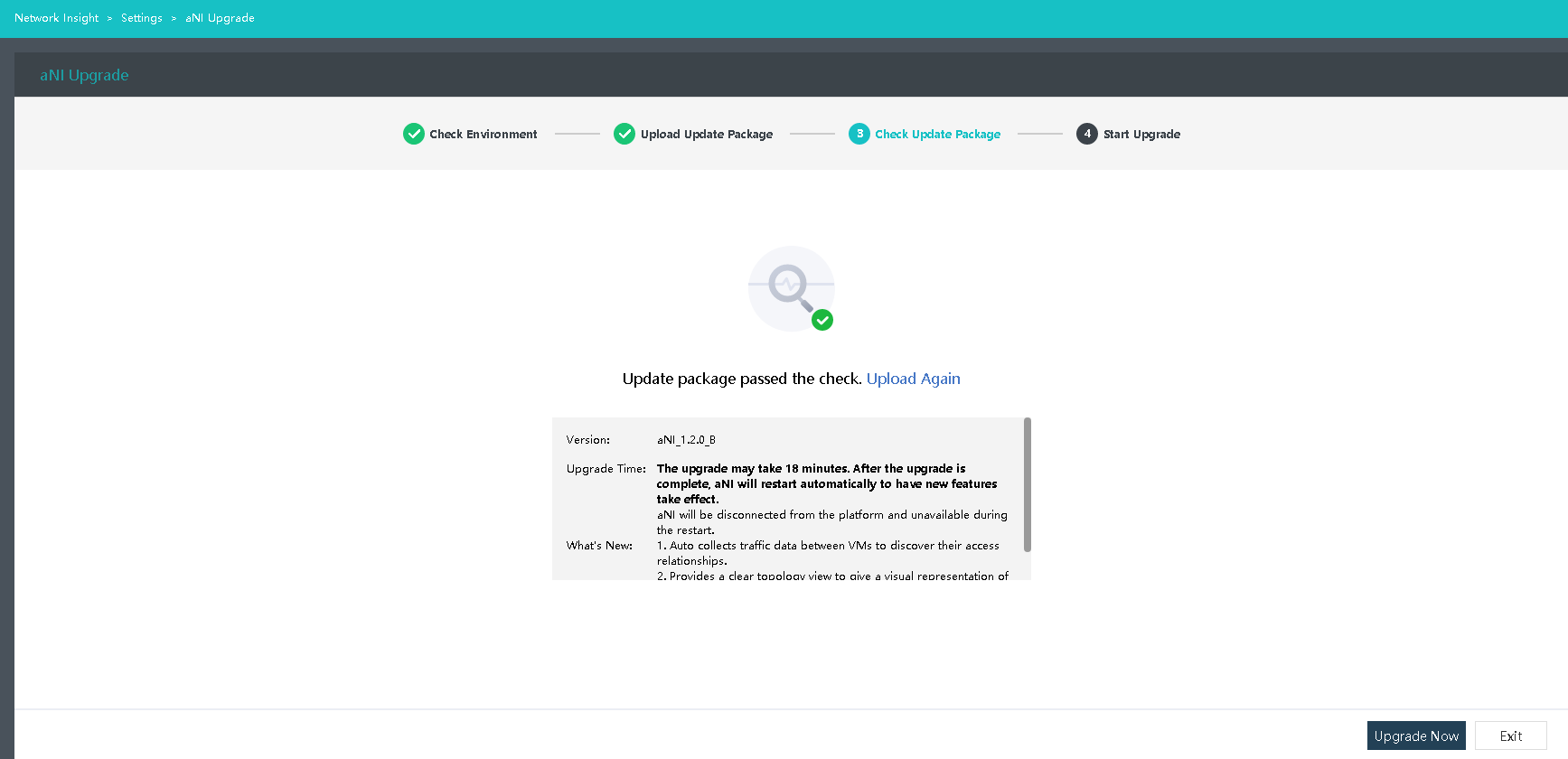
-
Start the upgrade.
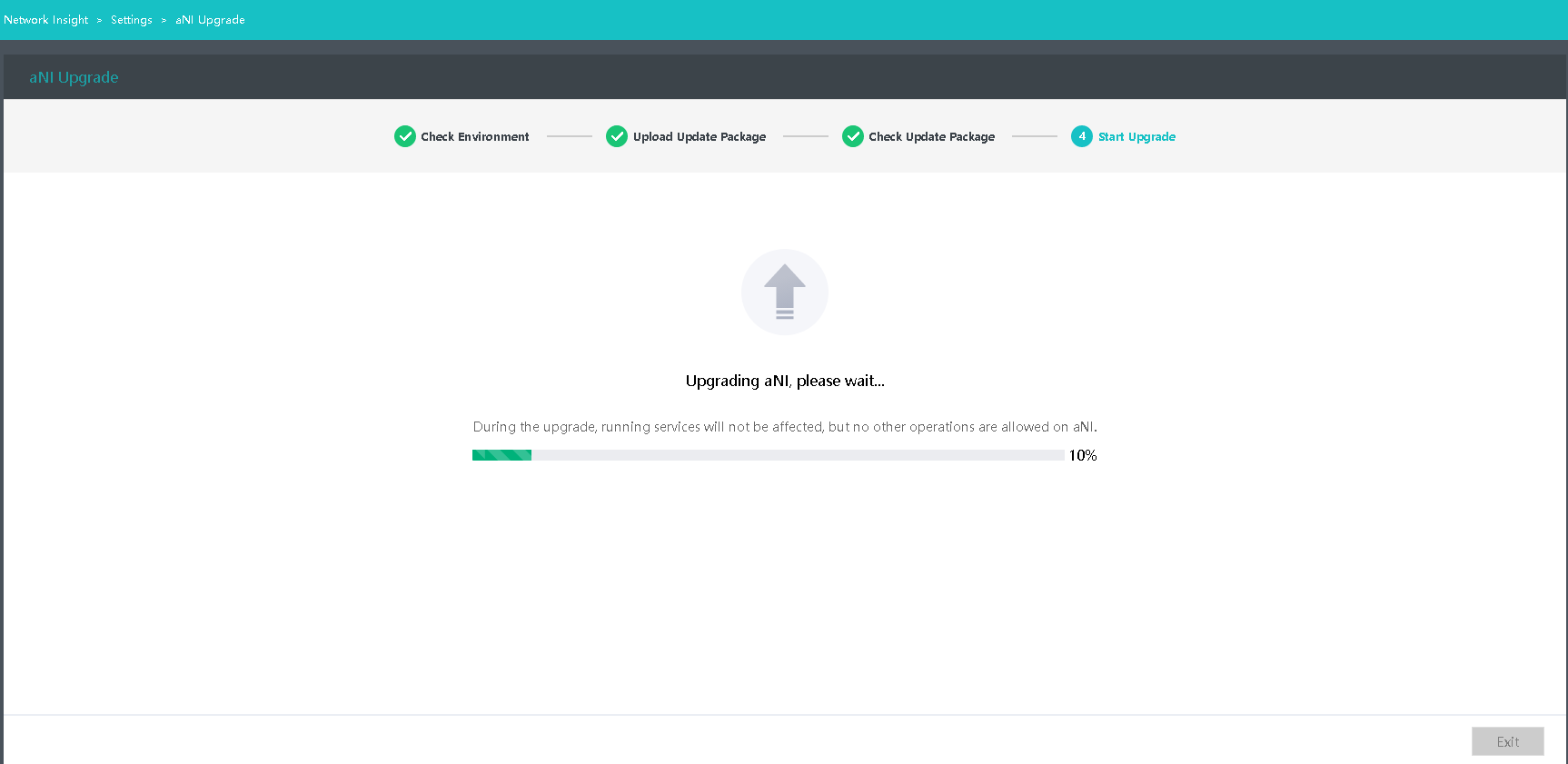
-
Restart aNI.
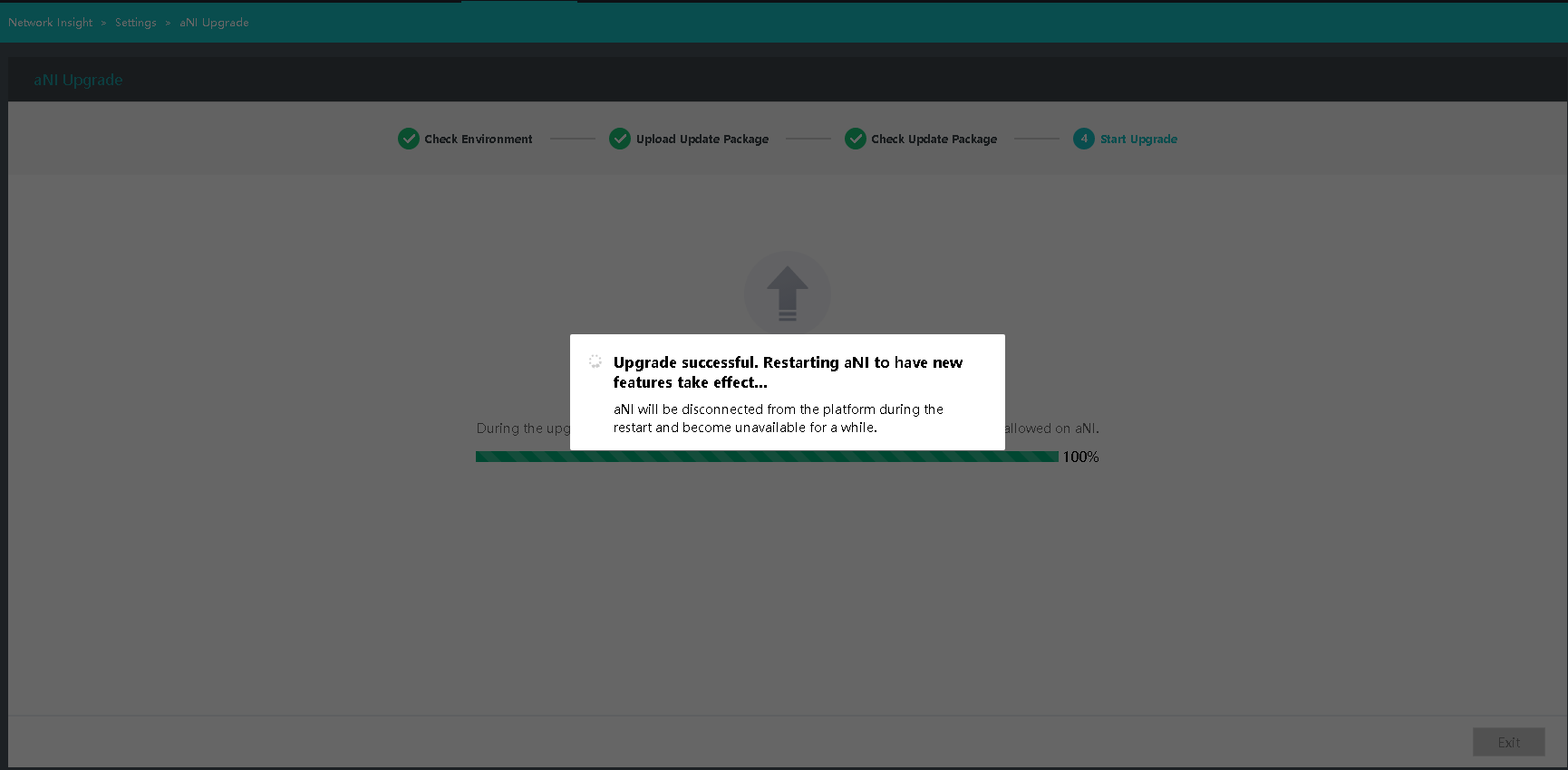
-
The upgrade is complete.
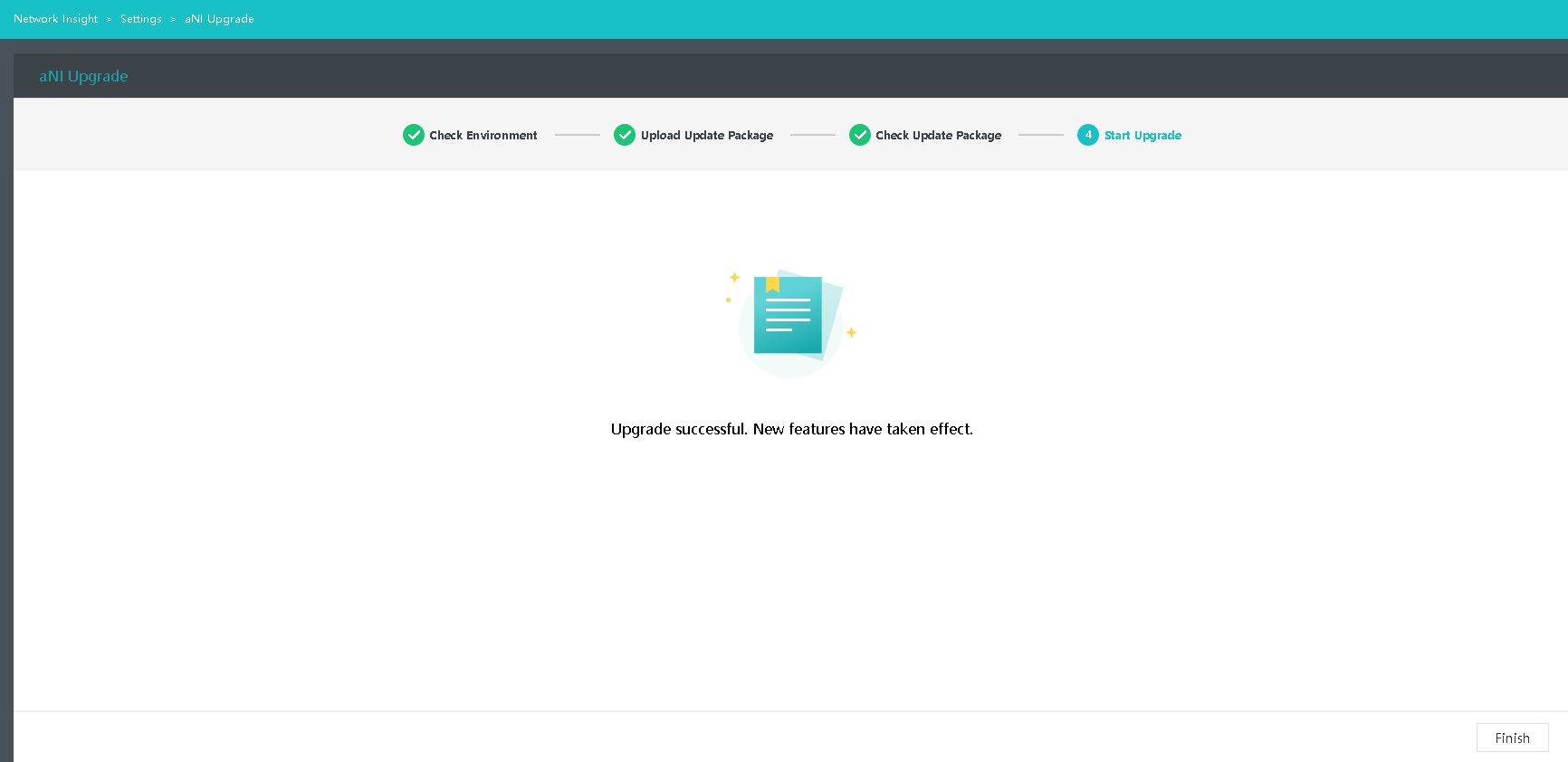
NFV Component Upgrade
For the upgrade procedure for NFV components, refer to the upgrade guide for corresponding products.
Witness Node Upgrade
Please upgrade the witness node before upgrading the stretched cluster or "2+1" cluster environment (skip the following steps if the HCI cluster is non-stretched).
-
Go to the witness node management page and click Upgrade.
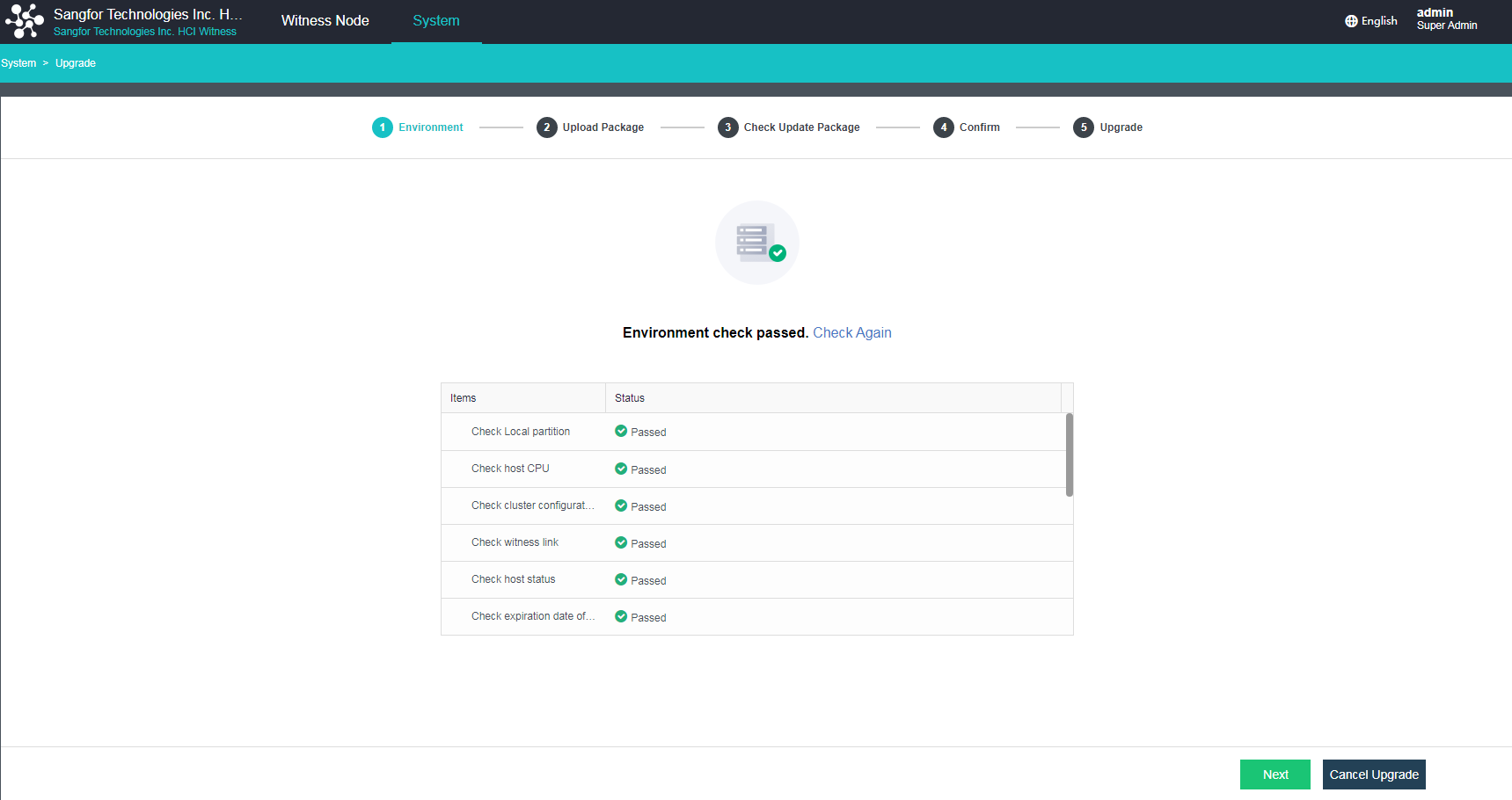
-
The witness node will enter cluster upgrade mode during the upgrade, and the cluster environment check will run.
-
Upload the witness node update package.
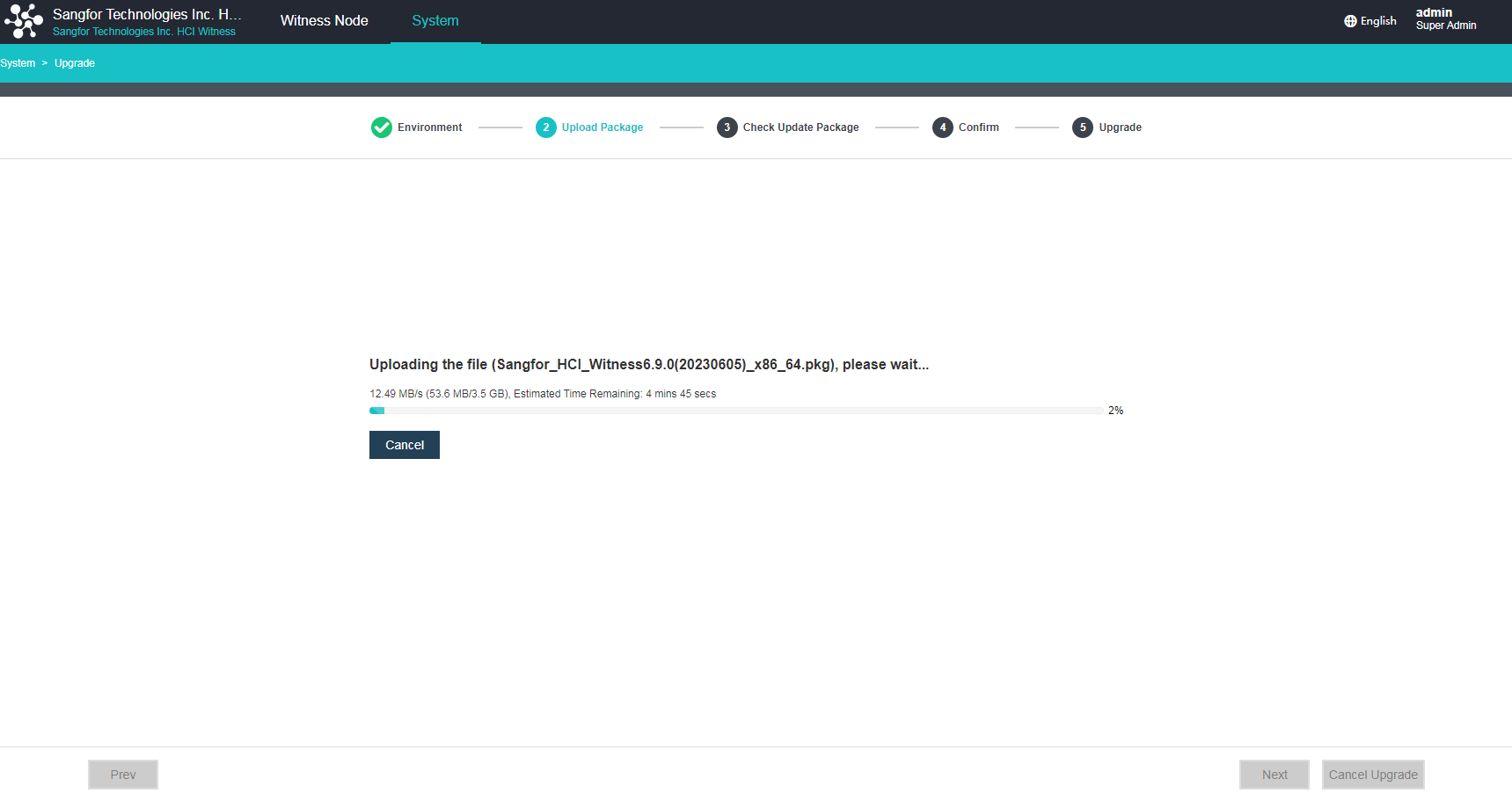
-
Check the update package. (If the current version does not support the active upgrade using the update package, click Next to perform an offline upgrade. If the active upgrade is supported, please wait until all checking steps are finished before the upgrade. If any step fails, fix the issues first.)
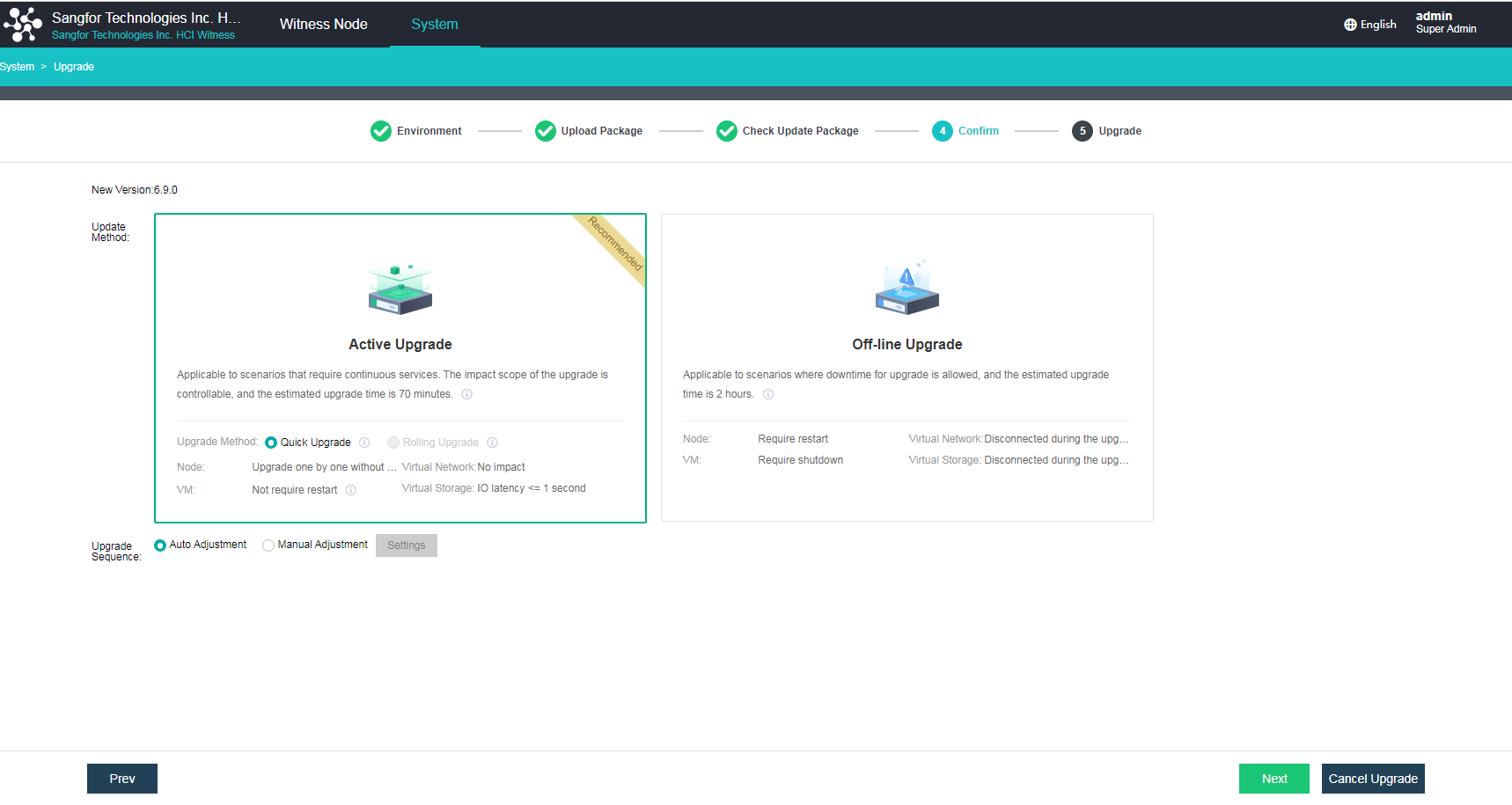
Active Upgrade
- After confirming that the update package is correct, click Next.
-
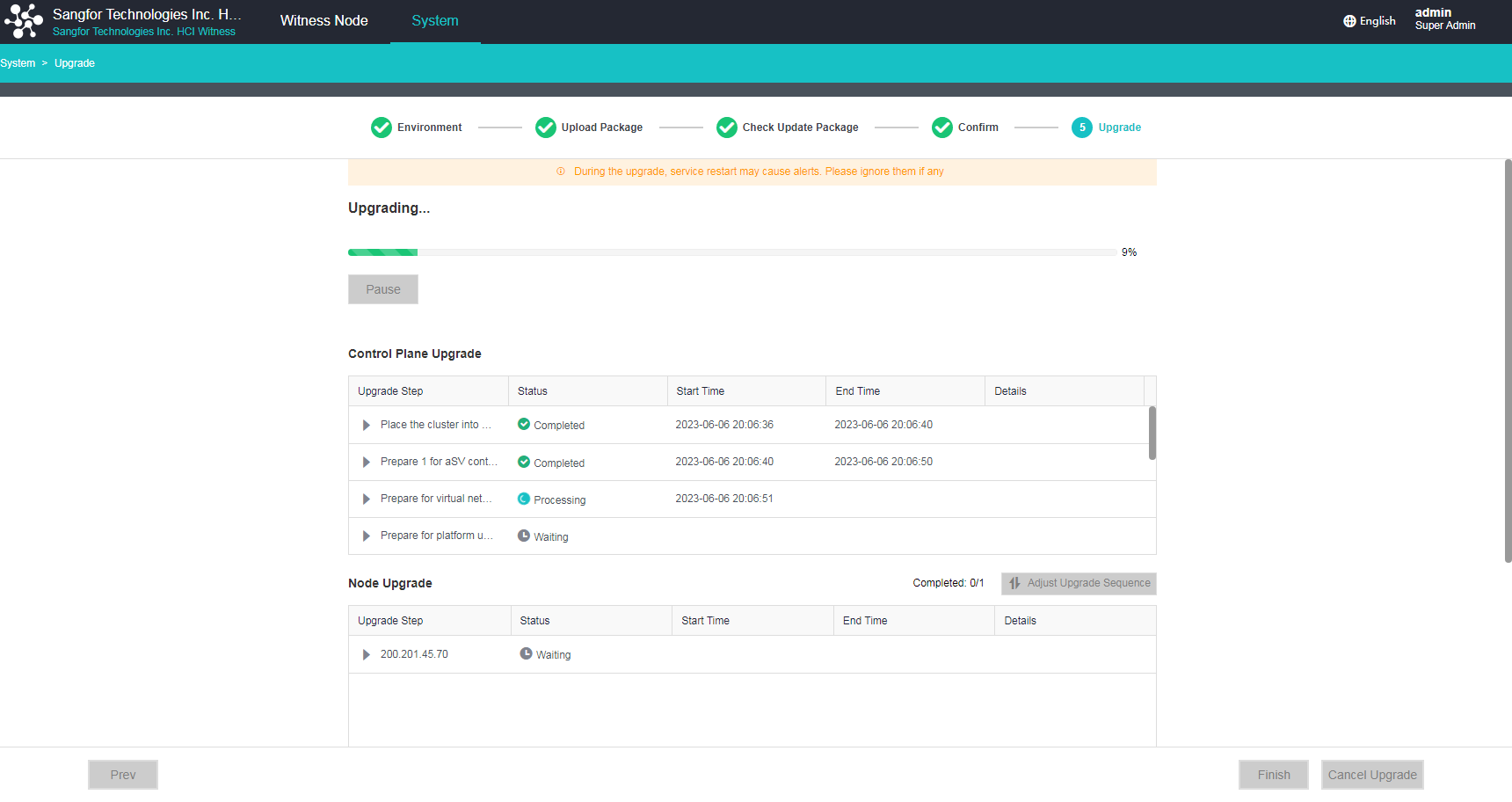
During the control plane upgrade, you will be logged out. Please wait about 1 minute and then reload the page to log in again.
-
The upgrade is complete.
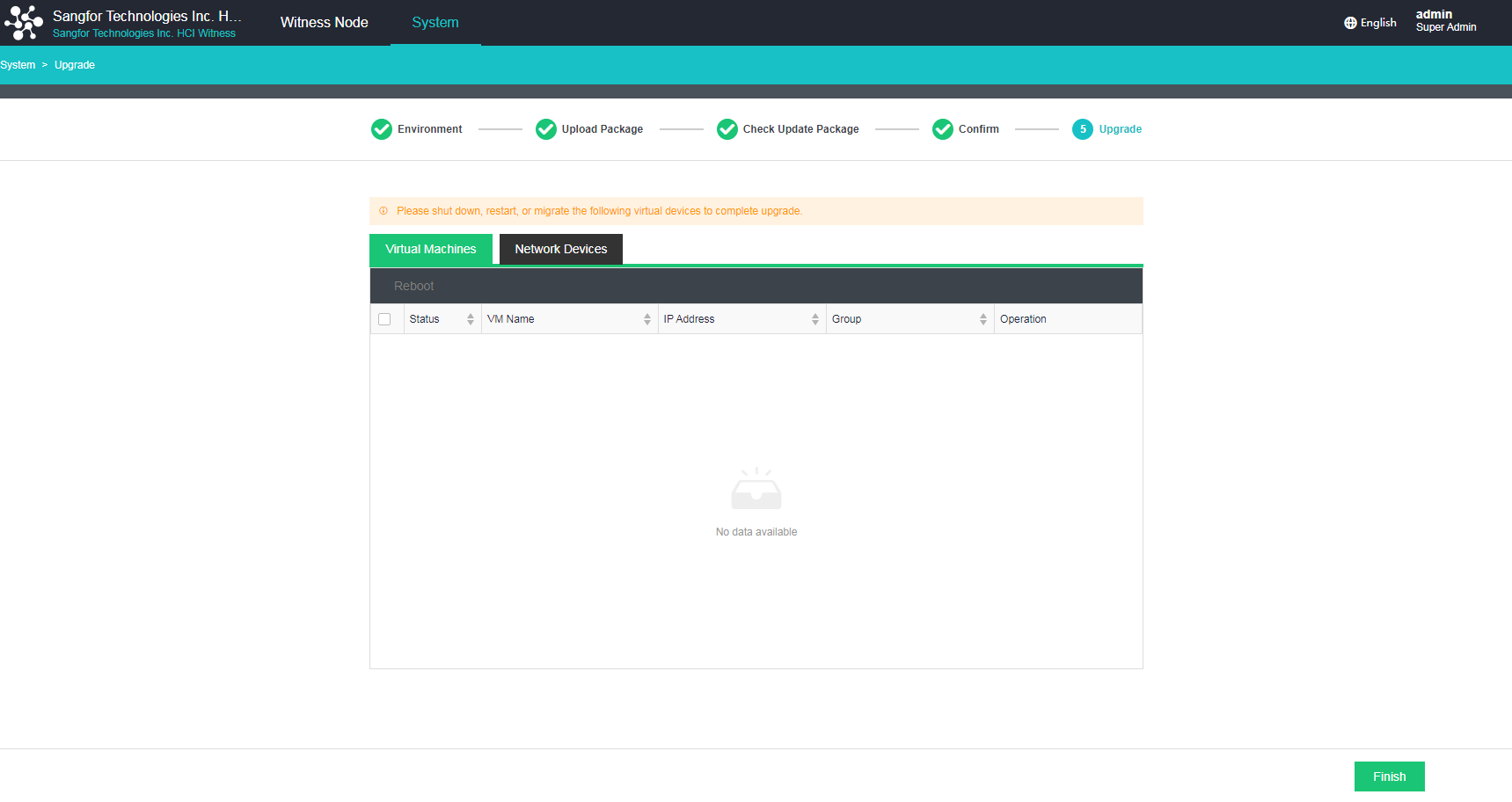
-
Check that the current version is the latest version.
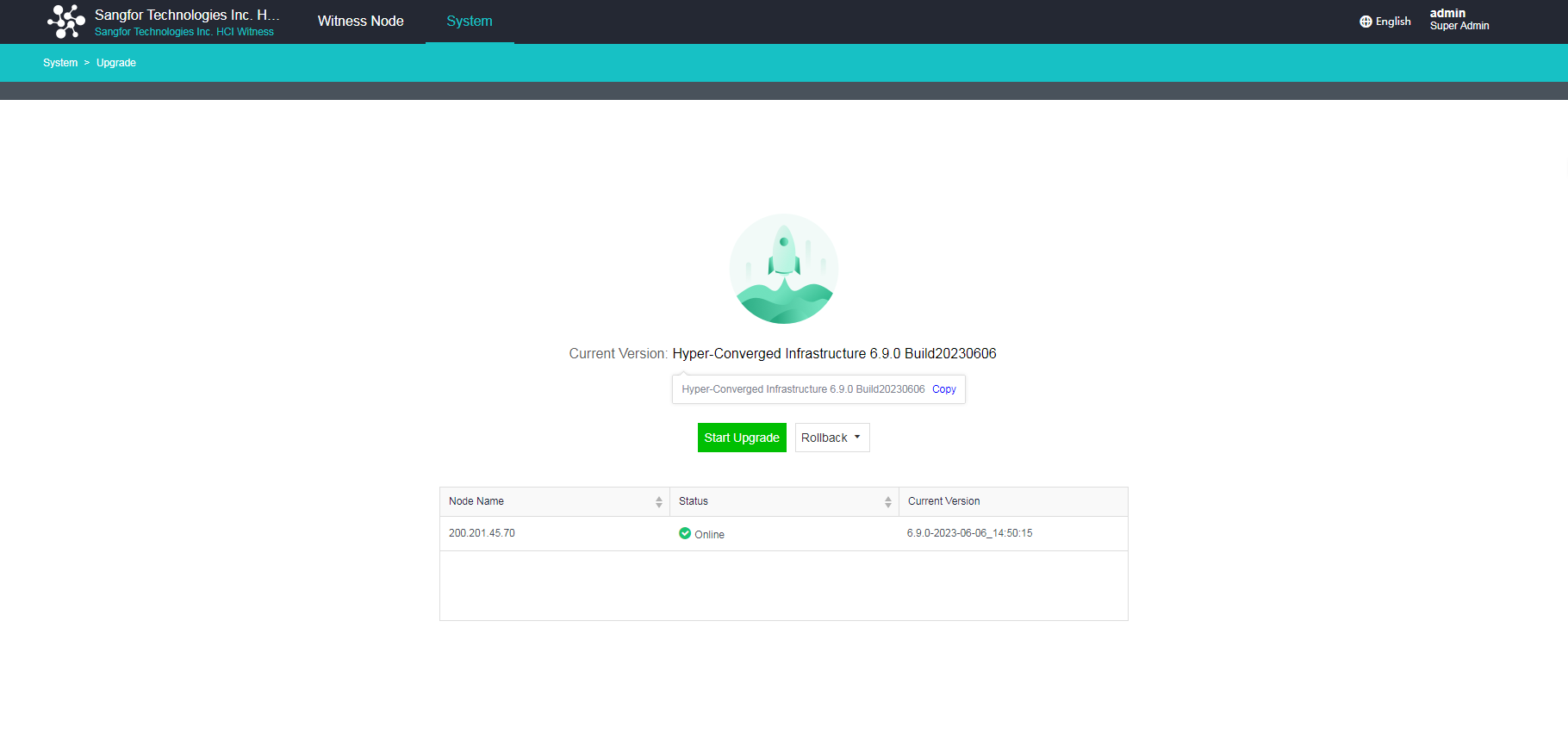
After the upgrade, please wait for the background of the witness node to take effect before upgrading other nodes in the cluster.
Offline Upgrade
- After confirming that the update package is correct, click Next.
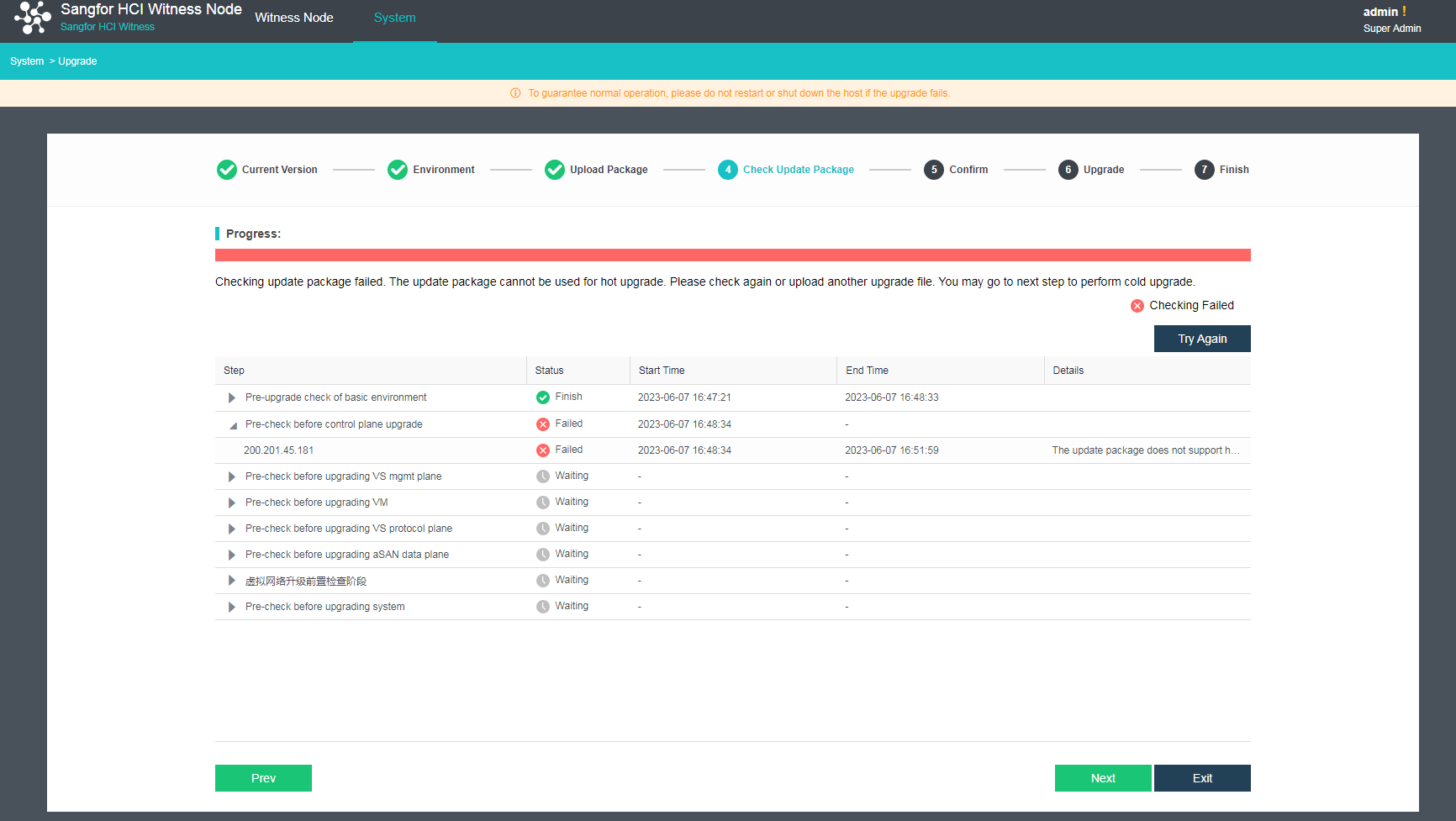
-
The offline upgrade requires all nodes to be restarted, which will cause business service interruption.
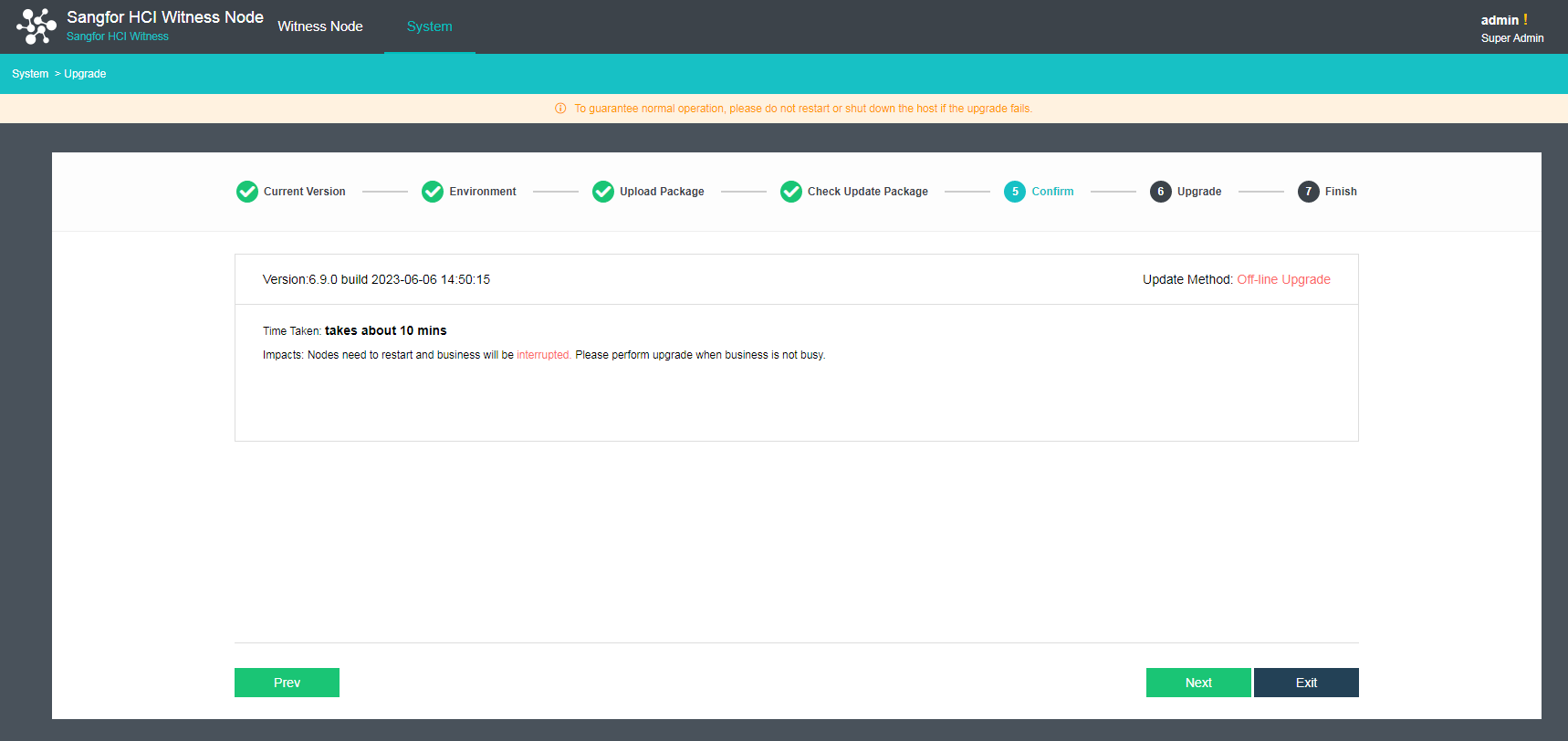
-
Click Next to start the upgrade.
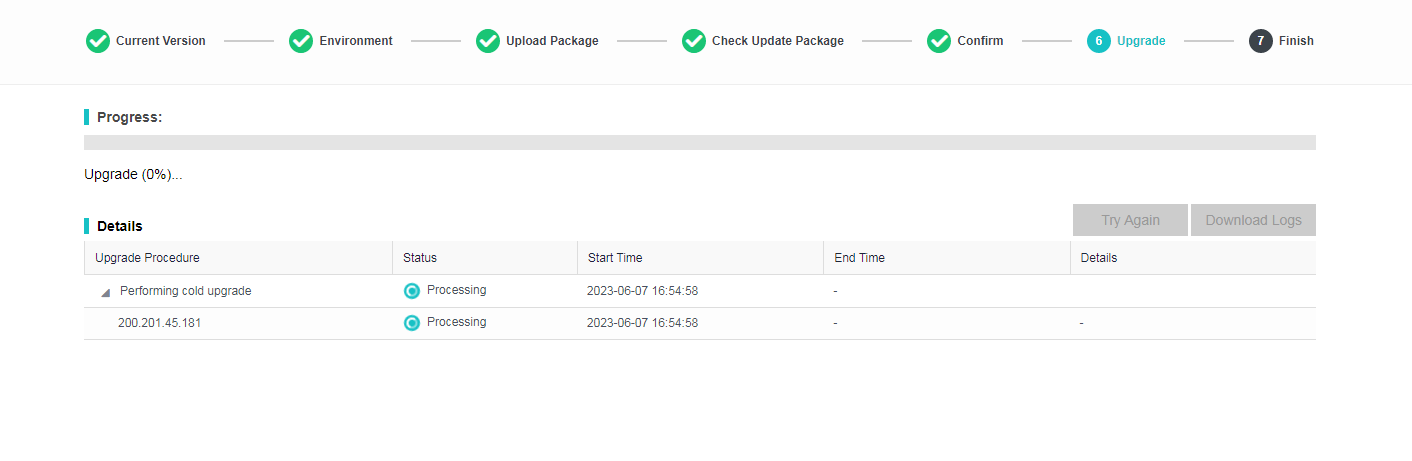
-
The upgrade progress is shown in the figure below.
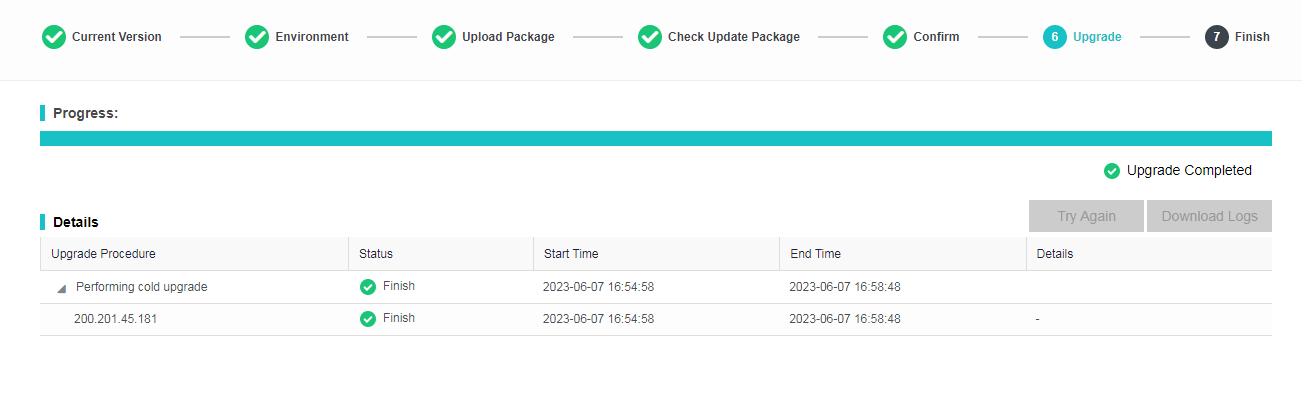
-
The upgrade is complete.
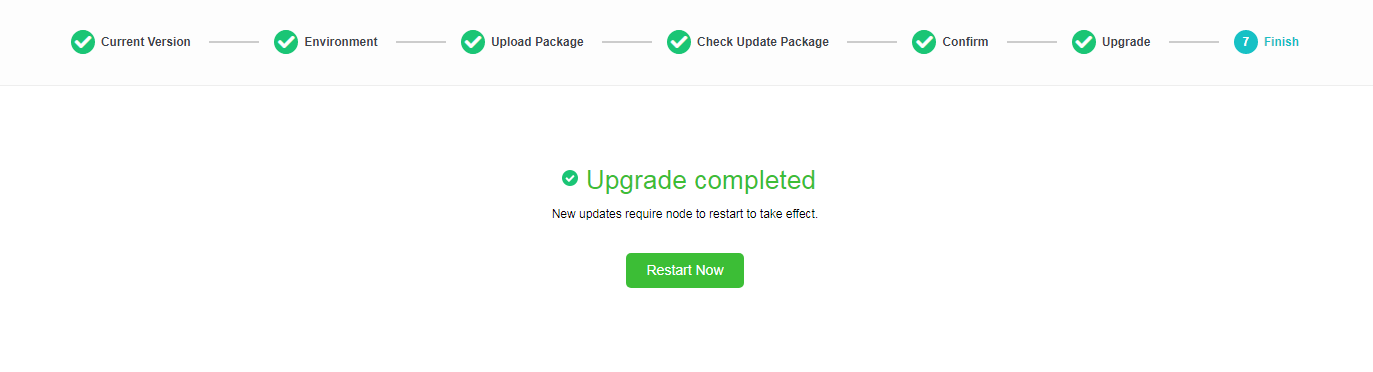
-
Restart the nodes.
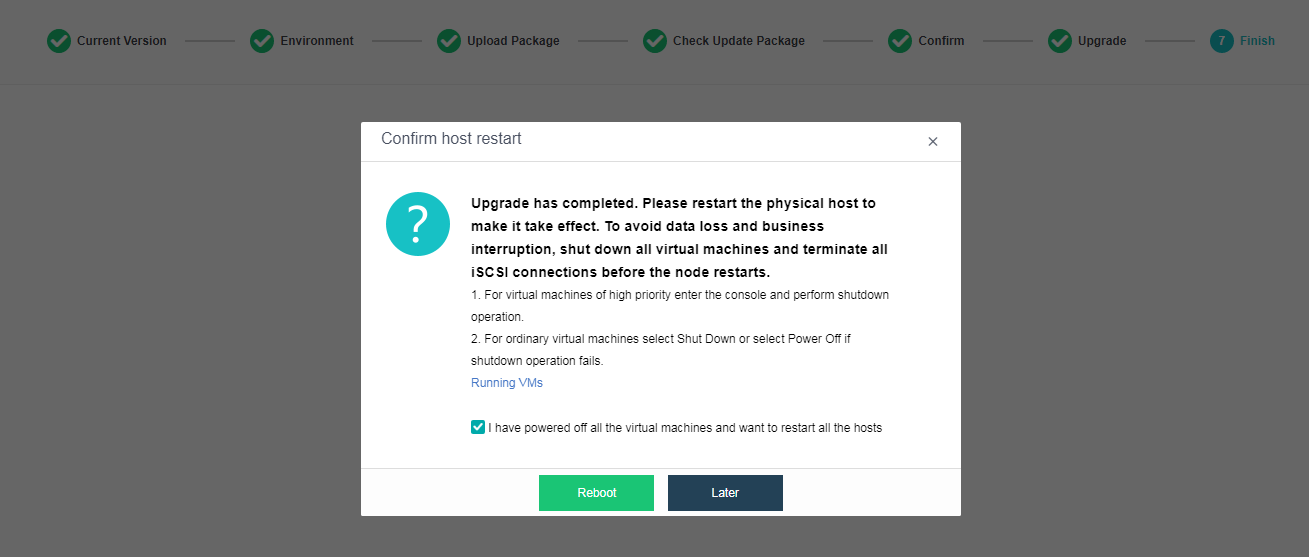
Notice:
After the offline upgrade of the witness node is complete, and the witness node is restarted, its status will still be displayed as offline. It is because the version of the witness node is inconsistent with other nodes in the cluster. To solve this problem, please upgrade other nodes.
HCI Upgrade
- Use aDeploy to perform the pre-upgrade check and install the pre-upgrade check package (see [Chapter 2.4.3 HCI Pre-Upgrade Check]()), then go to System > Upgrade and click Start Upgrade. The cluster will enter Maintenance Mode and run the environment check.
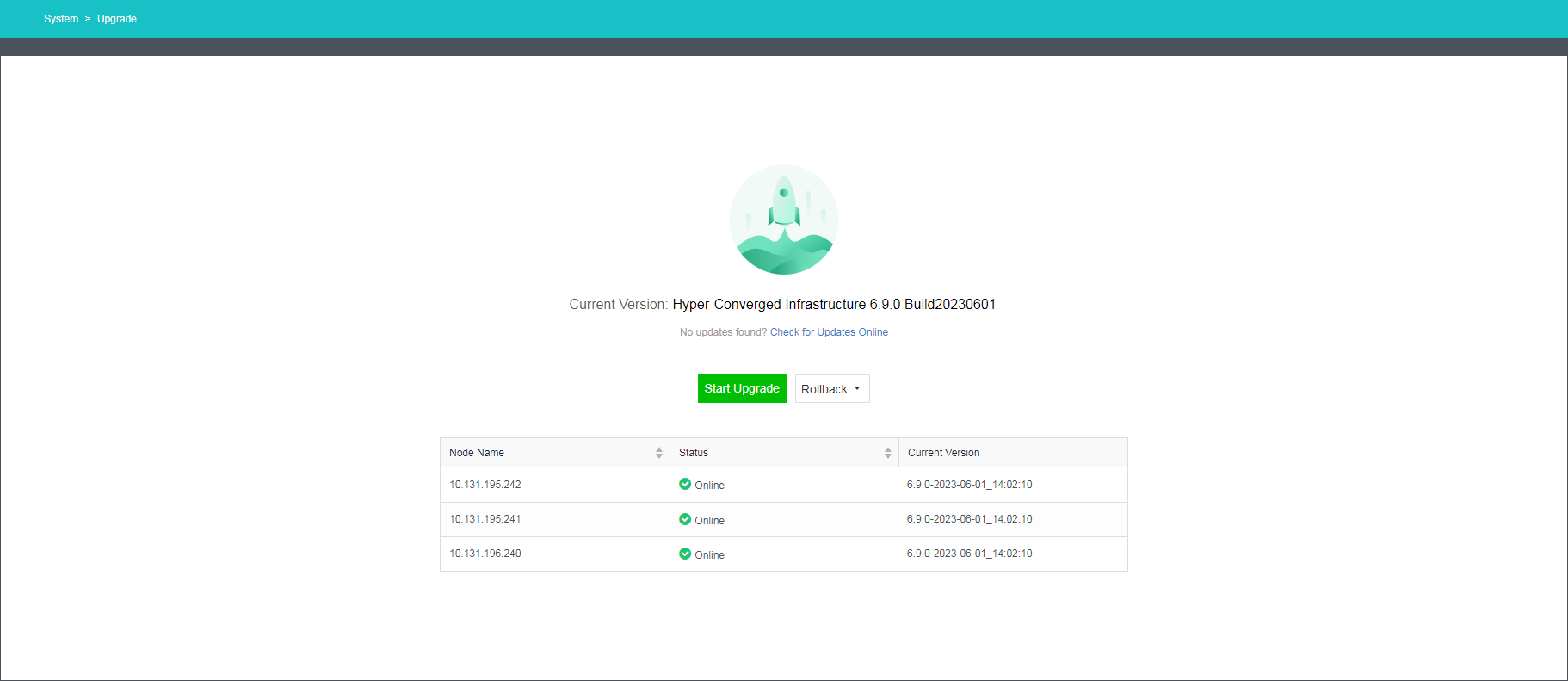
Notice:
After the pre-upgrade check package is installed, a suffix will be displayed in Current Version, as shown in the figure above.
- Click Start Upgrade. The environment check starts.
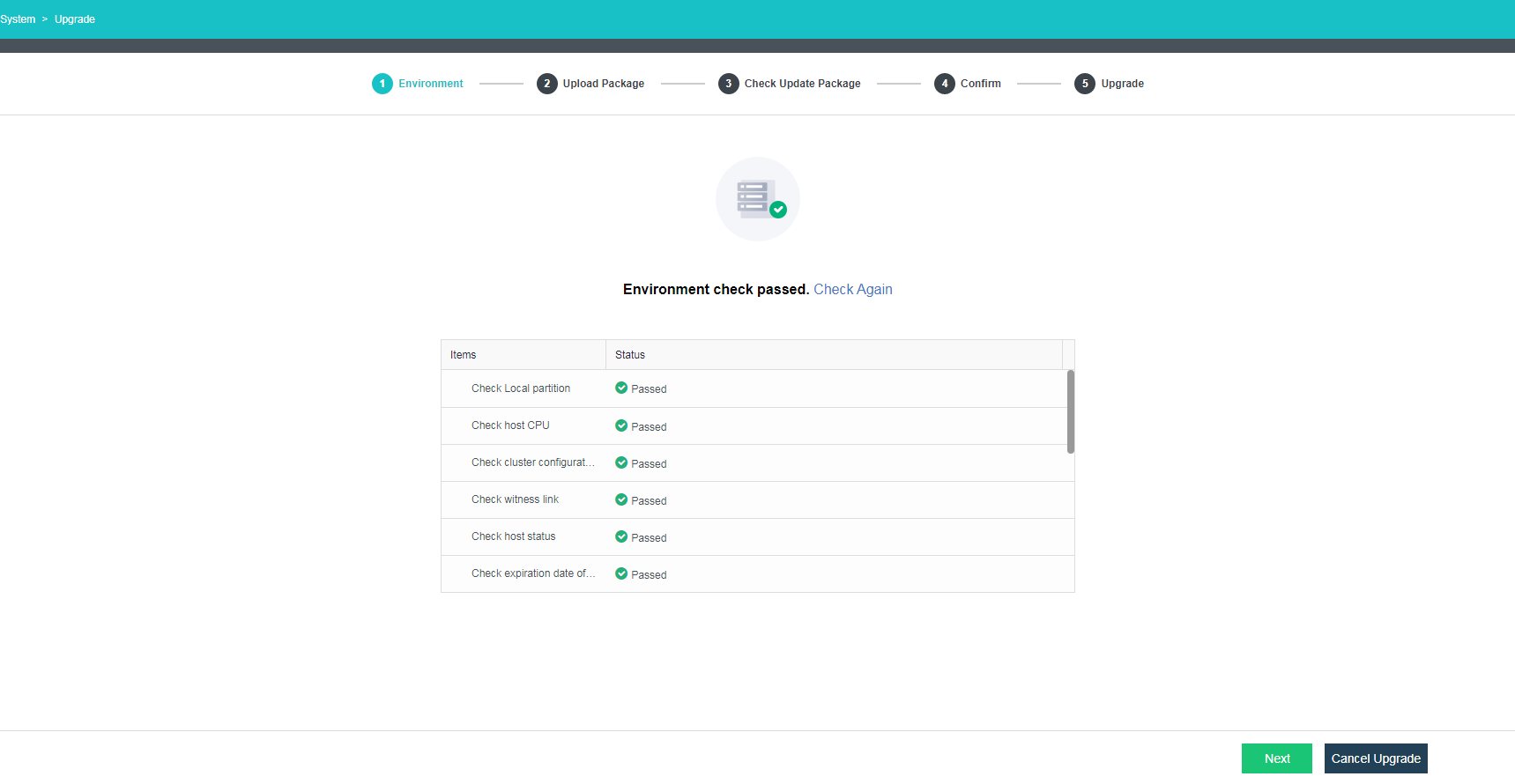
- After the environment passes the check, upload the HCI update package.
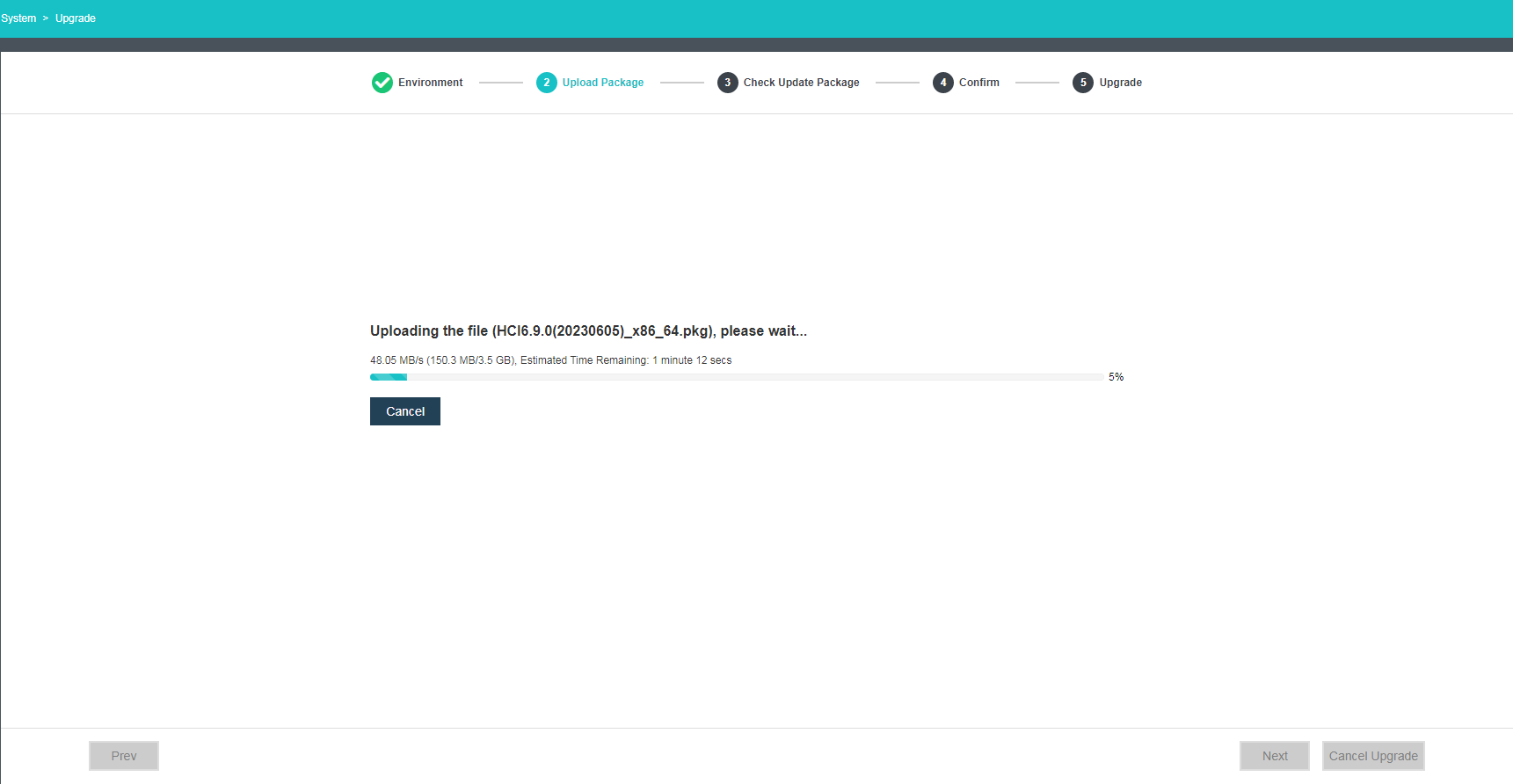
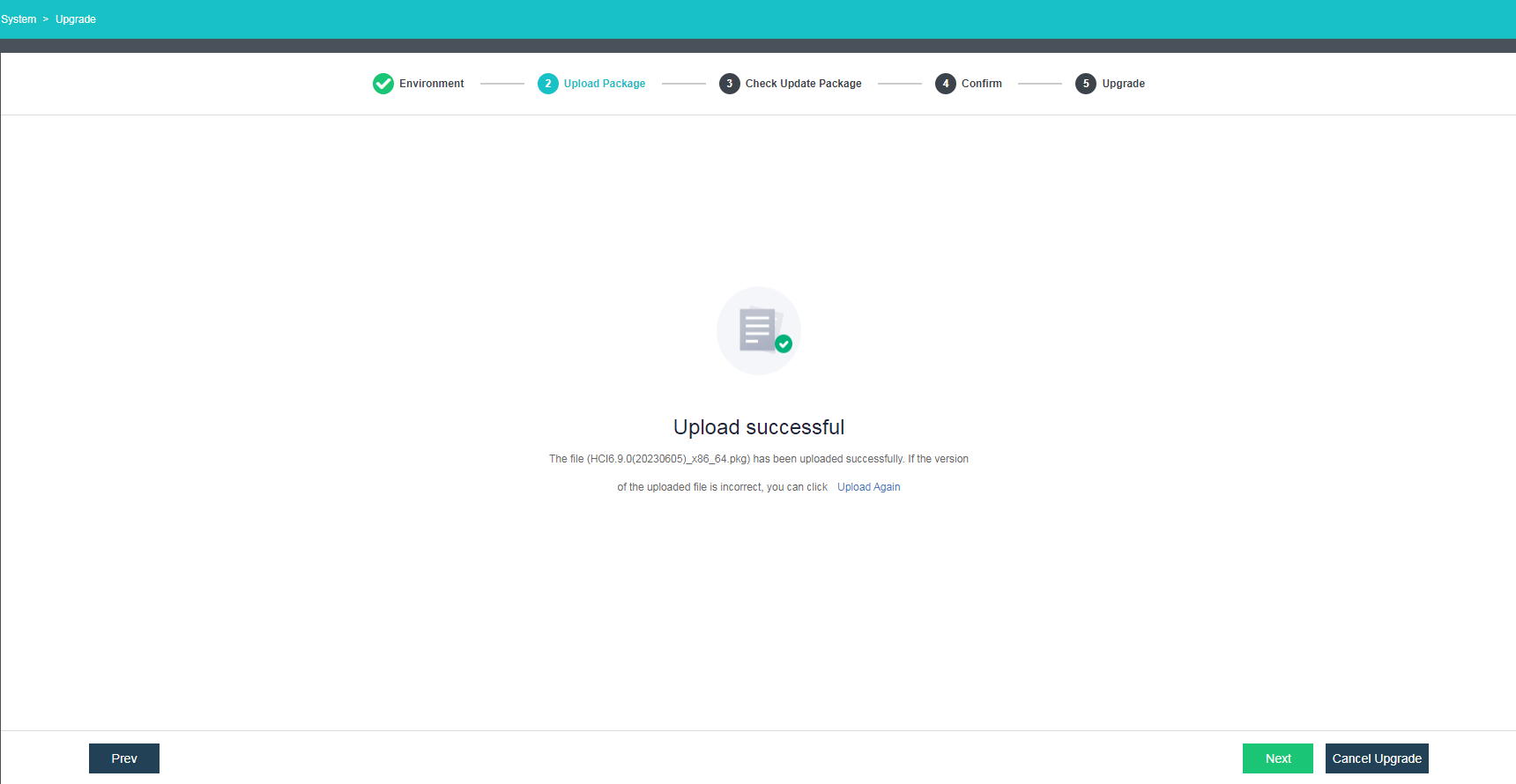
- The update package passes the check.
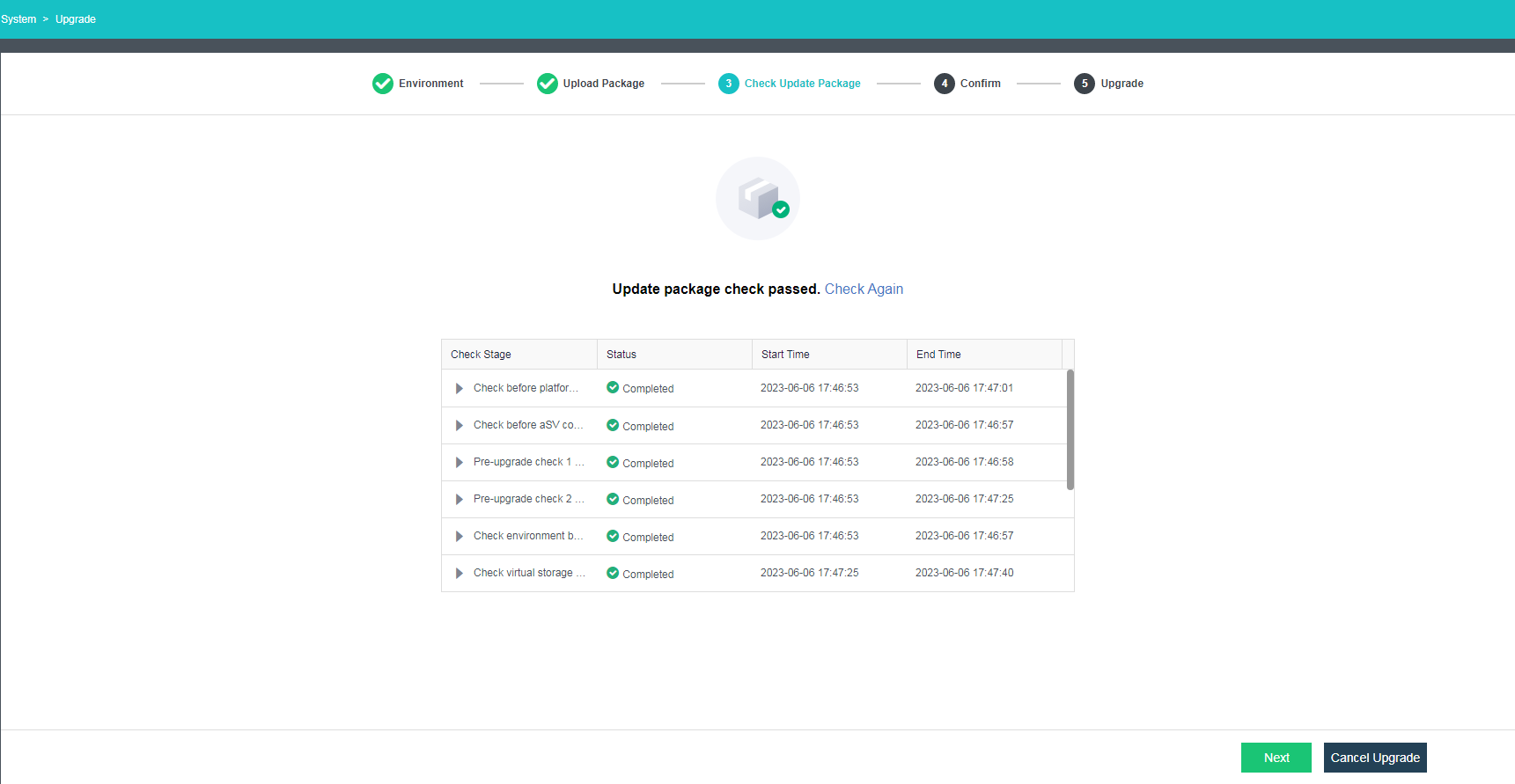
Quick Upgrade
- Select Quick Upgrade for Upgrade Method and click Next.
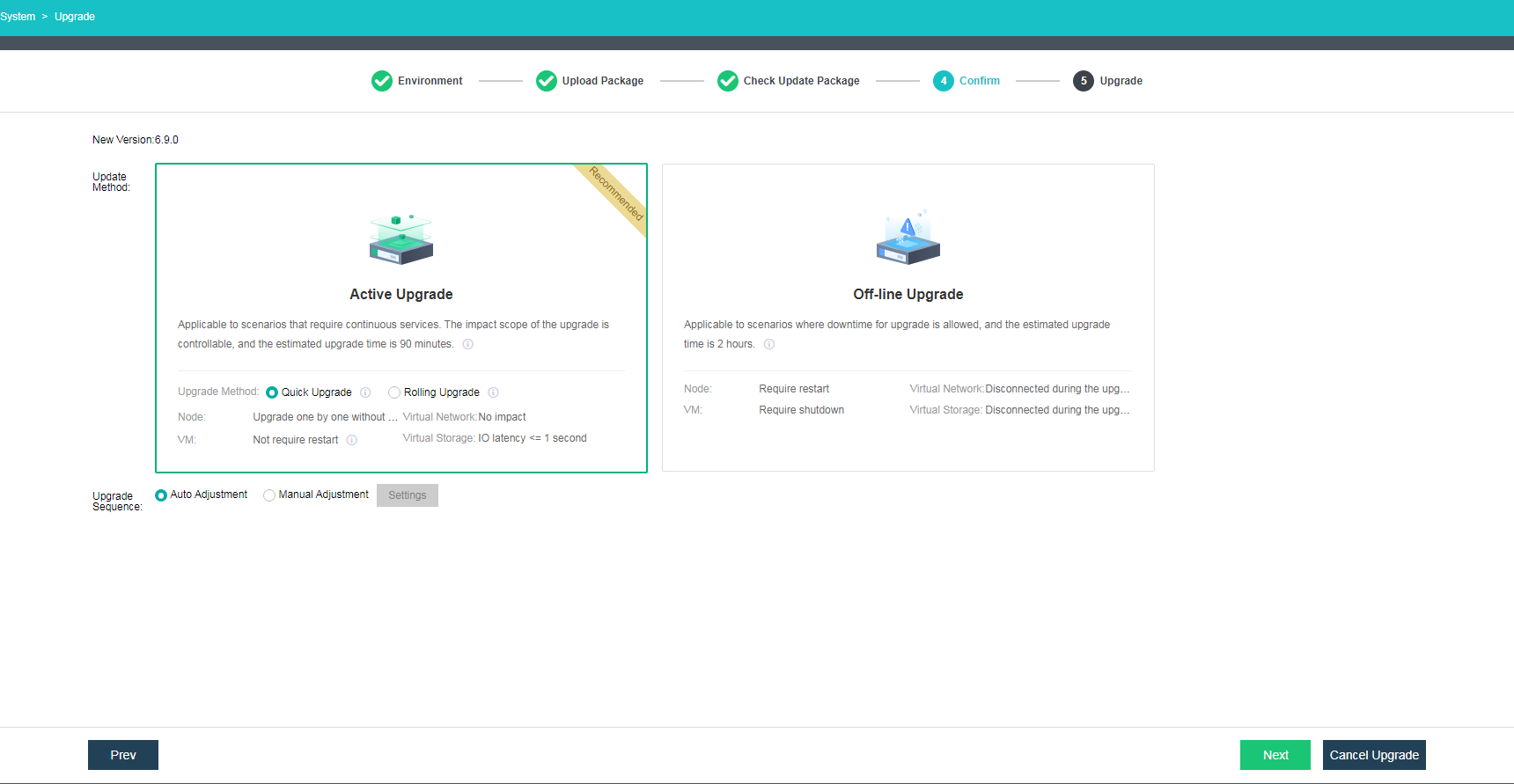
-
The quick upgrade starts.
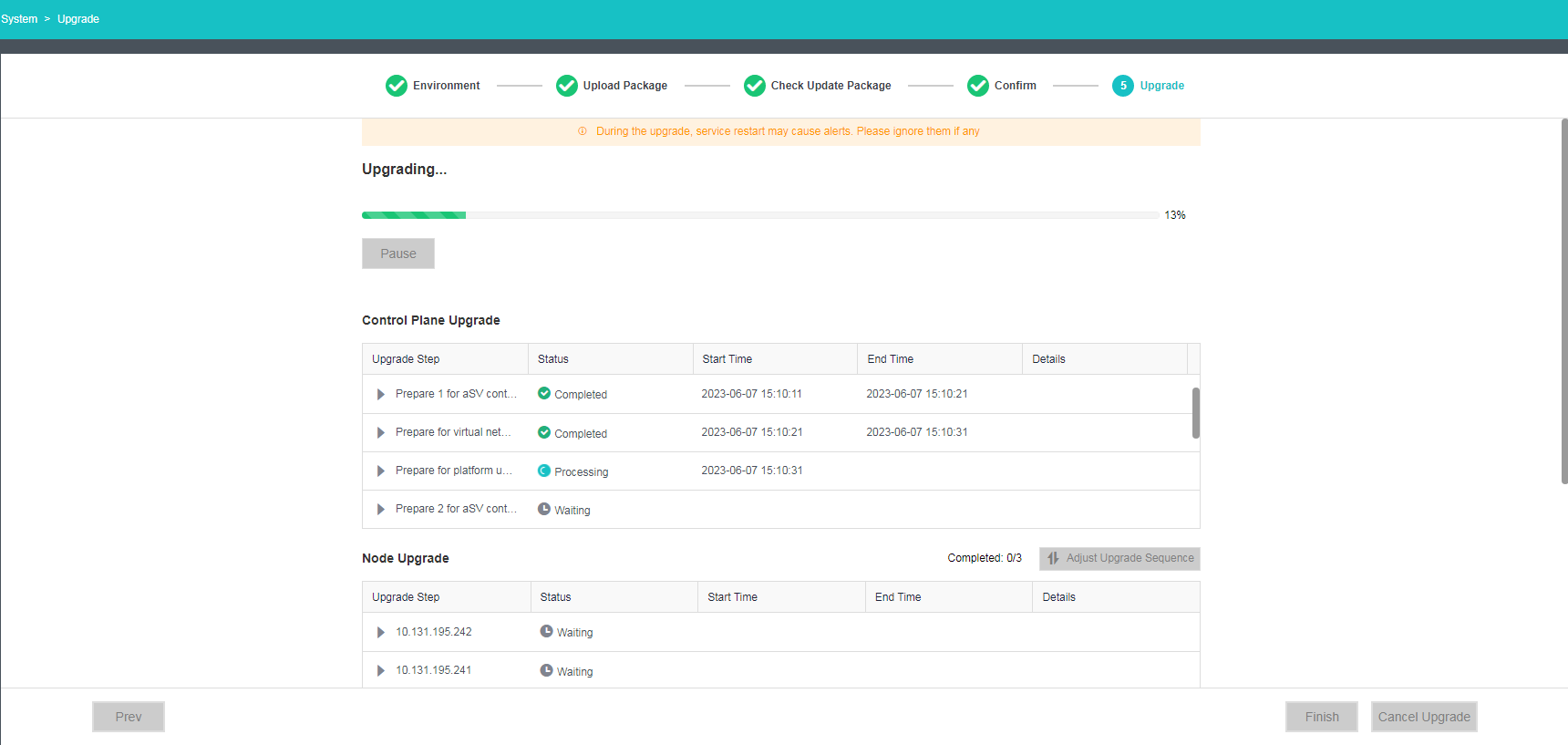
-
The upgrade tasks at each stage are shown during the upgrade process.
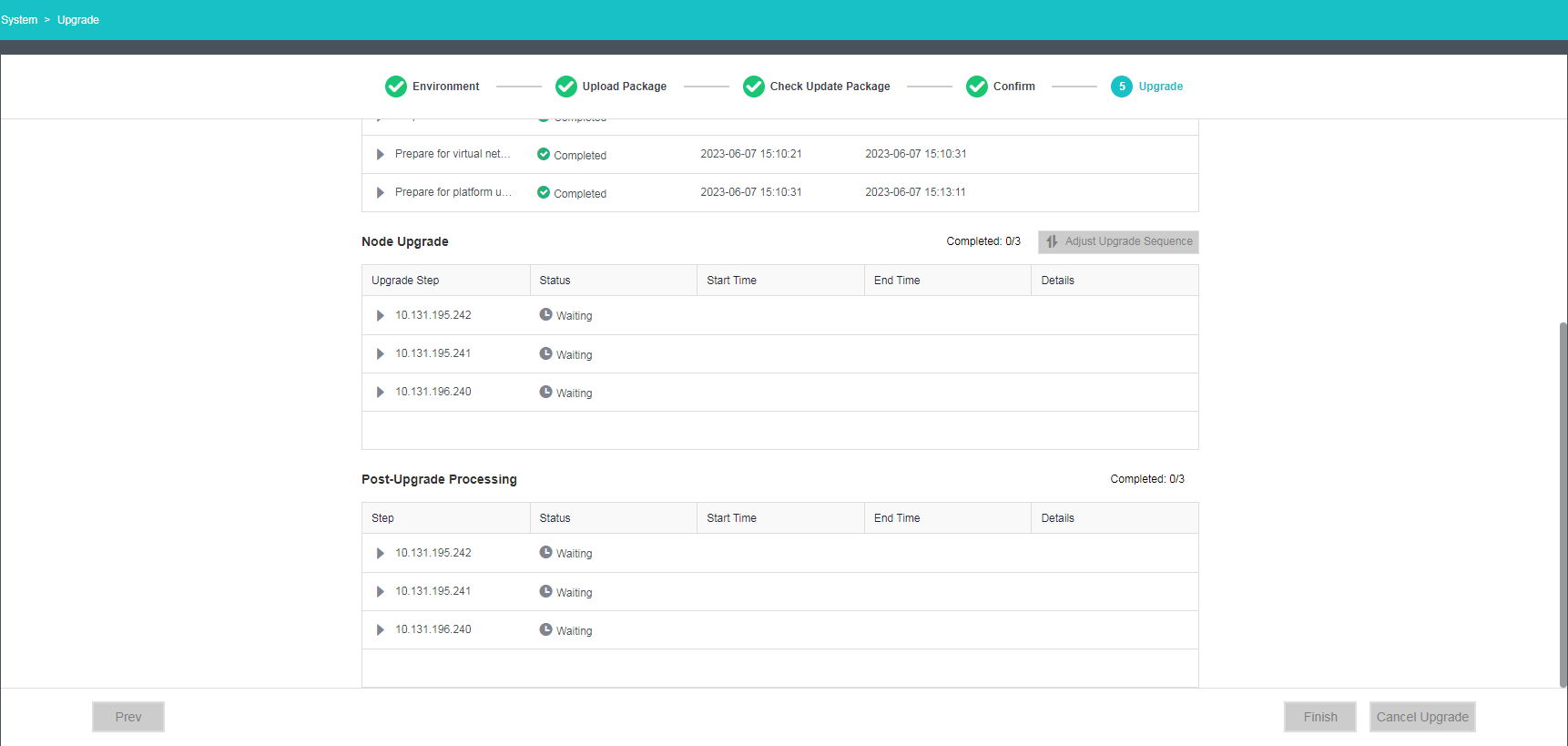
-
After the upgrade, the system will ask whether to perform live migration for VMs and NFV devices. VMs not installed with vmTools need to be migrated to complete the upgrade.
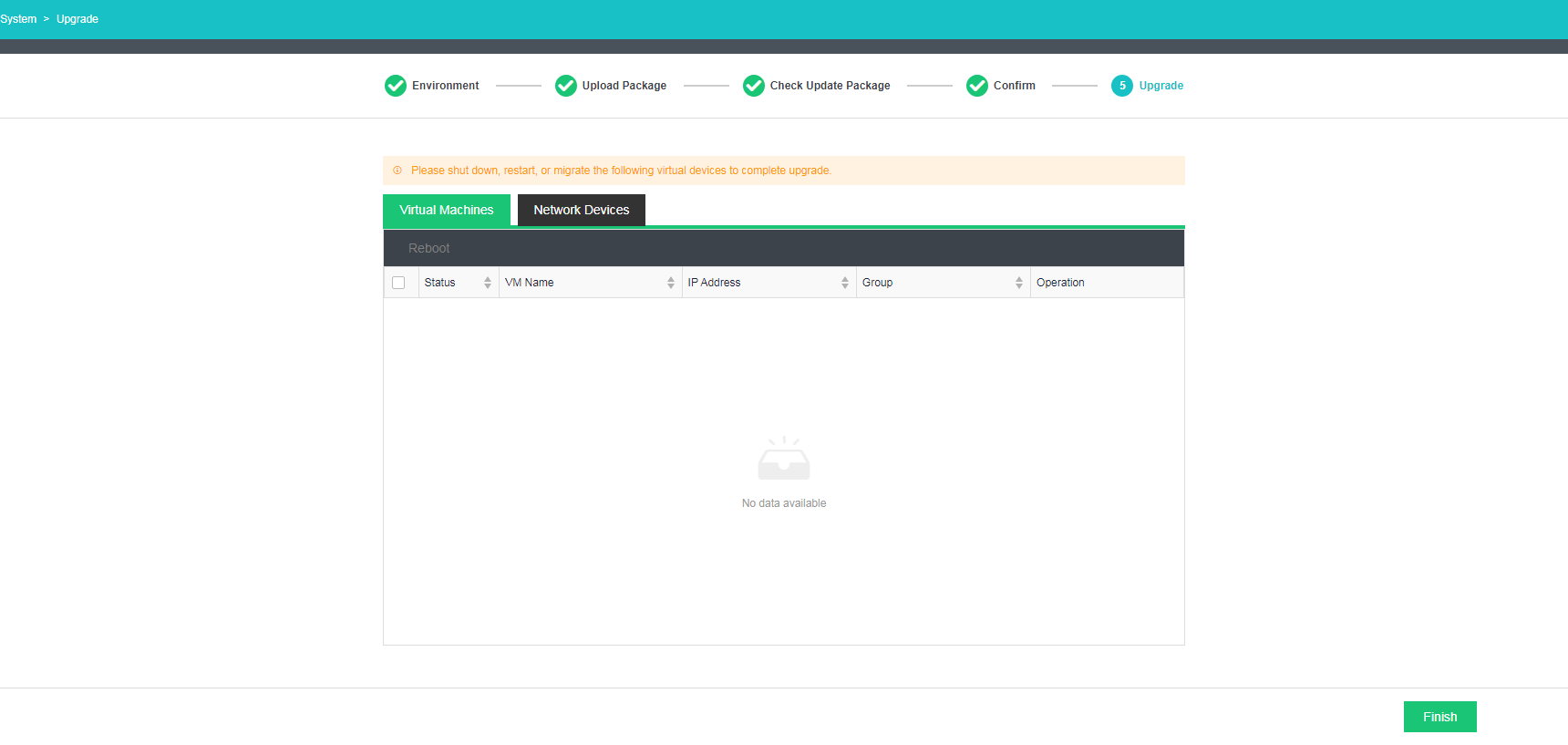
-
The upgrade is complete.
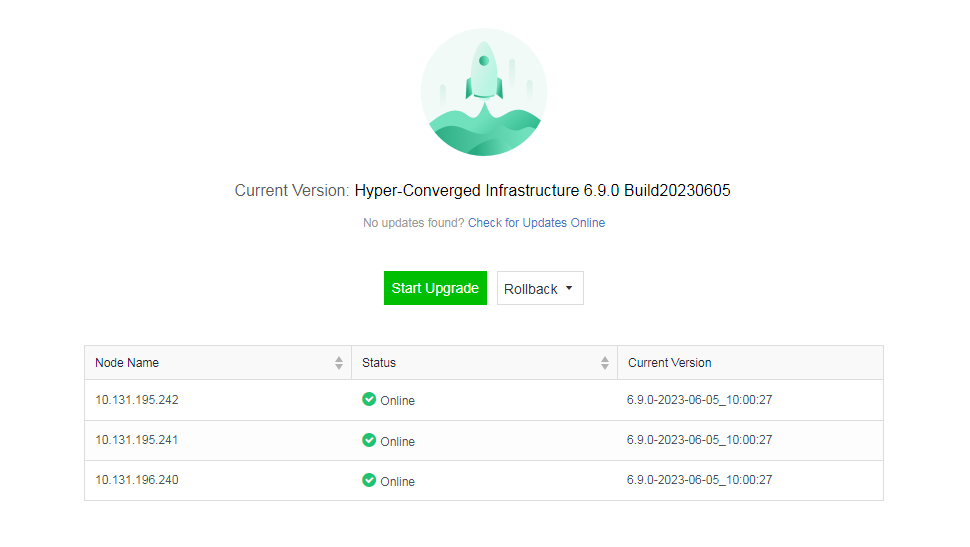
Rolling Upgrade
- Select Rolling Upgrade for Upgrade Method and click Next.
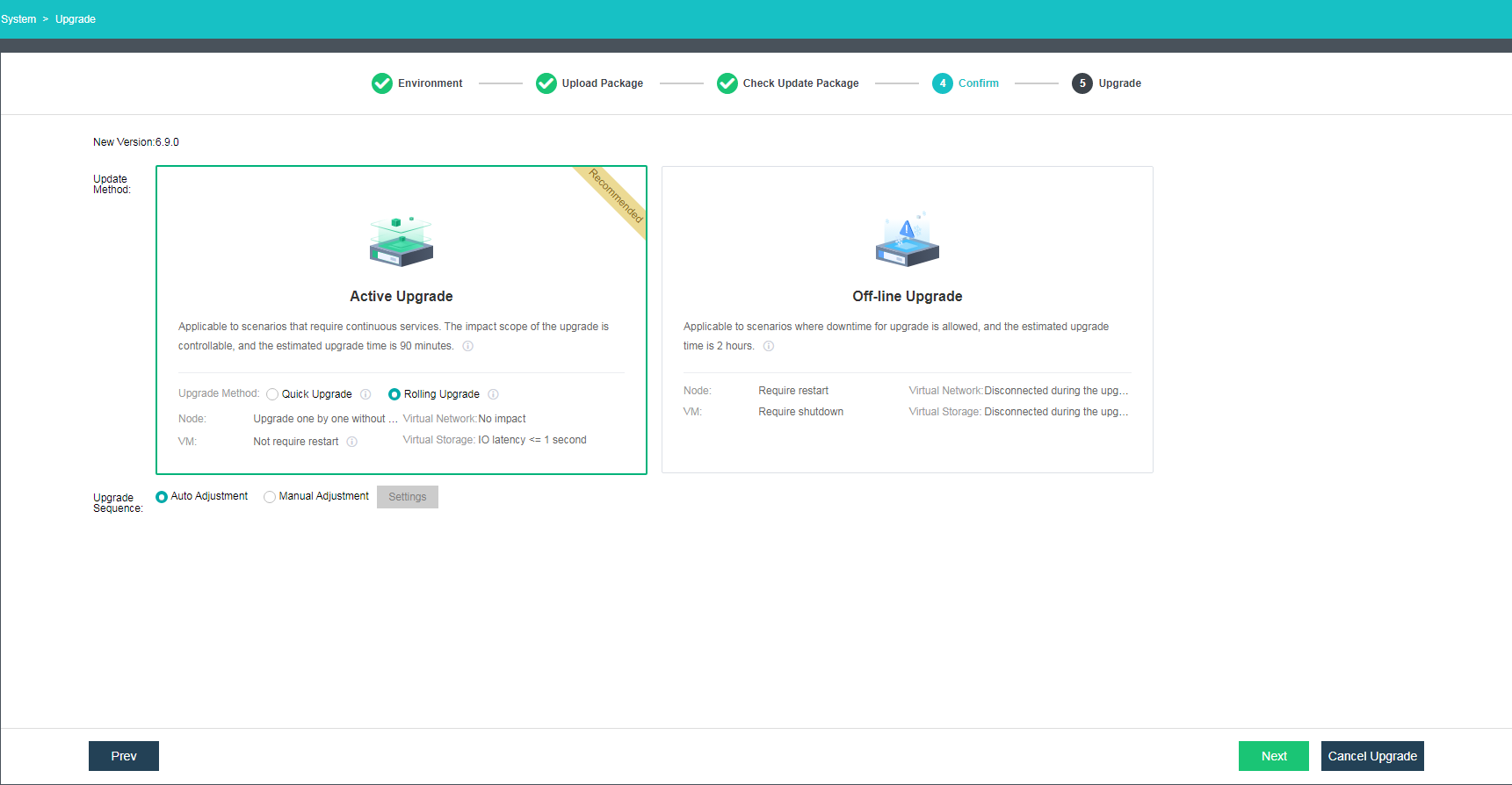
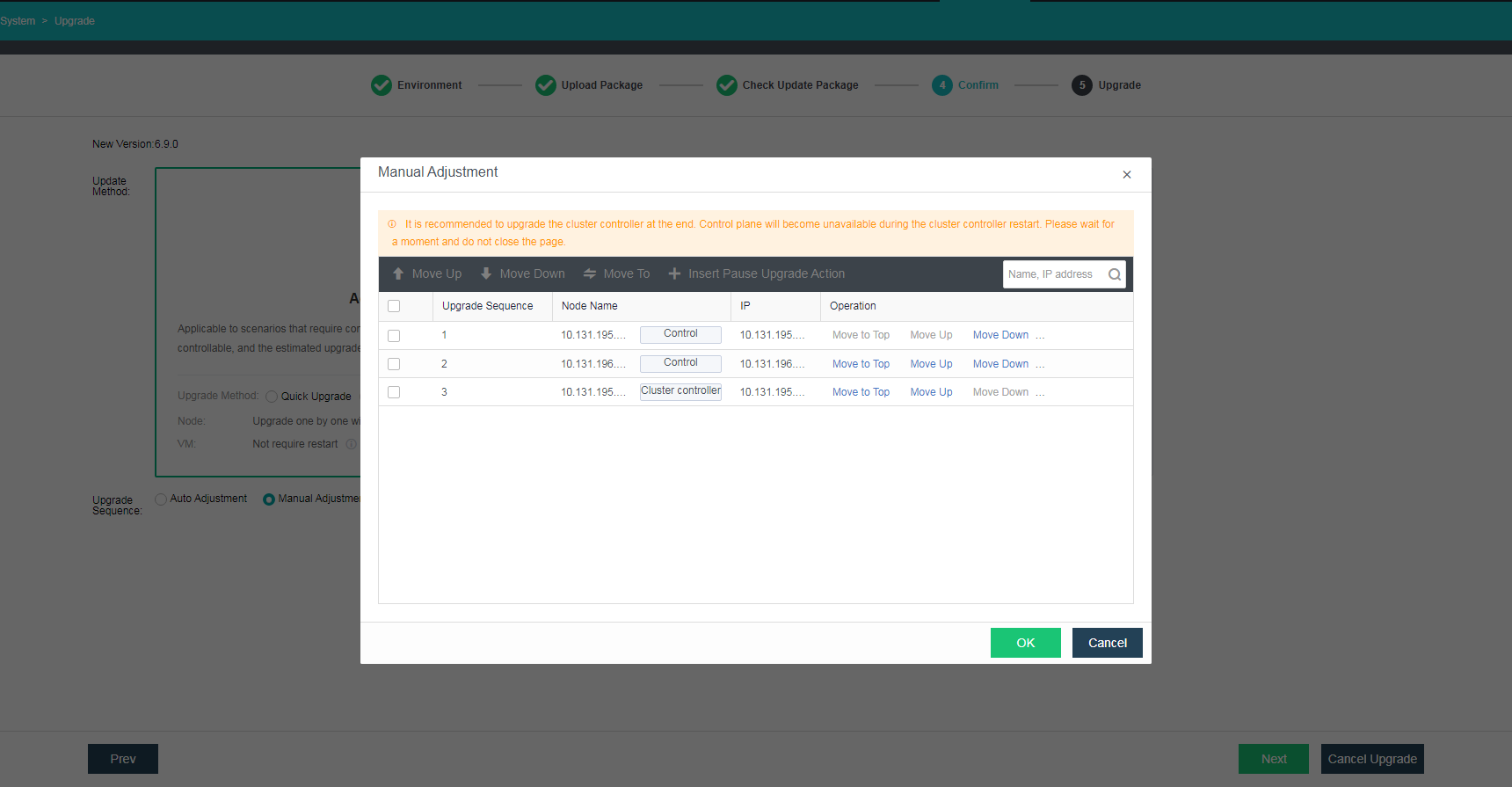
- Select Manual Adjustment for Upgrade Sequence to adjust the sequence of nodes for the upgrade, or select Auto Adjustment. After the upgrade sequence adjustment is complete, click Next.
-
During the Rolling upgrade, all the nodes’ control planes will upgrade first, followed by the data plane upgrade (one node each time). Before the data plane upgrade starts, the running VMs will be migrated to a node that is not in the upgrading state. During the control plane upgrade, you will be logged out. Please wait about 1 minute and then reload the page to log in again.
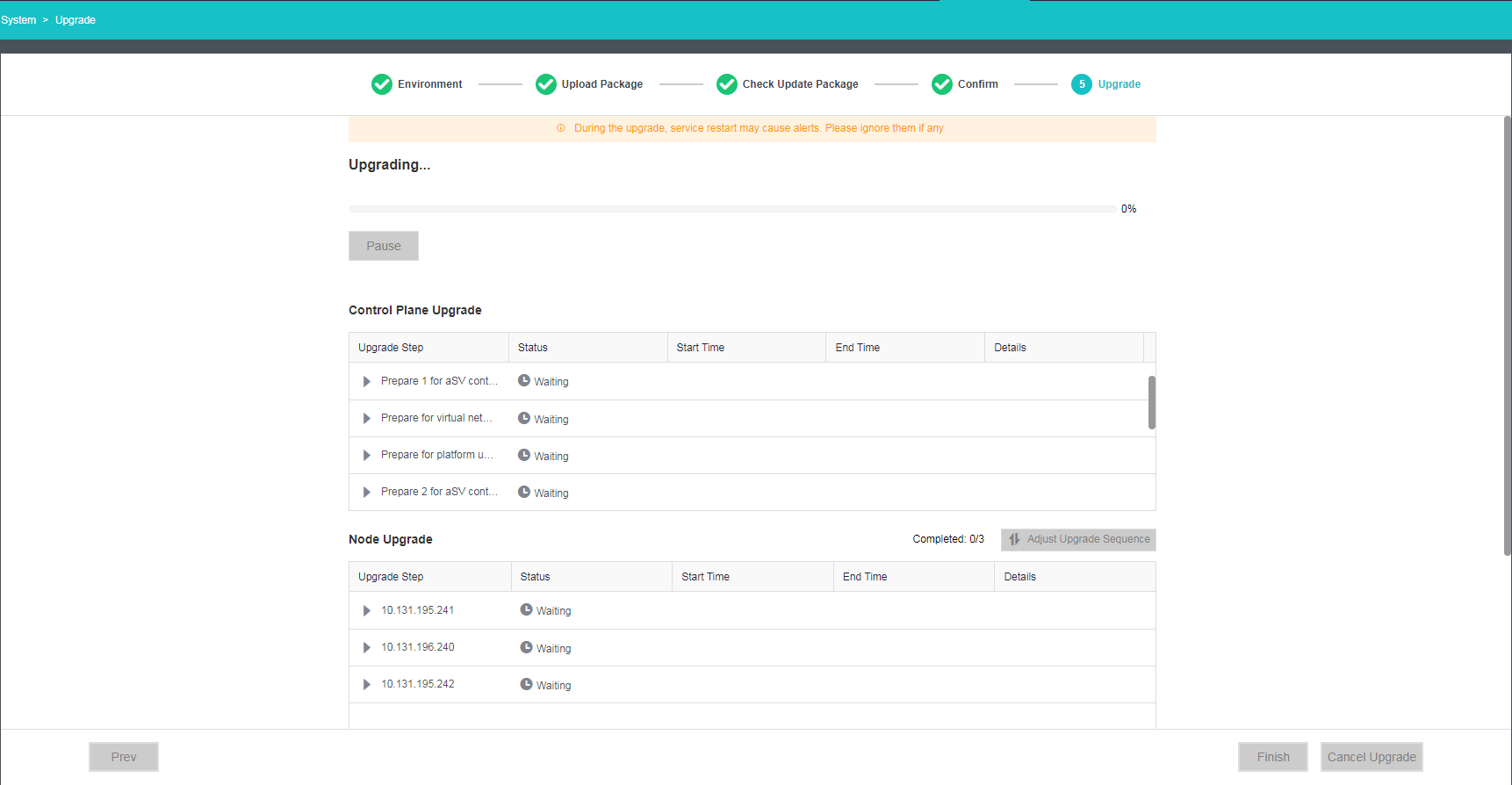
-
The upgrade is complete.
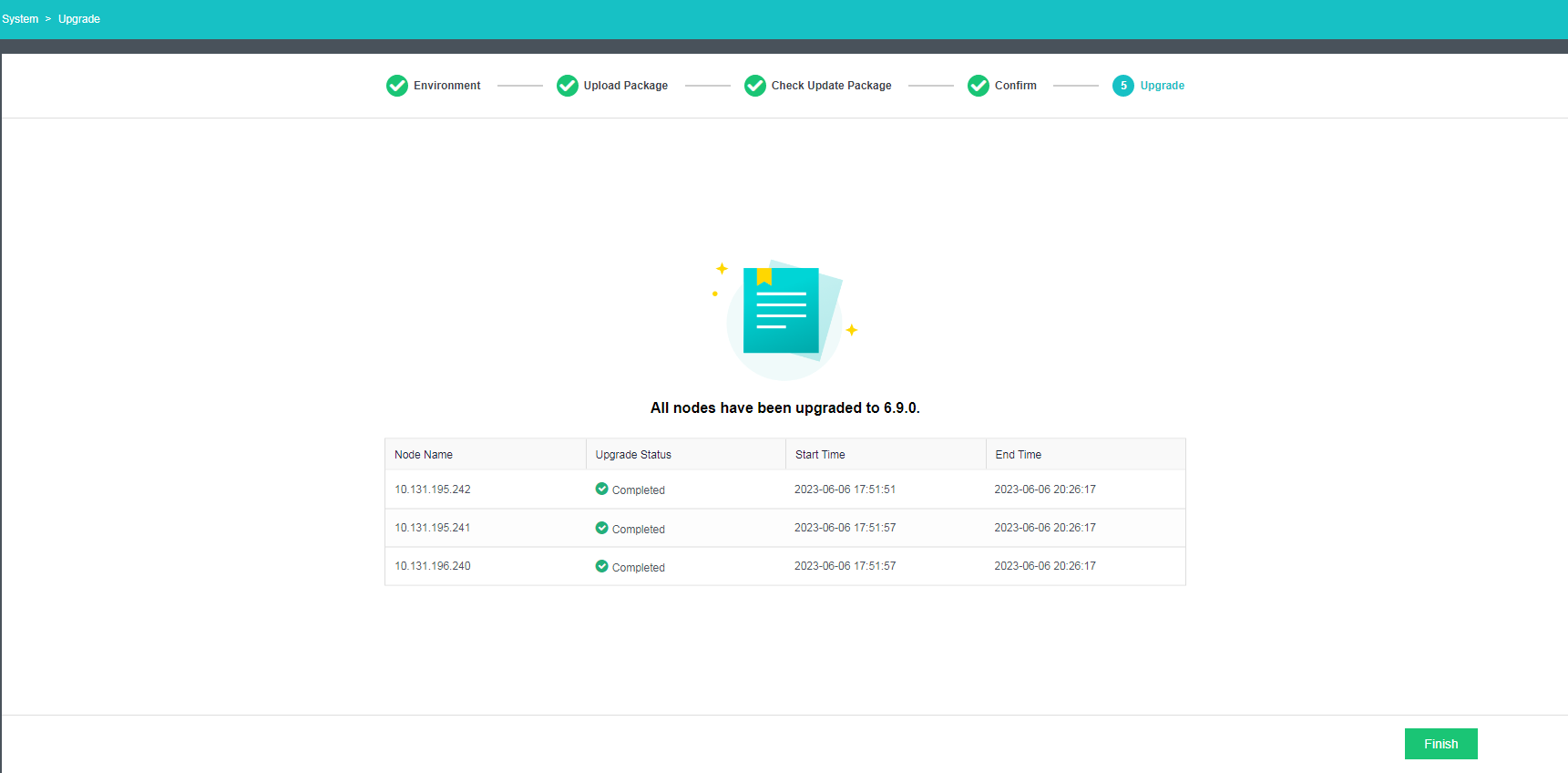
Offline Upgrade
-
Shut down all VMs.
Select all VMs and shut them down. If the operation fails, go to their consoles to shut them (including suspended VMs) down separately.
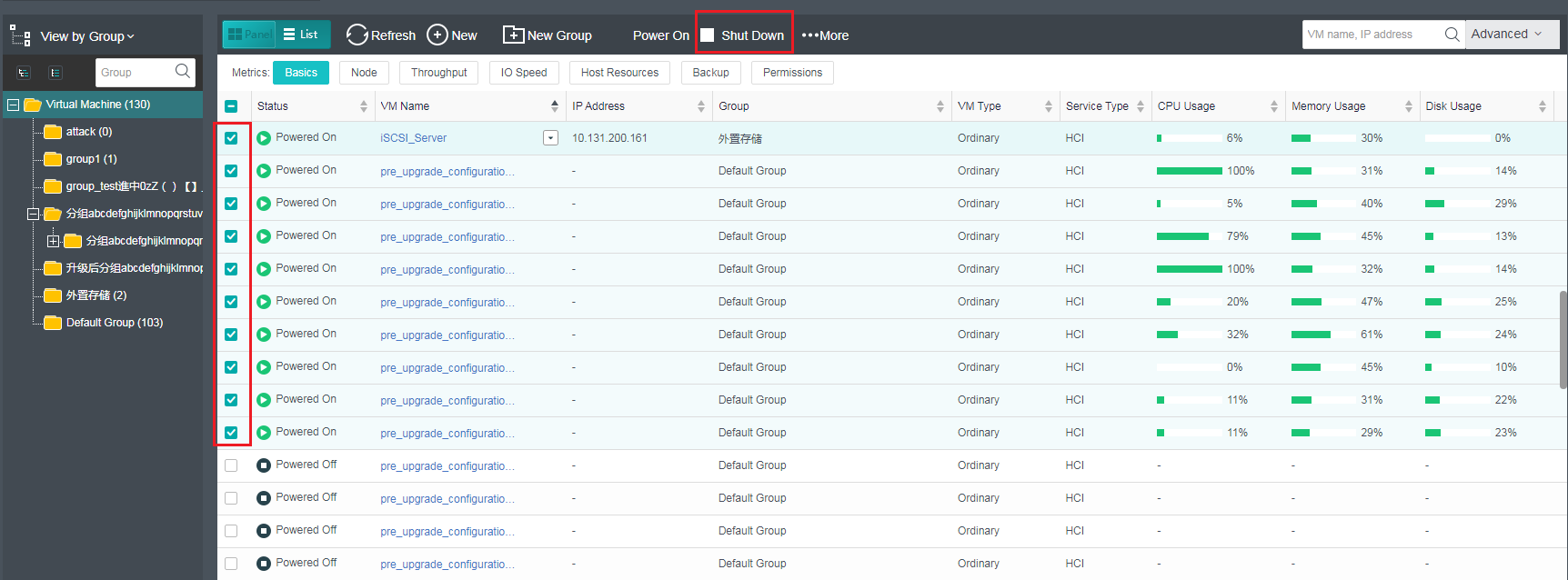
-
Shut down all NFV devices.
Go to Networking > Topology, click Running to view all NFV devices (excluding routers and switches), and shut them down.
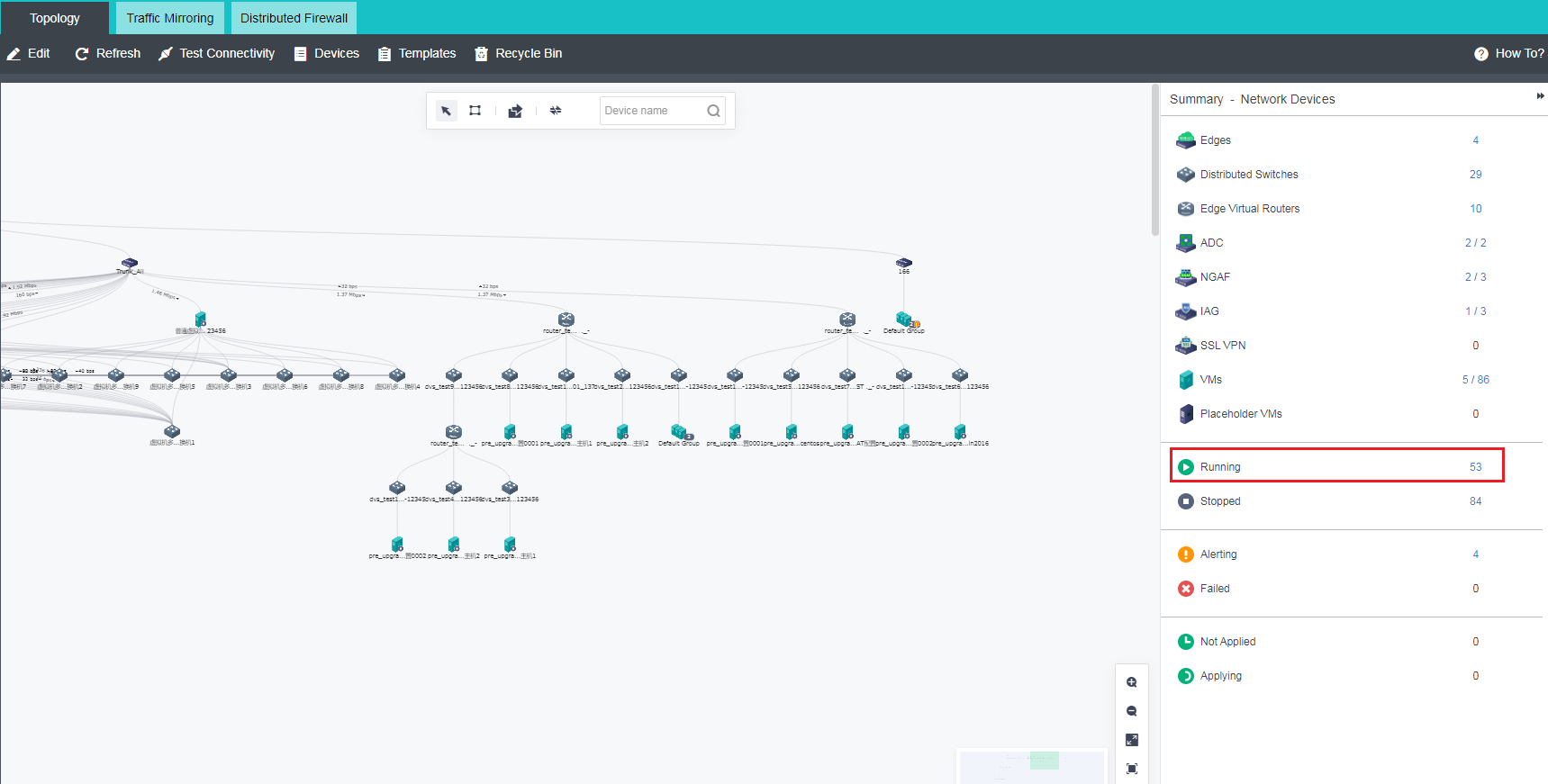
- Run the pre-upgrade check, and the system advises to perform an offline upgrade. Click Next to proceed.
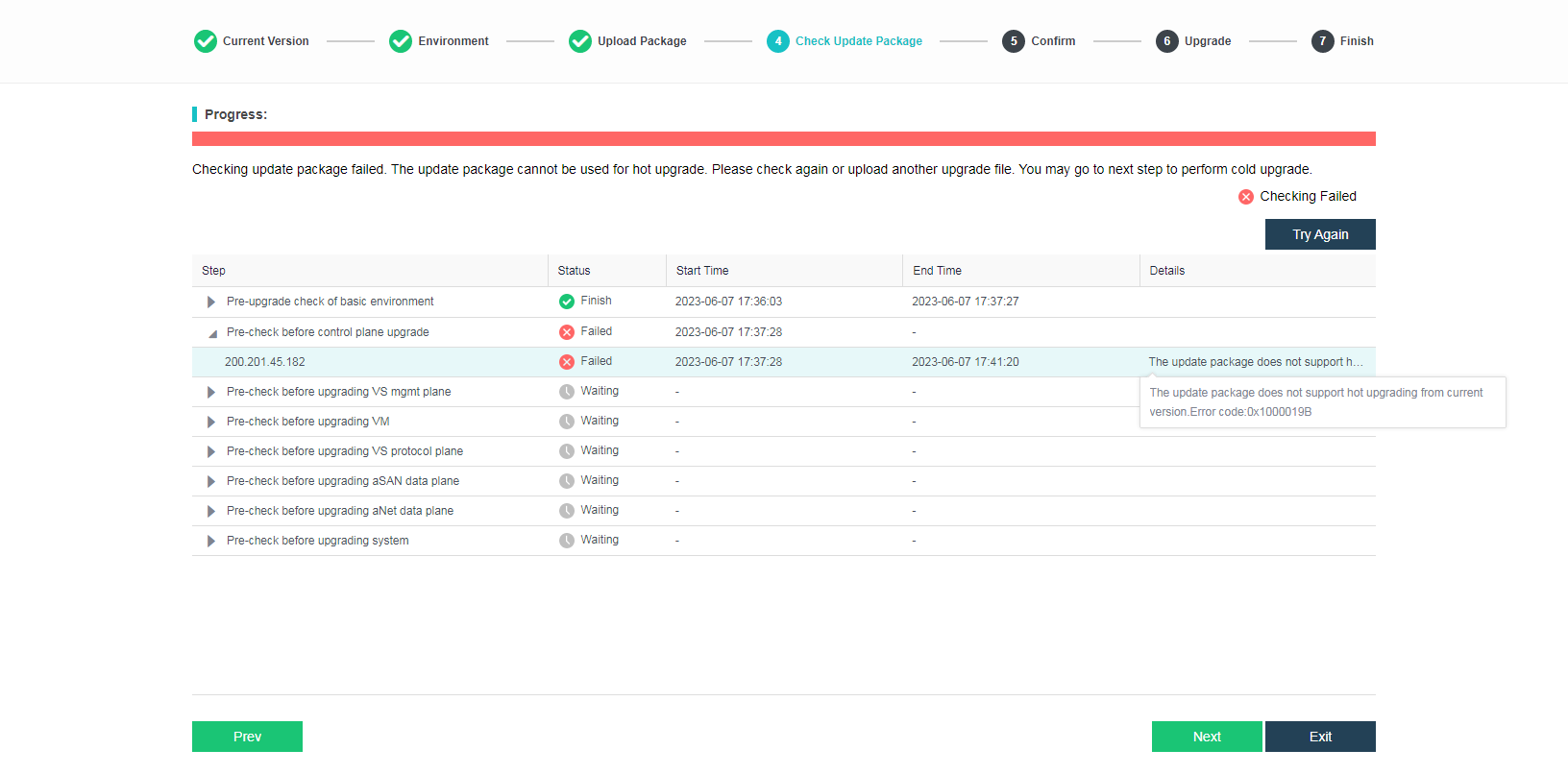
-
You can start the offline upgrade after all NFV devices are shut down and require all nodes to be restarted, which will cause business service interruption.
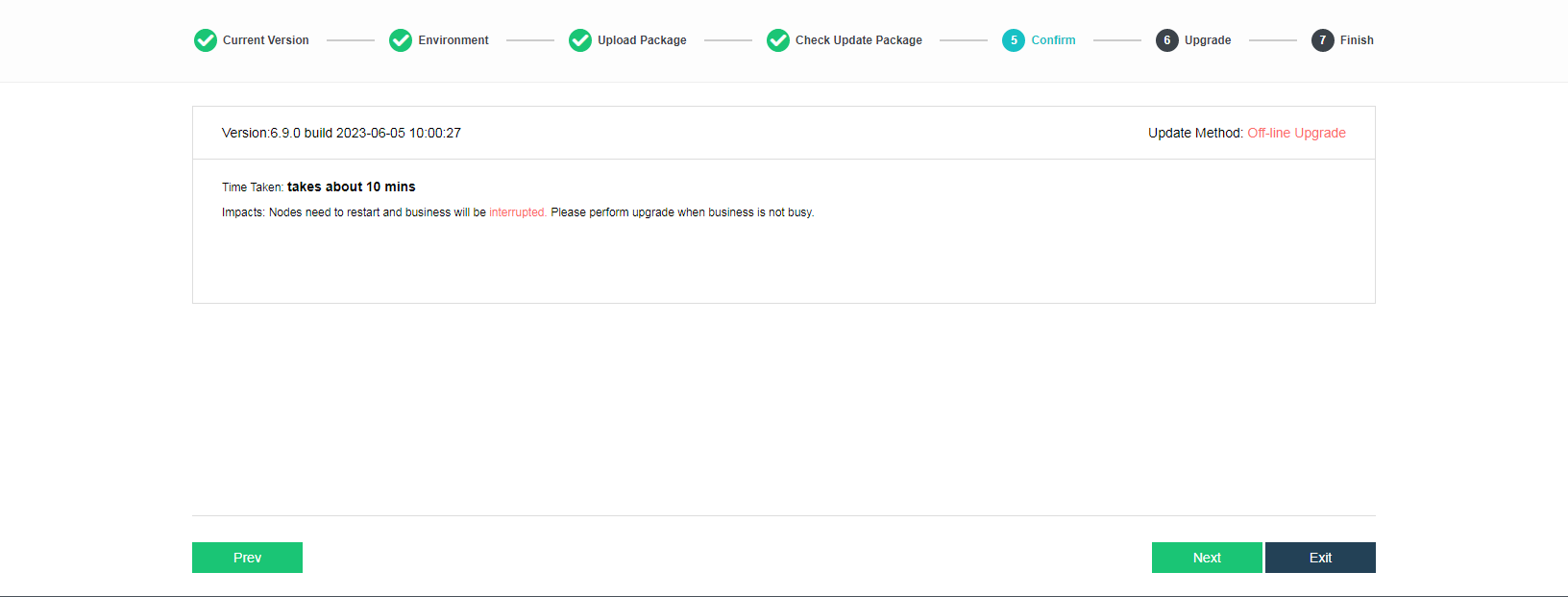
-
Click Next to start the upgrade.
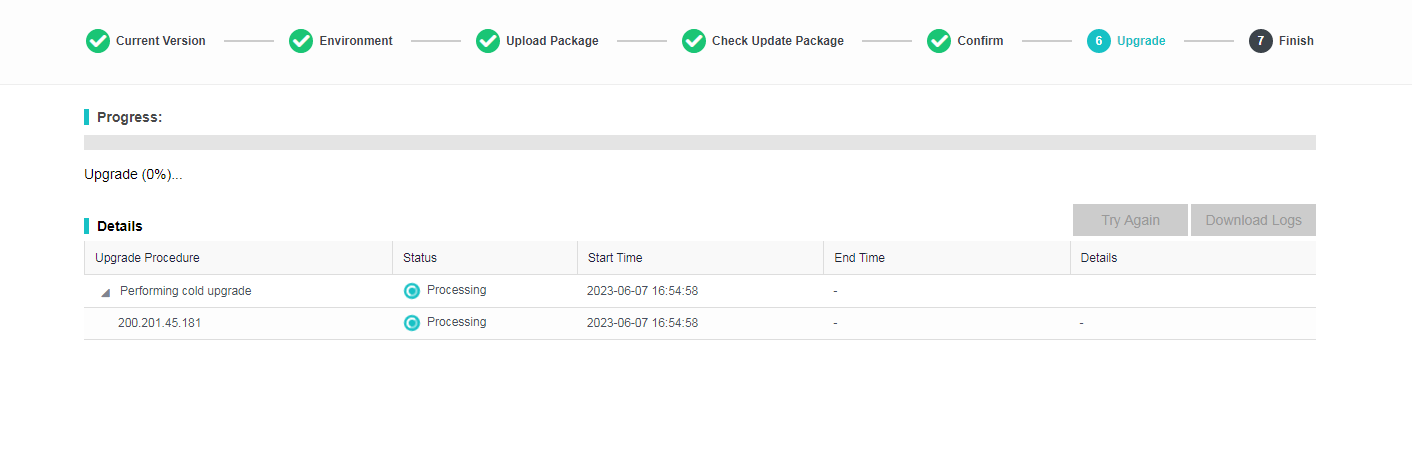
-
The upgrade progress is shown in the figure below.
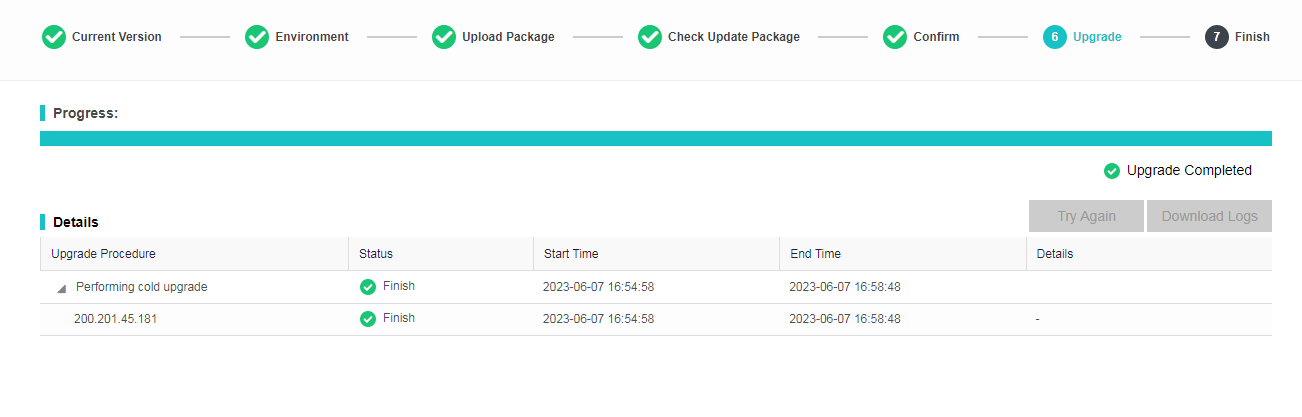
-
The upgrade is complete.
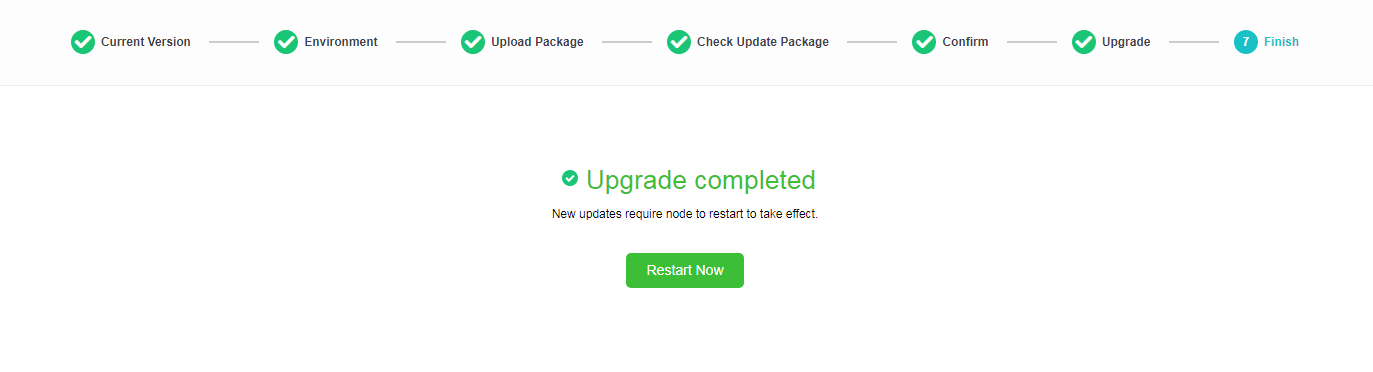
-
Restart the nodes.
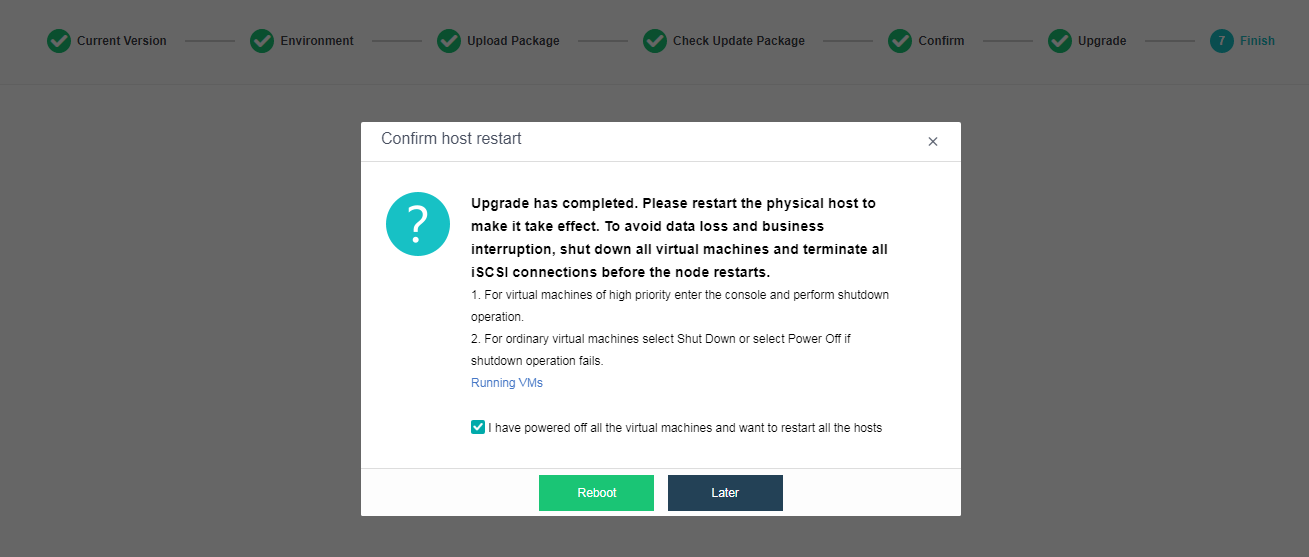
Graphics Card Driver Upgrade
The GRID driver update requires restarting nodes. Importing the vGPU driver file after the upgrade and restarting the corresponding nodes is recommended.
- Go to Nodes > Graphics Cards and click Change Graphics Card Driver to import the GRID driver.
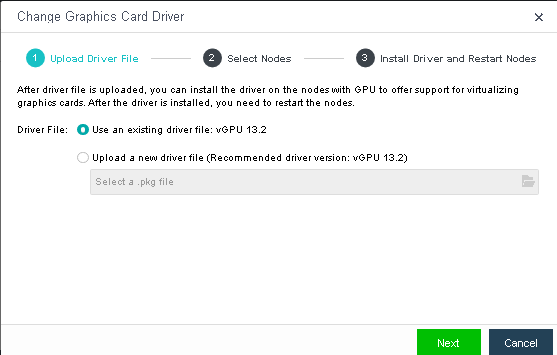
-
Wait until the driver file is uploaded.
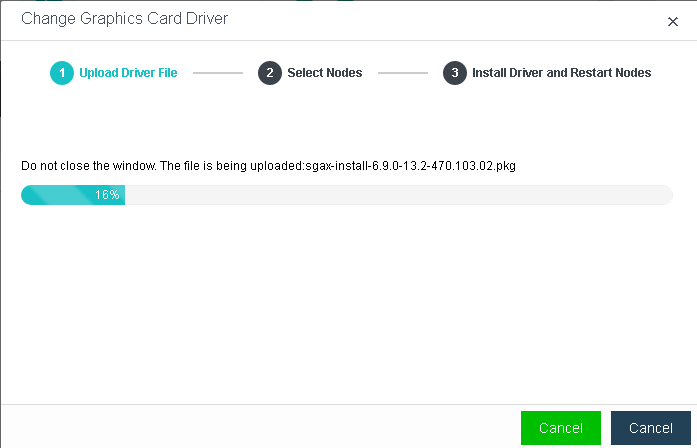
-
Select nodes where you want to install the driver and wait for the driver file to be distributed.
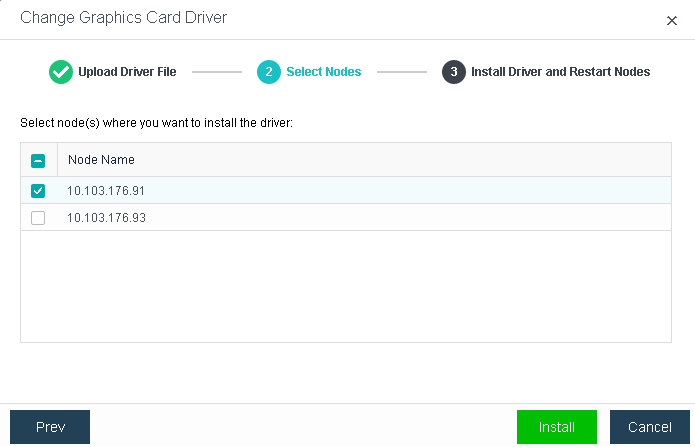
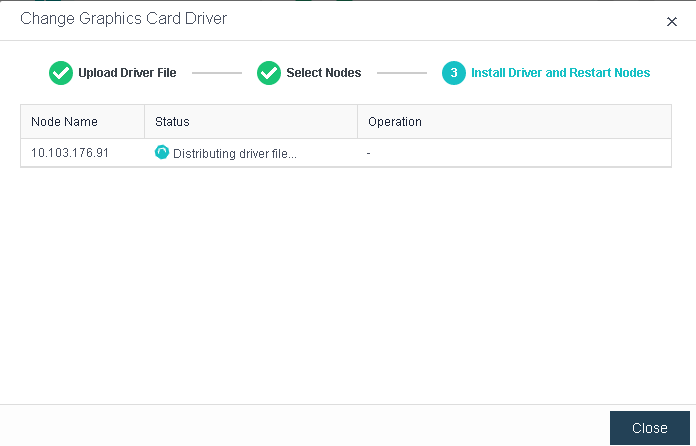
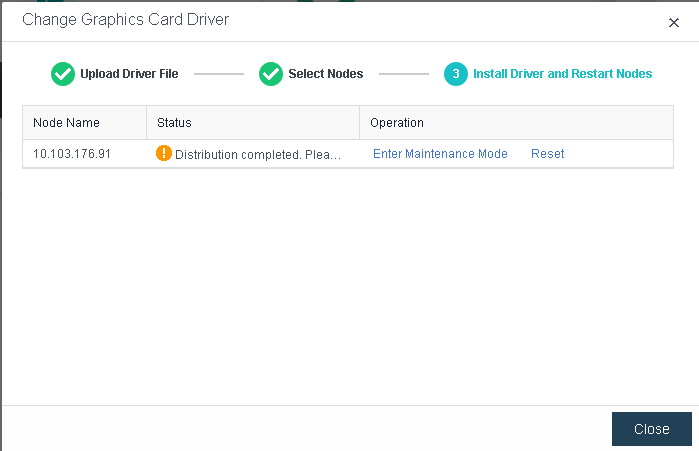
- Click Enter Maintenance Mode and then click Reset to make the driver take effect.
Abnormalities Troubleshooting
Pre-Upgrade Failures
| Scenario | Versions | Solutions | Notes |
|---|---|---|---|
| Timeout while distributing installation package because the management interface of the cluster controller only supports 100 Mbps. | Upgrade from Earlier versions to HCI6.0.1 and above. | Ensure the management interface supports at least 1000 Mbps before the upgrade. | Management interfaces less than 1000Mbps are not supported. |
| Timeout while checking update.suc.exec.precheck.flag and update.rep.finished.flag during the upgrade. | Upgrade from versions earlier than 5.8.6 to versions earlier than 6.0.1. | Check the configuration of nodes in the cluster. Contact a Sangfor technical support representative to mark nodes with low configuration to skip the check. | This problem has been fixed and will not occur while upgrading versions earlier than HCI5.8.6 to HCI6.0.1 and above. |
| Failed to verify the pre-upgrade check package because the memory usage occupied by the running services is too high. | Upgrade from HCI5.8.6 to HCI5.9.0 and above. | Restart the vtp-datareport-server reporting service. | This problem has been fixed and will not occur when upgrading HCI5.8.7_R1 to later versions. |
| Pre-upgrade check failed because the memory usage occupied by the running services is too high, exceeding expectations. | Upgrade from HCI5.8.6 and above versions to HCI5.9.0 and HCI6.0.0. | Contact a Sangfor technical support representative to skip this check step. | This problem has been fixed and will not occur while upgrading earlier versions to HCI6.0.1 and above. |
| The VXLAN interface is configured with an IP address but without an IP address pool. | Active upgrade. | Configure the VXLAN IP pool before the upgrade. | This problem will be detected by the pre-upgrade check. The IP address pool must be configured to start the upgrade. |
| aCloud cannot be upgraded after powering off the aCMP VM because aCloud is licensed by aCMP. | Offline upgrade from HCI5.8.5. | Power on the aCMP VM to activate the license, and do not power off it before restarting aCloud. | This problem does not exist in other versions. |
| In the upgrade retry scenario, since other nodes already have the success marks of the pre-upgrade check, the cluster control will be deleted after the pre-upgrade check, thus blocking the upgrade process. | Upgrade from earlier versions to HCI5.8.6 and later. | Contact a Sangfor technical support representative to clean up the success marks of the pre-upgrade check of other nodes. | – |
| 0x0006/0x0005 is reported during the pre-upgrade check of the offline upgrade. | Upgrade from Earlier versions to HCI5.8.6 and later. | Contact a Sangfor technical support representative. | This problem has been fixed and will not occur while upgrading earlier versions to 6.0.1 and later. |
| The ZK service encountered an error during the active upgrade. | Upgrade from earlier versions to HCI5.8.6 and later. | Upgrade again. If the problem persists, please contact a Sangfor technical support representative. | – |
| The virtual storage service encountered an error during the pre-upgrade check. | Earlier versions to HCI6.0.1. | Contact a Sangfor technical support representative. | This problem exists only in HCI6.0.1. |
Upgrade Failures
| Method | Stage | Failure | Solutions | Whether Rollback Is Supported |
|---|---|---|---|---|
| Offline Upgrade/Active Upgrade | Check Environment for Upgrade | The environment check failed. | Troubleshoot and try again. If the problem persists, please contact a Sangfor technical support representative. | Yes, exit the upgrade to roll back to the original version. |
| Offline Upgrade/Active Upgrade | Upload Update Package | The update package upload failed. | Troubleshoot and try again. If the problem persists, please contact a Sangfor technical support representative. | Yes, exit the upgrade to roll back to the original version. |
| Offline Upgrade/Active Upgrade | Pre-Upgrade Check | Pre-upgrade check failed. | Troubleshoot and try again. If the problem persists, please contact a Sangfor technical support representative. | Yes, exit the upgrade to roll back to the original version. |
| Offline Upgrade/Active Upgrade | Upgrade | Host power encountered an error. | Troubleshoot and try again (upgrades from earlier versions to 5.8.6 and above do not support retry). If the problem persists, please contact a Sangfor technical support representative. | No. To roll back to the original version, please contact a Sangfor technical support representative. |
| Offline Upgrade/Active Upgrade | Upgrade | The host management interface encountered an error. | Troubleshoot and try again (upgrades from earlier versions to 5.8.6 and above do not support retry). If the problem persists, please contact a Sangfor technical support representative. | No. To roll back to the original version, please contact a Sangfor technical support representative. |
| Offline Upgrade/Active Upgrade | Upgrade | Other errors occurred. | Troubleshoot and try again (upgrades from earlier versions to 5.8.6 and above do not support retry). If the problem persists, please contact a Sangfor technical support representative. | No. To roll back to the original version, please contact a Sangfor technical support representative. |
| Offline Upgrade | Restart | Any error occurred. | Contact a Sangfor technical support representative. | Contact a Sangfor technical support representative to confirm whether rollback is supported. |