
【IAG】Custom URL and Custom Application Configuration Guide_V13.0.80
Introduction
The custom URL or custom application is to customize a URL that does not belong to any category in the URL Database and apply it in the Access Control Policy.
Applicable Scenario
Manually create a custom URL or Application to allow users access when users are unable to access some website or application because the URL Database cannot be recognized in the device.
Prerequisites
-
Prepare a route or bridge mode IAG device.
-
URL Database must be upgraded to the latest version.
Configuration Ideas
-
Create a new URL in System > Objects > URL Database and add the domain name correctly.
-
Create an access control policy in Online Activities > Access Control > Add > Access Control. Then, search and select the custom URL.
Steps
Custom URL Configuration
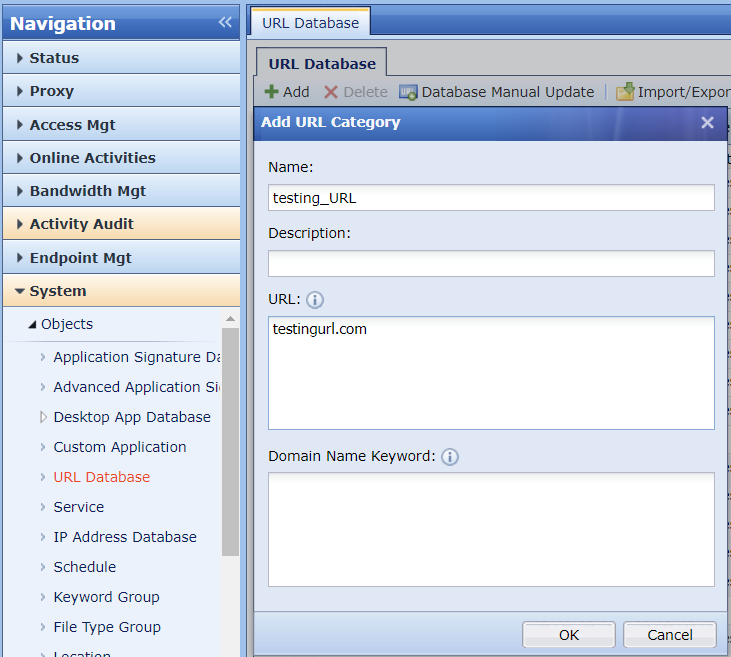
Navigate to System > Objects > URL Database to create a custom URL.
Note:
No need to add http:// in front of the URL.Can use the wildcard symbol (*) to create a custom URL. (Example: *.test.com).
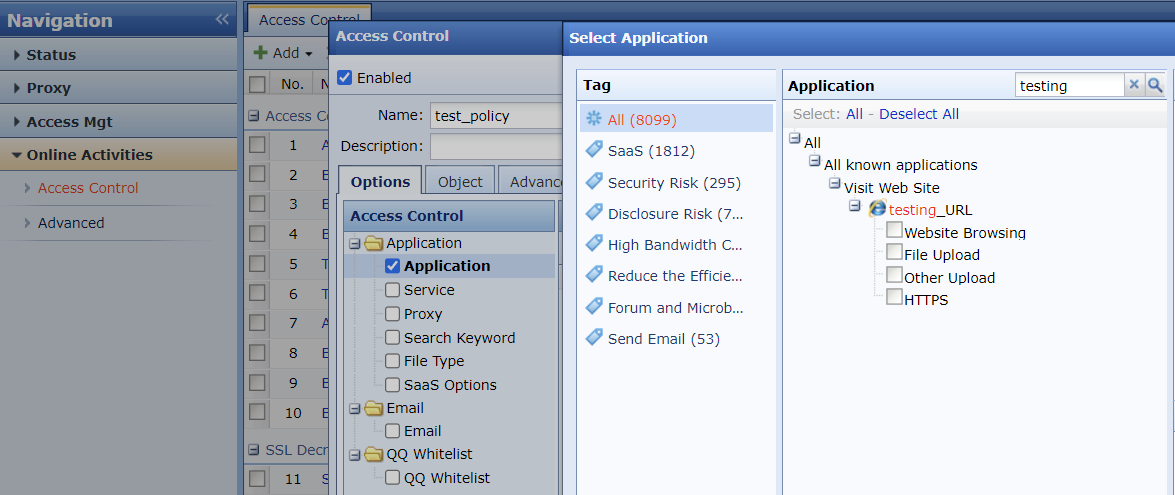
In Online Activities > Access Control > Add > Access Control, create an access control policy, select the custom URL, and set the Action to Allow or Reject.
Custom Application Configuration
The method of configuring the custom application in IAG is the same as the custom URL. However, there are some differences for the Custom Application, as shown below.
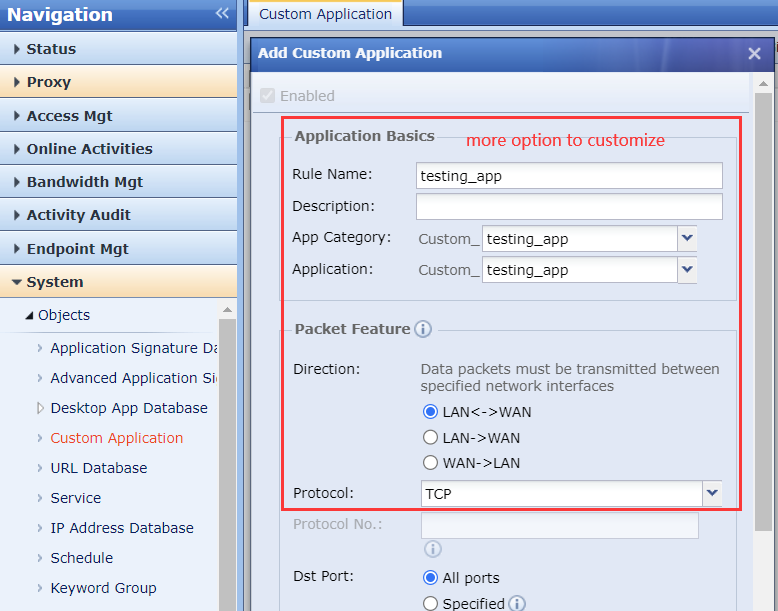
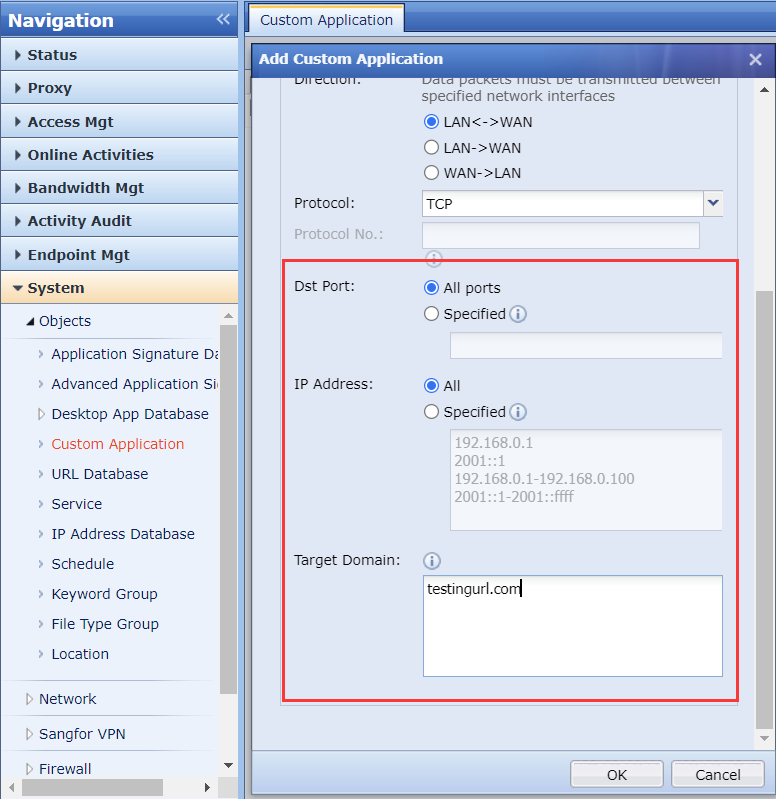
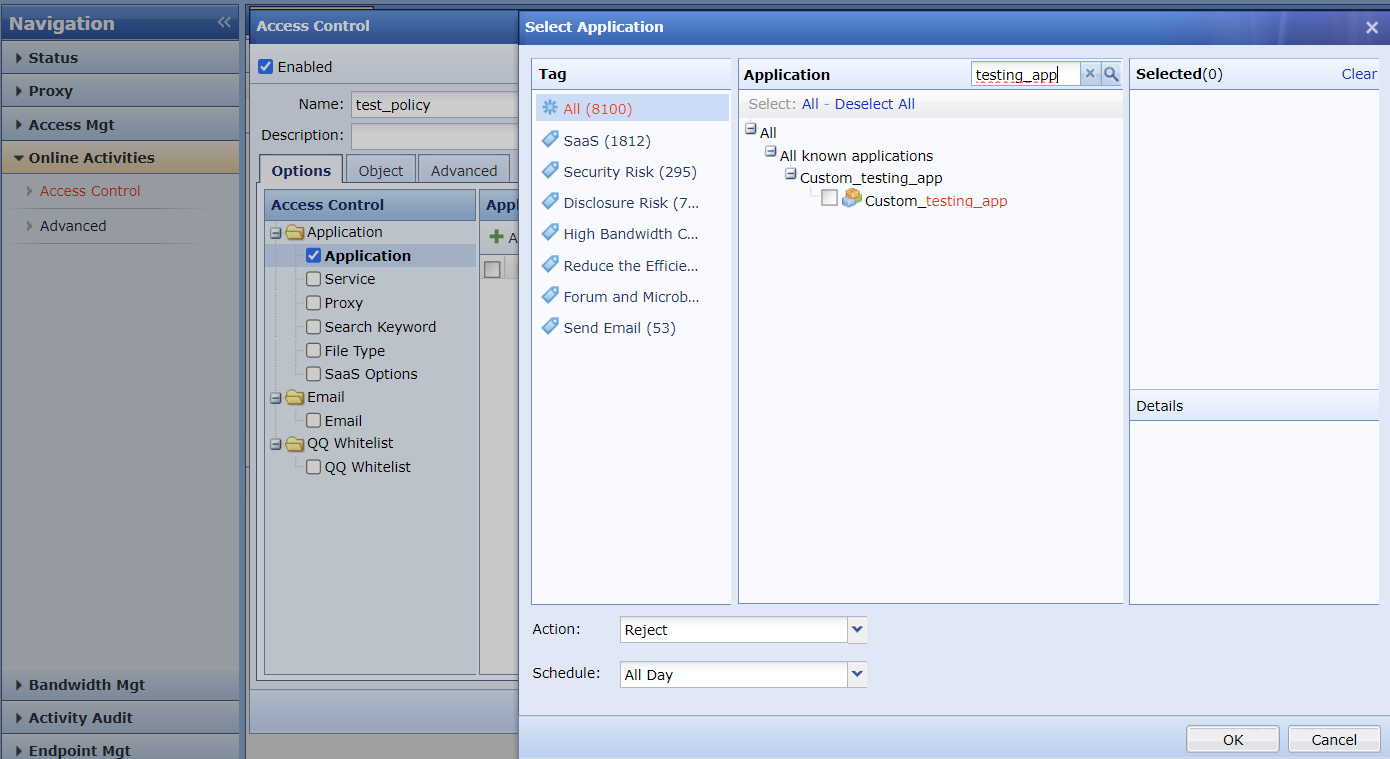
In Online Activities > Access Control > Add > Access Control, create an access control policy, select the custom application, and set the Action to Allow or Reject.
5 Precautions
- Ensure the LAN user does not configure a proxy service in the browser. Otherwise, the custom URL or application will not take effect.
- The custom application’s target IP address should be precise (network segment is not recommended) for example 192.200.1.123 instead of 192.200.1.1-192.200.1.200, otherwise the normal application will be misrecognized as a custom application.