
【IAG】Integrated Windows Authentication (IWA) Single Sign-On (SSO) Configuration Guide_V13.0.80
Scenario
The customer’s environment has an AD domain to manage internal users. The IT manager wishes to deploy a Sangfor Internet Access Gateway (IAG) in their network for user authentication. The manager wants to synchronize the IAG with their AD domain controller (Domain SSO), making the process transparent to internal users so that they do not need to re-enter the login details for IAG authentication. Below are some details of the customer’s requirements:
- The manager hopes to view online users with their usernames in the AD domain controller and audit all the network behaviors according to the usernames.
- The manager does not want to change their domain Group Policy Object (GPO) and therefore not allow domain SSO script mode (script mode requires adding logon.exe and logoff.exe to the domain) which does not comply with their company security policy.
Solution
IWA SSO Authentication
In this method, Sangfor IAG joins the customer’s Windows domain and acts as a resource in the domain. When a domain PC logs on to the domain and browses a website, the request is halted by IAG and redirected to IAG’s resource page. This action will trigger Kerberos authentication and IAG will obtain the ticket submitted by the domain PC, and then get the details for IWA SSO authentication. However, this process is transparent to users.
Test Environment
Topology
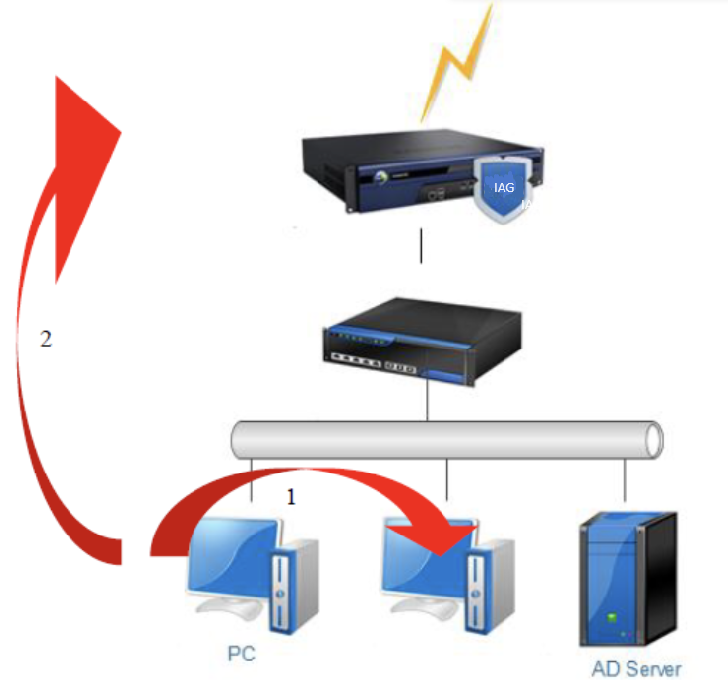
- A PC logs on to the domain.
- A user browses a website (The processes include domain PC redirecting to the Sangfor IAG resource, triggering Kerberos authentication, and performing domain SSO authentication. All processes are transparent to the end users).
Note:
If the server signing requirements setting is enabled on the AD domain, you need to select the Encrypt connection with AD domain server option in the IWA SSO configuration, otherwise, IWA SSO will be affected.
Configuration Steps
The configurations in IAG include 3 steps: add a new LDAP server, add a new authentication policy, and configure the IWA domain SSO, as shown below:
Add New LDAP Server
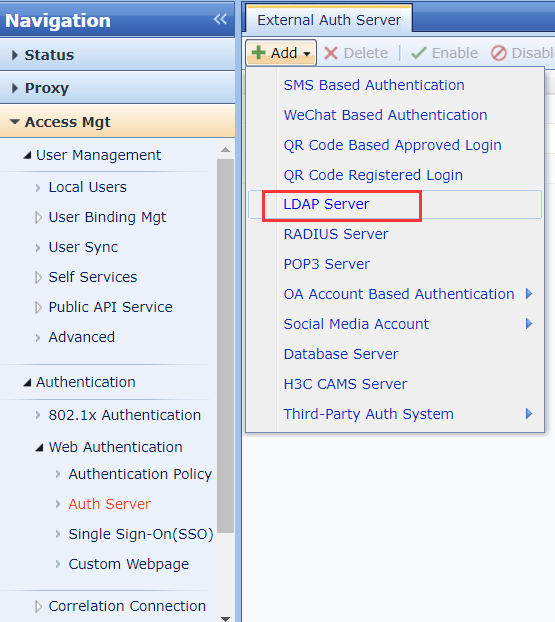
- Log in to the IAG web console. Navigate to Access Mgt > Authentication > Web Authentication > Auth Server, and click Add > LDAP Server to add a new LDAP server.
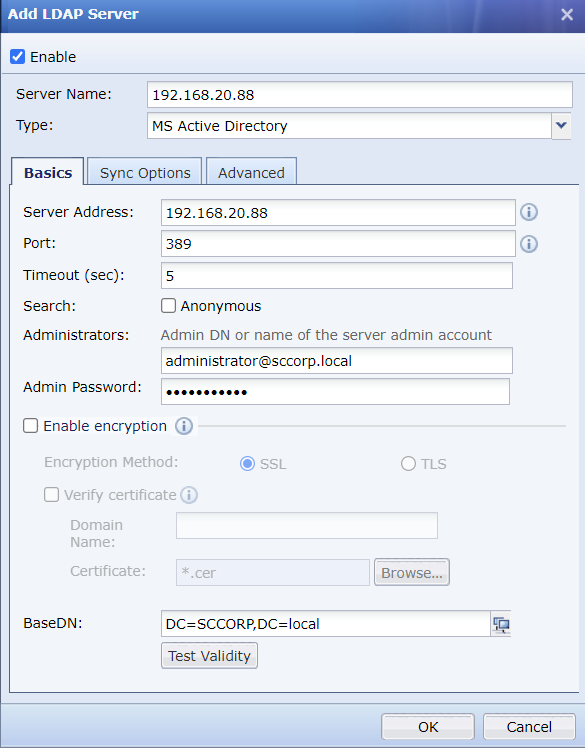
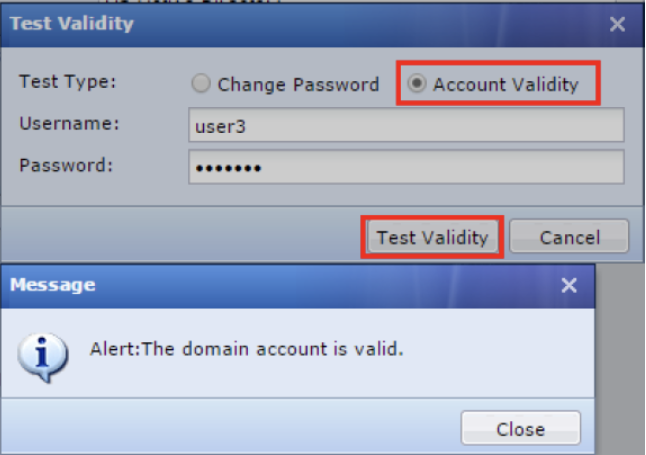
- In the Add LDAP Server dialog box, you can click the Test Validity button on the Basics tab to test domain account validity and change the domain account password.
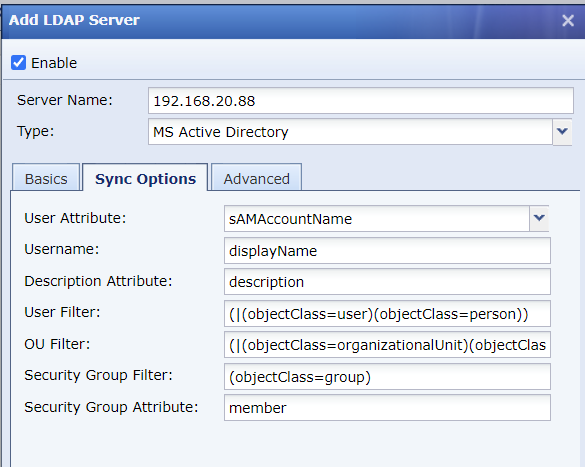
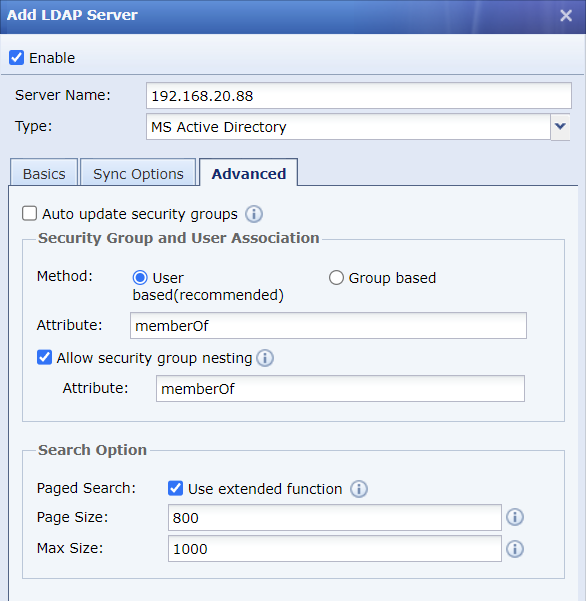
- The AD domain and subdomain only involve configurations in the Basics tab, while keeping the configurations in the Sync Options and Advanced tabs to default settings. If other domains cannot grab domain OUs by using default settings, you can modify the Sync Options settings to solve the issue. The tabs are shown in the figures below:
- If the customer’s environment is an independent domain, you need to set the authentication port number to 389 when adding the LDAP server. Otherwise, if the domain contains child domains, such as ssl.sangfor.com or iam.sangfor.com for the root domain sangfor.com, it is required to set the port number to 3268, and the IP address to the root domain IP.
- After configuring the domain server, the domain OUs will automatically synchronize to the IAG local database every 60 minutes. If the domain users or OUs have been modified and the changes need to be applied to IAG immediately, click Sync with all LDAP servers, as shown in the figure below

- If the server signing requirements and LDAPS server certificate installation services are not enabled on the AD domain, there is no need to configure Enable encryption in IAG.
Enable encryption:
In September 2019, Microsoft announced in the security bulletin ADV190023 | Microsoft Guidance for Enabling LDAP Channel Binding and LDAP Signing that LDAP channel binding and LDAP signing will be enabled on the Active Directory server through the security update method (KB patch) in mid-January 2020. The security of Active Directory domain controllers can be significantly improved by configuring the server to reject Simple Authentication and Security Layer (SASL) LDAP binds that do not request signing (integrity verification) or to reject LDAP simple binds that are performed on a clear text (non-SSL/TLS-encrypted) connection. SASLs may include protocols such as the Negotiate, Kerberos, NTLM, and Digest protocols. Sangfor IAG supports encryption docking to fulfill the security requirements.
Official configuration guide by Microsoft:
https://support.microsoft.com/en-us/help/935834/how-to-enable-ldap-signing-in-windows-server
Encryption Method: If the AD domain server is configured with the server signing requirements option, it is recommended to choose TLS as the encryption method (Microsoft supports SSL and TLS. After the AD domain enables the signature option, IAG can only connect to AD through encryption. In particular, Windows 2000/2003/2008 does not support TLS encryption, only SSL encryption can be used).
-
When encryption docking is not enabled, the default port is 389.
-
If encryption docking is enabled, set the authentication port to 636 when the encryption method is SSL.
-
If encryption docking is enabled, set the authentication port to 389 when the encryption method is TLS.
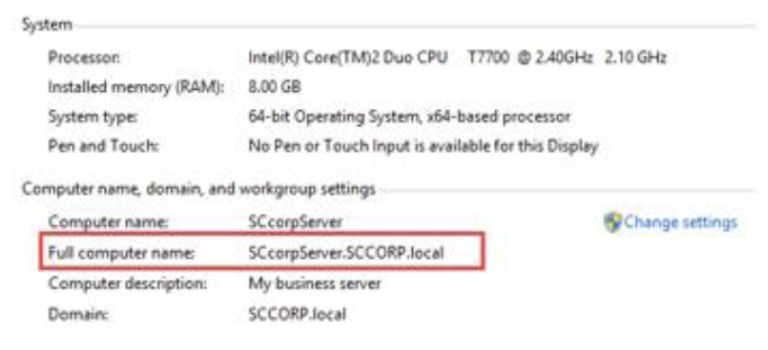
Verify certificate: If the AD domain server is configured with the server signing requirements option, you need to configure this section. Enter the full computer name of the AD domain server in the Domain Name field and import the certificate.
Add New Authentication Policy
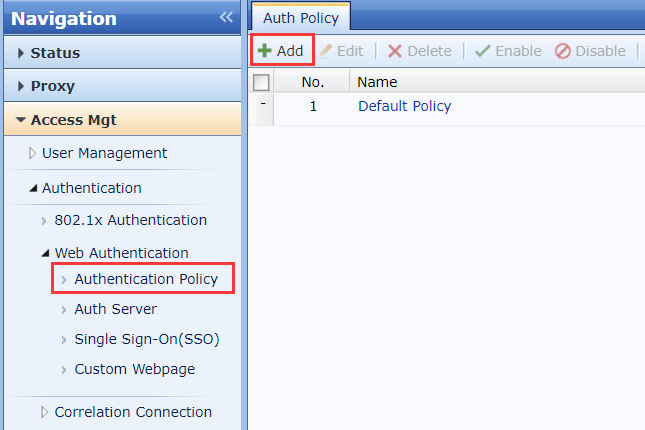
- On the IAG web console, navigate to Access Mgt > Authentication > Web Authentication > Authentication Policy. Click Add to enter the Auth Policy dialog box.
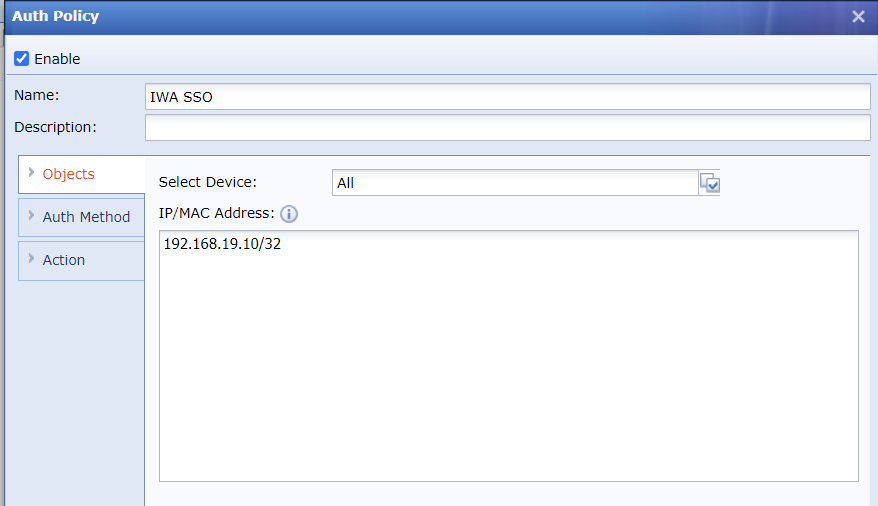
- On the Objects tab, enter the IP address that requires authentication in the IP/MAC Address field.
- On the Auth Method tab, select Single sign-on (SSO) for Auth Method.
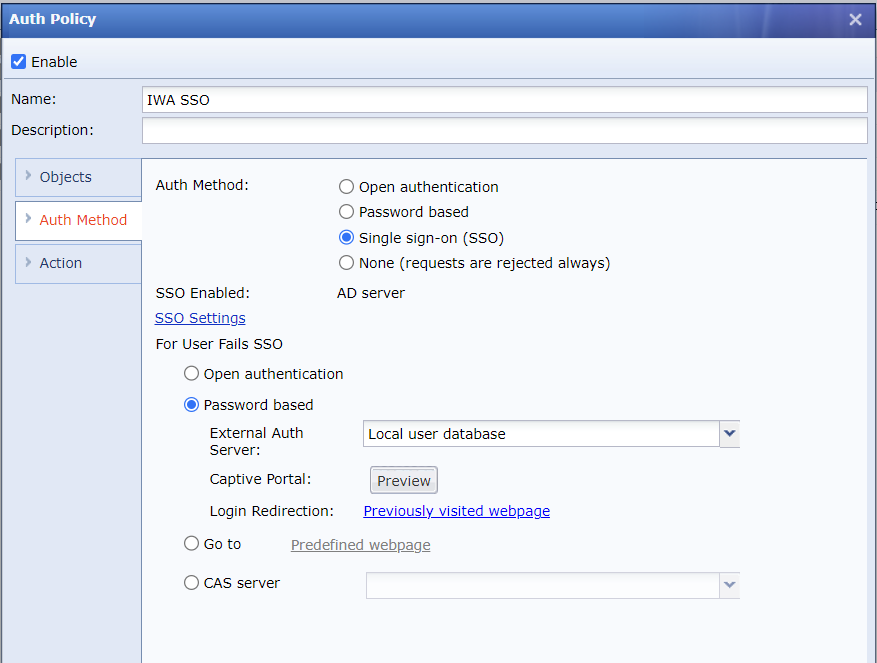
There are four handling methods for users who fail SSO authentication. In the For User Fails SSO section, you can select Open authentication, Password based, Go to, or CAS server. These methods can be configured based on user requirements.
If the admin allows internet access for SSO authentication failed users, select Open authentication to prevent re-authenticating again.
If the requirement is to log activities for all authenticated users based on their usernames in the domain, select the Password based method to meet this requirement.
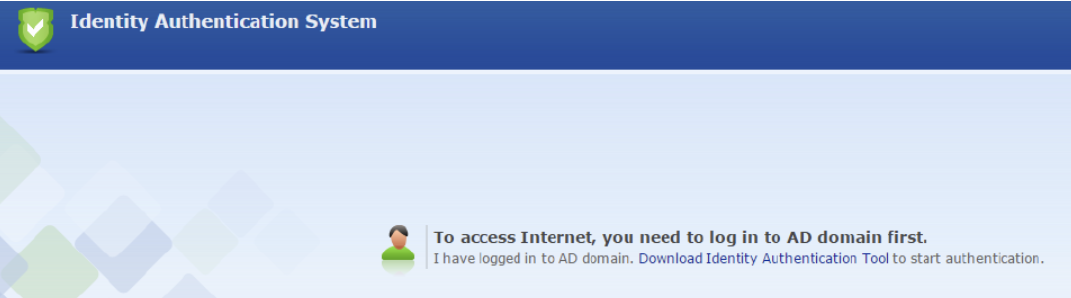
If the requirement is to log internet activities, you can also select the Go to option and click Predefined webpage. Domain users who fail in SSO authentication will be redirected to a custom web page as shown below to download the Identity Authentication Tool and execute it for authentication purposes.
Configure the IWA SSO
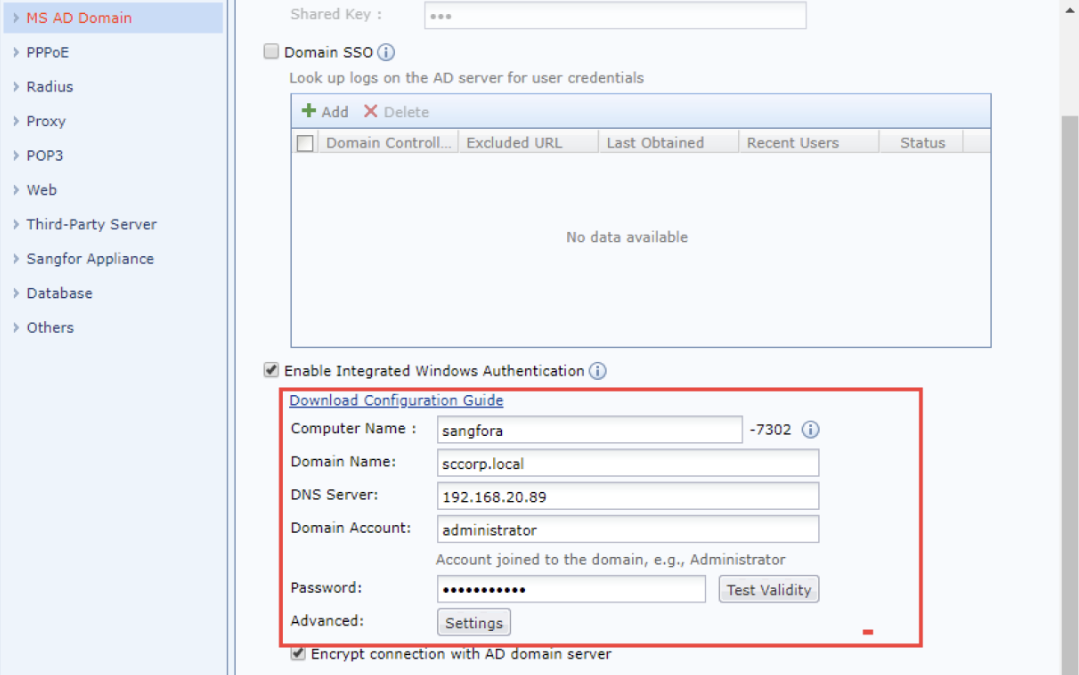
The domain account used for IAG to join the domain must have the privilege to add workstations to the domain, such as an administrator user account, as shown in the following figure:
Note:
When the server signing requirements setting is not enabled on the AD domain, it is unnecessary to check the Encrypt connection with AD domain server checkbox.
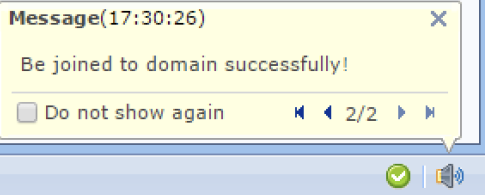
After clicking the OK button, the message below appears, indicating that you have successfully joined the domain:
Note:
The domain account configured in the IAG IWA SSO must have the privilege to add workstations to the domain. It is recommended to use the administrator account to avoid any domain account privilege issues.
IWA SSO authentication requires HTTP redirection (this process is transparent to users).
Navigate to Access Mgt > Authentication > Web Authentication > Single Sign-On(SSO) > MS AD Domain. Click the Settings button in the Advanced field to configure the advanced settings for the IWA SSO, as shown in the figure below:
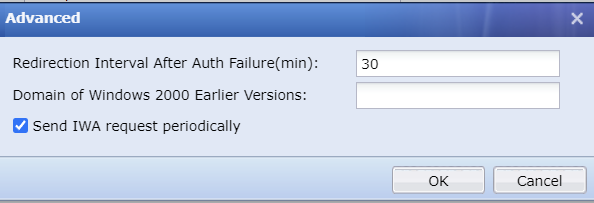
Redirection Interval After Auth Failure(min): By default, it is set to 30 minutes. If the SSO failure handling method is set to Open authentication, it is recommended to change the value to 5 minutes. Otherwise, keep the default settings.
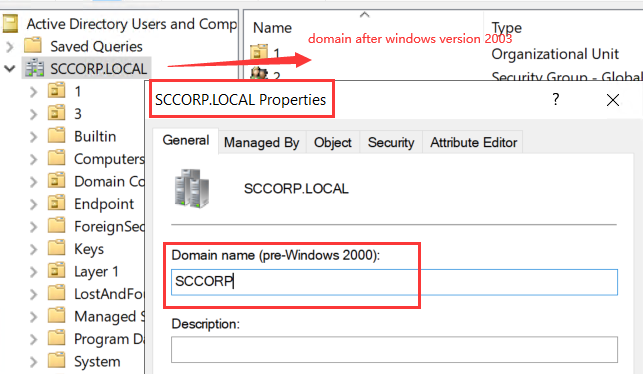
Domain of Windows 2000 Earlier Versions: To be compatible with Windows 2000 domains, a Windows 2000 domain name must be defined. If the domain name of Windows 2003 and later versions is different from the Windows 2000 domain name setting, it is necessary to define it in the Domain of Windows 2000 Earlier Versions parameter.
As shown in the figure below, the domain name for Windows 2003 and later versions is SCCORP.LOCAL, while the domain name for Windows 2000 is SCCORP. The prefixes are the same, so there is no need to fill in the Domain of Windows 2000 Earlier Versions parameter. If the domain name for Windows 2000 is not SCCORP, such as SANGFOR, you need to enter SANGFOR in the parameter.
Verify the Result
- When a user logs on to the domain with IWA SSO in IAG, browsing the website will not require the user to perform authentication again. The user details can be viewed on the Status > Users > Online Users list and it is indicated as SSO in the Auth Method column, as shown in the figure below:

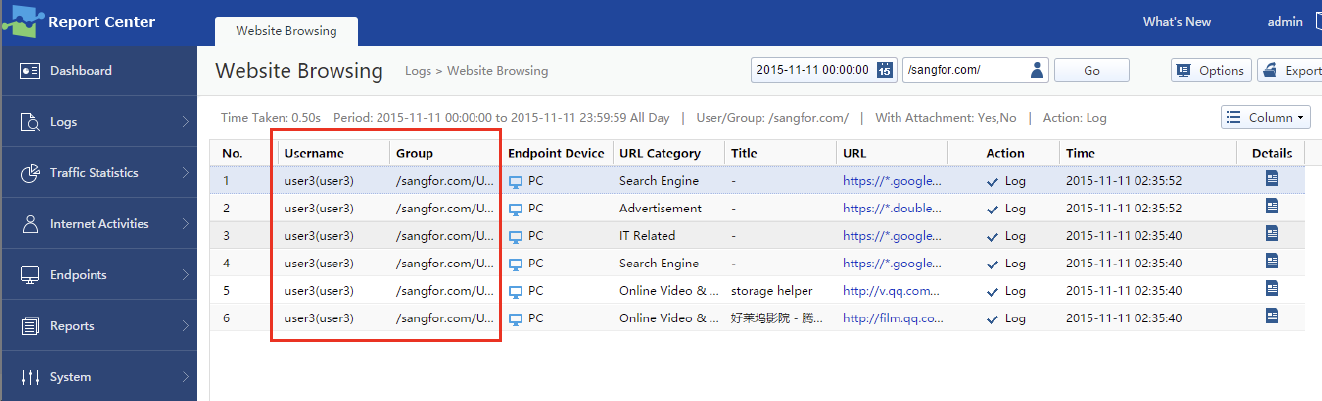
- After the PC is connected online via the SSO method, user activities under their domain usernames are recorded in the logs on the Business Intelligence > Report Center > Logs > Website Browsing page.
Precautions
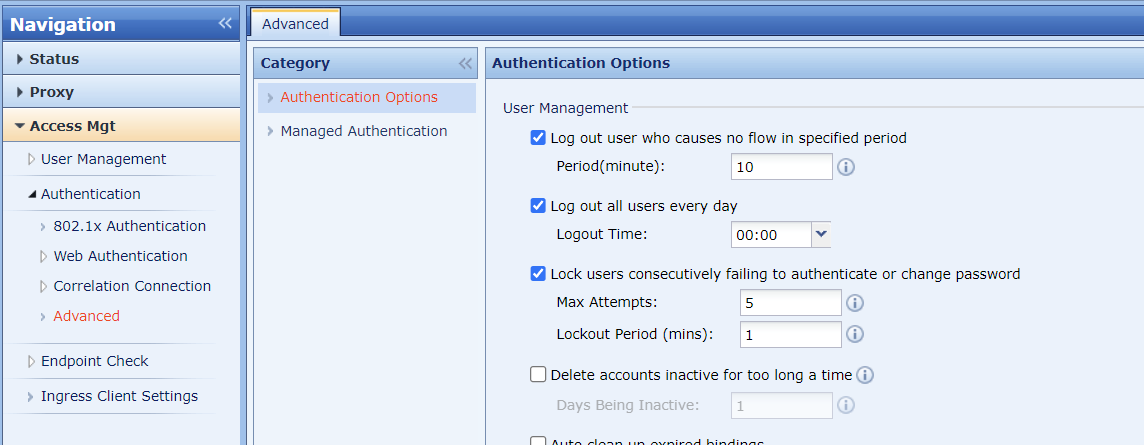
- IWA SSO authentication does not support online user logout in IAG when domain users log off from their PCs. However, we can use the logout options on the Access Mgt > Authentication > Advanced > Authentication Options page to log out those users.
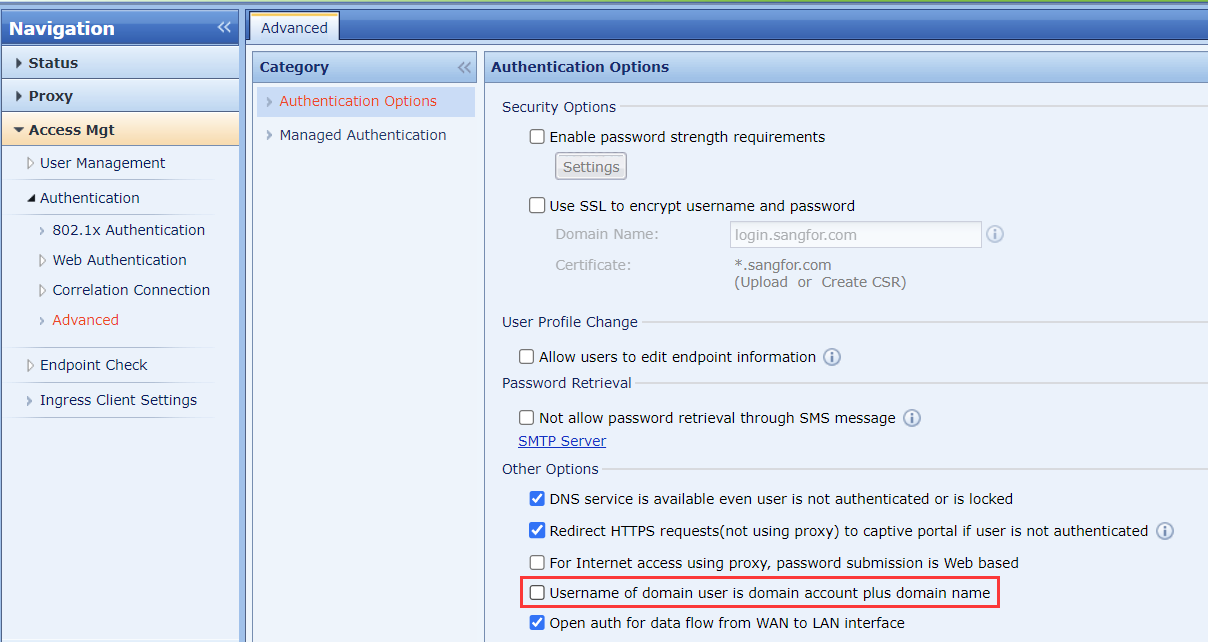
- If the customer has multiple independent domains and all domains are in sync with IAG, to identify users having the same usernames in different domains, select Username of domain user is domain account plus domain name in the Other Options section. After enabling the function, IAG will automatically add @domain name to the Online Users list, such as support@sangfor.com, as shown in the following figure:

-
For SSO authentication, the endpoint device must generate traffic and flow through IAG, and then the user details (username, IP address) will appear on the Online Users list. IAG’s backend process performs checking every 10 minutes. If there is no traffic detected, the user will not be added to the Online Users list.
-
If the AD server is located at the WAN zone of IAG, and the domain PC cannot log on to the domain as usual, then the IP address of the domain server needs to be added to System > General > Global Exclusion in IAG due to the PC traffic cannot pass through IAG before authentication.
-
In IWA SSO authentication, after IAG joins the domain, ensure that the domain PC can telnet the IAG PC name with port 80.
-
When a PC logs in to the domain and opens an HTTP webpage (HTTPS webpages are not supported), the traffic will be intercepted by IAG. It will then be redirected to the PC and required to access the resources provided by IAG. At this time, Kerberos authentication is triggered, and IAG obtains the ticket submitted by the PC, thereby realizing IWA SSO.