
[IAG] DingTalk client cannot use file sending and receiving, new schedule, mailbox, video conferencing functions
Problem Description
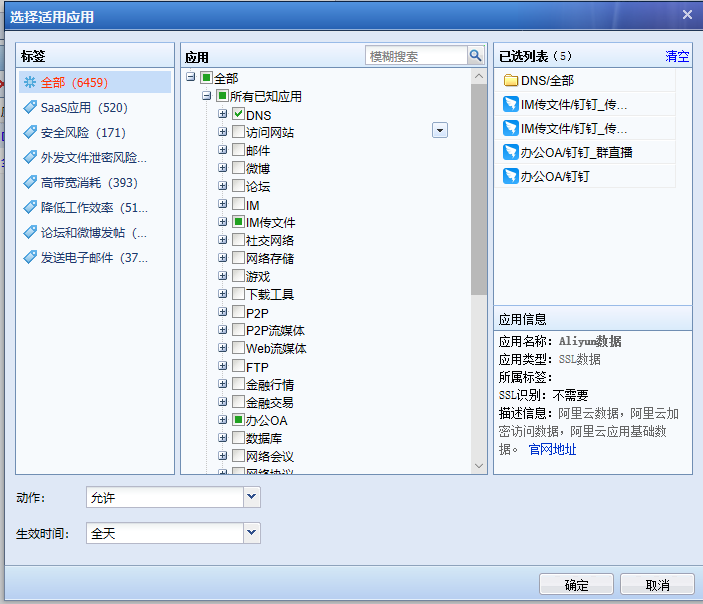
After deploying the IAG bridge or router, configuring the application control policy, and selecting all DNS policies and DingTalk-related applications, it was found that intranet users could not use the file sending and receiving, new schedule, mailbox, and video conferencing functions;
Picture 12.png (64.73 KB)
Process——
Install procexp.exe on the PC to detect the TCP/IP connection when the DingTalk client uses each function, so as to determine which application is matched;
1.Receive and send files
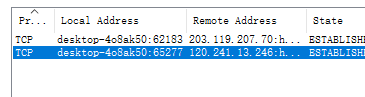
When using the DingTalk client to send files to the other party, it is found that the file cannot be sent normally. Open procexp and double-click DingTalk.exe to view the TCP/IP link established between the program and the remote end. After selecting the file and clicking Send, a new TCP/IP link is established with 120.241.13.246.
Picture 1.png (5.26 KB)

Picture 2.png (25.24 KB)
Picture 3.png (36.26 KB)
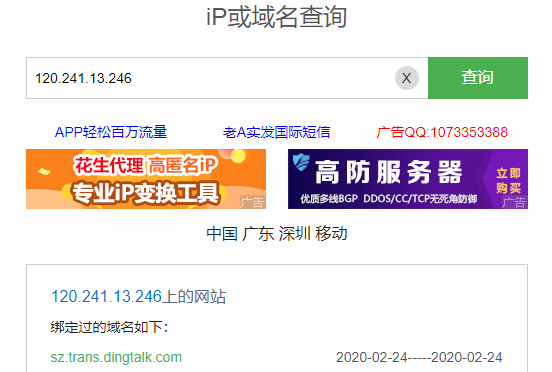
Image4.png (54.5 KB)
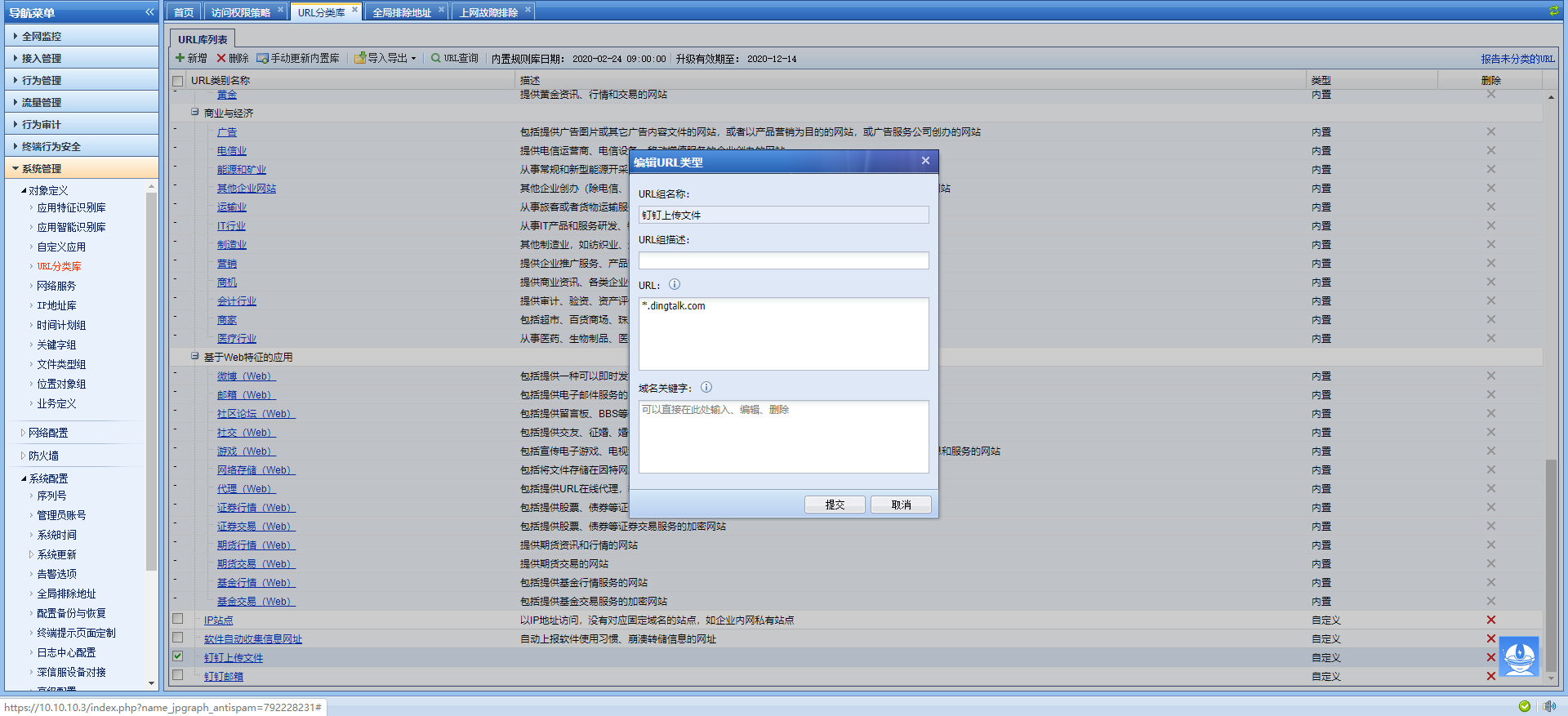
Image5.png (175.15 KB)
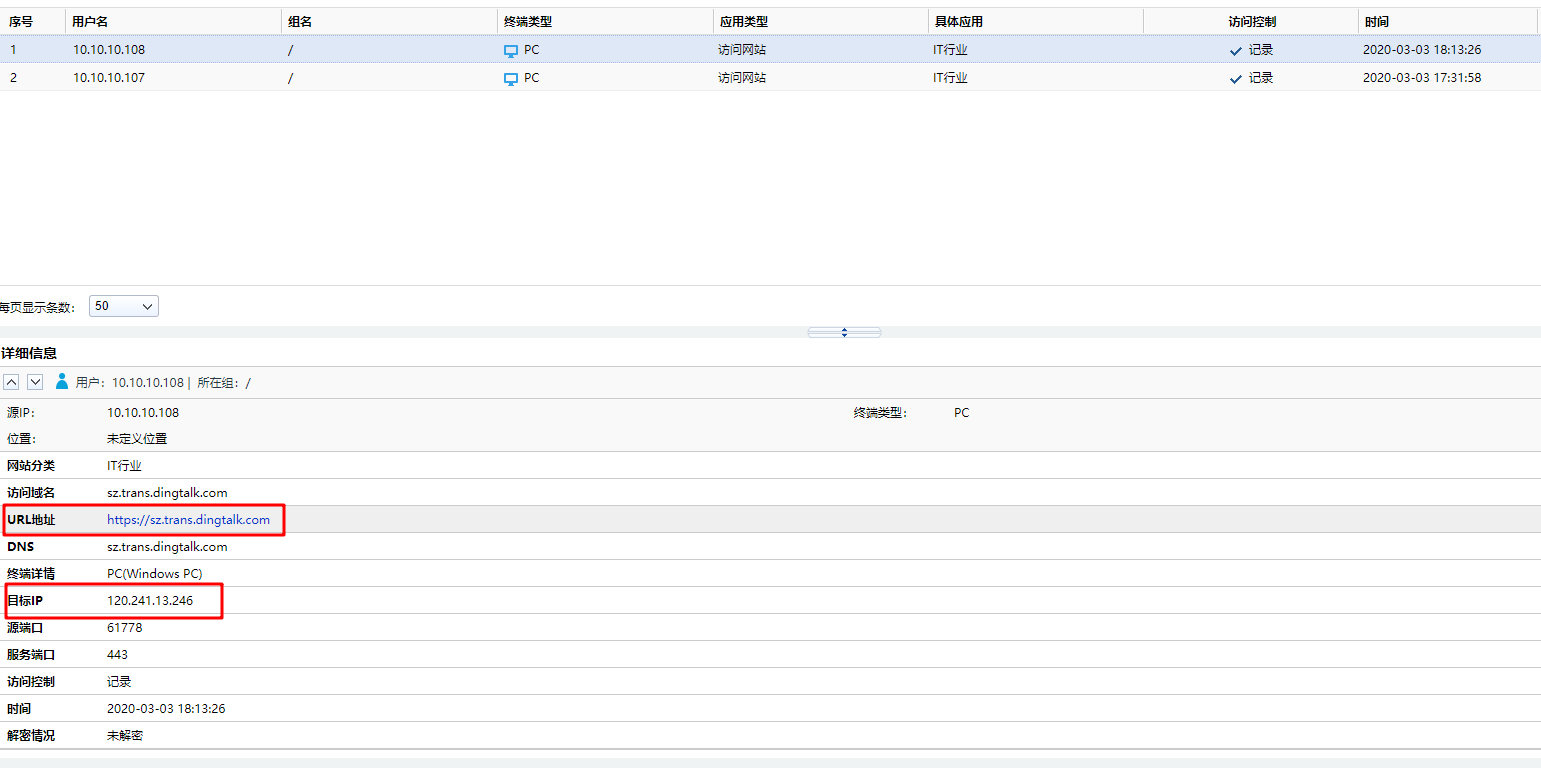
At this time, turn on the direct connection of IAG and click Send again. Check the direct connection log and find that the URL filtering packet is matched. By checking the log center or Baidu, the domain name of the address is found to be https://sz.trans.dingtalk.com.
It can be determined that when the DingTalk client sends and receives files, it connects to the file server through the http protocol. At this time, you need to use a policy to allow access to the website. You can use this domain name as an automatically created URL library rule and allow the operation.
2. Create a new schedule and a new task
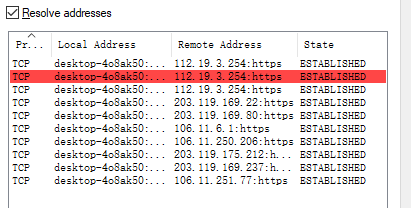
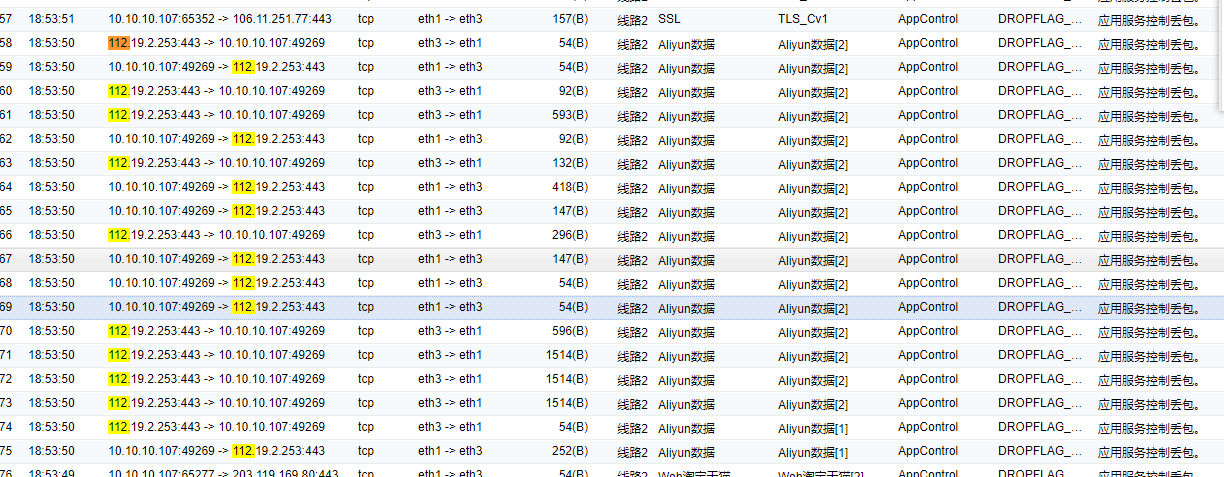
Similarly, new schedules and new tasks cannot be used on the DingTalk client. When the DingTalk client uses these two functions through procsxp, two new links are created: 112.19.3.254 and 112.19.3.253. After the IAG turns on direct passthrough, it is found that these two IPs are matched as Aliyun data. At this time, the function can be used by allowing Aliyun data to pass through.
Picture 6.png (10.45 KB)
Picture 7.png (119.96 KB)
3.Email
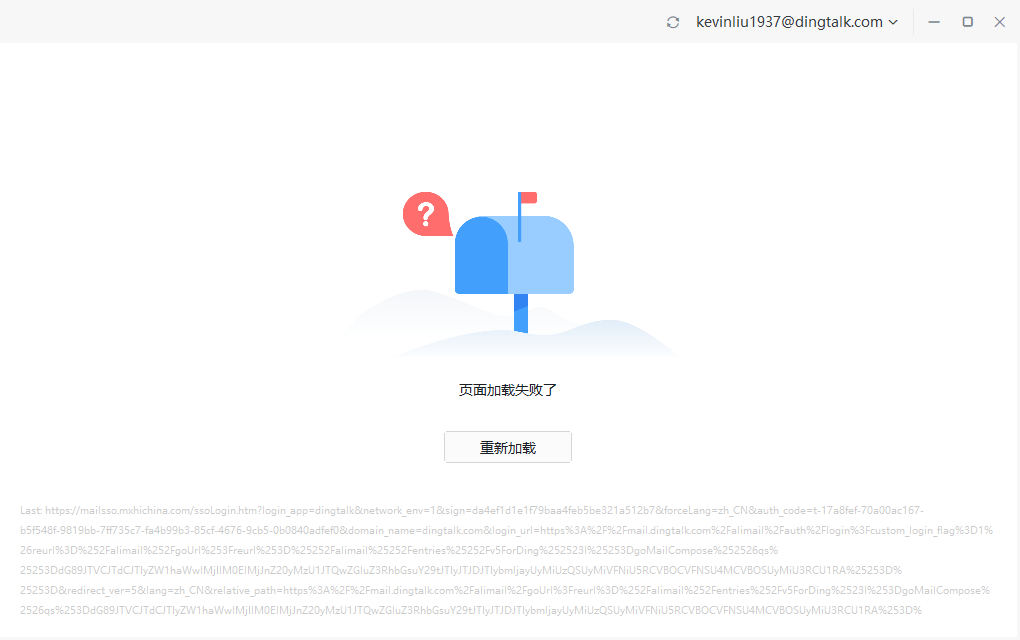
When using the mailbox, there will be obvious errors. When trying to access mailsso.mxhichina.com, it will be blocked by IAG. In the same case, do not directly open all web sites, but create a new URL rule to only open this domain name.
Picture 8.png (33.45 KB)
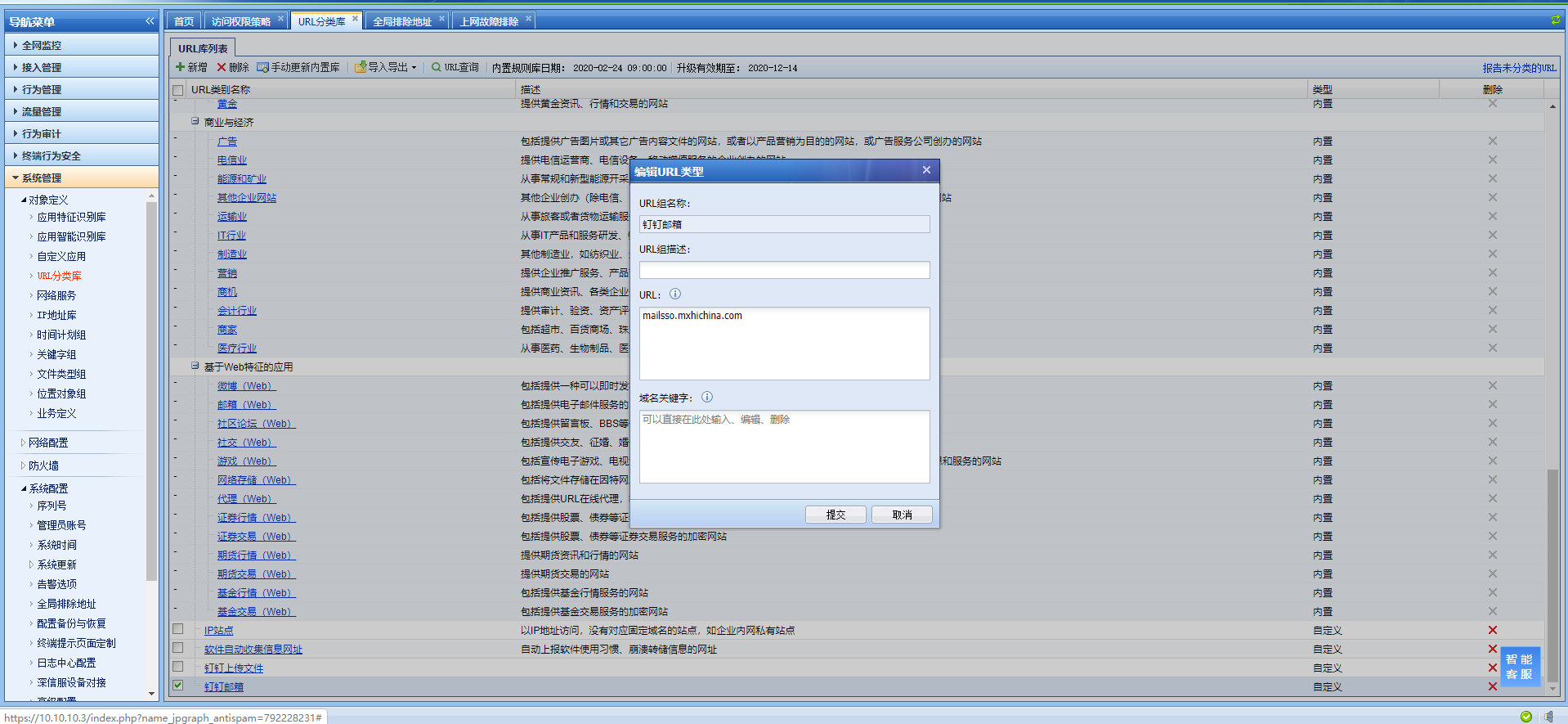
Picture 9.png (176.26 KB)
4. Video Conferencing
When conducting video conferences or voice calls with other users, you can directly use the direct pass rule. After enabling it, you will find that it mainly matches the WebRTC and SSL policies. At this time, you need to directly enable these two applications of IAG.
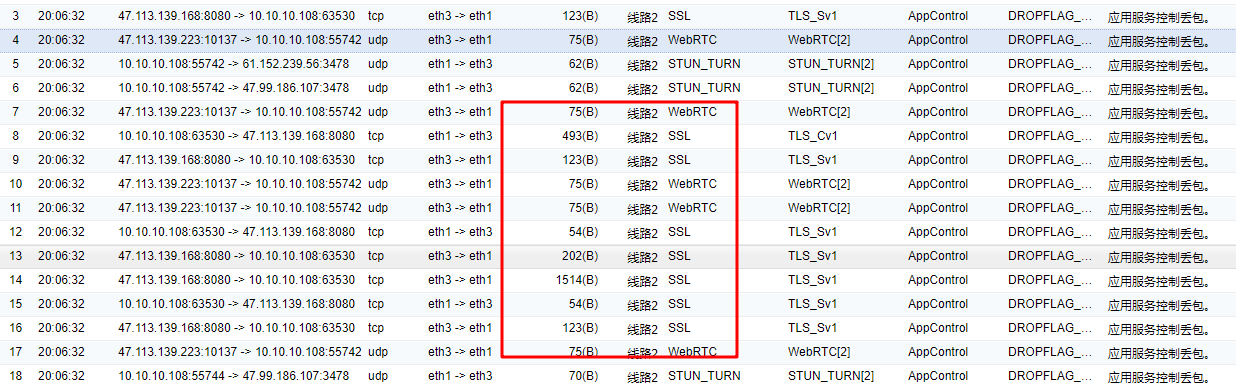
Picture10.png (87.94 KB)
Root cause
Device policy configuration is not complete
solution
Currently, the DingTalk client functions include: remote conference/live broadcast, sending/receiving files, creating new schedules/tasks, mailboxes, etc. That is, the following applications need to be allowed in the IAG application control policy (accessing websites/DingTalk uploads and accessing websites/DingTalk mailboxes are manually created URL rules)
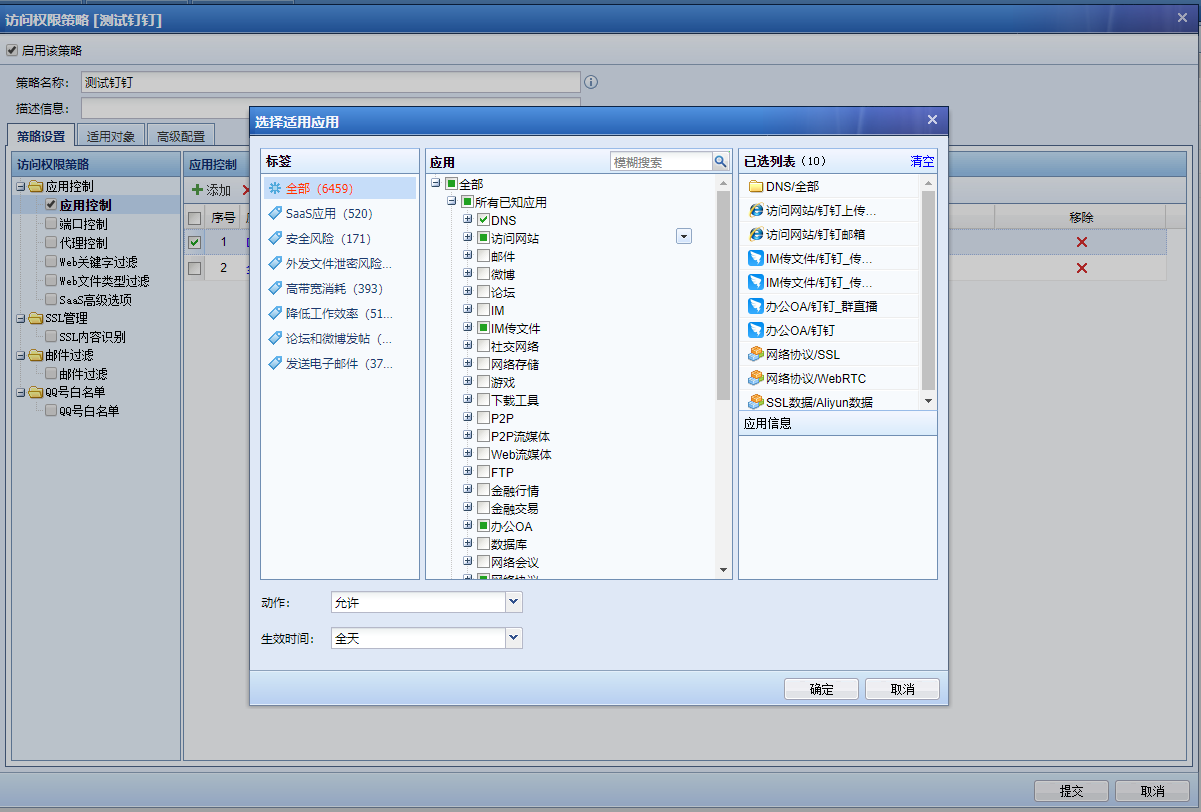
Picture 11.png (105.01 KB)
Suggestions and Conclusion
If you encounter an inaccessible problem, you need to open a direct connection in time, or use process monitoring software to check which application is matched.
Original Link
https://support.sangfor.com.cn/cases/list?product_id=22&type=1&category_id=7290&isOpen=true