
【NGAF】Firmware Upgrade Guide_V8.0.47
Firmware Upgrade
NGAF devices with outdated firmware versions may fail to meet the functional requirements. Thus, it is necessary to update the firmware version.
Upgrade Impacts
-
It is important to schedule a downtime beforehand, as the NGAF device will restart automatically after the upgrade.
-
The upgrade process may take about 30 minutes under normal conditions (at least 40% of the total CPU and memory are available, and the network is connected).
Rollback Instructions
Rollback is not supported.
If any issues occur after the upgrade, please contact Sangfor Technical Support at +60 12 711 7129 (7511) or your local technical support team for help.
Requirements
-
NGAF device with old firmware version
-
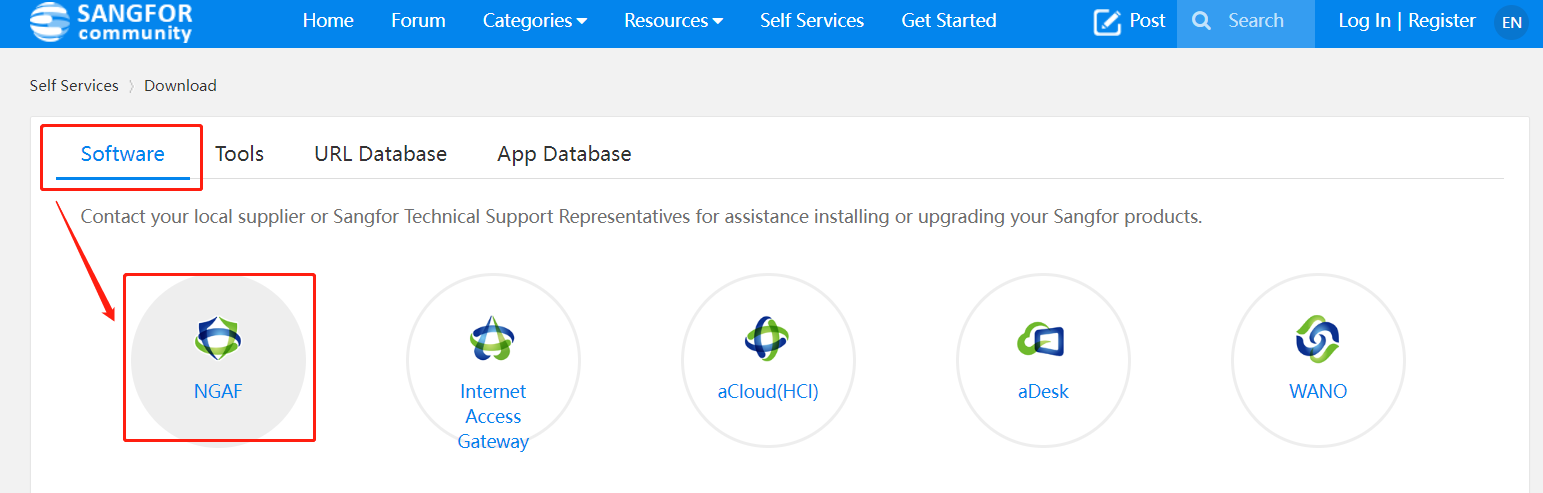
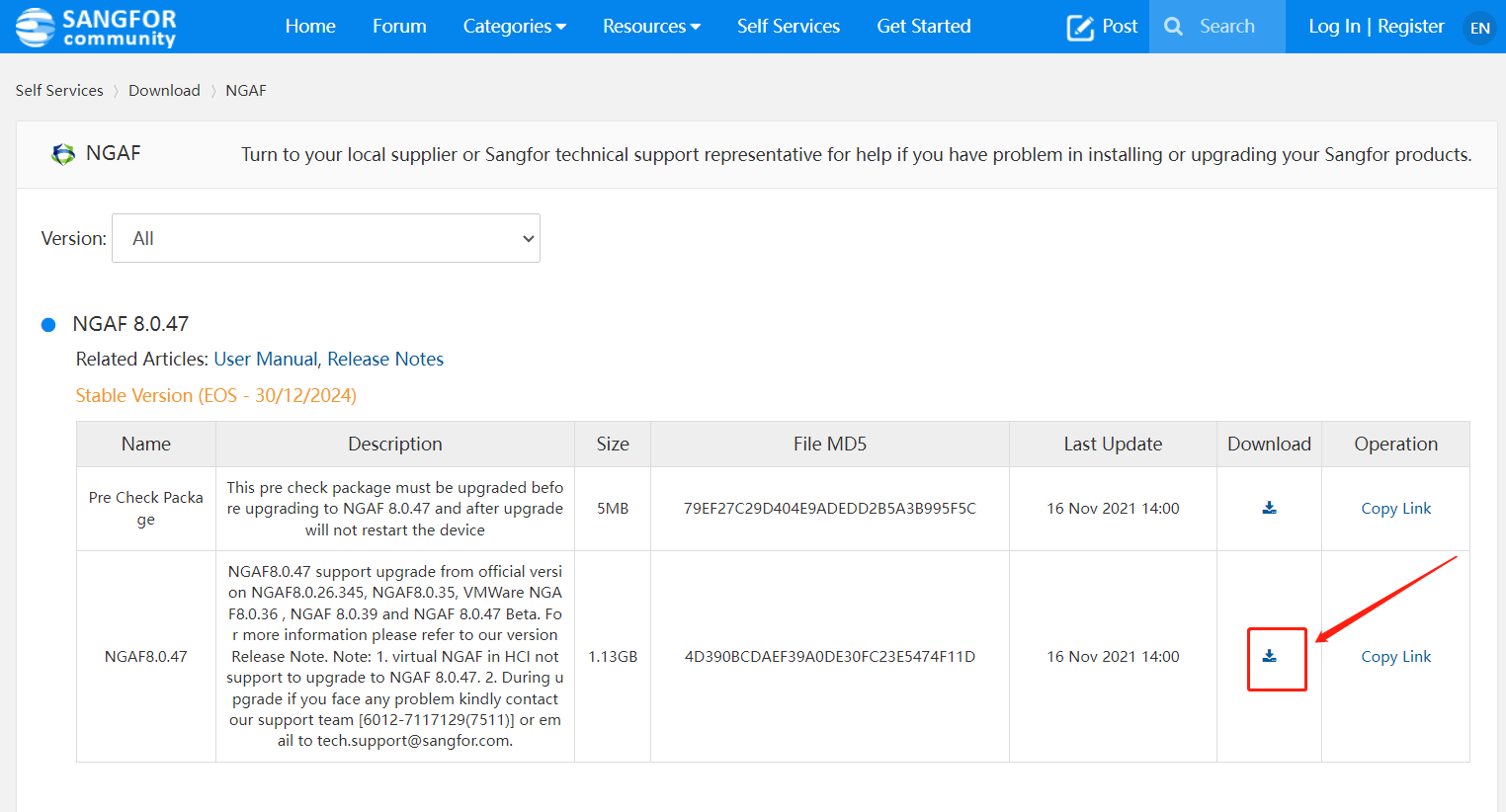
NGAF firmware upgrade package (.ssu)
Download link: https://community.sangfor.com/plugin.php?id=service:download
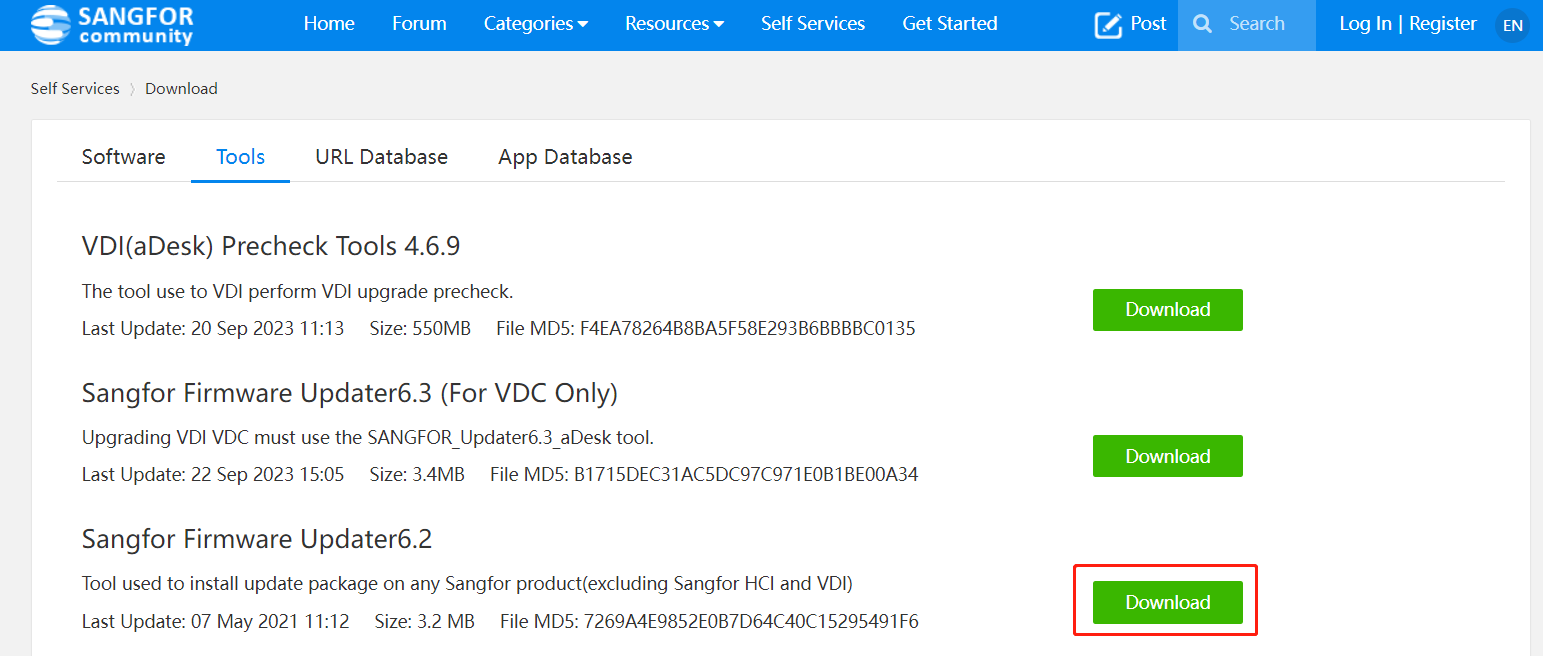
- Sangfor Firmware Updater Tool
Download link: https://community.sangfor.com/plugin.php?id=service:download&action=tool
Firmware Upgrade Procedures
Pre-Upgrade Check
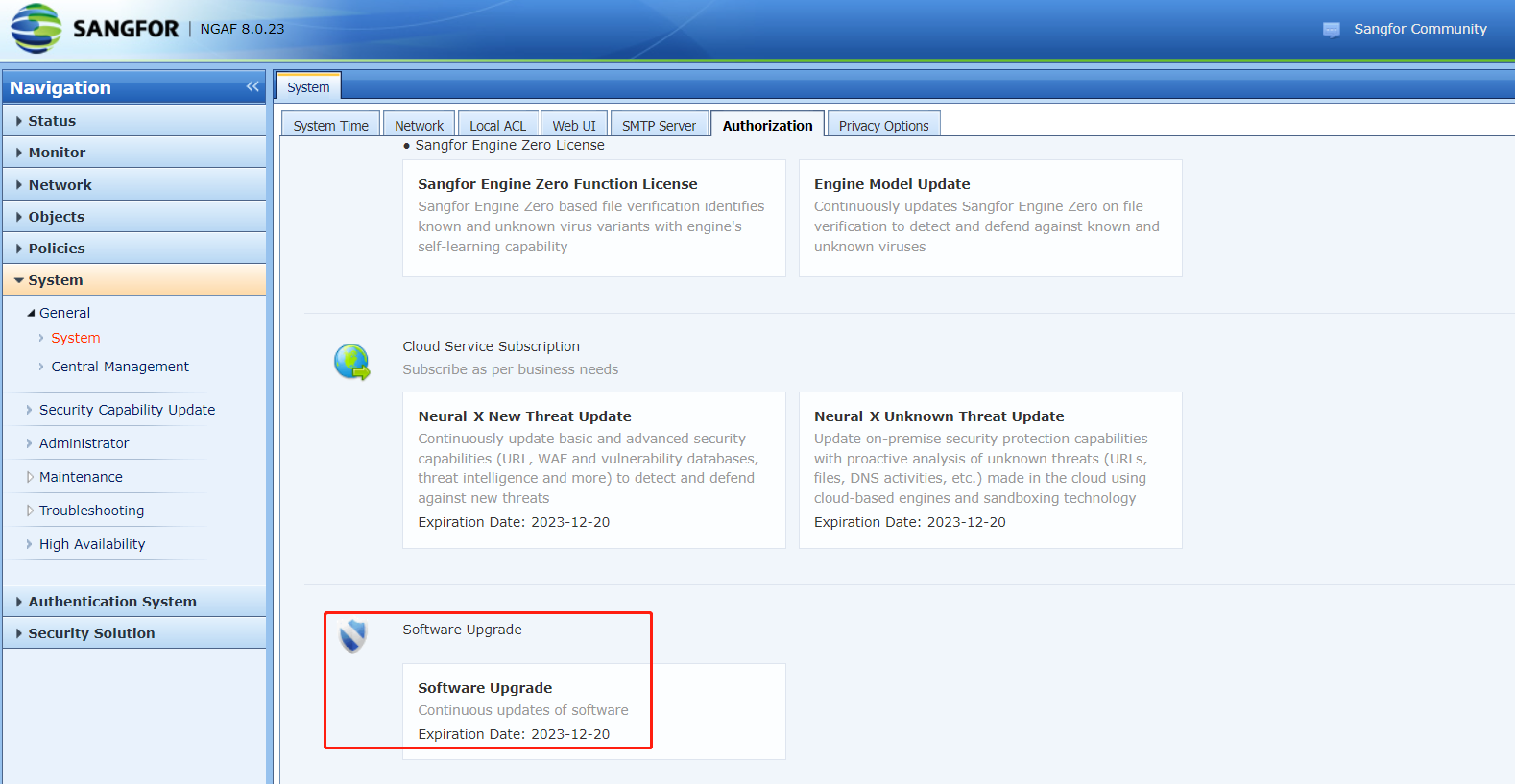
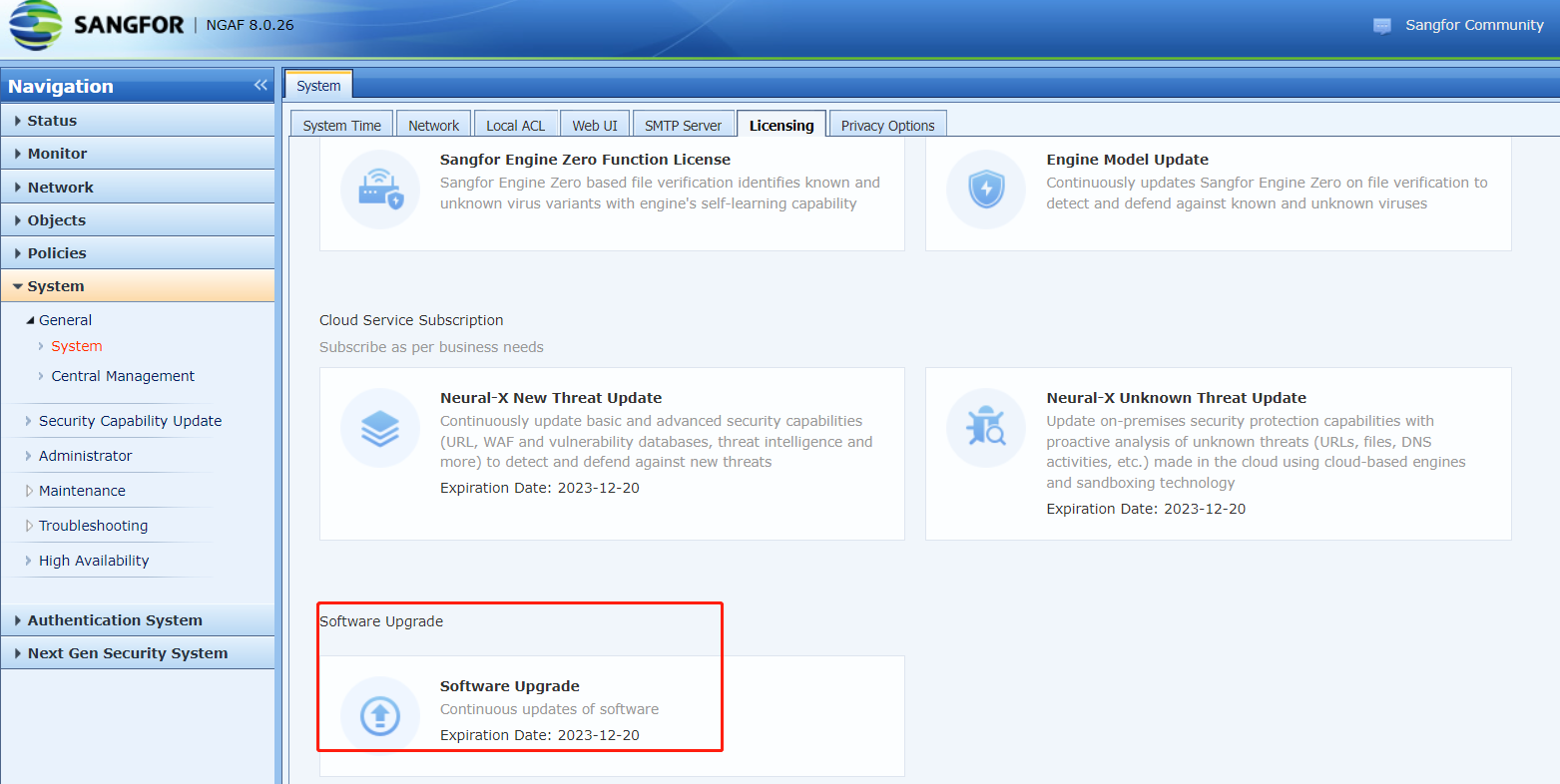
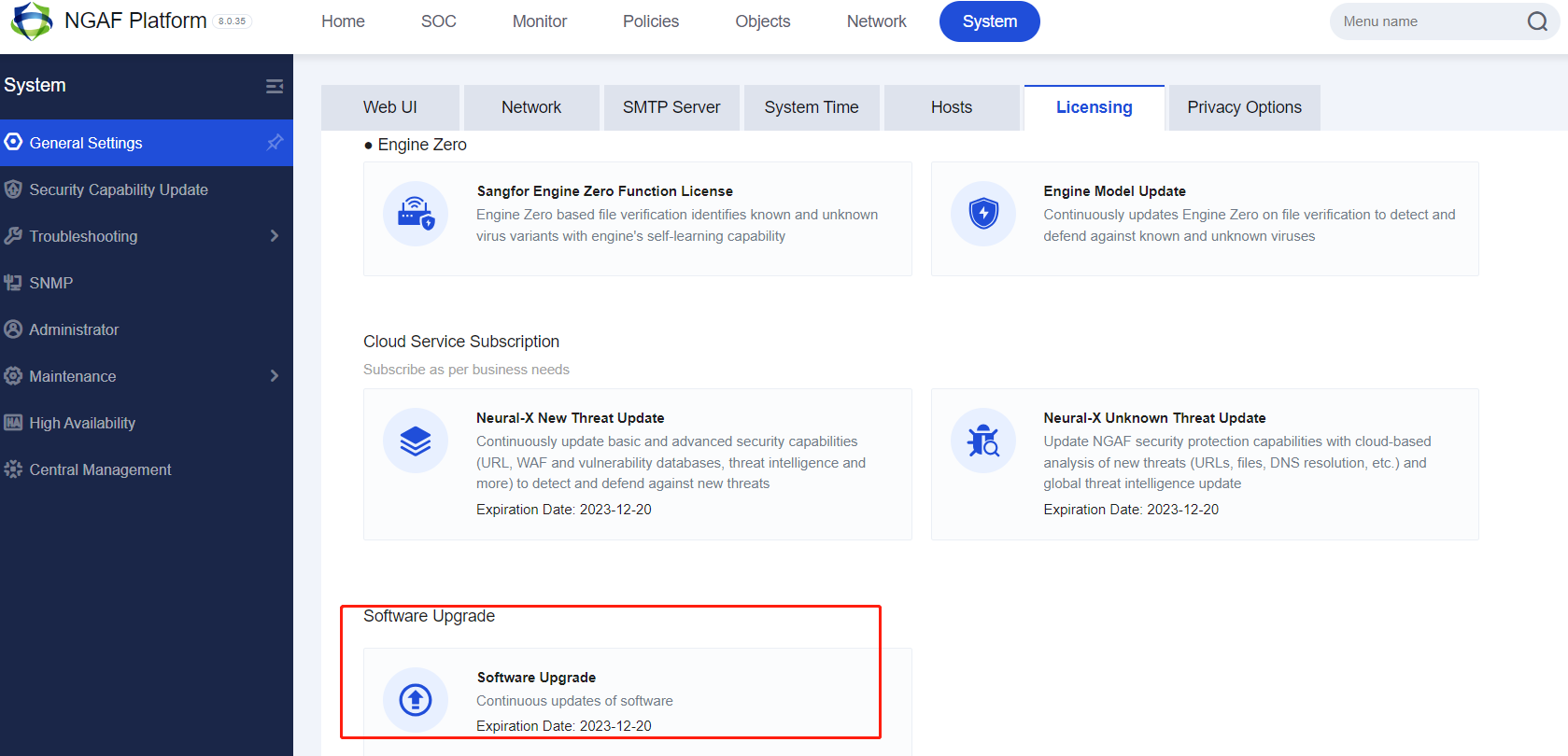
Step 1. Verify the validity of the software upgrade license for the NGAF device.
- For version 8.0.23 and below, under System > General > System > Authorization.
- For version 8.0.26, under System > General > System > Licensing.
- For version 8.0.35 and above, under System > General Settings > Licensing.
Step 2. Verify whether the current NGAF firmware version is eligible for an upgrade. Upgrading from a custom version is not supported. Refer to the NGAF firmware upgrade path below.
| Current Version | Upgrade Path | Notes |
|---|---|---|
| Version earlier than NGAF 8.0.26 | Current Version > NGAF 8.0.26 > NGAF 8.0.47 | Earlier versions must be upgraded to NGAF 8.0.26 first before upgrading to NGAF 8.0.47 |
| NGAF 8.0.26 | NGAF 8.0.26 > NGAF 8.0.47 | |
| NGAF 8.0.35 | NGAF 8.0.35 > NGAF 8.0.47 | |
| NGAF 8.0.36 | NGAF 8.0.36 > NGAF 8.0.47 | |
| NGAF 8.0.39 | NGAF 8.0.39 > NGAF 8.0.47 |
Step 3. If the device has a KB package installed, please consult Sangfor Support to confirm whether the device can be directly upgraded and whether the issues with the developed package have been resolved.
Upgrade Steps
Upgrade Standalone Device
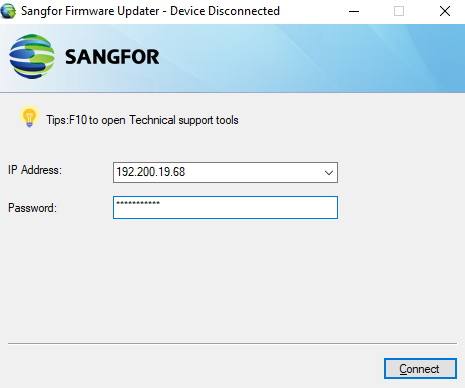
Step 1. Open Sangfor Firmware Updater. Enter the device’s IP address in the IP Address field and the admin password in the Password.
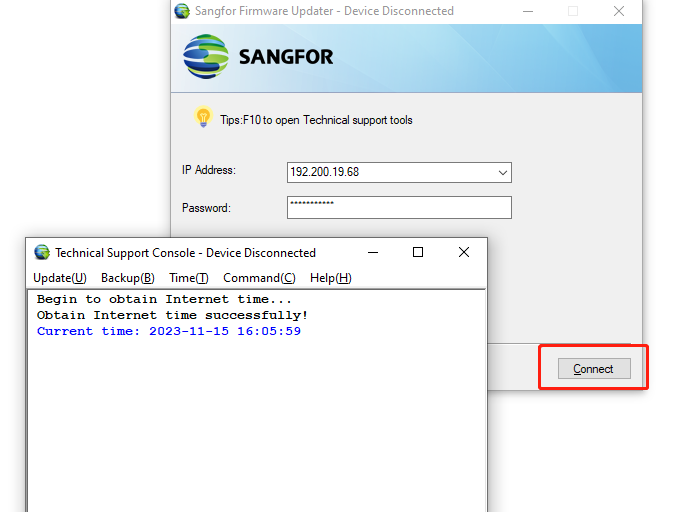
Step 2. You may press F10 / FN+F10 to view the upgrade process details. Click Connect to proceed.
Step 3. Select and upload the locally stored firmware upgrade package (.ssu) in the Load package, then click Next to start the upgrade.
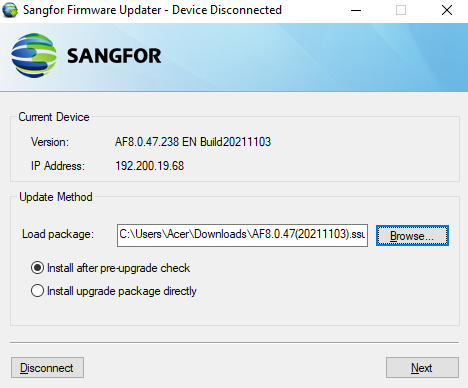
* Device configurations will be backed up automatically at this stage.
Step 4. Once the upgrade is complete, you will see a success message, and the device will restart automatically. Then, verify the network connection and log in to the NGAF web UI to check the current firmware version.
Upgrade High Availability (HA) Device
For certain devices deployed in High Availability (HA) mode, use the following steps to upgrade the firmware of HA devices.
- Disconnect production cable (LAN, WAN, and DMZ), except HA cable.
- After disconnecting the production cable, remove the HA cable.
- Connect a laptop directly to the NGAF’s management port (ETH0) and disable HA Policy and Sync Options.
- Proceed with the device upgrade. (Follow Steps 1 to 4 in Chapter 5.2.1)
- After the upgrade is successful, reconnect all cables, power on the device, and verify whether the device is in normal status.
- Once the device is powered on and returns to normal, swap the active device’s production cable to the standby device (which has just finished the upgrade) and take down the active device for firmware upgrade.
- Repeat Steps 1 to 5 for another NGAF device.
Note:
When disconnecting production cables, be aware that packet loss might occur due to the switch potentially retaining the device’s MAC address.
Upgrade Failures Troubleshooting
- Scenario 1: Memory is insufficient.
Recommendation: In case of insufficient memory, if the customer insists on upgrading, please contact Sangfor Technical Support at +60 12 711 7129 (7511) to seek assistance from developers.
- Scenario 2: Error message: apppre execute failed, indicating that the upgrade from the current version is not supported.
Recommendation: Check whether the current version is a custom version. Upgrade from a custom version is not supported.
Also, confirm whether the current version is NGAF 8.0.26 or a later version. Direct upgrades to NGAF 8.0.47 are only supported from NGAF 8.0.26, NGAF 8.0.35, NGAF 8.0.36, and NGAF 8.0.39. Versions earlier than NGAF 8.0.26 should be upgraded to NGAF 8.0.26 first before proceeding with the upgrade to NGAF 8.0.47.
- Scenario 3: Error message: appsh execute failed, indicating that the devices deployed in HA mode cannot be upgraded.
Recommendation: Disable HA Policy and Sync Options and then perform the upgrade again.
- Scenario 4: Other issues
Recommendation: For any other issues, please contact Sangfor Technical Support at +60 12 711 7129 (7511) for further assistance.
Precautions
- For devices three years or older, kindly contact Sangfor Technical Support to analyze their suitability for the new firmware version.
- If the NGAF device is a virtual device that runs on the Sangfor Hyper-Converged Infrastructure(HCI) platform, please check with Sangfor Technical Support whether the new firmware version supports the upgrade for vNGAF.