
【NGAF】Syslog Configuration Guide_V8.0.47
Testing Scenario
Sync the device logs from Sangfor NGAF to the Syslog server. Prepare a Syslog server.
Only security logs, application control logs, traffic audit logs, NAT logs, user authentication logs, SSL VPN logs, Local ACL logs, HA error logs, and system operation logs will be synced to the Syslog server.
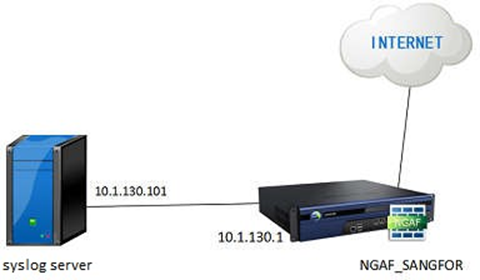
Test Process
- Configure the Syslog service in NGAF. Navigate to Monitor > Settings > Logging Options and start configuring, as shown below:
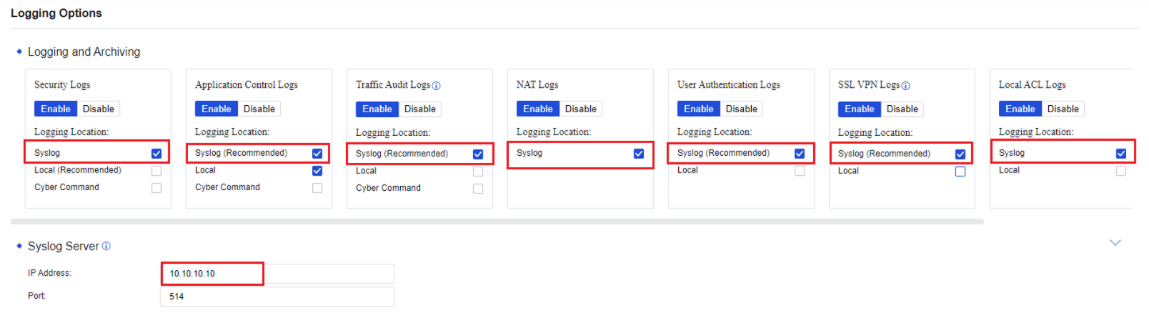
Note:
Select the Logging Location to Syslog for Security Logs, Application Control Logs, Traffic Audit Logs, NAT Logs, User Authentication Logs, SSL VPN Logs, Local ACL Logs, and HA Error Logs. The Syslog Server IP Address is 10.10.10.10, and the Port is 514.
-
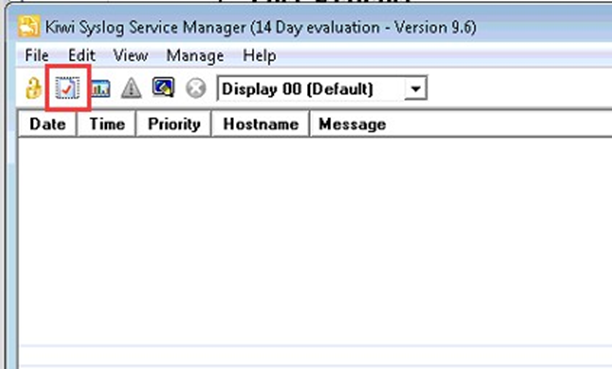
Configure the Syslog server. In this guide, we use Kiwi Syslog Service Manager as an example. Download and install Kiwi Syslog Service Manager at: https://www.kiwisyslog.com
-
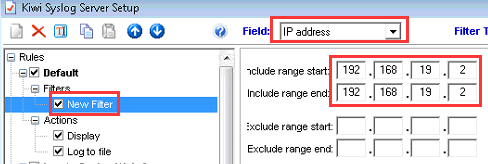
Add a new filter and input NGAF IP 192.168.19.2, as shown below.
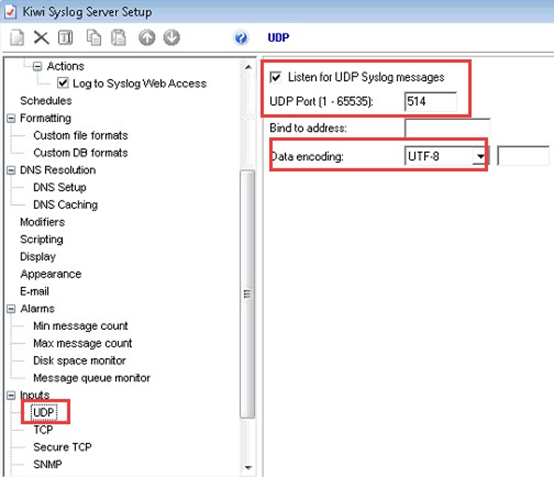
- Select UDP and configure the UDP port to 514 and Data encoding to UTF–8.
Results
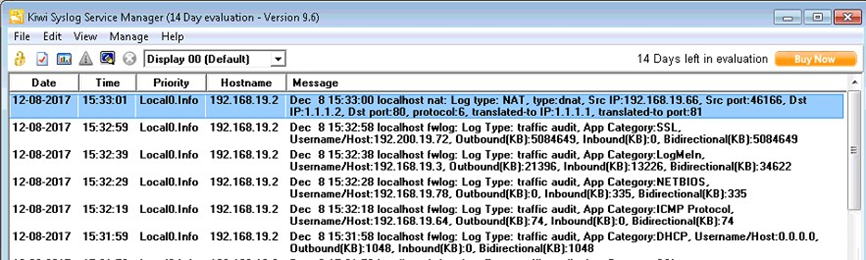
The figure below shows the logs from the NGAF Syslog.
Precautions
-
The connection from NGAF to the Syslog server must be stable.
-
The service of the Syslog server must be stable, and the UDP port and data encoding must be the same as NGAF.
-
System log does not support syncing to the Syslog server currently.
-
System operation log will sync to the Syslog server by default. There is no option for this, just need to ensure one of the logging options is enabled under Monitor > Settings > Logging Options.