
【NGAF】Transparent Mode Deployment Guide_V8.0.47
Applicable Environment
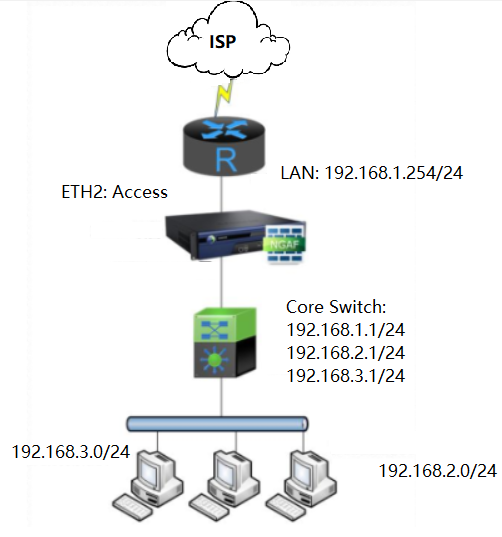
The user wants to apply a firewall and does not change their network environment.
Configuration Steps
Configure Zone for LAN, WAN, and Management
Navigate to Network > Zones, and click Add:
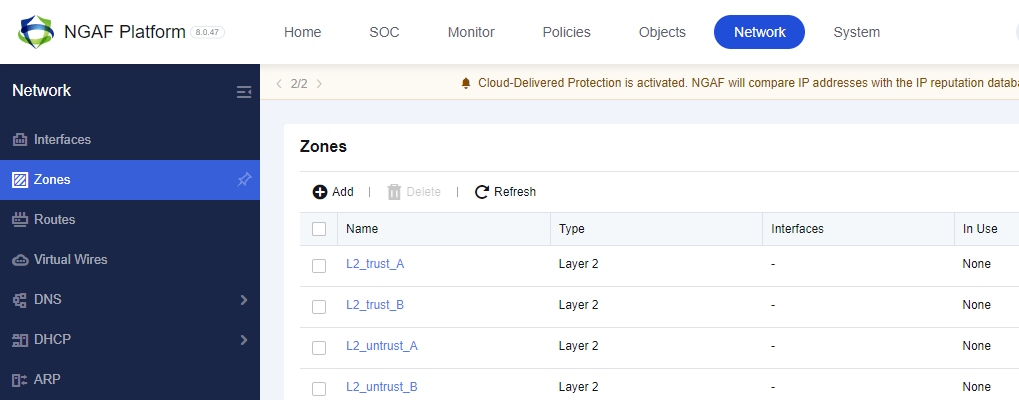
Configuration for LAN zone, as shown below:
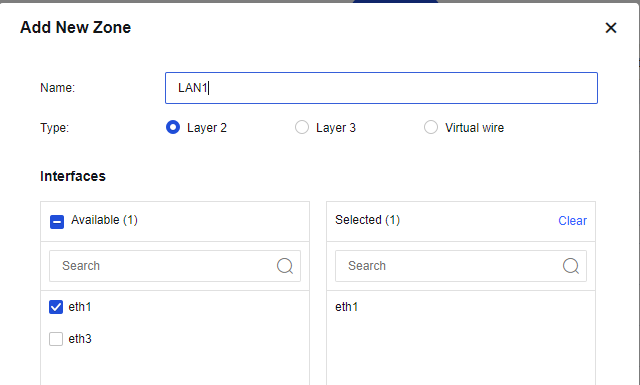
Configuration for WAN zone, as shown below:
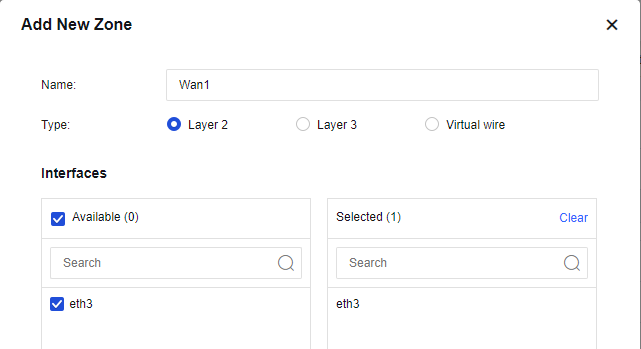
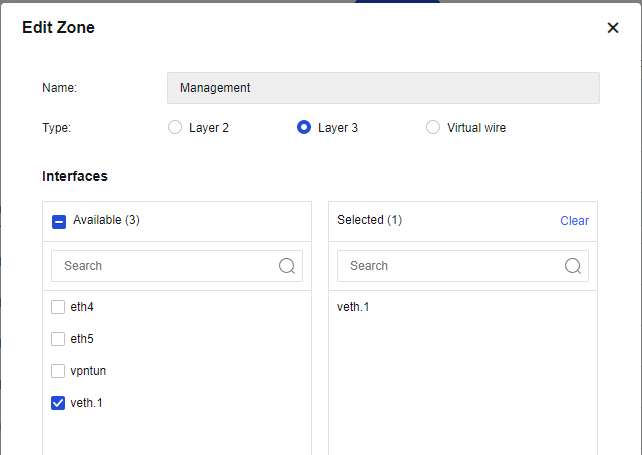
Configuration for Management zone, as shown below:
Interface Configuration
Navigate to Network > Interfaces > Physical Interfaces:
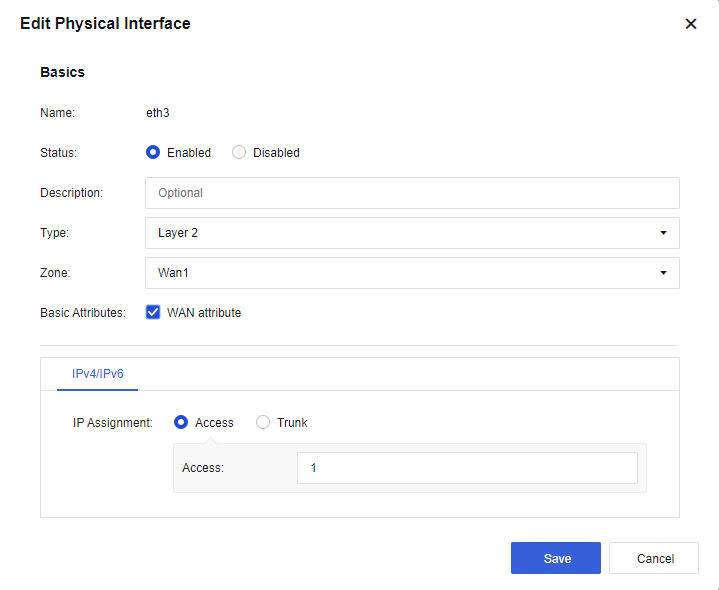
Click Edit to Assign one interface for the WAN attribute and WAN zone.
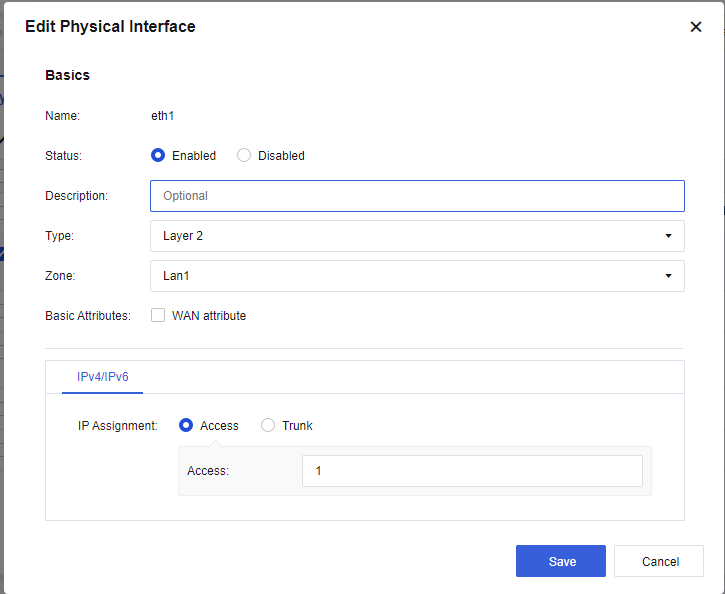
Click Edit and assign one interface for the LAN zone:
VLAN Configuration
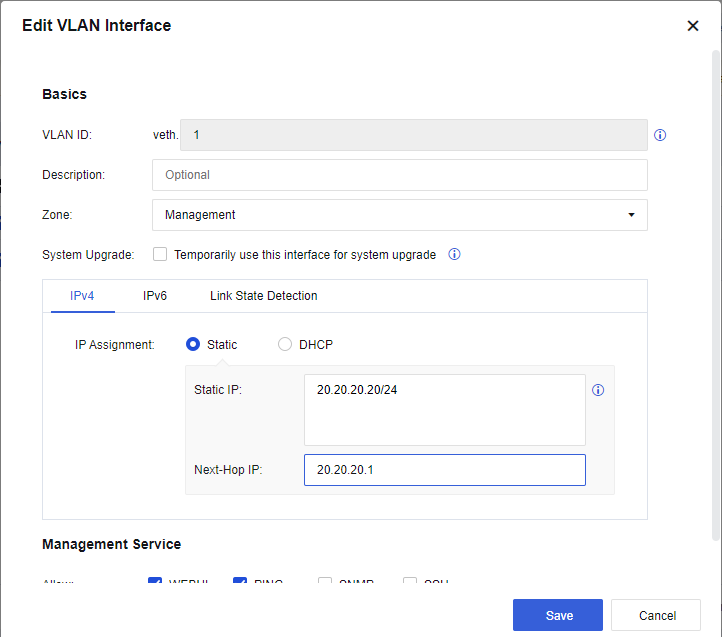
Navigate to Network > Interfaces > VLAN Interfaces and click Add to create a VLAN interface and add it to the Management zone:
Routing Configuration
Navigate to Network > Routes > Static Routes, click Add, as shown below:
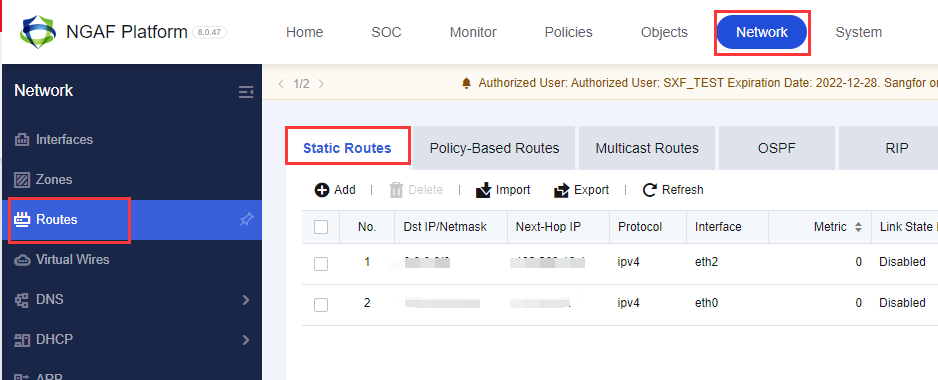
Insert the Dst IP/Netmask and Next–Hop IP, and choose an Interface for VLAN.
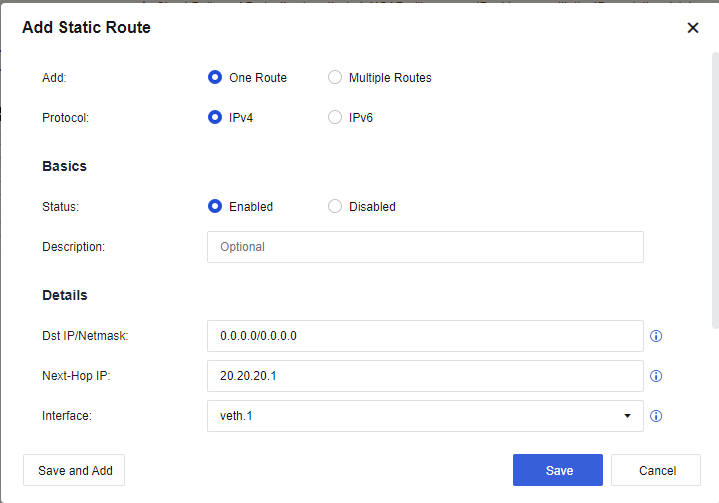
If you need another static route in your network, you can create at this section as well.
Application Control Policy
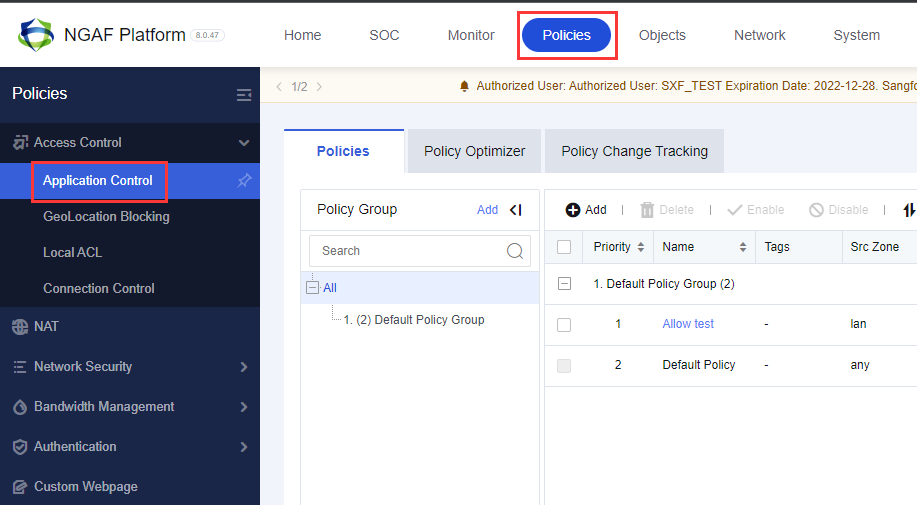
Navigate to Policies > Access Control > Application Control > Policies and click Add.
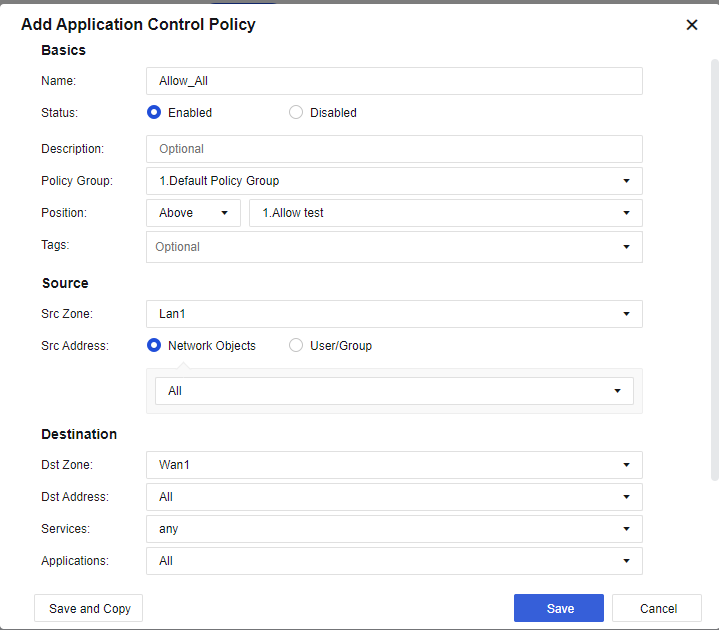
The default Access Control policy will deny all the services, and the user needs to configure it manually to allow the service. Users can configure other policies based on their needs as well.
Precautions
-
Transparent deployment mode is standing between the 2nd and 3rd layers.
-
A policy will only allow the 3rd layer to the 3rd layer zone to work. It will not work if the user sets the policy for the 2nd layer to the 3rd layer. Besides, configuration for routing allows the device to have internet access and update its database automatically.