
【NSF】Password Recovery Configuration Guide_V8.0.85 and above
Scenario
The web console of the NSF device is accessible, but the administrator account password is lost. It causes the user to be unable to log in to the NSF device’s web console.
Requirement
- A USB disk.
- Password recovery requires rebooting the device.
Configuration Steps
- Check the USB disk format and create a txt file.
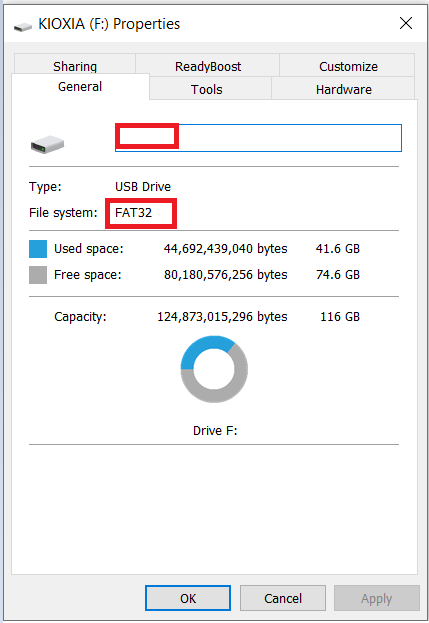
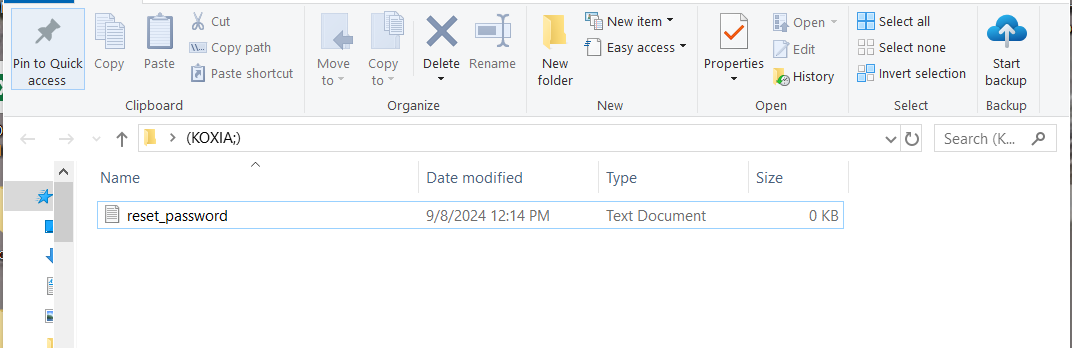
Ensure the USB is in FAT32 format, then create a txt file in the root directory and name it reset_password.txt.
Note:
If there are other files in the USB flash drive, it will not affect the password recovery.
-
Plug the USB disk into the device and reboot the device.
Plug the USB disk into the device’s USB port, then power off and power on to restart the device. -
Wait for the Alarm LED light to go off.
After restarting the device, wait for the Alarm LED to turn off. After the LED turns off, wait another ten minutes before unplugging the USB drive. -
Check the txt file for the result.
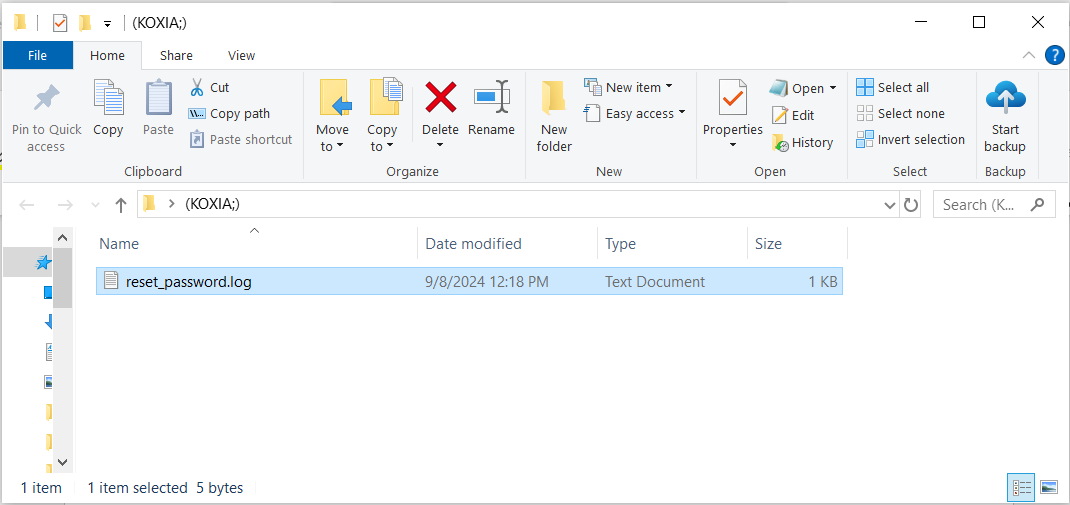
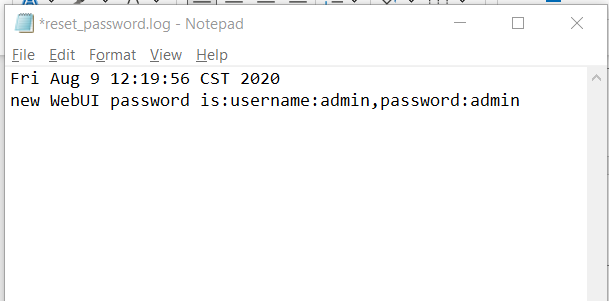
Plug the USB disk into your PC, then check the reset-password.log for the result. If the recovery is successful, the console password will be recorded in this log file. Otherwise, the information on recovery failure will be recorded.
Note:
The password has been changed to admin. You can use this password to log in to the device’s web console. If the password reset fails, it will show you the fail message, and you can follow the steps above to retry.
Precautions
Password recovery requires restarting the NSF device, which will cause network interruption.