
[AF] After logging into SSL VPN, you cannot click on the resource link to open it because the application path is not added correctly
Problem Description
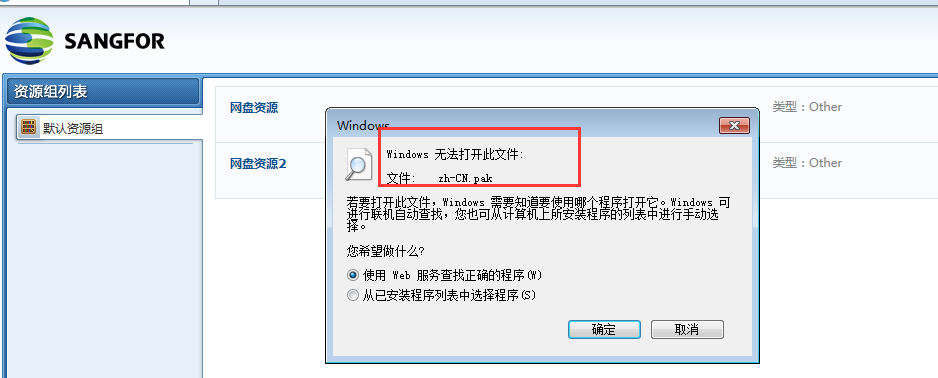
After logging into SSL VPN, the user wants to directly open the resource on the browser page to access the shared files on the server, but an error message is Info
Warning Info
77415b6c223deb32a.png (42.45 KB)
Process——
-
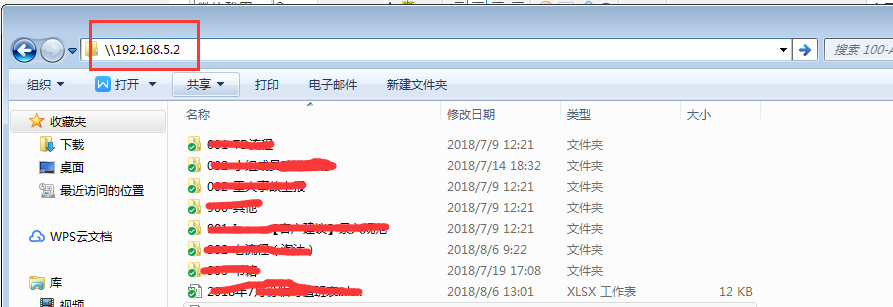
Confirm that the shared files on the server are accessed directly through Windows Explorer
521055b6c22e3b9a09.png (61.48 KB) -
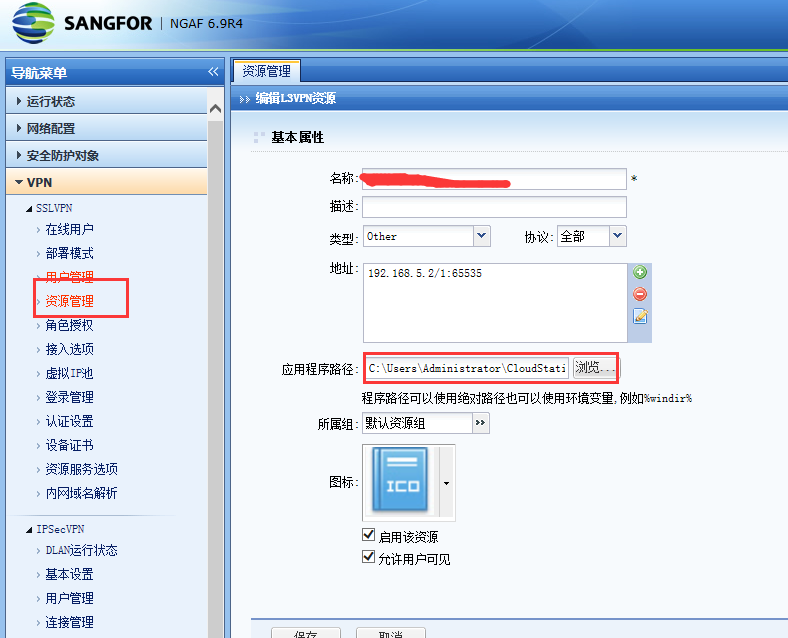
Check the AF SSL VPN configuration and find that the resource corresponding to the server does not have the correct [Application Path] added
22665b6c23705131b.png (88.5 KB) -
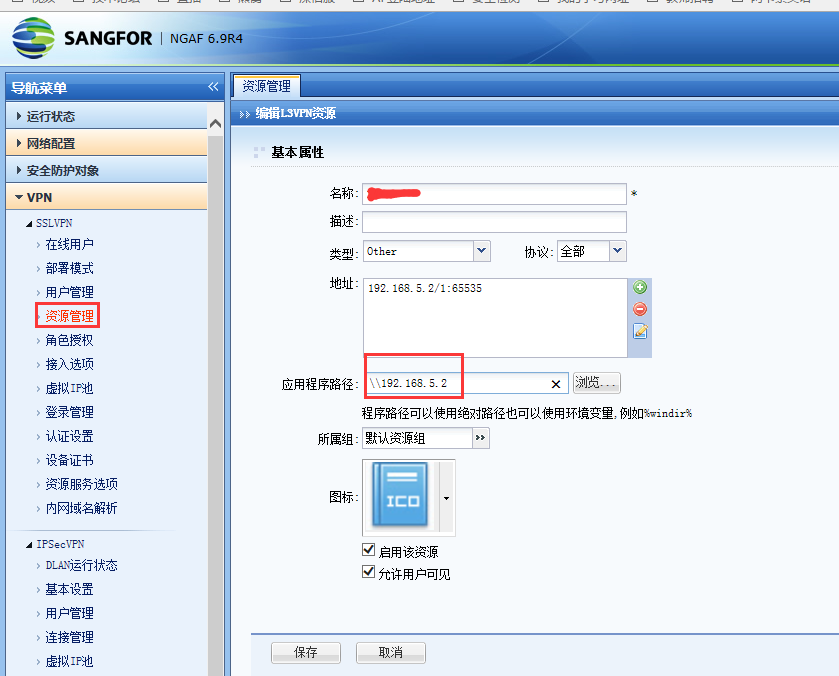
Change the [Application Path] to the correct path. After logging into SSL VPN, you can directly open the resource on the browser page to access the shared files on Services server.
626905b6c23ef5af0b.png (94.59 KB)
solution
Obtain the correct access path of the server, fill it into the [Application Path] of the corresponding resource
Suggestions and Conclusion
- The [Application Path] in the resource refers to the local application path that the client will call.
- Generally, HTTP and HTTPS websites can be opened by clicking resource links on the client. Other types of applications need to be written to [Application Path] to be opened through resource links. Common ones include file sharing, software programs, etc. Therefore, these resources can be opened directly on the VPN login interface.
Original Link
https://support.sangfor.com.cn/cases/list?product_id=13&type=1&category_id=265&isOpen=true