
【NGAF】Release Notes_V8.0.49
Overview
Major Features
| Feature | Highlights |
|---|---|
| Licensing | The Licensing module is optimized. License changes can take effect after you restart some services without having to restart the NGAF device, reducing the impact of licensing on the network. |
| File Antivirus Through the Cloud-Based Engine | 1. Supports reporting the SHA256 value of a file to the cloud for virus scanning, meeting customers’ security requirements. 2. Supports selecting whether to upload files for analysis on Neural-X Threat Intelligence and meet the government and financial sector file security requirements. |
| Endpoint Protection Options | Supports specifying a port number other than the default 443 when customers connect NGAF to the Endpoint Secure manager. |
| Security Capability Update | The latest security patches are incorporated to improve the security capabilities of NGAF. |
| User Experience Issues | 1. Some UI text issues have been fixed. 2. Some user experience issues have been fixed. |
Table 1: The table shows the new features in the latest version.
Target Customers:
Medium to high profile customers in Southeast Asia.
Upgrade Impacts
-
The device will restart automatically after the upgrade completes.
-
The upgrade process may take about 15 minutes under normal conditions (at least 40% of the total CPU and memory are available, and the network is connected).
Impacts on Services
The restart will cause business interruption, which may last about 15 minutes.
Impacts on O&M
The NGAF device cannot be accessed for about 15 minutes during restart.
Impacts on Customer Network
A restart will cause network connections that go through NGAF to be disconnected for about 15 minutes.
Implementation Procedures
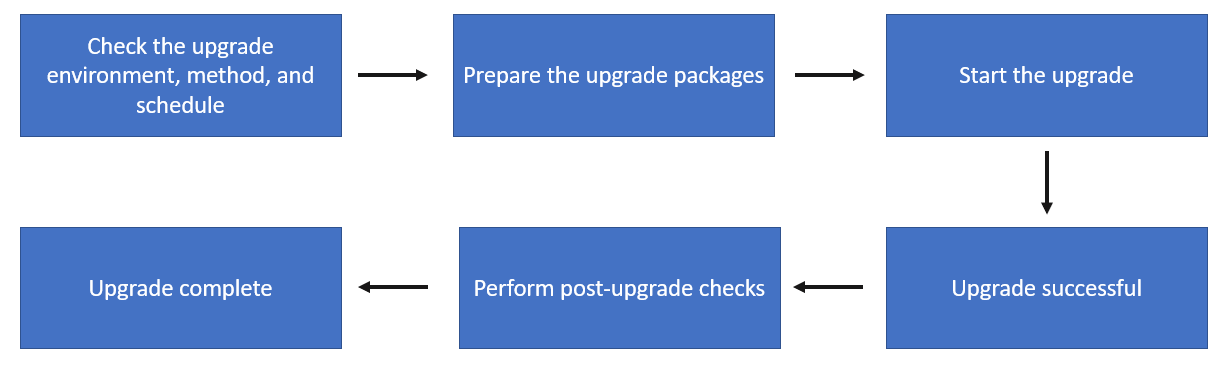
-
Check the upgrade environment, method, and schedule.
-
Prepare the upgrade packages.
-
Start the upgrade.
-
Upgrade successful.
-
Perform post-upgrade checks.
-
Upgrade complete.
Upgrade Guide
Preparations for Upgrade
Upgrade Tools
| Upgrade Tool | Description |
|---|---|
| Firmware Updater | Upgrade with SANGFOR_Updater 6.1 or 6.2 is supported, while upgrade with SANGFOR_Updater 5.0 is not supported. |
| Databases | For online updates, go to System > Security Capability Update to update databases. For offline updates, obtain update packages in Self Services > Download at https://community.sangfor.com/ |
| Licensing | Go to System > General Settings > Licensing to check whether the Software Upgrade license is expired. If the license has expired, renew it. |
Table 2: Upgrade Tools
Environment Information
N/A.
Customer Resource Coordination
N/A.
Pre-Upgrade Check
- Upgrade Limitations
- N/A.
- Smooth Upgrade of Configurations, Logs, and Data
- Passthrough is supported.
- SC/Central Manager
- SC is not supported.
- Central Manager is supported.
- Passthrough
- Passthrough is supported.
- HA
- Two-node HA pairs are supported.
- Active-active mode is supported.
Offline Upgrade Steps
Upgrade Roadmap
| Document Version | Upgrade Roadmap | Notes |
|---|---|---|
| Versions earlier than NGAF 8.0.26 | Current version > NGAF 8.0.17 > NGAF 8.0.26 > NGAF 8.0.49 | Earlier versions suggest upgrading to NGAF 8.0.17 and 8.0.26 before upgrading to NGAF 8.0.49. |
| NGAF 8.0.26 | NGAF 8.0.26 > NGAF 8.0.49 | |
| NGAF 8.0.35 | NGAF 8.0.35 > NGAF 8.0.49 | |
| NGAF 8.0.36 | NGAF 8.0.36 > NGAF 8.0.49 | |
| NGAF 8.0.39 | NGAF 8.0.39 > NGAF 8.0.49 | |
| NGAF 8.0.47 | NGAF 8.0.47 > NGAF 8.0.49 |
Table 3: Upgrade Roadmap
Offline Upgrade Steps
To upgrade a standalone device:
-
Check whether the current version can be upgraded: Upgrade from a custom version is not supported. If the device has a KB package installed, check with developers to see whether the device can be directly upgraded and whether the issues for the developed package have been fixed.
-
Check whether the current version is NGAF 8.0.26 and above. If yes, use Firmware Updater (SANGFOR_Updater 6.1 or 6.2) to upgrade the version to NGAF 8.0.49. If not, upgrade it to NGAF 8.0.26 and then to NGAF 8.0.49.
-
Prepare the update package and corresponding MD5 file, and ensure the MD5 value is correct.
-
Backup configurations.
-
After the upgrade, check whether the network connection is available and log in to the NGAF device.
To upgrade a device deployed in HA mode:
-
Disable HA Policy and Sync Options and follow the above step 1 to step 5 for a standalone device.
-
Enable HA Policy after active and passive devices are upgraded.
Post-Upgrade Check
Network Connectivity Check
| Item | Requirement | Result |
|---|---|---|
| Internet access from internal PCs | Make sure that internal PCs can access the internet after the NGAF upgrade. | |
| Access from internal servers to specific public addresses | Ensure that internal servers can access specific public addresses as customers require after the NGAF upgrade. | |
| Public access to services delivered by internal servers | Ensure the public can access services delivered by customers’ internal servers after the NGAF upgrade. | |
| HA switchover | Ensure the HA switchover works as per the POC user manual. | |
| Administrator access to NGAF via the management IP address | Ensure the NGAF console can be accessed remotely and UI interfaces work. | |
| Internet access from NGAF | Ensure the NGAF device can access the internet for database and service pack updates. |
Table 4: Network Connectivity Check
System Health Check
| Item | Requirement | Result |
|---|---|---|
| CPU usage | Under normal circumstances, CPU usage should be lower than 70%. | |
| Memory usage | Under normal circumstances, memory usage should be lower than 70%. | |
| System logs | Under normal circumstances, system logs should have no errors or warnings. If there are such logs, contact the supplier for solutions. | |
| Remote maintenance | After the upgrade, remote maintenance should be disabled to avoid security risks. | |
| Configuration backups | After the upgrade, device configurations should be backed up and archived locally. | |
| Database update | After the upgrade, the database should be up-to-date to ensure the accuracy and completeness of the application signature database. |
Table 5: System Health Check
Service Status Check
None.
Upgrade Methods
This chapter introduces three upgrade methods and steps for NGAF system upgrade.
Firmware Updater
Upgrading NGAF using Firmware Updater is recommended when the NGAF device cannot access a public network or update packages are not stored on the cloud-based server. This method delivers the best stability during an upgrade.
Pre-upgrade Ideas
-
Download Sangfor Firmware Updater in Self Services > Download > Tools at the following Sangfor Community website:
https://community.sangfor.com/plugin.php?id=service:download&action=tool -
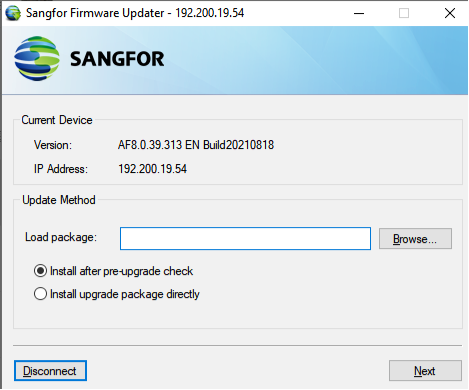
Run the Sangfor Firmware Updater, enter the IP address and admin password of the NGAF device, and then click Connect.
-
Select and upload an update package stored locally in the Load package.
-
Click Next to start an upgrade. Device configurations will back up automatically. After the upgrade is successful, a message will appear, and the device will restart automatically.
-
If another upgrade or restoring factory defaults is required, you can press F10 to connect to the NGAF device again.
Notice:
Before using the Firmware Updater for the NGAF upgrade, ensure that the PC running the Firmware Updater can synchronize with internet time through a public network. If the PC can access the internet and synchronize with internet time, you can use the Firmware Updater to load upgrade packages for the NGAF upgrade.
If there are specific requirements for a customer’s environment, for example, the NGAF device and the PC running the Firmware Updater are on the internal network, and internet connections are not allowed, move the PC to a different zone where internet access is available and run the Firmware Updater to synchronize with internet time.
After that, move the PC to the internal network where the NGAF device is located, and then connect the updater to the NGAF device to finish the upgrade.
Offline Upgrade Steps
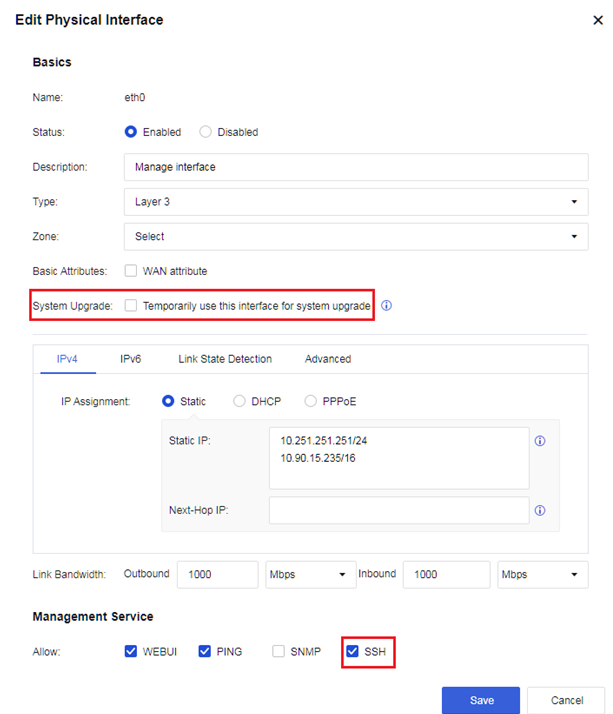
- Log in to the NGAF device, and navigate to Network > Interfaces > Physical Interfaces. Then, on the editing page of the interface used for connecting the Firmware Updater, tick Temporarily use this interface for system upgrade for System Upgrade.
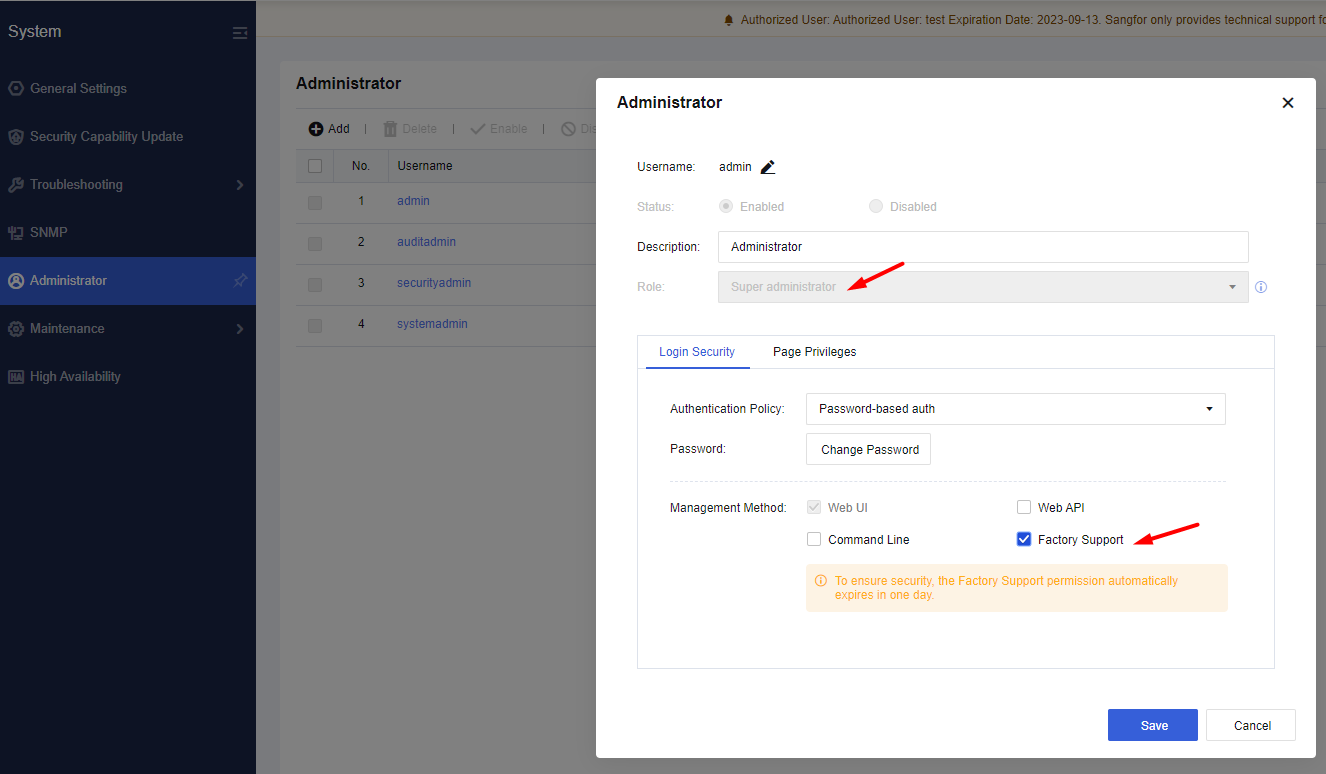
- Navigate to System > Administrator, click the Super Administrator, and tick Factory Support under Management Method.
- Run the Sangfor Firmware Updater, enter the IP address and admin password of the NGAF device, and then click Connect.
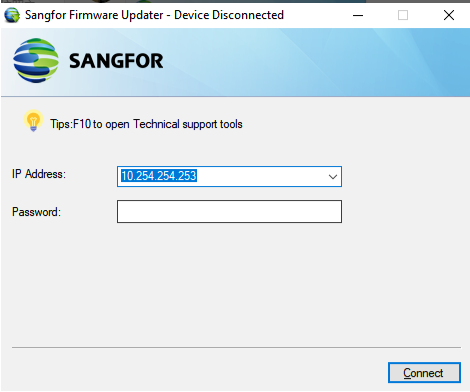
IP Address: Enter the IP address of the NGAF device that needs to be upgraded.
Password: Enter the administrator password to log in to the NGAF device. The password is the same as the password configured for the administrator account.
- Select and upload the correct update package in the Load package and click Next to start an upgrade.
GUI
You can perform an upgrade from the NGAF GUI when the NGAF device can access a public network or update packages are stored on the cloud-based server. With this method, the upgrade process is simplified without using other tools. The progress of the upgrade and the status of the NGAF device are displayed on the screen.
Both online updates and offline updates are available.
Online Upgrade Steps
-
Online Update: Go to System > Maintenance > Upgrade, and the system will automatically check for updates.
-
You can directly perform the online update if there is an update package for a later version on the server. If no update packages are found, you will get a message showing, "This is the latest version.".
Offline Upgrade Steps
- Log in to the NGAF manager and go to System > Maintenance > Upgrade.
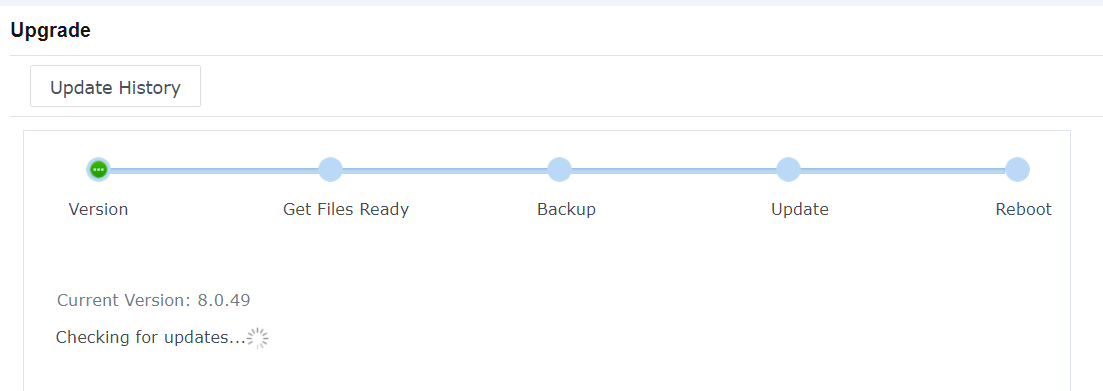
- Click Offline Update. You will proceed to the Get Files Ready.
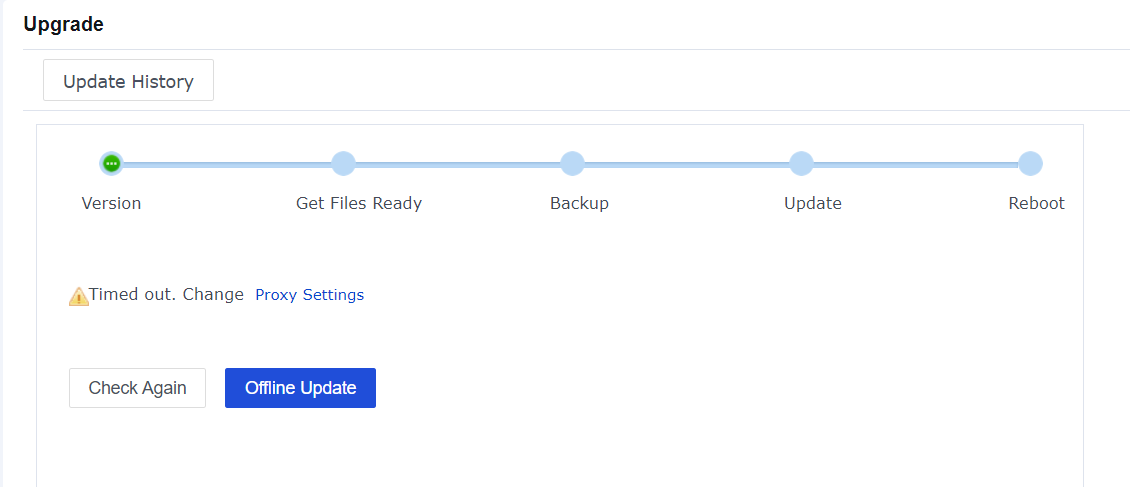
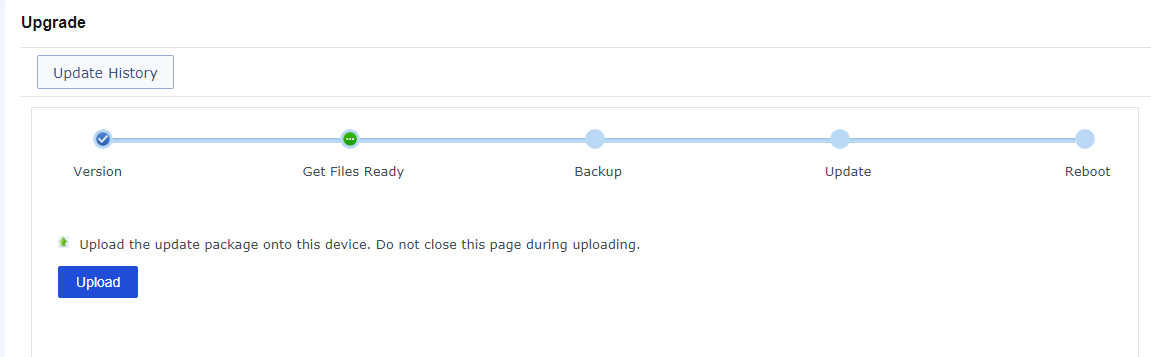
- Click Upload to upload the update package on the local device.
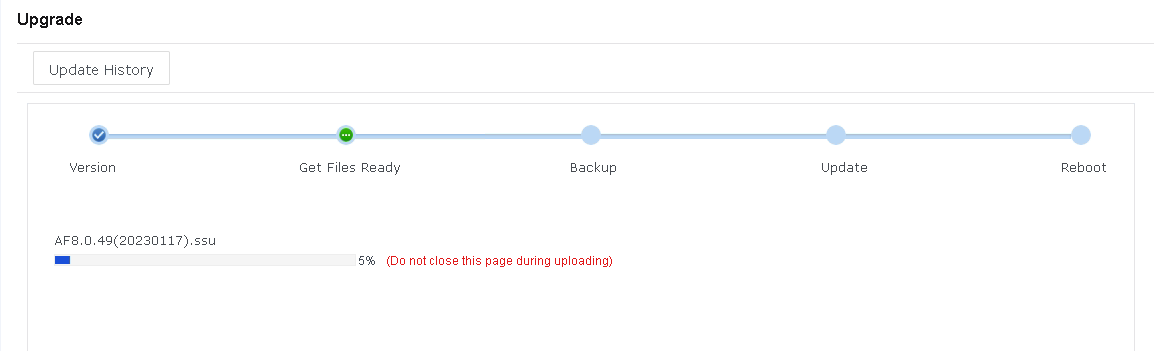
Notice:
Do not close the uploading page while uploading the update package. Otherwise, you have to enter the page again and repeat the preceding steps.
- After uploading the update package, click Next to backup configurations, and the upgrade will start. After the upgrade is complete, the device will restart automatically. Log in to the NGAF again to check the version and device status.
Central Manager
Upgrading NGAF via Central Manager is recommended when Central Manager centrally manages NGAF devices and multiple branch devices need to upgrade.
Pre-upgrade Ideas
-
Log in to Central Manager and go to System > Upgrade > Branch Device Upgrade.
-
Add a scheduled upgrade task and complete the settings.
-
Central Manager will automatically push down an upgrade task to the NGAF devices at the scheduled time, and the NGAF devices will immediately perform the upgrade task.
Offline Upgrade Steps
- Log in to Central Manager, go to System > Upgrade > Branch Device Upgrade, and click Add Task to configure the settings.
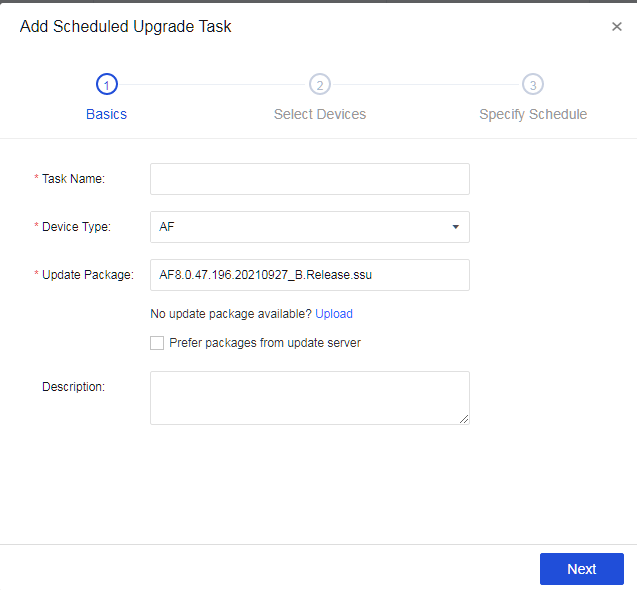
Notice:
If there are no available update packages on Central Manager, click Upload to upload an update package.
There are two options for branch devices to get update packages. You can select an update package in the Update Package field or select Prefer packages from update server.
- Click Next to select the branch devices you want to upgrade.
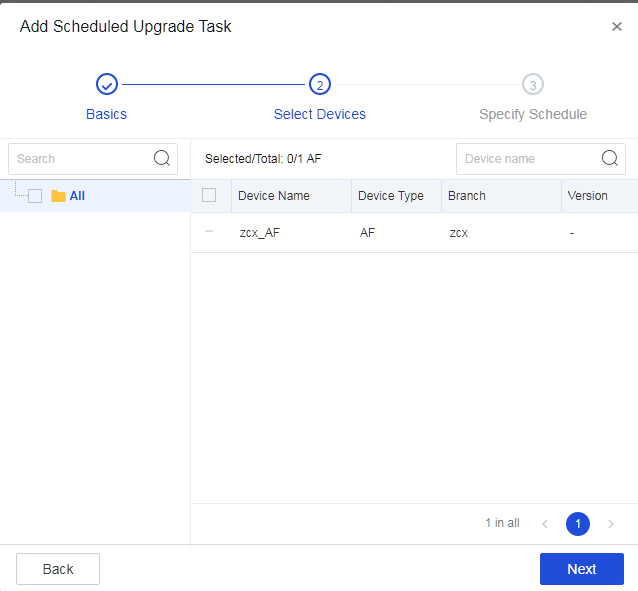
- Click Next to specify a schedule for the upgrade task.
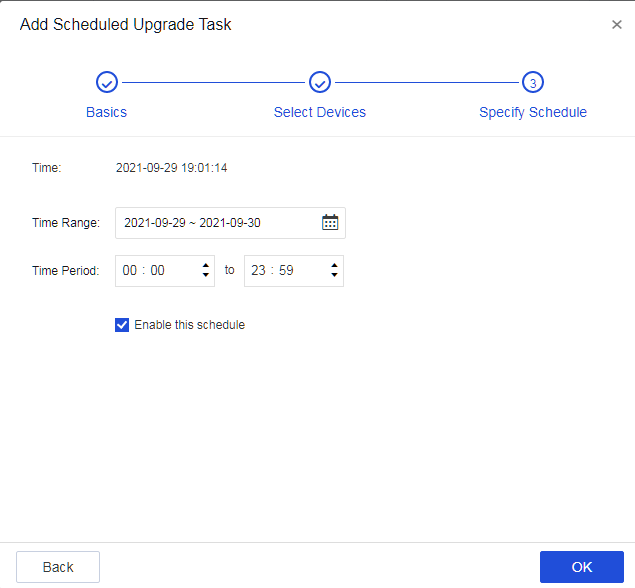
- Central Manager will automatically push down an upgrade task to the NGAF devices at the scheduled time, and the NGAF devices will immediately perform the upgrade task.
Upgrade Failures Troubleshooting
Scenario 1: Memory is insufficient.
Recommendation: If memory is insufficient, but a customer insists on upgrading, contact Technical Support at +60 12 711 7129 (7511) for help.
Scenario 2: An error occurred while parsing the update package.
Recommendation: Get the correct update package and corresponding MD5 file, and ensure the MD5 value is valid.
Scenario 3: You get an error message "apppre execute failed", which indicates that upgrade from the current version is not supported.
Recommendation:
-
Check whether the current version is a custom version. Upgrade from a custom version is not supported.
-
Check whether the current version is NGAF 8.0.26 and above. Only NGAF 8.0.26, NGAF 8.0.35, NGAF 8.0.36, NGAF 8.0.39, and NGAF 8.0.47 can directly upgrade to NGAF 8.0.49. Versions earlier than NGAF 8.0.26 should be upgraded to NGAF 8.0.26 first and then to NGAF 8.0.49.
Scenario 4: You get an error message "appsh execute failed", which indicates that devices deployed in HA mode cannot be upgraded.
Recommendation: Disable HA Policy and Sync Options, and then perform the upgrade again.
Scenario 5: Other issues
Recommendation: Contact Technical Support at +60 12 711 7129 (7511) for help.
Rollback Instructions
Rollback is not supported.
If any issues occur after the upgrade, contact Technical Support at +60 12 711 7129 (7511) or contact local technical support for help.