
【NSF】SP01 Release Notes_V8.0.95
Service Package (SP) Information
SP Patch Name:
SP_AF_OS_Spree_01_8095.bin
Purpose:
- Fix the issue of no data displayed for SD-WAN path selection after Network Secure ran for a long time.
- Optimized memory usage by parsing HTTP messages containing XML-type parameters.
- Improve stability and reliability of core processes.
- Optimize the log-clearing mechanism for SSDs.
Upgrade Impacts
-
Dismantle the High Availability (HA) Mode: Not required. In HA mode, both the active and standby nodes must be installed with the same service pack (SP). Otherwise, the versions of the two nodes will be inconsistent, resulting in configuration synchronization failure. Services will be restarted after SP installation. You are advised to upgrade the standby node first and then the active node.
-
Device restart: Not required.
-
Service restart: Required.
-
Time taken: Under normal circumstances, the upgrade process may take 5 to 10 minutes (at least 40% of the total CPU and memory resources are available, and the network is connected).
Impacts on Services
Services will be interrupted for about 5 minutes and then restarted.
Impacts on O&M
Services will be restarted during the upgrade, and the console login will be unavailable for about 5 minutes.
Impacts on Customer Network
Services will be restarted during the upgrade, interrupting the network connection for about 5 minutes.
Other Impacts
This SP applies to Network Secure 8.0.95.2062 only.
Customer Upgrade Preparations
Upgrade Preparations
Time taken: Under normal circumstances, the upgrade process may take 5 to 10 minutes (at least 40% of the total CPU and memory resources are available, and the network is properly connected).
Notes
Do not restart the device manually, and avoid unexpected power-off during the upgrade.
Service will be interrupted for 5 to 10 minutes during the upgrade and then restarted.
Implementation Procedure
The upgrade process may take 5 to 10 minutes.
Post-Upgrade Service Check
After the upgrade is completed, log in to the device, choose System > Maintenance > Service Packs, and check whether the SP is installed successfully.
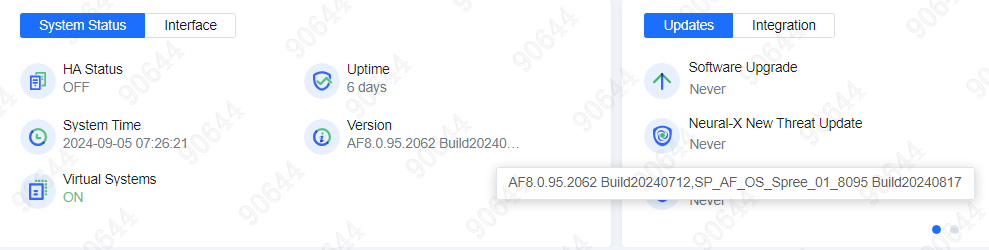
After the SP is installed, you can log in to the device, hover the mouse over the Version area on the Home page, and it will show the version information SP_AF_OS_Spree_01_8095 Build20240817.
Rollback Instructions
Refer to Chapter 2.6.
Upgrade Guide
Preparations for Upgrade
Upgrade Tools
Check whether the version of Network Secure is 8.0.95.2062.
For an offline upgrade, prepare the SP_AF_OS_Spree_01_8095.bin file and the corresponding MD5 file, and make sure that the MD5 value is B4E7F019268BEF0F3F0C135156CEB4B3.
Note:
Online upgrade is not supported.
Environment Information
N/A.
Customer Resource Coordination
Refer to Chapter 1.2.
Pre-Upgrade Check
-
Version check: Check whether the version is Network Secure 8.0.95.2062.
-
MD5 value check: Check whether the MD5 value is B4E7F019268BEF0F3F0C135156CEB4B3.
-
Check with tools (if any): Check whether this SP is required using tools.
Note:
Online upgrade is not supported.
Notes
Upgrade Conditions
-
Hardware: Available memory space of more than 150 MB; disk size: no requirements.
-
Software: Dependencies: no; ungrouping two nodes in HA is not required.
-
Upgrade is not allowed when the signature database or other objects are being updated.
Smooth Upgrade of Configurations, Logs, and Data
Supported.
Upgrade Recommendations
Do not restart the device manually, and avoid power off during the upgrade.
If an error occurs during the upgrade, please contact the technical support representative at +60 12 711 7129 (7511) as soon as possible. Do not manually restart the device.
Central Manager
Distribution of SPs via Central Manager: Supported.
Upgrade on Central Manager: Not supported.
HA/Multiple Nodes/Cluster/Distributed Nodes
Ungrouping of two nodes in HA: Not required for upgrade but for rollback.
Ungrouping of multi nodes: N/A.
Ungrouping of clusters: N/A.
Ungrouping of distributed nodes: N/A.
Upgrade Procedure
Upgrade Path
This SP can be installed for Network Secure 8.0.95.2062_EN.
Upgrade Procedure
Upgrade via Network Secure Console
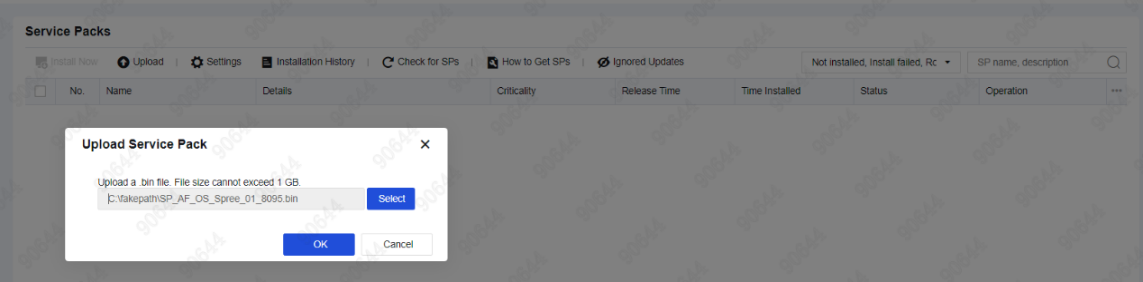
- Log in to the device, choose System > Maintenance > Service Packs, and click Upload.

- Select the SP and click OK.
- Find the SP in the list, and click Install.

- Click Installation History to check whether the SP is installed successfully.
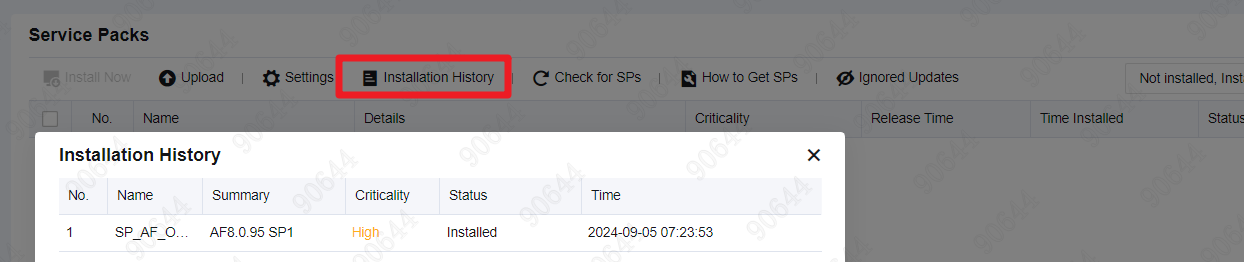
- Select Installed in the filter drop-down list to check whether the SP is installed successfully.

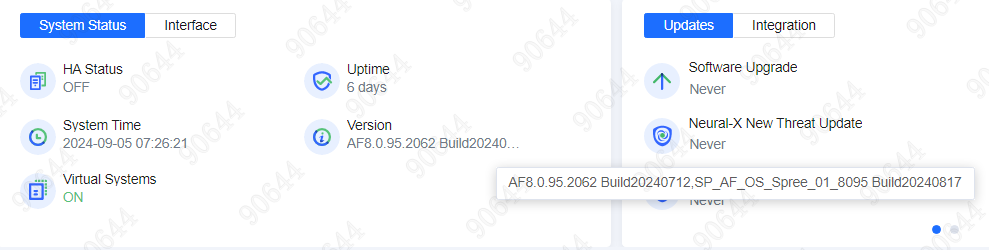
- Go to the Home page and check the version.
Platform Check
Log in to Network Secure, hover the mouse over the Version area on the Home page, and check whether the version is SP_AF_OS_Spree_01_8095 Build20240817.
Service Status Check
N/A.
Troubleshooting Upgrade Failures
Scenario: Upgrade failure occurred while the signature database was being updated.
Solution: Wait for the signature database update to be completed, then install the SP again.
Rollback Instructions
Non-High Availability Mode
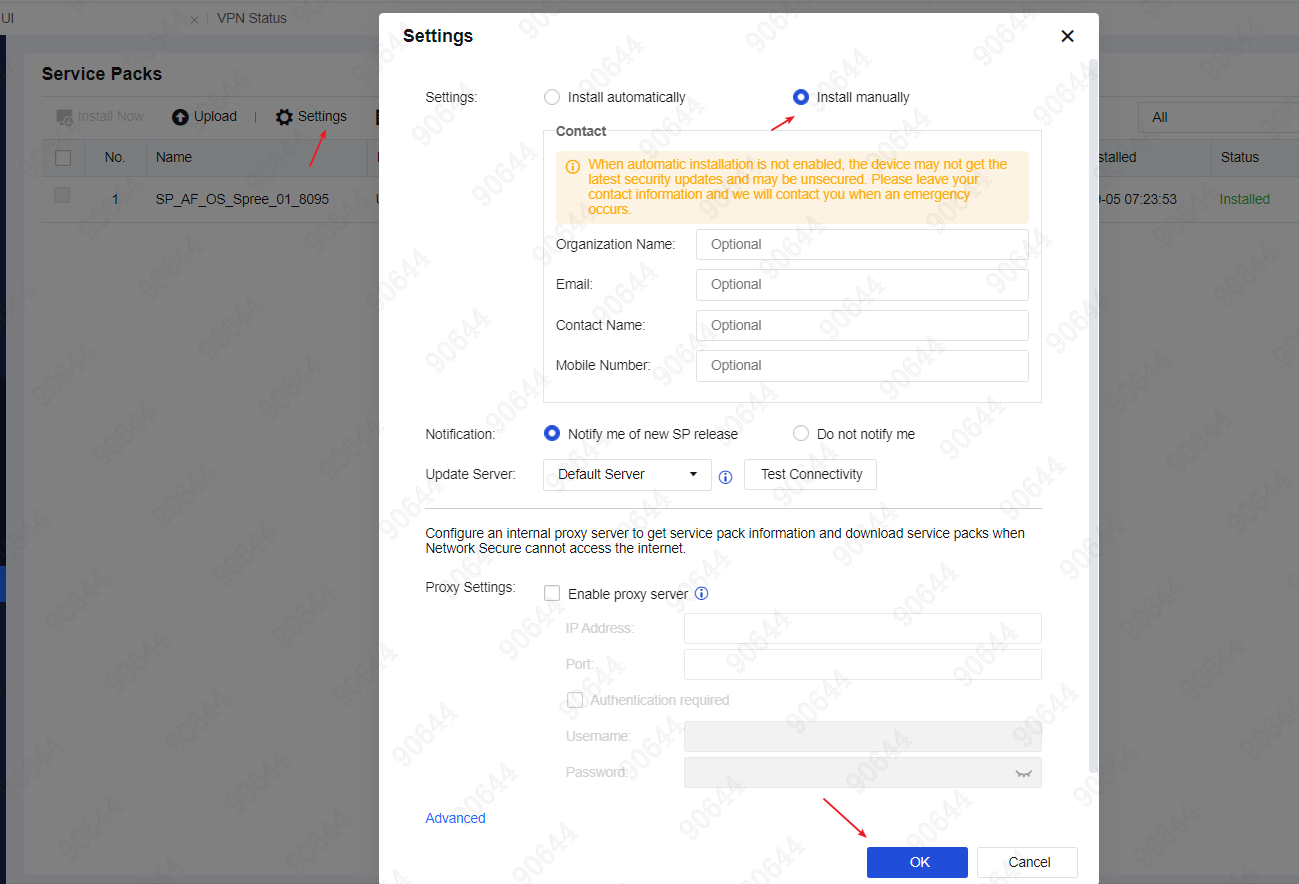
Rollback on the device: Choose System > Maintenance > Service Packs, find the SP, and click Rollback.

If you set Install Automatically, you must change the option to Install Manually before the rollback.
- Ungrouping of clusters: N/A.
- Ungrouping of distributed nodes: N/A.
- Device restart: Not required.
- Service restart: Required (same as the upgrade).
- Impact on customers’ business services: Yes (same as the upgrade).
- Ungrouping of two nodes in HA: Required.
Device Deployed in High Availability Mode
-
Manual synchronization should be performed on the active device before SP rollback.
-
Check the synchronization report on the active device. If the synchronization is successful, continue the rollback. If it fails, locate the failure cause and resolve the configuration differences between the two devices.
-
Back up the active and standby device configuration to avoid configuration loss.
-
If preemption is enabled, disable it on both devices to prevent active/standby switchover issues during the rollback.
-
Unplug the service interface cable of the standby device first, then unplug the HA cable (do not disable the HA feature) before rolling back the SP.
-
If the rollback fails, please immediately contact a technical support representative for troubleshooting. The other device carries the services and is not affected.
-
After the SP is rolled back on the standby device, connect the HA and service interface cables. Click Sync Now on the active device and view the report to check whether synchronization is completed on the active device.
-
After synchronization is completed, perform active/standby switchover and check the service status. If synchronization fails, please follow the prompts to troubleshoot issues.
-
If the services are normal, roll back on another device (the current standby device). Unplug the service interface cable, then the HA cable of the standby device (do not disable the HA feature), and then roll back the SP.
-
If the rollback fails, contact a technical support representative for troubleshooting.
-
After the SP is rolled back, connect the HA cable, then the production interface cable, click Sync Now on the active device and view the report to check whether synchronization is completed on the active device. If the synchronization fails, perform manual synchronization. If it still fails, troubleshoot issues.
-
If the synchronization is successful, check the service status.
-
If preemption is disabled before rollback, enable it now.