【SCP】Key Pairs SSH Configuration Guide_V6.7.30
Key Pair
Logging in to a cloud VM using an account or password is a verification method with weak security. It may be vulnerable to brute force cracking, resulting in the platform’s security not being guaranteed. The key pair is a safe and convenient login identity verification method. The SCP platform provides the key pair management function to enhance security. Users can remotely log in to cloud VM using their private keys.
After the SCP platform creates a key pair, it will generate a public key and a private key. When binding the key pairs to the cloud VM, SCP will deliver the public key to the cloud VM, and users can use the private key for secure SSH login.
Note:
- The key pair management only supports the SSH protocol of the Linux operating system and is only valid for the root user.
- The key pair is downloaded to the local PC through the browser only when it is created. The key pair will not be saved on the SCP platform and cannot be downloaded later. After the private key is created, download it and save it properly.
- If the private key is lost, unbind the key pair on the Virtual Machine page.
- After the key paris is bound to the cloud VM, the user will not be able to use SSH to log in to the cloud VM using the username with password.
Configuration Steps
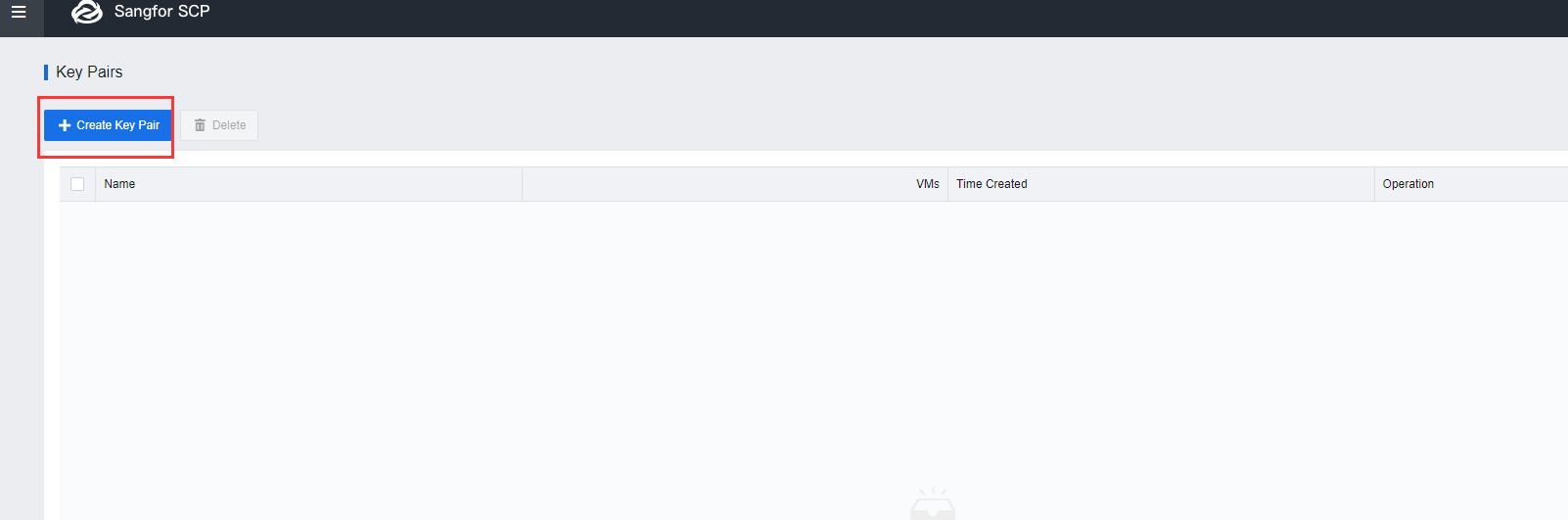
- Access to [https://SCPIP:4430], navigate to Resources > Management > Security > Key Pairs and click Create Key Pair.
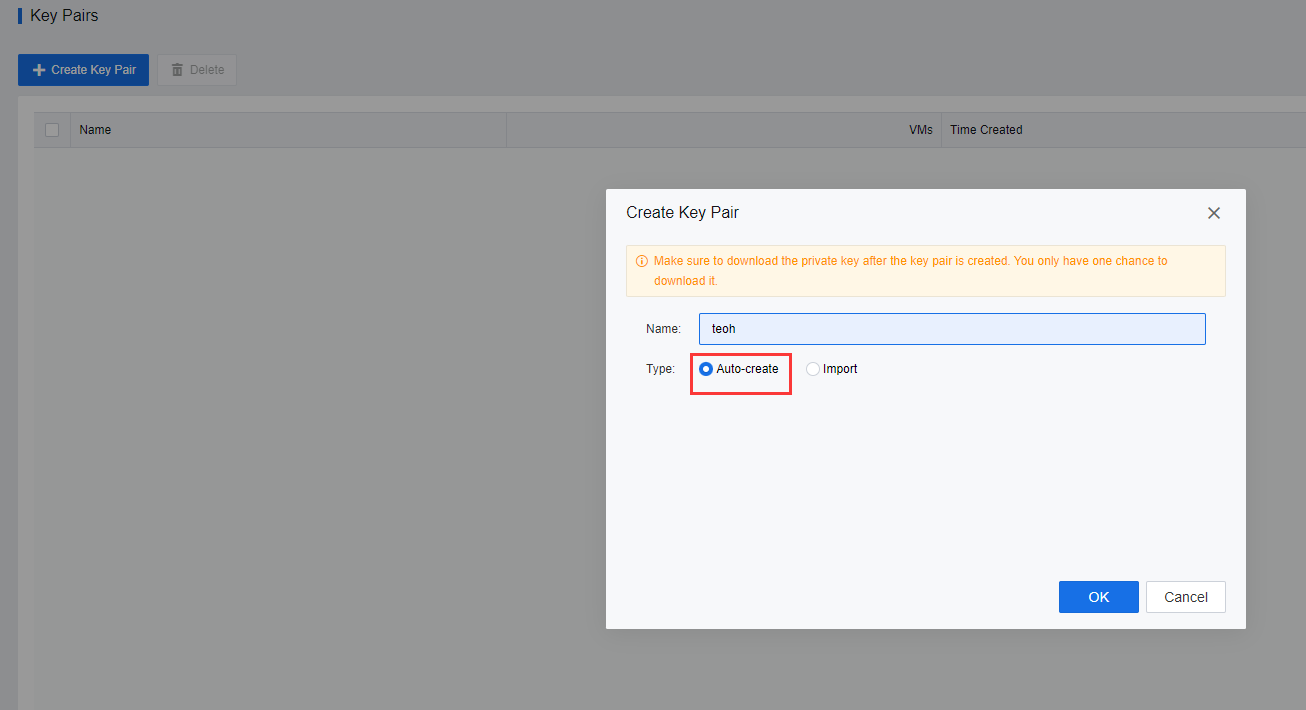
- If the user selects Auto-Create, the user must download the private key and save it, as it cannot be downloaded again. Alternatively, the user can select Import to import an Existing key pair to import a public key to the platform.
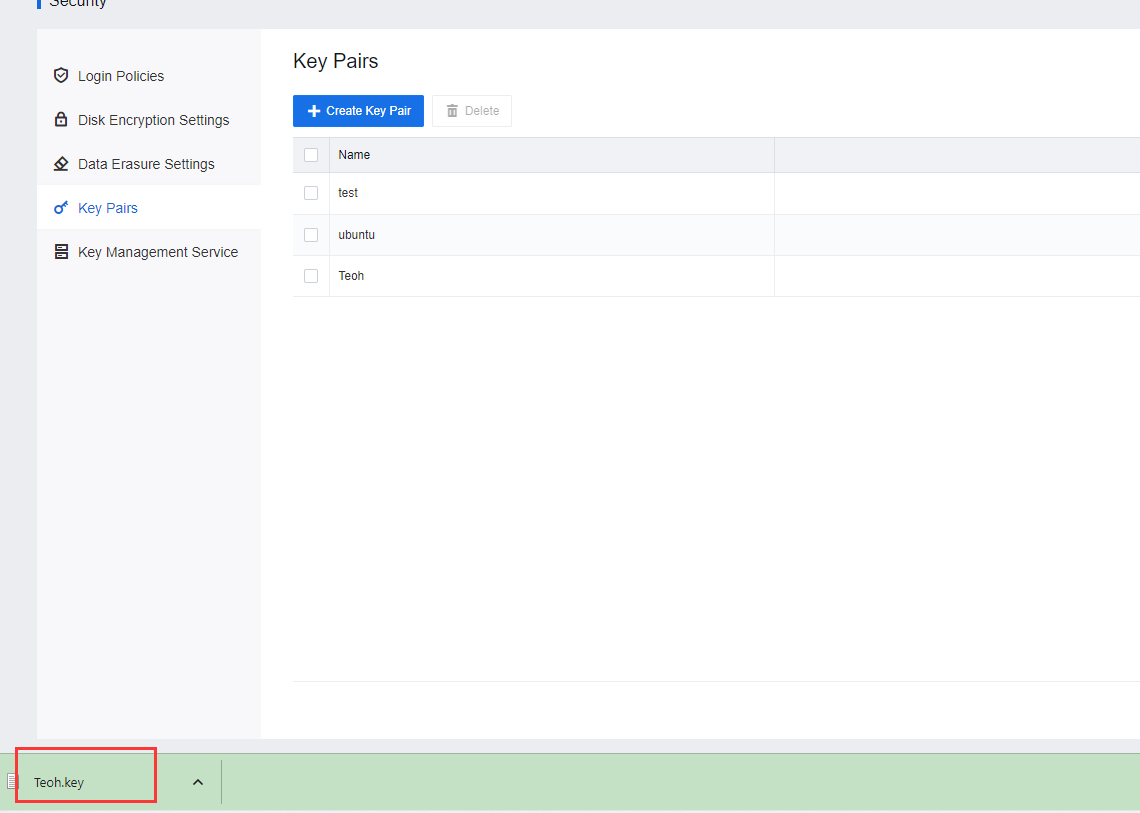
- After creating the key pair, the secret key file will be automatically downloaded to the user’s PC.
- After creating a key pair, find the VM to be bound and click Bind VM.
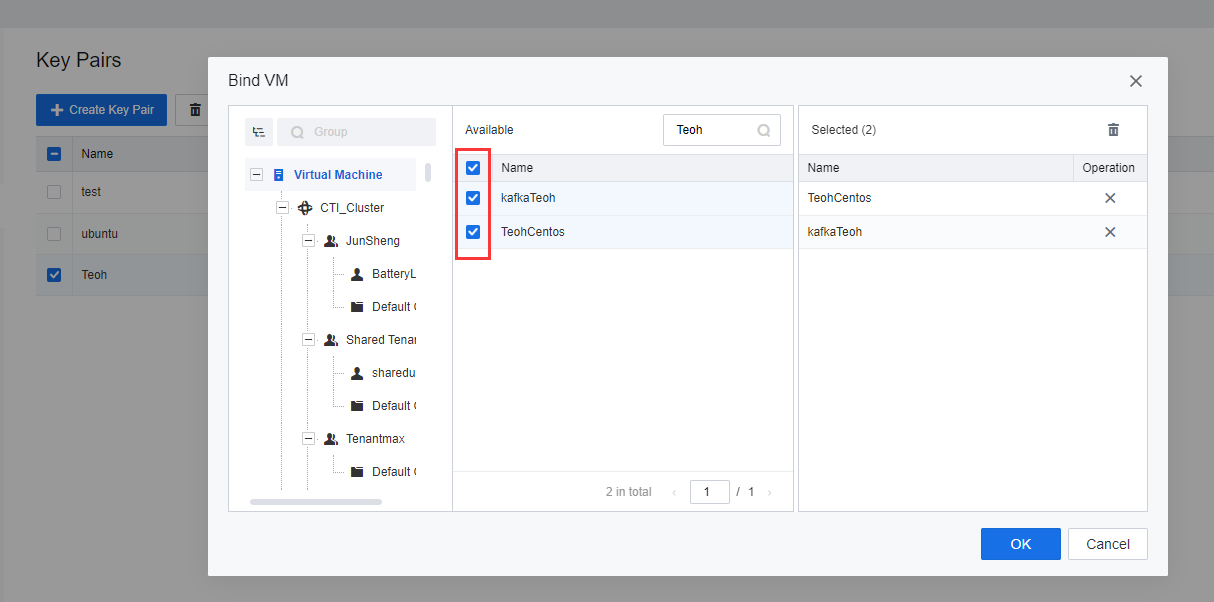
- Select the VM, and the key pair will be bound successfully.
Implementation
- Navigate to the VM bound with the key pair, and check the IP address of the VM.
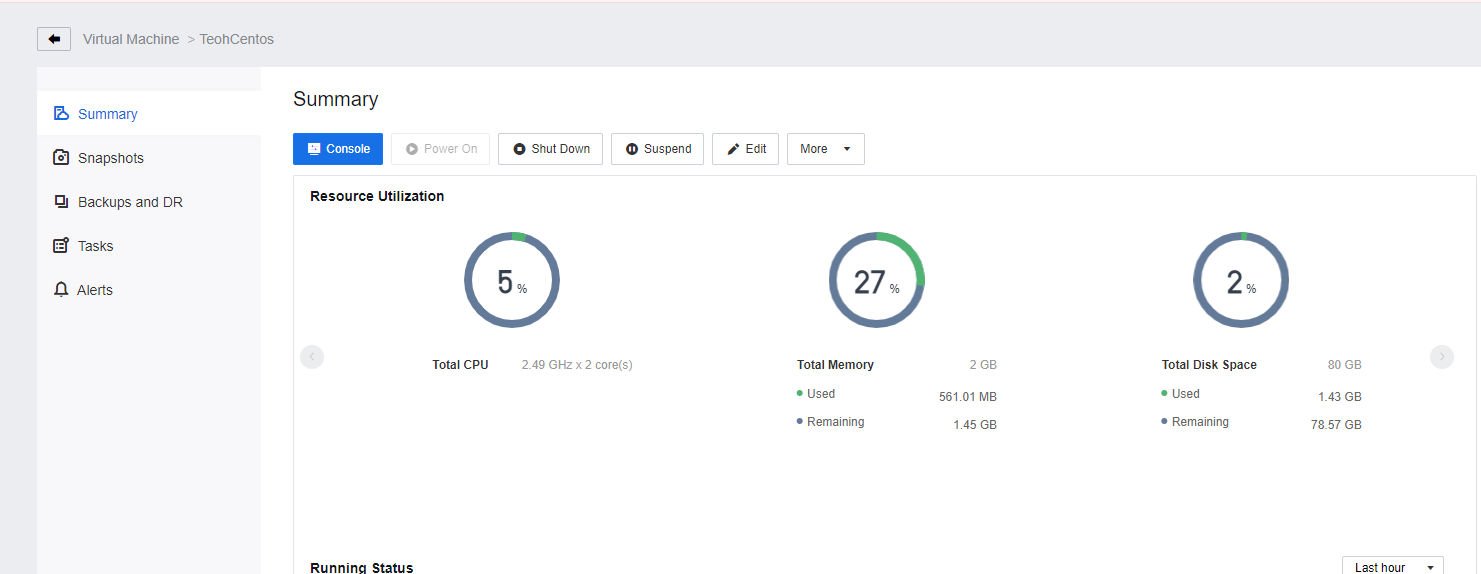
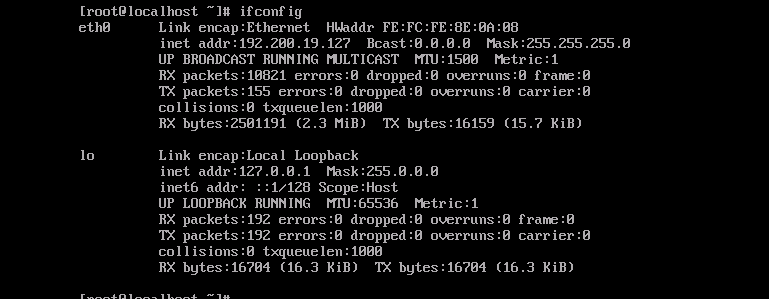
- Before binding the key pair to the respective VM, it could SSH access using the root password of the VM.
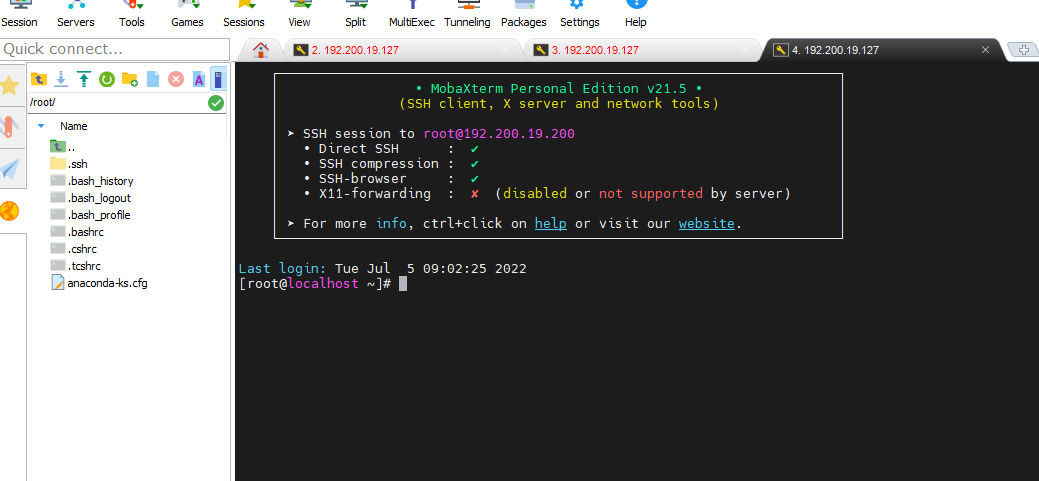
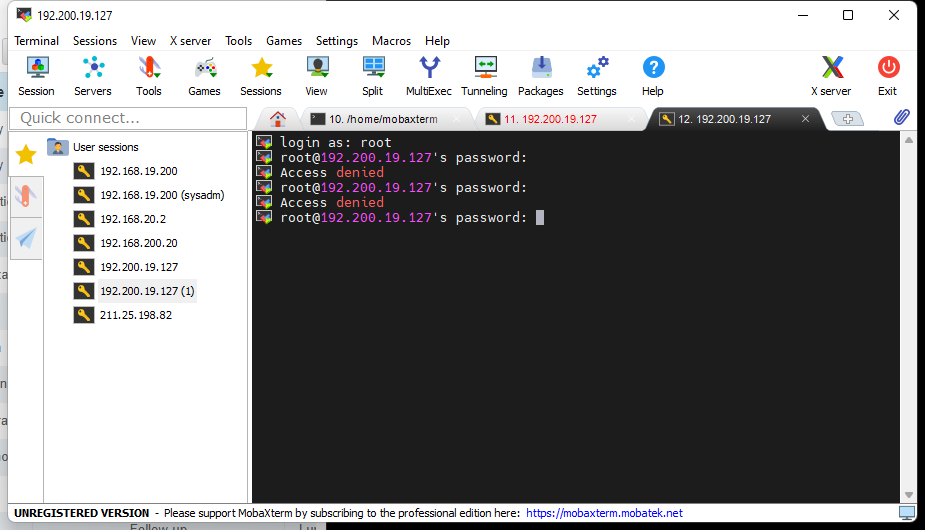
- On the physical device, try to access the VM by using the SSH tools. However, after the VM is bound with the key pair, the user will not be able to access the VM by just using the root password.
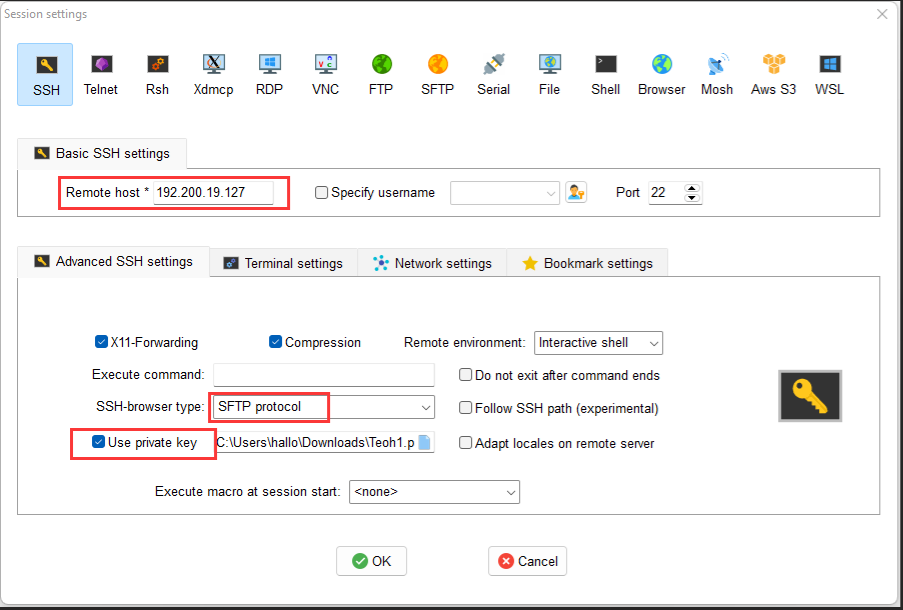
- Configured the SSH session on the SSH tools as below:
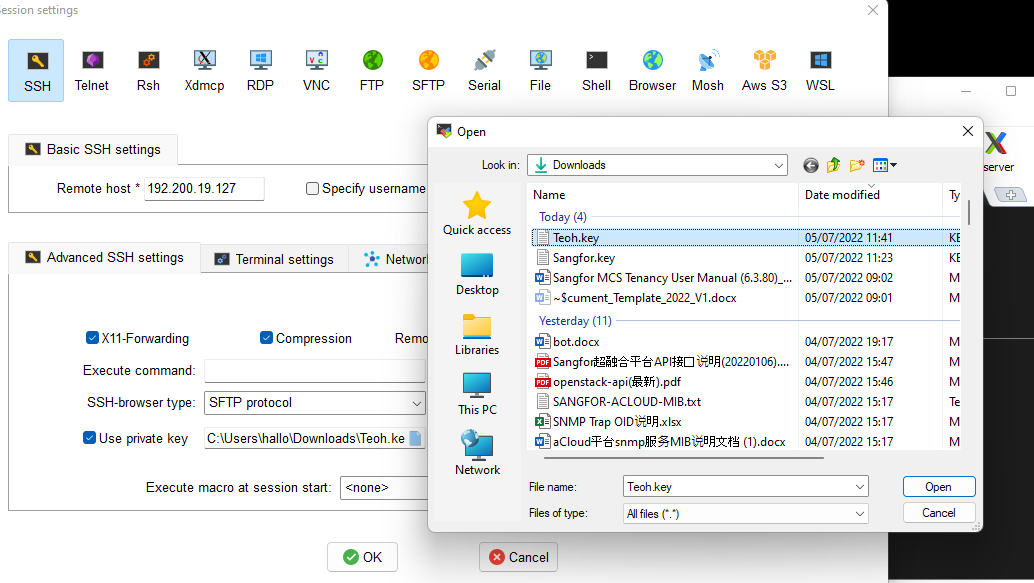
- Upload the secret key file to the SSH tools.
- After bound with the secret key, when the user accesses the VM via SSH, it will no longer require the user to key in the root password of the VM. Instead, the SSH access will succeed only by entering the username.