【SCP】Password Recovery Configuration Guide_All Versions
Application Scenario
Applicable to recover password when user forgot the login password of SCP Web UI console, USB flash disk recovery password applies to any firmware version of SCP.
Password Recovery Steps
USB Method
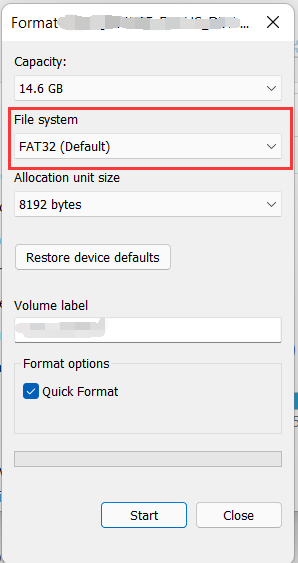
- Prepare a USB with file system FAT32. It has no limitation on the number of partitions on the USB.
- Create a new empty file.txt named acmp-reset-password and copy it to the root directory of the USB disk or the first USB directory.
- Insert the USB disk on the HCI, restart the SCP VM after mounting the USB to the SCP VM.
- After the SCP restarted, access to the SCP Web UI.
- Unmount the USB from the SCP VM, and unplug the USB afterward.
- Check the result file acmp-reset-password.log in the USB flash drive. If the recovery is successful, record the recovered console password in the file. Otherwise, the recovery failure information is recorded.
- After successful recovery, the default user name and default password of the console are both admin.
Precautions
-
The txt file must be in the root directory of the USB flash disk.
-
The USB flash disk can be a single partition or multiple partitions. The format of a single partition USB flash disk must be FAT32; the multi-partition U disk must put the txt file in the first partition, and the format of the first partition must be FAT32.
-
USB flash disk recovery password will only recover the password and will not restore other configurations.
-
If the recovery is unsuccessful, you can try the operation again. If the operation is still unsuccessful, it is recommended that you contact our technical support.
-
If the SCP console can log in, but the password of the SCP console is forgotten, it is recommended that you contact our technical support.
GUI Method
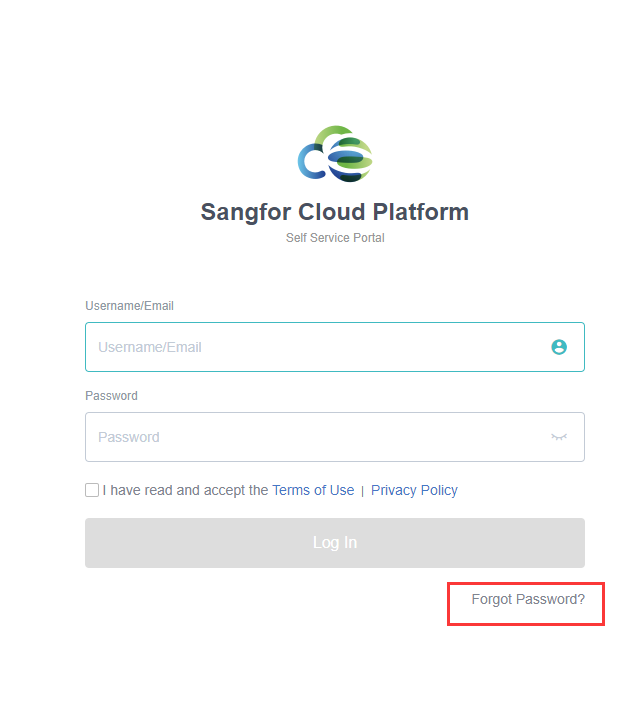
- Access to the SCP login page, click Forgot Password.
- Key in the Email Address that is configured with the admin account.
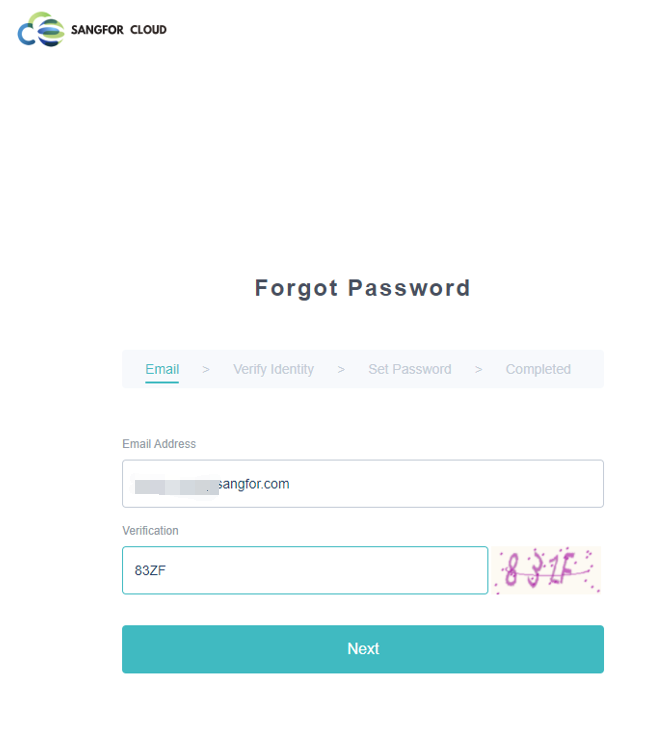
- Verification code will be sent to the Email Address that the user key in, get the verification code from the mailbox, and enter the code as below:
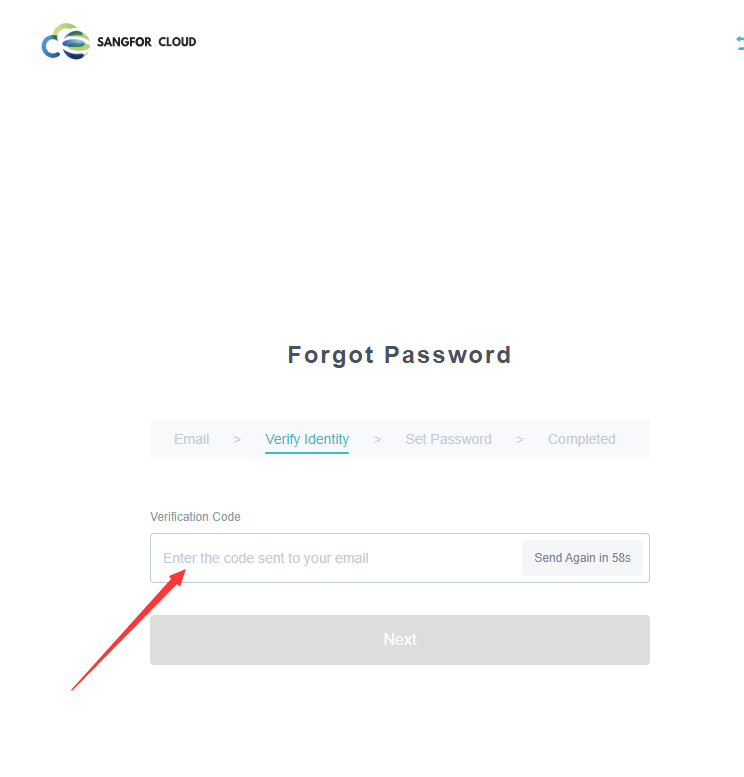
- After verifying identity, it will be required to change the password and the user will be able to log in with the new password.
Precautions
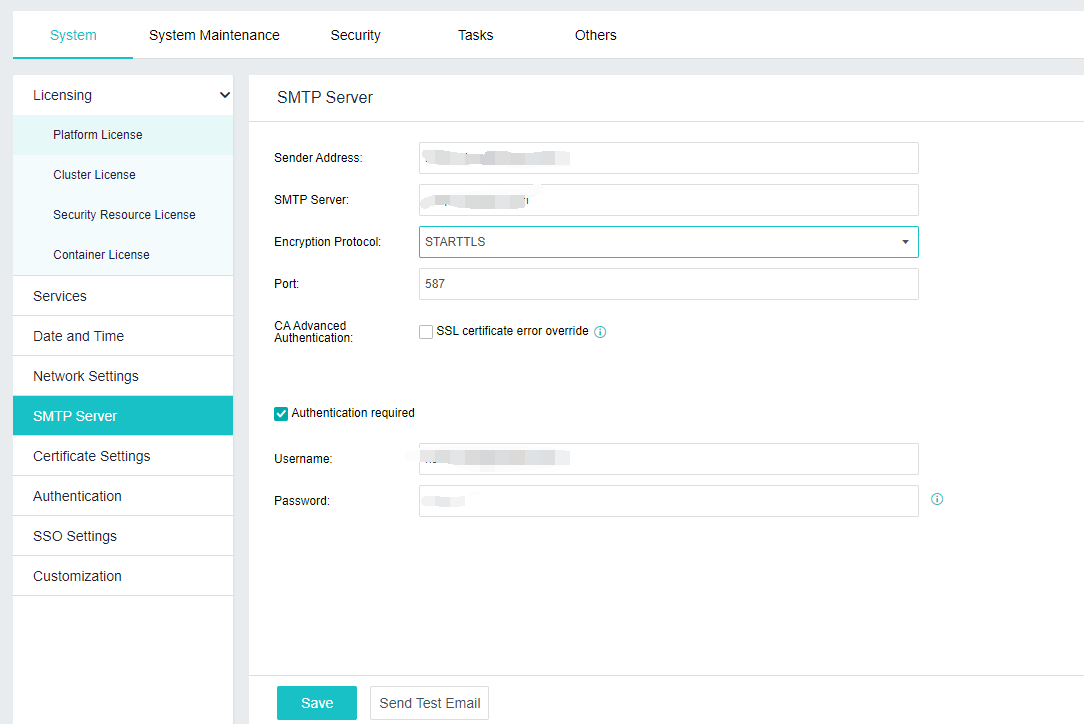
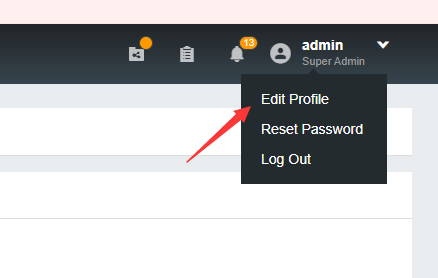
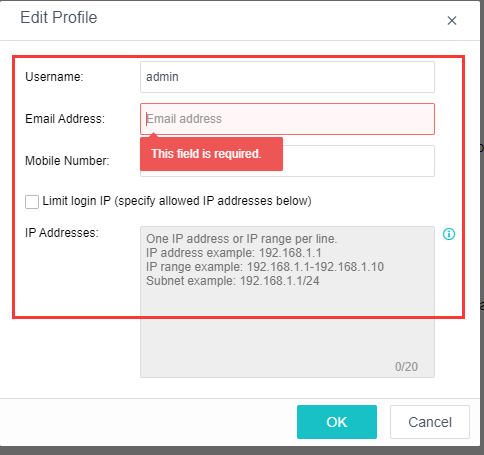
SCP password reset on the login page was only applicable for SCP firmware version 6.3.7 and onwards. Using this method will require the user to set up the email address on the user account profile and configure the SMTP on SCP.
- Make sure the user sets up the email address on the user account profile.
- Make Sure the SMTP server was well configured and able to send an email.