
【SCP】Upgrade Guide_V6.7.30
Upgrade Guide
Preparations for Upgrade
Upgrade Tools
Upgrade Client Version
None.
Database Version
None.
Impacts of Central Management (CM) on Cluster
None.
Pass-Through Supported
None.
High Availability Supported
None.
Licensing
-
The SCP license is still valid.
-
The license of the current SCP version is SCP6.3.70_EN.
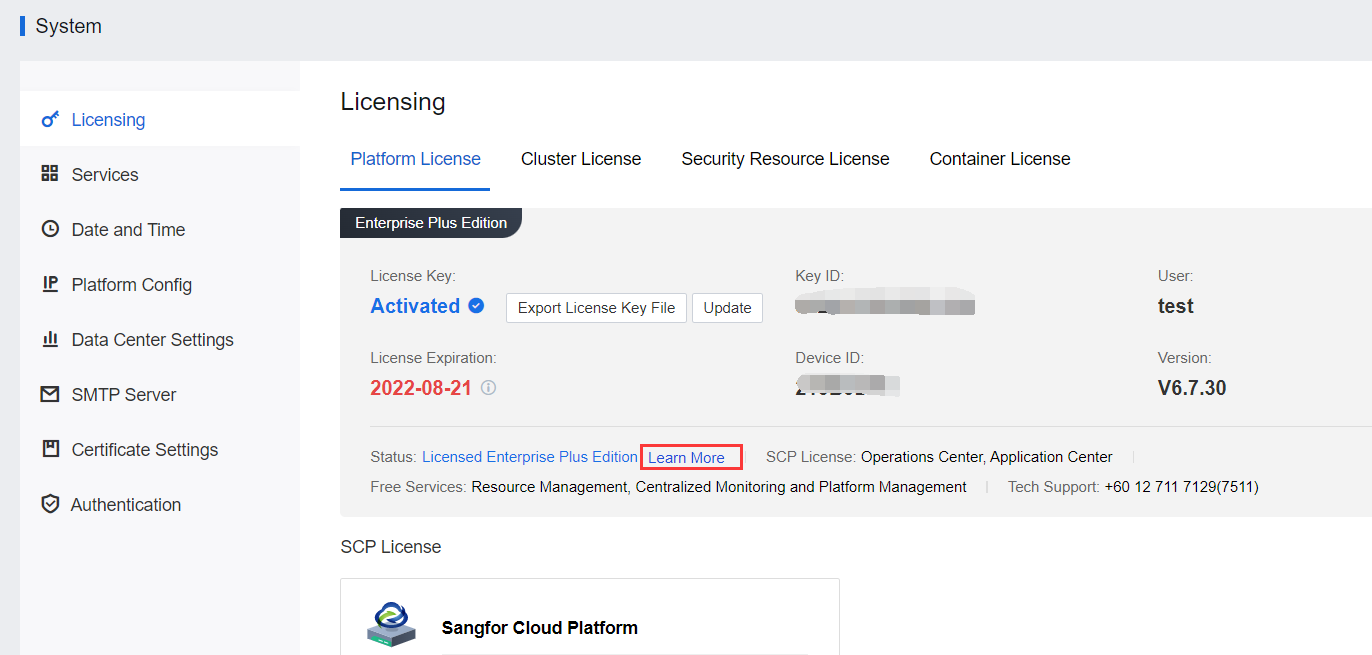
a) Since SCP6.2.0_EN, the original aOC license has changed to the SCP license, categorized intoAdvanced Edition, Enterprise Edition, and Enterprise Plus Edition. Each edition comes with different features. You can click Learn More on the Licensing page for more details, as shown below.
b) If the version earlier than SCP6.7.30 contains an aOC license, the license will be converted into an SCP Enterprise Edition license after completing the update.
c) SCP6.7.30EN and the later versions that contain an aHCM license have a quota for licensed physical machines. Therefore, if an aHCM license already exists before the update, a total of 500 licensed physical machines will be available after the update by default.
d) For versions earlier than SCP6.7.30_EN, only Enterprise Plus Edition customers can use the Application Center. In SCP6.7.30_EN, the customers who have purchased Advanced Edition or Enterprise Edition can activate aAPP and aHCM license to use the Application Center and AWS Cloud. Additionally, versions earlier than SCP6.7.30_EN with Advanced Edition and Enterprise Edition purchased can use the feature of Physical Machines management. SCP6.7.30_EN with Advanced Edition newly purchased can use this feature after activating the aHCM license.
e) For versions earlier than SCP6.7.30_EN, licensing of AWS Cloud VMs is based on the expiry date only. While for SCP6.7.30_EN and later versions, the licensing is based on both the expiry date and the number of VMs. In Enterprise Plus Edition, a certain number of AWS Cloud VMs will be given according to the number of host CPUs.
Note:
If the number of AWS Cloud VMs needed exceeds the number of VMs provided by the platform, you need to renew a license key, and the number of available VMs is the number of licensed VMs. Otherwise, the number of available VMs is the number of VMs provided by the platform.
Environment Information
None.
Customer Resources
None.
Check Before Upgrade
None.
Notes
- Perform a pre-upgrade check in the disaster recovery scenario.
Under the disaster recovery scenario, ensure that no disaster recovery task is in progress before the upgrade. It is recommended to stop disaster recovery tasks manually and then upgrade the platform. After the upgrade is complete, check the platform to ensure no problems and enable disaster recovery.
- Perform a check after the upgrade of active and standby nodes.
Upgrade the active and standby nodes and ensure that the versions of the upgraded active and standby nodes are the same.
Upgrade Steps
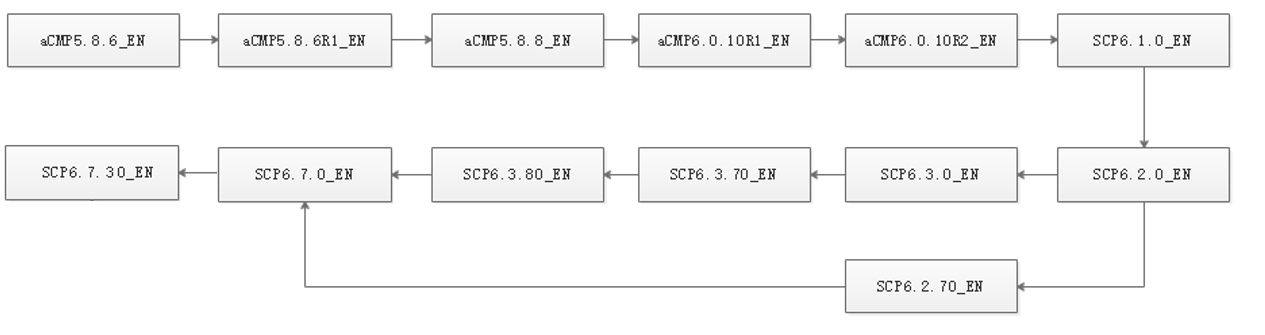
Upgrade Path
Caution:
Each upgrade takes about 30 minutes. Please upgrade during off-peak hours.
All versions can be upgraded to any later version.
Upgrade Steps
Caution:
Before Upgrade:
- Check the MD5 values of all update packages to ensure they are the same as those in the attachments.
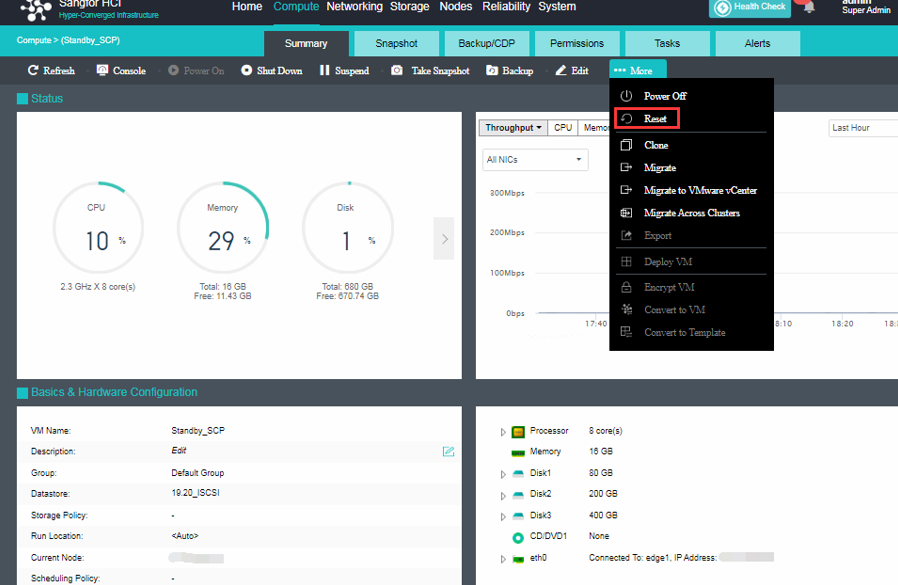
- Take a snapshot of the SCP that need to be upgraded.
SCP6.1.0_EN And Below Version
Upgrade Steps
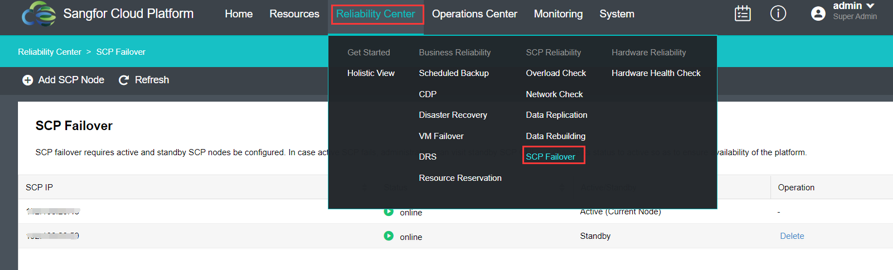
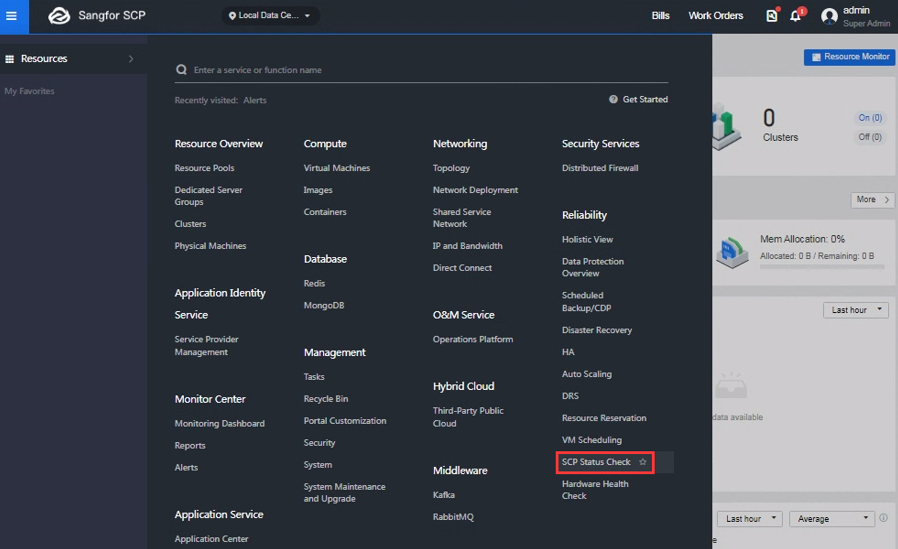
- Determine whether the SCP platform earlier than SCP6.2.0_EN is under the failover scenario. Check whether there is a standby SCP node in Reliability > SCP Failover, as shown below.
Note:
It is required to install the pre-update check package if SCP Failover is configured for version SCP6.1.0 and below.
Active SCP:
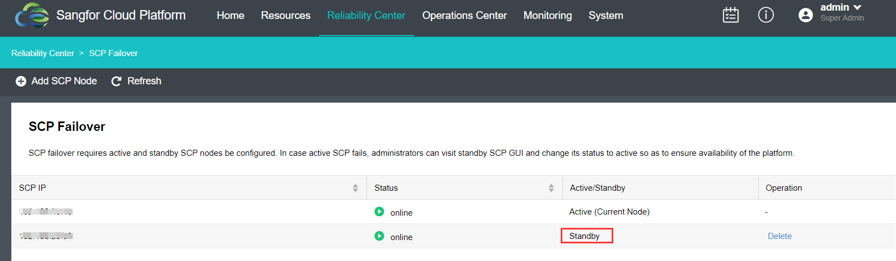
Standby SCP:
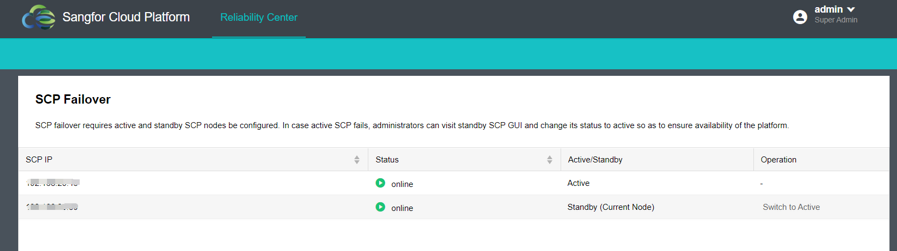
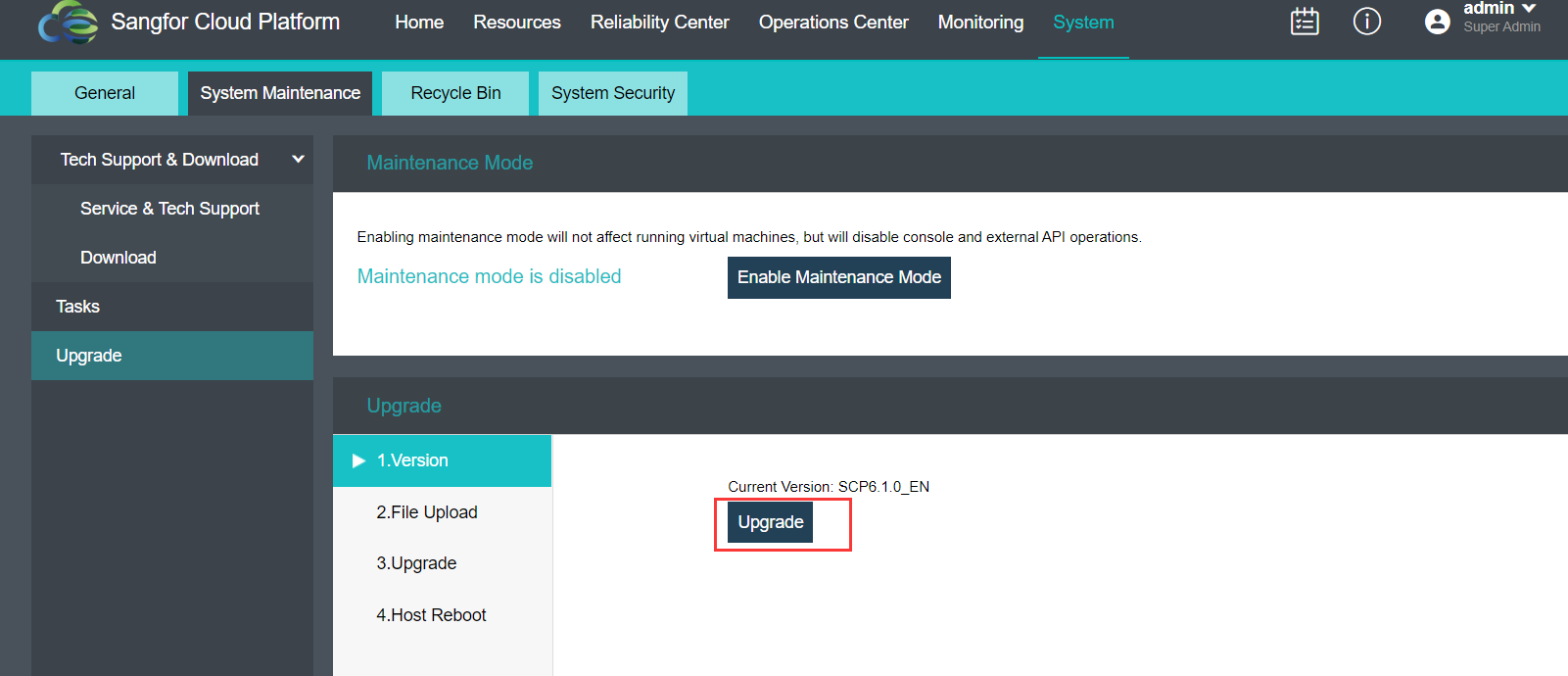
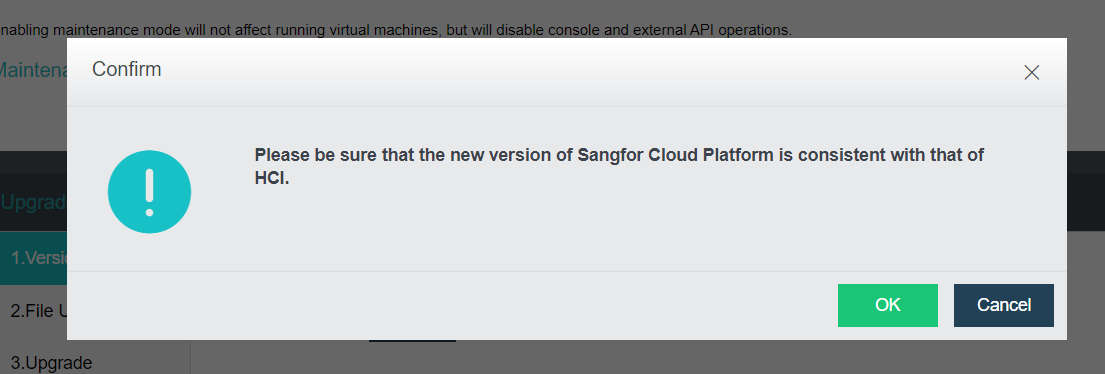
- From the active SCP, click the Upgrade button in System > Upgrade and then click the OK button on the following figure.
- Select the pre-update check package and upload it.
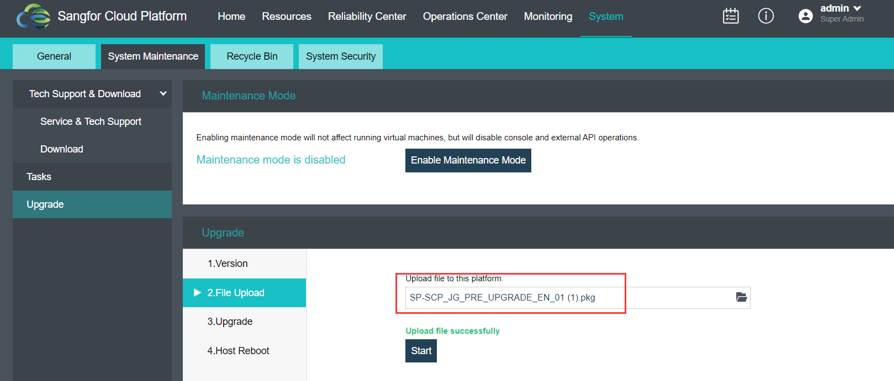
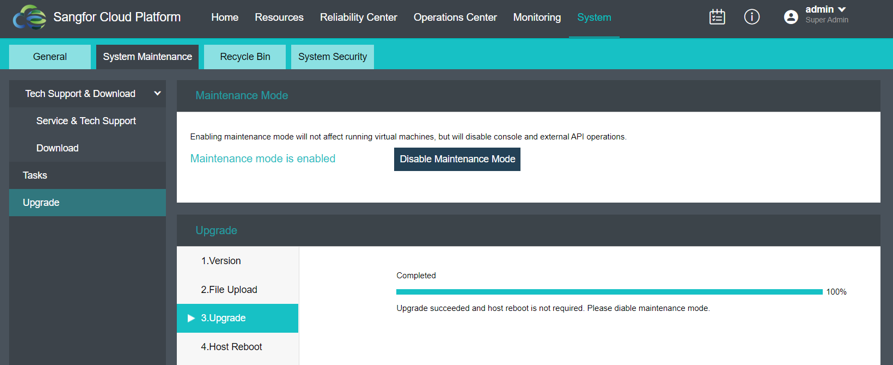
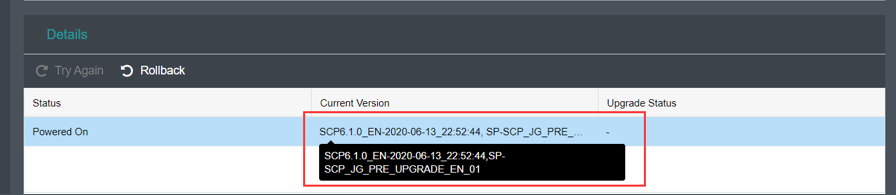
- Click the Start button and wait until the progress bar reaches 100%. No need to restart the VM after the pre-upgrade check package has been successfully installed. You can click the Disable Maintenance Mode button to finish the upgrade and view whether the pre-upgrade check package information is included in the Current Version.
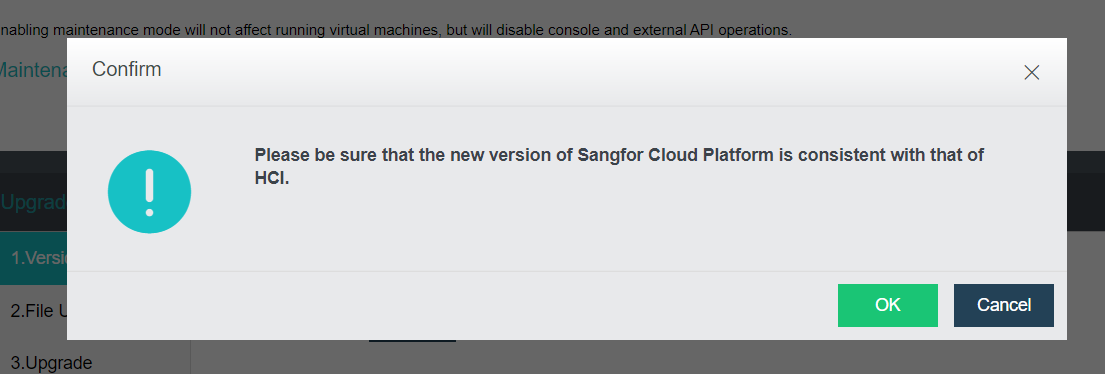
- Click the Upgrade button in System > Upgrade and click OK.
- Select the SCP6.7.30_EN upgrade package and upload it.
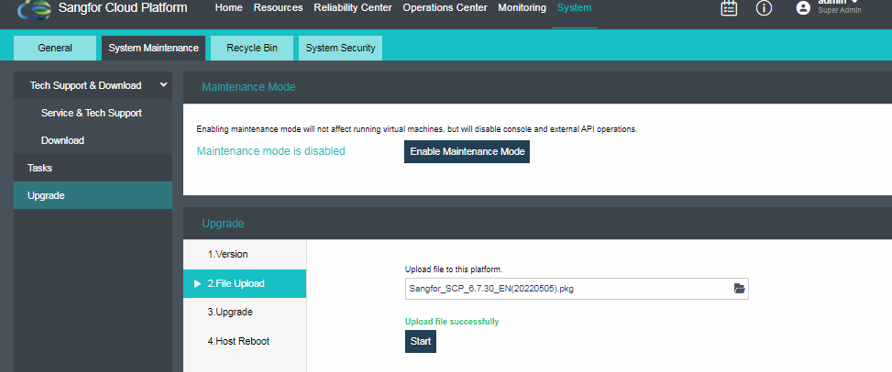
- Click the Start button and wait until the progress bar reaches 100%.
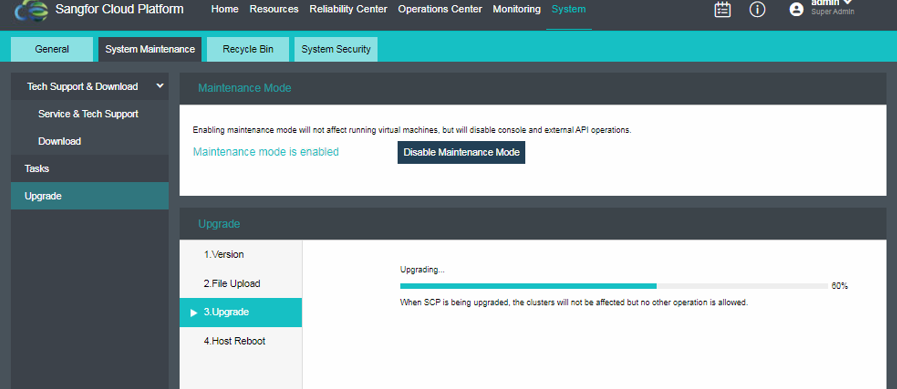
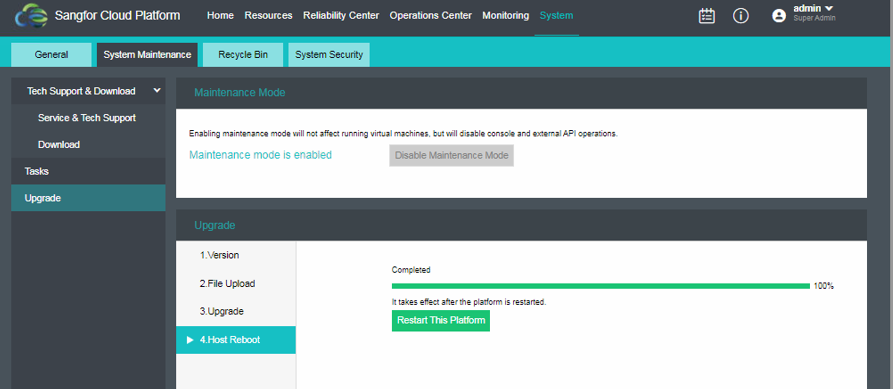
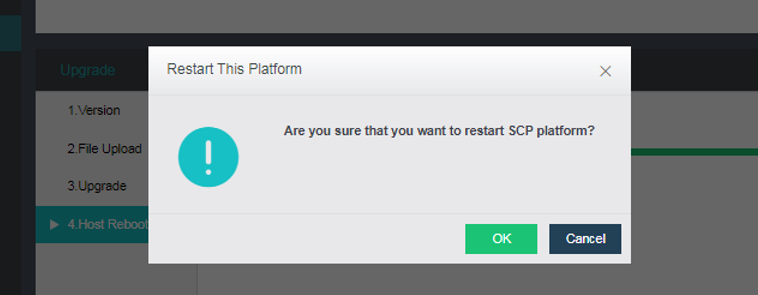
- Click the Restart This Platform button and after the update is completed, click OK to proceed to restart. While restarting the active SCP, the standby SCP will reboot automatically to sync the version.
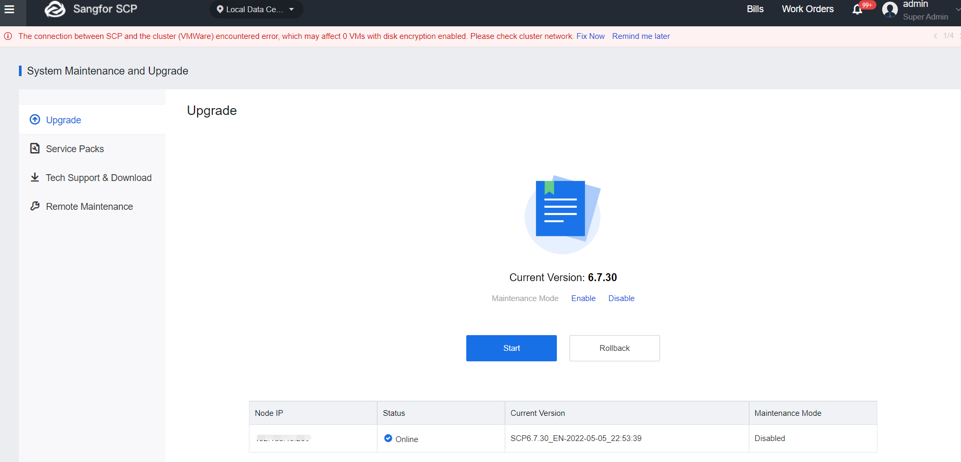
- After restart, log in to the platform and check whether the current version is SCP6.7.30_EN in System Maintenance and Upgrade > Upgrade.
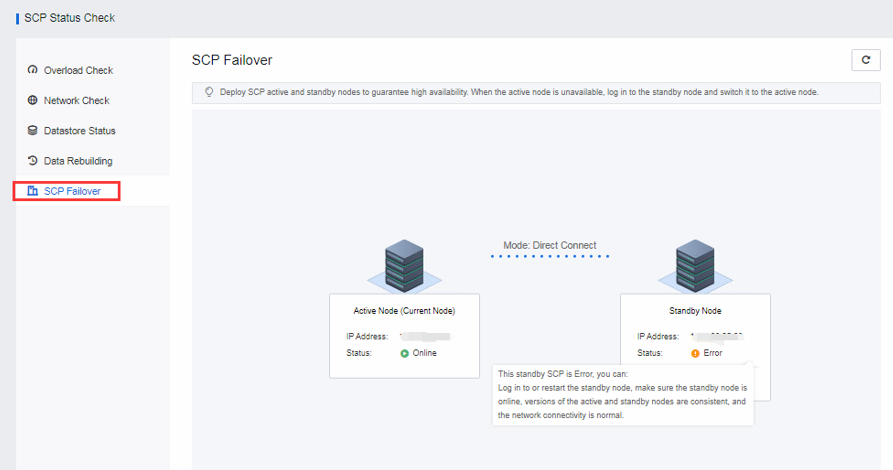
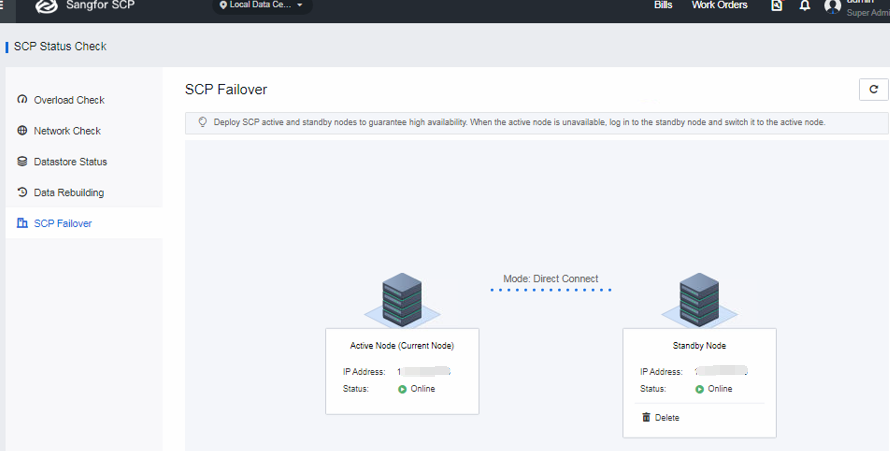
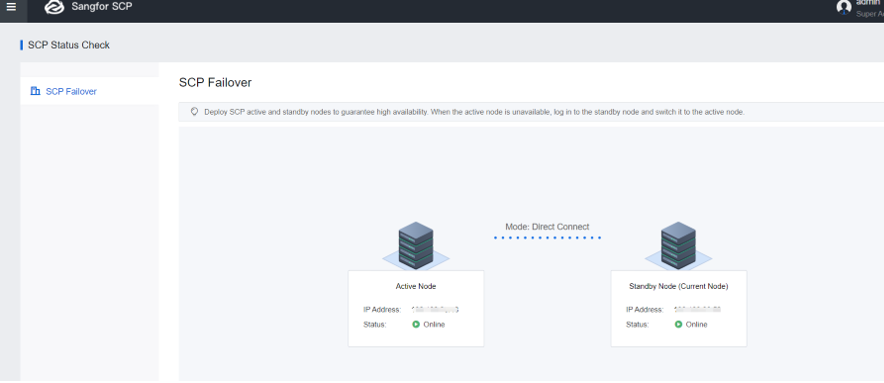
- Access SCP Status Check > SCP Failover to check on the status. It is normal when the standby SCP shows the warning error (the standby SCP is restarting and needs some time to recover). Wait for a while, and it is back to normal.
Active SCP:
Standby SCP:
- If the standby SCP didn’t reboot automatically, you can reboot the standby SCP manually.
SCP6.2.0_EN And Above Version
Upgrade Steps
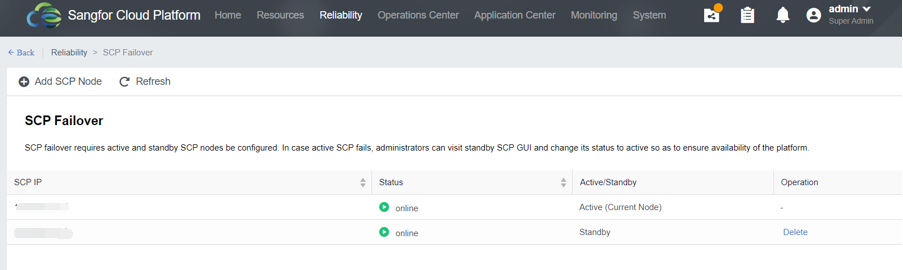
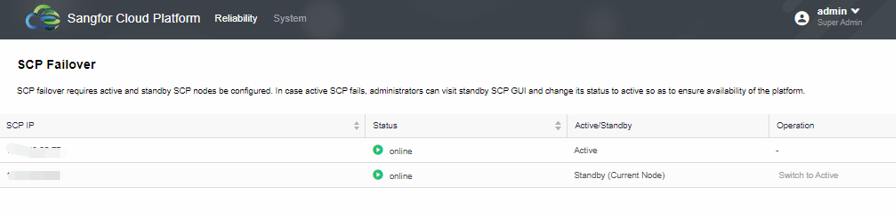
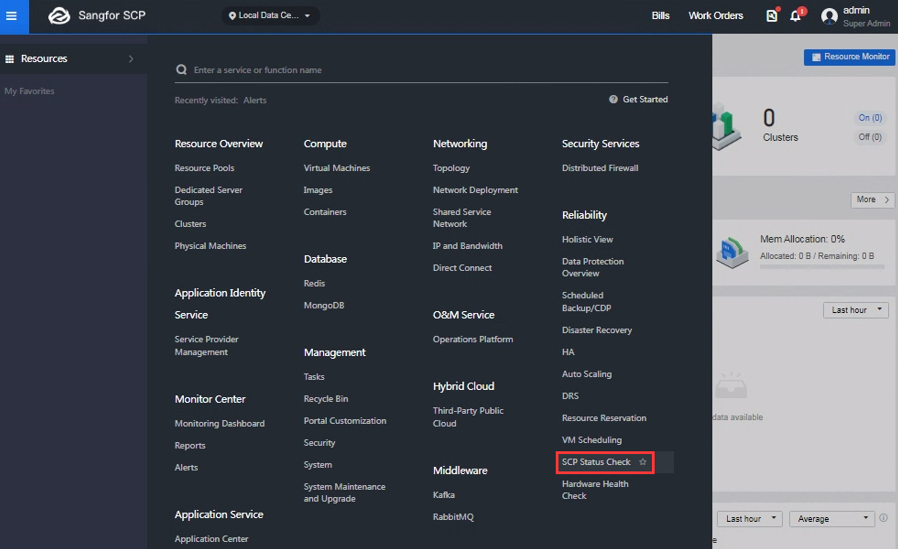
- Determine whether the SCP platform earlier than SCP6.2.0_EN is under the failover scenario. Check whether there is a standby SCP node in Reliability > SCP Failover, as shown below.
Note:
Starting from version SCP6.2.0_EN, the pre-update check package is not required.
Active SCP:
Standby SCP:
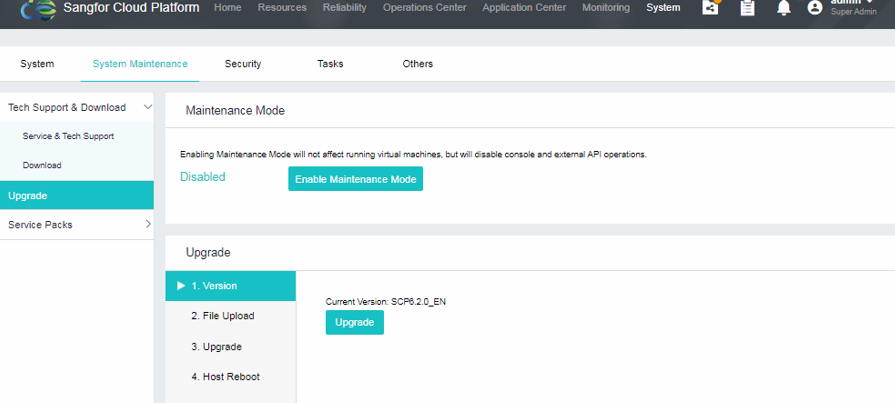
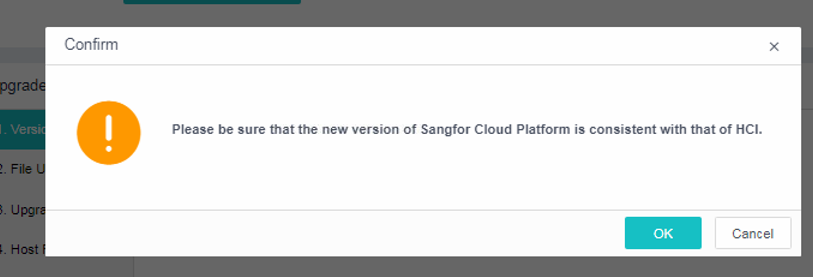
- From the active SCP, click the Upgrade button in System > Upgrade and then click the OK button on the following figure.
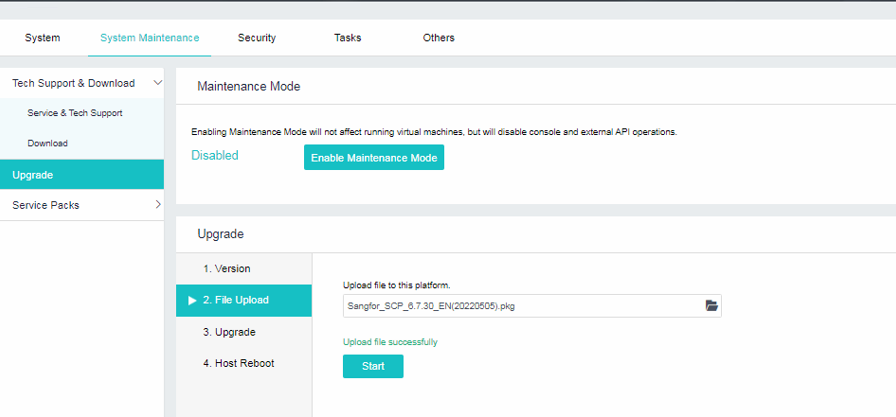
- Select the SCP6.7.30_EN upgrade package and upload it.
-
Click the Start button and wait until the progress bar reaches 100%.
-
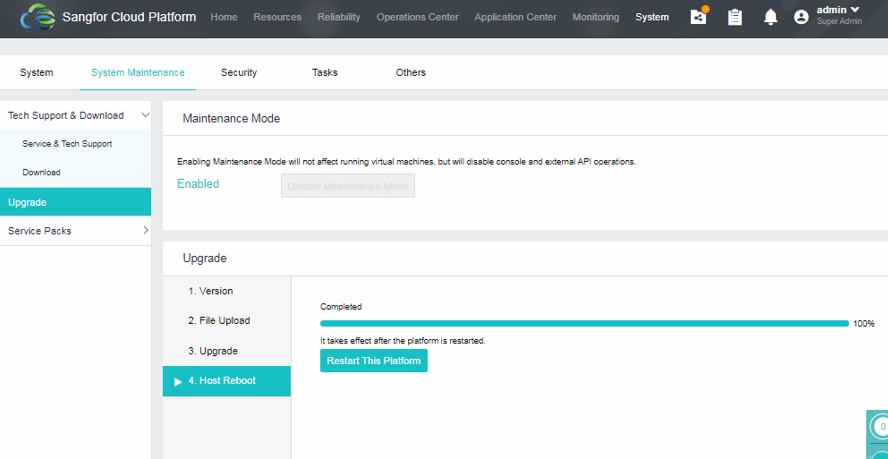
Click the Restart This Platform button and after the update is completed, click OK to proceed to restart. While restarting the active SCP, the standby SCP will reboot automatically to sync the version.
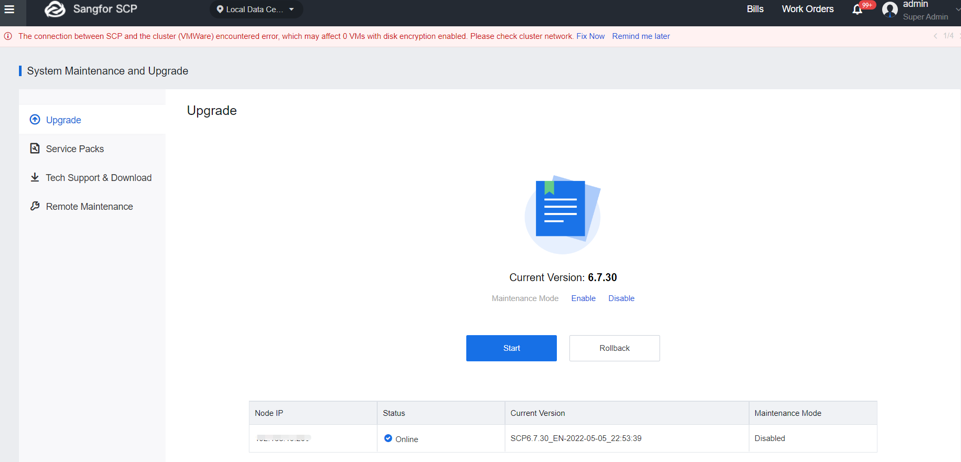
- After restart, log in to the platform and check whether the current version is SCP6.7.30_EN in System Maintenance and Upgrade > Upgrade.
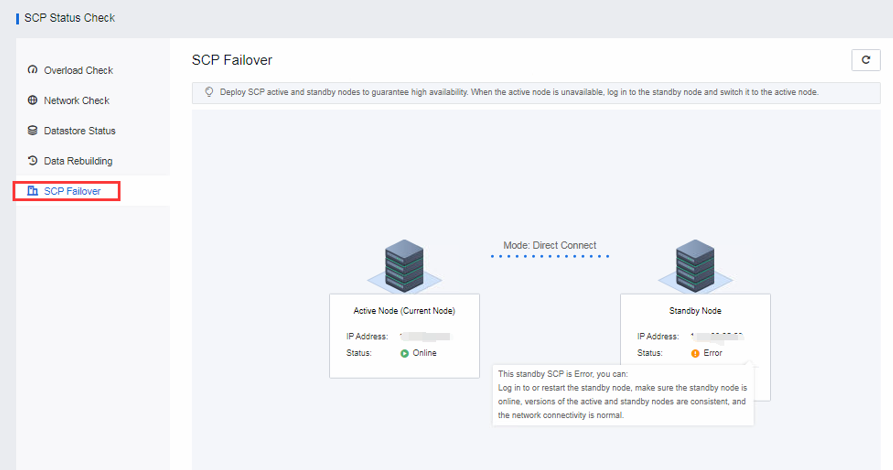
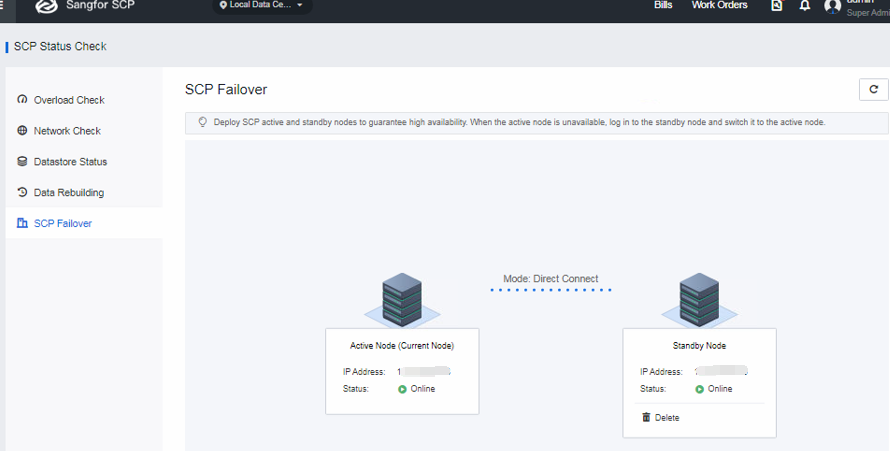
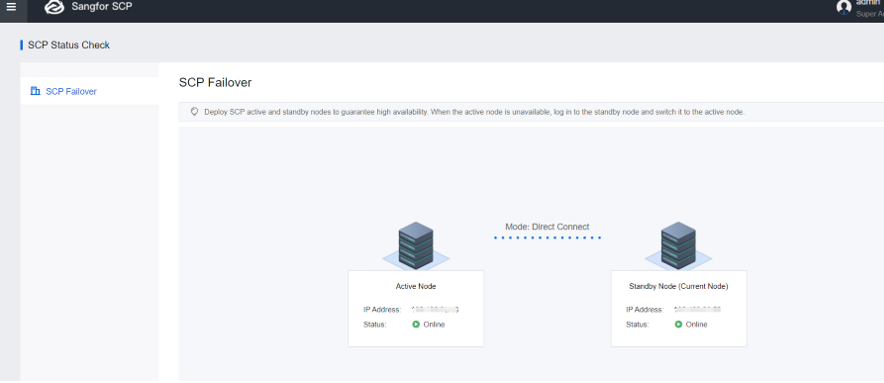
- Access SCP Status Check > SCP Failover to check on the status. It is normal when the standby SCP shows the warning error (the standby SCP is restarting and needs some time to recover). Wait for a while, and it is back to normal.
Active SCP:
Standby SCP:
- If the standby SCP didn’t reboot automatically, you can reboot the standby SCP manually.
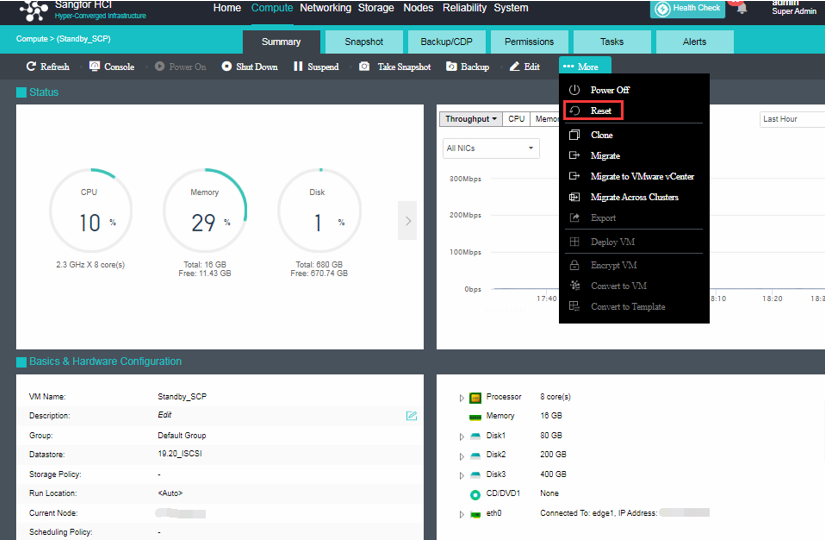
Alternative Way(Reconfigure Failover)
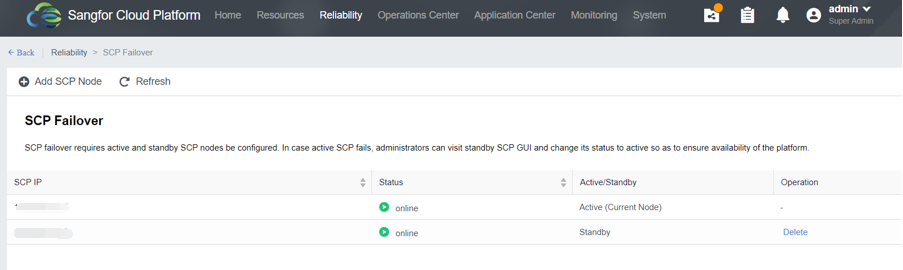
- Before performing the upgrade session for SCP, access Reliability > SCP Failover to check on the SCP Failover active/standby status.
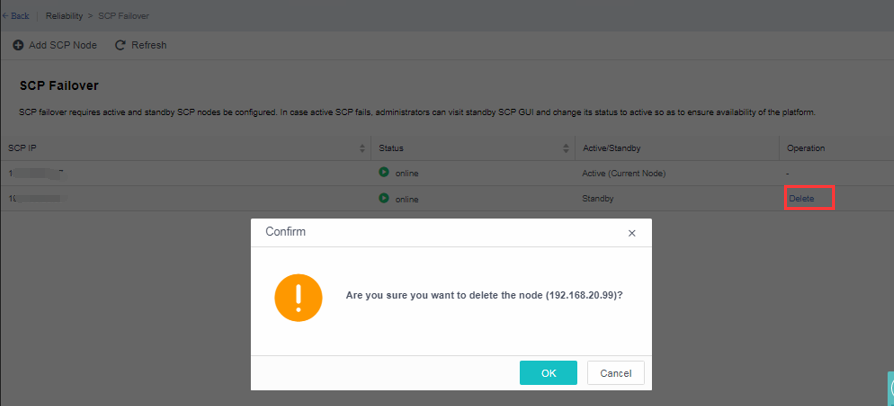
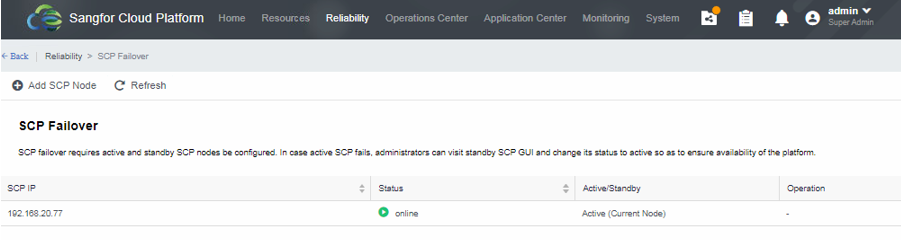
- Click on the Delete button and click on OK to remove the standby SCP.
-
Follow the steps above to upgrade without applying the pre-update check package.
-
After the version upgrade, redeploy a new standby SCP and Add the new SCP standby node.
Note:
Suitable for ALL versions.
Post Upgrade Check
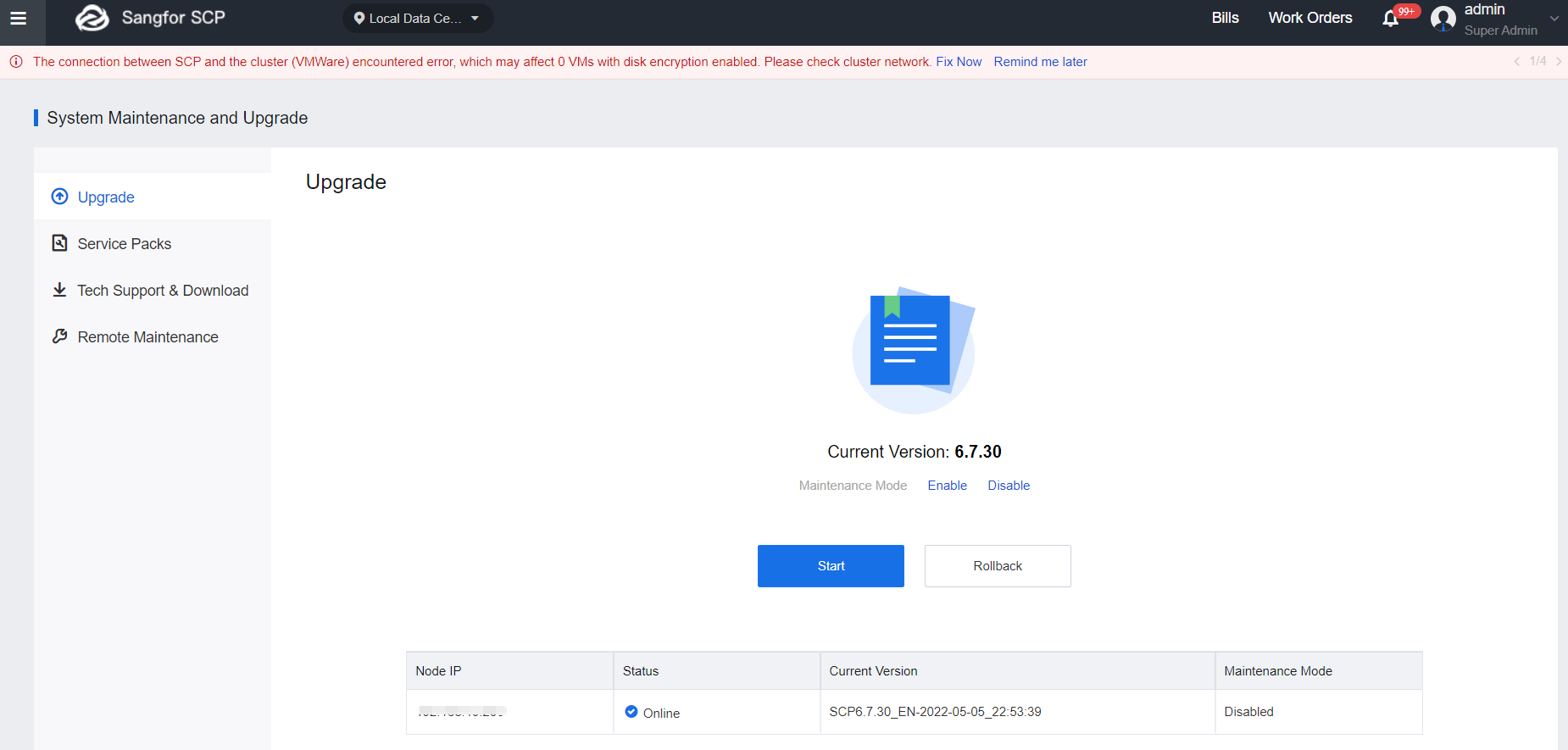
Check whether the current version is SCP6.7.30_EN in System > Upgrade.
Service Status
- Check whether the SCP platform can be logged in successfully.
- Whether all services, including backup and disaster recovery, are working.
Abnormalities Troubleshooting
Scenario: A task is in progress.
Solution: Go to the task list and cancel the task manually. If it cannot be canceled, update after the task is finished. If it’s a disaster recovery task, manually stop the disaster recovery policy and perform the upgrade.
Rollback Instructions
None.