
【ACMP】Email alert deployment
Problem Description
ACMP email alarm deployment
solution
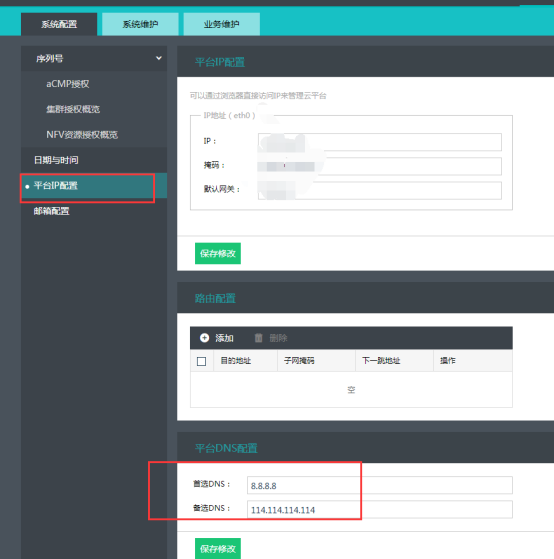
- To deploy email alerts, you need to ensure that ACMP can access the Internet normally and resolve email domain names. You need to configure DNS for ACMP so that it can resolve normally. Otherwise an error will be reported: Failed to send email (*****@qq.com): Unable to connect to the server (smtp.qq.com). The configuration interface is as follows:
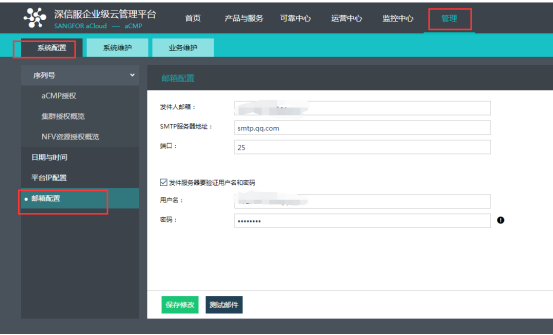
1695ea02d6c62e13.png (45.35 KB) - Select Management->System Configuration->SMTP Server to configure. It should be noted here that the verification username and password at the bottom are the passwords Licensing the third-party client (which will be introduced in the next step). The port number for SMTP is 25
The SMTP address of QQ mailbox is: smtp.qq.com
The SMTP address of 163 mailbox is: smtp.163.com
953065ea02d9424947.png (35.11 KB)
3 Common ways to obtain third-party authorization passwords via email
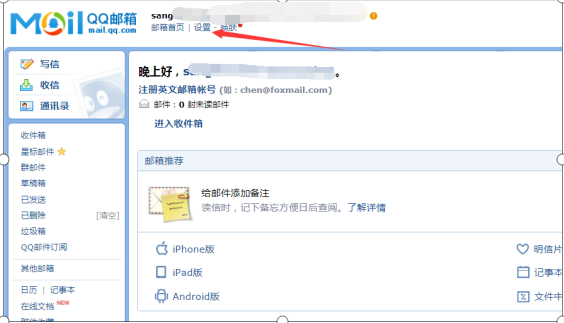
(1) QQ Mailbox- Log in to the mailbox page and click Settings
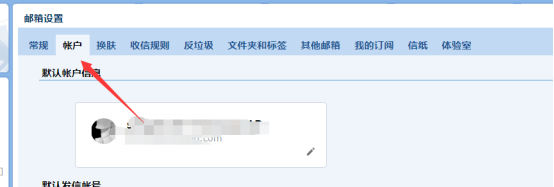
221145ea044981cd0e.png (66.83 KB) - Select an account on the settings screen
720175ea02db01c60a.png (22.29 KB) - Pull down to start the corresponding service
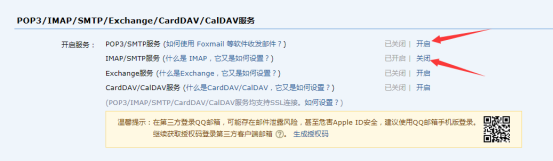
937225ea02dbc6ef9d.png (47.2 KB) - Obtain a 16-digit Authorization Code through the web page prompt and fill it in the password in step 2.
(2) The method of obtaining the Authorization Code for 163 mailbox is similar to the interface of QQ mailbox as follows
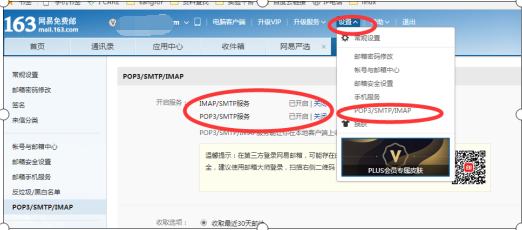
805435ea02ddc668f7.png (79.67 KB)
- At this time, you can send a test email to test whether it can be sent normally.
Suggestions and Conclusion
For configuration examples, see the processing process. When filling in the username and password of the email address on ACMP, it is the third-party client Authorization Code, not the email address password.
Original Link
https://support.sangfor.com.cn/cases/list?product_id=36&type=1&category_id=19469&isOpen=true
- Log in to the mailbox page and click Settings