
【SCP】Release Notes_V6.9.0
SCP
Overview
SCP New Features
- SNMP trap: Support pushing configuration information, status information, and alerts of clustered nodes through SNMP traps. When an alert is triggered, it will be sent to a third-party monitoring platform through the SNMP trap API.
- Encryption security compliance: After encryption cards and HSMs are configured, support enabling SM encryption mode to protect critical data in information system applications by using compliance encryption algorithms, technologies, and products according to encryption security compliance requirements in China.
- Encryption cards: Support using four domestic encryption cards (SYD1308-G and SJK1727 V2.0-A/B/C) in passthrough mode.
- HSMs: Support using HSMs produced by Sansec and JIT to encrypt data of SCP through the SM4 algorithm. HSMs can also be used to provide business services.
- Compatible with China’s domestic GPUs: With the support of X86 architecture, you can use three domestically produced GPUs (Ascend Altas 300V Pro, Cambrian MLU270-S4, and Moore Threads MTT S2000) only in passthrough mode.
- Compatible with NVIDIA GPUs: Support using Tesla P4 and A100-HGX-80G in passthrough or vGPU mode and using Quadro P4000, RTX 4000, RTX 5000, RTX 6000, T1000, T1000-8G only in passthrough mode.
- Object storage: Provide fool-proof design for object storage lifecycle. Support enabling small object merging and versioning features by integrating with aStor 309R1.
- File storage: Support managing the file storage pool, including managing directories, accounts, and NFS shares.
- Global QoS limits: Support configuring limits on the CPU clock speed, disk IO, and NIC traffic for VMs in the HCI6.9.0 resource pool and above to apply unified QoS settings to all VMs in the resource pool.
- SCP resource permission control: The permission control feature is optimized to support fine-grained control of hundreds of operation permissions related to VMs, resource pools, and NFV devices.
Others
- If HCI has been managed by SCP (earlier than SCP6.7.30) before upgrading to HCI6.9.0, please upgrade SCP to SCP6.7.30 and above (including SCP6.9.0) before upgrading HCI.
- After upgrading SCP6.7.0 to SCP6.7.30 and above (including SCP6.9.0), please contact Sangfor Support for further inspection.
- Since SCP6.8.0 has been containerized, to upgrade an earlier version to SCP6.8.0 or SCP6.9.0, please add a disk (400 GB) to the platform for container image storage so that databases will not be affected by disk IO from container images.
Warning:
The offline licensing(virtual key) method is supported only when SCP6.8.0 is deployed on HCI6.8.0 or later.
When using a virtual key to upgrade to SCP6.8.0, the original license key file will become invalid, and required to renew the license key with the new device info. This licensing method is supported only when SCP6.8.0 is deployed on HCI6.8.0 or later. Therefore, resource pools of earlier versions may cause SCP licensing to fail.
It is required to use the licensing method with a USB key if aSecurity needs to be licensed.
Upgrade Path
Sangfor Cloud Platform(SCP)
The Versions Can Be Upgraded to SCP6.9.0:
| aCMP 5.8.6 Series | 5.8.6_EN | 5.8.6R1_EN | – | – | – | Offline Upgrade |
|---|---|---|---|---|---|---|
| aCMP 5.8.8 Series | 5.8.8_EN | – | – | – | – | Offline Upgrade |
| aCMP6.0.10 Series | 6.0.10_R1_EN | 6.0.10_R2_EN | – | – | – | Offline Upgrade |
| SCP6.1.0 Series | 6.1.0_EN | – | – | – | – | Offline Upgrade |
| SCP6.2.0 Series | 6.2.0_EN | SCP6.2.70_EN | – | – | – | Offline Upgrade |
| SCP6.3.0 Series | 6.3.0_EN | 6.3.70_EN | 6.3.80_EN | – | – | Offline Upgrade |
| SCP6.7.0 Series | 6.7.0_EN | 6.7.30_EN | – | – | – | Offline Upgrade |
| SCP6.8.0 Series | 6.8.0_EN | – | – | – |
NFV Components Upgrade
Please upgrade the NFV components first if their version is lower than the version listed in the following table before upgrading the HCI.
| Device | Version | HCI6.9.0 | Classic Network | VPC | Notes |
|---|---|---|---|---|---|
| vAD | vAD6.6 | √ | √ | – | |
| vAD | vAD7.0.9_R1 | √ | √ | √ | |
| vNGAF | vNGAF7.1_R3 | √ | √ | – | |
| vNGAF | vNGAF8.0.8 | √ | √ | – | Upgraded from vNGAF7.1_R3 is supported. |
| vNGAF | vNGAF8.0.17 | √ | √ | √ | Support from vNGAF8.0.8 is supported. To use a customized version of vNGAF8.0.17, please install the upgrade package first and then the custom package. |
| vNGAF | vNGAF8.0.26 20200929) |
√ | √ | √ | Version patched supports both being installed using SSL service packs and being deployed. |
| vIAG | vIAG11.9 | √ | √ | – | Must re-deploy. |
| vIAG | vIAG12.0.14 | √ | √ | – | Upgrade from vIAG11.9 is supported. |
| vIAG | vIAG13.0.73 | √ | √ | – | Recommend deploying this version of vIAG. Upgrade from the previous version is not supported due to insufficient partition size. |
| vSSL | vSSL7.6.0 | √ | √ | – | |
| vSSL | vSSL7.6.8_R2 (20200928) |
√ | √ | √ | Support to deploy or upgrade by using the product upgrade package. |
Upgrade Impacts
- All the SCP upgrades are offline upgrades. An offline upgrade requires restarting all SCP VMs, but will not affect the running production system.
Upgrade Instructions for Customers
- During the upgrade, O&M personnel of customers should not log in to the platform for operation and maintenance.
Implementation Procedure
Refer to Chapter 1.2.5.3 SCP Upgrade.
Upgrade Tools
- When the license key for a version before SCP6.2.0 is free of charge and the feature of managing nodes is in use, an Enterprise Edition or Enterprise Plus Edition license is required to upgrade to a new version. Otherwise, this feature cannot be used.
- To upgrade a version before SCP6.2.0 to SCP6.2.0 and above, you must replace the aOC license with the SCP license key. There are three license types: Advanced Edition, Enterprise Edition, and Enterprise Plus Edition.
- aHCM license for SCP6.3.0 and above will specify the maximum number of nodes. If an aHCM license is activated before the upgrade, a license for a maximum of 500 nodes will be given by default after the upgrade.
- In versions earlier than SCP6.3.0, Application Center and Hybrid Cloud features are available only when the Enterprise Plus Edition license is activated. For SCP6.3.0 and above, independent licensing through Application Center and aHCM can be done when the Advanced Edition or Enterprise Edition license is activated.
- Nodes can be managed in versions earlier than SCP6.3.0 when the Enterprise Edition or Enterprise Plus Edition license is activated. In SCP6.3.0, the Advanced Edition license can also be used with the node license in aHCM.
- In versions earlier than SCP6.3.0, the license for managing Hybrid Cloud VMs has an expiration date. In SCP6.3.0, the license has no expiration date but specifies the maximum number of nodes that can be managed. For Enterprise Plus Edition, the maximum number of Hybrid Cloud VMs that SCP can manage depends on the number of licensed host CPUs.
Note:
The number of independently licensed Hybrid Cloud VMs or the VM quantity in a free license, whichever is greater, shall prevail. The specific rules are as follows:
Enterprise Plus Edition: For the SCP license of 20 CPU cores and below, a free license for managing 50 Hybrid Cloud VMs will be granted.
Enterprise Plus Edition: For the SCP license of 20 CPU cores (excluded) to 40 CPU cores (included), a free license for managing 100 Hybrid Cloud VMs will be granted.
Enterprise Plus Edition: For the SCP license of more than 40 CPU cores, a free license for managing 999,999 Hybrid Cloud VMs will be granted.
For customers who have purchased Enterprise Edition with 10 CPU cores and a license for managing fewer than 50 Hybrid Cloud VMs, a free license for managing 50 Hybrid Cloud VMs will be granted after SCP is upgraded to Enterprise Plus Edition.
For customers who have purchased Enterprise Edition with 10 CPU cores and a license for managing more than 50 Hybrid Cloud VMs, the number of Hybrid Cloud VMs that can be managed will remain unchanged after SCP is upgraded to Enterprise Plus Edition.
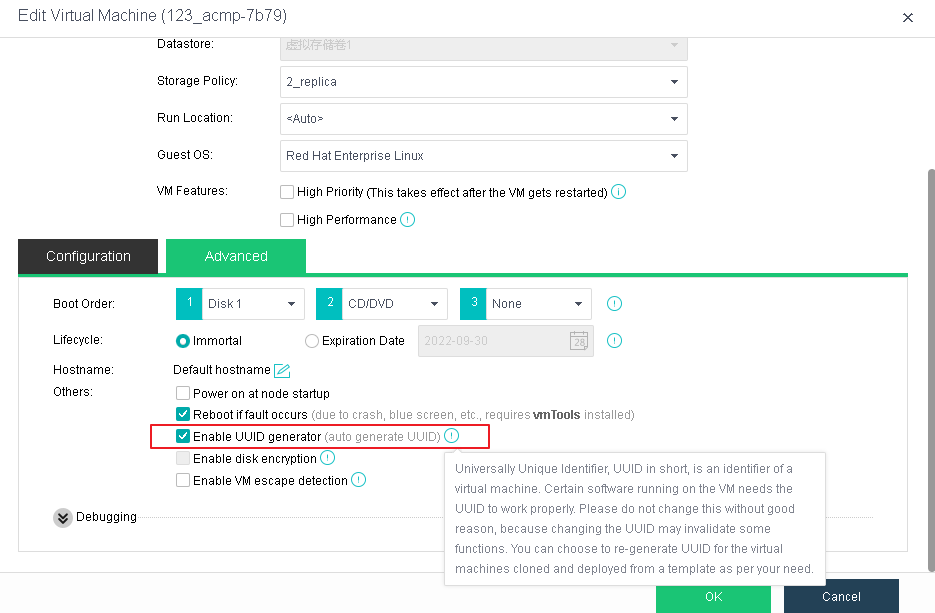
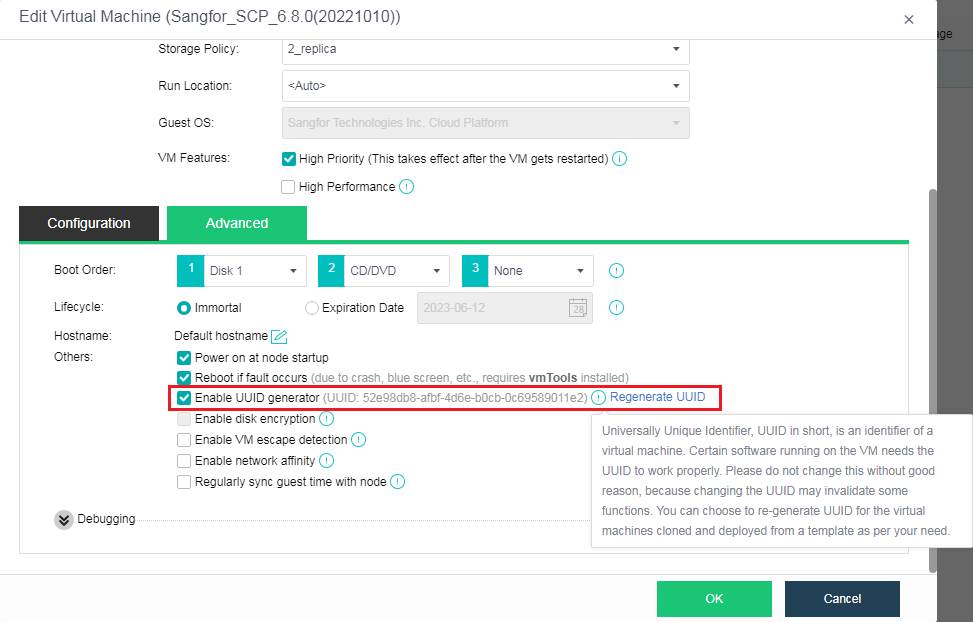
- Before upgrading versions earlier than SCP6.3.0_EN, please enable the UUID generator for SCP VMs on the HCI cluster where SCP resides to ensure that the security optimization feature takes effect.
-
When SCP6.7.0_EN manages an earlier version of HCI, after the HCI platform is upgraded to 6.7.0_EN, data sync may fail for Distributed Firewall while upgrading SCP6.7.0 to SCP6.7.30. Please contact a Sangfor technical support representative.
-
Before upgrading an earlier version of SCP to SCP6.8.0, please ensure there are four SCP VMs disks, and the capacity of disk 4 is 400 GB or more.
Post Upgrade Check
After the upgrade is completed, start and verify the SCP services.
Rollback
SCP supports snapshot-based rollback. Before upgrading SCP, take a snapshot of the platform. Then, if the upgrade fails, rollback can be performed based on the snapshot.
Note:
Snapshot-based rollback can be performed in the event of an upgrade failure rather than a configuration change failure.
Upgrade Guide
Upgrade Instructions
Upgrade Steps
Please follow the following steps to upgrade:
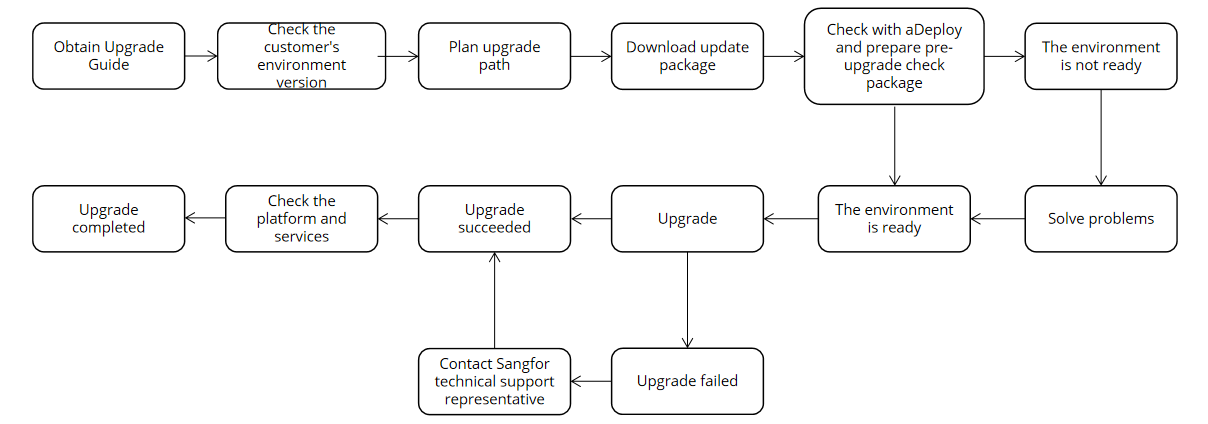
Upgrade Sequence

Upgrade Notes
SCP Upgrade
- Upgrade the standby node for a cluster with active and standby nodes before upgrading the active node. You can upgrade the cluster mode directly.
- In the active-standby disaster recovery scenario, before upgrading the platform, disable disaster recovery policies, and enable them after the upgrade is complete.
- Before upgrading SCP6.7.0 or an earlier version to SCP6.9.0, please check and ensure there are four SCP VMs disks and the capacity of disk 4 is at least 400 GB.
- Before upgrading versions earlier than SCP6.3.0_R1, please enable the UUID generator for SCP VMs on the HCI cluster where SCP resides to ensure that the security optimization feature takes effect.
Upgrade Preparations
Packages, Documents, and Tools
Packages:
| Name | Description | Obtain Through |
|---|---|---|
| SCP6.9.0_EN update package | Used for upgrading from an earlier version to SCP6.9.0_EN. | Sangfor Community https://community.sangfor.com/plugin.php?id=service:download&action=view&fid=47#/12/all |
| Active and standby pre-upgrade package (optional) | After the active and standby pre-upgrade package is upgraded, the active and standby nodes can be upgraded simultaneously. | https://download.sangfor.com/Download/Product/HCI/HCI6.2.0_EN/SCP6.2.0_EN/SP-SCP_JG_PRE_UPGRADE_EN_01.pkg |
Documents:
| Name | Description | Obtain Through |
|---|---|---|
| SCP6.9.0 user manual | Describes basic O&M and configuration in SCP. | Sangfor Knowledge Base https://knowledgebase.sangfor.com/indexPage?module=645 |
| aDeploy User Guide | Provides instructions for using aDeploy. | Sangfor Knowledge Base https://knowledgebase.sangfor.com/indexPage?module=645 |
Tools:
| Name | Description | Obtain Through |
|---|---|---|
| Chrome/Edge | The browser to access HCI and SCP web console. | Obtain from the internet. |
| PuTTY/MobaXterm | An SSH client for troubleshooting if needed. | Obtain from the internet. |
| MD5 | Used for verifying the integrity of the upgrade package. | Check it when downloading the package file. |
| aDeploy | Used for pre-upgrade checks and other checks with aDeploy. | Sangfor Community https://community.sangfor.com/plugin.php?id=service:download&action=tool |
| License Key | 1. For a version earlier than HCI5.8.2, please apply for a new HCI license key. 2. If the NFV devices need to be upgraded according to Chapter1.3.3 NFV Components. Please apply for a new NFV license key. 3. Before upgrading, please confirm that the customer’s license is not expired. Otherwise, the environment needs to be renewed. 4. Before upgrading, please check that the original NFV license key has not expired. Otherwise, the license needs to be renewed. |
Contact corresponding personnel to obtain or confirm. |
Environment Information
Fill in the corresponding IP information in the table below.
| Type | Classification | IP Address | Netmask | Remarks |
|---|---|---|---|---|
| Active SCP | The IP address for the management interface | |||
| Standby SCP | The IP address for the management interface |
Customer Resources Coordination
During the upgrade, O&M personnel should not log in to the platform for operation and maintenance.
Please coordinate resources in advance according to the following requirements to ensure a smooth upgrade:
-
Determine when to upgrade and fully prepare for service interruption during the upgrade to reduce impact.
-
Obtain contact information of the responsible persons.
-
Ensure a computer (with Internet access and a stable connection to the device) is ready. Ensure the computer can install and run the upgrade client software.
| Type | Name | Contact | Responsible For |
|---|---|---|---|
| Sangfor Technologies Inc. | Upgrading HCI and SCP | ||
| Customers | Coordinating resources and upgrade time. (Upgrade time: ) | ||
| Customers | Ensure O&M personnel will not log in to the platform for operation and maintenance. | ||
| Customers | Arrange persons responsible for application systems to handle service opening and verification issues. |
Pre-upgrade Check
Check with aDeploy
Apart from health check features, aDeploy supports checking common problems of customers. It optimizes the platform-based check mechanism and can check the environment before upgrading. If faults or alerts are reported, please handle the faults and alerts for the cluster before upgrading.
Refer to Chapter 1.2.3.1 Packages, Documents, and Tools, for the download link.
SCP Pre-Upgrade Check
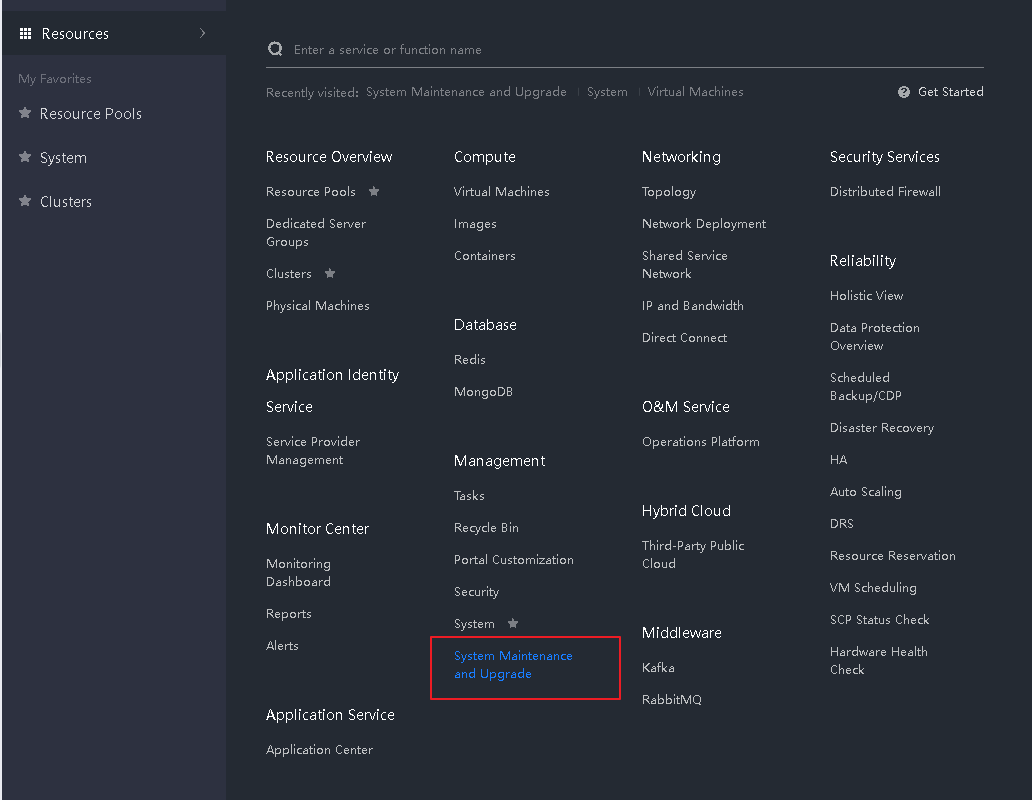
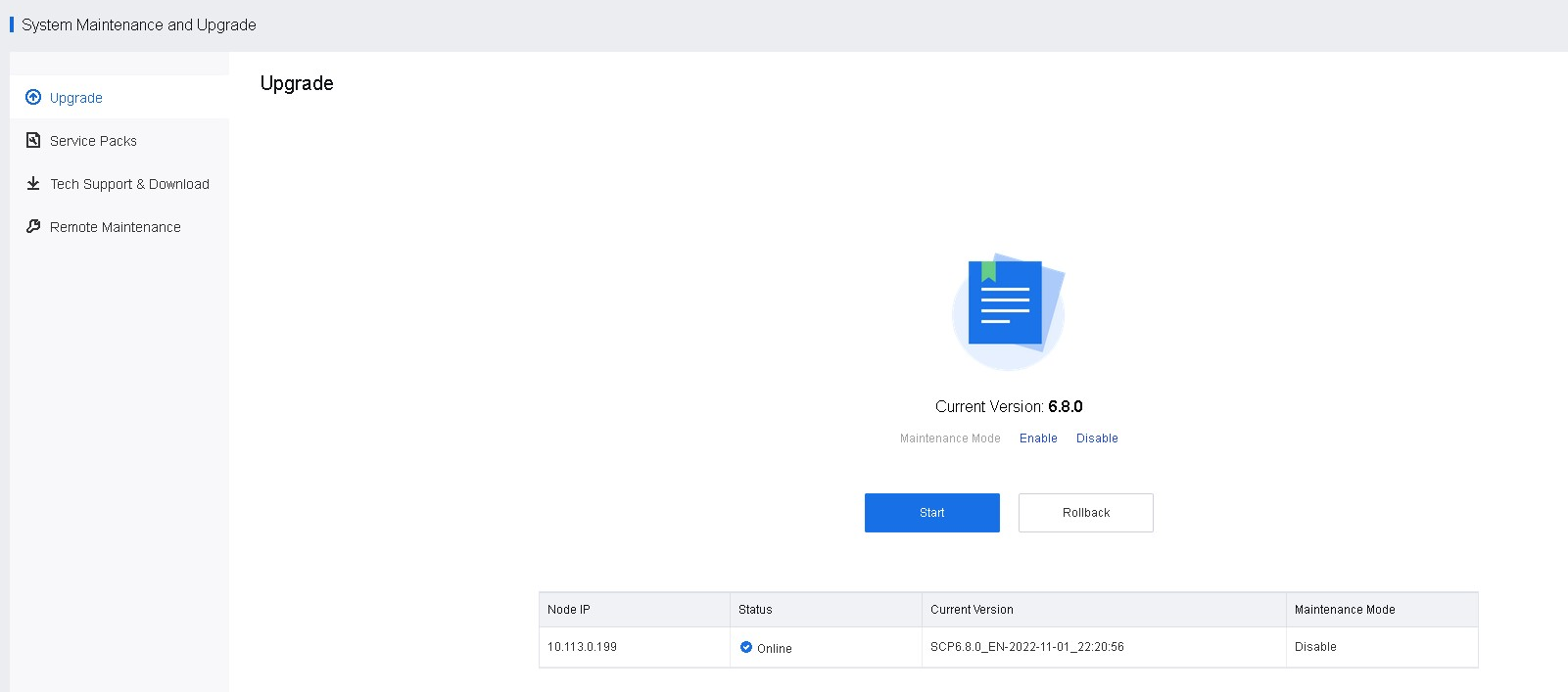
- Check the current version.
Go to Resources > Management > System Maintenance and Upgrade > Upgrade to view the current SCP version.
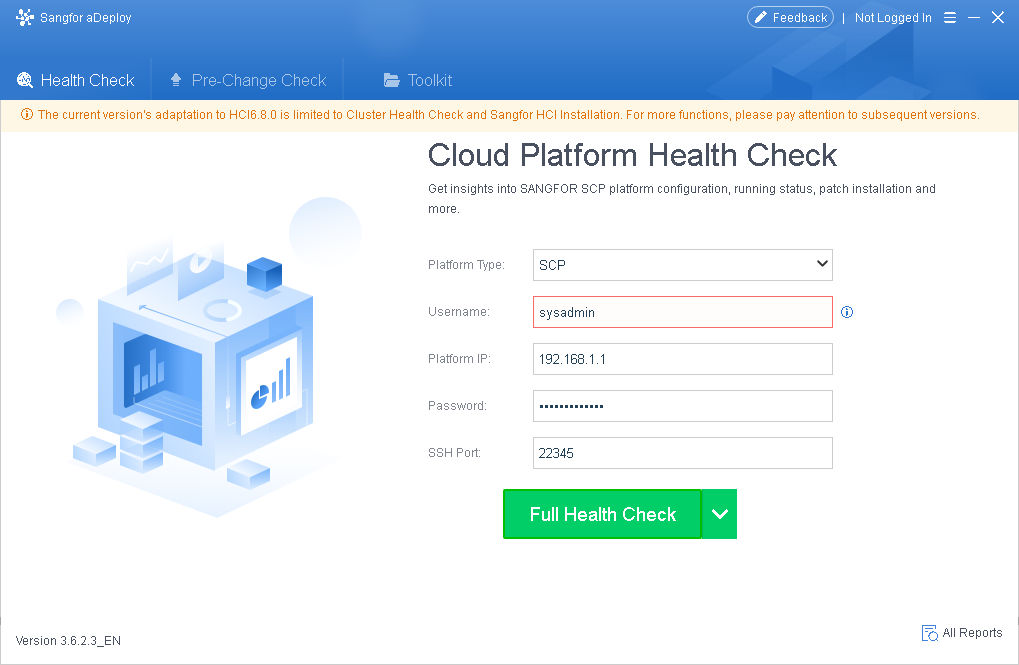
- Check with aDeploy.
- Platform Type: Select SCP.
- Username: Enter sysadm for SCP6.3.0 and above or root for other versions.
- SSH Port: Enter 22345. For versions earlier than SCP6.1.0, enter 22.
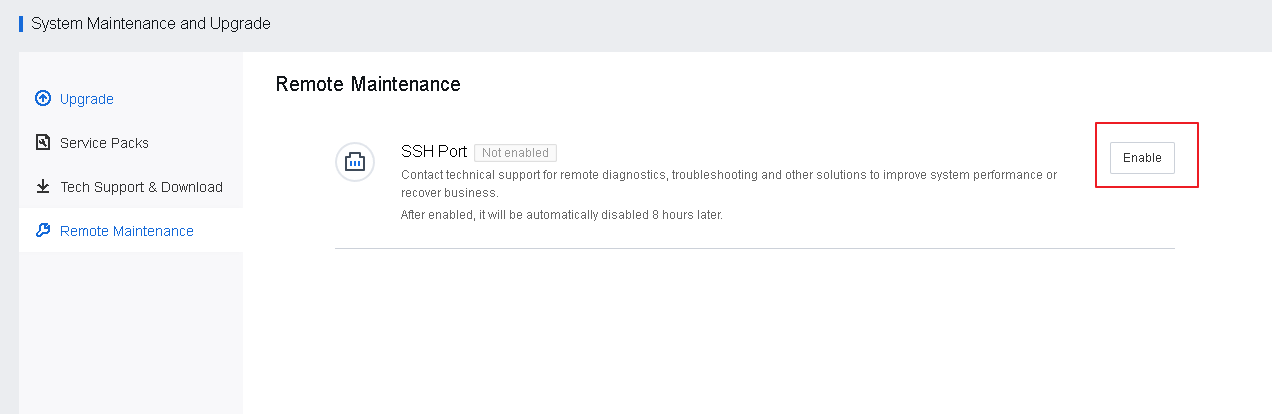
If an error message indicates that the SSH service port needs to be enabled, go to Resources > Management > System Maintenance and Upgrade > Remote Maintenance and click Enable.
- Check active/standby SCP.
Before upgrading, check whether SCP is in active/standby mode. Then, log in to the management portal of SCP, and go to Reliability > SCP Status Check > SCP Failover to check whether there is a standby node. If yes, upgrade the active and standby pre-upgrade package first to upgrade the active and standby nodes simultaneously. For details, refer to Chapter 1.2.3.1 Packages, Documents, and Tools.
- Check before upgrading for disaster recovery scenarios.
In disaster recovery scenarios, there is no particular upgrade sequence for primary and secondary sites (they can be upgraded simultaneously). Before upgrading, check the current tasks of primary and secondary sites to ensure that no disaster recovery-related task is in progress. It is recommended to manually stop ongoing disaster recovery tasks (if any) before upgrading. After the upgrade, ensure the platform runs properly and start disaster recovery tasks.
- Check if there is any ongoing task.
If there is an ongoing task in Tasks, please wait for the task to finish before upgrading, or manually cancel the task and start the task after the upgrade.
- Check the SCP VMs disk number and capacity.
Check whether SCP has four disks and whether the capacity of disk 4 is 400 GB or more. If disk four does not exist or its capacity is less than 400 GB, add a disk or expand the capacity for an existing disk before upgrading.
Upgrade Procedure
aSecurity Upgrade
- Upgrade aSecurity
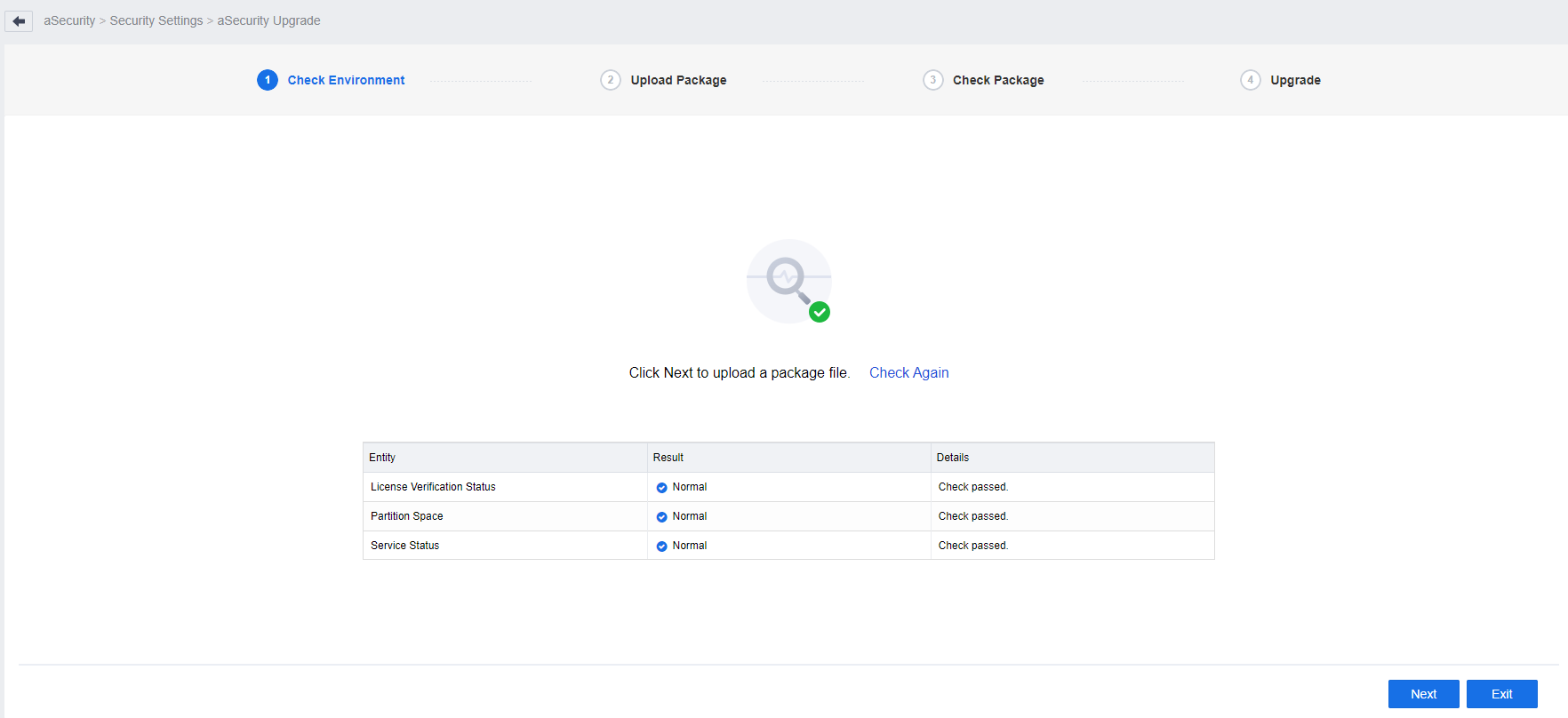
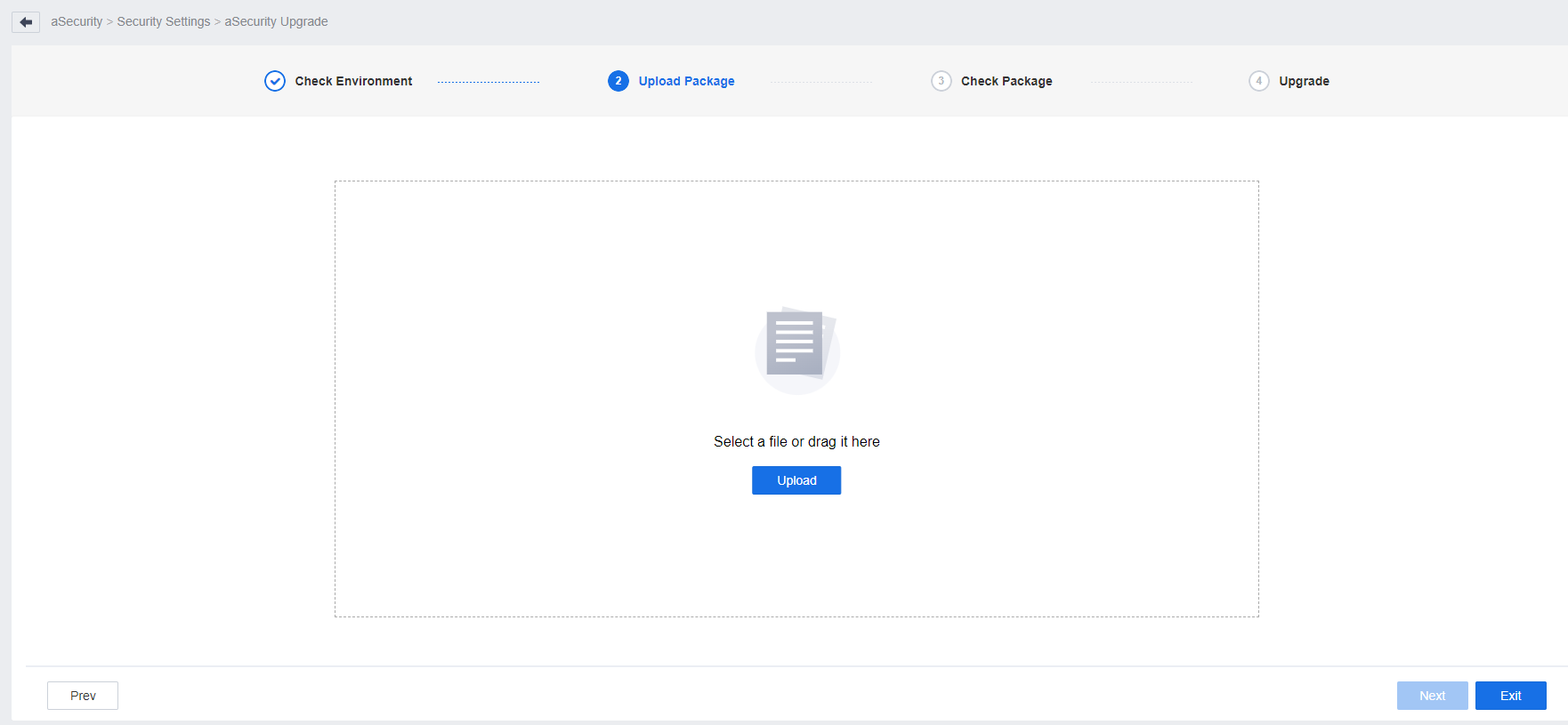
Step 1. Go to Security Services > aSecurity > Settings > aSecurity Upgrade and click Upgrade.
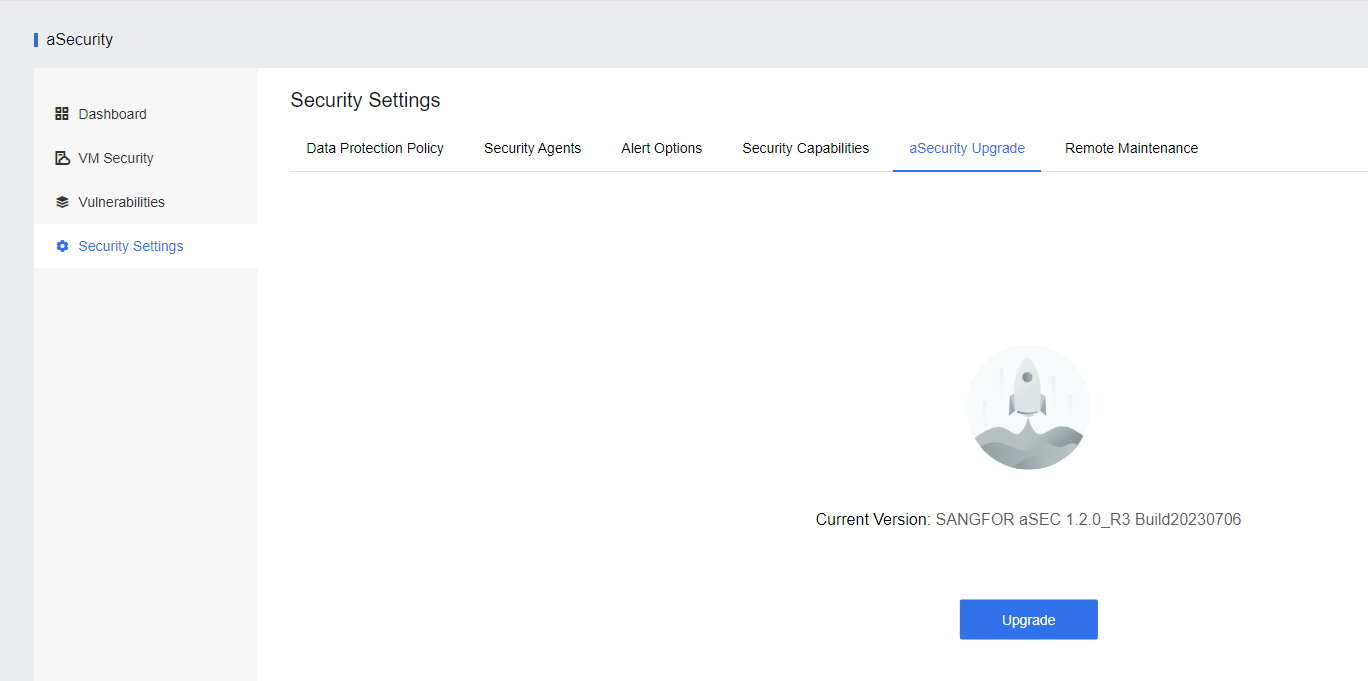
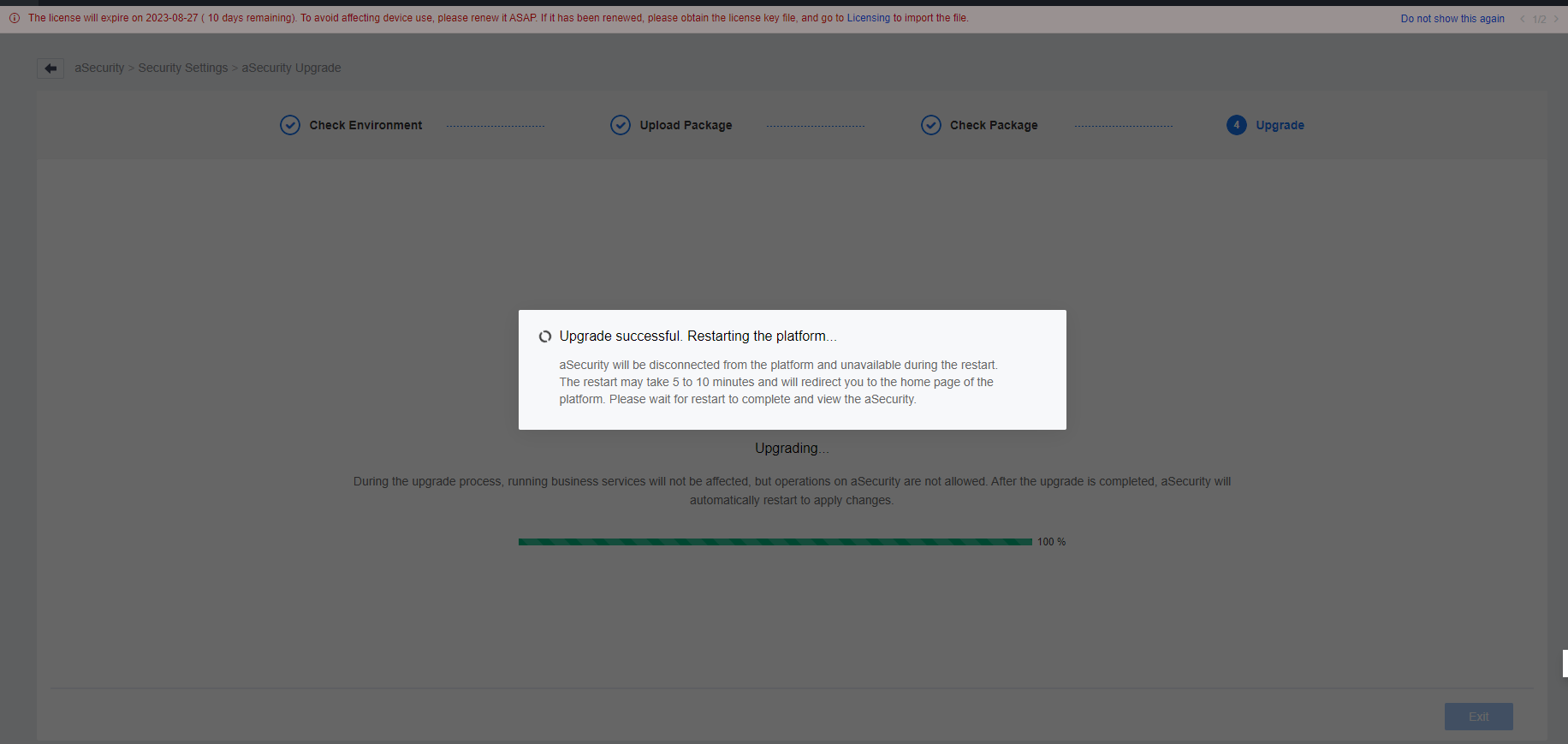
Step 2. Click Next to import the update package. Click Next after a successful import. If the update package passes the verification, click Upgrade and wait for the upgrade to complete. aSecurity will automatically restart after the upgrade is complete. The upgrade process will take about 30 minutes.
Step 3. After the upgrade, platform authentication, and licenses must be obtained again to use aSecurity capabilities.
- Upgrade Security Protection Manager(Endpoint Secure)
To upgrade Security Protection Manager(Endpoint Secure), kindly contact Sangfor Technical Engineer for assistance.
aNI Upgrade
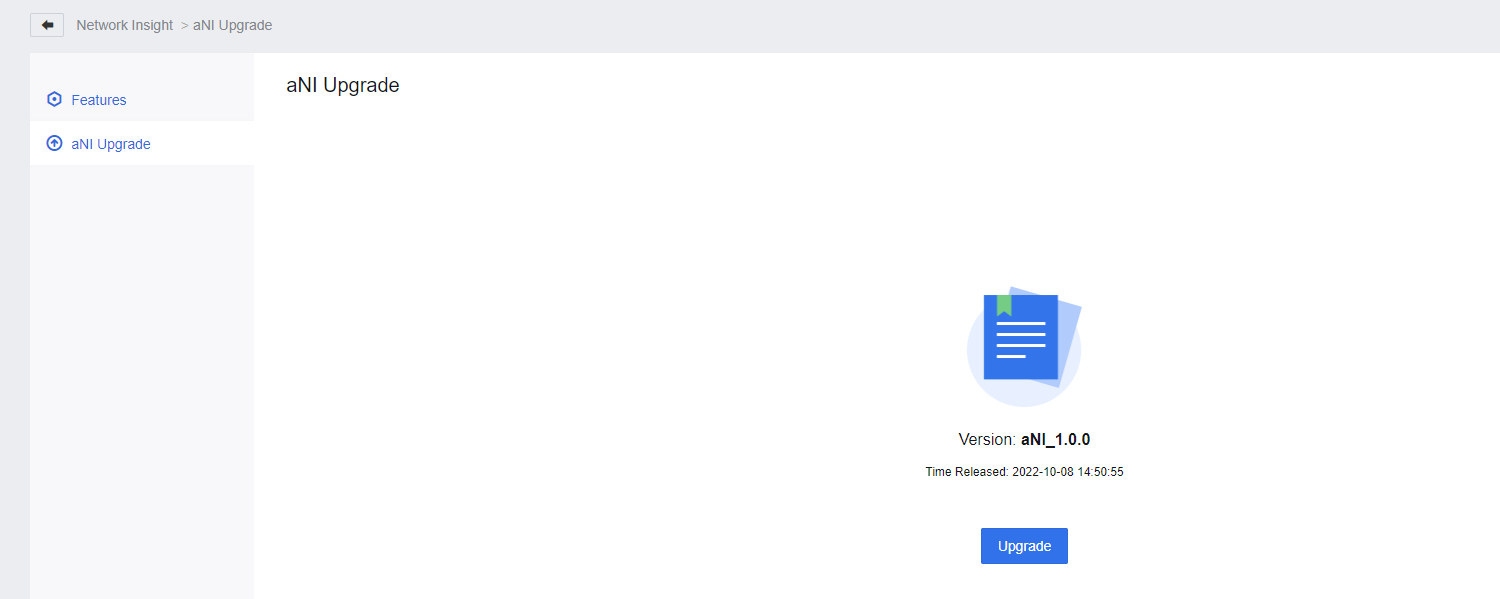
- Go to Networking > Network Insight, click , select aNI Upgrade and click Upgrade.


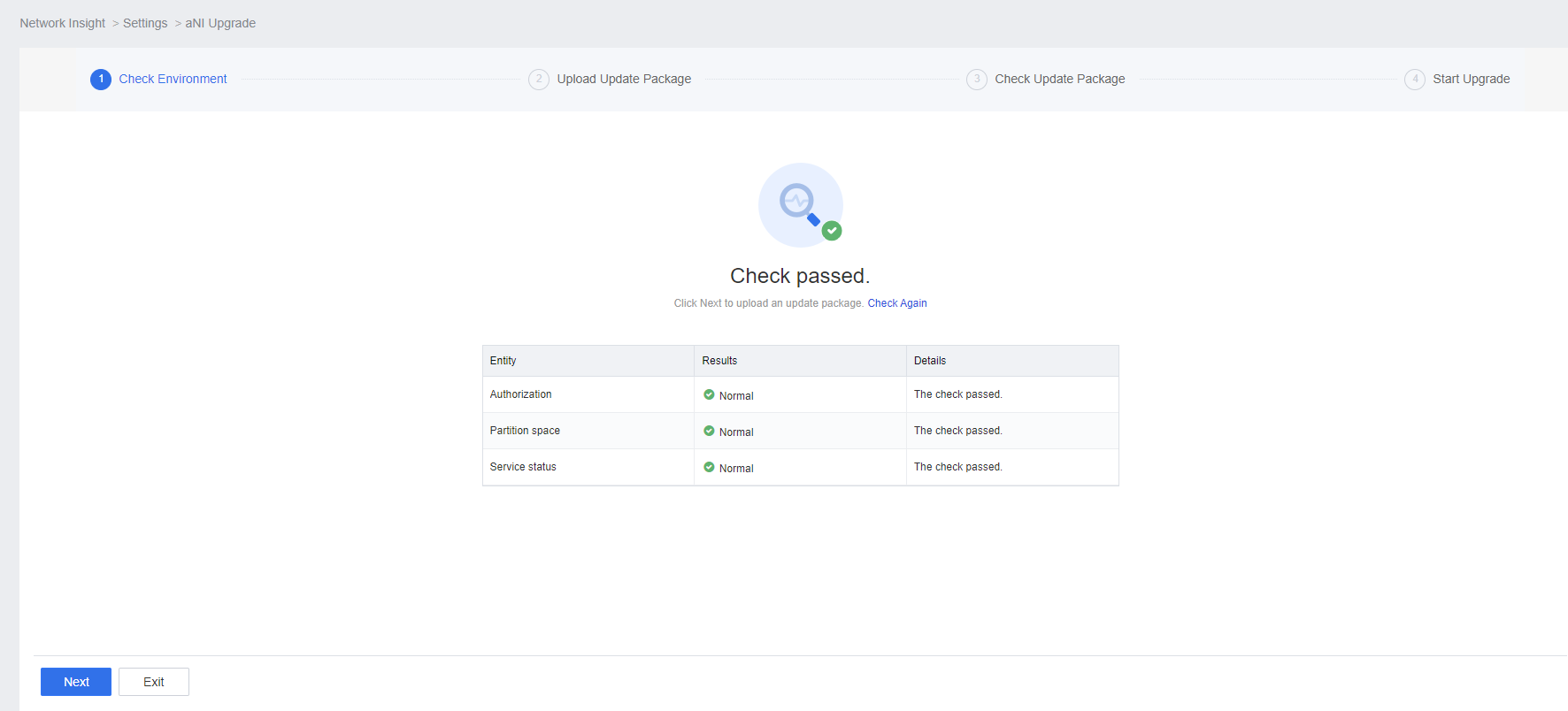
-
Wait for the environment check to complete.
-
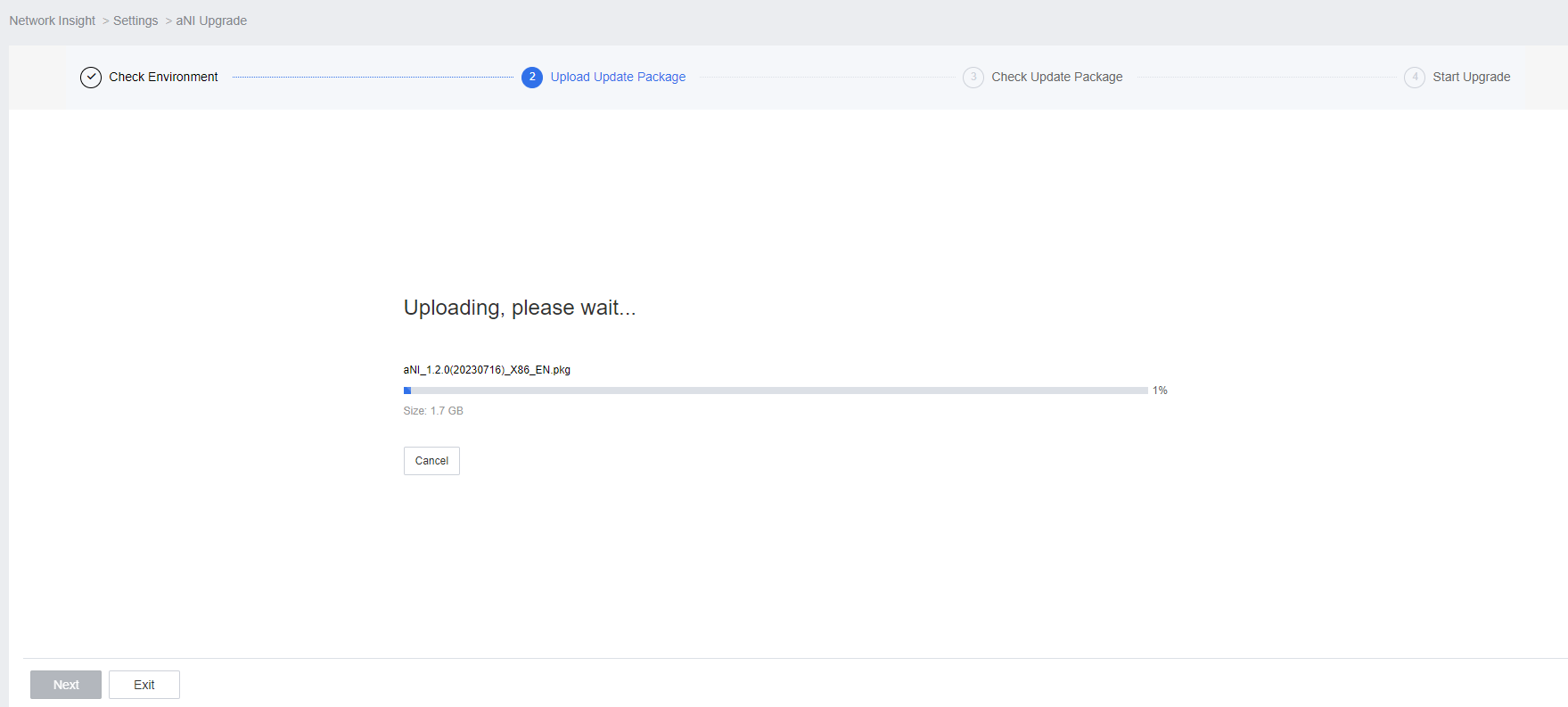
Upload the update package.
-
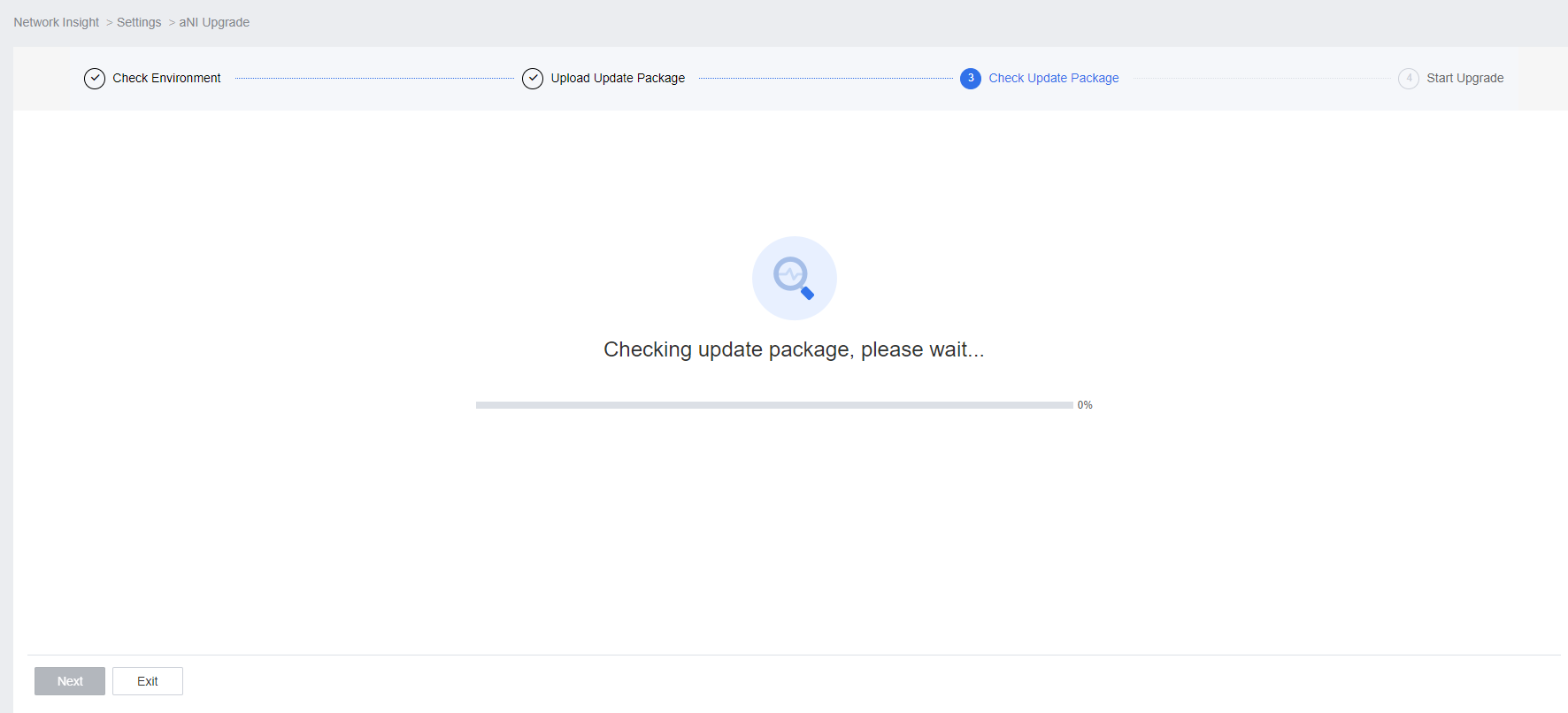
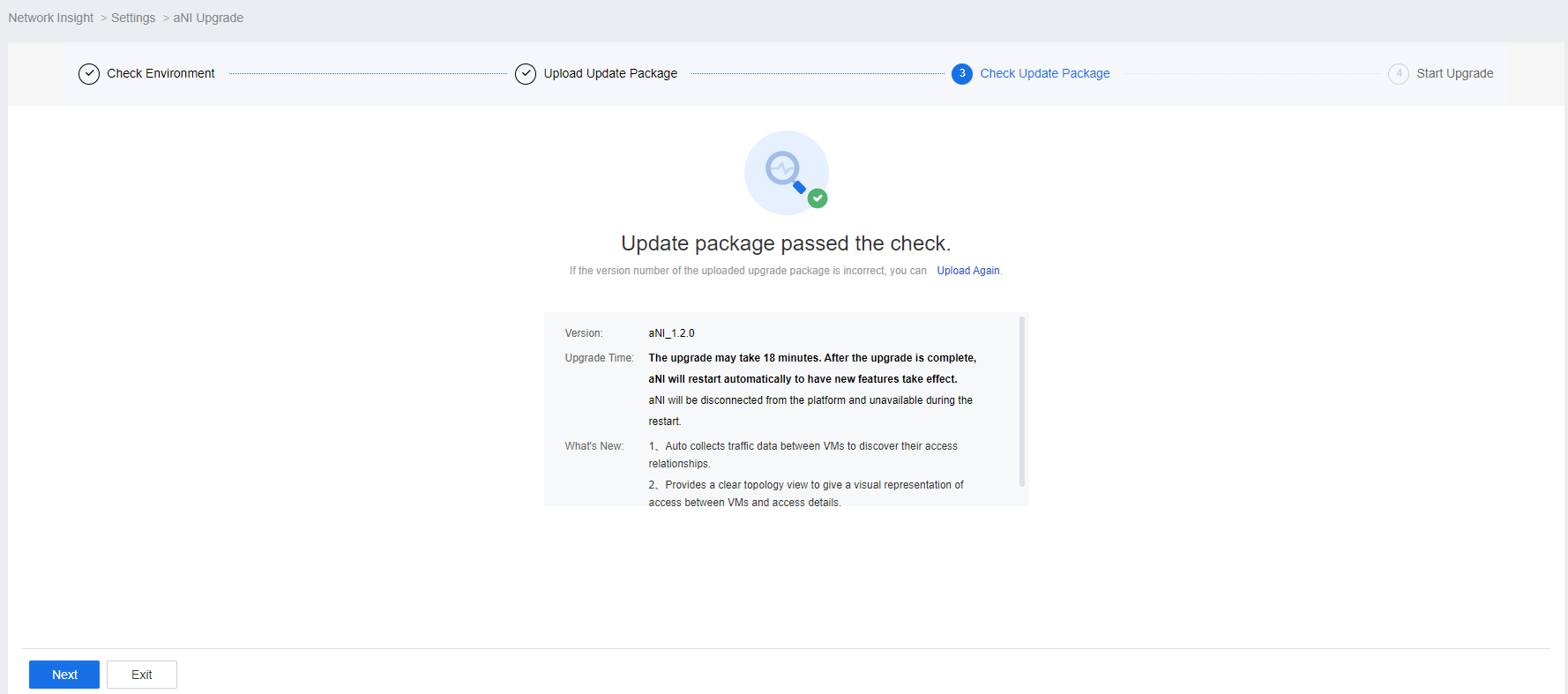
Wait for the update package check to complete.
-
Start the upgrade.
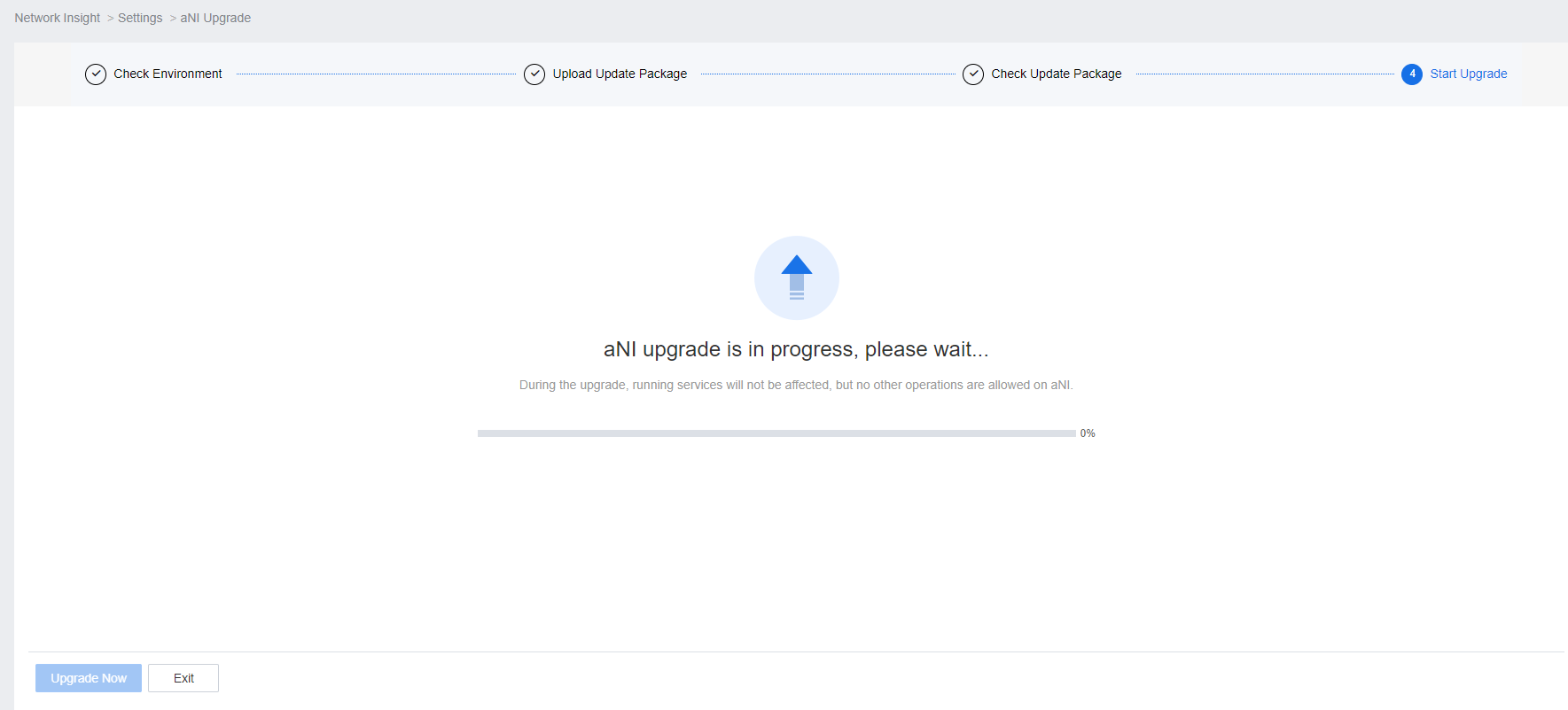
-
Restart aNI.
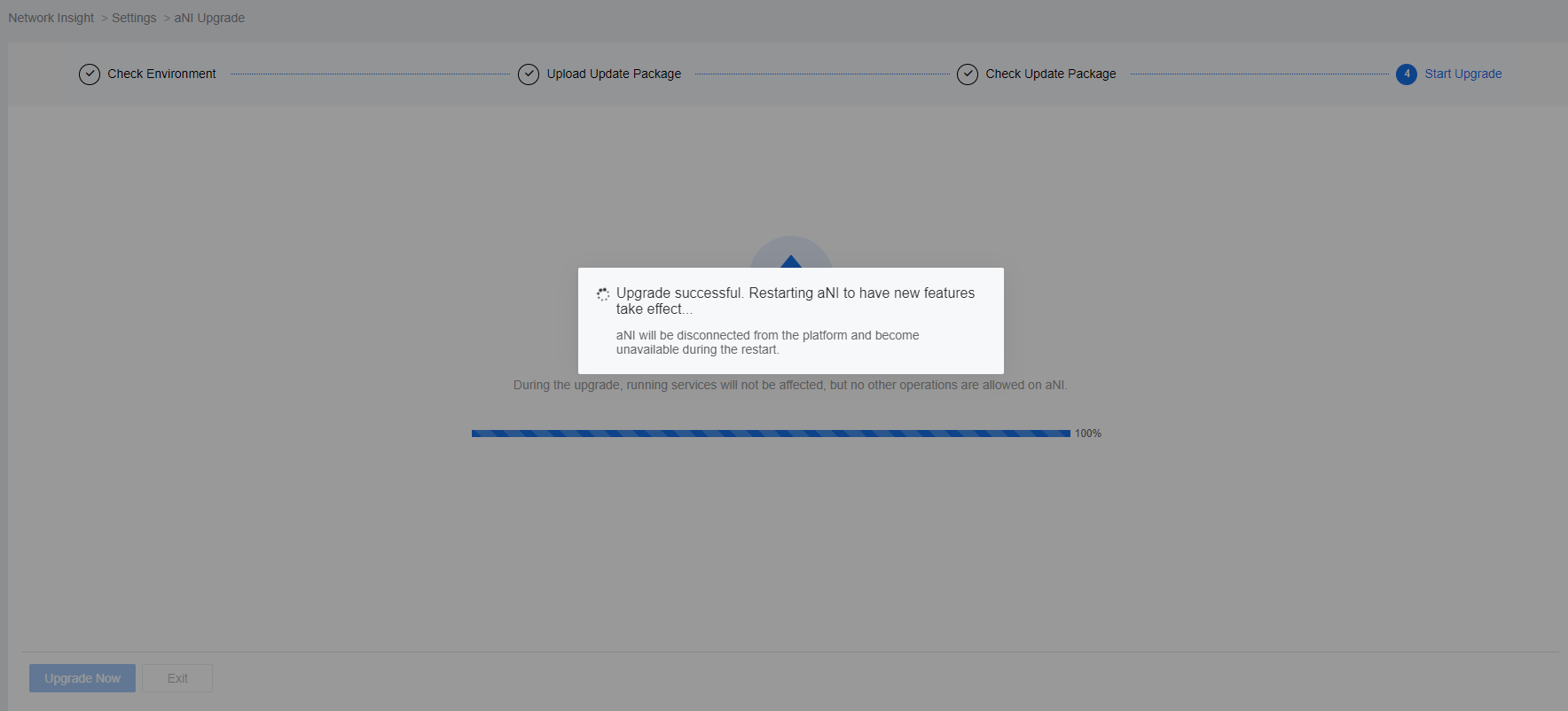
-
The upgrade is complete.
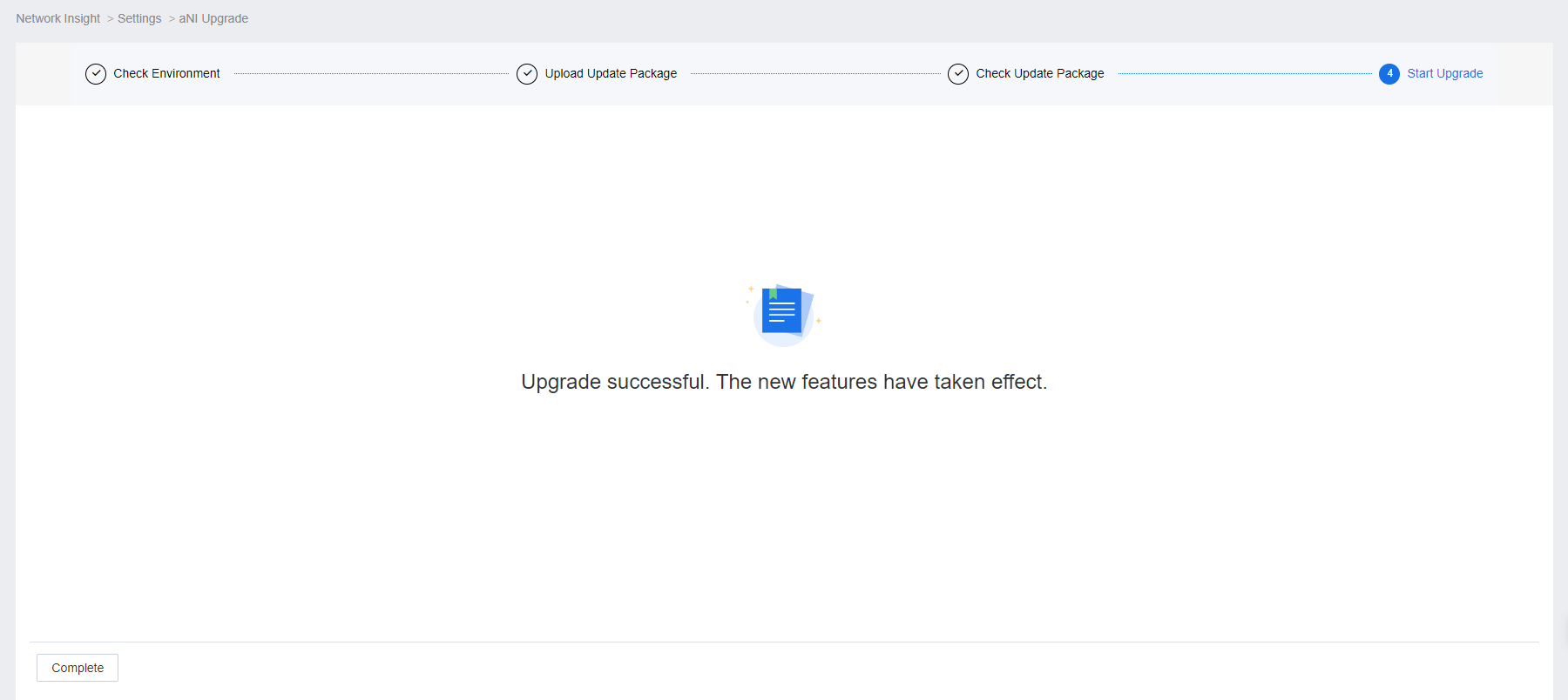
SCP Upgrade
- Go to System Maintenance and Upgrade > Upgrade and click Enable to enable Maintenance Mode.
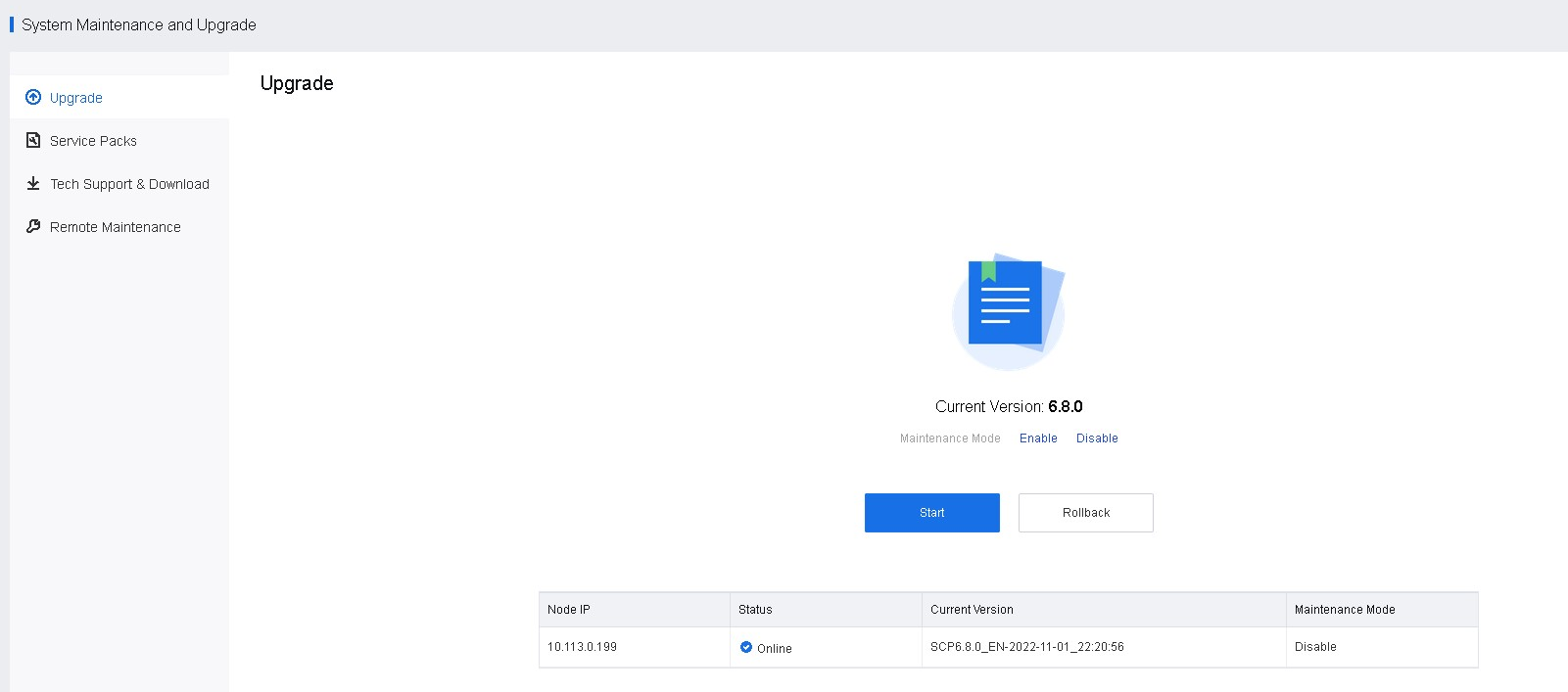
- Click Upgrade and confirm that the new version of SCP is consistent with HCI, then upload the update package and click Start.
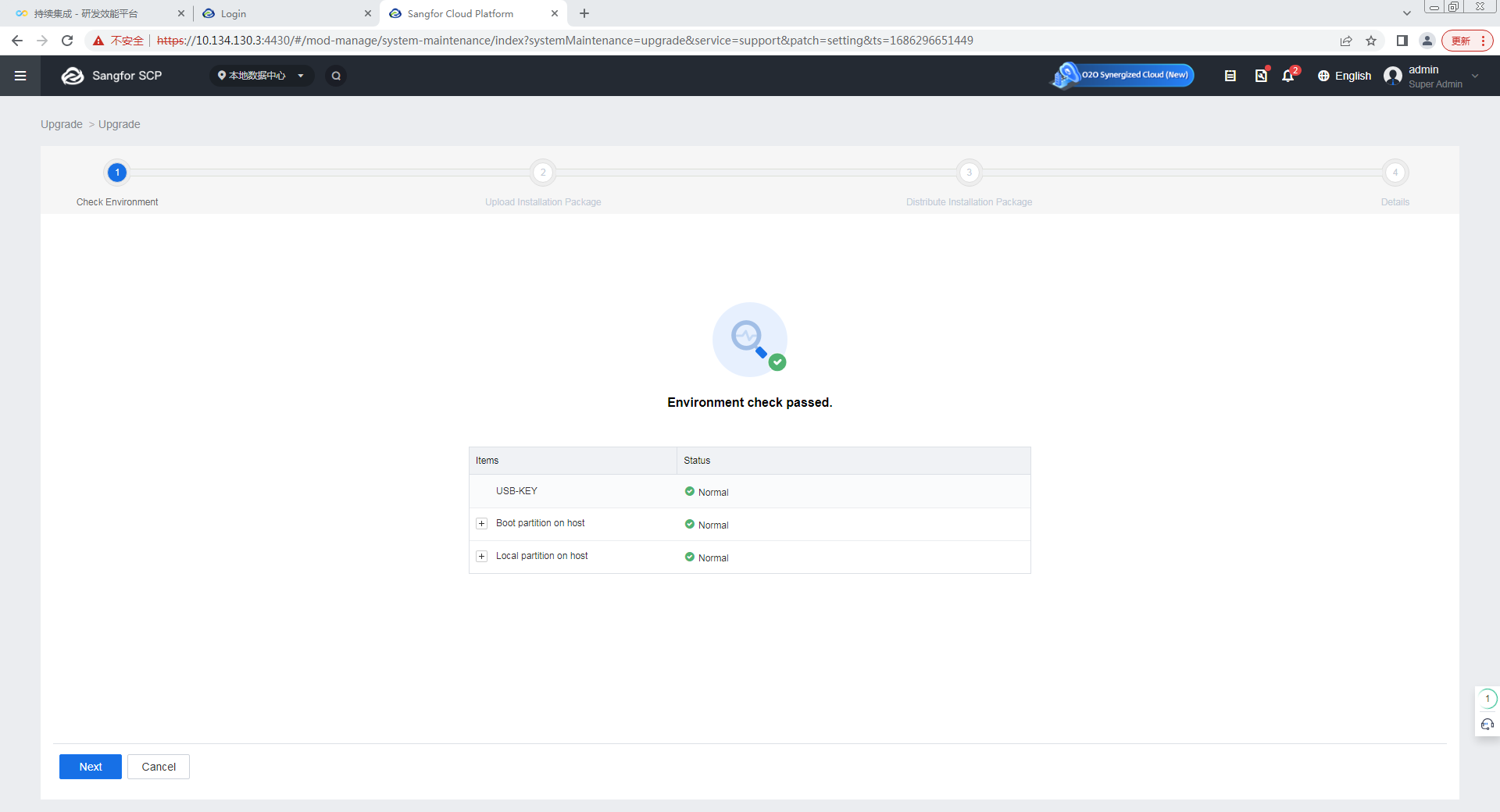
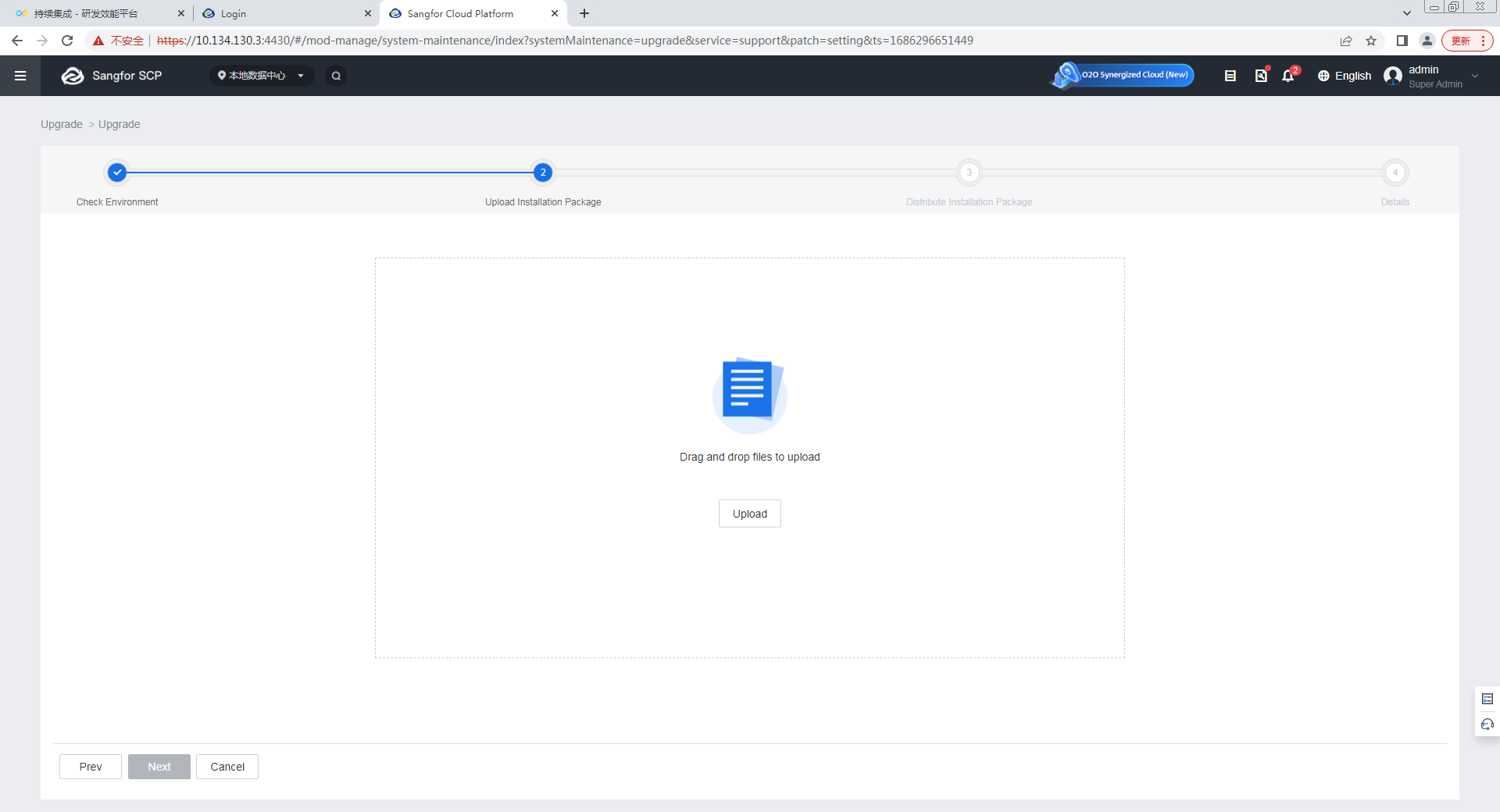
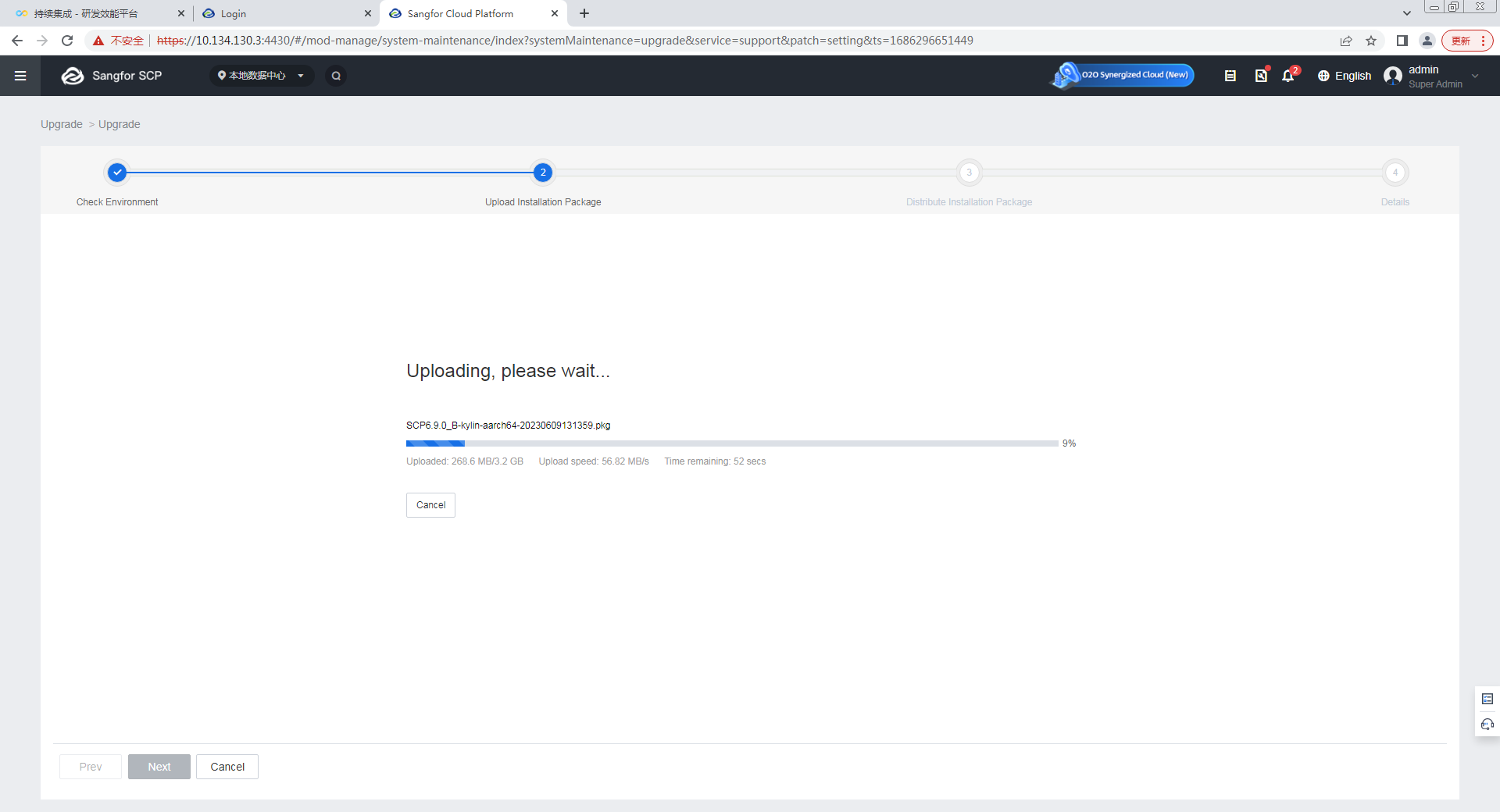
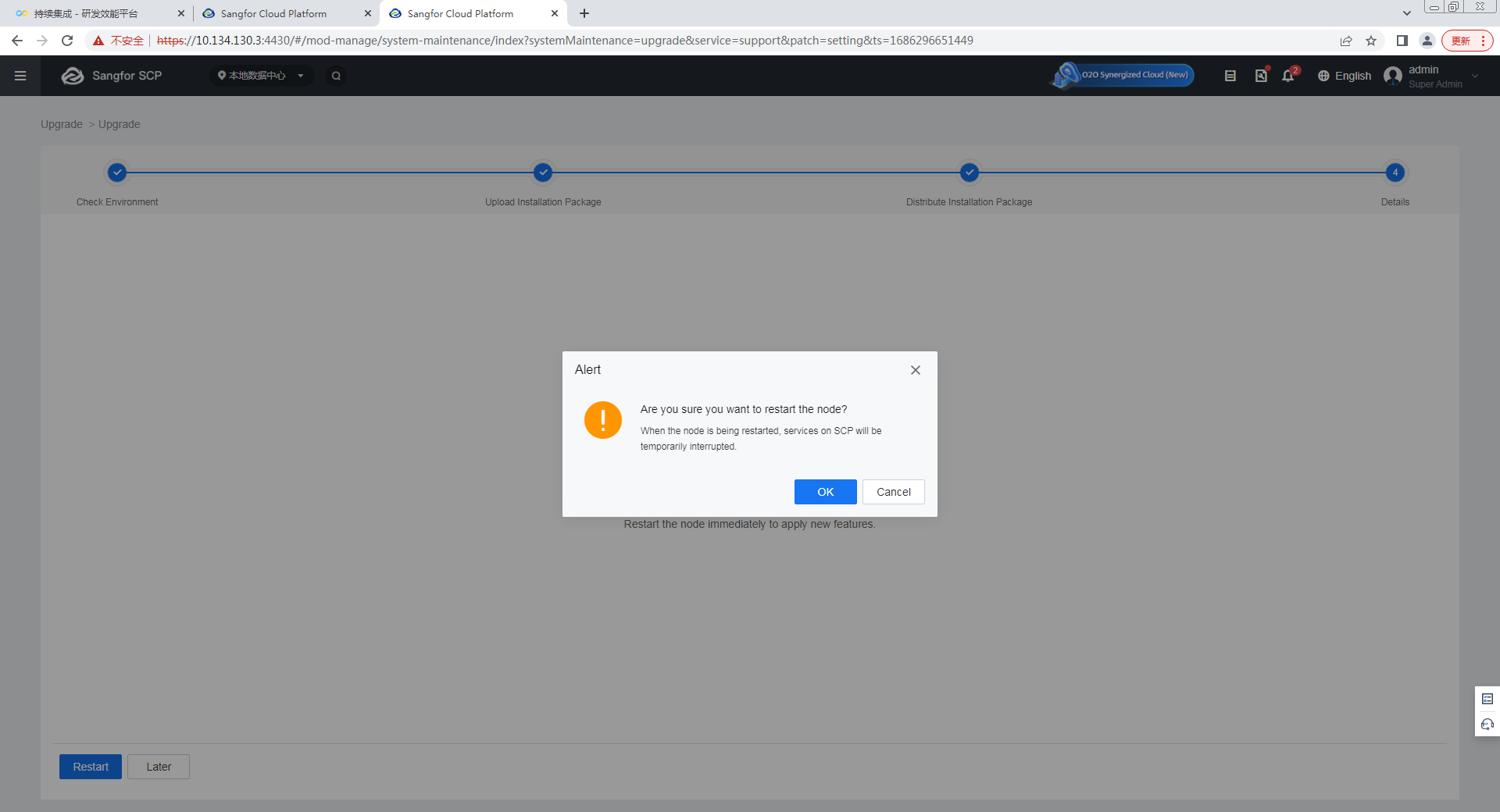
- Wait for the upgrade to complete, and then restart the platform.
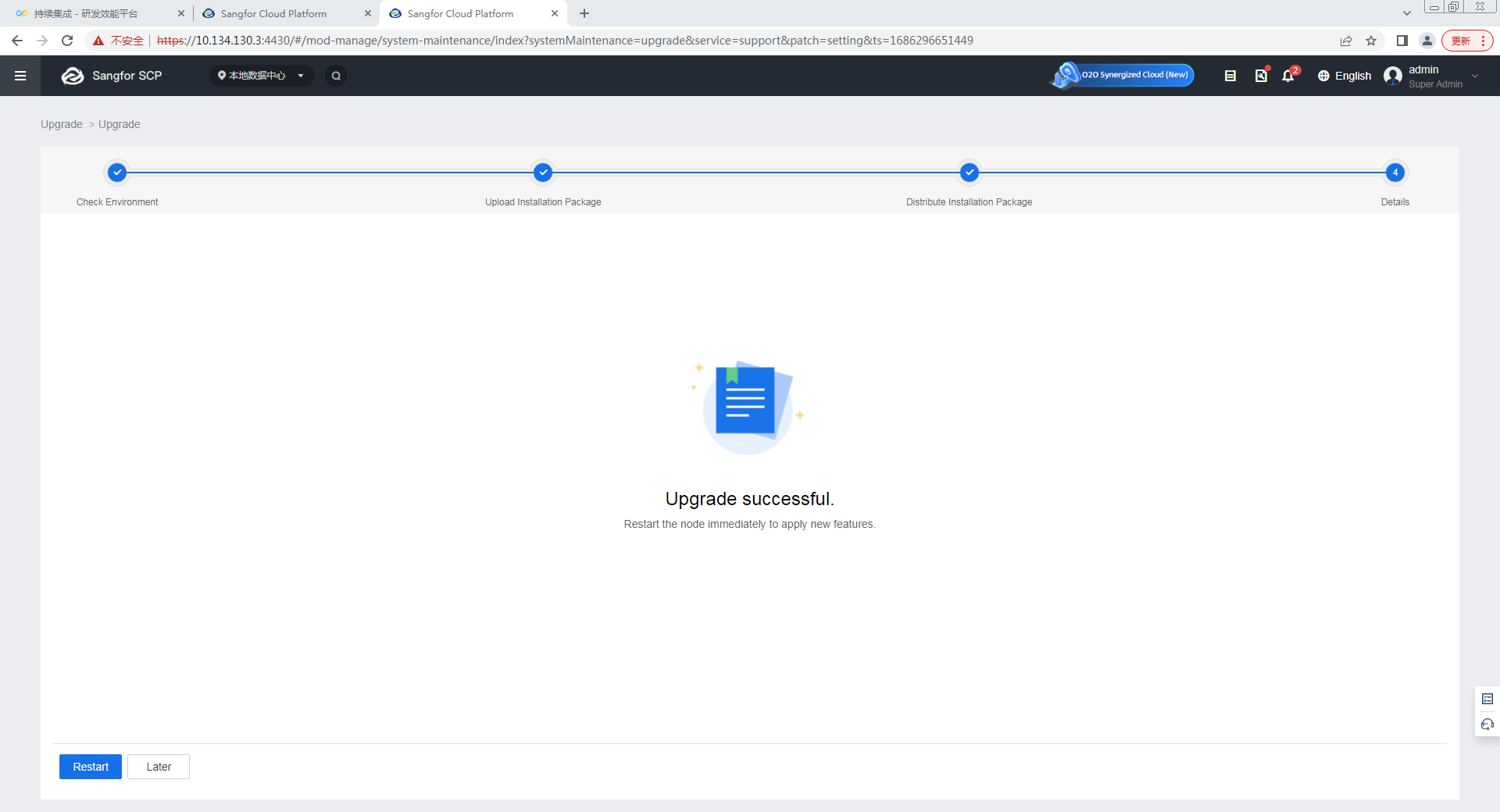
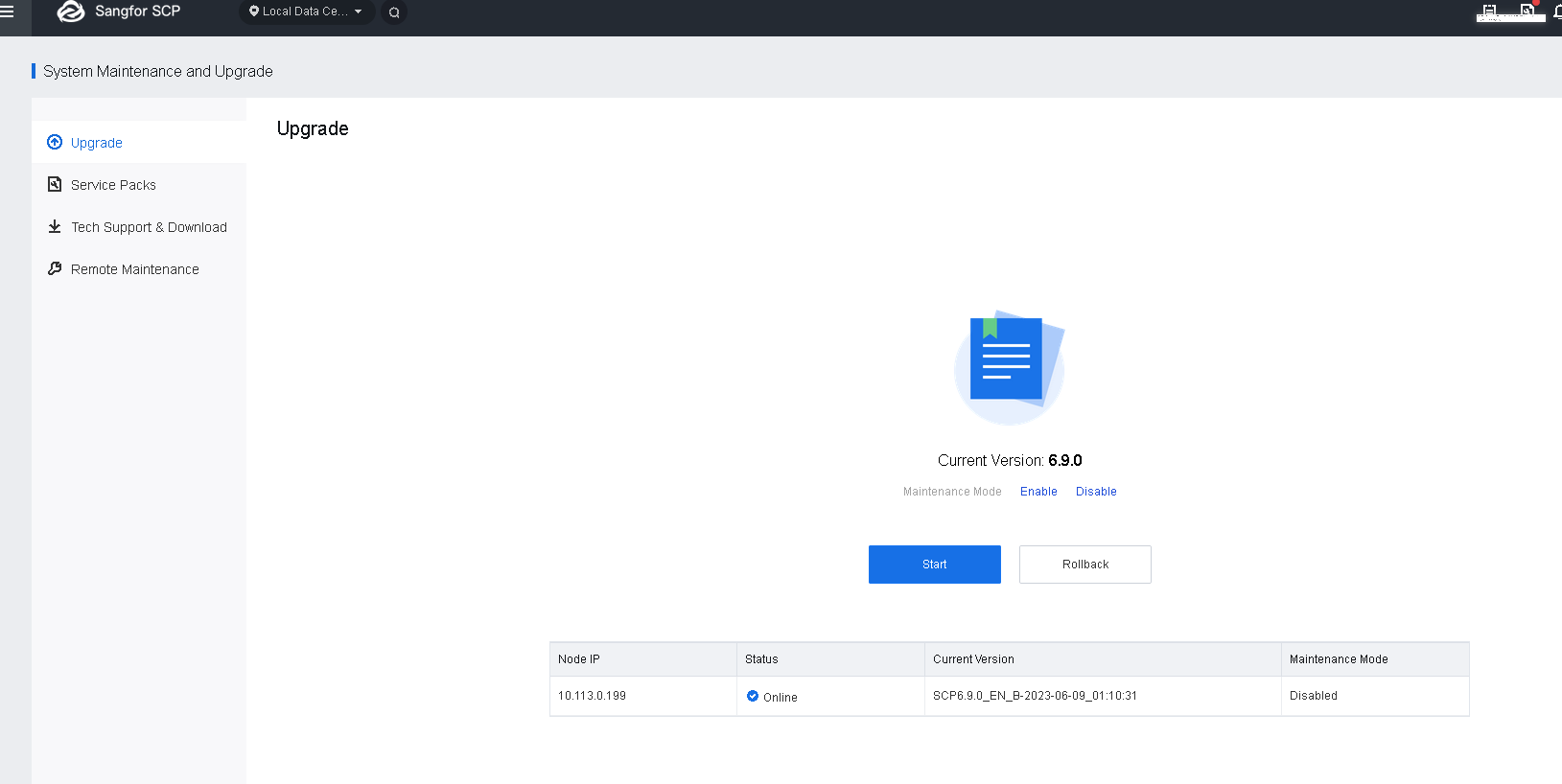
- After the restart, check whether the current version is SCP6.9.0 in System Maintenance and Upgrade > Upgrade.
NFV Component Upgrade
For the upgrade procedure for NFV components, refer to the upgrade guide for corresponding products.
Abnormalities Troubleshooting
Pre-Upgrade Failures
| Scenario | Versions | Solutions | Notes |
|---|---|---|---|
| While upgrading SCP (earlier than 6.8.0) to SCP6.9.0 in case that the disk 4 (/dev/vdd) is in use, the following messages will be displayed: a. The disk (/dev/vdd) has been partitioned, but its datastore does not meet the requirements. Please contact a Sangfor technical support representative. b. The file system of disk 4 (/dev/vdd) does not meet the requirements. Please contact a Sangfor technical support representative. |
Upgrade from earlier versions to SCP6.9.0. | 1. Contact the customer to confirm whether the added disks can be removed or migrate the disk data. 2. Exit the upgrade process. 3. Delete disks added by the customer on the HCI platform. 4. Add a disk with a capacity of 400 GB to the SCP VM on the HCI platform. 5. Upgrade again. |
|
| While upgrading SCP (earlier than 6.8.0) to SCP6.9.0, the following message will be displayed: a. The disk (/dev/vdd) does not exist. Please add a new disk with a capacity of 400 GB or more. |
Upgrade from earlier versions to SCP6.9.0. | 1. Exit the upgrade process. 2. Add a disk with a capacity of 400 GB to the SCP VM on the HCI platform. 3. Upgrade again. |
|
| While upgrading SCP (earlier than 6.8.0) to SCP6.9.0, the following message will be displayed: a. Error occurred while partitioning the disk (/dev/vdd). Please delete the disk and add the disk again and upgrade again. |
Upgrade from earlier versions to SCP6.9.0. | 1. Exit the upgrade process and go to the HCI platform to power off the SCP VM. 2. Delete disks newly added for the SCP VM on the HCI platform. 3. Add a disk with a capacity of 400 GB to the SCP VM on the HCI platform. 4. Power on the SCP VM and upgrade again. |
|
| While upgrading SCP (earlier than 6.8.0) to SCP6.9.0, the following message will be displayed: a. GRUB upgrade failed. Please do not restart the SCP VM. If the problem persists, please contact a Sangfor technical support representative. |
Upgrade from earlier versions to SCP6.9.0. | 1. Upgrade again. 2. No impact if the upgrade is successful. 3. If the upgrade fails again, do not power off or restart the SCP VM. Contact a Sangfor technical support representative. |