
【VDI】Best Practices: Implementation Plan for the Banking Industry_DR Scenario
Background
It’s a newly established office and the users are going to do the IT build. The customer needs a new batch of desktops to meet the users’ daily office working needs. Customers believe PCs are at risk of data stored locally and increased operation and maintenance pressures over time. Customers want to adopt an IT infrastructure solution with centralized management, simple deployment, data security protection, and anti-data leakage. Users also need to have access to secure remote work. In addition, it can be an intelligent and convenient O&M for the O&M personnel. At the same time, as a bank user, the need to be able to resume work in a short period of time in the event of a disaster is also highly valued.
Demand Analysis
Through the information provided by the pre-sales colleagues, as well as further communication with the customer to understand the customer’s detailed demands, the following is the specific demands analysis:
-
Centralized management and simple deployment
Physical PCs are difficult to manage, and daily operation and maintenance consume a lot of energy, which puts a lot of pressure on the administrator’s daily work. -
Data security, data leakage prevention
Data security assurance is a core requirement, and the delivery process needs to ensure the security and stability of the data to prevent threats arising from the configuration during implementation. -
Intelligent and convenient operation and maintenance
The current management of all office PCs is complicated, difficult to operate and maintain, and impossible to monitor their operation status. Remote access to a physical PC is inconvenient, and it is hard to check its status. In addition, if hardware damage, maintenance, and replacement is cumbersome. -
Secure remote working
Users sometimes need to work from home or access the office environment for emergency work while traveling. -
Easy access to the user’s AD domain organization structure
Users already have a set of user information organization structures. They wish to be able to directly apply and use the same structure to avoid maintaining two sets of user information simultaneously. -
Disaster Recovery
As a bank, it has disaster recovery requirements, so when the primary site fails, the backup site can meet the user’s desktop office needs. Current VDI VMs cannot support standard disaster recovery solutions. Customers need a new solution to fulfill their requirements.
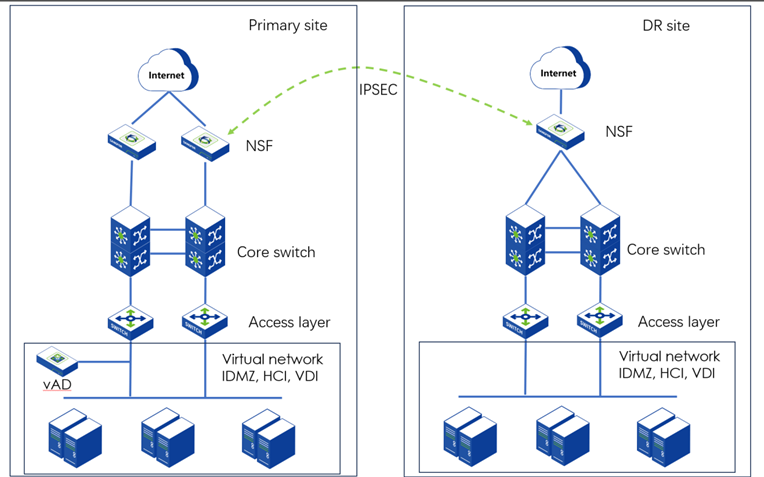
Topology
This topology is a new network topology, and there is no need to change the rest of the device network.
Implementation Plan
HCI side (Configurations required for VDI)
Initialize HCI
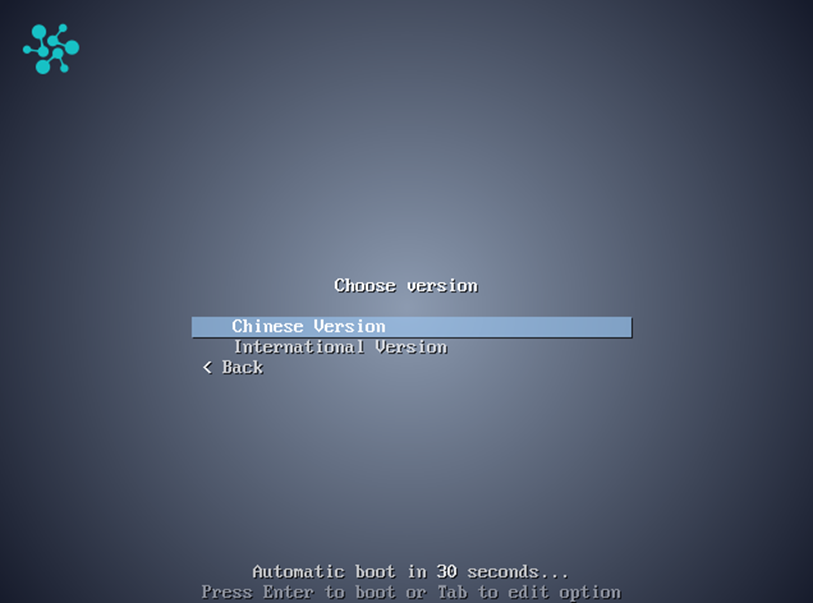
The customer uses a third-party server to deploy HCI, so burning an ISO image using a USB flash drive and installing the system using a USB boot is necessary.
The Installation language should be an International language.
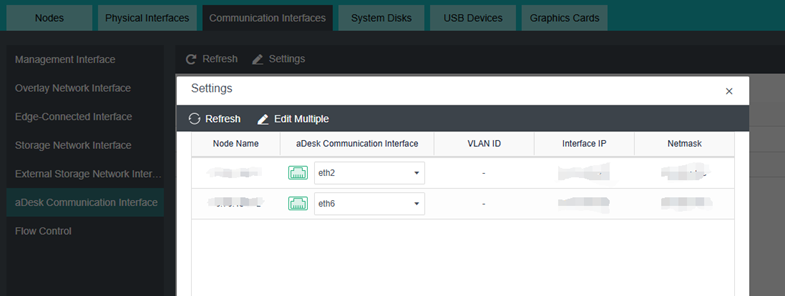
aDesk Communication Interface
All nodes must be configured with the aDesk communication interface to ensure the client can communicate properly with the HCI and get the VM screen.
Configure Edge Interface
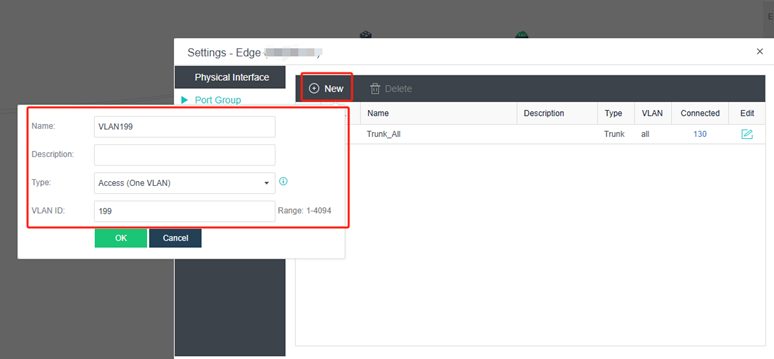
According to the actual assigned network segments, create the corresponding Edge interfaces and bridge the corresponding physical ports.
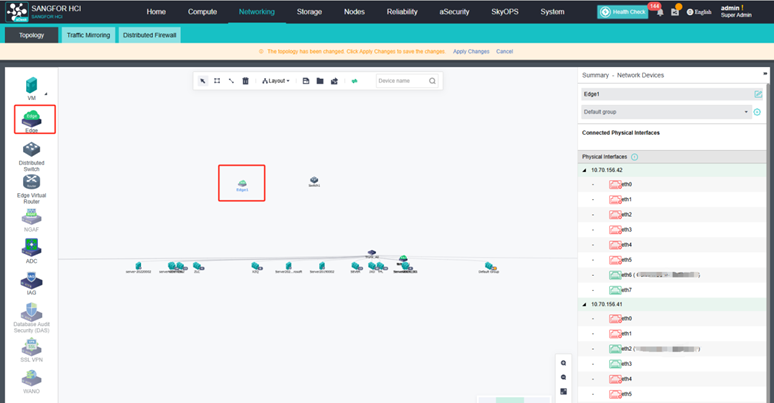
A VLAN requirement can also be met by creating access port groups on the port group.
Create a VDI Virtual Machine
To create a VDI template VM, click the aDesk Apps. Otherwise, it will not be recognized when converted to a template on the VDC.
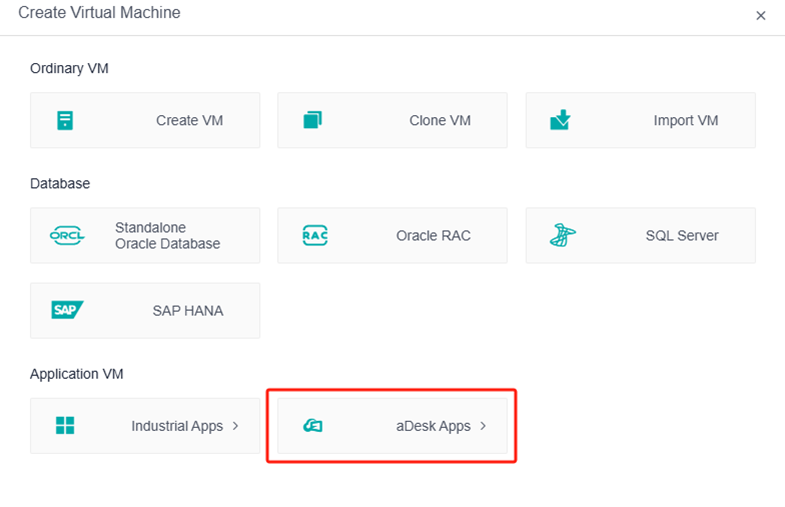
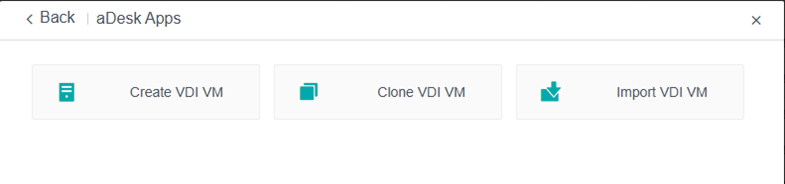
Create multiple VDI template VMs based on customer needs.
Import IOM Virtual Machine
The IOM virtual machine can download the VMA format file directly through the community and then import it directly into the HCI platform after downloading it.
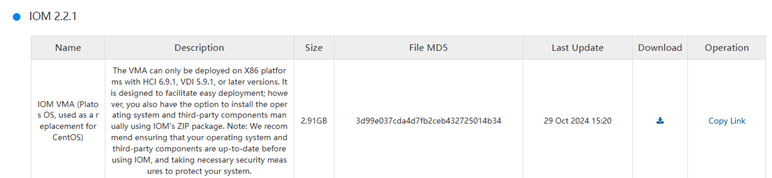
Specific network configurations and ports can be found in the IOM User Manual.
Disaster Recovery
Disaster recovery configurations are not specifically discussed in this article. You can refer to the Sangfor Cloud Platform(SCP) user manual or best practices.
VDC Side
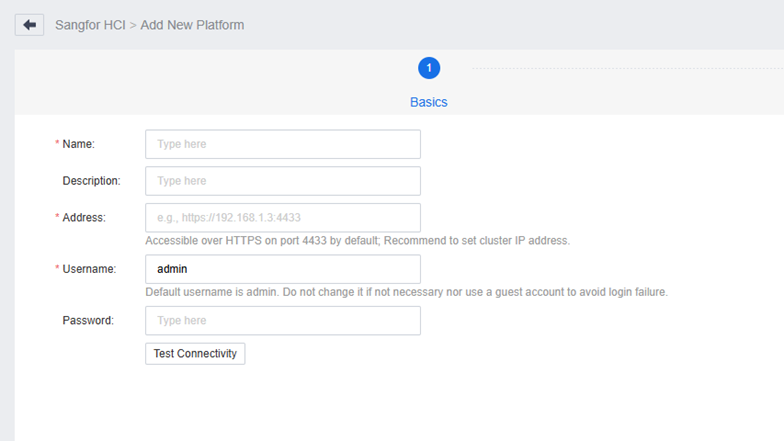
HCI Integration
The address of the integrated HCI must be the cluster IP address of the HCI to ensure that it can still be properly integrated after the HCI switchover.
Create LDAP
Create LDAP for VDI user authentication and resource assignment, and auto-add the VM to the domain.
The Admin DN permissions can be set according to this document.
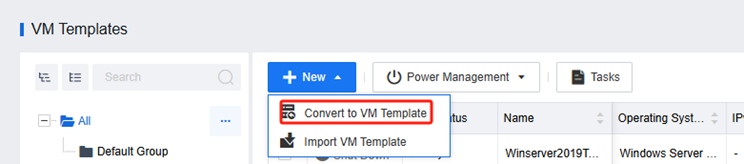
Convert VDI Template
You can convert a VDI VM previously created on HCI into a template VM.
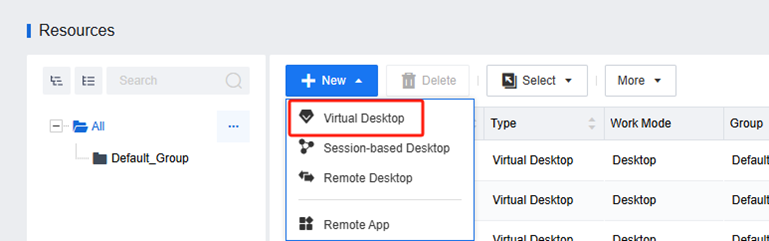
Deploy Virtual Machine
You can deploy virtual machines in bulk by creating virtual desktop resources in the Resource interface.
As shown below, this customer is using a persistent virtual desktop belonging to the general office. To prevent excessive memory consumption, disable the huge-page memory. 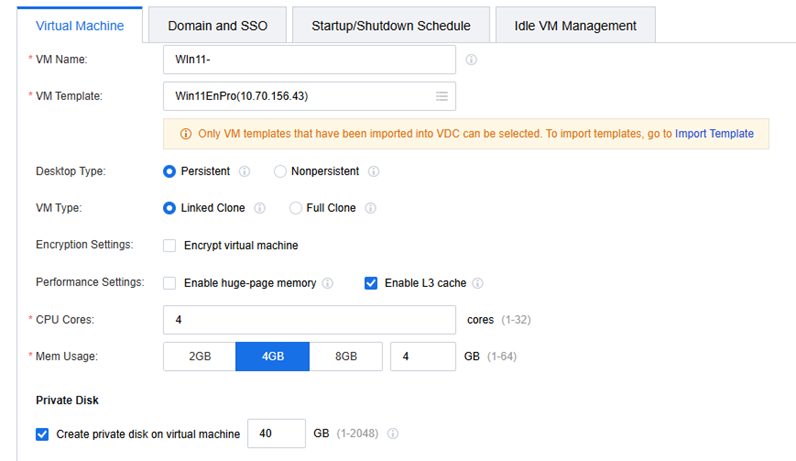
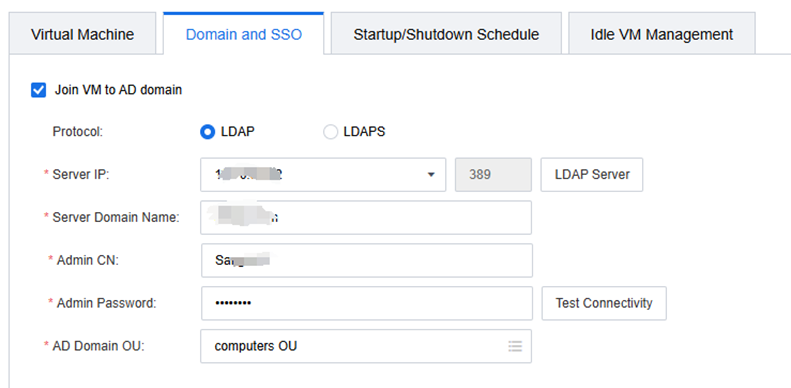
The VM automatically adds the AD domain, enable it, and select the LDAP server you created earlier.
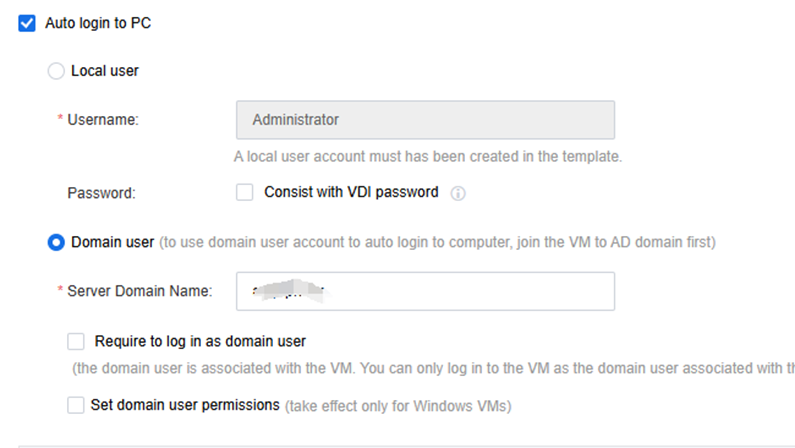
To enable automatic login, select the Domain User option.
Configure Policy Sets
Create different policy groups based on different user needs.
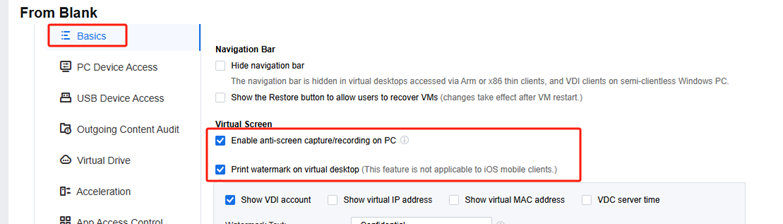
Virtual Screen
Users have remote work needs, so anti-screen capture/recording on PC has to be enabled. Besides, Print watermark on virtual desktop also needs to be enabled for screenshot-taking protection.
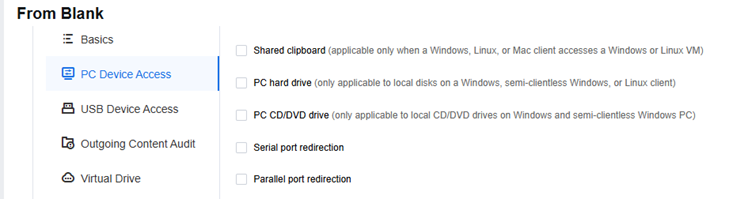
PC Device Access
Disable copying and local storage device access when the PC is accessed remotely, as shown below.
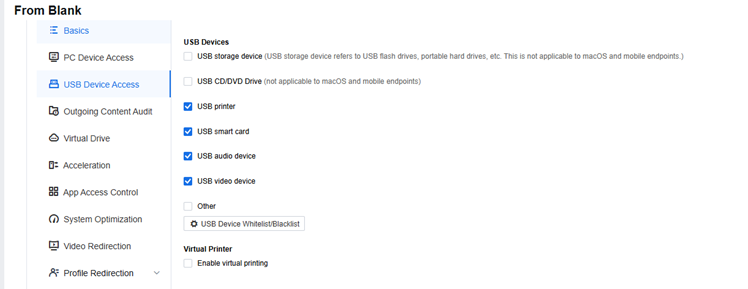
USB Device Access
USB storage devices need to be disabled, as shown below.
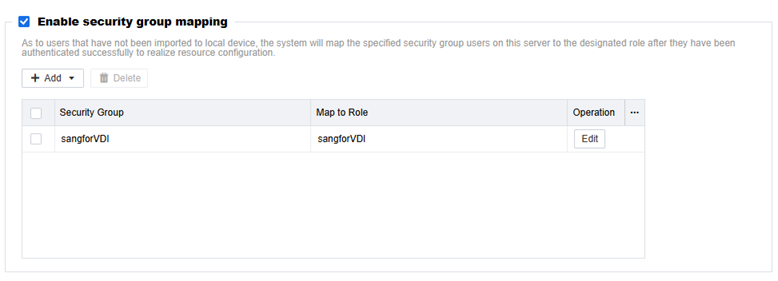
Security Group Mapping
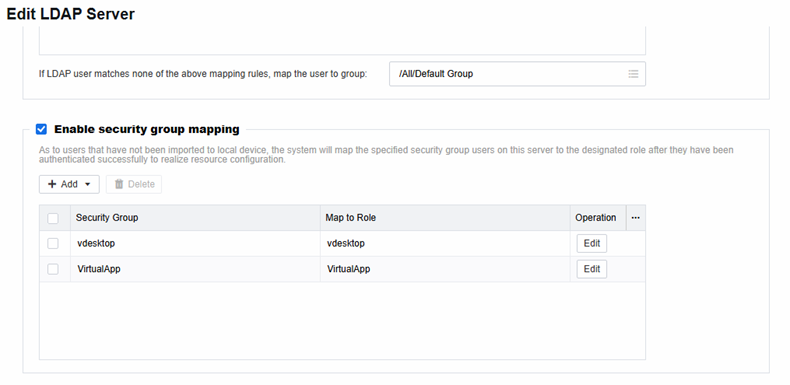
In the LDAP server configuration, enable security group mapping. You can associate security groups in the AD domain with the roles in the VDC. Then, associate VM resources through the roles, which enables AD domain users to obtain VMs.
Remote Office
This case is to publish the resources for VDI access through Sangfor Network Secure’s(NSF) SSLVPN module to realize remote access. For specific NSF configuration, this article will not repeat; you can refer to the NFS user manual.
Deploy Fslogix(User Profile Synchronization)
FSLogix is a third-party software that implements user-configured roaming, which can be combined with AD domain group policies to realize customer requirements. This case is implemented in conjunction with a Windows-built NAS storage. For specific configuration guidance, you can refer to the documentation.
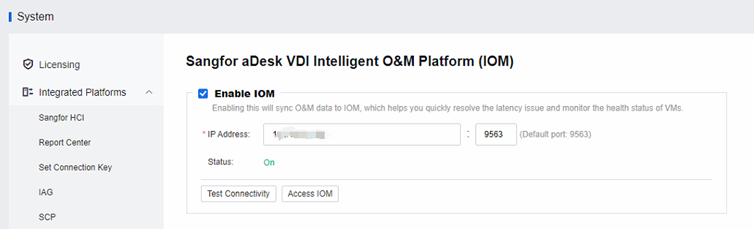
IOM Integration
After deploying the IOM platform, you can configure the IOM IP Address through the VDC to complete the integration.
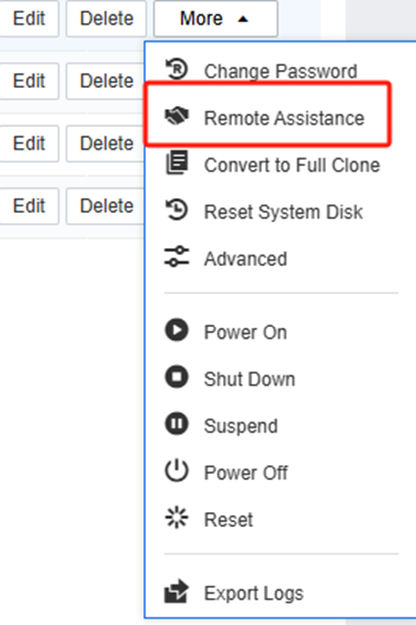
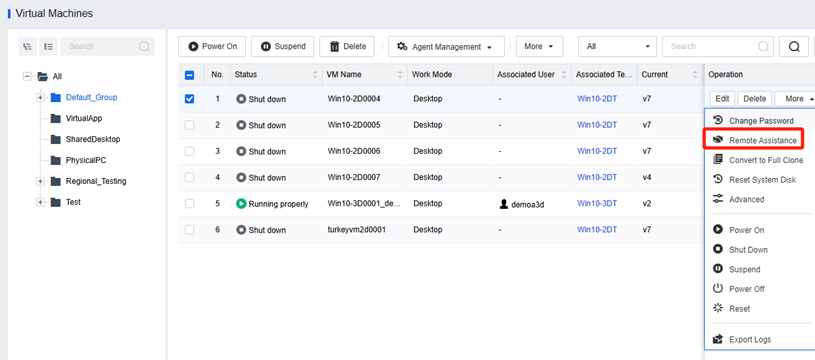
Remote Assistance
When a user needs assistance with configuration or troubleshooting, administrators can use Remote Assistance to quickly and easily remote to the user’s desktop and efficiently handle the incident.
Final Results
Centralized Management and Simple Deployment
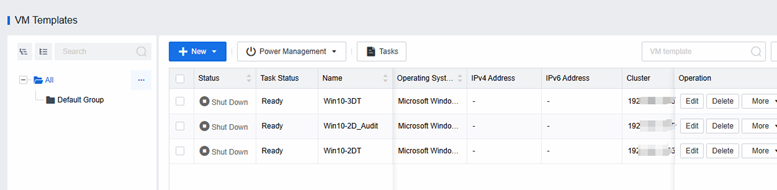
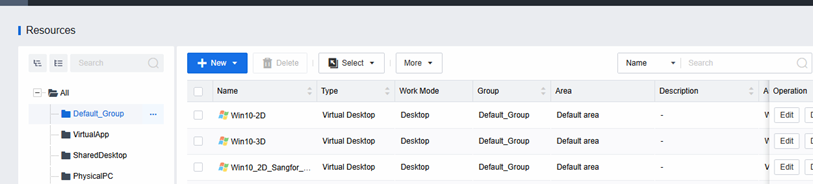
Administrators can see all VDC virtual machines and perform power operations. It is also possible to quickly deploy new virtual desktops for new employees.
Templates allow you to quickly deploy a large number of VMs and quickly scale them whenever you need to.
Data Security, Data Leakage Prevention
Strong Security Control of User Core Data
VDI’s characteristics determine that data will not be stored locally. The watermarking and anti-screening policy prevents data leakage and outgoing data through peripheral media.

Intelligent and convenient operation and maintenance
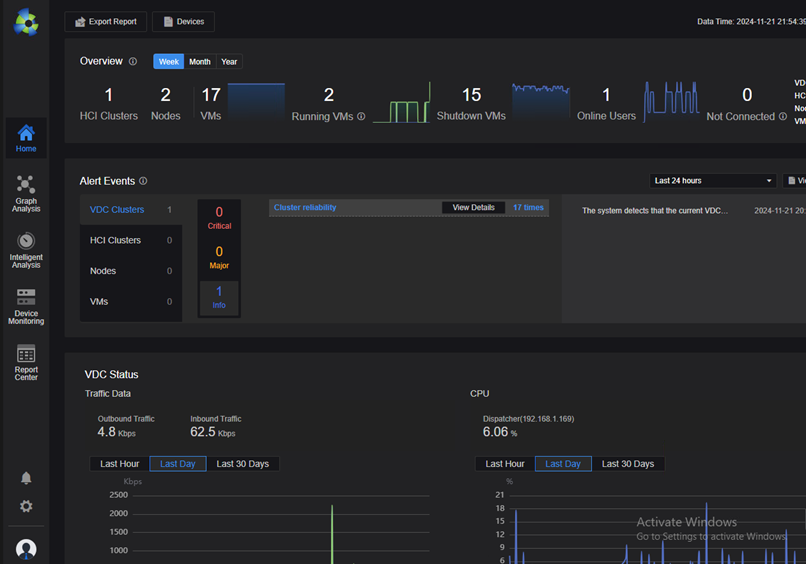
Virtual Desktop Intelligent Operation
Through IOM’s monitoring of platforms, virtual machines, and applications, you can view the global usage status of VDI. In addition, combined with VDC’s remote assistance function, you can quickly and efficiently remotely troubleshoot users and deal with corresponding problems on time.
Secure Remote Working
Efficient and Smooth User Experience
Remote access to the office experience is the same as the physical office working experience.
When users are traveling on business or need to work from home, they can use the Internet, connect to a VPN, and use VDI virtual desktops to work.
Easy access to the user’s AD domain organization structure
Smoothly Connect to AD Domain Architecture Information
Manage users directly on the AD domain; do not need to manage users on the VDC separately, simplify IT administrators’ operation, and improve IT operation and maintenance efficiency.
Users can flexibly use security groups mapped to roles without affecting the organizational structure of the AD domain. Through the creation of security groups, authorized users are joined to the security group, and ultimately, the allocation of resources is completed smoothly.
Disaster Recovery
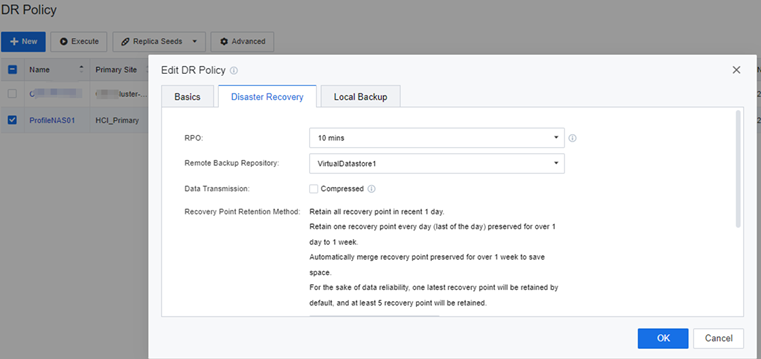
By configuring FSLogix, when a user switches to a DR site and accesses a new VM, they can also get the same user configuration at the primary site.
This process requires only the NAS server to perform a DR switchover. The RPO time is 10 minutes, and the RTO time is 15 minutes. The NAS server can complete the switchover. The DR site VMs can mount user profiles so that users can continue to use their user profiles for their daily office work.
Notes
Once the implementation is complete, it is recommended that you use the Sangfor Checks tool to patrol the HCI and VDI platforms to confirm that the current platform score is 100.