
【VDI】AD Domain User Authentication Guide_V5.9.1R1
Introduction
AD domain users are authenticated in conjunction with the Virtual Desktop Controller (VDC), which currently supports the following three methods of acquiring users:
-
Importing users to VDC locally:
AD domain users are directly imported locally to the VDC. -
OU mapping:
For users who have not been imported to the VDC, after successful authentication, the system will map the specified OU users on the domain server to the designated local user group based on the configured mapping rules to implement the permission and resource configuration. -
Security group mapping:
For users who have not been imported to the VDC, after successful authentication, the system will map the specified security group users on the domain server to the designated role to implement the resource configuration.
Scenarios
Scenario 1: Importing Users to VDC Locally
| Scenario | Importing users to VDC locally |
|---|---|
| Version Required | VDI 5.5.6 or above |
| Item | Procedure |
|---|---|
| 1 | Create an LDAP Server. |
| 2 | Import users to VDC. |
| 3 | Join VM to the AD domain. |
Scenario 2: OU Mapping
| Scenario | OU mapping |
|---|---|
| Version Required | VDI 5.9.1 or above |
| Item | Procedure |
|---|---|
| 1 | Create an LDAP Server. |
| 2 | Configure OU mapping. |
| 3 | Associate groups with roles. |
| 4 | Join VM to the AD domain. |
Scenario 3: Security Group Mapping
| Scenario | Security group mapping |
|---|---|
| Version Required | VDI 5.9.1 or above |
| Item | Procedure |
|---|---|
| 1 | Create an LDAP Server. |
| 2 | Configure security group mapping. |
| 3 | Join VM to the AD domain. |
Configuration
Create an LDAP Server
- Log in to the VDC console and navigate to Resources > Services > Authentication > External LDAP/RADIUS. On the External LDAP/RADIUS page, click New and select Add New LDAP Server.


- On the Add New LDAP Server page, complete the settings in the LDAP Server section as required.
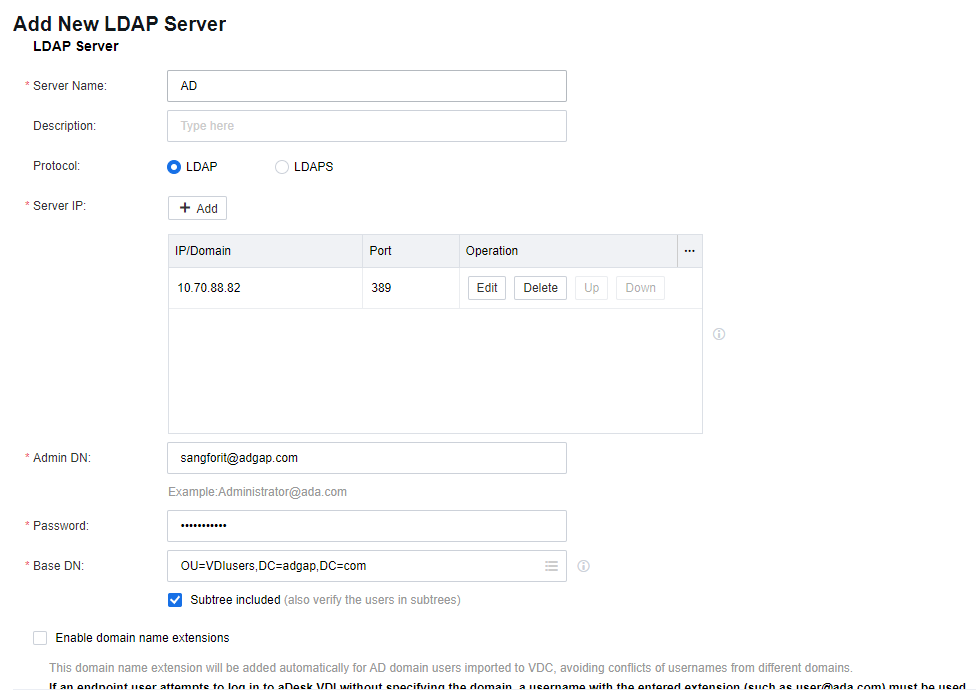
Note:
You can refer to the document VDI LDAP Admin Least Privileges Configuration Guide for Admin account permission settings.
- On the Add New LDAP Server page, complete the settings in the User Basics section as required. Select MS ActiveDirectory for Type.

- In the Authentication Settings section, complete the settings as required. And then click Save.

Import Users to VDC
- Log in to the VDC console and navigate to Resources > Services > Authentication > External LDAP/RADIUS. On the External LDAP/RADIUS page, click Import Users.
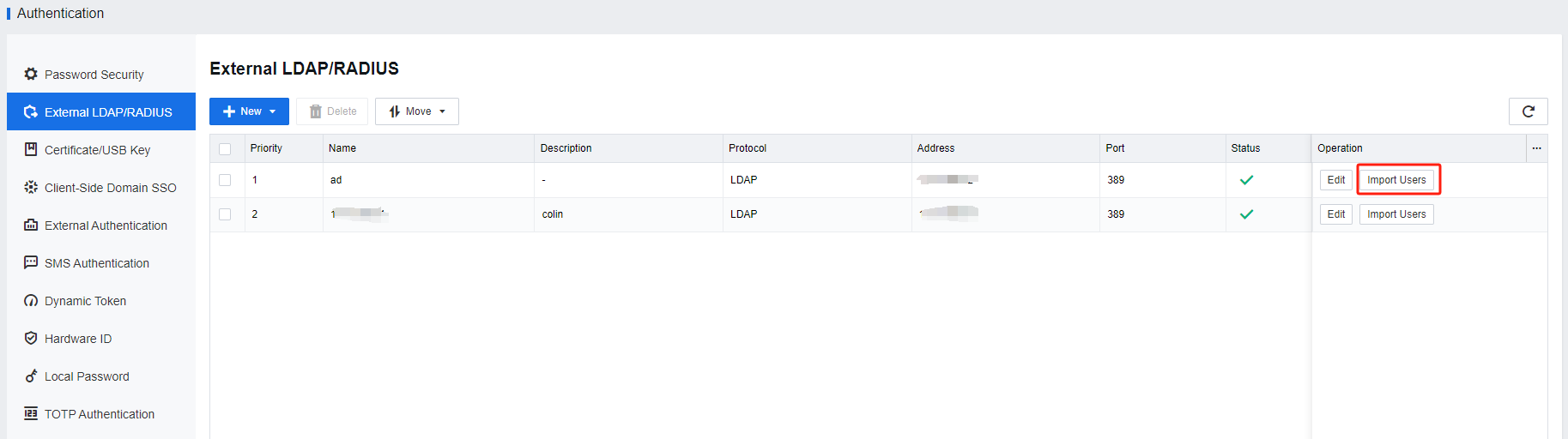
- On the Import LDAP Users page, complete the settings in the Options section as required.

- Click the List icon in the OU field. On the Import Users page, select Users recursively, and click OK.
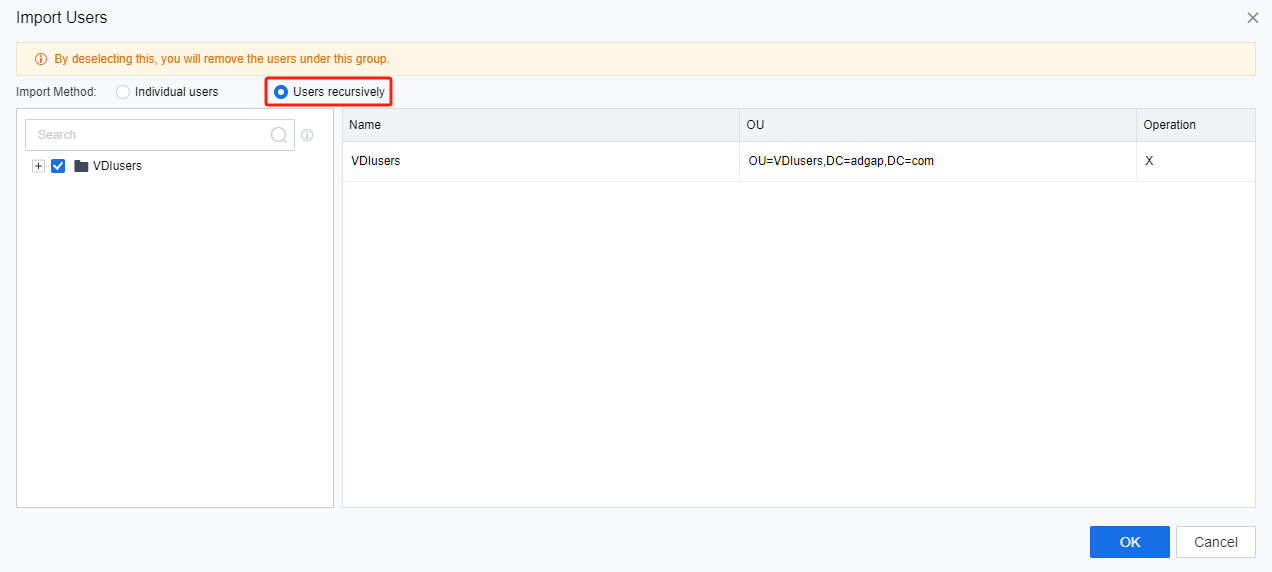
- Then, click Save and Import Now.
Configure OU Mapping
- Log in to the VDC console and navigate to Resources > Services > Authentication > External LDAP/RADIUS. On the External LDAP/RADIUS page, click Edit to edit the corresponding LDAP server.

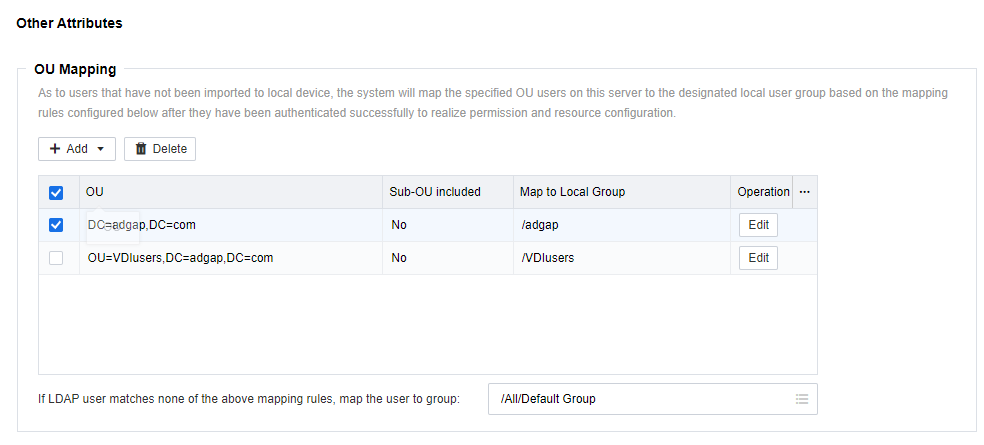
- In the OU Mapping section, click Add and select Add Multiple Addresses.

- On the Add OU Mapping Rule page, select the OU as required. Then, click OK.
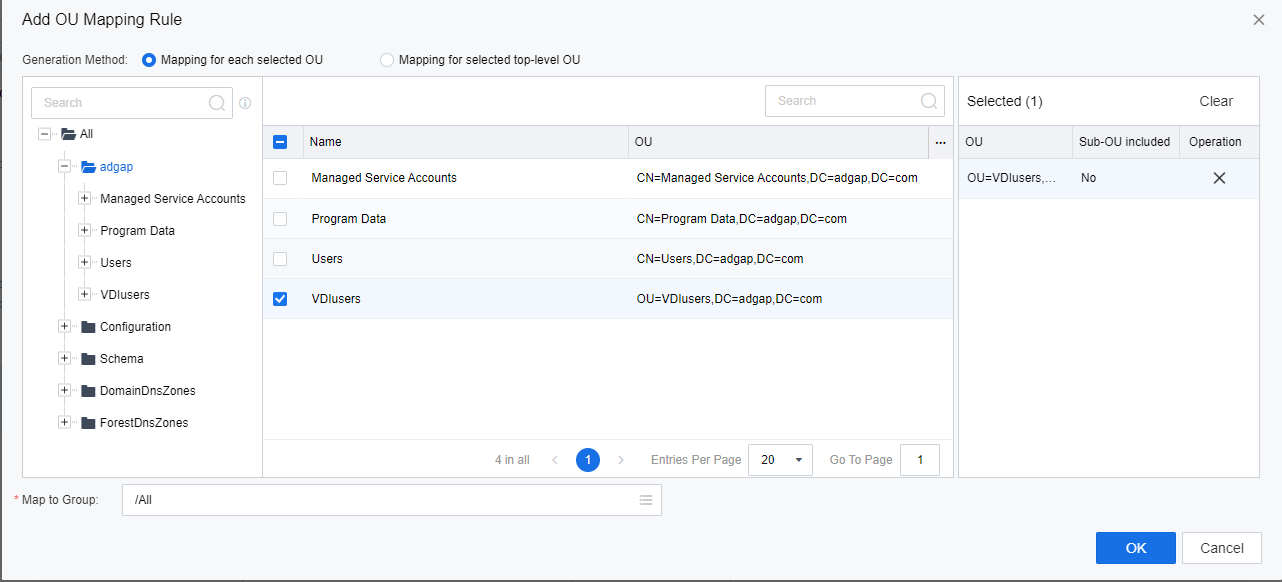
- In the OU Mapping section, verify the correspondence between the OU and the VDC’s user group. Click Save to complete the configuration.
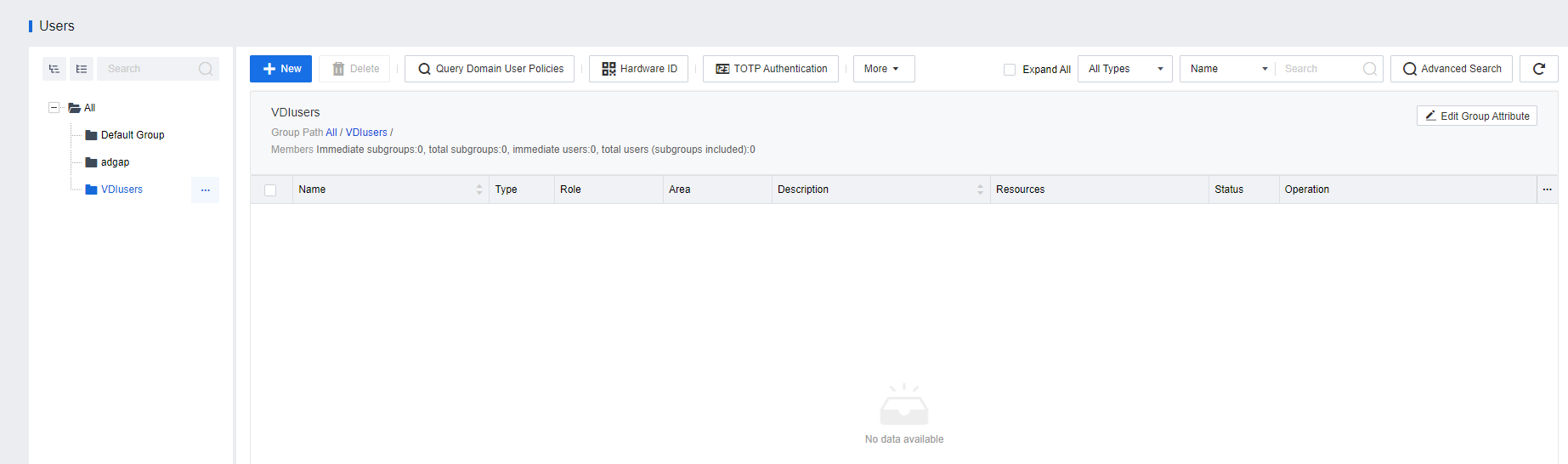
- Go to Resources > Services > Users. The group corresponding to the OU has been created automatically and there are no users under the group.
Associate Groups with Roles
- Log in to the VDC console. Go to Resources > Services > Roles, and click Edit to edit the corresponding role. On the Edit Role page, modify the configurations in the Basics and Associated Resources sections as required.

- Click the List icon in the Associated User field. On the User page, select the group as required. Then, click OK.
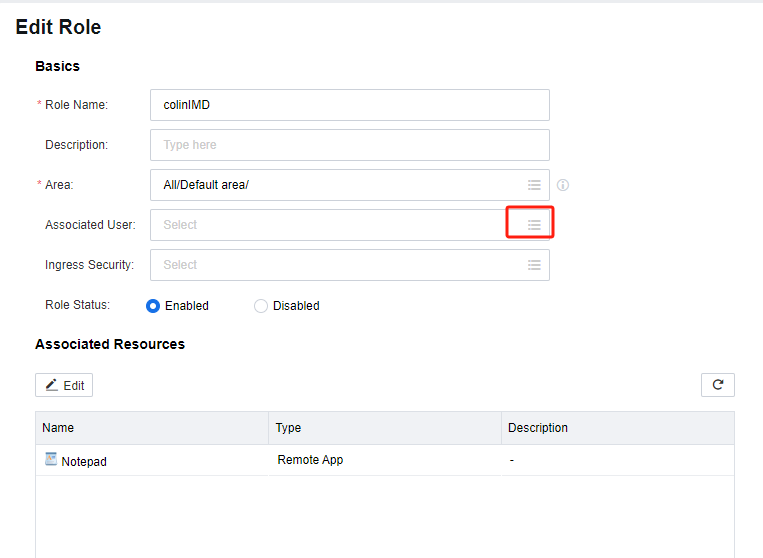

- On the Edit Role page, the role is already associated with the group. Click Save to complete the configurations.

Configure Security Group Mapping
- Log in to the VDC console and navigate to Resources > Services > Authentication > External LDAP/RADIUS. On the External LDAP/RADIUS page, click Edit to edit the corresponding LDAP server.

- In the Enable security group mapping section, click Add and select Add Multiple Addresses.

- On the Add Security Group Mapping Rule page, select the security group as required. Then, click OK.
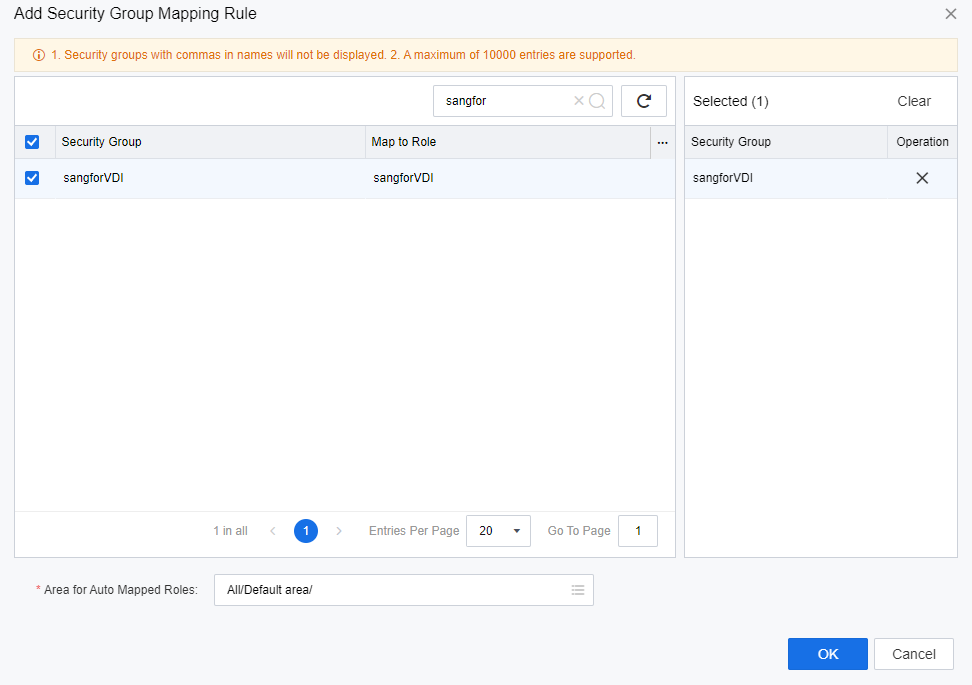
- A security group corresponding to the role is generated. Click Save.
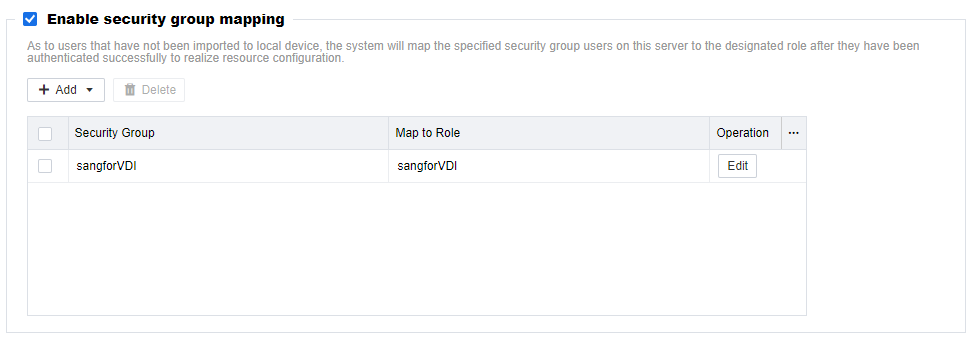
- Navigate to Resources > Services > Roles. On the Roles page, the role corresponding to the security group has been generated.

Join VM to AD Domain
-
Log in to the VDC console and navigate to Resources > Services > Resources. On the Resources page, click New and select Virtual Desktop. Alternatively, click Edit corresponding to the target virtual desktop resource.
-
On the Domain and SSO tab, select the Join VM to AD domain checkbox, set Server IP, Server Domain Name, Admin CN, and Admin Password, and then click Test Connectivity. Alternatively, select a domain server that has been integrated with VDC to have the relevant information automatically filled.
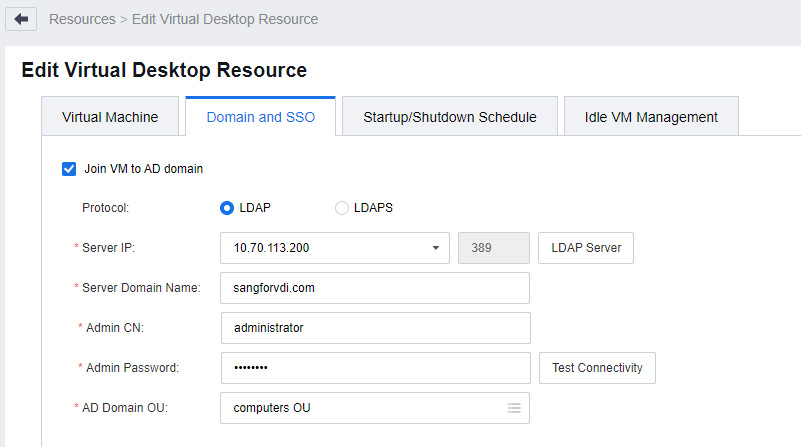
- After the settings are completed, the virtual desktops deployed from the resource will automatically join the corresponding AD domain upon restart.