
【VDI】Disaster Recovery with Fslogix(UPM) Configuration Guide
Background
XX Financial Customer is currently deploying VDI virtual desktops. After going online, it was found that disaster recovery redundancy functions needed to be added. Currently, VDI cannot achieve virtual machine-level redundancy.
This article mainly describes how to achieve redundancy of VDI virtual desktops by solving the problems of user-profiles and personal disk synchronization, thereby realizing disaster recovery redundancy for users’ VDI services.
Current Environment
- The two sites currently have a set of VDI deployed independently, with about 50 users. The deployed desktops are persistent desktops and are equipped with personal disks.
- Current users with UPM enabled and user profiles redirected to personal disks need a smooth migration to FSlogix.
Requirement
- After the user switches to the DR site and accesses the VDI virtual machine, the user configuration related to the previous virtual machine can work.
- For personal disk data, customers issue disk mounting policies through AD domain controllers and store them on file servers.
Solution
Solution Introduction
FSLogix is a roaming user profile solution. Microsoft acquired the company in 2018. The solution mainly enhances and simplifies the virtualization environment of non-persistent Windows environments in public and private clouds. The FSLogix solution includes four major scenarios:
- Profile Container (configuration file container, installation program name: FSLogixAppsSetup.exe).
- Office Container (Office container, installer name: FSLogixAppsSetup.exe).
- Application Masking (Application masking, installer name, FSLogixAppsRuleEditorSetup.exe).
- Java Version Control (Java version control, installer name: FSLogixAppsJavaRuleEditorSetup.exe).
Using FSLogix solutions can bring you the following benefits:
- Save personalized configuration in a non-persistent environment.
- Minimum session login time in non-persistent environments.
- Optimize IO between roaming user profiles and storage.
- Experience as local profiles, eliminating many compatibility issues with folder network redirection.
- Simplify the management of applications and "Golden Image ".
- Specify different Java versions for specific URLs and applications.
Features
This article introduces how to retain or redirect user-personalized data by combining AD domain GPO with unified domain policy settings. It has the characteristics of unified management and control, simple deployment and testing, and high maintainability. In addition, mature ADM policy templates can be used for personalized adjustments and configurations to improve deployment standardization.
Key Capabilities and Effects
- Use Profile Container to redirect user profiles to a network location. Profiles are placed in a VHD(X) file and installed at runtime. Copying profiles to and from the network is common as users log on and off remote environments. Because user profiles are often large, log-on and log-off times often become unacceptable. Installing and using profiles over the network eliminates the delays typically associated with solutions that copy files.
- Use Office Containers to redirect only the portion of the profile that contains Office data. Office Containers allow organizations already using alternative profile solutions to enhance Office in a non-persistent environment. This feature is useful for Outlook(.OST) files.
- The application uses the configuration file as if it were on a local drive. Because the FSLogix solution uses a filter driver to redirect the configuration file, the application is unaware that the configuration file is on the network. Hidden redirection is important because many applications do not work appropriately with configuration files stored on remote storage.
- Profile Containers are used together with Cloud Cache to create a resilient and highly available environment. Cloud Cache places a portion of the profile VHD on the local hard drive. Cloud Cache also allows administrators to specify multiple remote profile locations. Local Cache with multiple remote profile containers insulates users from network and storage failures.
- Application Masking manages access to applications, fonts, printers, and other items. Access can be controlled by user, IP address range, and other conditions. Application Masking significantly reduces the complexity of managing large numbers of golden images.
Configuration Guide
Configuration
Next, this article mainly uses FSLogix to perform roaming user profiles in the adesk environment.
FSLogix Container creates a virtual hard disk (VHD) file on the FileServer (NAS), and Profiles (including registry) are stored in the VHD file. For UserProfiles, since no data is copied to the non-persistent VDI session, it just mounts the VHD to Windows and accesses local data, which results in a swift logon time for the user.
Configure Fslogix Shared Directory
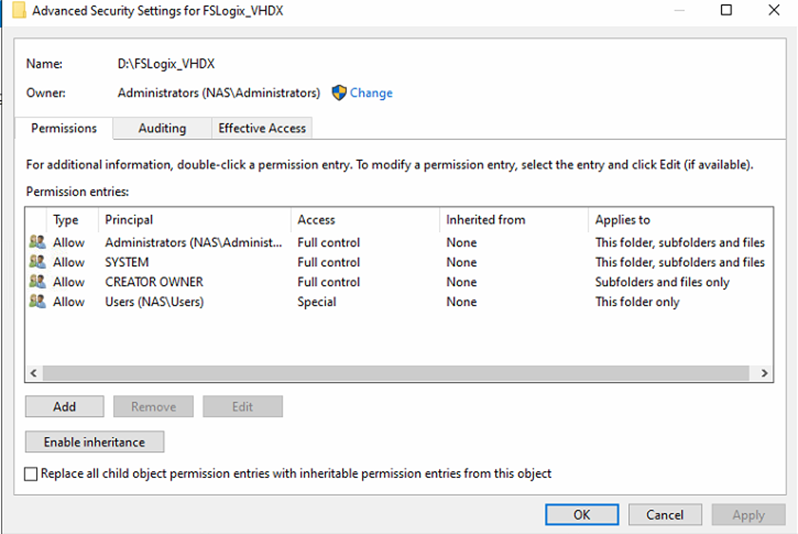
The user profile generated by FSLogix is placed in a VHD or VHDX file. This VHD file is automatically created in a UNC path based on SMB, so you need to create a shared folder in the NAS. First, create a folder and configure the appropriate user permissions according to the table below:
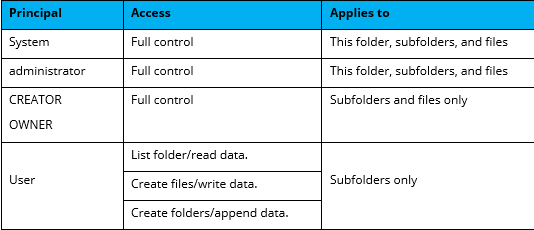
Create a shared directory, FSLogix_VHDX, on the shared server and set permissions.
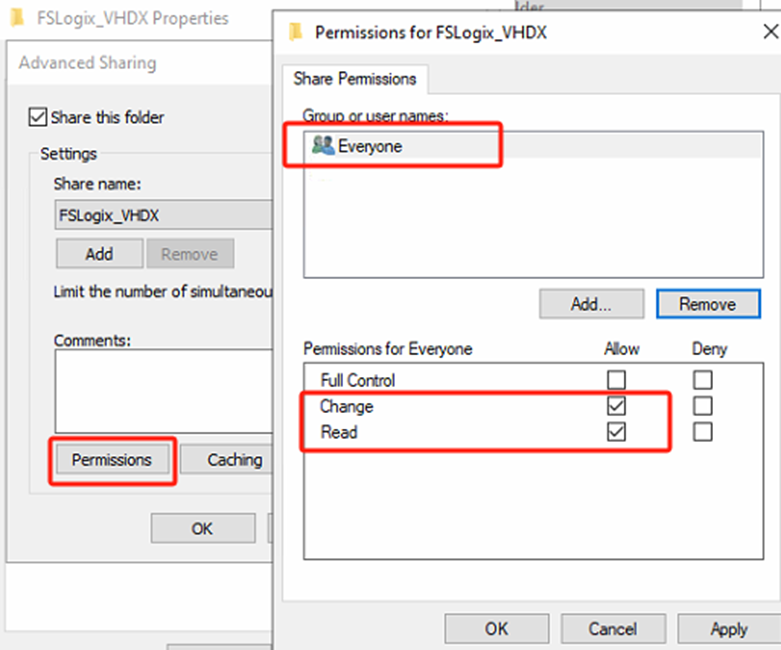
Assign the Read, Change sharing permission to the Everyone user.
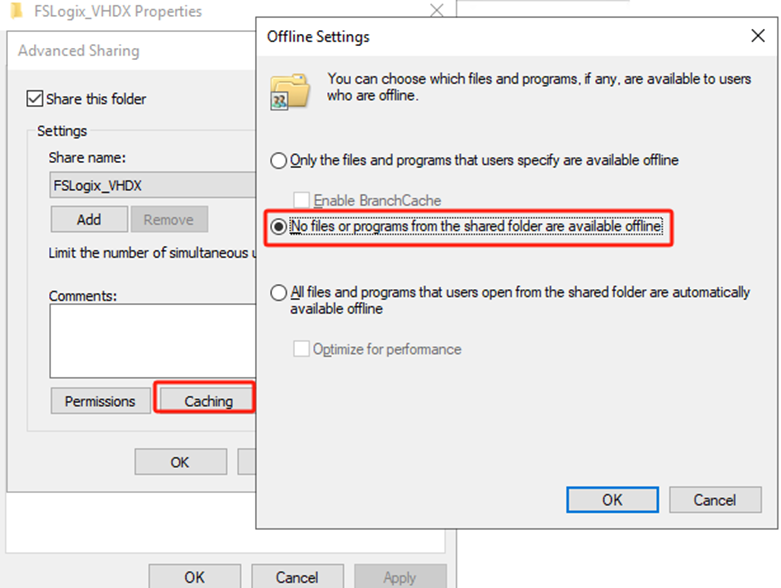
Disable offline availability of shared folders.
Create a New Policy in VDC and Cancel UPM
Both the primary site and DR site VDC are required.
- In the VDC, clone a new policy using the previous old policy.
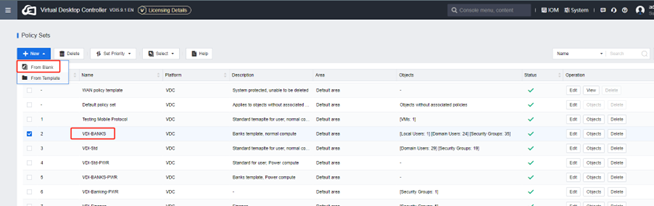
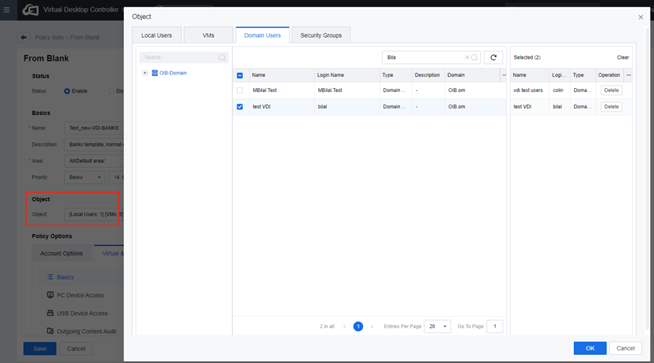
- In the new policy, delete all Object, and only add 2 test users.
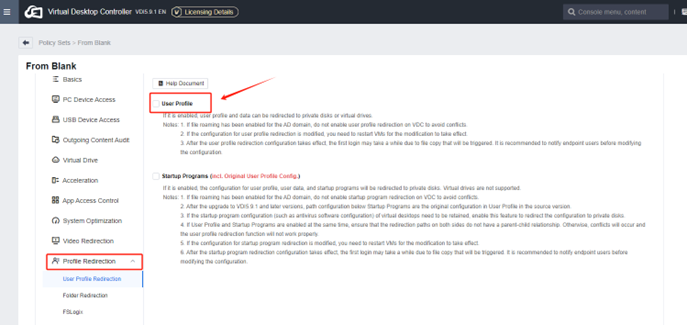
- Disabling the user profiles.
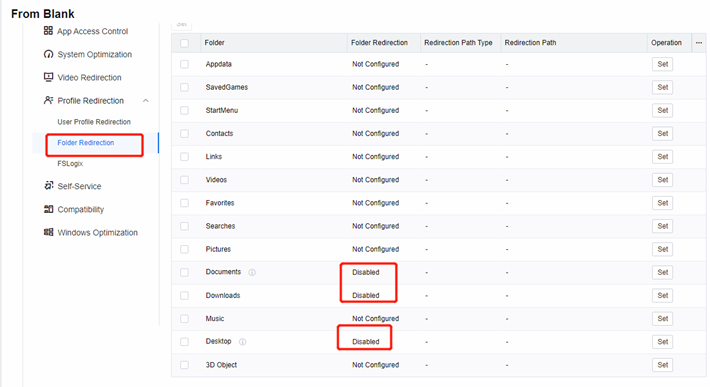
- Disable Folder Redirection, Download, Document, and Desktop.
- After creating and putting the policy as the top priority, click Apply.
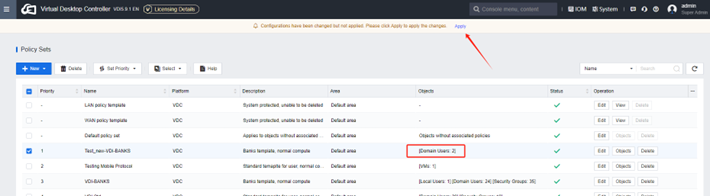
Important: The user VM must be rebooted to allow the UPM data to be copied back locally.
Download and Install FSLogix
Download address: https://download.microsoft.com/download/9/7/b/97b4c64b-ffc9-447c-b39e-3afba4672ee8/FSLogix_Apps_2.9.8612.60056.zip
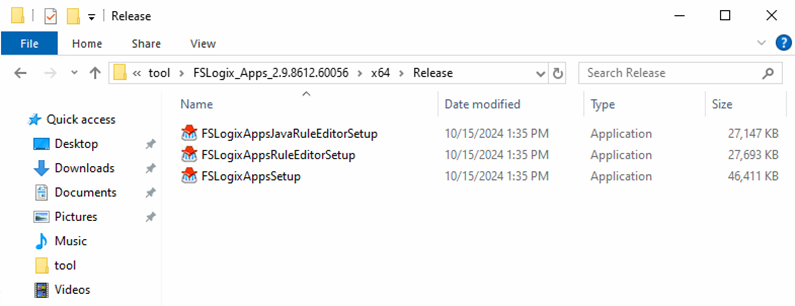
Install the Microsoft FSLogix component. The FSLogix installation file mainly consists of three .exe files. If you only use ProfileContainer, you only need to install FSLogixAppsSetup.exe in the virtual machine template.
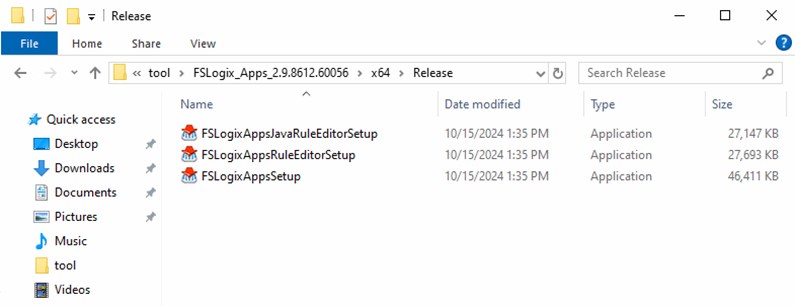
Install it on the virtual machine and select the default path.
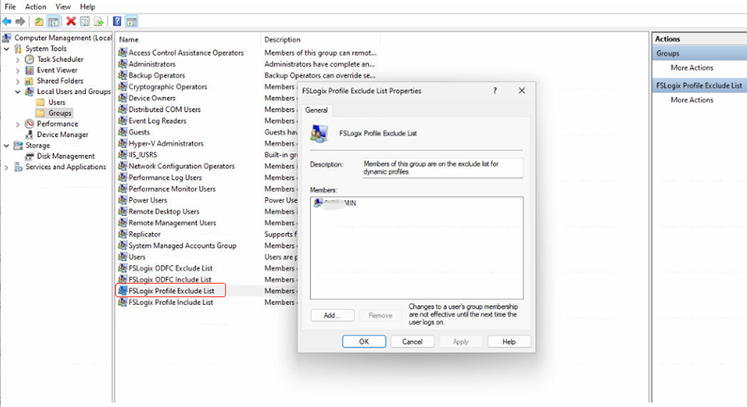
Add the local administrator user to the FSLogix Profile Exclude List group to prevent the FSLogix program from malfunctioning and being unable to log in to the desktop.
Convert Local User Profile to FSLogix Container
FSLogix does not copy local user profiles to the profile container by default. Therefore, you need to use a script to convert it manually and then enable the FSLogix policy to take effect afterward.
Edit Script
Edit the script using Notepad++ to populate the corresponding container storage path to the specified location. Such as \IP or Domain Name\share location\path. The recommendation is to use the domain name as the storage path and switch the NAS to the DR site without modifying the fslogix policy.
No changes are required elsewhere.

Convert Profile
Log on to the VM to be converted using another domain account(You cannot log in as a user who needs to be converted. For example, if u want to convert the user A profile, you need to log in as user B to convert the user A profile).
Note: User B needs to join the local domain group.
Copy the edited script to the newly created directory.

Run Windows PowerShell as an Admin.
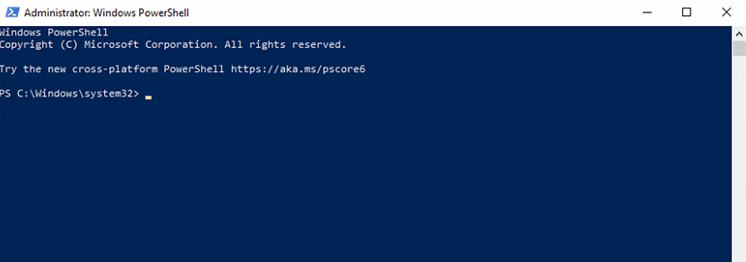
By default, PowerShell script execution permissions are restricted to Windows systems. To execute PS scripts, you need to modify the Execution Policy. Execute set-executionpolicy remotesigned, type Y, and press Enter.

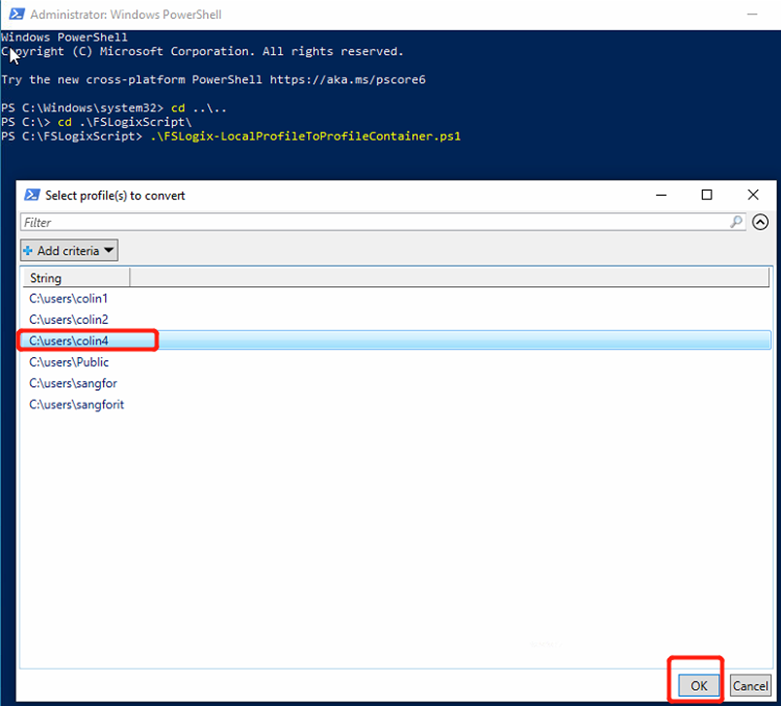
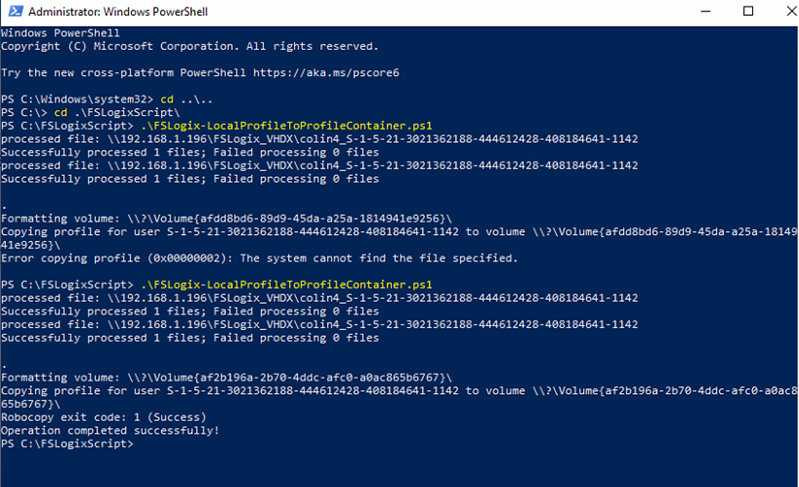
Switch to the path where the script is stored and execute the script. Select the users to be converted and click OK.
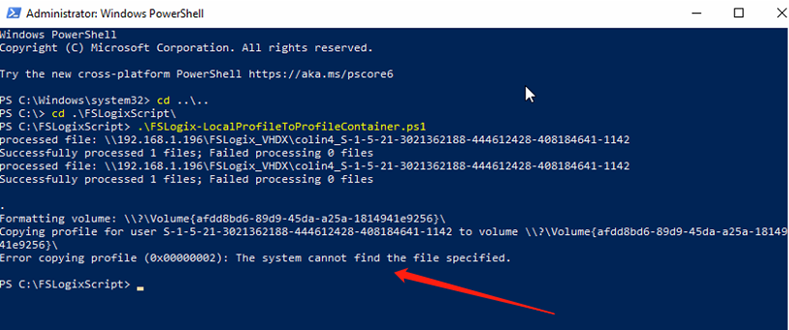
After the following error occurs, rerun the script and select the same user.
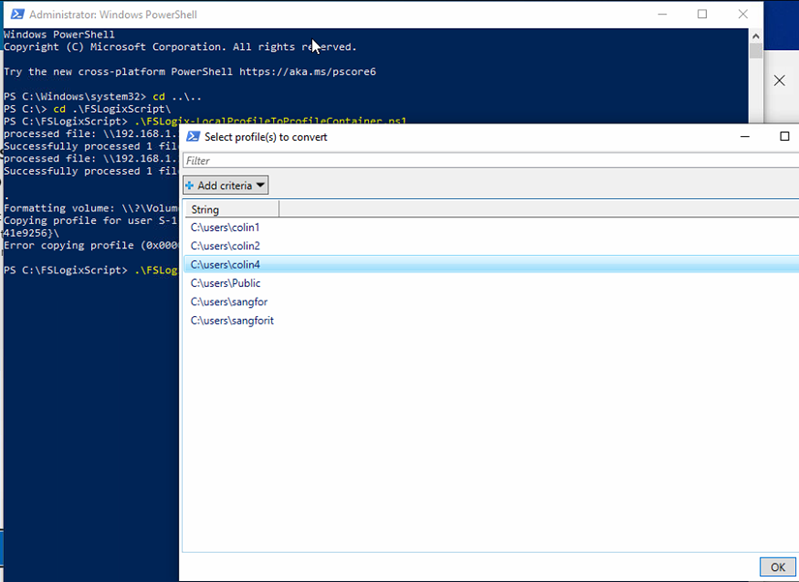
After confirming the conversion, it will show that the operation was completed successfully.
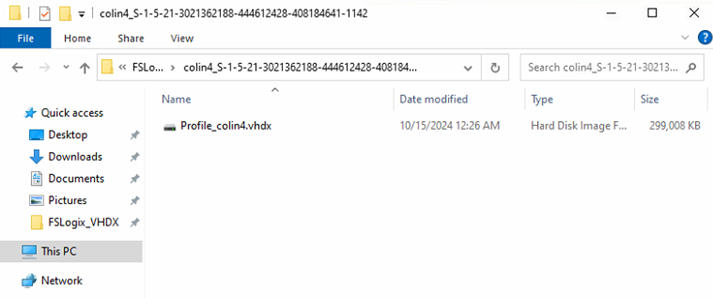
The corresponding profile container can be seen on the NAS.
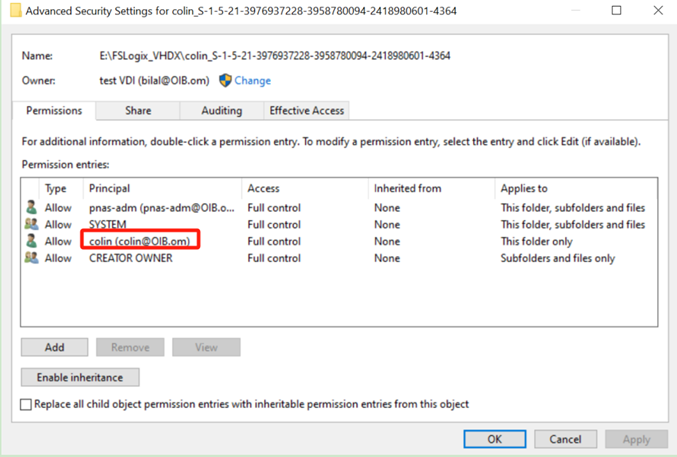
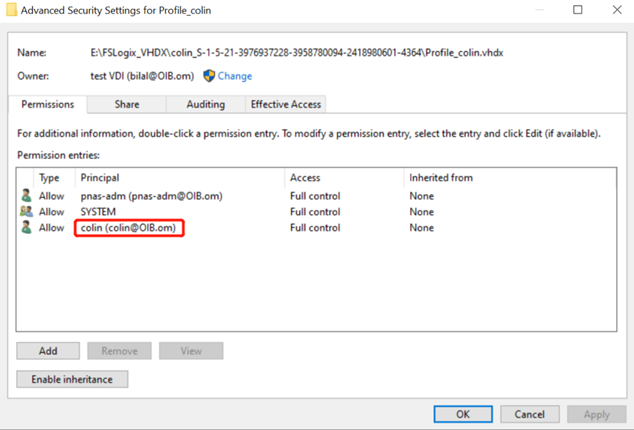
Once the user profile has been successfully converted, the user’s folder and profile container access permissions must be modified further. For example, if the converted user profile is Colin, you need to change Colin’s folder and files to be accessible by Colin.
Create Test Organization Unit(OU)
Create a test OU in the AD Server, and put the Test Computer(not user) in the OU.
Configure and Enable FSLogix via AD Group Policy
The domain administrator logs in to any Domain Controller server.
-
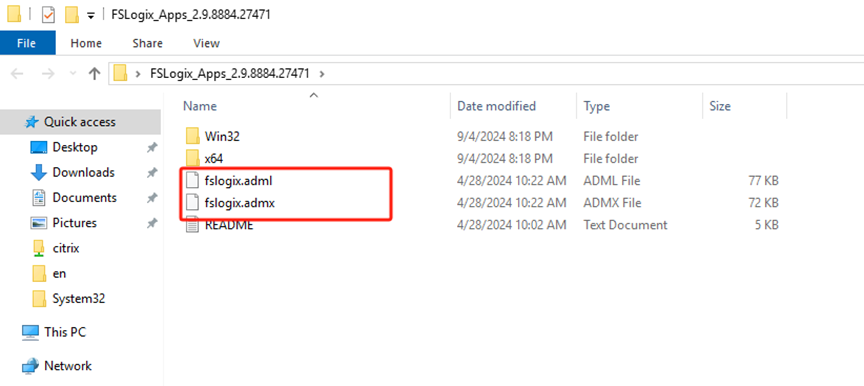
First, set the FSLogix ADM file in AD. The ADM file is in the downloaded FSLogix installation compressed package.
-
Copy the files to the target location as follows.

-
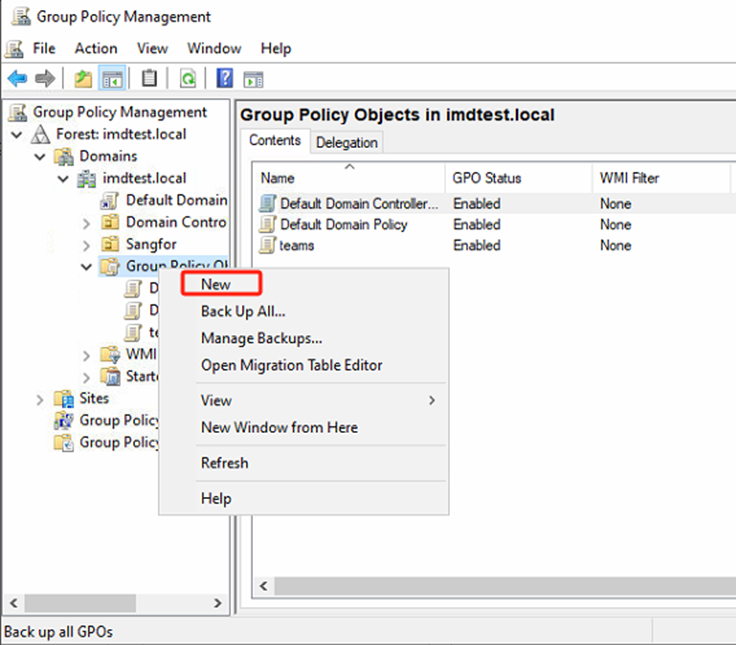
Open the Group Policy Manager in the AD domain manager. Find Group Policy Object, create a new GPO, name it as FSLogix_test, and edit this GPO.
-
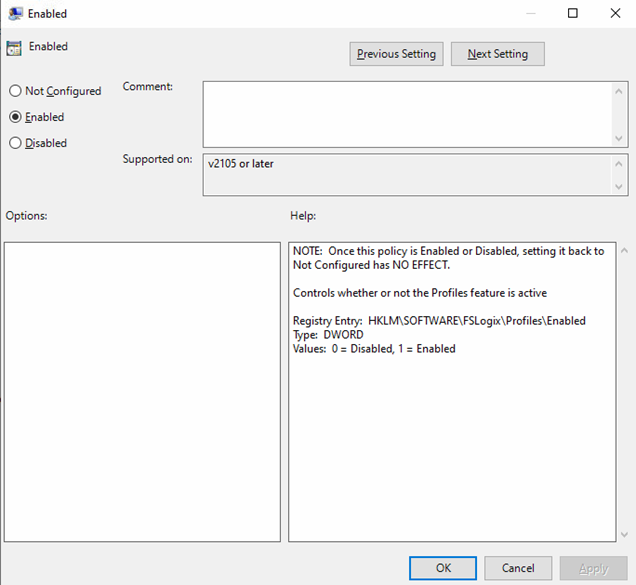
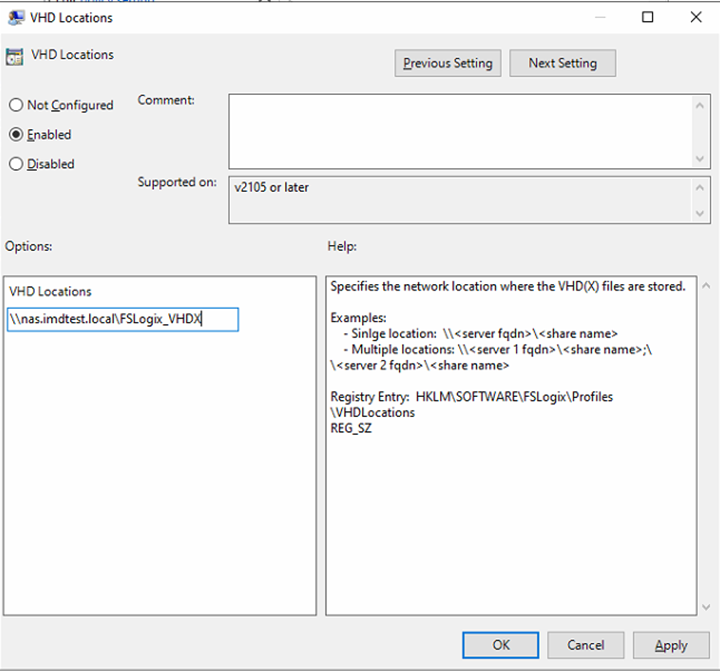
Navigate to Computer Configuration > Administrative Templates > Profile Containers, enable Enabled, and set it to Enabled. For the VHD location, set it to the FSLogix_VHDX directory on the shared server.
Some additional settings:
Size in MBs: Set the VHD file size to 30000. The default is 30GB and can be adjusted as needed.
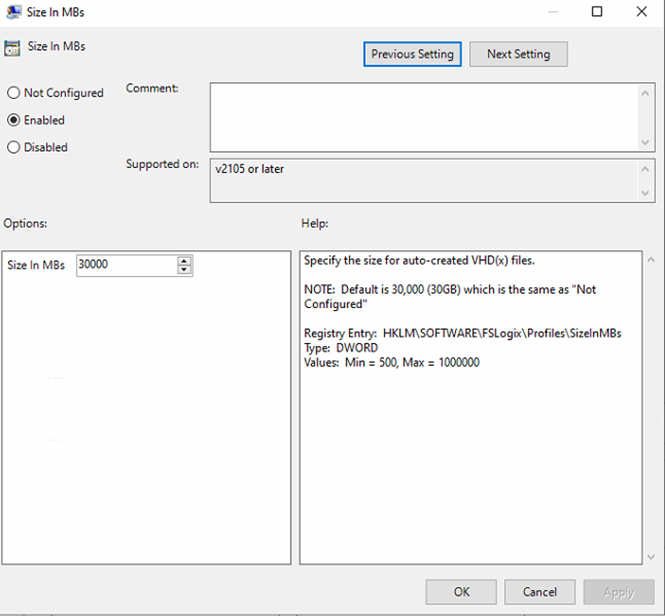
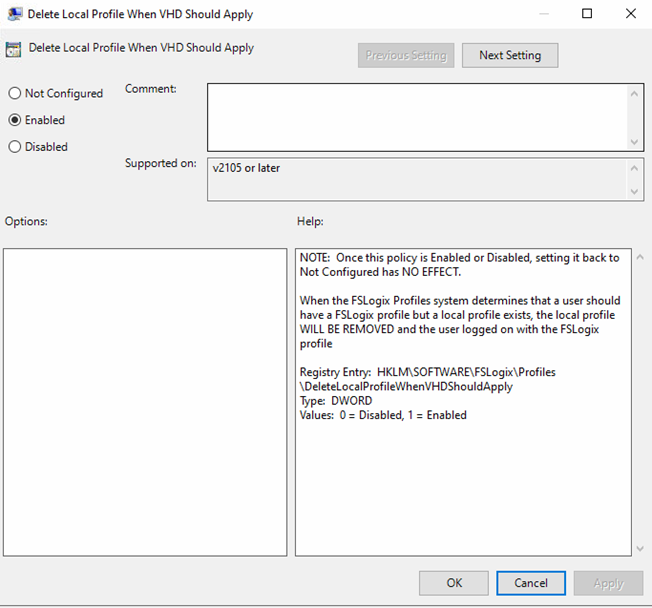
Delete Local Profile When VHD Should Apply: Set to Enabled. It is recommended that users don’t use local profiles and lose data unexpectedly.
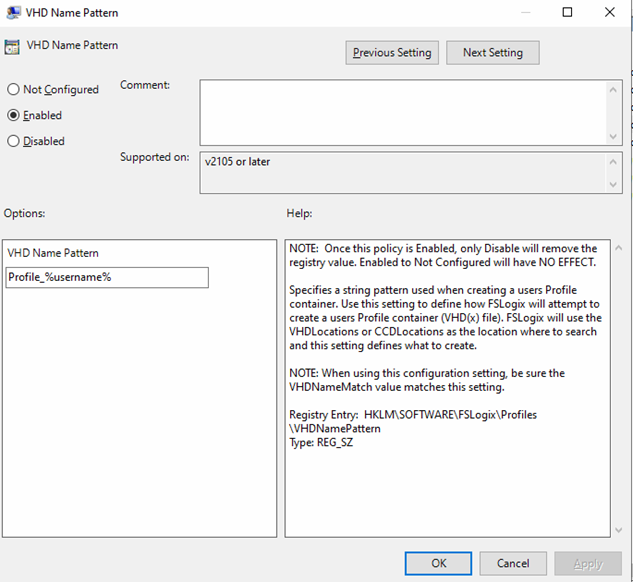
VHD Name Pattern: VHD file naming rules. Define according to the policy description, such as Profile_%username%.
VHD Name Matching: VHD file query naming matching rules. Define according to the policy introduction, such as Profile_%username%, where VHD name pattern and VHD name matching are consistent.

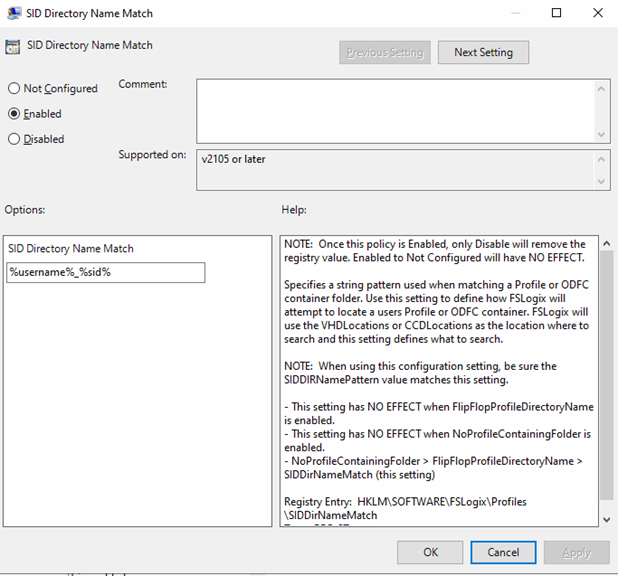
SID Directory Name Pattern: VHD Directory naming rules. Define according to the policy description, such as %username%_%sid%.
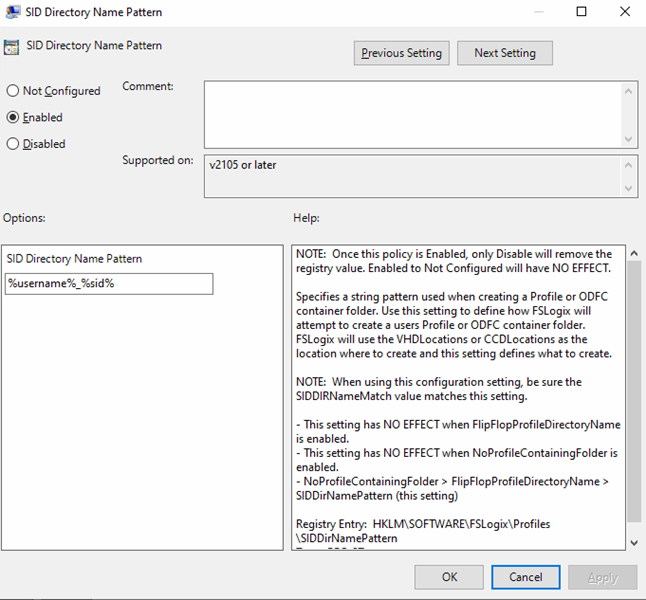
SID Directory Name Match: VHD Directory query naming matching rules. Define according to the policy introduction, such as %username%_%sid%, where SID Directory name pattern and SID Directory name matching are consistent.
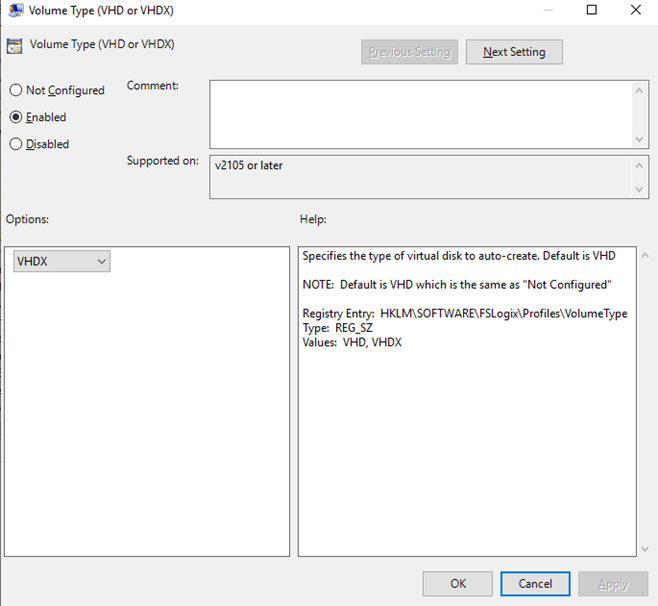
Virtual disk type, virtual disk type: VHDX (this format is recommended)
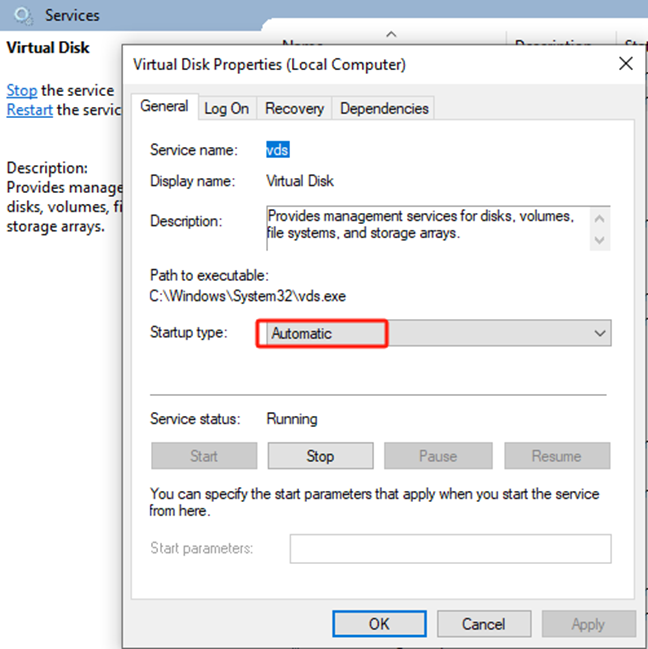
The template virtual machine needs to enable the Virtual Disk service and set it to Automatic.
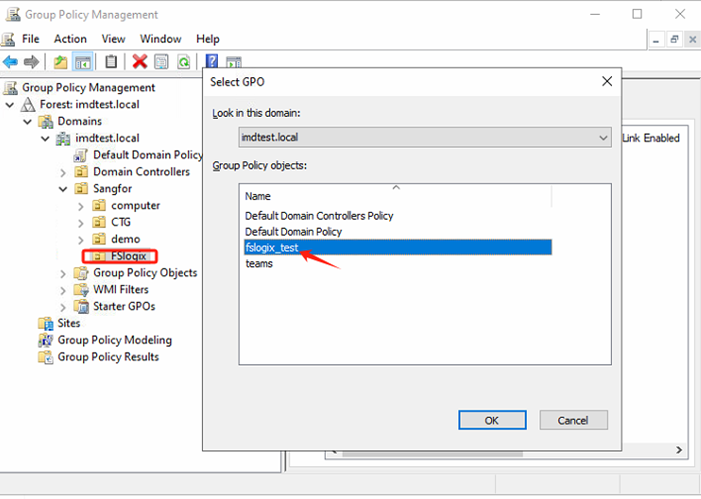
After the GPO configuration is completed, assign it to the computer OU where the policy will take effect.
User Group Policy Loopback Processing Mode
The above steps complete the user folder redirection policy configuration through the group policy.
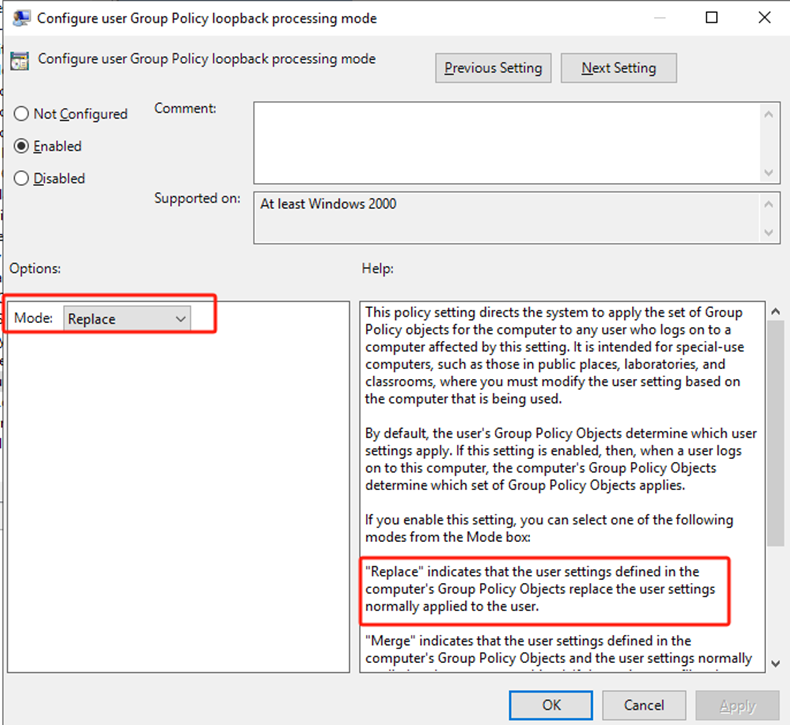
All policies are user policies, but the OU of this group policy link is the computer. By default, this is not effective. At this time, you need to configure the loopback policy. In Computer Configuration > Policies > Administrative Templates > System > Group Policy, find Configure User Group Policy Loopback Processing Mode; change it to Enabled, select Replace, and then click OK.
Note: The purpose of linking user policies to computer OUs is to limit the scope of the user policies. In many cases, a user may have multiple Windows computers of various types.
Personal Disk Data
The users handle it by themselves.
FSLogix In PR Site Verification
Check that the browser favorites, settings, and JAVA configuration are the same.
NAS Configuration
IP Configuration
NAS is a Windows server virtual machine on HCI, so we can set the virtual machine’s IP through HCI to realize that after the disaster recovery switchover, the virtual machine’s IP will be automatically switched to the network segment of the corresponding site.
DR Policy
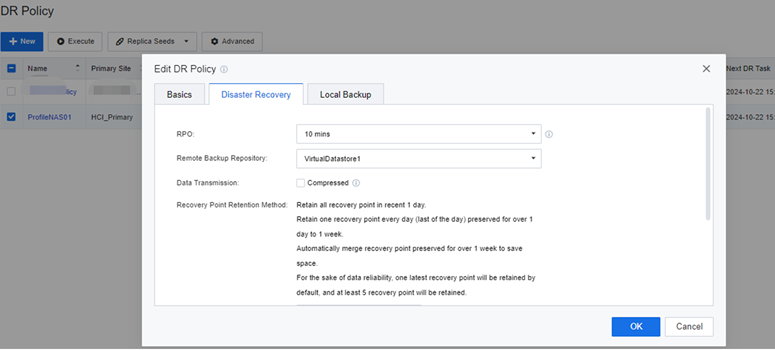
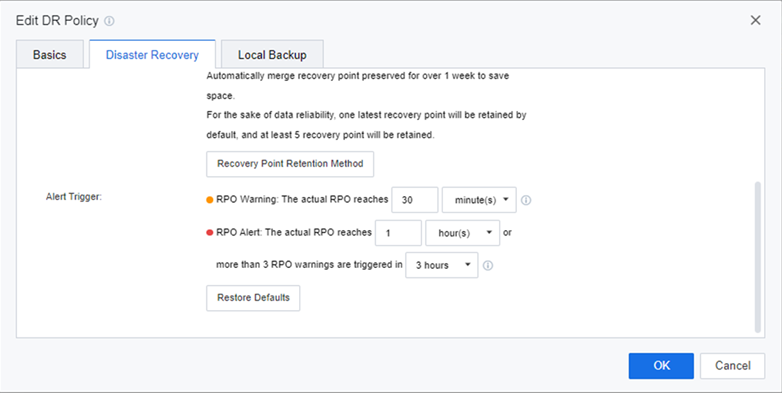
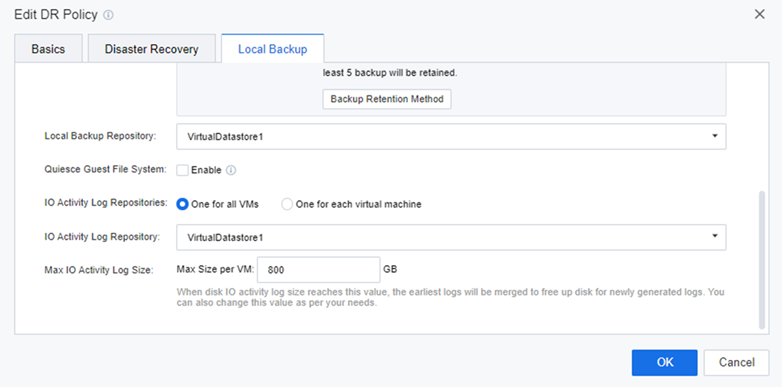
In the Sangfor Cloud Platform(SCP) console, set up the NAS VM disaster recovery policy. Set the appropriate parameters according to the actual needs.
DR Site Virtual Machine Configuration
Install Fslogix
Refer to Chapter Download and Install FSLogix.
Put VM into the Test OU
Refer to Chapter Create Test Organization Unit(OU).
Switchover Test
Log in to the same domain user from a virtual machine at another site to verify whether Fslogix is in effect.
Reference
- Microsoft FSLogix documentation, https://docs.microsoft.com/en-us/fslogix/