【VDI】Dual Screen Configuration Guide_V5.9.1_R2_EN
Introduction
Virtual desktops are displayed in single-screen mode by default. You can select Enable in the Dual Screen Settings section to allow users to switch to the dual-screen mode when using virtual desktops.
Prerequisites
-
The virtual desktop is running Windows 7, Windows 10, or Windows 11.
-
The user uses a thin client or Windows PC that supports dual screens.
Precautions
None.
Configuration
- In the local PC client, navigate to Start > Settings > System > Display. Set the Multiple displays to Extend these displays.

- Log in to the VDC console and go to Assets > Virtual Machines.

- On the Virtual Machines page, click More corresponding to the virtual desktop, and select Advanced.

- In the Advanced dialog box, select Enable in the Dual Screen Settings section.

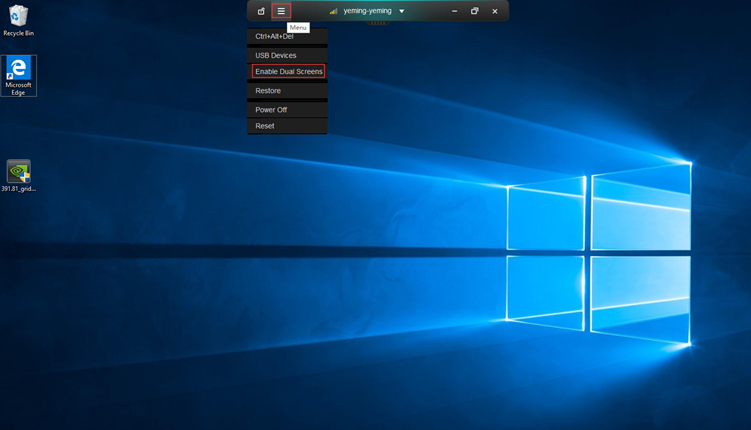
- Access the VM via the PC client, click the Menu icon, and select Enable Dual Screens.