
【VDI】Software Distribution Configuration Guide_5.9.1_R2_EN
Introduction
The software distribution module is a supplementary software management solution provided by Sangfor aDesk VDI. It addresses the limitations of traditional template update-based software management solutions in certain scenarios. These include system data loss caused by template updates when virtual desktops in persistent mode are used, and the difficulty of maintaining excessive template versions due to the template updates to meet user-specific software requirements when virtual desktops in nonpersistent mode are used. Software distribution involves installing software on a separate virtual disk (software disk) and mounting it to a VM. The software disk is integrated with the VM’s original system disk through drivers on the VM, which is then presented to users as a merged disk by the operating system, thus distributing the software to the VM.
Configuration
Create App Container
Function
Creating an app container is a process where the software to be distributed is placed in an app container or a package.
Prerequisites
- The VM template has been shut down and can be used to deploy VMs properly.
- The VM runs Windows 7 SP1, Windows 10 (1709 or later), or Windows 11.
Precautions
- You are advised to preferentially use a VM template for VM deployment to deploy a VM for app container creation. It ensures consistency between the app container creation environment and the VM deployment environment, avoiding software errors because of inconsistency in the environment.
- If the agent version of the template differs from the current agent version of aDesk VDI, the agent on the VM for app container creation needs to be automatically updated, and the VMs need to be restarted once before creation.
- The datastore where the new app container is located must be a virtual or external shared storage and cannot be the local storage.
- Currently, app containers cannot be deployed across HCI clusters. If software distribution is required for virtual desktops in multiple HCI clusters, separate app containers must be created on each cluster.
- The network to which the VM for app container creation is bridged needs to allow communication between the VM and VDC.
Procedure
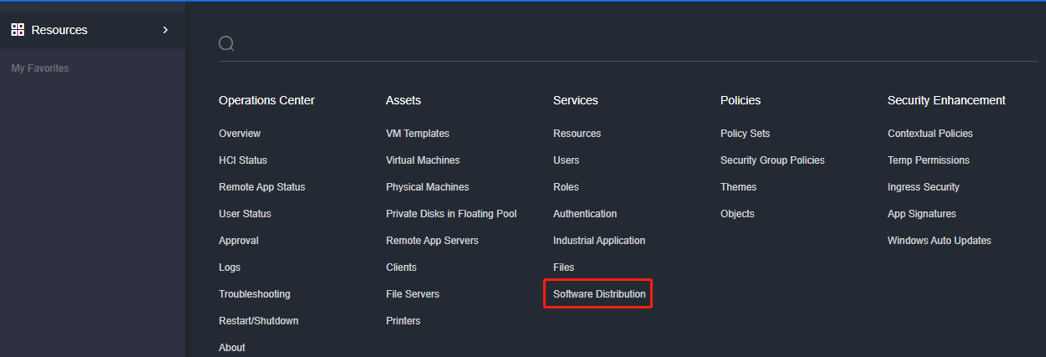
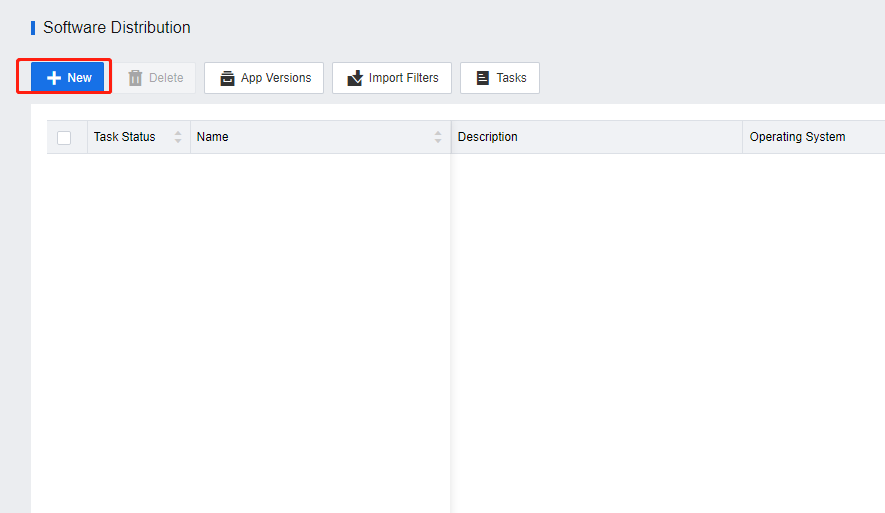
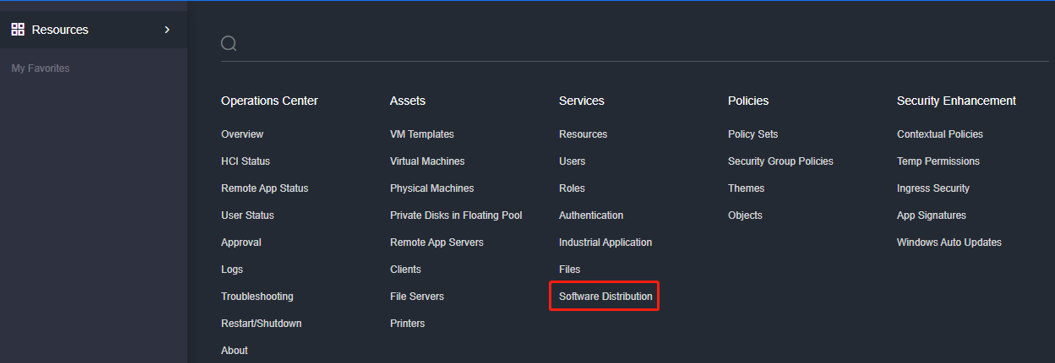
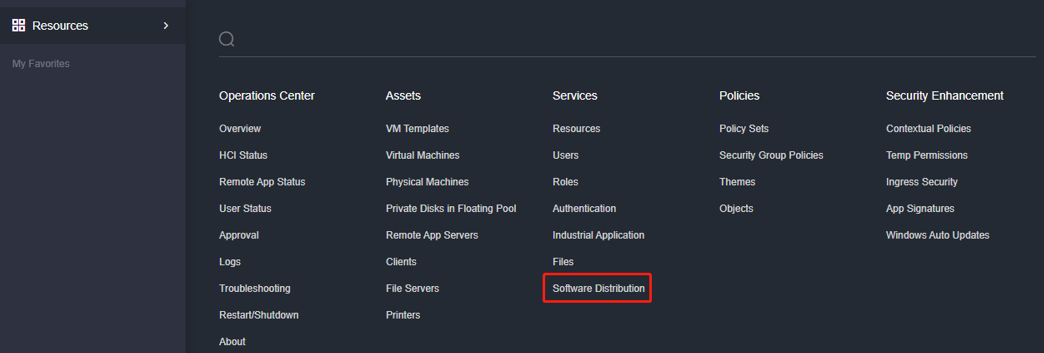
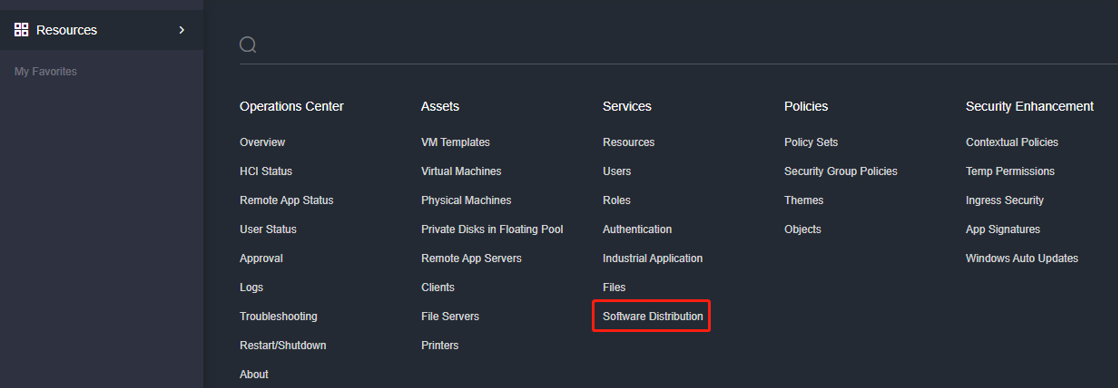
- Log in to the VDC console. Go to Services > Software Distribution and click New to enter the Create App Container page.
- In the Basics section on the Start Creation tab, fill in the app container name, select the HCI cluster for app container creation, specify the datastore, and set the available disk space for the app container.
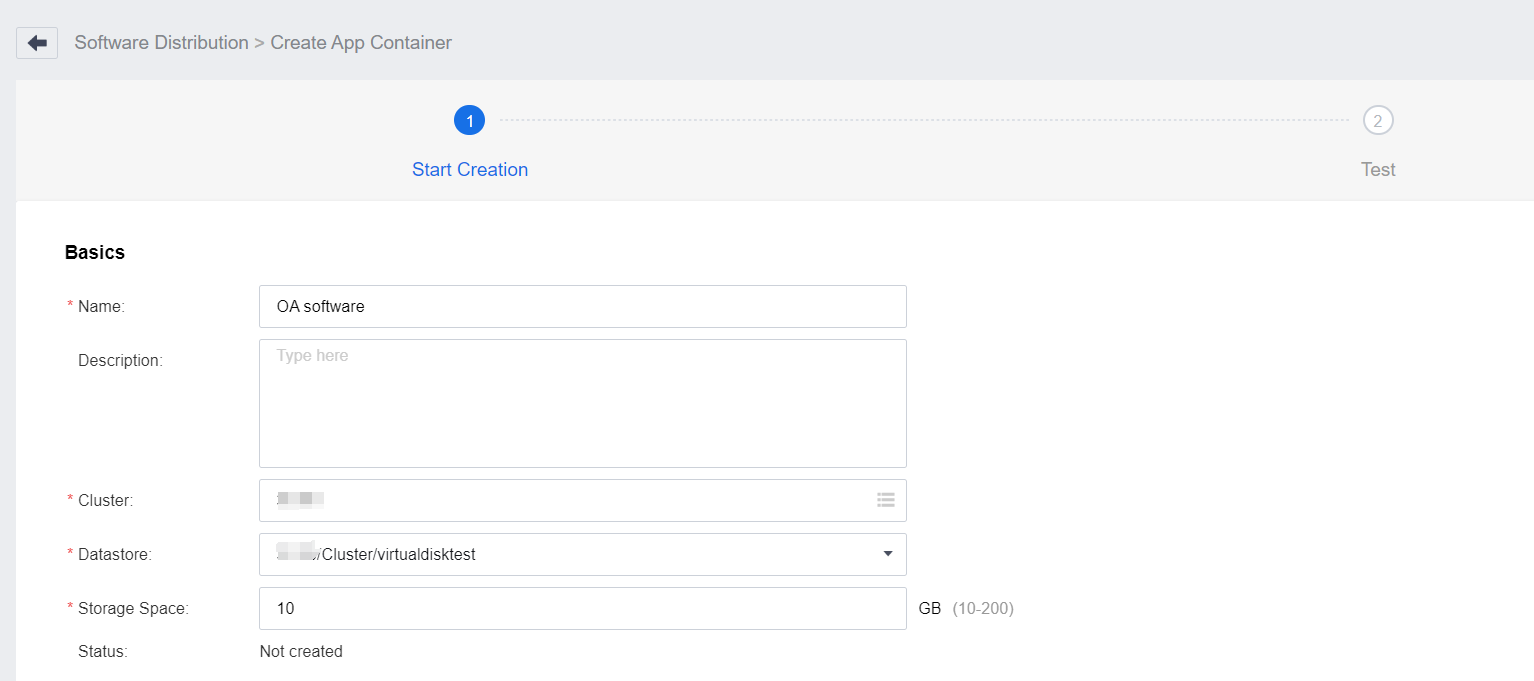
The following table describes the parameters in the Basics section.
| Parameter | Description |
|---|---|
| Name | Required. Identify the app container. |
| Description | Optional. Describe the purpose of the app container. |
| Cluster | Required. Specify the HCI cluster where the app container will be created. Click the List icon. In the Cluster dialog box, the HCI clusters connected to the current VDC are available for you to select. |
| Datastore | Required. Specify the storage where the app container disk will be created in the HCI cluster. It must be set to a virtual storage or an external shared storage (FC-SAN or IP-SAN) and cannot be the local storage of the VM. |
| Storage Space | Required. Specify the storage space allocated to the app container disk. The default value is 10 GB, which needs to be increased if larger software is installed. |
| Status | Specify the status indicating the creation progress of the app container. |
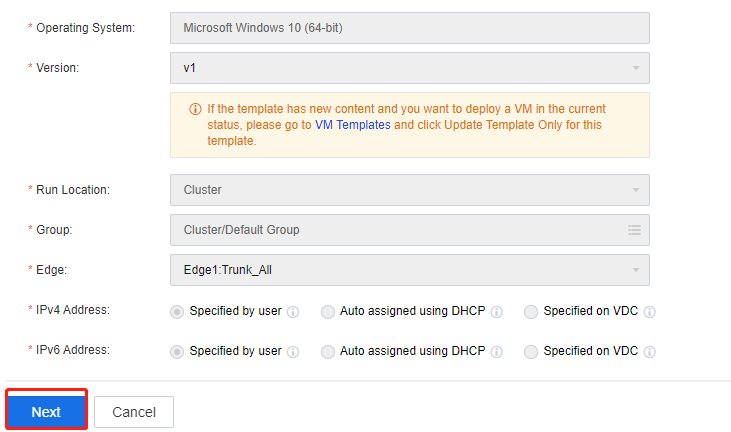
- In the VM Configuration for App Container Creation section, set the VM Template, Version, Run Location, Group, Edge, IPv4 Address, and IPv6 Address.
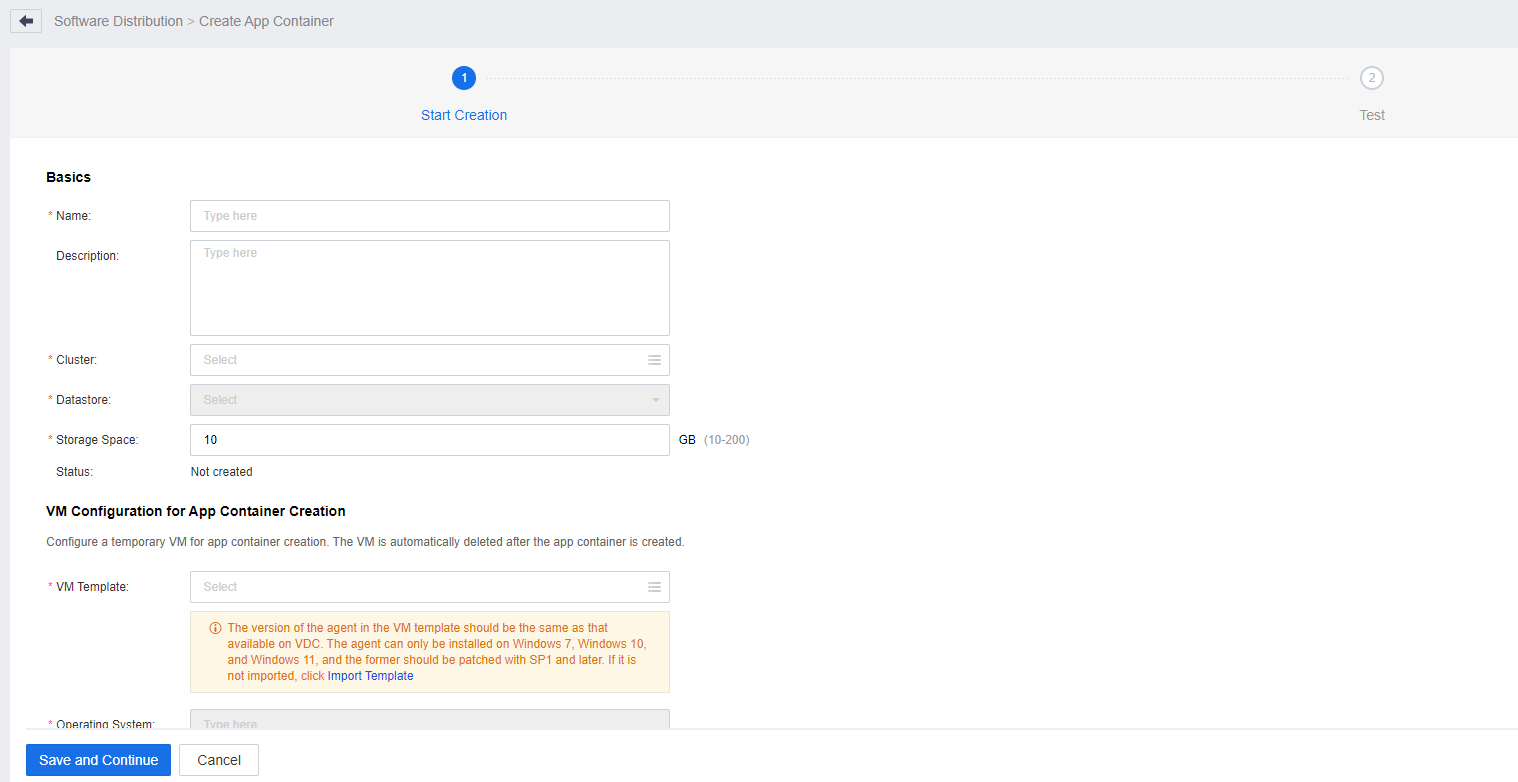
- The following table describes the parameters in the VM Configuration for App Container Creation section.
| Parameter | Description |
|---|---|
| VM Template | Required. Specify the template used to deploy the VM for app container creation. The VM template must be shut down to ensure normal deployment. |
| Operating System | Identify the operating system running on the VM template selected, which is automatically identified after the VM template is selected. |
| Version | Required. Specify the version of the template used to deploy the VM for app container creation. |
| Run Location | Required. Specify the location where the VM for app container creation is running. It is set to Cluster by default. In this case, HCI will select a node to run the VM based on the cluster load. |
| Group | Required. Specify the target group in the HCI cluster where the VM for app container creation is located. |
| Edge | Required. Specify the network environment to which the NIC of the VM for app container creation is bridged. Ensure that the configured network environment allows direct communication between the VM and VDC. |
| IPv4 Address | Specify the method of obtaining the IPv4 address of the VM for app container creation. The options are Specified by user, Auto assigned using DHCP, and Specified on VDC. It is set to Specified by user by default. Specified by user: The address obtaining method preconfigured for the VM template is reused. If a static IP address is specified for the VM template, this static IP address is used for the VM for app container creation. Auto assigned using DHCP: It applies to the DHCP environments. The VM for app container creation automatically obtains an IP address from the DHCP server. Specified on VDC: It applies to the environments where DHCP is unavailable. You need to specify an IP address. |
| IPv6 Address | Specify the method of obtaining the IPv6 address of the VM for app container creation. The options are Specified by user, Auto assigned using DHCP, and Specified on VDC. It is set to Specified by user by default. Specified by user: The address obtaining method preconfigured for the VM template is reused. If a static IP address is specified for the VM template, this static IP address is used for the VM for app container creation. Auto assigned using DHCP: It applies to the DHCP environments. The VM for app container creation automatically obtains an IP address from the DHCP server. Specified on VDC: It applies to the environments where DHCP is unavailable. You need to specify an IP address. |
Notice:
- The selected VM template must be in the shutdown state.
- The IP address for the VM for app container creation must ensure a proper connection between this VM and VDC.
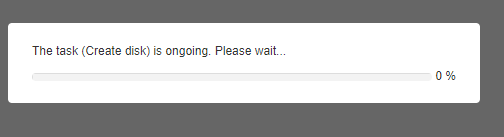
- After verifying the configurations are correct, click Save and Continue. The window shown in the following figure indicates the current progress.
- After the app container creation environment is ready, if the version of the local VDI control on your endpoint is not the required one for app container creation, a message will be displayed, prompting you to download the correct VDI control.
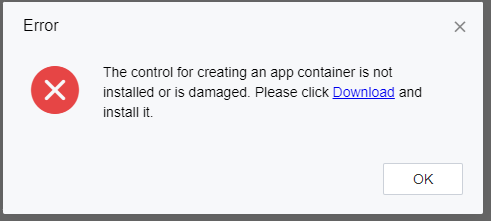
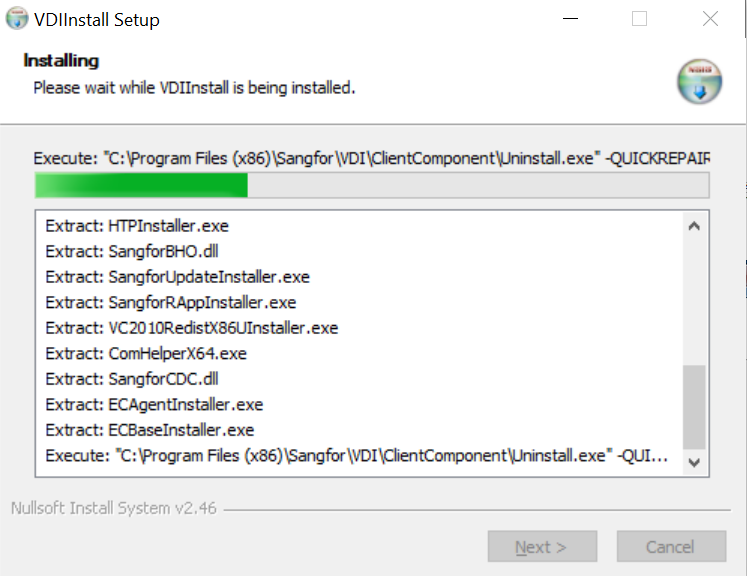
- Click the Download link to download and save install.exe locally, run the install.exe, and restart the system after the installation to ensure the operation of the control.
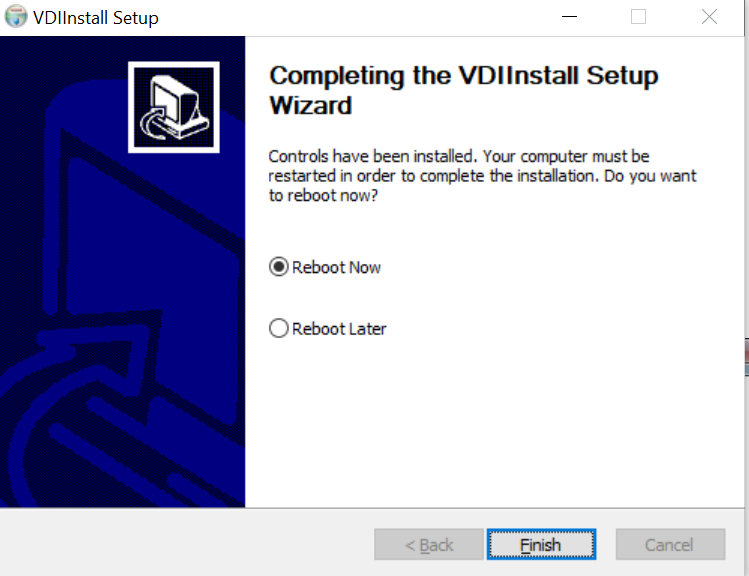
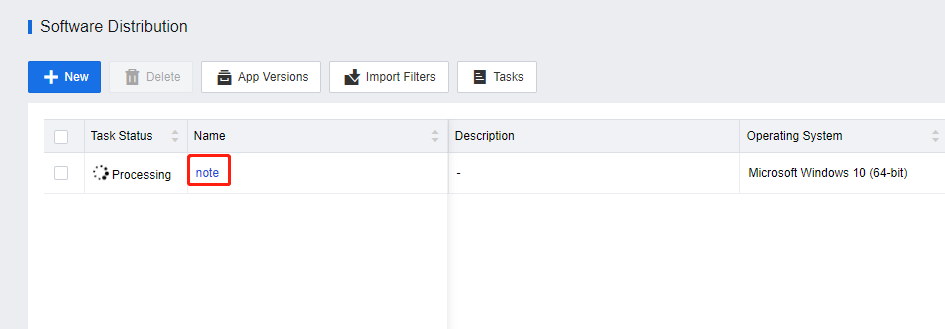
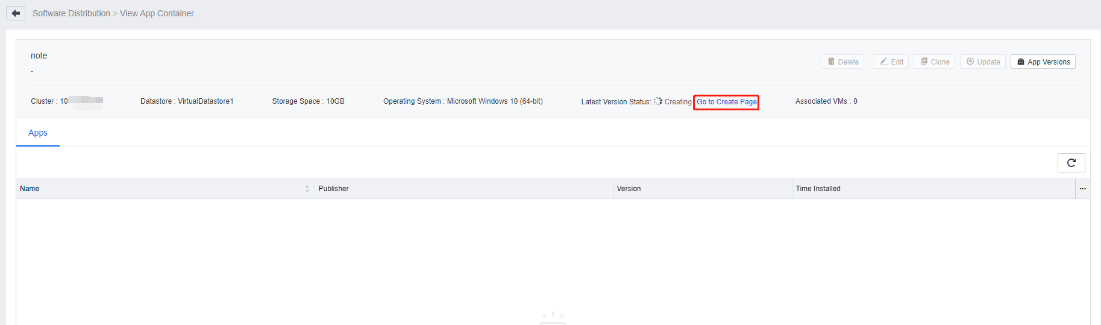
- After the restart, log in to the VDC console. Go to Services > Software Distribution. Find the app container to be created and click its name. On the View App Container page, click Go to Create Page next to Latest Version Status to enter the Create App Container page. Then, click Next to enter the working environment of the VM for app container creation.
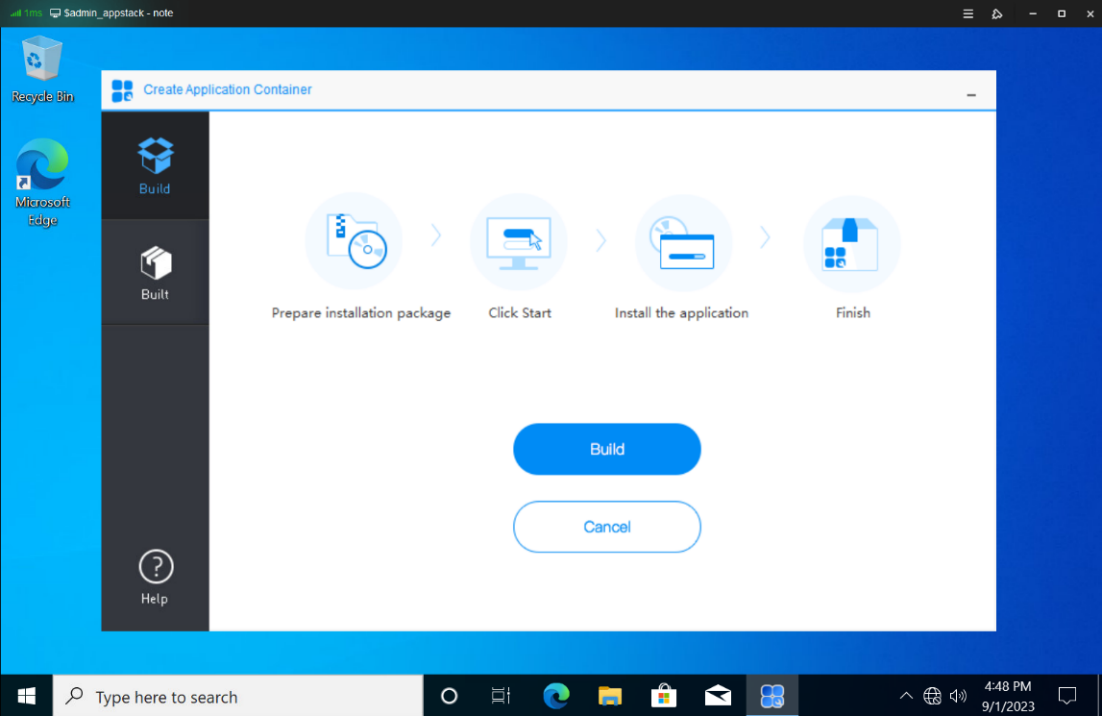
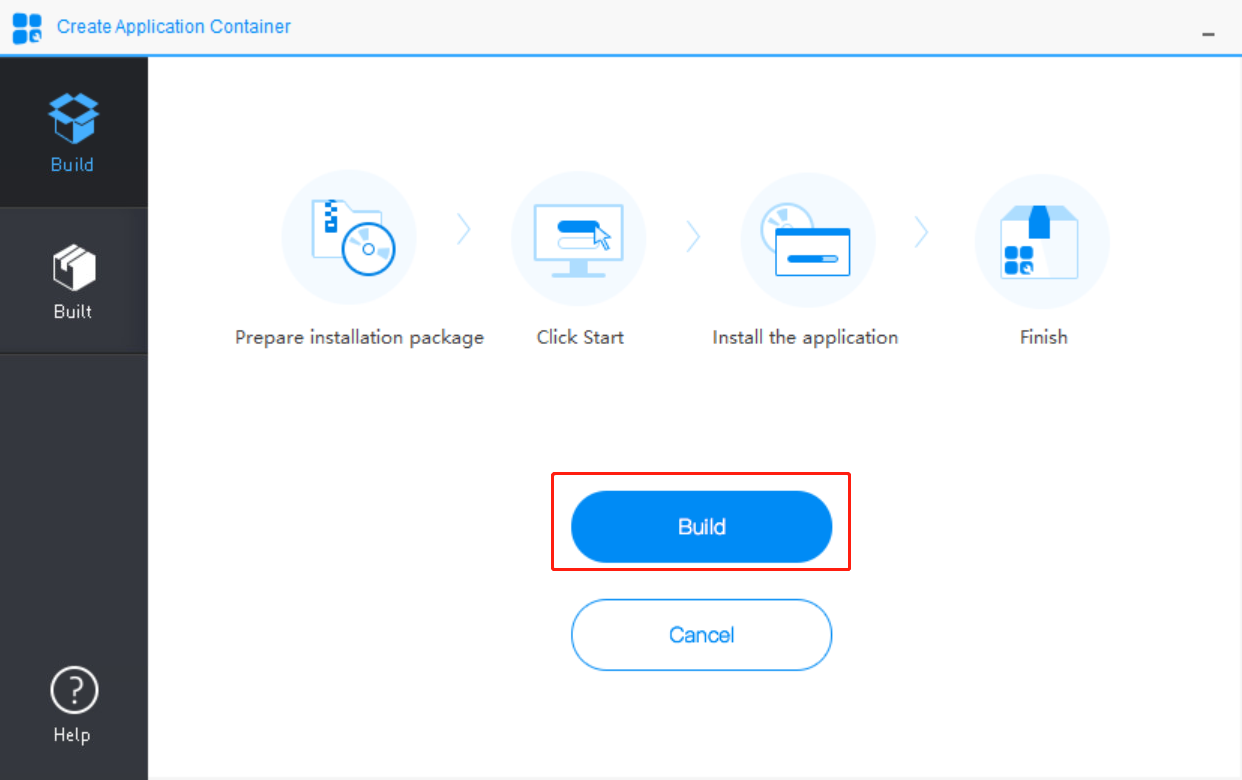
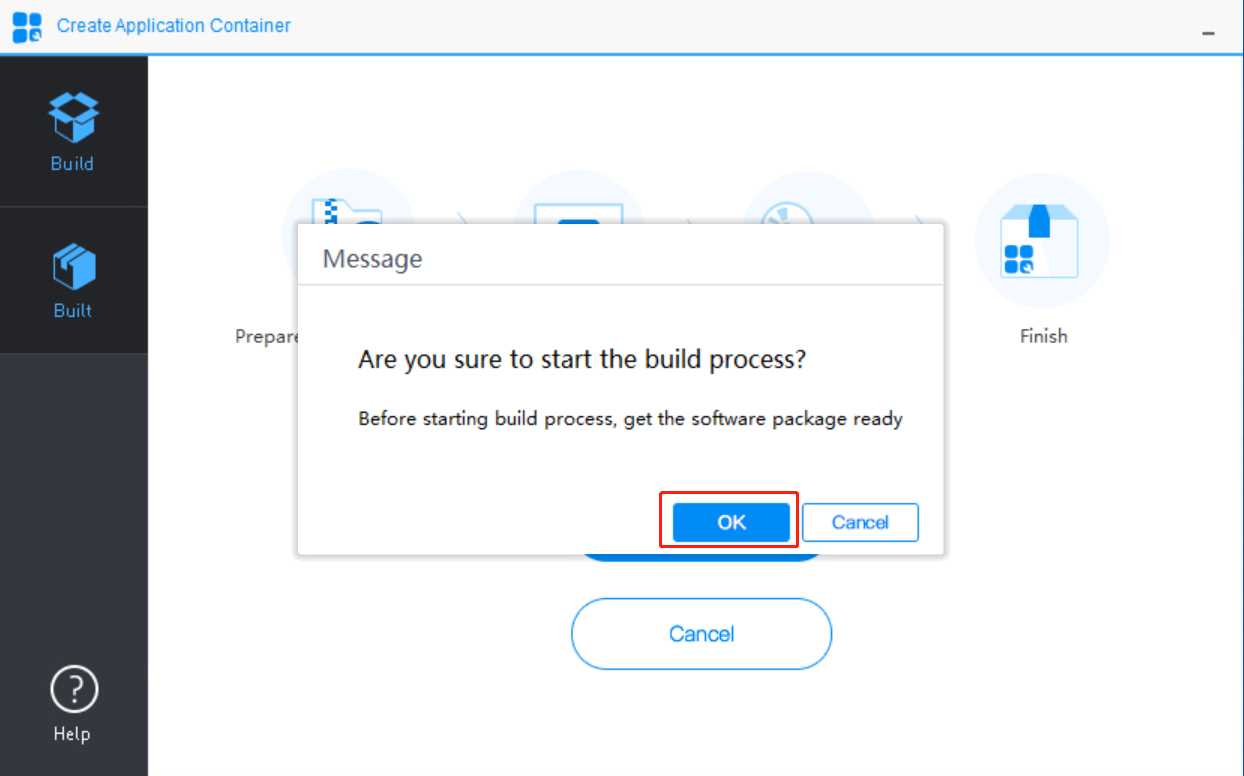
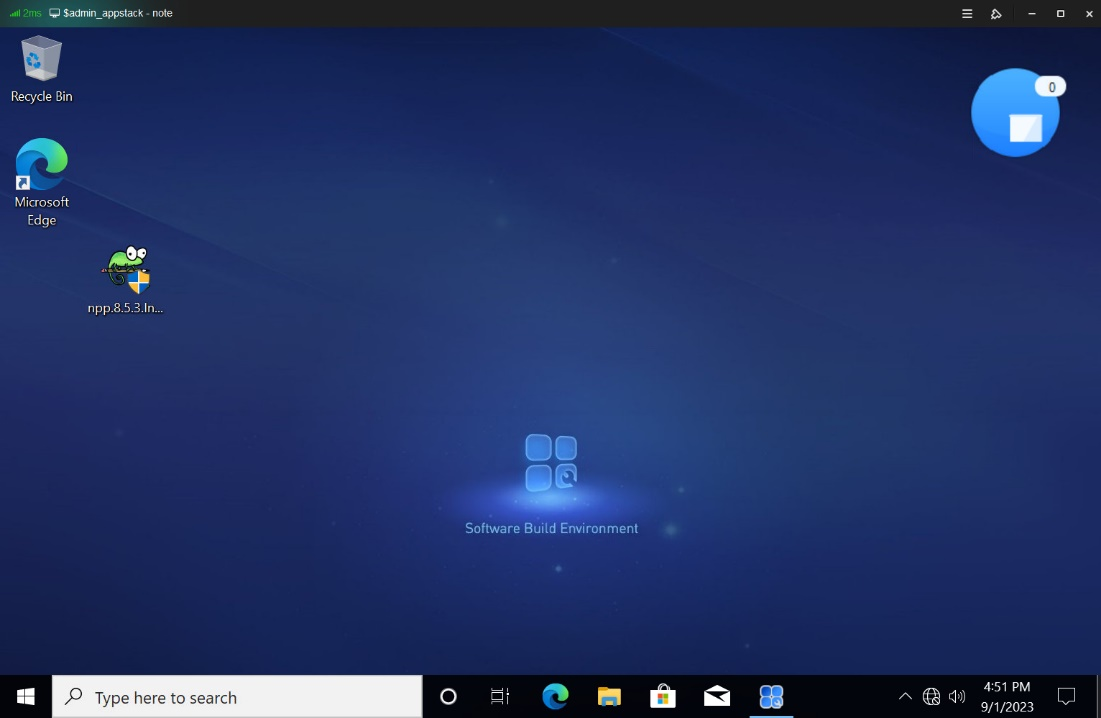
- Copy the software installation package to be deployed into this environment, and click Build to enter the app container creation environment.
Notice:
The software installation package needs to be copied into the VM for app container creation before clicking the Build button.
After clicking Build, all operations performed on the VM template are archived and stored on the app container disk. As a result, operations other than those related to software installation, such as package transfer, must be completed before clicking Build. Otherwise, the transferred package and these operations can be viewed on the deployed VMs after software distribution. During archiving, avoid operations unrelated to software installation to prevent archiving unwanted content.
-
Install the software to be deployed.
-
After the software installation, view the installed software on the Built tab.
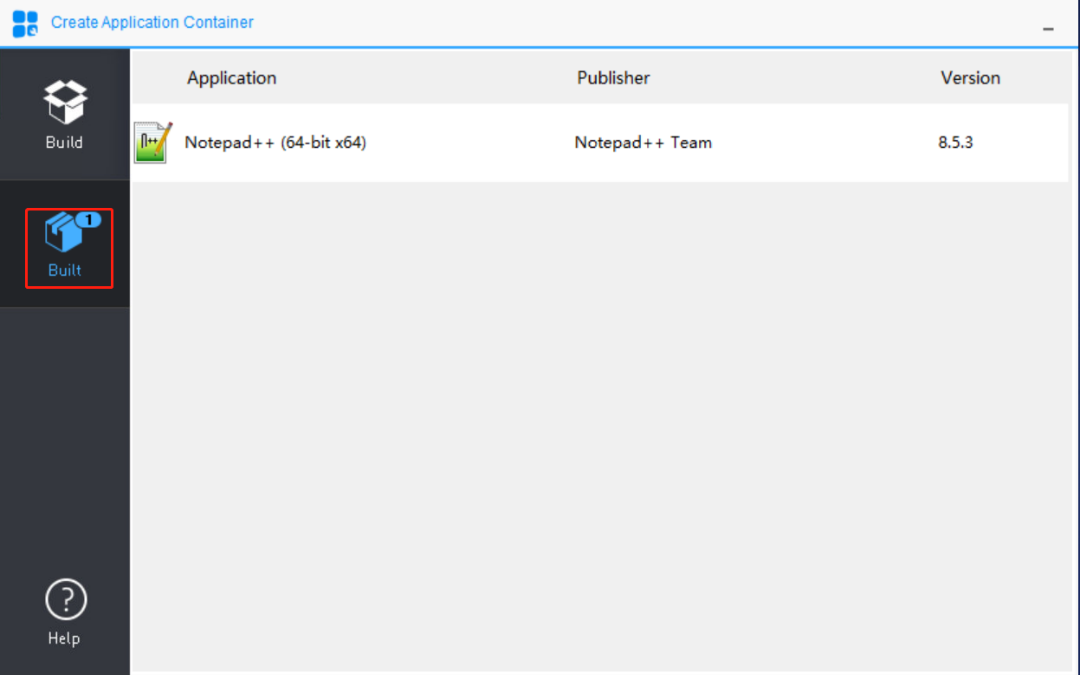
- On the Build tab, click Build process completed. The VM template will automatically shut down.
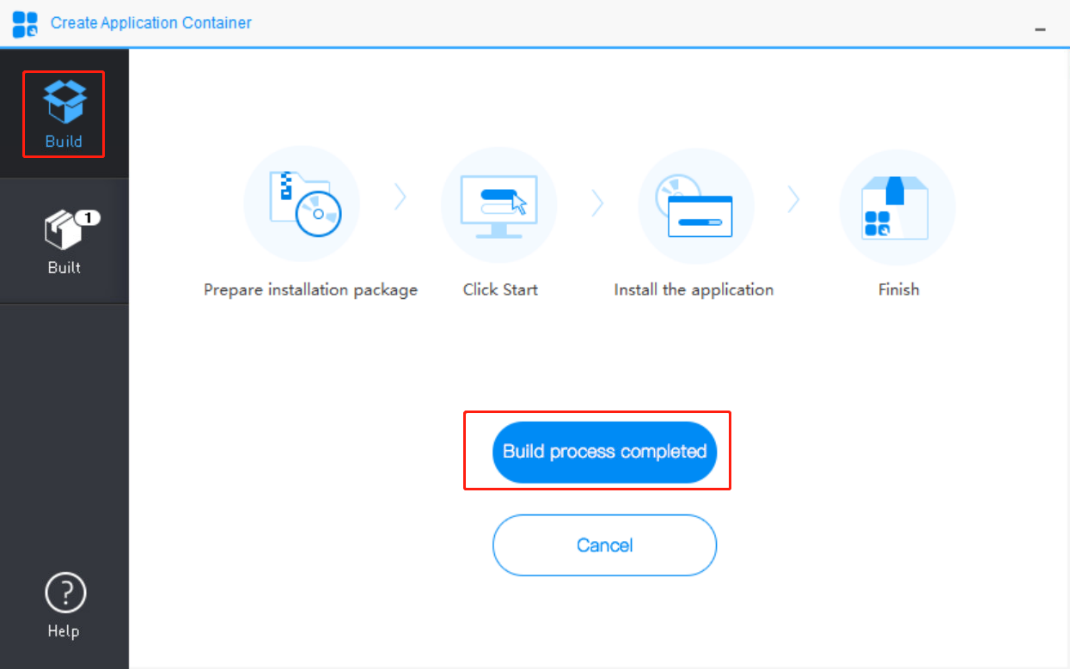
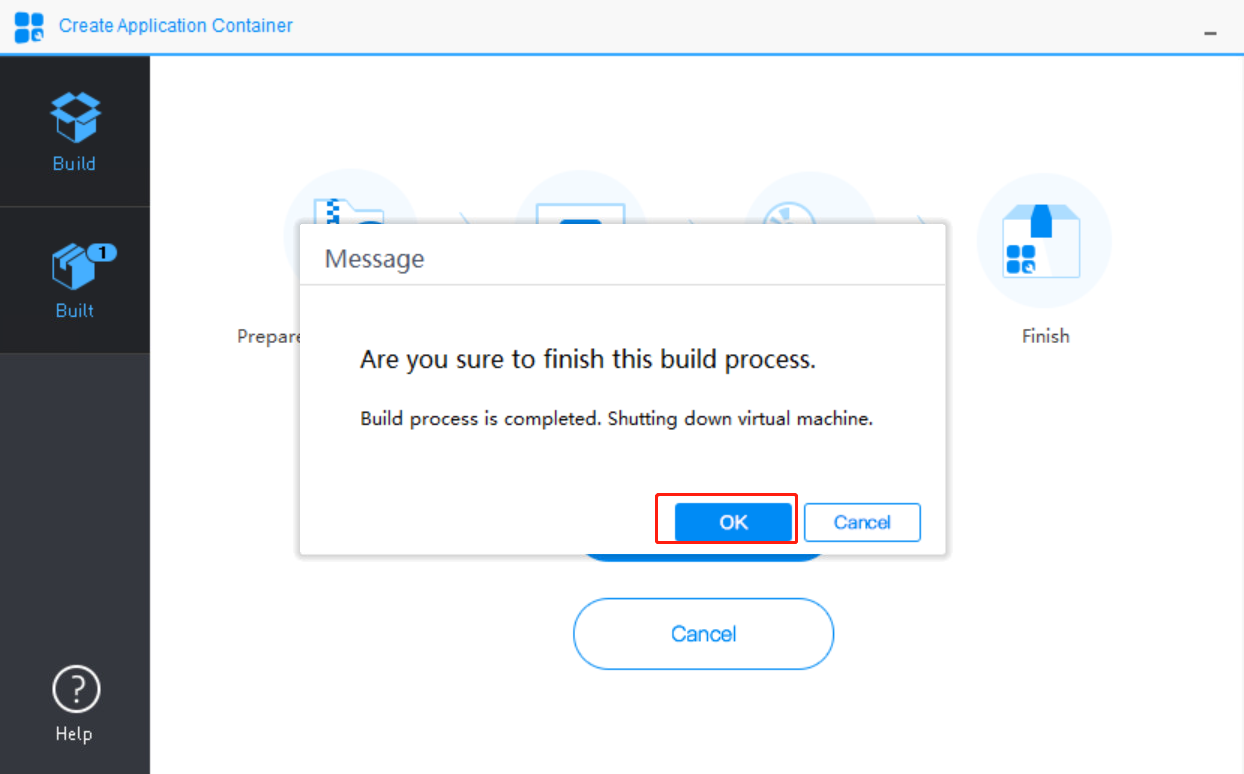
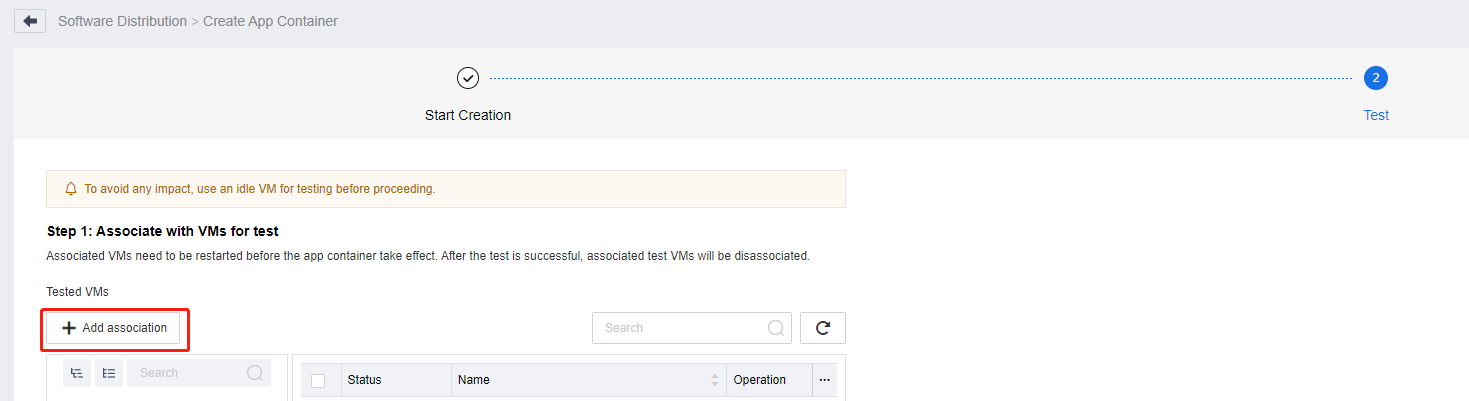
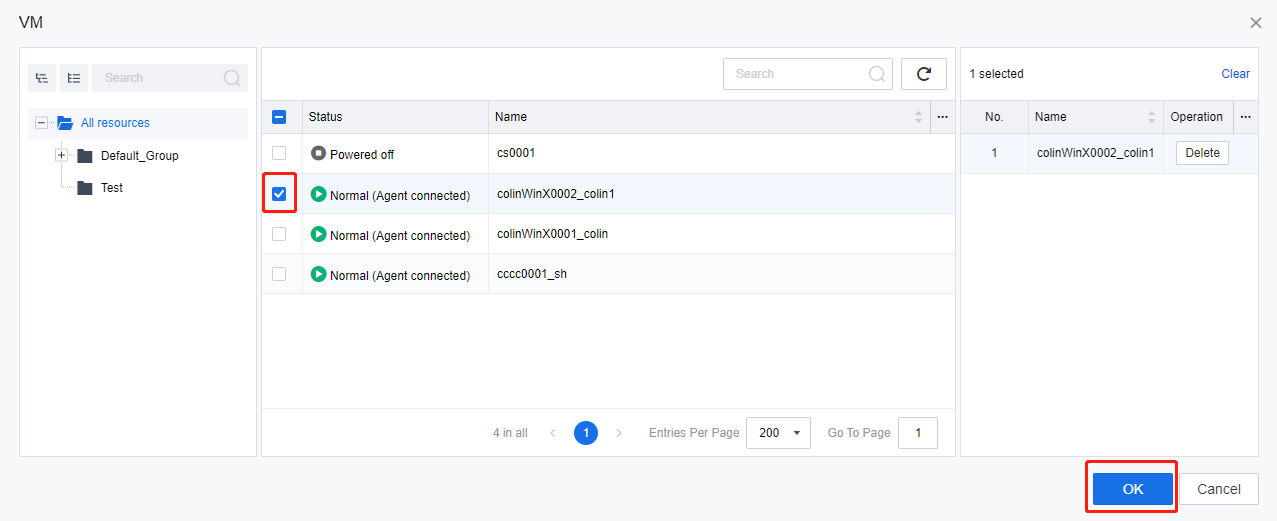
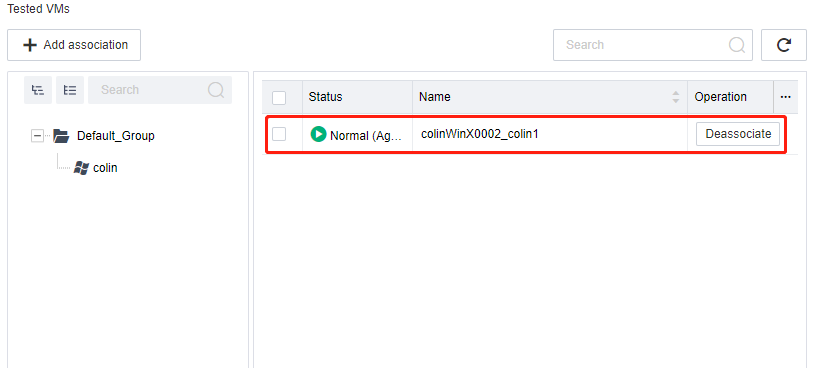
- After being redirected to the Test tab on the Create App Container page on VDC, click Add association to enter the VM page. Select the VM to be tested and click OK. The selected VM is displayed on the Tested VMs page.
Note:
The associated VM is used to test whether the app container takes effect. If the VM is running, the associated app container will take effect after the VM restarts.
-
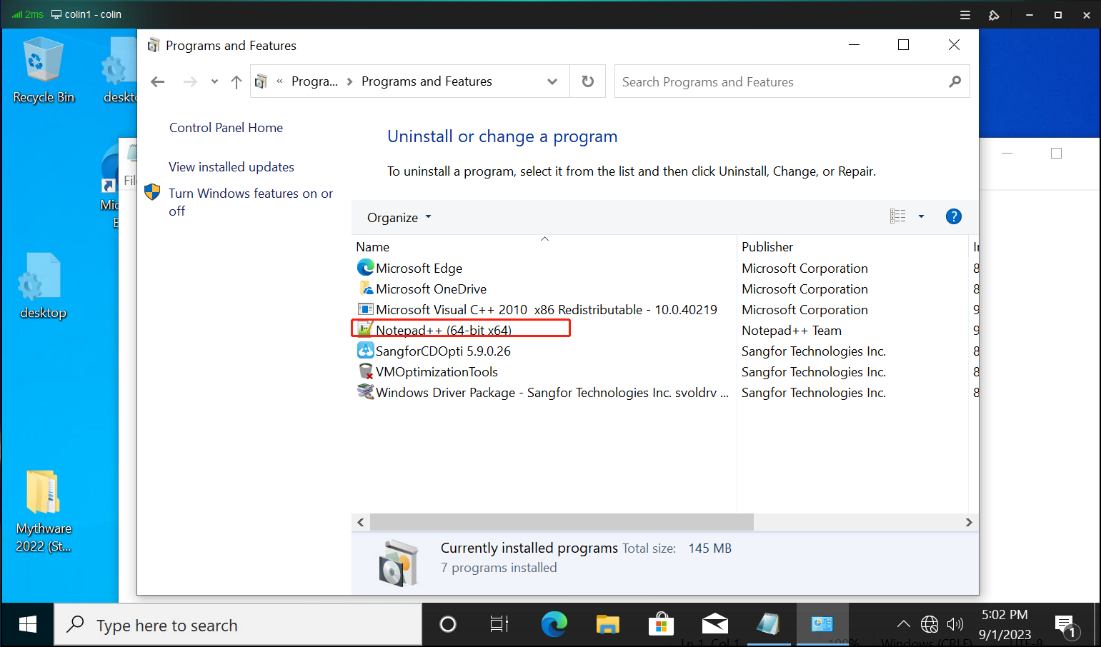
Use the VDI client to log in to the test VM associated with the app container. Wait until the app container file loading is complete. You can then see the desired software installed on the VM.
-
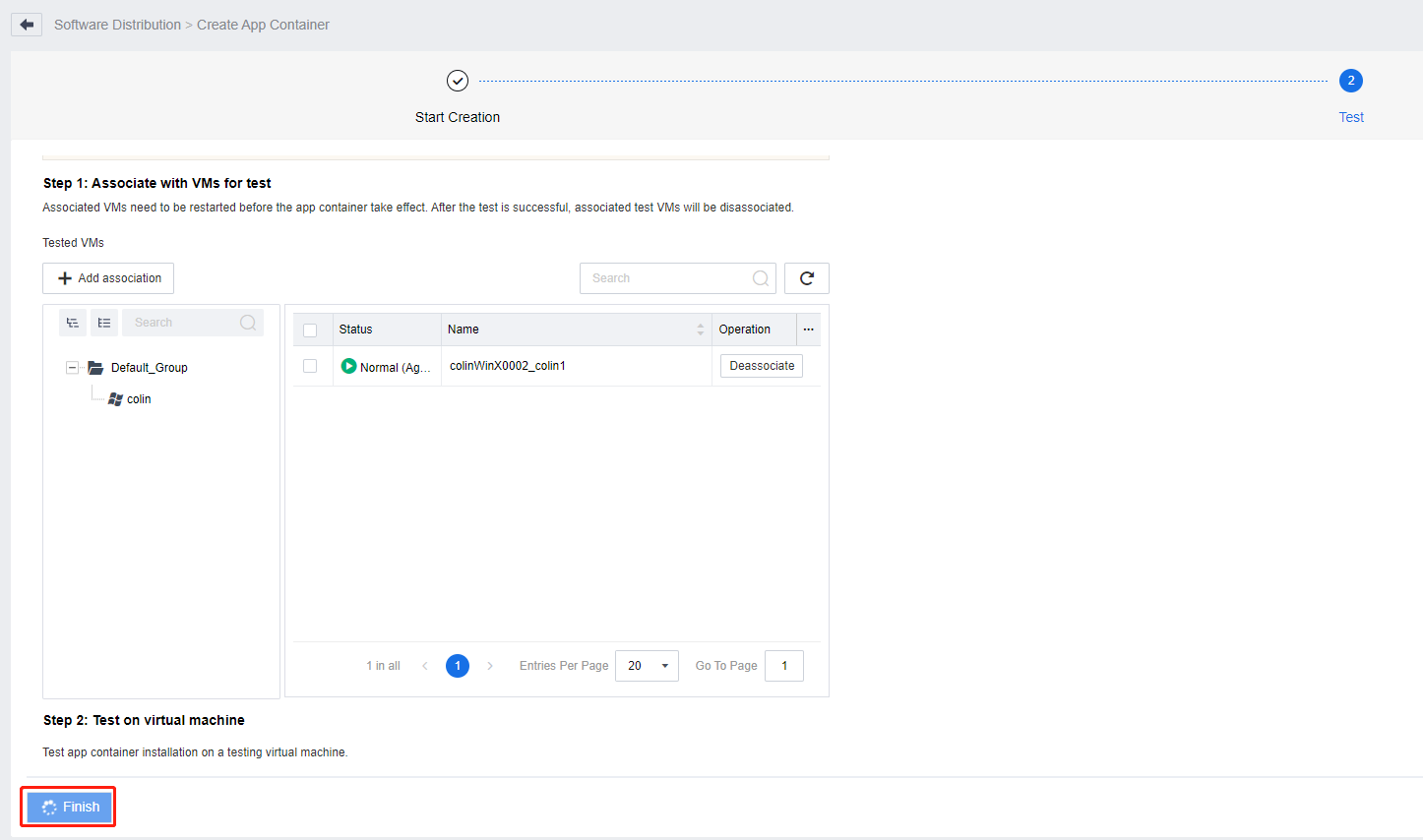
Go back to the Test tab and click Finish.
Note:
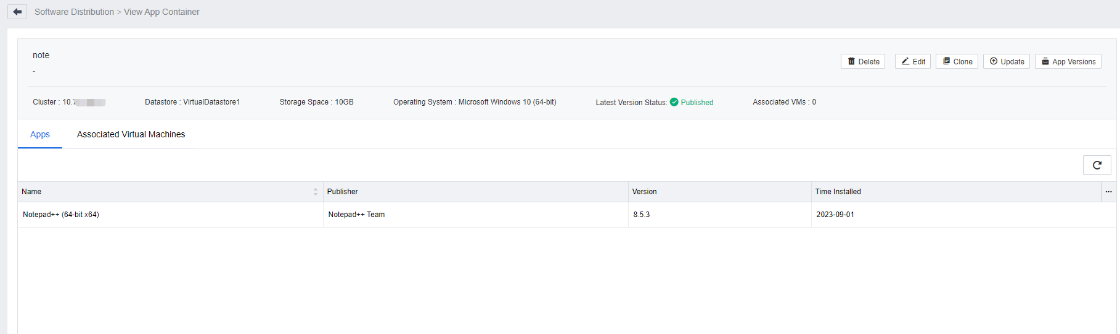
After this step, the app container will automatically be disassociated from the test VM, and the settings will take effect after the test VM restarts.
Associate/Disassociate App Containers
Function
Associating an app container indicates connecting a created app container to a VM, allowing the VM to use the software deployed within the app container, which is equivalent to installing the software on the VM. Disassociating an app container indicates removing the app container files from the VM, which is equivalent to uninstalling the software from the VM.
Prerequisites
An app container has been created and tested.
Precautions
- For the VMs that are running, app container associations or disassociations take effect after the VMs are restarted.
- The app container and the VM to be associated must be in the same HCI cluster.
Procedure
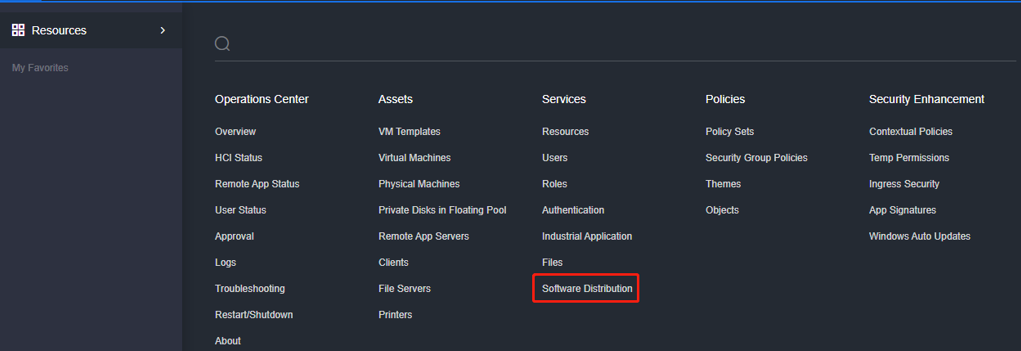
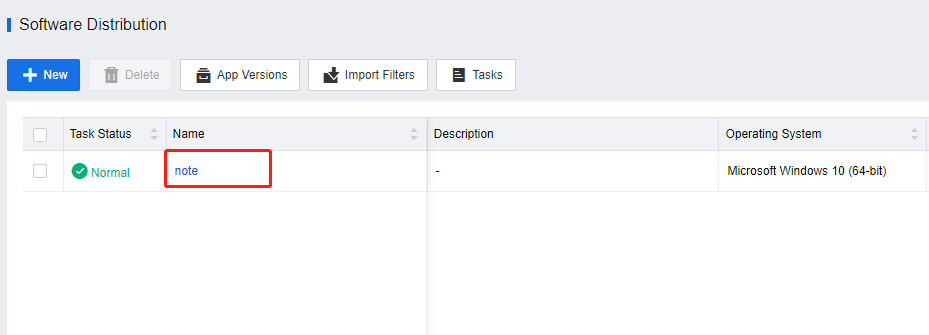
- Log in to the VDC console. Go to Services > Software Distribution. On the Software Distribution page, click the name of the target app container.
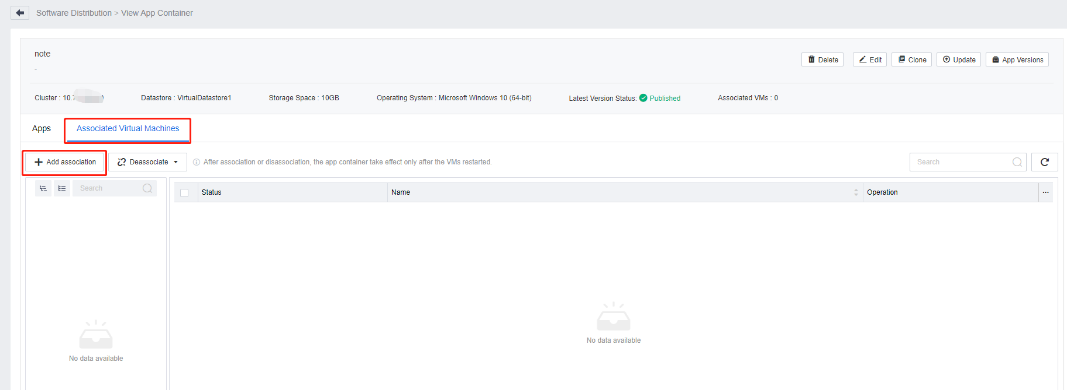
- On the View App Container page, click the Associated Virtual Machines tab, and select Add association.
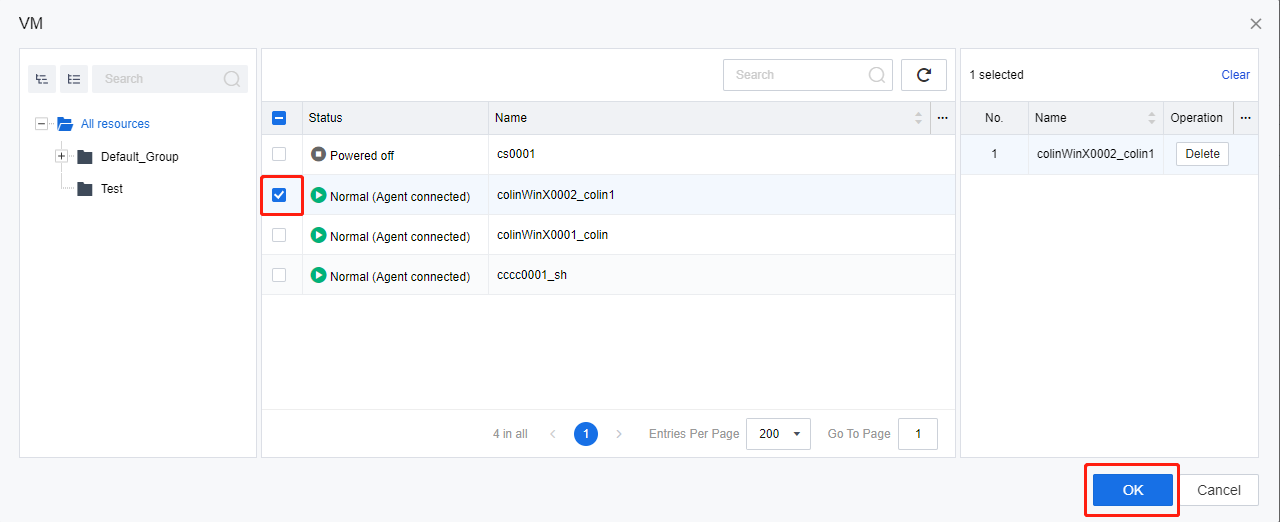
- On the VMpage, select the VM to be associated with this app container and click OK. A message indicating the successful association is displayed on the VDC console after the VM has been successfully associated with the app container.
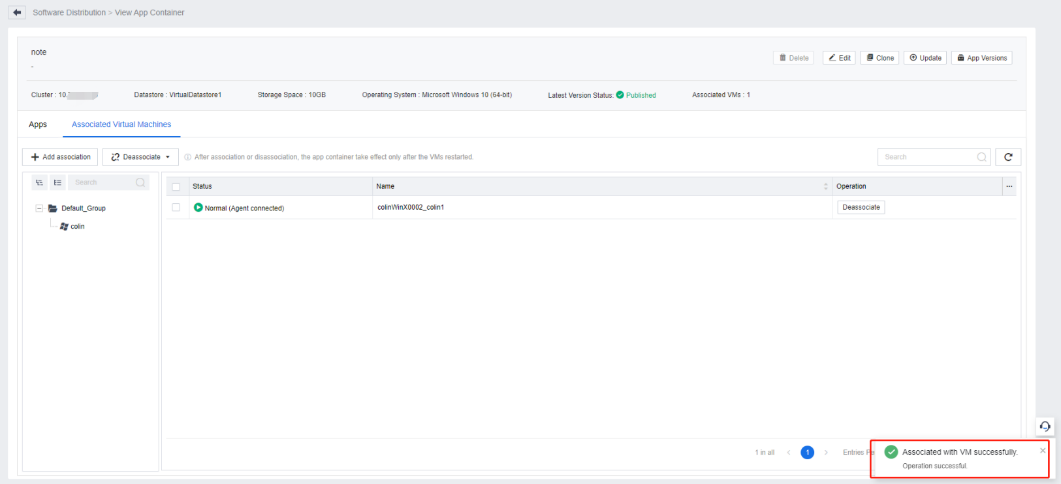
Note:
You can view the software installed after logging in to the VM. If the VM is running, the app container association takes effect after the VM restarts.
- To disassociate an app container, click Deassociate corresponding to each VM, or select the target VMs and click Deassociate in the upper left corner for bulk operation.
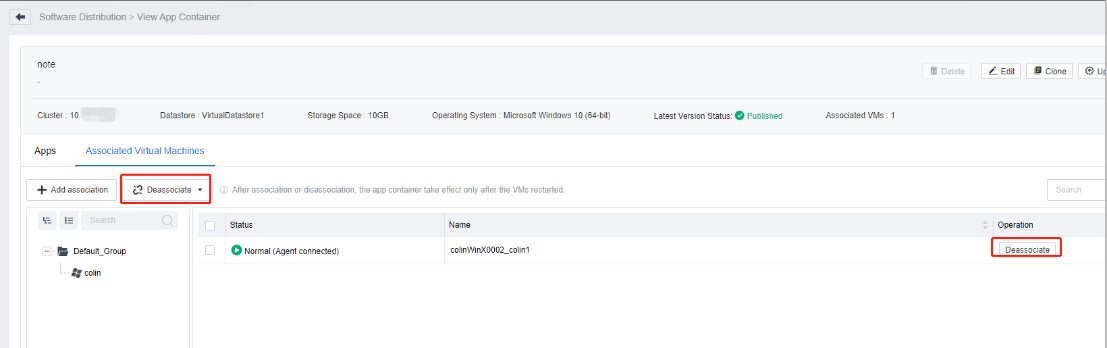
Note:
After the app container is disassociated, if the VM is running, the app container is unmounted after the VM restarts.
Update App Container
Function
When new versions of the software archived in an existing app container are available, or new software needs to be deployed, you can update the app container by updating the archived software. It implements the update of the software environment of the virtual desktops associated with the app container.
Prerequisites
- An app container has been created.
- The VM template specified for the app container has been shut down and can be used to deploy VMs.
Precautions
The app container updates take effect for powered-on VMs after they are restarted.
Procedure
- Log in to the VDC console. Go to Services > Software Distribution, click More corresponding to the created app container, and select Update.
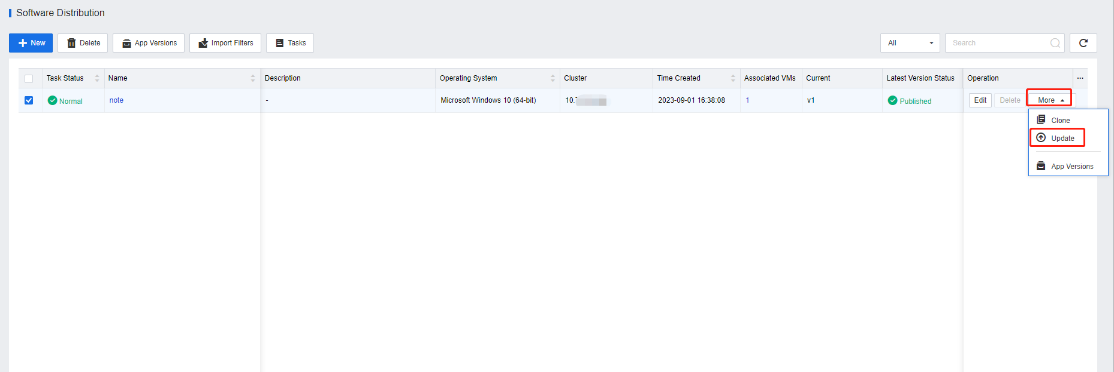
- After verifying that the configuration information of the app container is correct, click Save and Continue.
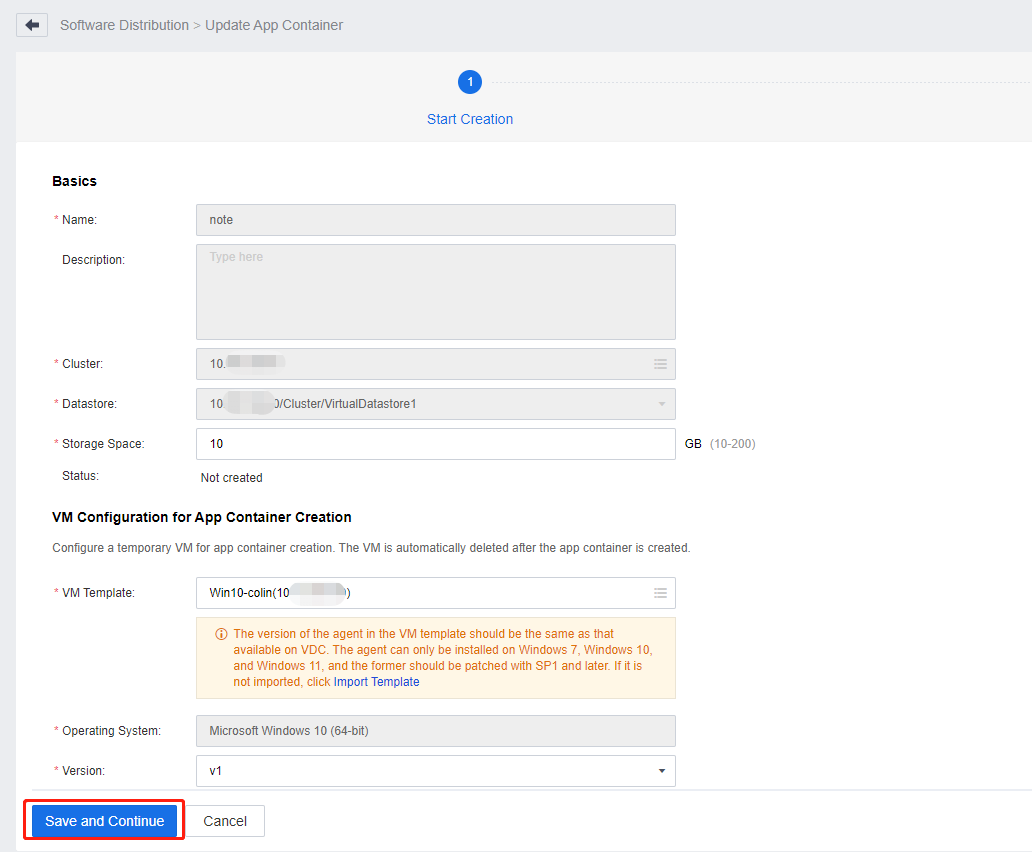
Note:
Before proceeding to the next page, ensure the network configuration of the VM for the app container can communicate with VDC.
-
The operations on the Create App Container page are the same as those for creating an app container. For details, see Chapter 2.1 Create App Container.
-
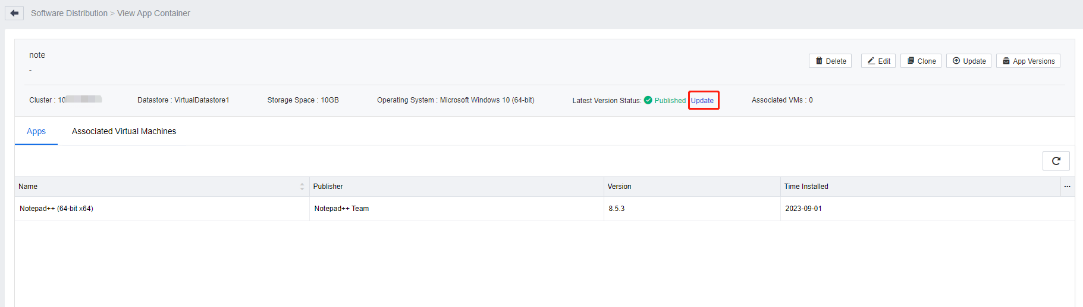
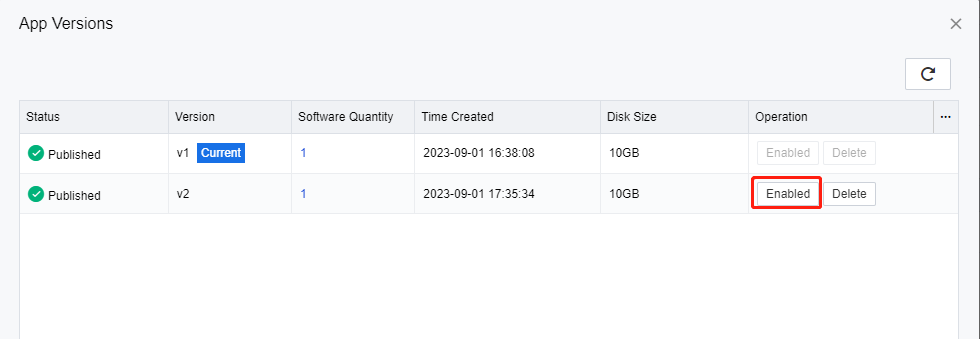
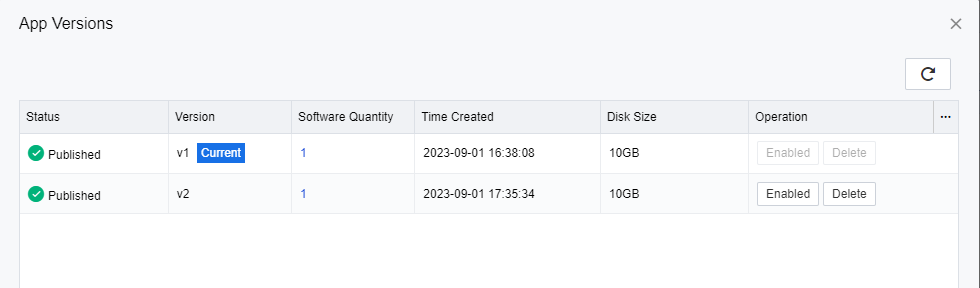
After completing the creation and testing, you will be redirected to the View App Container page on the VDC console. Click Update next to Latest Version Status. In the App Versions dialog box, click Enabled corresponding to the app container’s new version to complete the software version replacement.
- Restart the VM associated with this app container to complete the version update.
Edit App Container
Function
You can modify the description of the app container. When the usage or precautions of the app container change after the update, you can modify this information to meet the requirements.
Prerequisites
An app container has been created.
Procedure
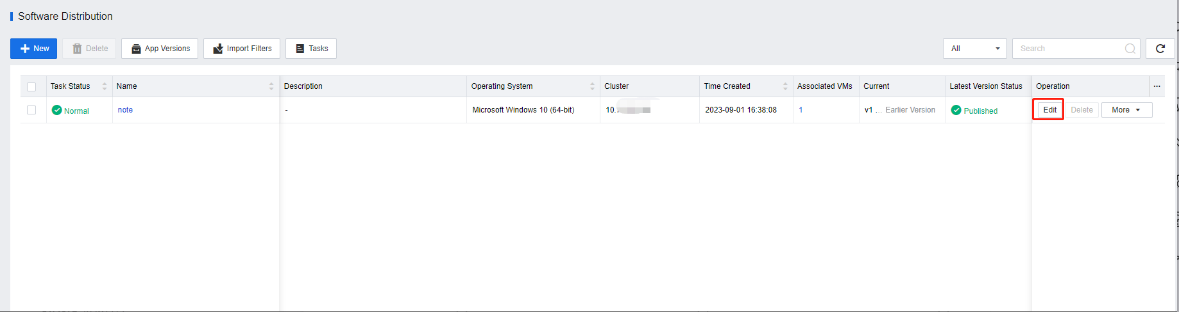
- Log in to the VDC console. Go to Services > Software Distribution. Select a created app container and click Edit.
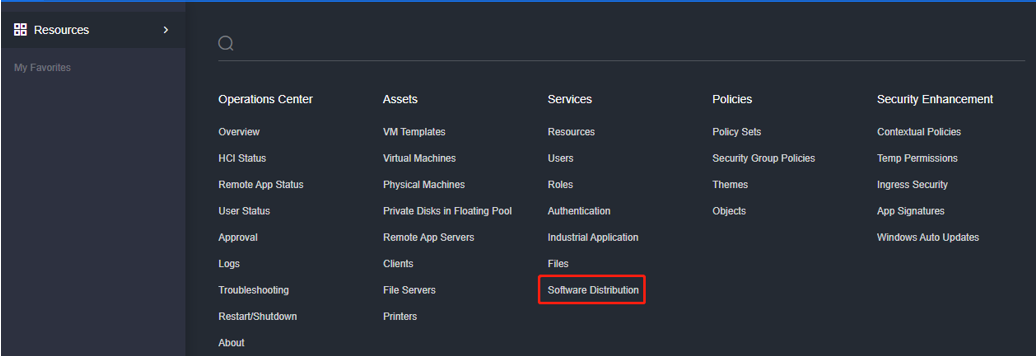
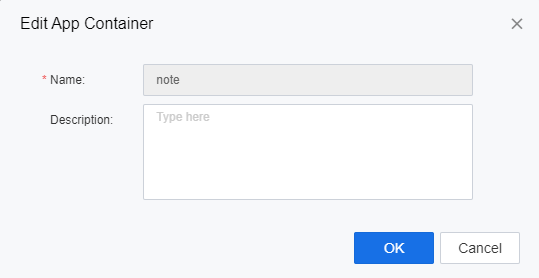
- In the Edit App Container dialog box, modify the Description as required and click OK.
Delete an App Container
Function
This function allows you to delete a created app container.
Prerequisites
An app container has been created and is not associated with any VM currently.
Precautions
App containers associated with VMs cannot be deleted. You must remove the association first.
Procedure
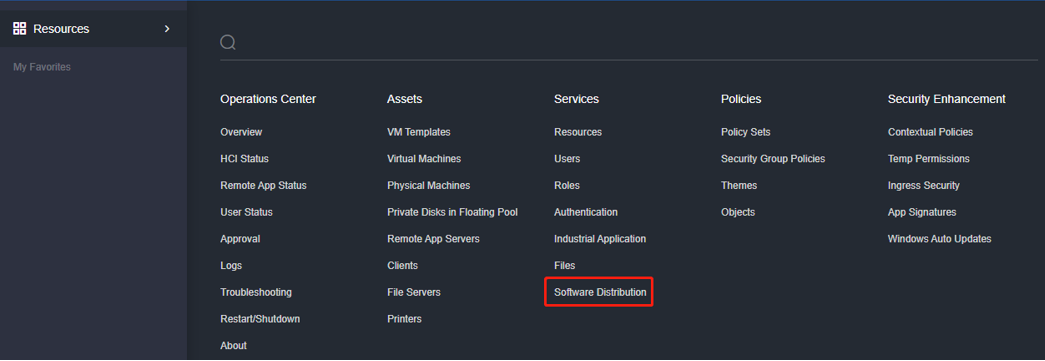
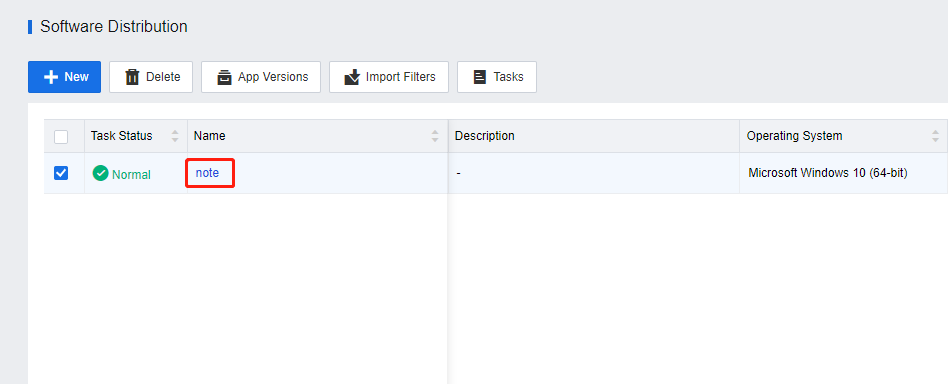
- Log in to the VDC console. Go to Services > Software Distribution, and click the name of the target app container.
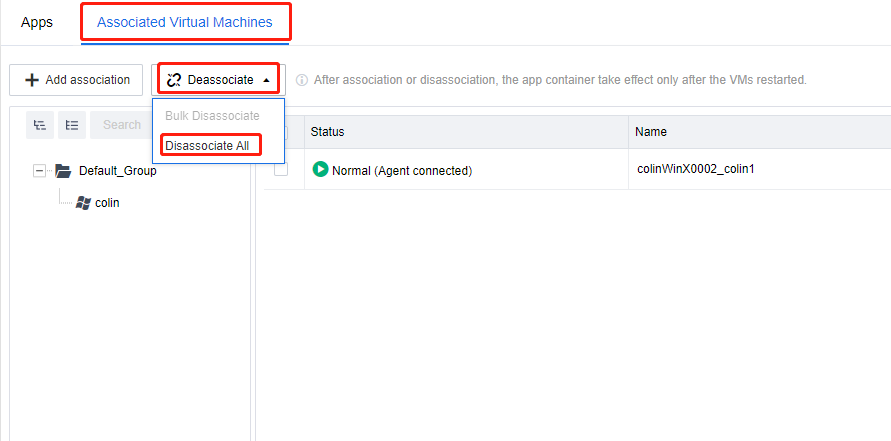
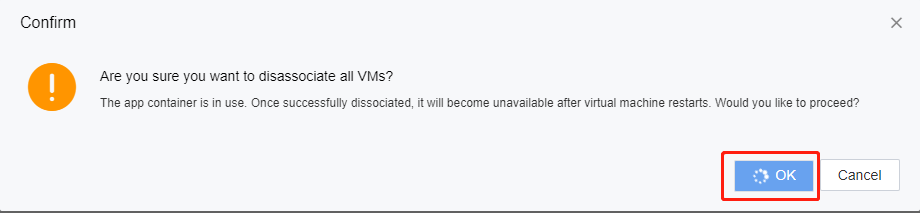
- On the View App Container page, click the Associated Virtual Machines tab. In the upper left corner of the tab, click Deassociate and select Disassociate All.
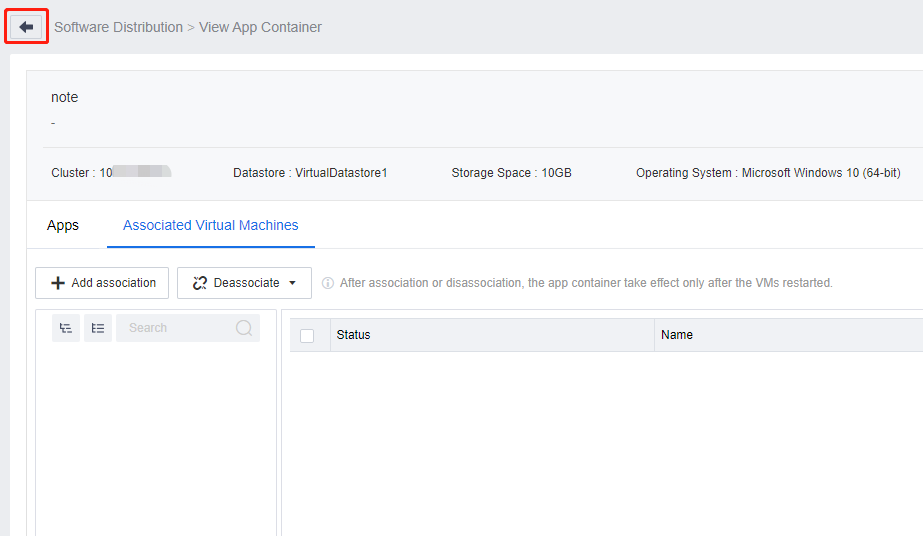
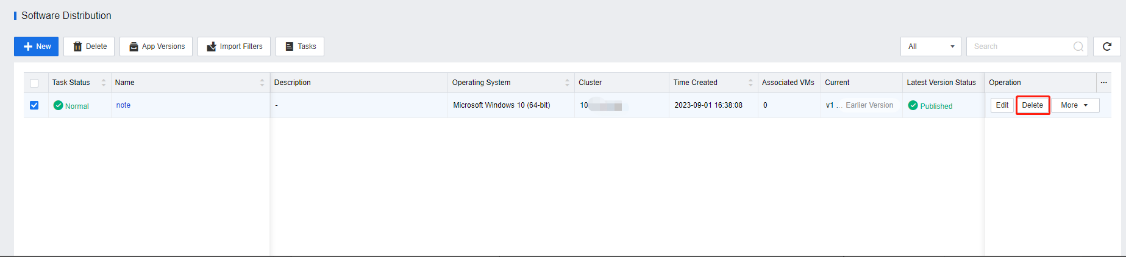
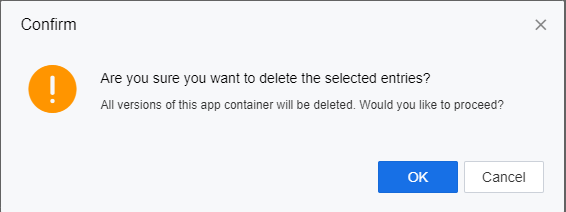
- Click the Back button to return to the Software Distribution page. Find the app container to be deleted and click Delete accordingly. In the Confirm dialog box, click OK to confirm the deletion.
Clone App Container
Function
- When multiple HCI clusters are deployed on aDesk VDI, and you need to mount the same app container to virtual desktops in different HCI clusters, the app container can be cloned from the current cluster to another for use by the virtual desktops in that cluster.
- When you need to prepare an independent new version based on an existing app container for a new scenario, the app container can be cloned and updated, avoiding recreating an app container from scratch.
Prerequisites
An app container has been created.
Procedure
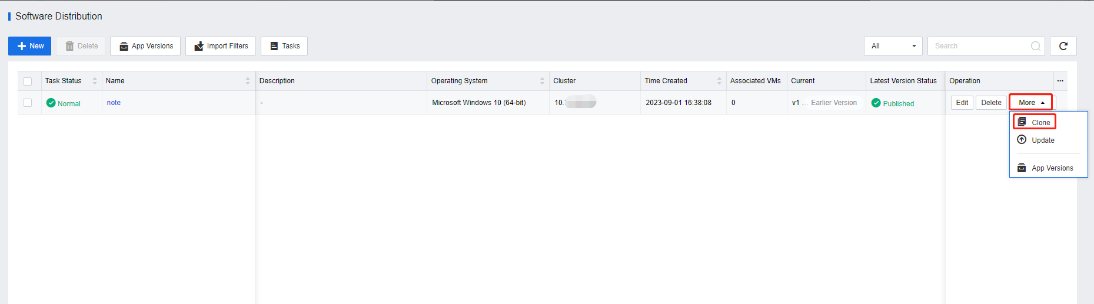
- Log in to the VDC console. Go to Services > Software Distribution, click More corresponding to the created app container, and select Clone.
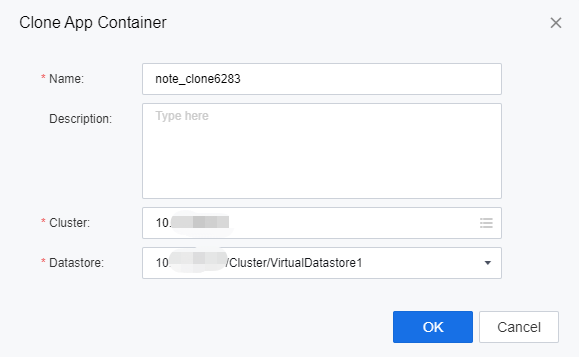
- In the Clone App Container dialog box, configure the name and description for the newly cloned app container, and specify the HCI cluster and datastore where the cloned app container will be created.
Note:
All software in the current published version of the source app container will be cloned to the target app container.
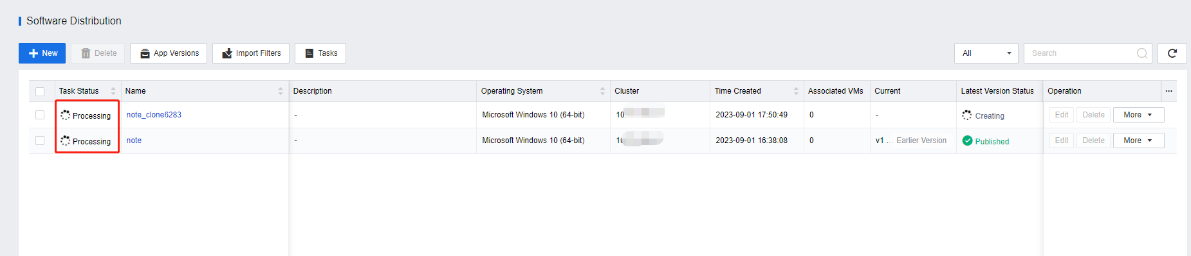
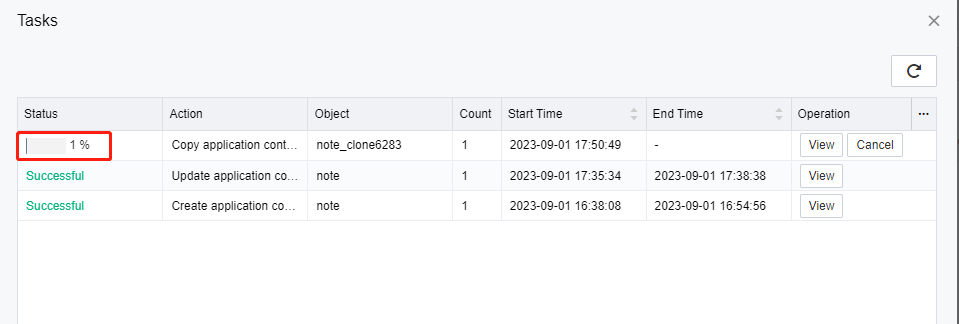
- Wait for the cloning process to complete. You can click Tasks to check the current cloning progress on the Tasks page.
Manage App Container Versions
Function
A new version is generated for each update of an app container. This function allows you to switch between different versions of an app container quickly, roll back to an earlier available version when issues are found in the new version, and delete versions that are no longer in use to release storage space.
Prerequisites
An app container has been created.
Precautions
Deleting an app container on the Software Distribution page deletes all versions of the selected app container while deleting on the App Versions page only deletes a specific version.
Procedure
Log in to the VDC console. Go to Services > Software Distribution, click More corresponding to the created app container, and select App Versions.
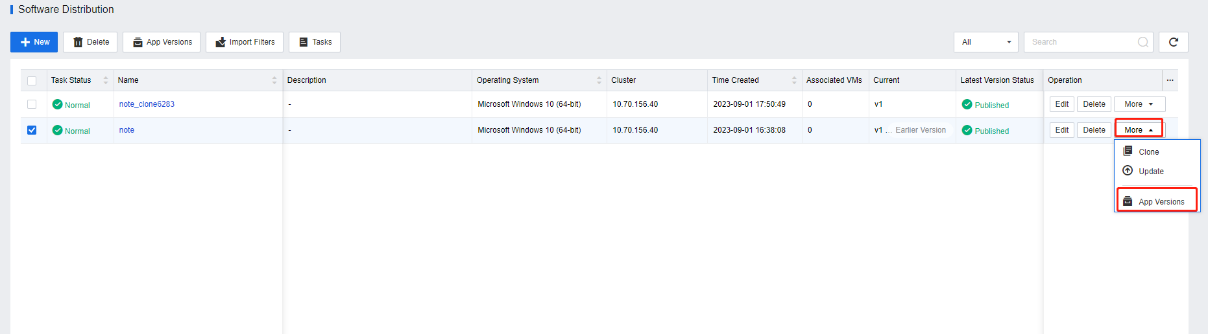
- On the App Versions page, click Enabled corresponding to the target version to switch the app container version. You can click Delete to delete the specified version.
Note:
- After switching the app container version, if the virtual desktop associated with this app container is running, the settings take effect after the virtual desktop restarts.
- Deleted app container versions cannot be restored.
- You can navigate to the Services > Software Distribution > App Versions page to manage all app container versions on VDC.