
【VDI】Temporary Permission Policy Configuration Guide_V5.9.1_R2_EN
Introduction
This feature applies to scenarios where specific permissions are required temporarily to resolve emergent service issues. You can grant temporary permissions to certain users, enabling them to perform read and write operations on USB storage devices and the PC clipboard or to enable file export audits during a defined period. It prevents data leaks resulting from the abuse of permissions, enhancing overall data security while simplifying management.
Prerequisites
N/A.
Precautions
- Check the Virtual Desktop Controller (VDC)’s license validity to determine whether the license has expired.
- One temporary permission can only be granted to one user.
Procedure
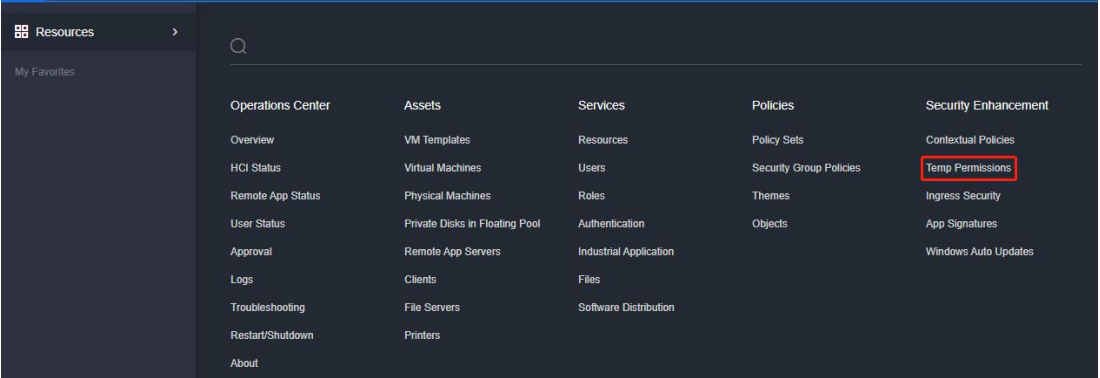
- Log in to the VDC console, go to Security Enhancement > Temp Permissions, then click New.
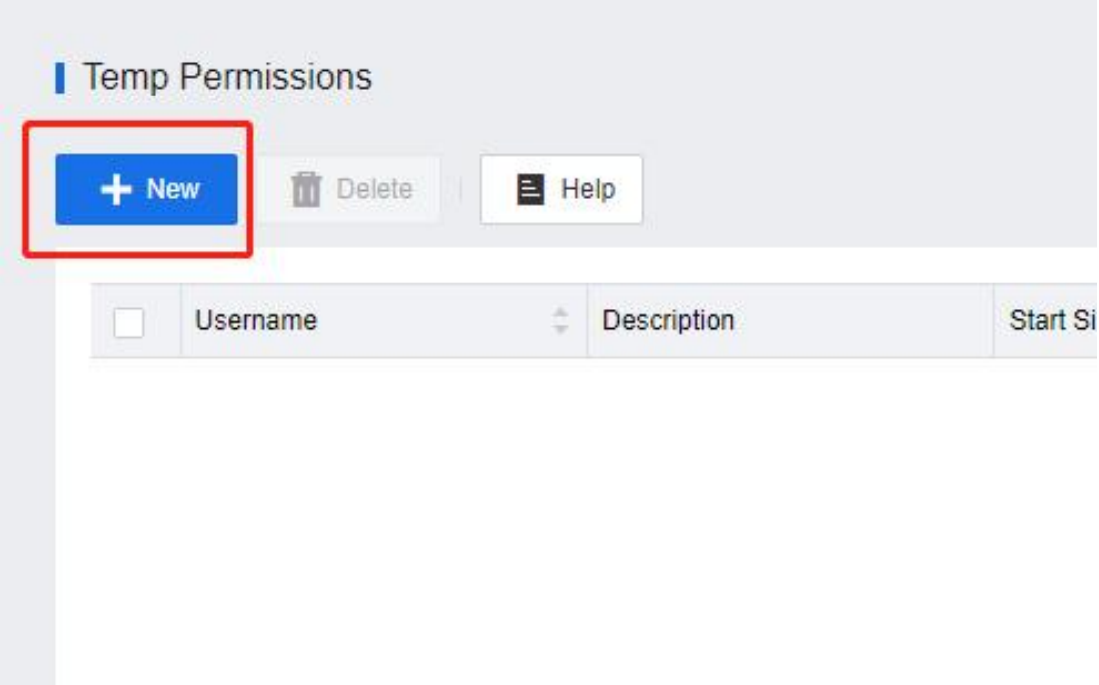
- On the Add New Temp Permission page, specify the required information in the Basics section, including the username, start time, and end time.
Notice:
Usernames that have not been imported from external authentication platforms into VDC need to be entered manually. For AD domain accounts, the usernames must be in lowercase.

- In the Virtual Desktop and Windows App Permissions section, enable the permissions as required, including settings for File Outgoing, USB Device Whitelist, and App Access Control.

- The permissions will be applied after the user logs in to VDI again.