
【VDI】VM Performance Stress Test Guide_V5.9.1
Introduction
This article guides deploying stress test software within a virtual machine to know the stress test result.
Prerequisite
VM OS
- Windows 7
- Windows 10
- Windows 11
VM Configuration
- In this guide, we are using a 4 cores 8 RAM VM.
Stress Test Application
Burnintest(Recommended to install in template VM).
Procedures
Application Installation
- Unzip Burnintest.zip and double-click to execute bitpro.exe.

- Click Next.

- Select I accept the agreement and click Next.

- Click Next.

- Click Next.

- Click Install.

-
Select Launch BurnInTest and click Finish.

-
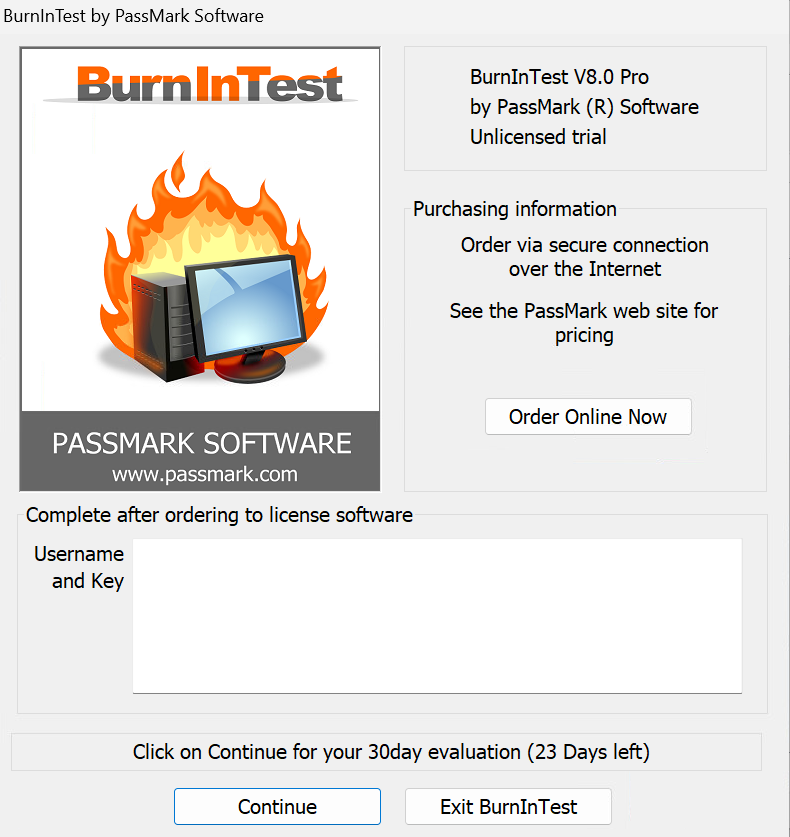
Click Continue for a 30-day evaluation.
Stress Test
-
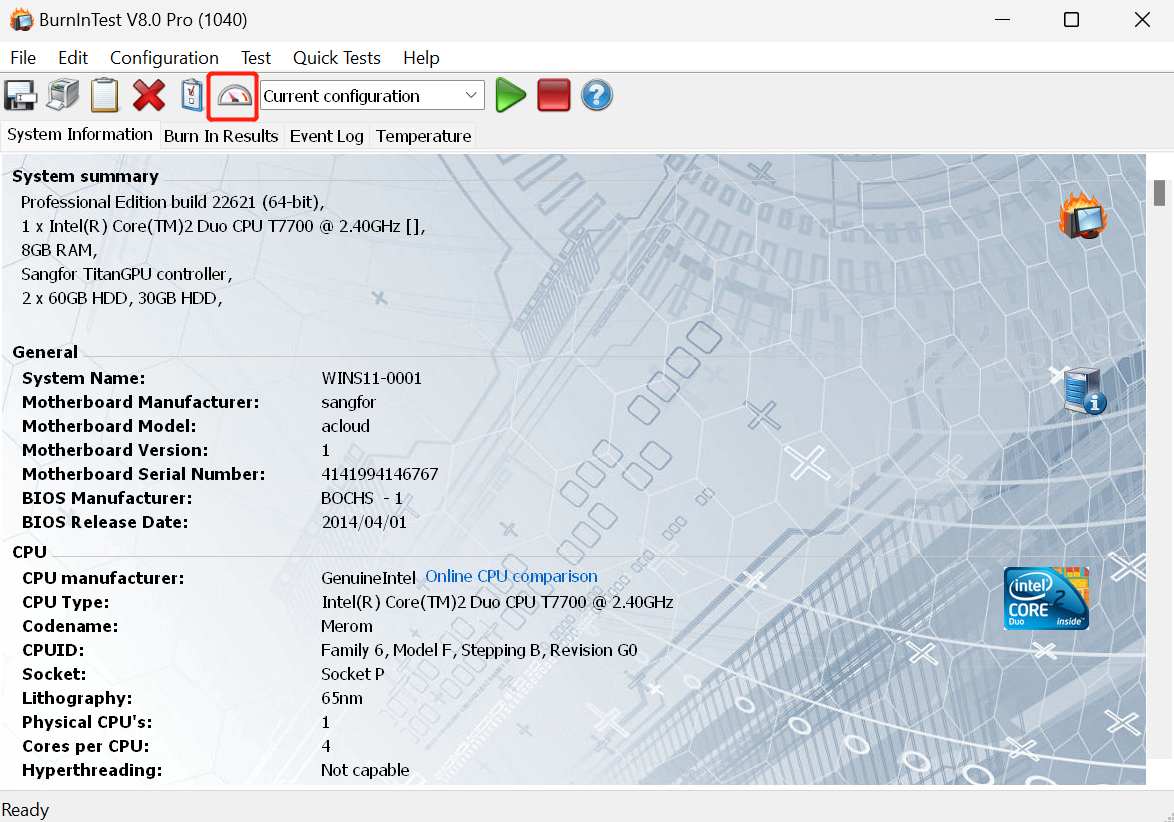
Enter the parameter configuration screen, as shown below.
-
For example, suppose the configuration of the virtual machine is 4C8G. In that case, you can set the parameters as follows: CPU parameters set to 85, RAM parameters set to 45, Disk(s) parameters set to 55, and Auto stop after 1440 minutes. Finally, click OK to save the configuration. You can adjust the parameters according to the actual stress test situation.

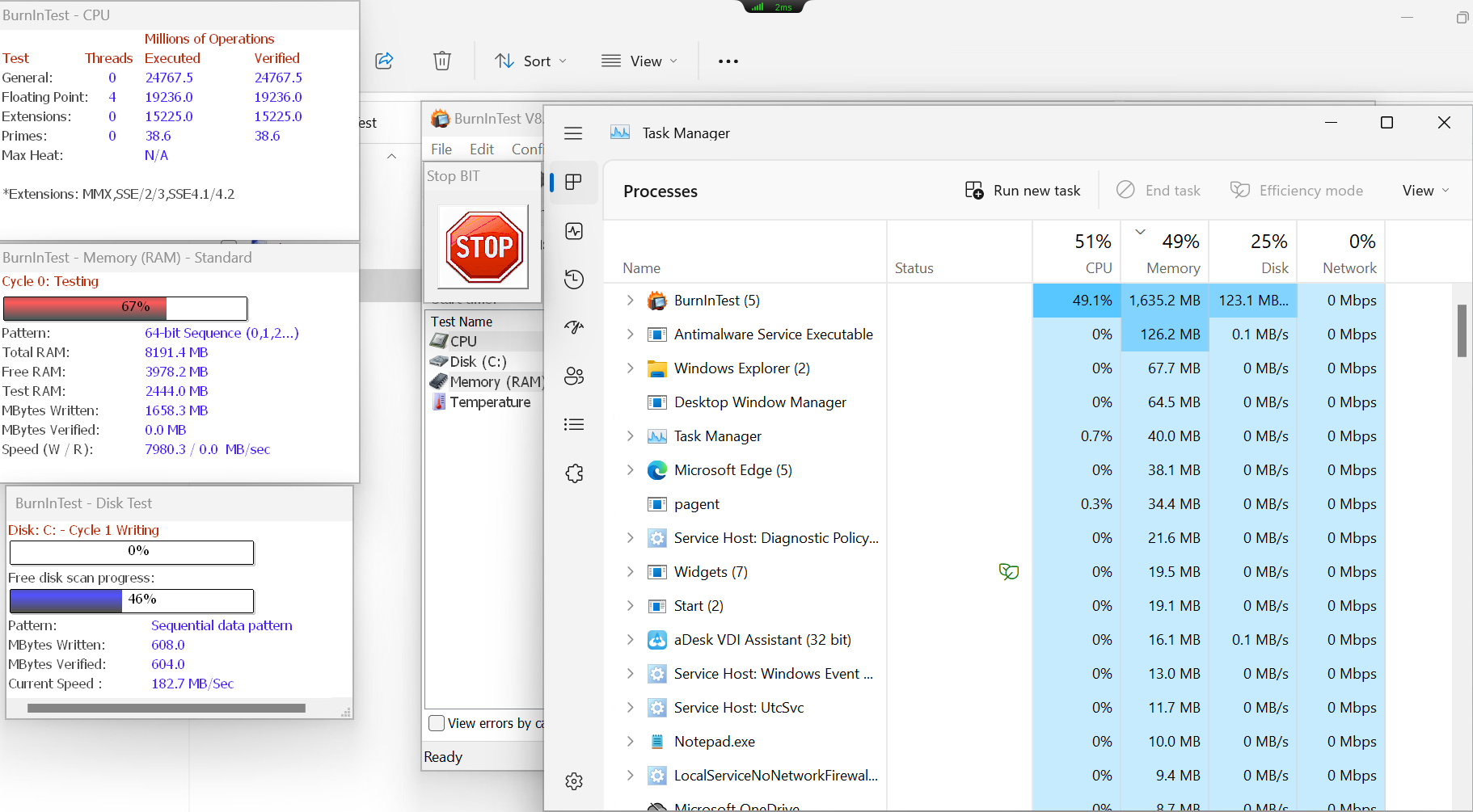
- Click the Start button to begin the stress test.

-
Open Task Manager to see the VM loads.
-
Click the STOP button to stop the test.

- You can save the test configuration by selecting File > Save Test Configuration As….

- You can directly load the exported configuration for testing on other VMs by selecting File > Load Test Configuration…
