
【aDesk】, uninstalling PC integration, Win+L cannot lock the screen
Problem Description
The customer Install PC integration, but after uninstalling the physical machine, the Win+L shortcut key still cannot lock the screen
Warning Information
After Mon PC integration, physical machine still cannot lock the screen using the Win+L shortcut key
Root cause
There are residuals after uninstalling PC integration
solution
Set the value of the Registry HKLM\SOFTWARE\Microsoft\Windows NT\CurrentVersion\Winlogon\DisableLockWorkstation to 0.
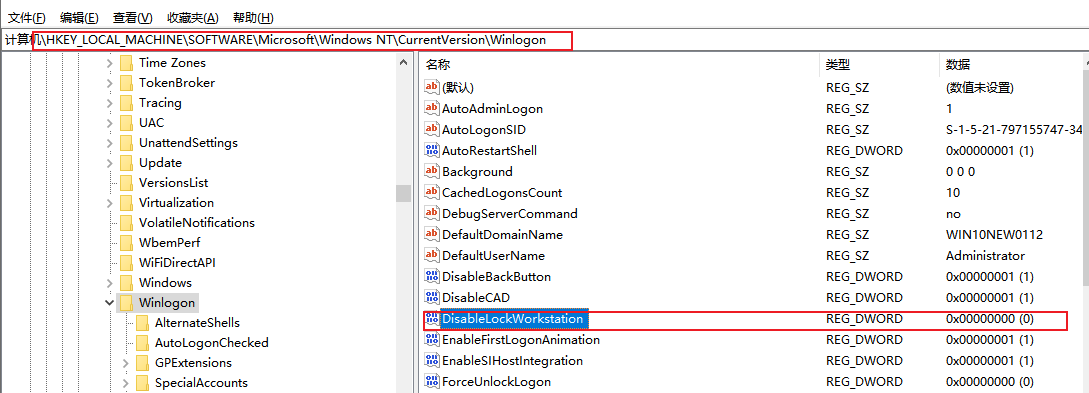
Operation Impacts Applicable To
None
Is Yes temporary solution?
Yes
Suggestions and Conclusion
, Install PC integrated installation is completed, the following operations will be Operation:
Disabled Win+L lock screen:
- HKLM\SOFTWARE\Microsoft\Windows NT\CurrentVersion\Winlogon\DisableLockWorkstation
- (1 to Disabled lock screen, 0 to Enabled lock screen)
Disabled User Switch: - HKLM\SOFTWARE\Microsoft\Windows\CurrentVersion\Policies\System\HideFastUserSwitching
- (1 to Disabled User Switch, 0 to Enabled User Switch)
Disabled the lock screen: - HKLM\SOFTWARE\Microsoft\Windows\CurrentVersion\Authentication\LogonUI\SessionData\AllowLockScreen
- (1 to Enabled lock screen interface, 0 to Disabled lock screen interface)
- HKLM\SOFTWARE\Policies\Microsoft\Windows\Personalization\NoLockScreen
- (1 to Disabled lock screen interface, 0 to Enabled lock screen interface)
Lock screen interface Description:
After starting the Windows system or the system Unused Mon period Time, you will see the lock screen interface. Click the mouse or activate Mon keyboard. After exiting the lock screen interface, the Log In interface will appear.
Original Link
https://support.sangfor.com.cn/cases/list?product_id=26&type=1&category_id=12751&isOpen=true